Env Lightmap Baker - For Blender Eevee
 amalbubble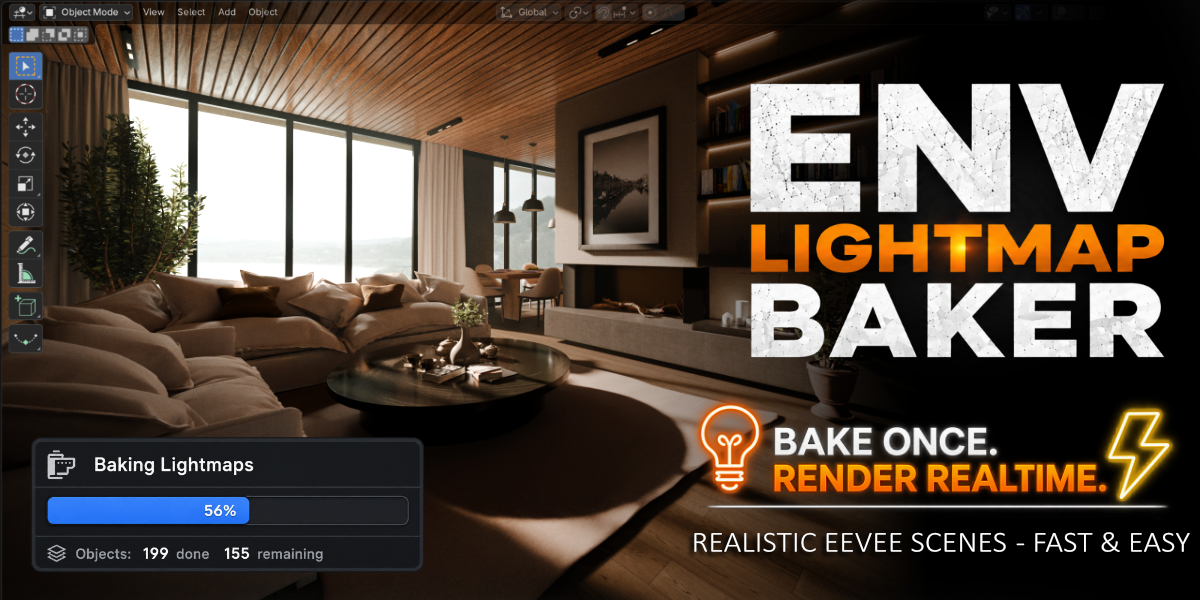


🚀 Quick Installation Guide
- Download the add-on ZIP file.
-
Open Blender:
- Go to Edit > Preferences > Add-ons
- Click Install... (In Blender 4.2+, use Install from Disk from the dropdown menu.)
- Select the downloaded ZIP file.
- Enable the add-on: Tick the checkbox next to "ENV Lightmap Baker".
- In the 3D Viewport, press N to open the Sidebar, then select the ENV Lightmap Baker tab.
📖 Usage Guide
ENV Lightmap Baker uses a simple 5-stage workflow to prepare your scene and bake lightmaps for realistic realtime rendering in Eevee.
Recommended before starting:
-
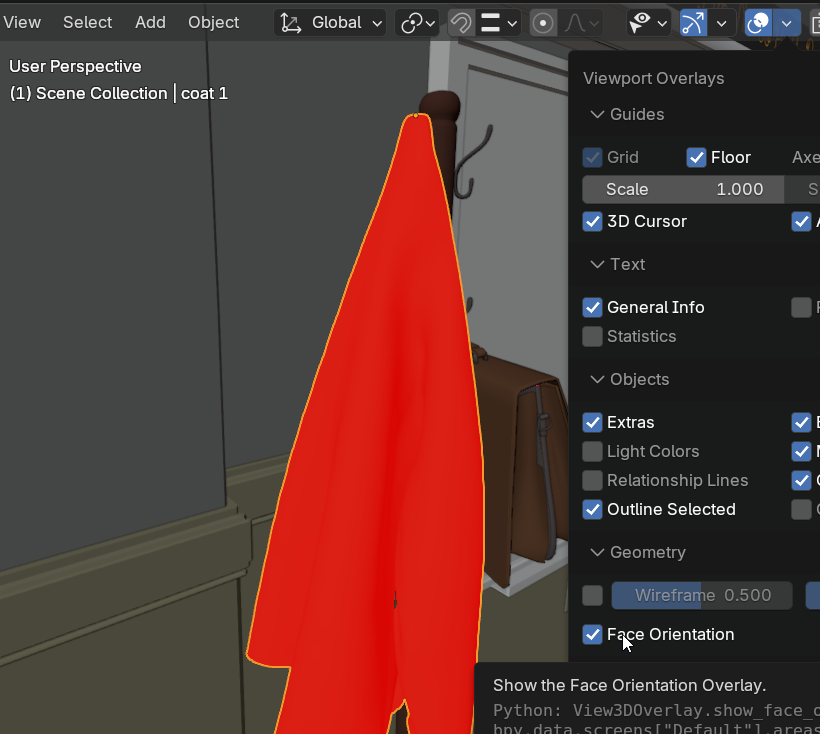
Check Face Orientation of Objects in your scene. Objects with incorrect Face orientation in your scene would give incorrect results after baking and would appear dark.
- Having clean uv unwrapped meshes to start with will give you better bake results and lightmap uvs but is not a must.
- Optimizing polycount, texture calls, node setups and number of objects in your scene will lead to faster baking and also better viewport performance.
- Select only the environment objects you want to bake.
- Keep any objects and lights that you don't want to contribute to the lightmap bake inside a hidden collection.
Important:
The objects and lights that should contribute to the lighting must be visible before clicking "Stage 5: Bake Lightmaps." (Some Objects and Lights can be moved to a Hidden Collection and be made visible again just before baking. This will make them affect the scene lighting but they won't have their lightmaps baked and generated. This allows them to contribute to the final lighting while helping reduce bake times and memory usage, especially in complex scenes.)
📌 Additional Notes
✅ Recommended Workflow
- Select the environment objects you want to bake.
- Run Stage 1 – Lightmap UVs
- Run Stage 2 – Atlas Layout
- Run Stage 3 – Lightmap Baking
- Run Stage 4 – Reflections and Irradiance Baking
-
Run Stage 5 – Eevee Settings
(Fine-tune the Eevee render settings if needed to achieve the best visual results)
🗺️ Stage 1 – Lightmap UVs
Creates a dedicated Lightmap UV for every selected mesh object.
Note: Curves Objects are converted to mesh in this Stage for lightmap UV creation.
Choose the UV generation method that best suits your scene:
- Smart Auto (Recommended) – Automatically chooses the best workflow and attempts to generate overlap-free Lightmap UVs.
- Copy Existing UV – Copies your existing UV layout and repacks it.
- Smart UV Project – Blender's built-in Smart UV Project.
- Cube Projection – Best suited for simple box-shaped objects.
- Lightmap Pack – Blender's built-in Lightmap Pack (only recommended as a last resort ).
If the addon cannot generate overlap-free Lightmap UVs, a UV Overlap Summary panel will list the objects so you can quickly select them, manually unwrap them, and recheck them for overlaps.
📦 Stage 2 – Atlas Layout
This stage prepares your scene for lightmap baking. Collection Instances and Mesh Instances are made real single user mesh objects. Optimized texture atlases based on your selected texel density are prepared.
Configure:
- Texel Density (px/cm) – Controls the lightmap resolution per centimeter of your objects. Increase this value if baked lightmaps appear blurry or pixelated.
- Maximum Atlas Resolution – Sets the maximum atlas texture size used during atlas generation. Larger atlases will only be created if required and if the strict resolution cap is disabled.
- Strict Atlas Resolution Cap – Prevents objects from exceeding the selected maximum atlas resolution, even if a higher resolution would better match the chosen texel density.
The addon automatically:
- Calculates object surface area
- Assigns appropriate tile sizes
- Creates one or more texture atlases
- Places every object's Lightmap UV into its atlas
After completion, the Atlas Summary panel displays all generated atlases along with additional information.
🧾 Atlas Summary Panel
After building the atlas layout in Stage 2, the Atlas Summary panel displays a detailed overview of every generated lightmap atlas.
Use this panel to inspect your atlas layout before baking and quickly identify which objects belong to each atlas.
Features
- 📊 View the total number of generated atlases.
- 📏 See each atlas resolution and tile size.
- 🧩 View the grid layout used for each atlas.
- 📦 Check how many objects are assigned to each atlas.
- 📋 Display list of objects contained in every atlas.
- 👆 Select all objects belonging to a specific atlas with a single click.
- 🎯 Bake an individual atlas without rebaking the entire scene.
- ⚠️ Identify oversized objects that require a dedicated atlas.
This panel makes it easy to inspect, manage and rebake specific atlases, helping you optimize large scenes and speed up iteration during the lighting workflow.
💡 Stage 3 – Lightmap Baking
Creates Lightmap textures and Bakes them using Cycles. Lightmaps are automatically applied to the materials after baking.
Configure:
- Bake Samples – Higher values produce cleaner lightmaps with less noise but increase bake time. Increase this value if the baked result appears noisy.
- Diffuse Bounces – Higher values produce more realistic indirect lighting but increase bake time. Beyond 6–12 bounces, the visual improvement becomes minimal while bake times continue to increase.
- Bake Indirect Lighting Only – bakes only indirect lighting while preserving dynamic direct lighting and shadows from your scene lights.This allows dynamic objects, animated characters, and moving lights continue interacting naturally with the scene and cast shadows using shadow maps.
- Denoise Bake Result – denoises the baked lightmaps but sometimes can give blurry result
Then click Stage 3 – Bake Lightmaps to Materials
🌍 Stage 4 – Reflections and Irradiance Baking
Creates the light probes required for Eevee based on your current object selection.
Tip: If the lighting appears inconsistent, try adjusting your object selection before running Stage 6. You can also manually move or scale the generated light probes, or manually add/remove and rebake the indirect lighting to further improve the results.
The addon automatically generates:
- Irradiance Volumes
- Reflection Cubemaps
Adjust the Probe Grid Size to control probe density.
After creating the probes, click Bake Indirect Lighting to bake the Eevee indirect lighting cache.
⚡ Stage 7 – Eevee Settings
Automatically configures Eevee for high-quality realtime rendering.
This stage applies recommended Eevee settings, including:
- Shadows
- Screen-space Ray Tracing
- Denoising
- Fast GI
- Transparent Shadows
- Material settings for Individually for Glass, Alpha Cards
🧪 Bake Indirect Lighting Only
Enable Bake Indirect Lighting Only inside Stage 3 – Lightmap Baking to bake only Indirect lighting while preserving dynamic direct lighting and shadows from your scene lights.This allows static environments to use baked global illumination while dynamic objects, animated characters, and moving lights continue interacting naturally with the scene. Shadow resolution is also improved using this method and this can work well for outdoor scenes.
Have questions about this product?
Login to message
| Blender Extension Compatible | Yes |
| Sales | 10+ |
| Dev Fund Contributor | |
| Published | about 2 months ago |
| Blender Version | 5.0 - 5.2 |
| Extension Type | Add-on |
| Render Engine Used | Blender-Game-Engine, Cycles, Eevee |
| License | GPL |