 one99addons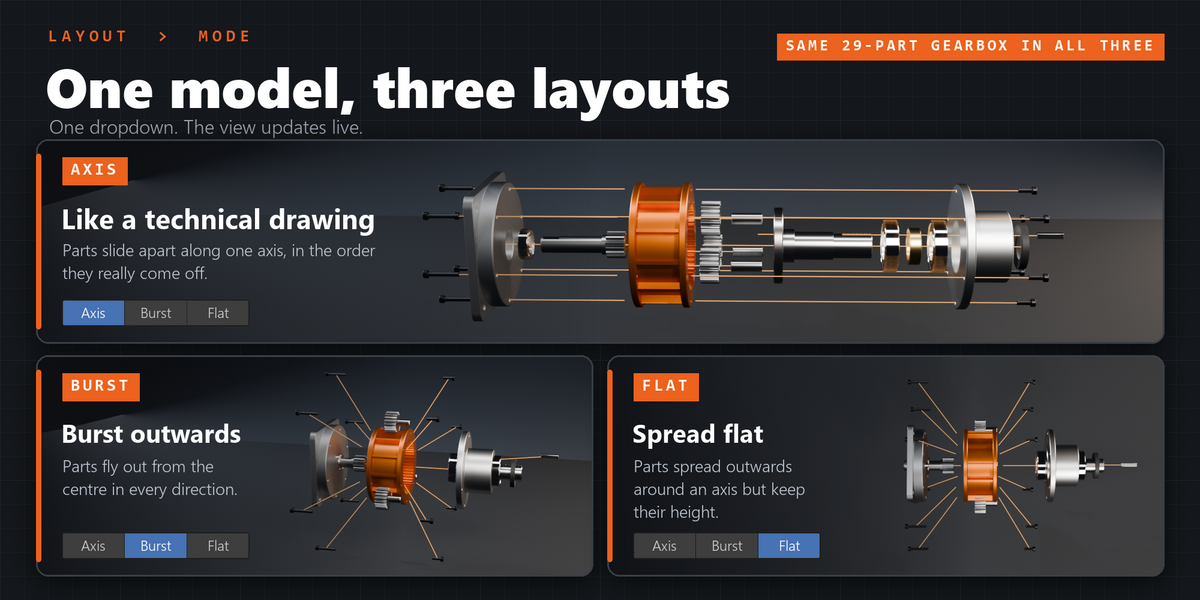
💥 ExplodeKit
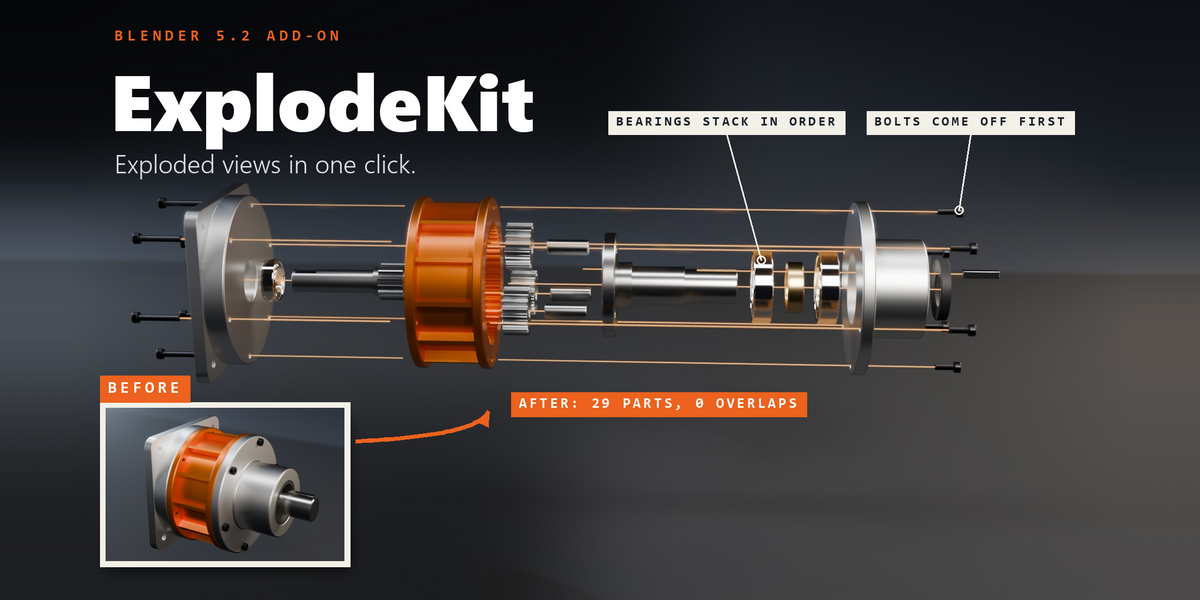
Exploded views in one click: every part slides out in the order it really comes apart.
Select the parts of a model and press Explode Selected. ExplodeKit lays them out as a clean exploded view where nothing overlaps and bolts end up outside the covers they hold. Drag one slider to preview it, or press Animate for real keyframes.
The problem
Exploded views look great in product shots, manuals and portfolios, but making one by hand is slow: split the model, move every part out, guess the spacing so nothing overlaps, keyframe each part and offset the keys for a nice cascade. Then start again when you want a bit more space. Quick tricks either throw parts in random directions or leave bolts floating between the parts they hold together.
What it does
- One-click layout. Explode Selected picks the longest axis of the model, keeps the biggest part still and slides the rest out along that axis.
- Real removal order. It casts rays along the axis to see which part would bump into which. A bolt sitting on a cover goes further out than the cover, and a ring of bolts rises level instead of stacking in a long line.
- Live slider. Explode goes from 0 (assembled) to 1 (exploded) right in the viewport. Every setting updates the view at once.
- Real keyframes. Animate writes normal keyframes with stagger and 6 motion styles (Blender's own easing types). Change a setting later and the keys update by themselves. The add-on is not needed to render the file.
- Split into Parts. One big mesh? Cut it into parts by loose piece or by material, with each origin centred. A hidden copy of the original is kept.
- Guide lines. Thin lines from where each part started to where it is, like a service manual. They follow the slider and the animation, and they render.
A real example
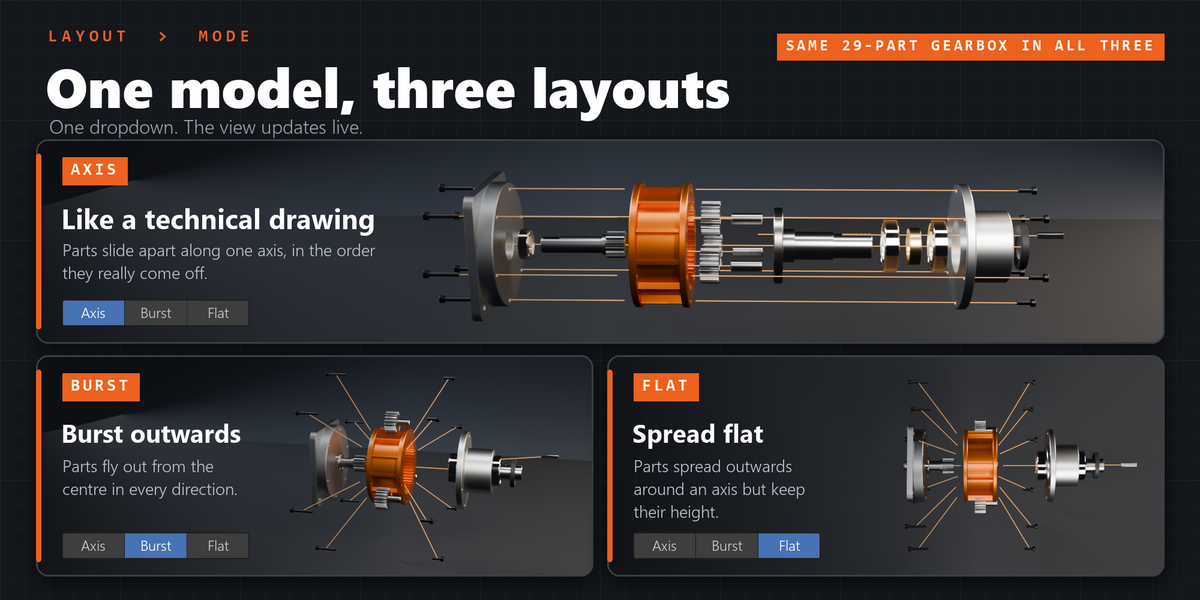
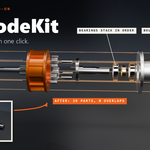
Our planetary gearbox showcase has 29 parts and 59,102 vertices: housing, gears, bearings, shafts and 12 socket-head bolts. Measured with the release version in Blender 5.2:
- Explode Selected: about 2 seconds, removal order included.
- Changing the Gap afterwards: about 7 ms per update.
- Animate (Explode + Assemble, Overshoot): 0.15 s to key all 29 parts.
- Add Guide Lines: 28 lines in under 0.01 s.
Settings
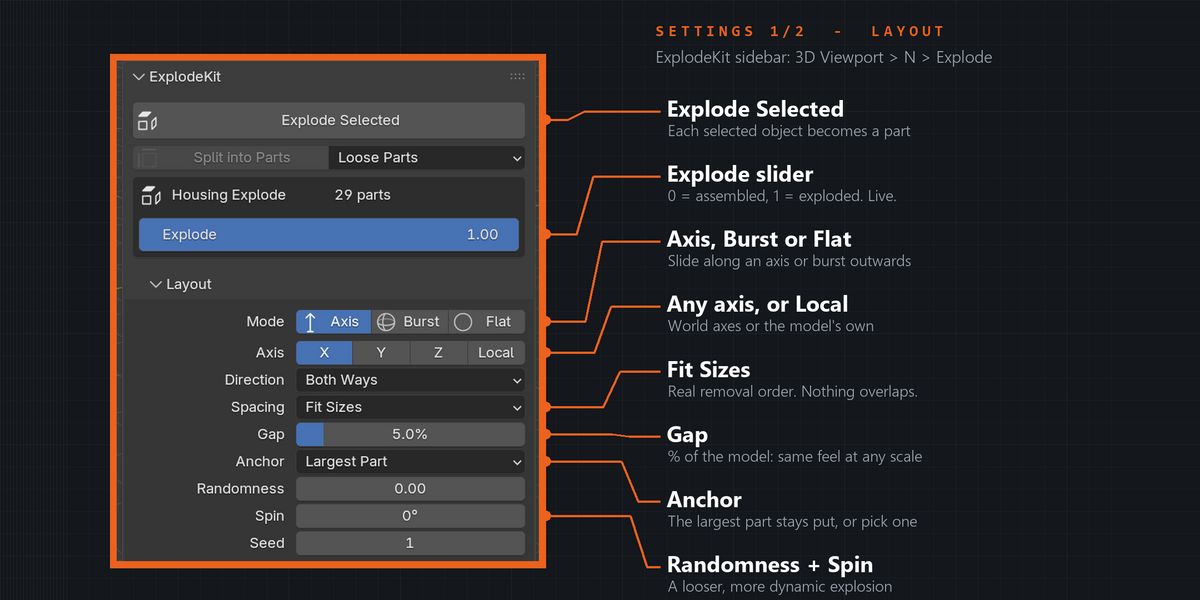
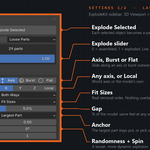
Everything is in 3D Viewport > Sidebar (N) > Explode tab. Explode Selected is also in Object > Animation.
- Mode: Axis (slide along one axis), Burst (fly out in every direction) or Flat (spread around an axis, keep their height).
- Axis X / Y / Z + Local: Local uses the axes of the object that was active when you pressed Explode.
- Direction (Axis mode): Both Ways, + Only or - Only.
- Spacing: Fit Sizes (stack by real size with an even Gap, nothing overlaps), Scale Out or Same Distance.
- Gap / Distance: a percentage of the model's size (defaults 5% and 50%), so the same numbers work on a watch or a building.
- Anchor: Largest Part, Active Object or Nothing.
- Randomness / Spin / Seed: vary how far parts travel, let them tumble while they fly, try another random variation.
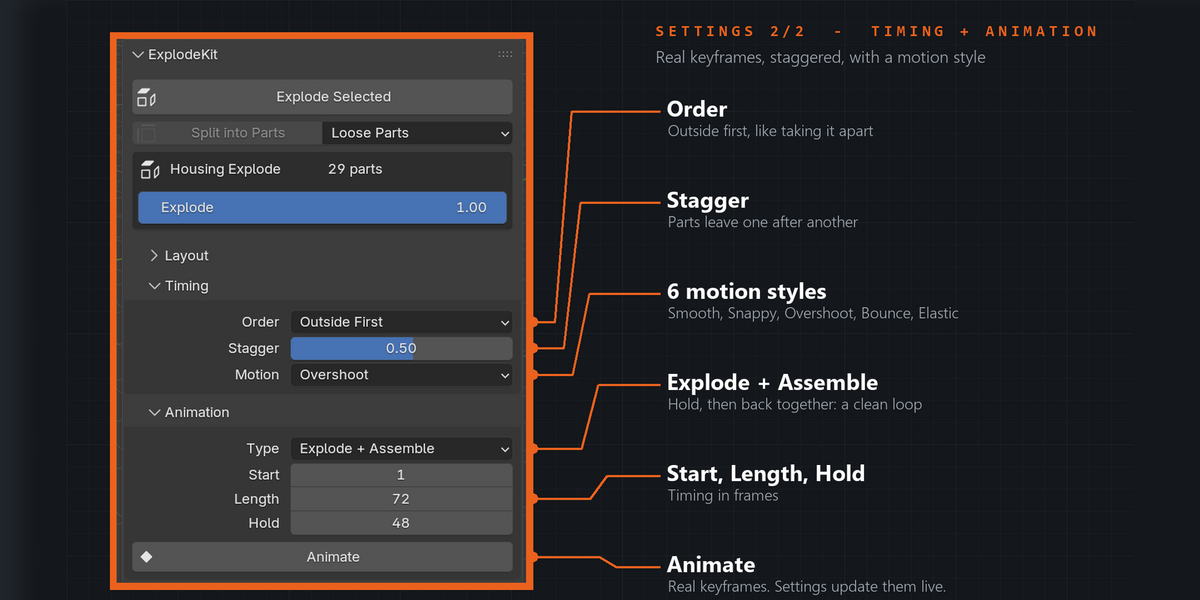
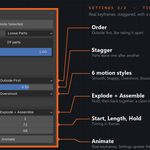
- Order: Outside First, Inside First, Along Axis, Random or All Together.
- Stagger: 0 = all at once, higher = one after another.
- Motion: Smooth, Linear, Snappy, Overshoot, Bounce or Elastic.
- Animation: Explode, Assemble, or Explode + Assemble. Start, Length (default 72 frames) and Hold (default 48 frames).
- Extras: Guide Lines (thickness and colour), Keep My Moves, Reset Hand Moves, Select Parts, Remove Exploded View.
Good to know
- You can have several exploded views in one scene. A list appears when you have more than one.
- Children of a selected object move with it. An empty that only groups the parts is skipped, so Select All on an imported model just works. Cameras and lights are ignored.
- Parts that already have their own location or rotation animation are skipped with a message, so your animation is never overwritten.
- Remove Exploded View puts every part back exactly where it was and deletes the keyframes and lines.
- The release code passes 61 automatic checks, for example: no parts intersect after a Fit Sizes explode, keyframes match the live preview, Remove restores exactly, and the view survives save and reload.
Tips
- CAD imports (STEP, OBJ, FBX) usually come as one object per part: select all and explode. One big mesh? Press Split into Parts first.
- Wrong part stays still? Set Anchor to Active Object and make that part active.
- Rotated model? Make the main part active and turn on Local.
- Overshoot with Stagger around 0.5 gives a lively pop. Smooth looks calmer for technical shots.
- Want one part somewhere special? Set Explode to 1, move the part, press Keep My Moves.
- Explode + Assemble with a Hold makes a clean loop for turntables and social posts.
Requirements and install
Blender 5.2 or newer (tested on 5.2.1 LTS, Windows). Works with Cycles and EEVEE. No internet, no external libraries.
- Download explodekit_v1.0.0.zip (do not unzip it).
- In Blender: Edit > Preferences > Add-ons, open the drop-down arrow at the top right, choose Install from Disk... and pick the zip.
- Tick ExplodeKit. That's it.
Limits
One exploded view moves parts along one axis, or outwards. A model that comes apart in two directions needs two exploded views with different parts in each. The removal order comes from the shape of the parts: when parts are modelled overlapping each other, it falls back to "whatever reaches further out goes further out" (Keep My Moves fixes any part). A part can belong to only one exploded view. Split into Parts refuses meshes with shape keys and leaves origins alone on meshes with modifiers.
Made by one99addons.