ExplodeKit
 one99addons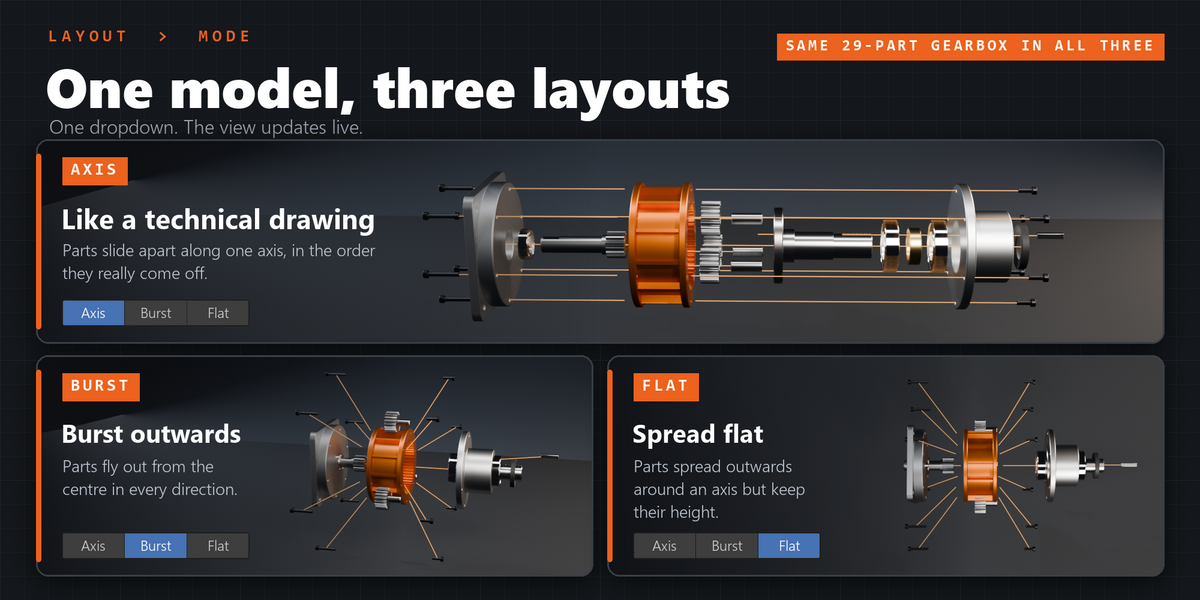
ExplodeKit - Documentation
1. Install
- Download explodekit_v1.0.0.zip. Do not unzip it.
- In Blender: Edit > Preferences > Add-ons, click the drop-down arrow at the top right and choose Install from Disk...
- Pick explodekit_v1.0.0.zip and tick "ExplodeKit" in the list.
- If Auto-Save Preferences is off, click Save Preferences (bottom left).
2. Where to find it
- 3D Viewport > Sidebar (press N) > Explode tab.
- Explode Selected is also in 3D Viewport > Object > Animation.
3. How to use it
- In Object Mode, select the parts of your model (two or more objects). Each selected object is one part.
- Only one mesh? Pick Loose Parts or Material next to Split into Parts and press it first.
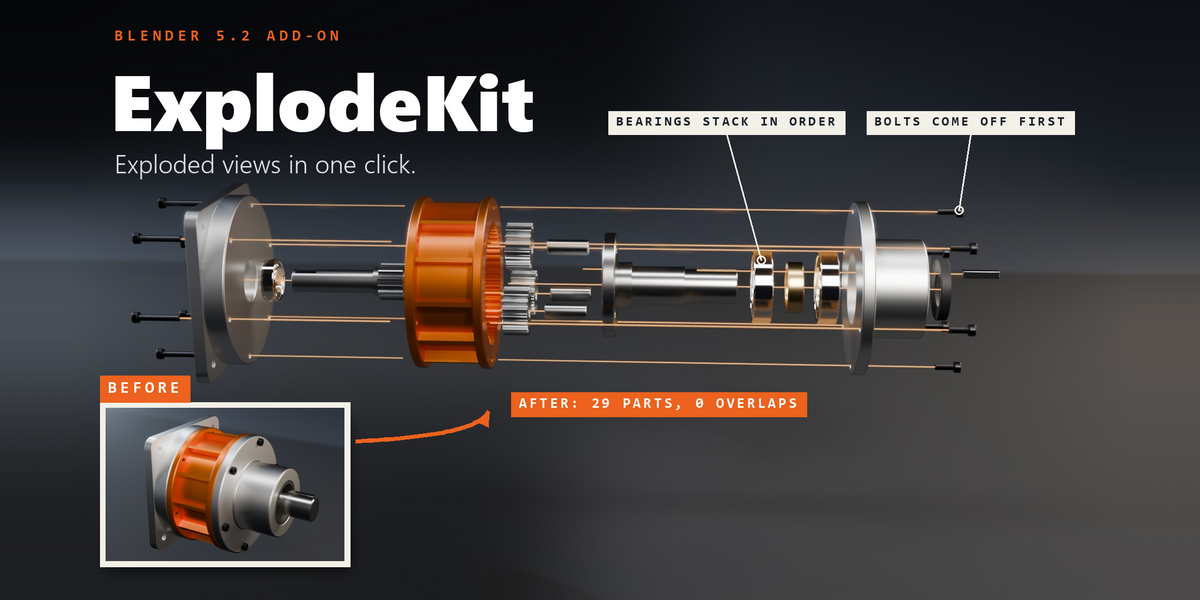
- Press Explode Selected. The parts slide apart along the longest axis of the model.
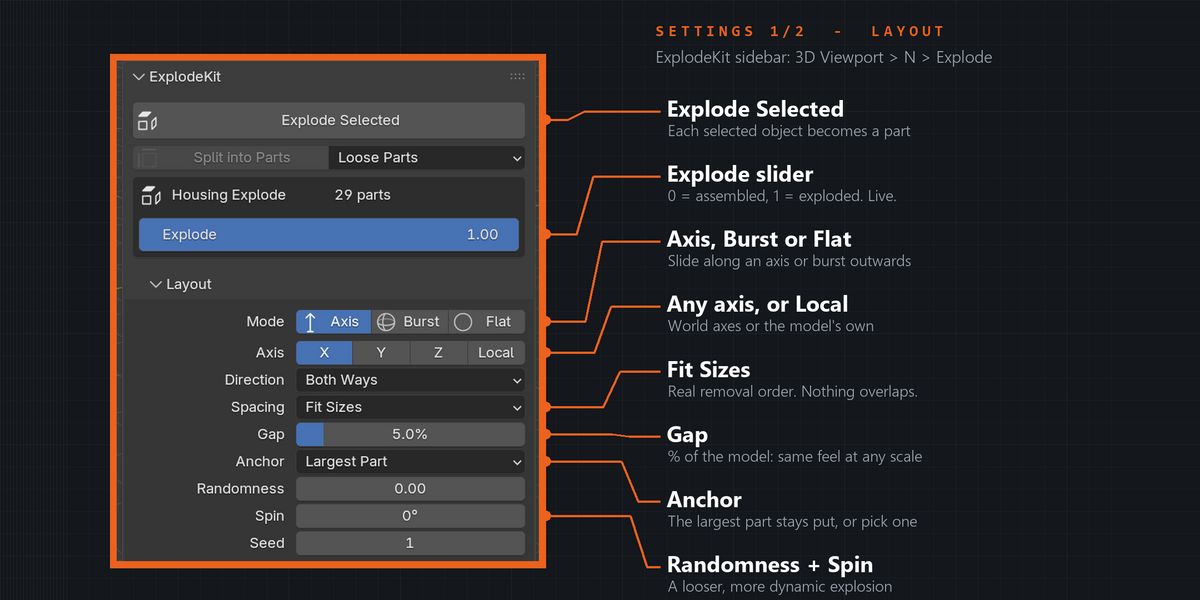
- Drag the Explode slider: 0 = assembled, 1 = exploded.
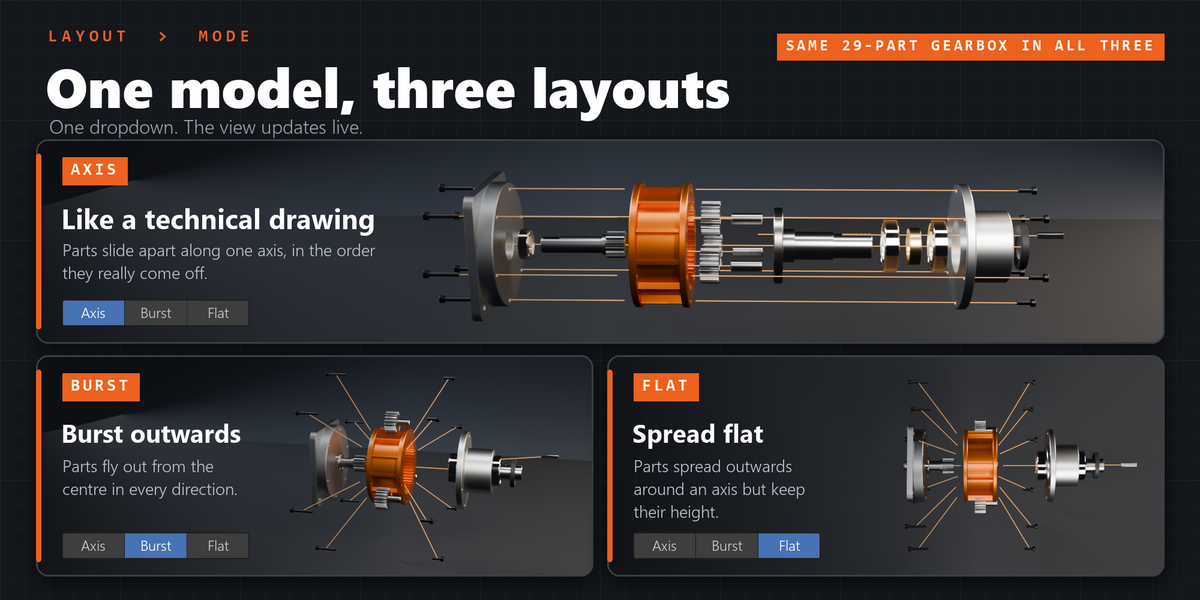
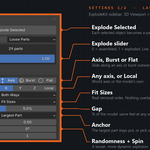
- Change Mode, Axis, Spacing, Gap and Anchor in the Layout panel. The view updates right away.
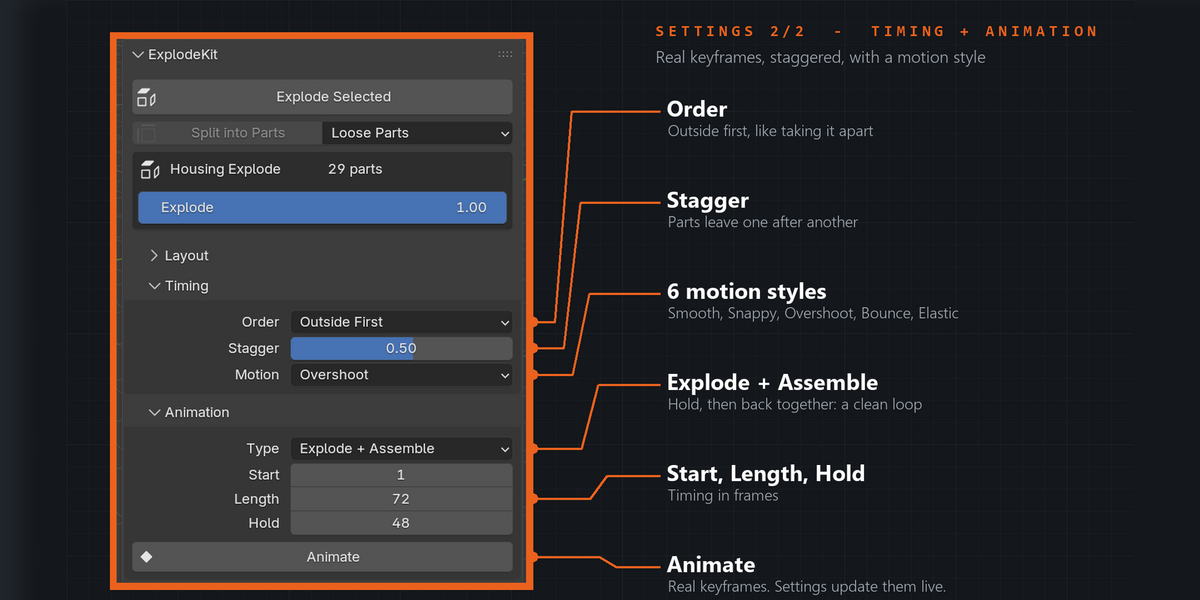
- Set Order, Stagger and Motion in Timing, pick the Animation type and frames, then press Animate.
- Scrub the timeline to preview. Changing any setting now updates the keyframes. The X next to Update Keyframes removes them.
- Extras (closed by default): Add Guide Lines, Keep My Moves, Select Parts, Remove Exploded View.
4. Settings
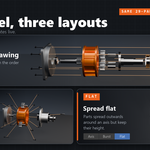
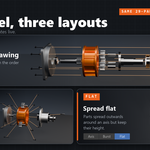
- Mode: Axis, Burst or Flat.
- Axis X / Y / Z, Local: use the axes of the object that was active when you pressed Explode.
- Direction (Axis mode): Both Ways, + Only, - Only.
- Spacing (Axis mode): Fit Sizes, Scale Out, Same Distance. Burst and Flat: Scale Out or Same Distance.
- Gap (Fit Sizes, default 5%) and Distance (default 50%): percentages of the whole model's size.
- Anchor: Largest Part (default), Active Object, Nothing.
- Randomness, Spin, Seed: vary the travel, tumble parts while they fly, another random variation.
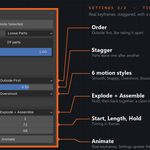
- Order: Outside First (default), Inside First, Along Axis, Random, All Together.
- Stagger: 0 = all at once, up to 0.9 = one after another (default 0.5).
- Motion: Smooth, Linear, Snappy, Overshoot, Bounce, Elastic.
- Animation Type: Explode, Assemble, Explode + Assemble. Start (default 1), Length (default 72), Hold (default 48).
- Guide Lines: Thickness and Colour.
5. Troubleshooting
- "Select at least two objects to explode": select two or more objects, or press Split into Parts on a single mesh first.
- Explode Selected greyed out? You must be in Object Mode with something selected.
- Some parts were skipped? They are already in another exploded view, or they have their own location/rotation animation. The message at the bottom tells you which.
- The wrong part stays still? Change Anchor to Active Object or Nothing.
- Parts slide the wrong way on a rotated model? Remove the view, make the main part active, explode again and turn on Local.
- Keep My Moves greyed out? Set Explode to 1 and remove the keyframes first.
- Explode Selected takes a couple of seconds on big models: it checks how the parts fit together. After that the sliders are instant.
- Hand-edited keyframes were replaced? Animate and every setting change rewrite the ExplodeKit keys. Do your Graph Editor tweaks last.
- Need to move the whole model? Do it before Explode, or Remove Exploded View, move it and explode again.
- Install error? Make sure you picked the .zip itself, not an unzipped folder, and that you are on Blender 5.2 or newer.
6. Updating
- Download the new zip from your Superhive library, uninstall the old version in Edit > Preferences > Add-ons, restart Blender, then install the new zip.
7. Uninstall
- Edit > Preferences > Add-ons, expand ExplodeKit and choose Uninstall. Keyframes and guide lines you already made are normal Blender data and keep working. Use Remove Exploded View first if you want the parts back in place.
Support
- Have a question, a bug or an idea for a new feature? Mail me at [email protected]. Please include your Blender version and operating system.
Have questions about this product?
Login to message
| Published | 5 days ago |
| Blender Version | 5.2 |
| Extension Type | N/A |
| Render Engine Used | Cycles, Eevee |
| License | GPL |
Discover more products like this
keyframes disassembly guide lines technical animation mechanical product animation exploded view motion graphics explode assembly