Fbx Peek
 XYZ Store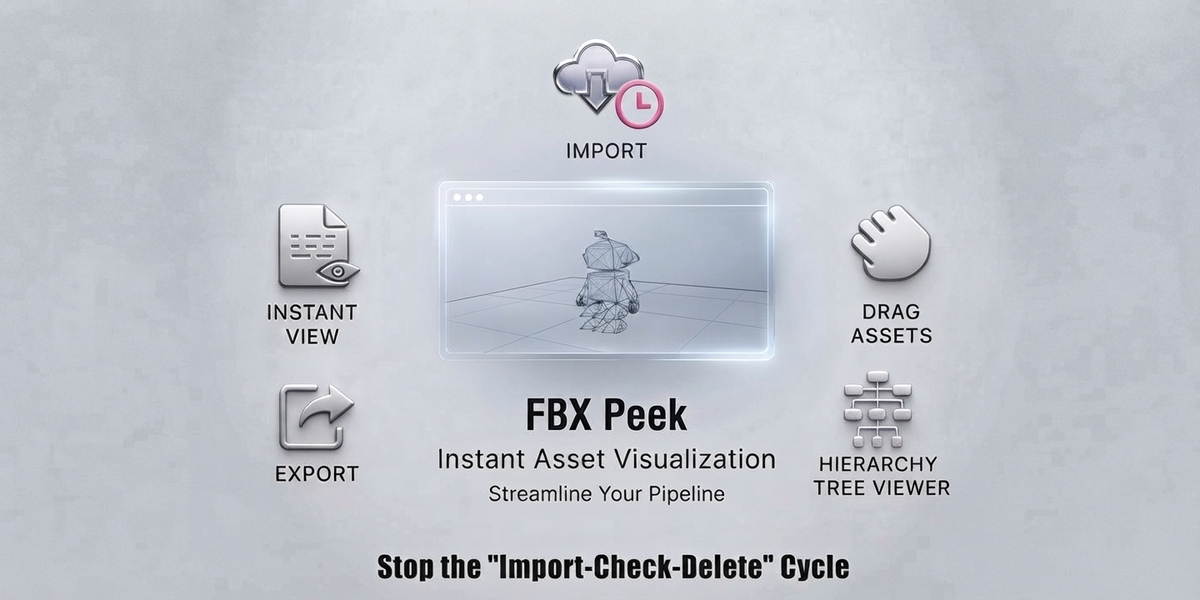



Can I change the placement of an object after I import it?
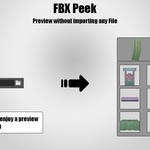
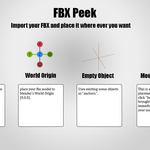
Yes. If you use the "Mouse Raycast" mode, you can see exactly where it will land before you click. Once placed, it is a standard Blender object that you can move, rotate, and scale normally.
What happens if I update one of my FBX files in another program?
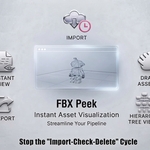
FBX Peek automatically checks the "last modified" date of your files. If it detects that a file has changed, it will silently update the thumbnail for you so your preview is always up to date.
Does it support very large FBX files?
Yes. Because FBX Peek clears its memory immediately after rendering a thumbnail, it can handle large files without causing Blender to crash or run out of memory.
Will it show my materials and textures in the preview icon?
The preview icons use a professional "Matcap" shading style. This is designed to show the shape, silhouette, and details of the model clearly regardless of lighting. Once you import the file, all original materials, textures, and shaders will be fully intact.
Where are the thumbnail images stored?
Thumbnails are stored in a dedicated folder in your system's temporary directory (%TEMP%/blender_fbx_cache). This keeps your project folders clean and ensures that previews don't take up permanent space in your work folders.
Does FBX Peek slow down Blender while it is generating thumbnails?
No. FBX Peek uses a background processing system. It renders previews in a secondary hidden scene, allowing you to continue modeling or animating in your main scene without lag or interruption.
$10
Have questions about this product?
Login to message
| Blender Extension Compatible | Yes |
| Published | 5 months ago |
| Blender Version | 4.2 - 5.1 |
| Extension Type | Add-on |
| Render Engine Used | Arnold, Blender-Internal, Blender-Game-Engine, Cycles, Eevee, Freestyle, Luxrender, Mental-Ray, Octane, Vray, Yafaray |
| License | GPL |
Discover more products like this
asset library FBX Preview Asset Manager fbx Instant Preview 3D File Browser Fast Import drag and drop