Fenestra: Procedural Window Generator
 Outer Reach Productions
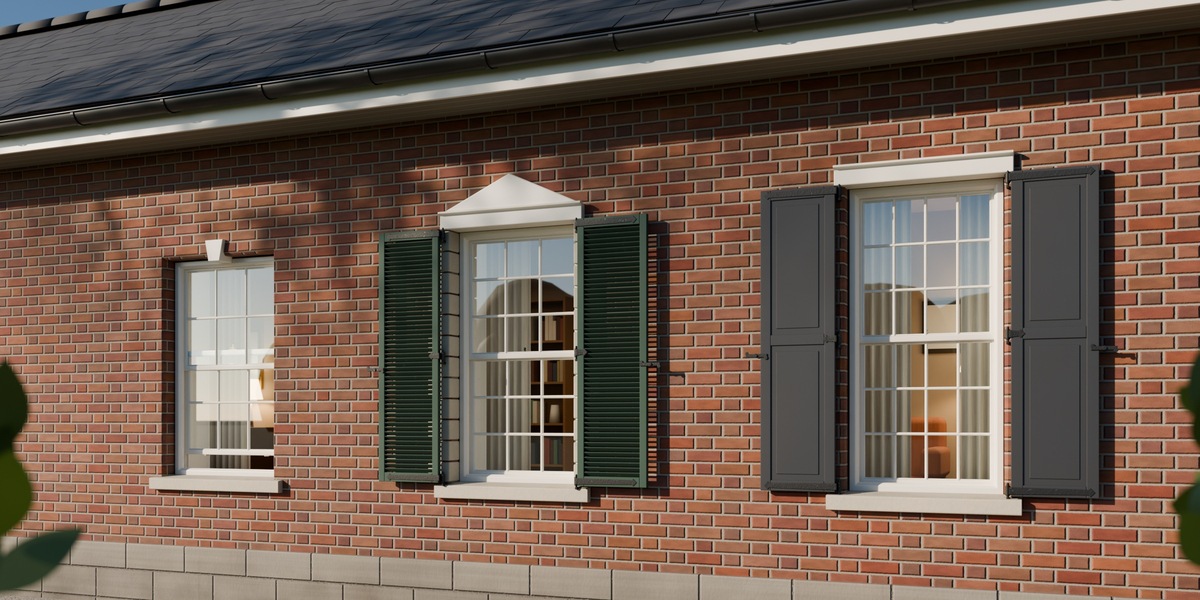
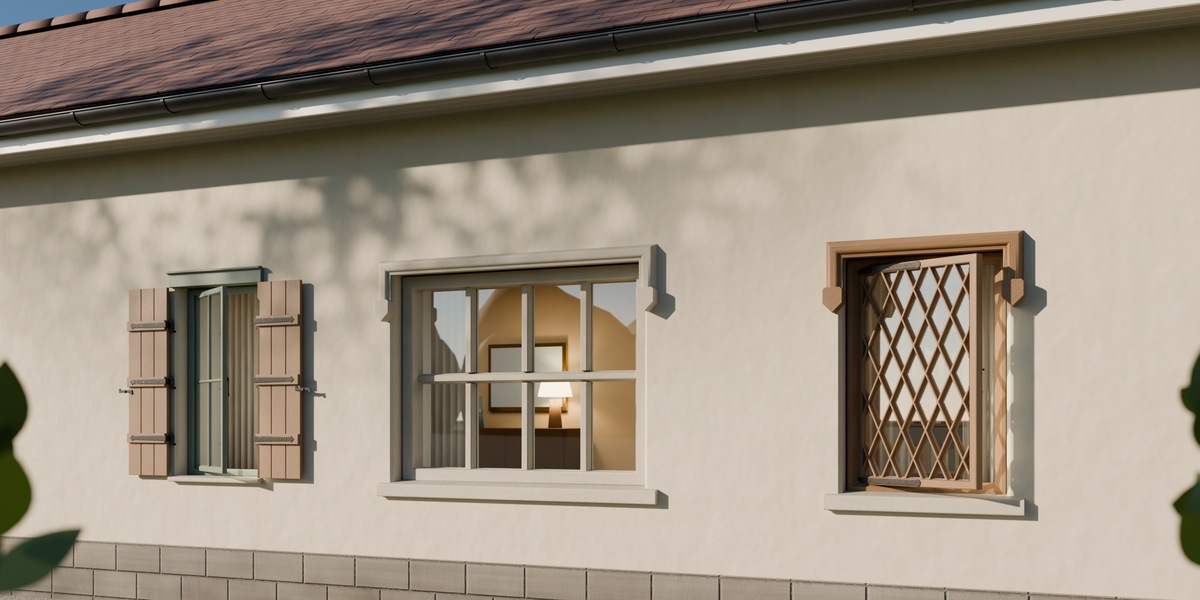
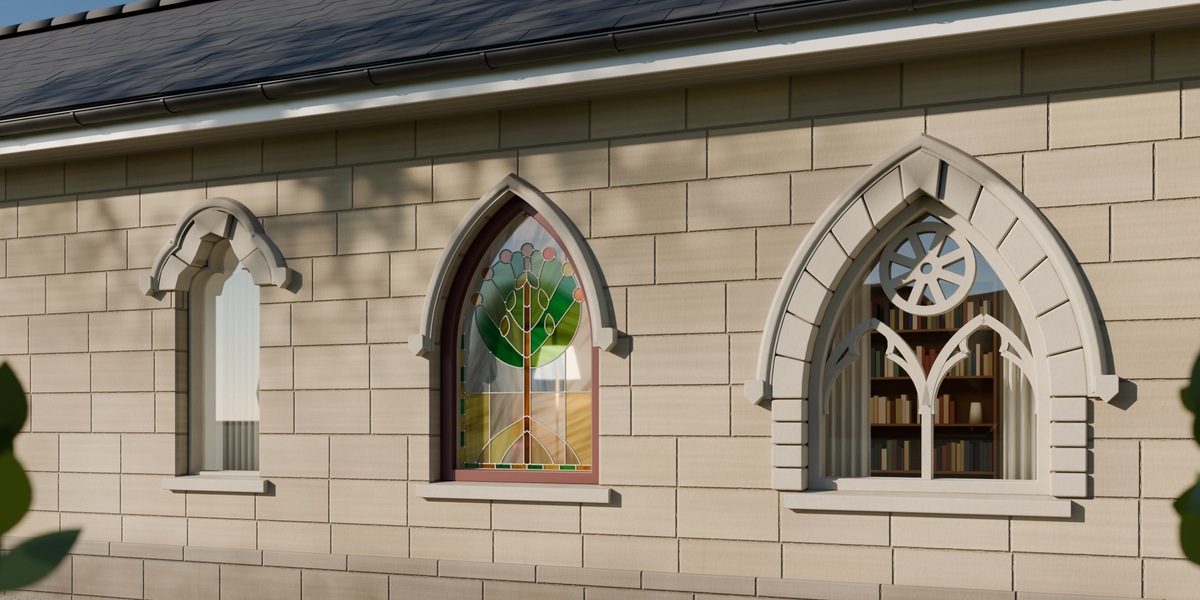
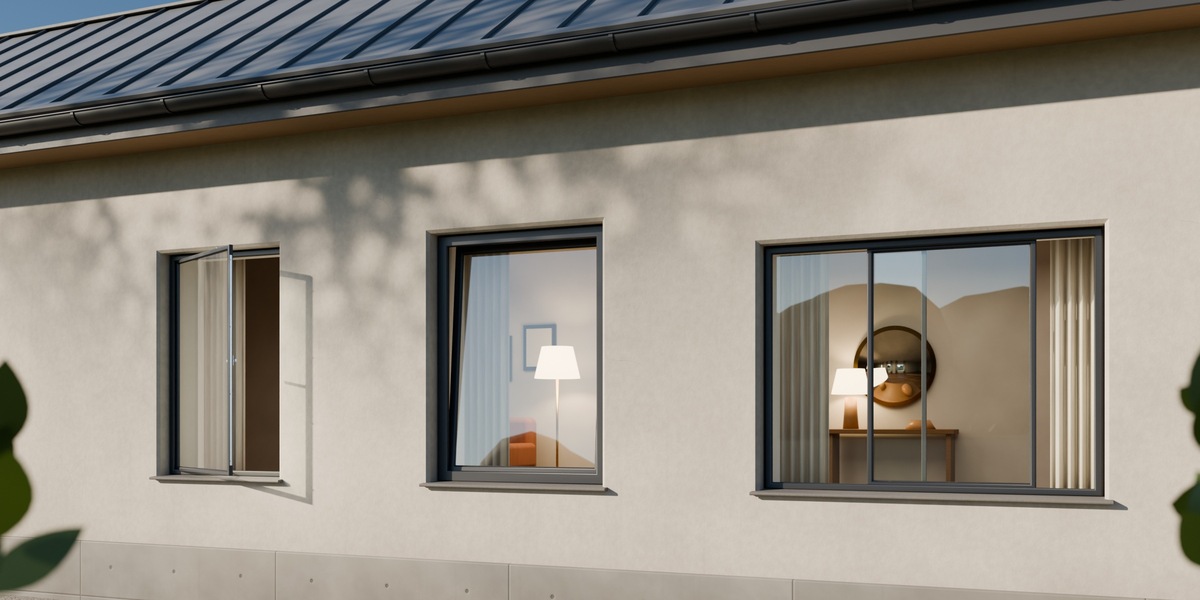
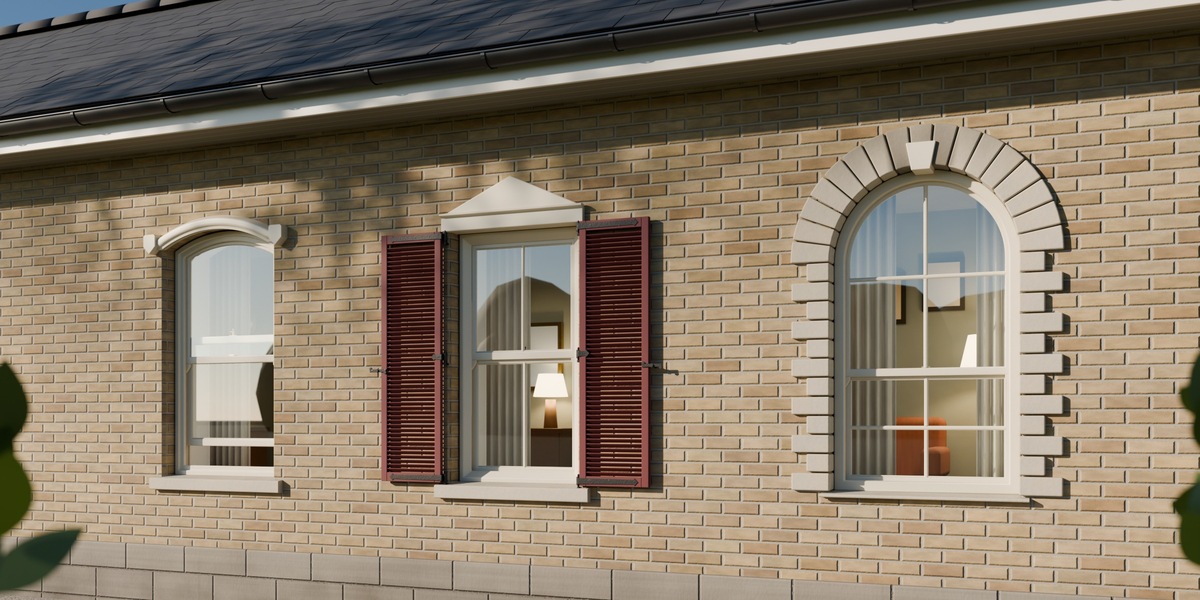
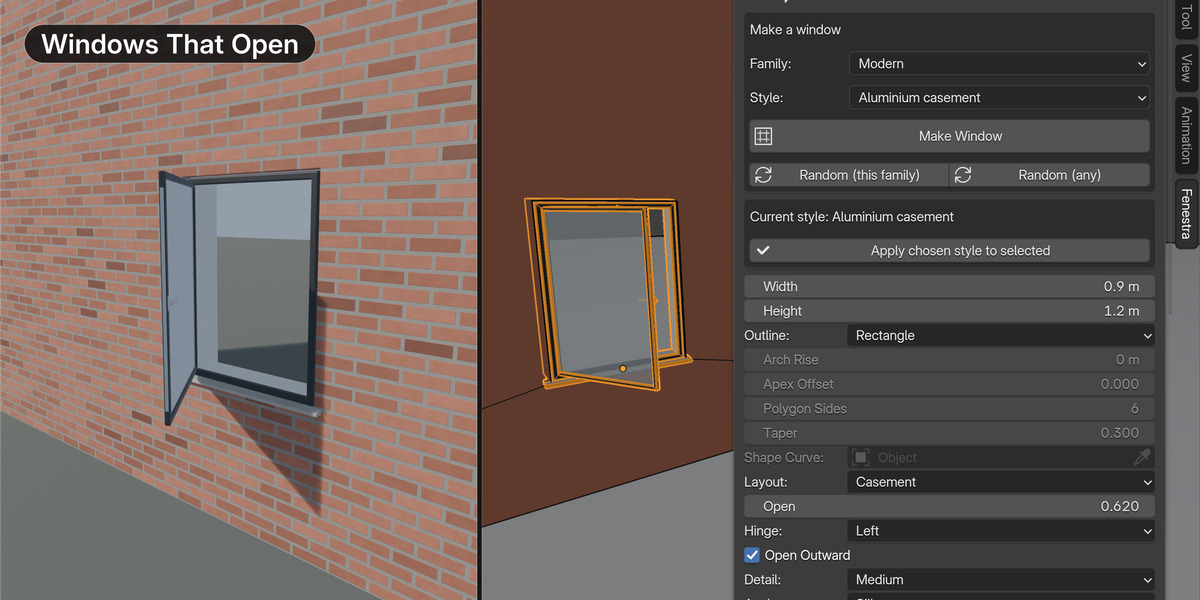
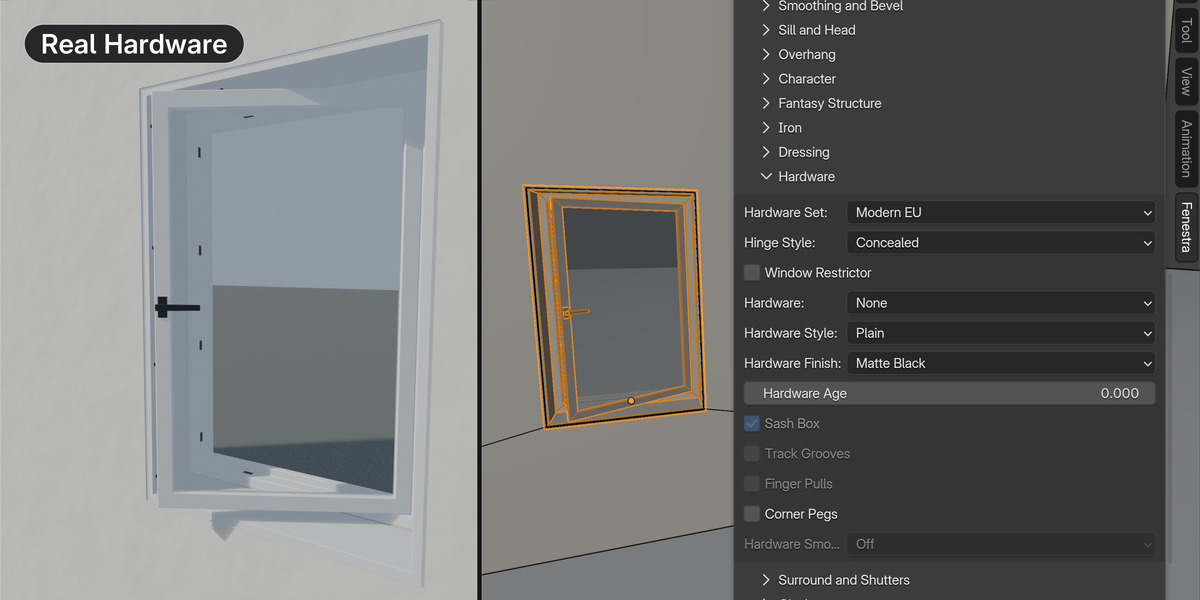
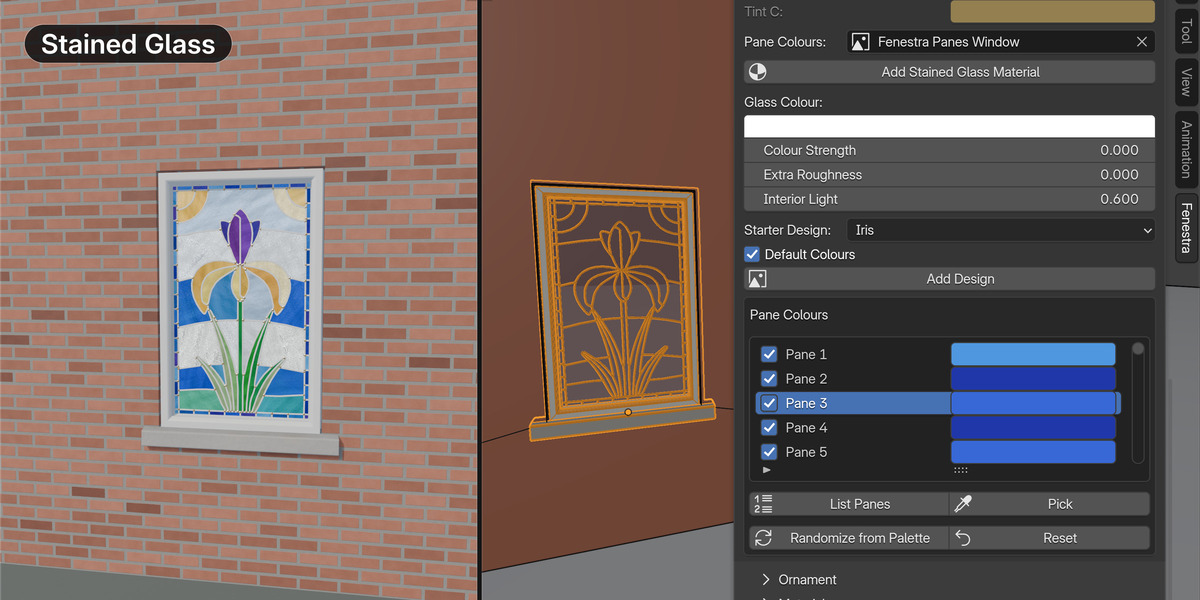
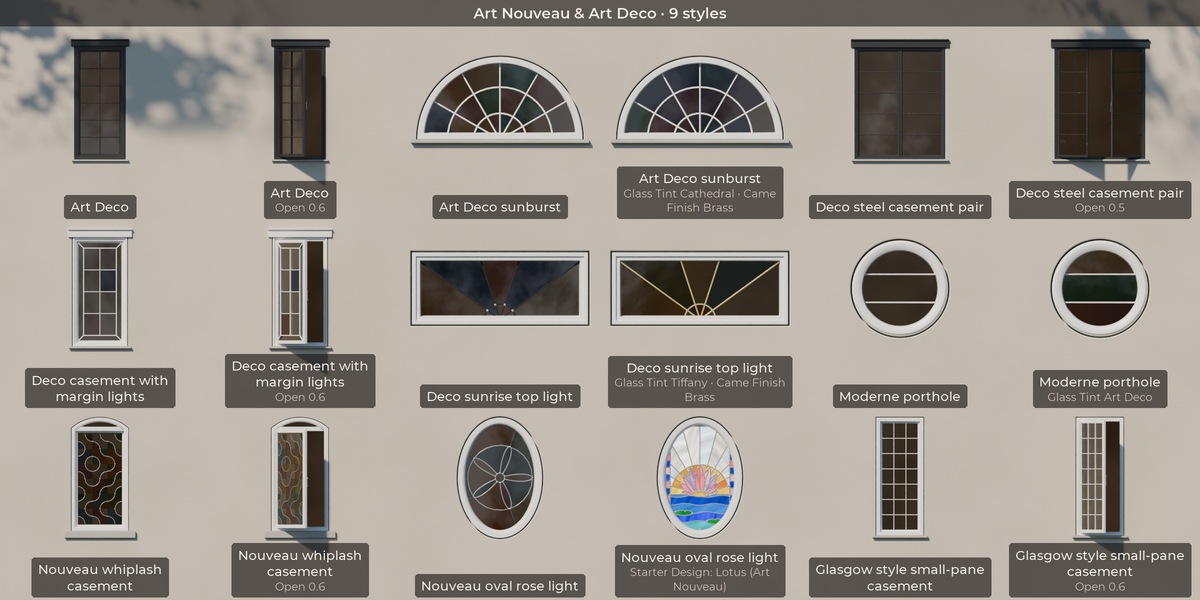
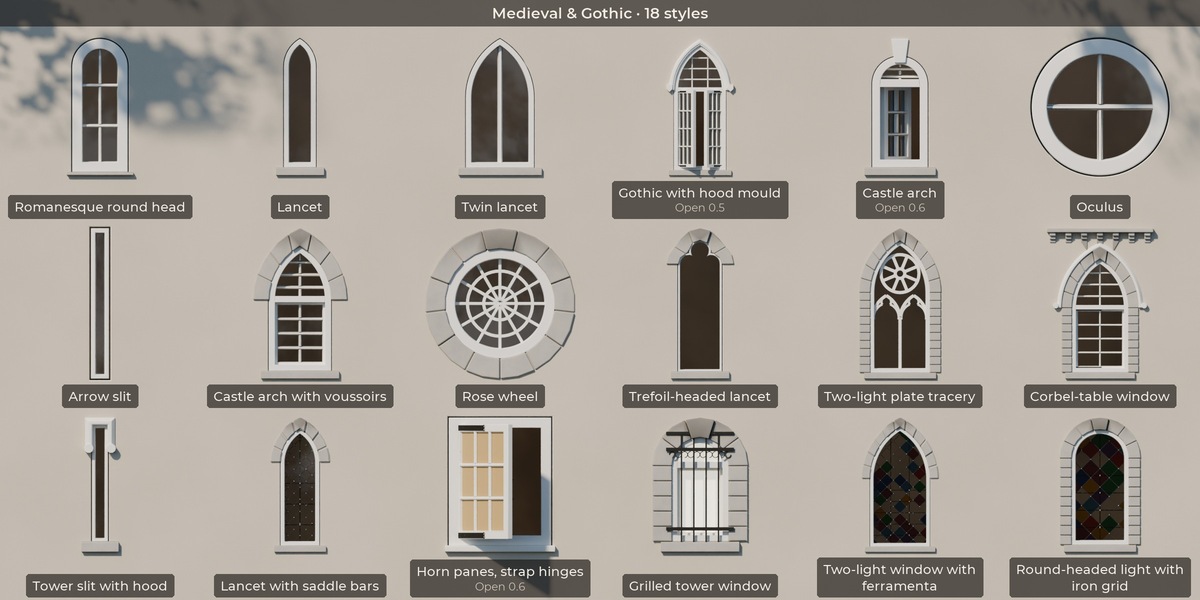
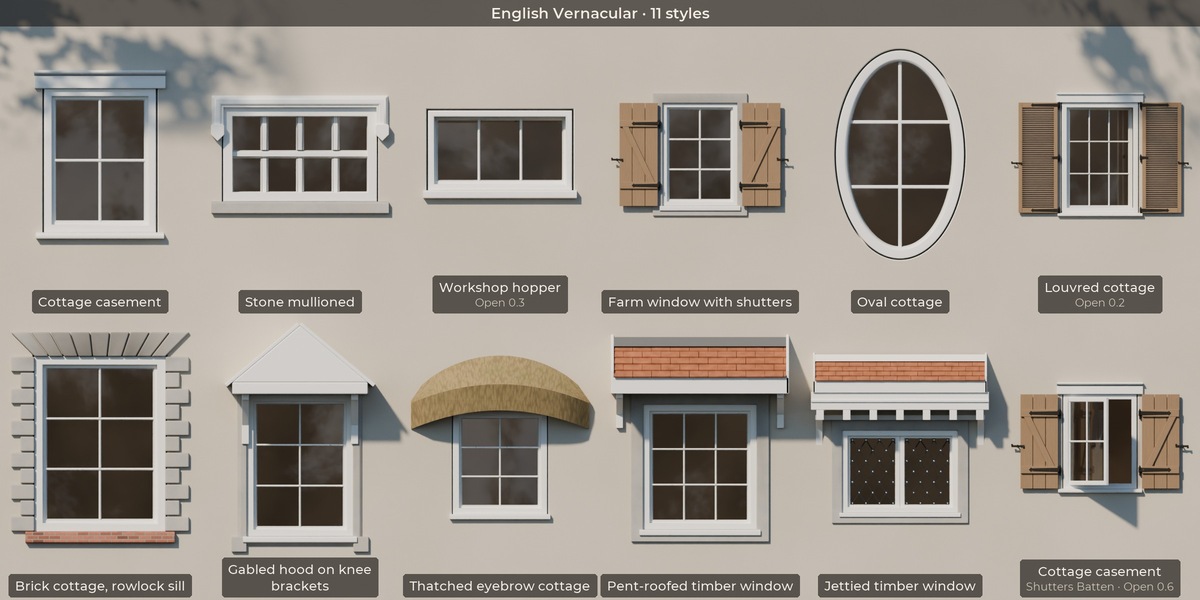
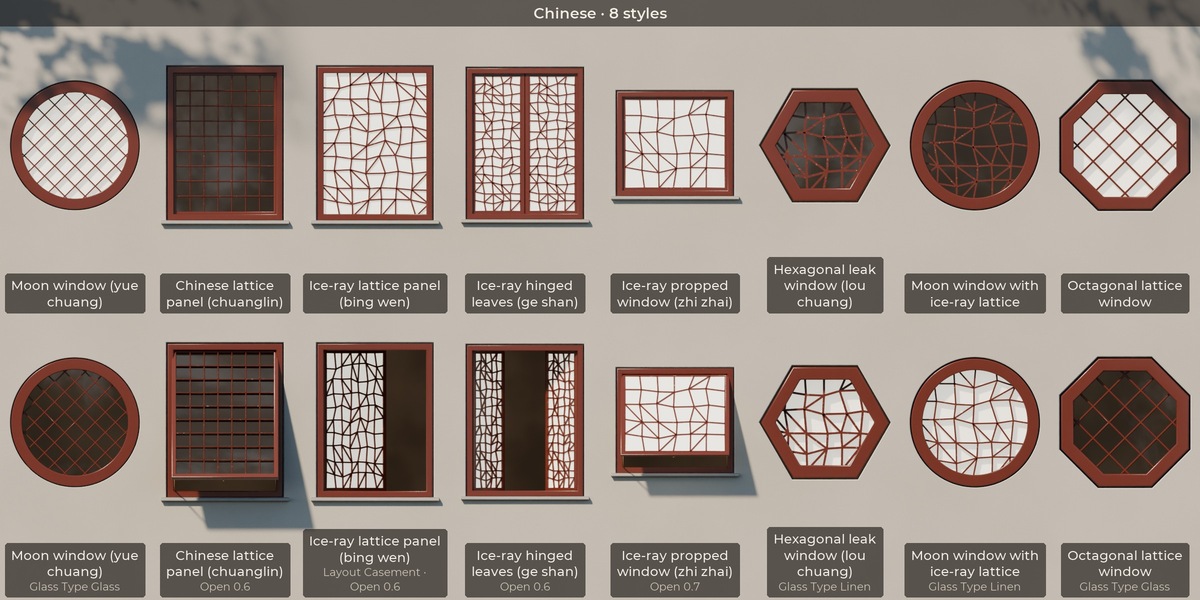
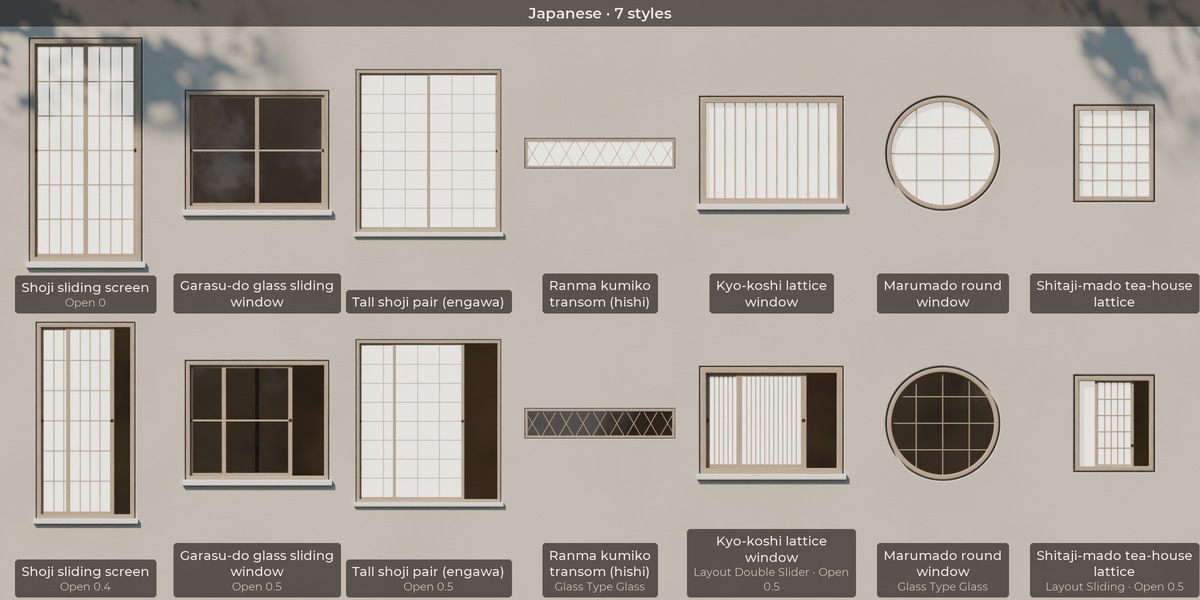
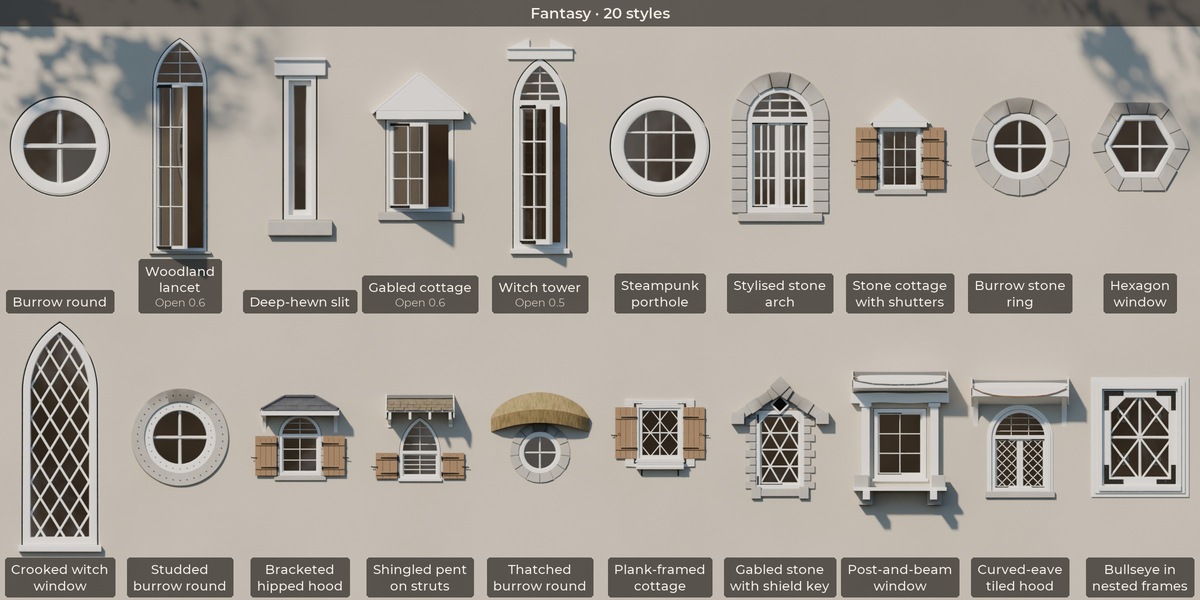
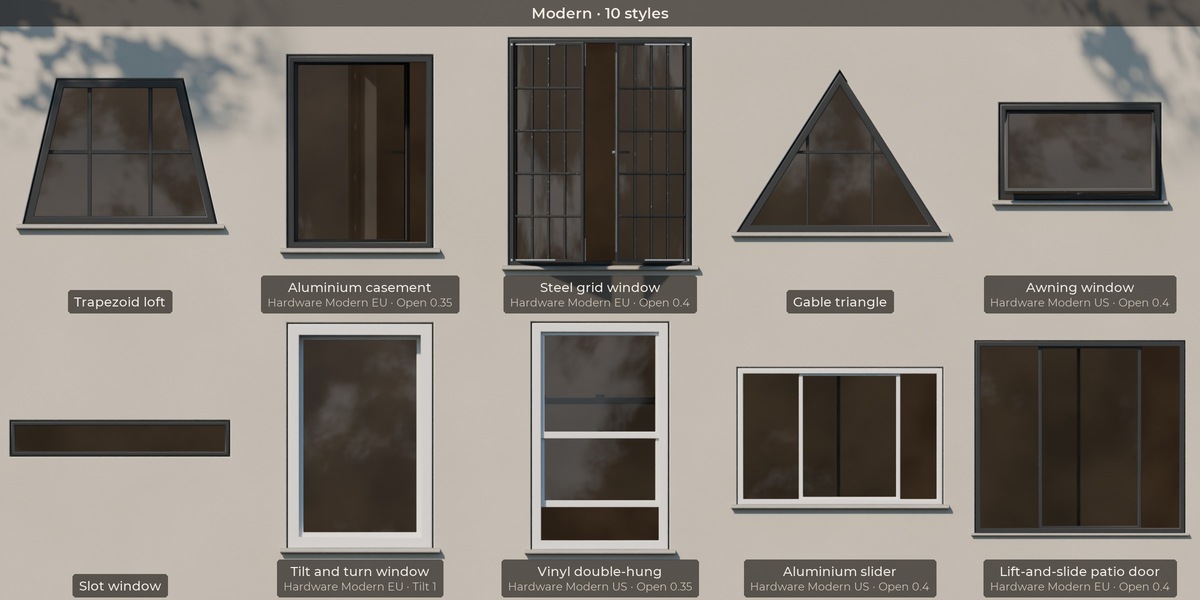
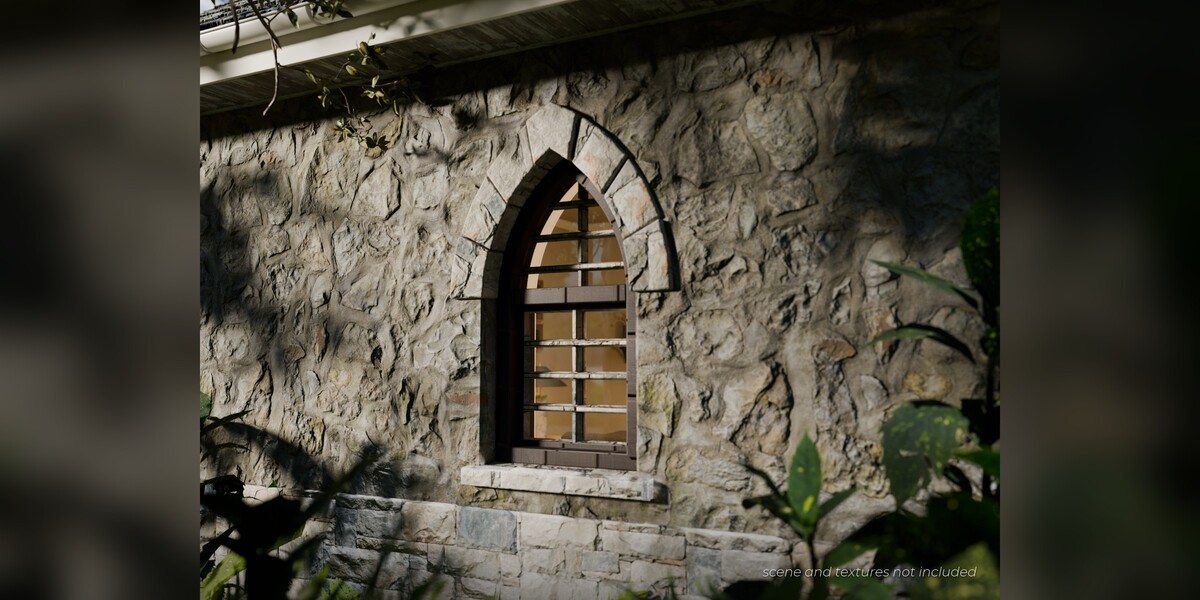
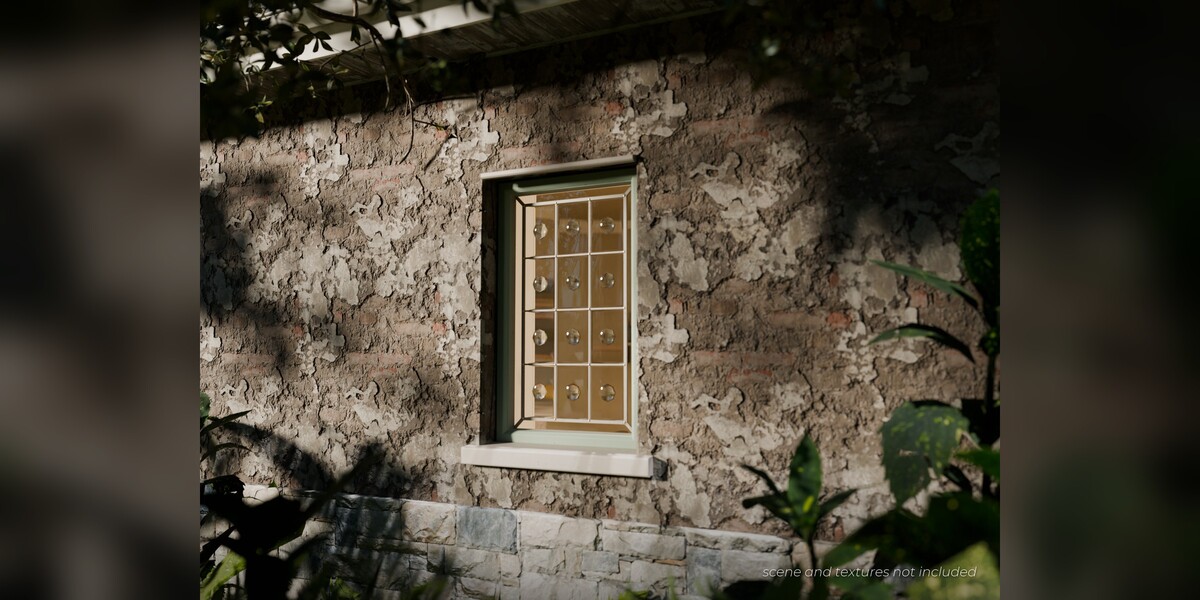
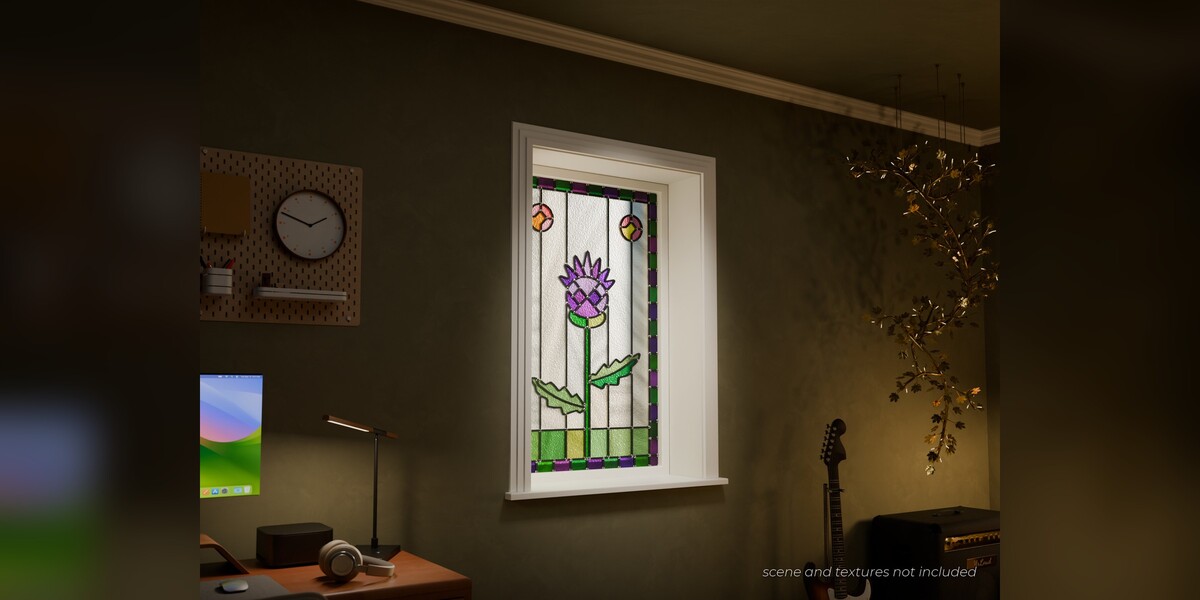
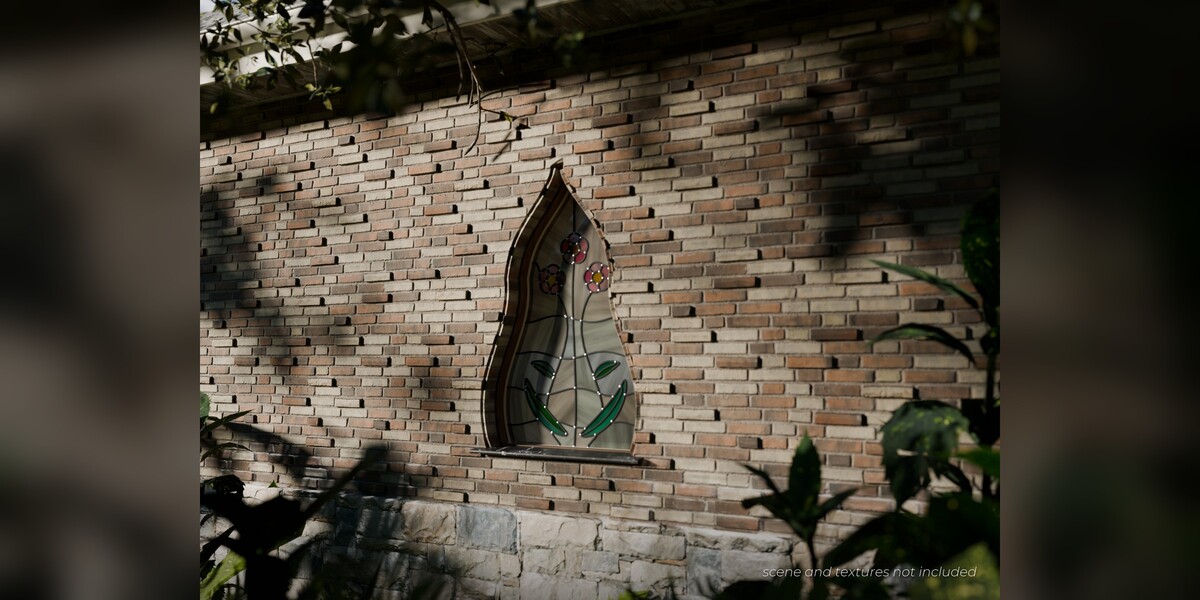
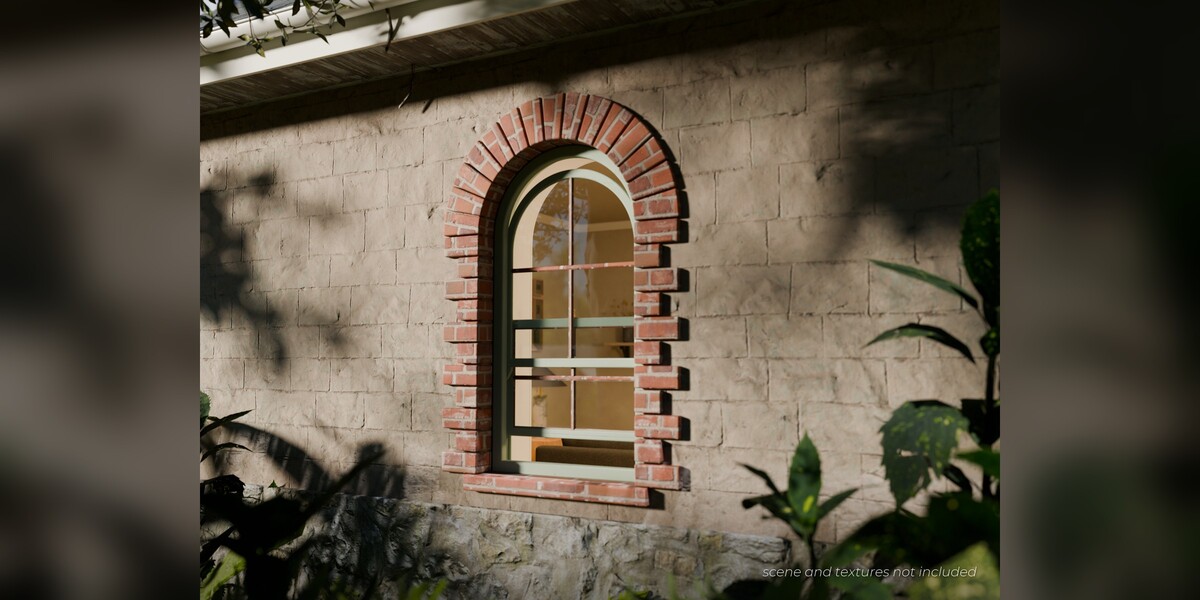
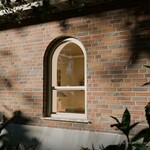
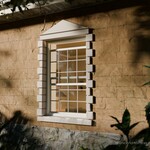
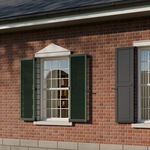
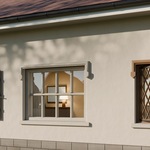
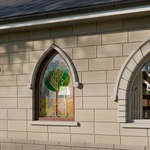
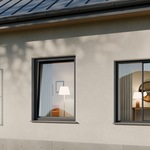
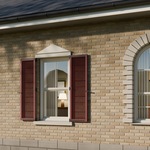
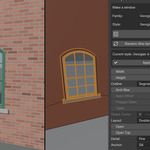
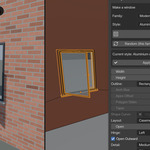
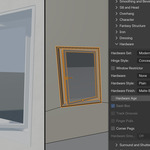
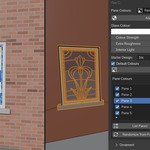
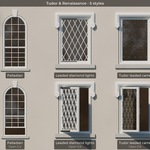
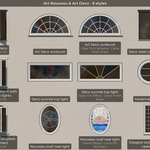
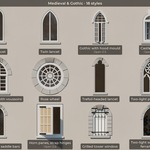
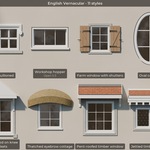
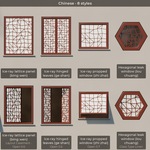
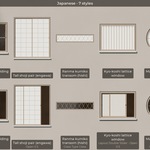
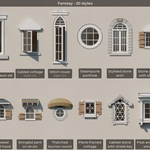
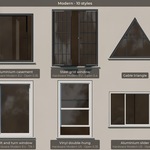
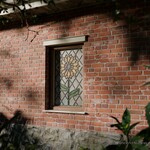
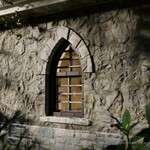
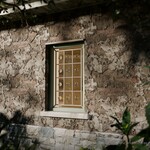
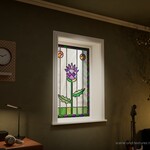
Quick start
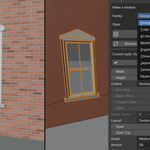
- Install: Edit > Preferences > Get Extensions, open the menu at the top right, choose Install from Disk and pick the Fenestra zip. Then, in the 3D Viewport, press N and open the Fenestra tab.
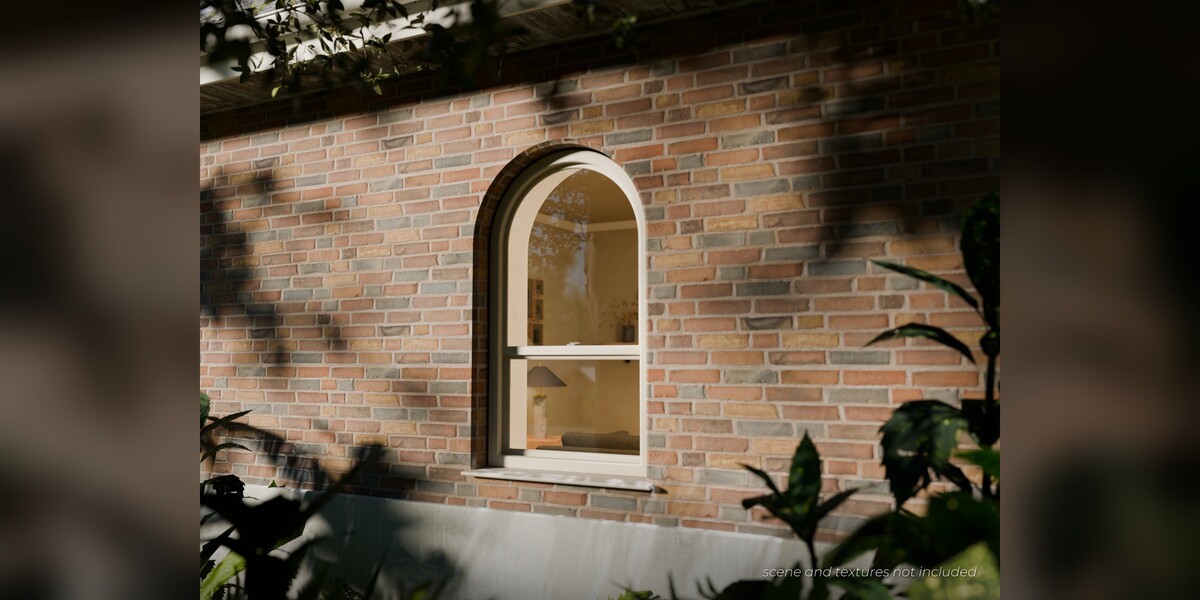
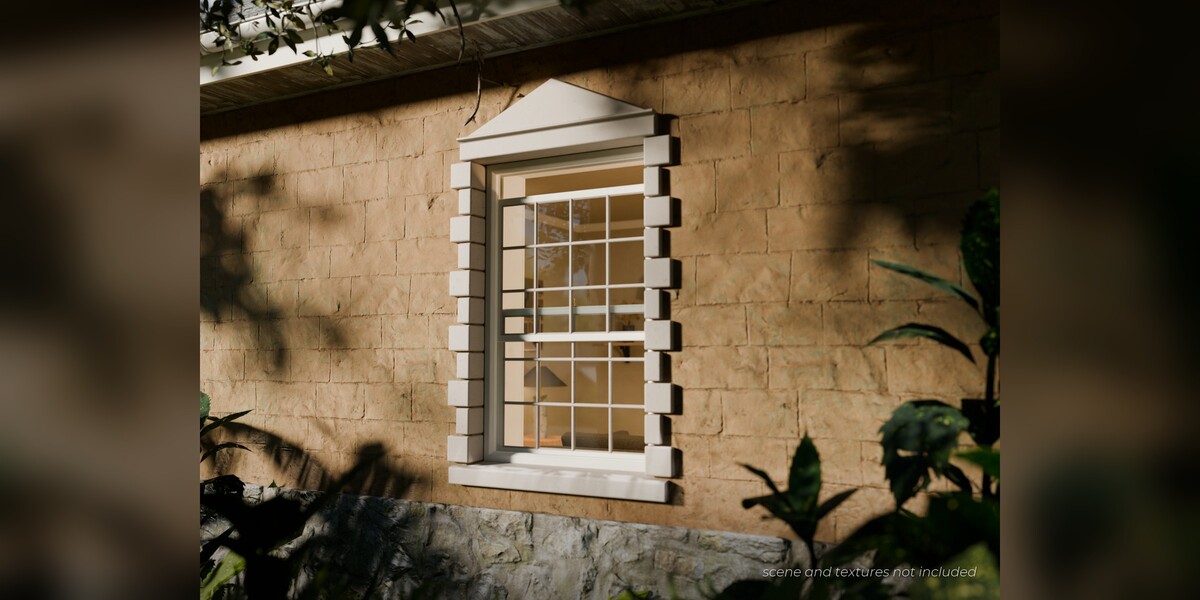
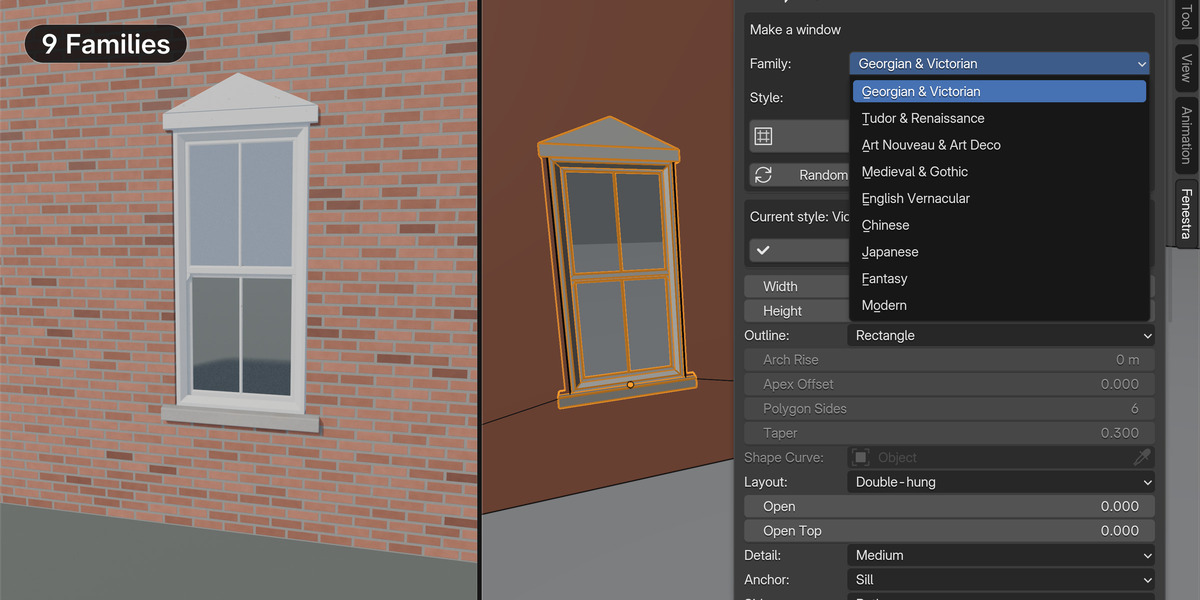
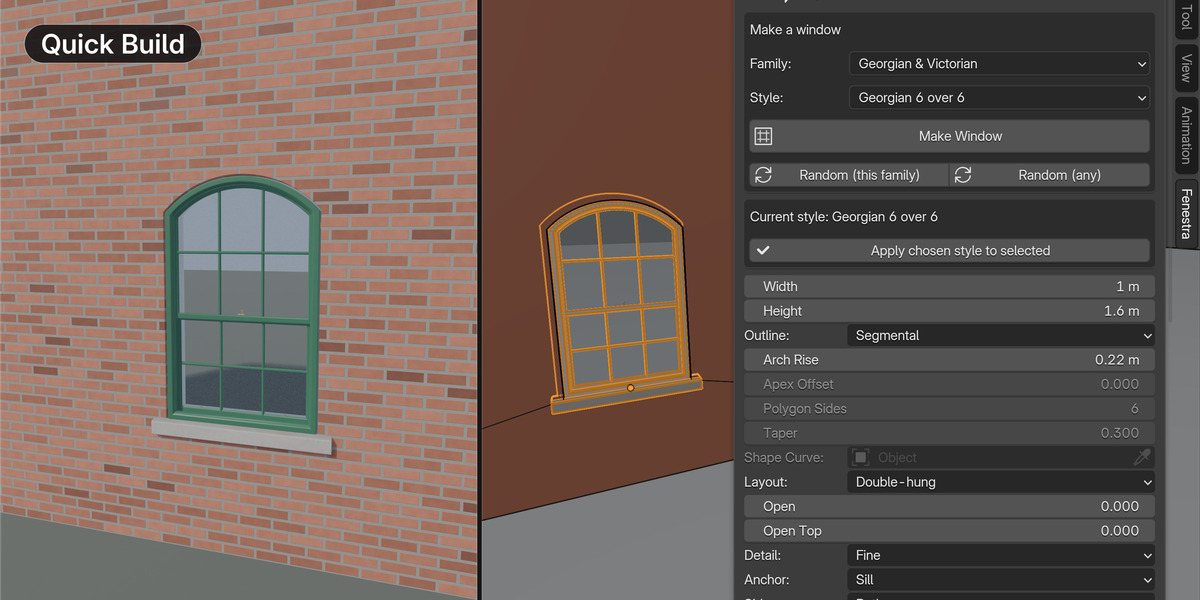
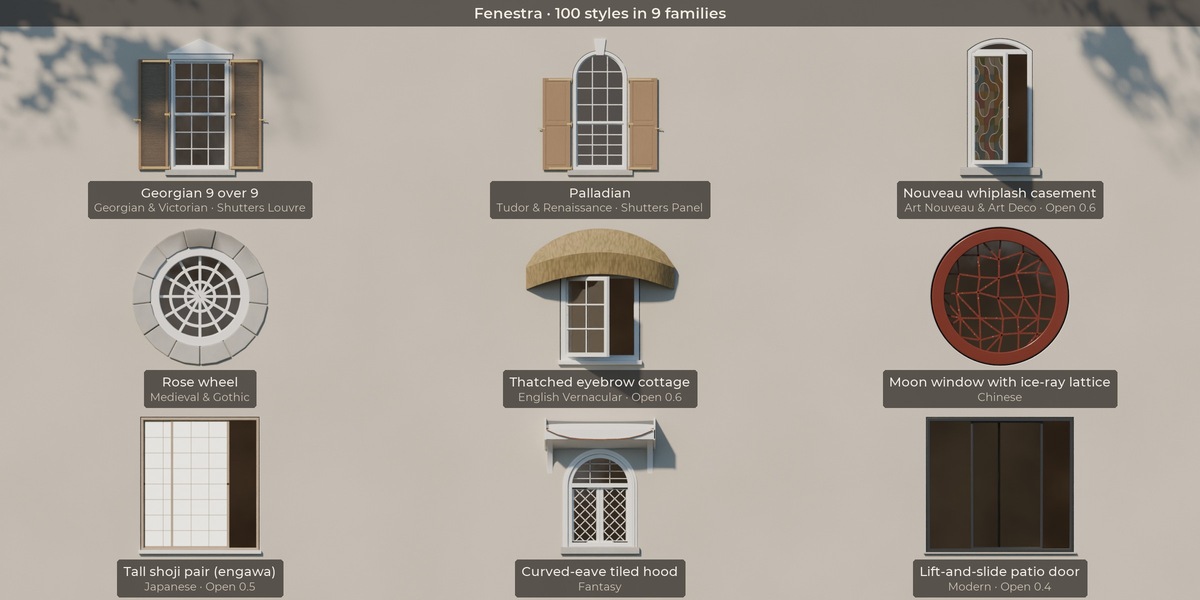
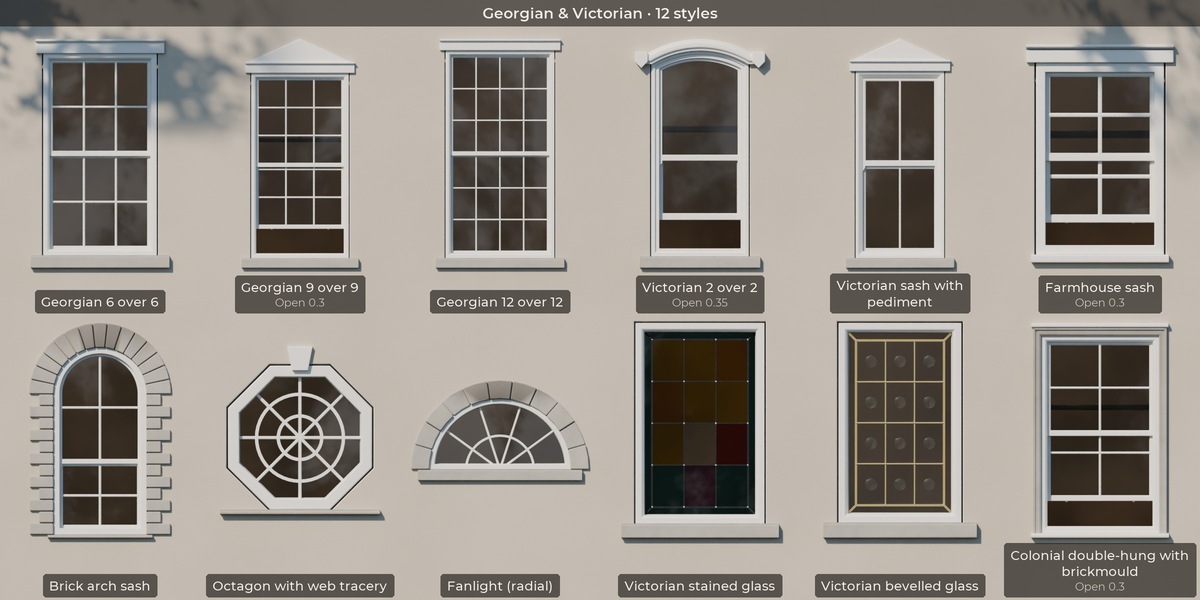
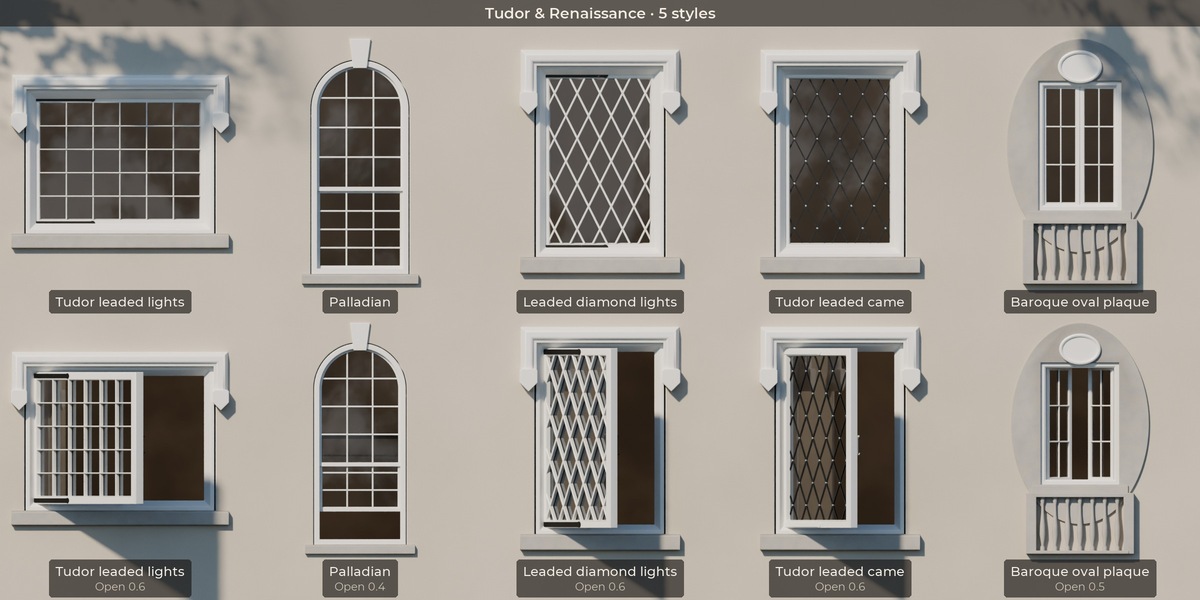
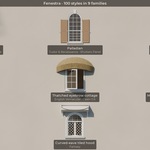
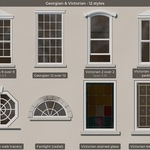
- Make a window: choose a family and a style, then press Make Window (or Add > Window). It appears at the 3D cursor. The first window of a session takes 2 to 3 seconds while the node library loads.
- Edit it live: drag Width and Height and change Outline, bars, frame, head, sill, shutters and hardware. Everything rebuilds as you edit.
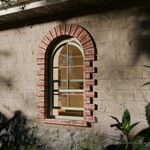
- Open it: pick a Layout (Casement, Double-hung, Awning, Sliding, Tilt & Turn and more) and drag Open.
- Put it in a wall: put the 3D cursor on the wall (Shift+Right-click) and press Place on Wall.
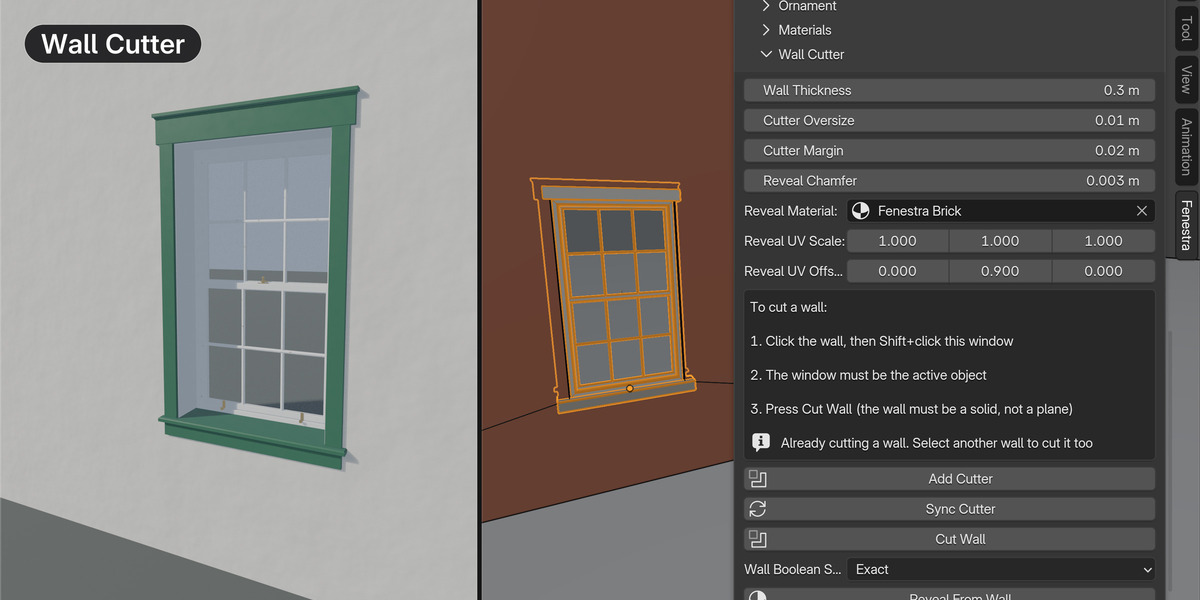
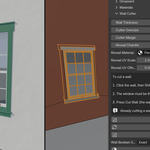
- Cut the hole: click your wall, then Shift+click the window so the window is the active object, and press Cut Wall (under Wall Cutter). Move or resize the window and the hole follows.
- Render: edit at Medium detail, then press Finish for Render before you render. Back to Draft returns to the fast editing tier.
Good to know
- Walls: the wall must be a closed solid with some thickness, not a single plane. Cut Wall measures it for you.
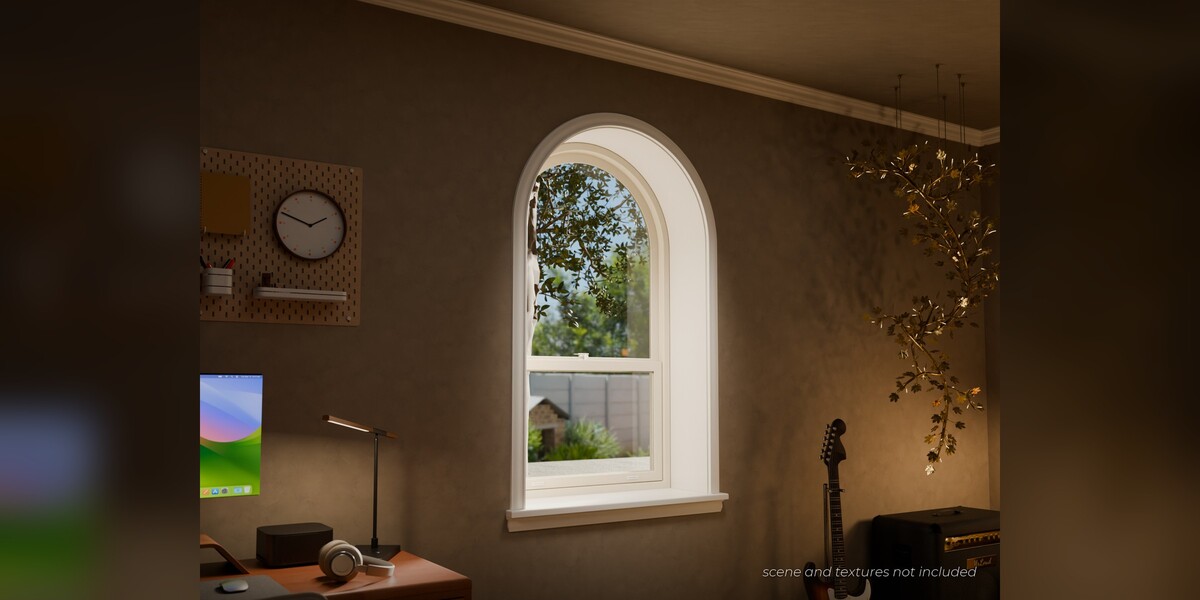
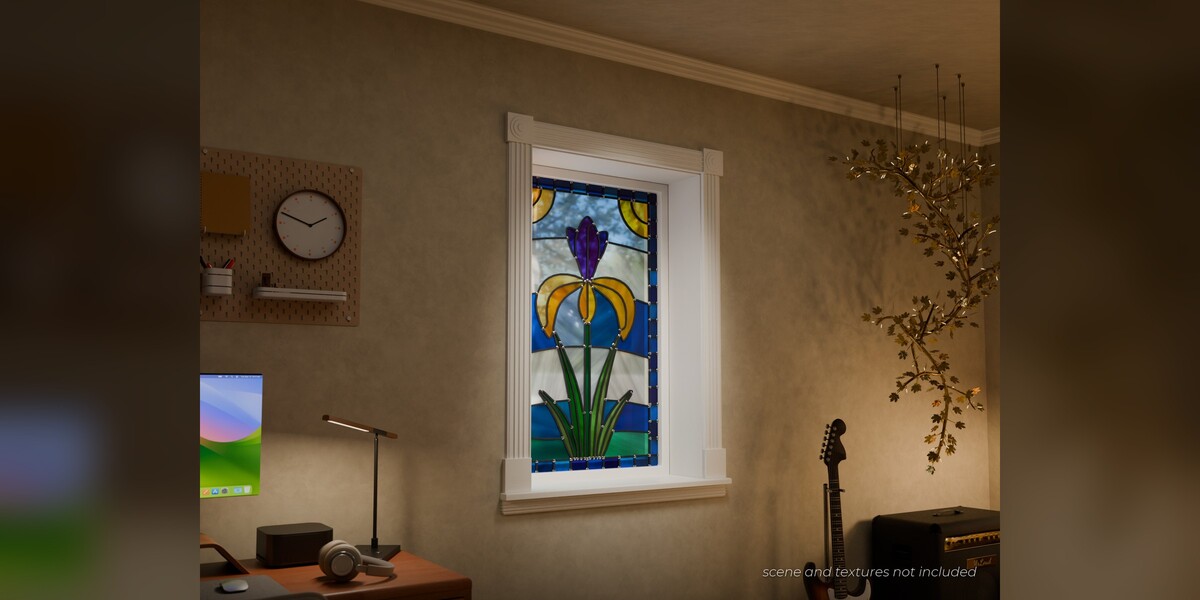
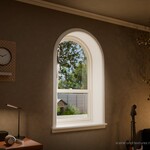
- Interior trim: it sits on the room side, so it appears once the window is in a wall (after Place on Wall or Cut Wall). Change it in the Interior section.
- Materials: materials are inputs on the modifier. Press Add Starter Materials for a quick look, or drop your own materials into the slots.
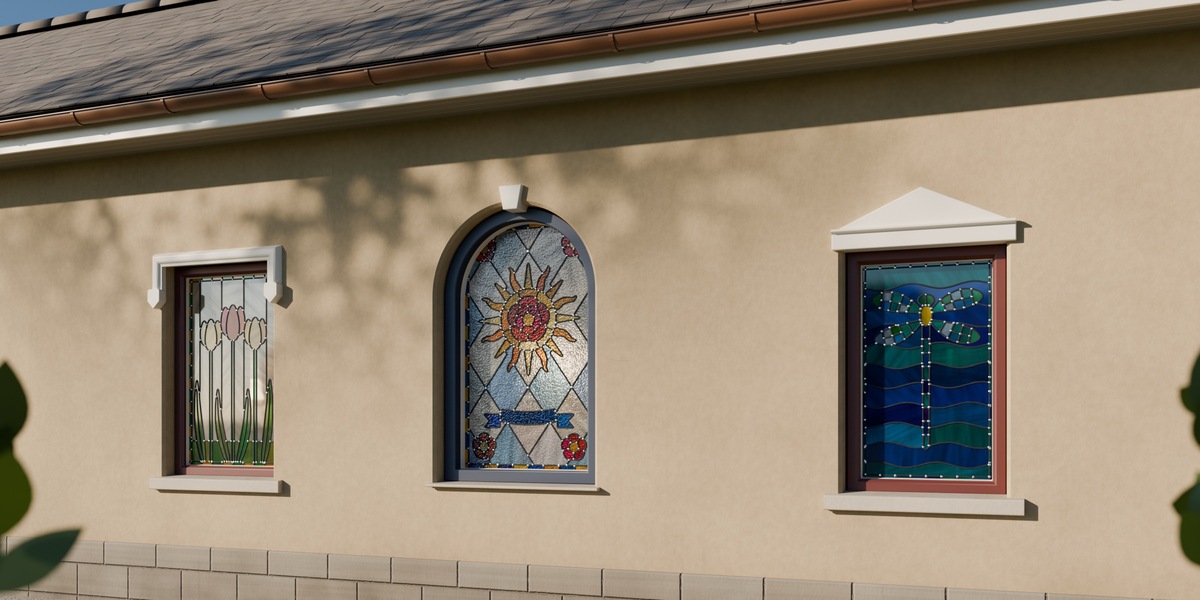
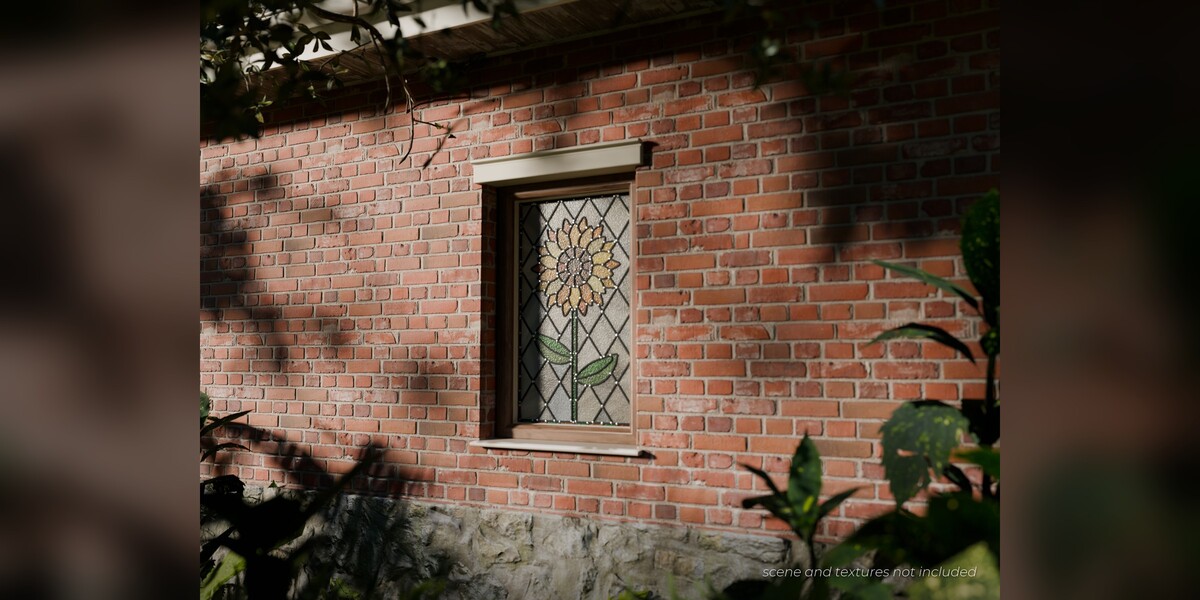
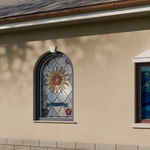
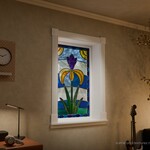
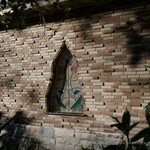
- Stained glass: pick a Starter Design in the Glass section and press Add Design; recolour any pane in Pane Colours. Leadwork from Image turns your own black-line drawing into panes.
- Many windows: Make Linked Copies shares one mesh, Bake for Realtime makes lean meshes, and presets save every setting of a window.
- Fixed windows: some styles and outlines are fixed lights and do not open.
Build and edit at Medium detail so the viewport stays fast. When you are ready to render, press Finish for Render to switch to full detail, then render in Cycles or EEVEE.
Quick fixes
- Grey window: Materials > Add Starter Materials.
- The hole did not follow a menu change (for example Layout): press Sync Cutter. Size changes follow by themselves.
- Cut Wall does nothing: select the wall, then Shift+click the window so it is active, and make sure the wall is a closed solid.
- Slow while dragging: press Back to Draft while editing and Finish for Render at the end.
- Opening an older file: Fenestra updates the file's window library by itself and keeps your settings.
Full manual
The download includes MANUAL.md: the full panel reference, the recipe catalogue, hardware and trim tables, walls, export and LOD, many windows, presets, limits and troubleshooting.
 Included
Includes 12 months of
- Support from Outer Reach Productions
- Product updates
Extend this product’s Support Period +12 months: 50% of product price
Have questions before purchasing?
Login to message
| Blender Extension Compatible | Yes |
| Dev Fund Contributor | |
| Published | 2 days ago |
| Blender Version | 5.2 |
| Extension Type | Add-on |
| Render Engine Used | Cycles, Eevee |
| License | GPL |
Discover more products like this
ArchViz window stained glass modeling building Interior geometry nodes procedural victorian gothic window-generator architecture