Final Quality Pipeline
 Jerrythepopper
This is the full manual. A web version with the same content is at jerrythepopper.com/3daddon/fqp (Traditional Chinese: zh.html). The manual also ships inside the .zip.
Final Quality Pipeline — Manual
Version 1.4.0 · Blender 5.1 / 5.2 · Cycles only · Online, with screenshots: jerrythepopper.com/3daddon/fqp
A finishing-quality denoise pipeline for Cycles. It splits the render into its light components, multiplies each light pass by its surface colour and then denoises it on its own in full HDR, guided by the albedo and normal passes, and hands you a slider per component so you decide how much micro-detail survives. For animation it adds a cross-frame pass that removes denoiser flicker; the 1.3 way (Run Temporal) also paints motion blur back on at the end. Since 1.4 there is also a Temporal Denoise window where you preview, measure and process the whole sequence; it does not paint motion blur back on (see Process the Whole Sequence).
Two measuring instruments come with it: one works out how many light bounces your scene actually needs, the other works out how tight your noise threshold has to be — which is the same question as how many seconds each frame costs.
What's new in 1.4
- A Temporal Denoise window of its own. Preview one frame, measure the noise (normal, or precise with a second seed), then process the whole sequence. When processing ends, the window shows the results and makes the small previews for you, so one press plays them. It never switches your view behind your back, and switching views keeps your zoom (in Blender 5.2 your position too). See Temporal Denoise window.
- Quick Check. One small image with your own settings tells you how many pixels already hit Max. See Quick Check.
- A fuller sampling report. The analysis first asks whether the shot is an animation; the report adds a Max Samples table, a row for your current setting, a detail column, and three options (Fast, Balanced, Safe), each with its own Apply button. The panel shows how far the analysis is and about how long is left. See The report.
- Processing the whole sequence runs in its own process, can be cancelled and continued, and never deletes earlier results. See Process the Whole Sequence.
- Move or rename the whole project folder, and the frames you already processed stay valid: nothing is computed again. See Moving the project.
- macOS: when Terminal permission is refused, background jobs keep going, the panel tells you in a red line, and the status lines update by themselves. The whole Temporal Denoise flow has been tested on an M2 MacBook Pro. See Platform notes.
Quick start

The same thing in five steps. A still image takes the short path in each step and skips everything in step 2 except the Health Check.
- Build. In Properties > Render > Final Quality Pipeline, press Build Pipeline. Optional: Analyze Light Paths and Analyze Sampling (see The two analyzers). Then press Apply Final Sampling and Set 32-bit EXR Output, and save the file. See Panel reference.
- Prepare. Animation only: turn off Motion Blur (Render Properties > Motion Blur). This one is required, not a suggestion; see the FAQ. Press Prepare Animation Output, then Open Temporal Denoise Window (in the Temporal Denoise Window panel at the very bottom of the FQP panel), and in the window's Source panel press Prepare Again for Temporal Denoise. Both paths: press Health Check and read its lines. See Before you start and Health Check.
- Render. A still: F12, or CLI Render Still. An animation: Ctrl+F12, or CLI Render Animation. This is the expensive part, and you only do it once. See Background rendering.
- Tune. A still: look at the result and drag the Glossy slider (0.7–1.0) until the highlights look right. It is live, no re-render needed. By default it only acts where the picture is very bright (Remix Highlights Only), so in an evenly lit scene you may see no change at all; that is normal. An animation: in the window press Measure Noise, then Preview This Frame on a few frames and move the sliders until it looks right. See Measure the noise.
- Finish. An animation: press Process the Whole Sequence. When it is done the window shows the results and makes the small previews; press Play Result to watch them. The frames are in
temporal_denoiseinside the Stabilized Dir folder (by default//fqp_final/<blend>_<scene>/temporal_denoise/); take them on to your grading or editing as described in Taking the frames further.
1. Install
The .zip installs as an extension. There are two ways in, and both end up in the same place.
- Drag the .zip onto the Blender window, or go to Edit > Preferences > Get Extensions, open the drop-down at the top right and choose Install from Disk.
- Or go to Edit > Preferences > Add-ons, open the drop-down at the top right, choose Install from Disk and pick the .zip.
Keep only one copy installed — a second one, such as an older copy left in your scripts/addons folder, would fight over the same panel. In the add-on list it is called Who Needs Another Render Setup? (Final Quality Pipeline); searching for either name finds it. The panel is titled Final Quality Pipeline and appears at the very top of Properties > Render, right under the render engine selector.
Requirements: Blender 5.1 or 5.2, and the Cycles render engine. Cycles is not a preference here — the whole pipeline runs on per-pass and denoising data that only Cycles produces. EEVEE cannot supply it.
2. Language
The add-on speaks English and Traditional Chinese, and the switch is its own: it sits at the top of the panel (and in the add-on's own preferences, under Edit > Preferences > Add-ons) with three settings.
| Setting | Meaning |
|---|---|
| Auto | Follow what Blender shows: Chinese when Blender's interface is set to a Chinese language and Blender actually translates it (Preferences > Interface > Translation > Interface), English otherwise |
| English | Always English, whatever Blender is set to — including words Blender has its own translation for, such as Diffuse or Shutter |
| Chinese | Always Traditional Chinese, whatever Blender is set to (shown as 中文 once the panel is in Chinese) |
Because it is independent of Blender's interface language you can keep Blender in English and read this add-on in Chinese, or the reverse. The choice is remembered between sessions and applies to every file.
Auto makes its choice when you pick it and when Blender starts. If you change Blender's language or its translation switch while Blender is open, pick the add-on's language again (or restart Blender) to follow.
Switching takes effect immediately — panel text, button labels and tooltips all change on the spot, and nothing you have set moves. Reports written by the two analyzers and the progress lines in the background-render window follow the same setting.
3. Three-minute version
It moved to the top of this manual: see Quick start, with the flow chart and the five steps. The 1.3 way (Build Temporal and Run Temporal) still works; it is described under The 1.3 way: Legacy.
4. What it actually does
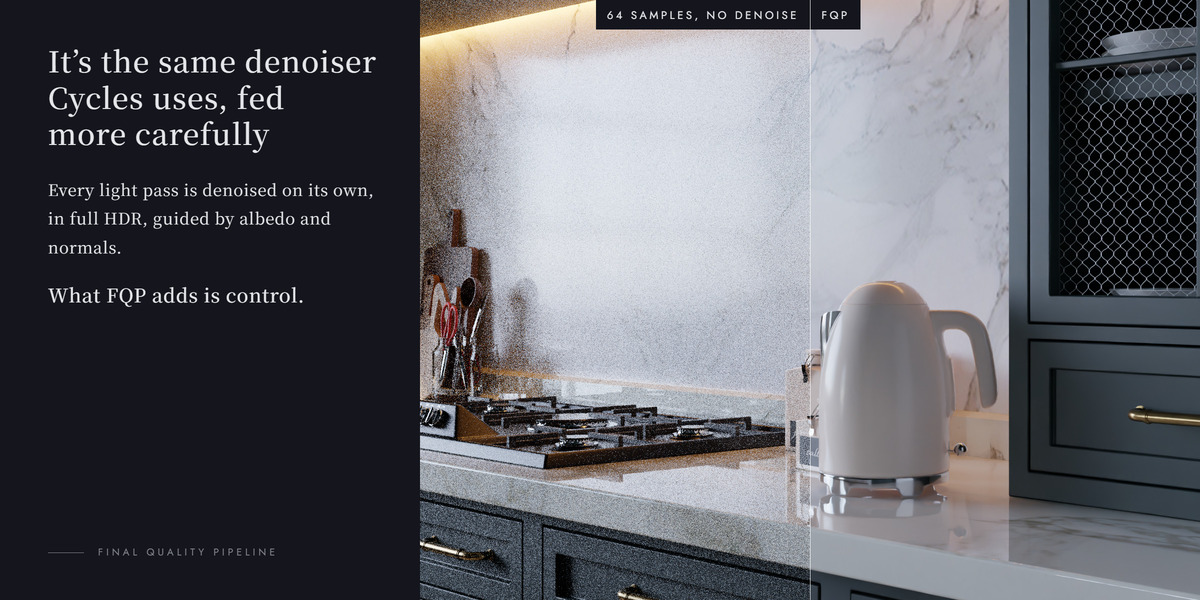
Cycles can output its light as separate passes: diffuse, glossy, transmission, emission, volume — the first three split into "how much light arrived" and "what colour the surface is". A normal denoise runs once over the finished picture, with every kind of light already mixed together, so one pass has to suit rough metal, glass and matte surfaces alike.
This pipeline works pass by pass instead. Each light pass is first multiplied by its surface colour and then denoised on its own, in full HDR with nothing clipped at white, so the material texture goes through the denoiser together with the light, guided by the albedo and normal passes. Emission and Volume Direct/Indirect have no colour pass of their own, so they are denoised straight and added back without the multiply.
Each component then gets a mix slider between "raw" and "fully denoised". Reflections are where denoisers do the most damage — they iron a rough metal highlight into plastic — so Glossy defaults below 1. By default the raw side only comes back where the picture is very bright (Remix Highlights Only): highlights keep their grain and texture, everything else stays clean. So in a scene with nothing very bright, dragging a slider can show no difference at all; that is normal, not a fault. If you want the sliders to act on the whole picture, for example to get grain everywhere, switch Remix Highlights Only off and press Rebuild Pipeline. The Volume slider is not affected by it: it always acts on the whole picture.
For animation there is a second stage. Denoising each frame independently makes the result shimmer, because the denoiser makes slightly different guesses on every frame. Since 1.4 the main way to deal with that is the Temporal Denoise window: it compares each frame with up to three neighbours on each side, uses the noise it measured in your own frames, and shows you a confidence view of how much the neighbours were used. It does not paint motion blur back on.
The 1.3 way, now under Legacy, works as follows. The temporal pass takes each frame's neighbours, moves them into place using the motion vectors Cycles renders, throws away pixels whose depth does not match (and the pixels right next to them), and blends what is left. Cycles' own motion blur has to be off for that, because a blurred frame produces no usable motion vectors — the blur is painted back on at the very end instead. It works best on locked-off or slow camera moves. On a fast dolly or pan, the outline of an object moving across the background can come out slightly worse than without the temporal pass (see Known limitations).
5. Panel reference
Main section

| Control | What it does |
|---|---|
| Health Check | Nine checks, plus a few that only appear when they apply. No changes. See below. |
| Build Pipeline | Enables the passes it needs and wires up the node group, placed next to your Render Layers node. Splices itself in front of any filter chain you already have, so denoising is always the first thing that happens. Anything else that read the raw render image — a second branch, a File Output — is moved onto the denoised image too; Viewer nodes stay on the raw one. With several view layers it reads the one you are on; if that layer is not rendered (Use for Rendering off), it builds on the first layer that is and warns, and if no layer is rendered it changes nothing and says so. With several Render Layers nodes it uses the one whose Image reaches the final output; with several Group Output nodes, the active one and its first input (the one Blender renders). Switches Compositing on if it was off. Safe to press again at any time. |
| Remove | Asks first, then takes the group out, restores the wiring you had and switches off the passes Build turned on. It also undoes the rest of what Build did: a compositor tree Build created is removed, Render Layers / Group Output nodes Build added are deleted if nothing was wired to them since, and Compositing and the compositor device go back to what they were — unless you changed them yourself after building. Your own nodes are untouched. A link you rewired yourself after building is left as you made it. |
| Clean up leftovers | Only shows up when the pipeline node was deleted by hand. Clears the wiring records it left behind in the scene. No node and no link is touched. |
| Diffuse (1.0) | Diffuse denoise blend. Default 1 (fully denoised); lower it when the diffuse lighting starts looking plastic, or to keep some grain on diffuse surfaces. |
| Glossy (0.85) | The one to reach for first. Lower it to put highlight grain back into brushed metal and rough reflections. 0.7–0.9 is the useful range. Like the other sliders, it only acts where the picture is very bright while Remix Highlights Only is on. |
| Transmission (0.9) | Glass and other see-through material. |
| Emission (0.5) | Glowing surfaces — light strips, screens. Raise it if they flicker. |
| Volume (1.0) | Fog, smoke, god rays. Volume noise is usually the heaviest in the frame, so this stays at 1. Pull it back only if fine wisps start to smear. |
| Filter Fireflies Before Remix (on) | Before the sliders above mix the noisy pass back in, lone bright and dark specks in it are pulled back into a sensible range around the denoised value. The grain stays; the fireflies don't come back with it. Off gives exactly the v1.0.1 result. See below. |
| Grain to Keep (0.75) | How far the noisy pass may stray from the denoised one before it is pulled back. Higher keeps more grain, and more specks. Greyed out while the filter is off. |
| Clean Guide Passes (off) | Cleans the two "map" images the denoiser navigates by before letting them steer. Off by default; turn it on only for very dark or very noisy shots. It softens fine bumps and small surface detail. |
| Remix Highlights Only (on) | The sliders above only act where the picture is very bright, so highlights keep their texture and everything else stays clean. If nothing in the picture is that bright, the sliders show no difference; that is normal. Turn it off to let them act on the whole picture (the old behaviour; use it when you want grain everywhere). The Volume slider always acts on the whole picture. |
| Auto GPU Compositor (on) | Moves the compositor onto the GPU when you press Build Pipeline. This tree is full of denoise nodes, and the compositor runs slower on the CPU. |
| Prefilter (Accurate) | How carefully those guide images are cleaned. Leave it on Accurate for a final frame. |
| Include Environment (on) | Composites the world background back in. Skipped automatically while Transparent Film is on, so the HDRI cannot leak through the alpha. |
| Apply Final Sampling | Asks first, then sets adaptive sampling on, noise threshold 0.01, max samples from the field beside it, plus blue noise and animated seed. Press it before you run the Sampling Analyzer, and press Apply Suggested Threshold after it, not before: it always writes 0.01, so pressing it again later puts the threshold back to 0.01. The Max Samples it sets is also the ceiling the analysis measures against. It also overwrites what an option of the sampling report wrote (see Two Max values). |
| Set 32-bit EXR Output | Single-layer 32-bit OpenEXR RGBA, ZIP. Deliberately single-layer: After Effects reads a multilayer EXR as a black frame. |
| Write Noisy Image (off) | Also writes the raw, un-denoised frames as noisy####.exr under a noisy image folder in your output path, so one render gives you both. Useful if you want to try a different denoiser later. The folder is stored relative to the .blend (//<output>/noisy image/), so Save As or moving the project keeps it with the file. Needs a saved file: on an unsaved file, or with an output path that has no drive letter, Build skips it and warns — save (or set the output path), then Rebuild. A scene built with v1.1.0 needs one Rebuild; Health Check reminds you. |
The five sliders, Filter Fireflies Before Remix and Grain to Keep are live: moving one writes straight into the node tree, no rebuild. Everything in the "Rebuild to apply" box needs a Build Pipeline press to take effect, and so does a change to the render output path. If you switch Transparent Film on or off after building, the panel says so and asks for a Rebuild. None of the add-on's settings can be animated — see the FAQ.
Important messages from Build — a missing pass, a view layer it had to switch — come up as warnings, so they stay visible instead of scrolling past.
A few things worth knowing about Build and Remove:
- If a Reroute sits right after Render Layers (Blender's default tree when you press New), the Viewer hangs off that Reroute and shows the denoised picture after Build. Connect the Viewer to Render Layers directly to keep watching the raw render.
- Muting the Final Quality Pipeline node does not bypass it: Blender passes its first input (Diffuse Direct) straight through, so the picture turns dark. To compare with and without, press Remove, or plug the Render Layers Image into the output for a moment.
- If your output had nothing connected and Build wired the end of your chain to it, Remove keeps that link, so F12 still shows a picture.
- Two scenes that use the very same compositor tree share the pipeline in it. Build warns about that, and Remove asks first, because it takes FQP out of every scene on that tree.
- A scene built with v1.1.0 has no record of what Build changed besides the wiring and the passes, so Remove there works as it did in v1.1.0. Press Remove, then Build Pipeline once, and later Removes undo everything.
- The pipeline only works in Cycles, and with Workbench selected it turns F12 black. Press Remove before you switch engines; the panel keeps the button (and says so) when another engine is selected.
Filter Fireflies Before Remix
The mix sliders work by blending some of the raw, noisy render back over the denoised one: that is where the natural grain comes from. The catch is that the raw render also carries fireflies, the lone pixels that came out far too bright, and a slider below 1 used to put a share of those back in as well.
With Filter Fireflies Before Remix on (the default), each noisy pass is compared with its own denoised version before it is mixed back. Where the two are close, the noisy pixel goes back untouched, so the grain you chose stays. Where a pixel is far off (a lone bright speck, or a lone dark one), it is first pulled back to the edge of an allowed range around the denoised value. The range is Grain to Keep × the denoised brightness, plus a small fixed margin. It applies to Diffuse, Glossy, Transmission and Volume; Emission is mixed back as before.
When to touch Grain to Keep:
- Still seeing white specks where a slider is below 1? Lower it. Lower is cleaner, with less grain.
- Grain looks too tame on brushed metal or rough reflections? Raise it. Higher keeps more grain, and more specks.
- 0.75 is a good start. It changes the image live, no rebuild.
- A slider at 1.0 mixes nothing noisy back, so on that component the filter makes no visible difference.
A scene whose pipeline was built by an older version does not have the filter yet. The panel then shows "Press Rebuild Pipeline above to use this" under the checkbox: press Rebuild Pipeline once. With the filter off, the result is exactly the same as in v1.0.1.
Temporal section
The box is titled Temporal (v2). Two more panels of FQP's own sit at the very bottom of the FQP panel, after the CLI Render box: first Legacy: Temporal (Build / Run) (closed), then, last of all, Temporal Denoise Window (open). The folders, the Beauty Source and Prepare in this box serve both ways; Temporal Radius, Clip Gamma, Depth Tolerance, Apply Motion Blur and Shutter are only used by Run Temporal.
| Control | What it does |
|---|---|
| Temporal Radius (±1, 3 frames in total) | How many neighbours on each side get blended in: ±1, ±2 or ±3. Wider is steadier, smears fast motion, and takes longer. |
| Clip Gamma (1.0) | How much the neighbouring frames are trusted. Higher kills flicker harder but can drag ghosts behind moving objects; lower is stricter and cleaner on motion. |
| Depth Tolerance (0.03) | How far apart in depth a borrowed pixel may be before it is thrown away, as a fraction of its distance to the camera: 0.03 means 3%. It works the same in a centimetre product shot and a kilometre landscape. This is the guard against pulling in background that was hidden a frame ago. Since 1.2.9 the pixels right next to a thrown-away one are left out too. Lowering it does not clean up the outline of an object moving across the background (see Known limitations). Files saved with the old absolute setting (anything above 0.3) are reset to 0.03 automatically. |
| Apply Motion Blur + Shutter (on, 0.5) | Paints the blur back on at the end. The shutter is taken from the scene's own motion blur shutter, so the result matches what Cycles would have produced. |
| Frames Dir | Where the four source sequences are written and read back. A relative folder such as frames/ is read as //frames/, next to the .blend. A folder at the root of a disk without a drive letter (\frames) is refused. The same goes for Stabilized Dir. |
| Stabilized Dir | Where the finished frames go, as stabilized####.exr. This is the one you hand to your editor. |
| Beauty Source (Final) | Which picture gets stabilized. Final is whatever is plugged into the Group Output, your own Glare and grading included. FQP Output is a clean plate with none of it. Either way it is a snapshot of the wiring — press Prepare again after rewiring. |
| Prepare Animation Output | Adds the File Output node that saves the four sequences, and notes which frame range it prepared so leftovers from an earlier render can be told apart later. Vector, Depth and Normal come from the same Render Layers node the pipeline reads, on that node's view layer. It first tries to write to the Frames and Stabilized folders, creating them: a disconnected drive, a missing network share, a path longer than 260 characters or a read-only folder stops it with the path and the reason. Refuses to run while motion blur is on, on a file that was never saved, when no view layer is rendered, when the Render Layers node reads a layer with Use for Rendering off, or when beauty, vector, depth or normal has no source — with a warning, and nothing changed. This button sets up the plain 1.3 output: pressed after Prepare Again for Temporal Denoise, it takes the extra passes of the Temporal Denoise window away again. |
| Prepare, keep existing frames | Shows up under Prepare once the Frames folder holds an earlier Prepare of this scene for the same frame range. Switches the Animation Output back on without starting over, so you can render a few frames again. The frames already there are kept and not checked for being out of date. See Patching a few frames. |
| Remove Animation Output | Shows up once Prepare has added its node. Asks first, then deletes the node and switches off the Vector / Depth / Normal passes Prepare turned on. After Prepare Again for Temporal Denoise it also takes out that Prepare's helper node, switches the Cryptomatte Object pass off again if that Prepare turned it on, and puts the Cryptomatte levels back to what they were. The denoise pipeline and the frames on disk are not touched. |
Legacy: Temporal (Build / Run) is closed by default and holds the two buttons of the 1.3 way:
| Control | What it does |
|---|---|
| Build Temporal | Creates the helper scene that does the work. Run Temporal builds it for you; this button is for when you want to look inside. |
| Run Temporal | Does the flicker removal and writes the finished frames. It checks first: motion blur off, every frame has its beauty, vector and depth file (a 0-byte file counts as missing), all of them are the same size as the first beauty frame, none looks damaged (far smaller than the rest of its sequence and unreadable), the vectors are not empty, and no leftover frames from an earlier render are mixed in. Anything wrong stops the run with the frame numbers. Afterwards it mutes the Animation Output node, so a later F12 cannot overwrite your frames. Prepare switches it back on. |
Temporal Denoise Window holds one button, Open Temporal Denoise Window, and a line or two on where things stand, for example whether the noise has been measured ("measured with two seeds", "measured with one seed" or "not measured yet"). The window itself is described in Temporal Denoise window.
With the default folders, each .blend and scene gets its own subfolder — //fqp_frames/<blend>_<scene>/ and //fqp_final/<blend>_<scene>/ — so two files in one folder never overwrite each other. The panel shows the subfolder name. A folder you type in yourself is used as it is. Folder names ignore upper and lower case (Windows does too), so two scenes whose names differ only in case — Shot and shot — would land in one folder; one of them gets a short suffix instead (for example <blend>_shot_8faccb), and the one whose frames are already in the plain folder keeps it. Every other scene keeps its plain name.
Pressing Rebuild Pipeline after Prepare is safe: the Animation Output is reconnected to the rebuilt pipeline ("Animation output re-wired to the rebuilt pipeline"). If Run Temporal or Process the Whole Sequence had muted it, it stays muted — press Prepare (or, for the Temporal Denoise window, Prepare Again for Temporal Denoise) to write frames again. If the Rebuild moved to another view layer, a warning says the frames already rendered come from the old layer; render them again.
Transparent Film is carried through: the finished frames keep their alpha.
The temporal buttons are greyed out while you are inside the FQP_Temporal helper scene. Switch back to your own scene first.
Analysis section
The Analysis box starts with Analyze Res %, the size of the test images, shared by both analyzers (Quick Check reads it too). Under it each analyzer has a box of its own: its name, the one question it answers, a line of explanation, its buttons, and a status line under its button that says whether the last run is still going, finished or failed — before you press anything. The status lines update by themselves when a job finishes, also one that runs in a Terminal or in the background. See The two analyzers.
The Light Path Analyzer box asks "How far must each ray be followed?". It holds Analyze Samples (how finely each test image is rendered; only this analyzer uses it), Analyze Light Paths, Apply Strict and Apply Visual, and Show Light Path Report. See Light Path Analyzer.
The Sampling Analyzer box asks "How finely must each pixel be computed?". Under its line of explanation, a line names the ceiling of the full analysis, "Ceiling: … (the Final Max Samples above)" (see Two Max values). Then, from top to bottom:
| Control | What it does |
|---|---|
| Quick Check | One small image of the current frame with your own settings: how many pixels hit Max. Its result is one or two lines under the button, followed by a dim line, "Full analysis: for animation, batches". Cancel Quick Check shows up while it runs. See Quick Check. |
| Detail comparison | A tick box, on by default; the dim line under it reads "About 15% more time". The full analysis renders one more standard answer and adds a detail column to the report. See The report. |
| Analyze Sampling | Asks first whether the shot is an animation, then runs the full analysis. While it runs, a line under it shows how far it is and about how long is left. |
| Apply Suggested Threshold | Writes the suggested Noise Threshold. Greyed out when Max Samples holds the scene back; the tooltip says why. |
| Show Sampling Report | The report popup, with the options and their Apply buttons. |
6. Health Check
One button, nine checks, no side effects — plus up to four more lines that only appear when they apply. Every line is [OK] or [!], and every failing line comes with a "how to fix it" underneath. One line reads differently: the volume hint starts with [OK] and carries a piece of advice. It is not a problem; it is not counted among the lines that need attention, it is counted as passed. A summary pops up on screen, and the status bar line ends with "see the popup for details". The whole text also goes to the system console; when no popup can be opened, the status bar sends you there instead ("see the console for details").
| # | Check | Why it is there |
|---|---|---|
| 1 | Render engine | Not Cycles means none of this works. With the pipeline already built, it tells you to press Remove before switching engines. |
| 2 | Saved state | Both analyzers and the background render read the .blend from disk. Unsaved edits are invisible to them. |
| 3 | Compositor device | The compositor runs slower on the CPU — the FQP tree is full of Denoise nodes. |
| 4 | Temporal prerequisites | Motion blur on, or Frame Step above 1, will stall the temporal flow. Harmless for stills. |
| 5 | Persistent Data | Off means every animation frame rebuilds its BVH. It also flags an add-on caught switching this off when a file is opened. |
| 6 | Python interpreter | Only affects the progress summary in the background-render window. The render itself is fine without one. |
| 7 | Output format | After Effects often reads a multilayer EXR as black. |
| 8 | Camera | No camera means the background render and both analyzers die the moment they start. |
| 9 | FQP pipeline | Not built, not connected, or Compositing switched off under Post Processing. Also built but not doing its job: bypassed (the output was rewired past it), muted, fed by red (invalid) links after a pass was switched off, fed by a Render Layers node that reads a view layer which is not rendered, overridden by Sequencer strips while Post Processing > Sequencer is on — or sharing its compositor tree with another scene. |
| + | Write Noisy folder | Only with Write Noisy Image on. Flags a folder left over from v1.1.0 that would not follow the .blend, or one with no drive letter. |
| + | Shadow Catcher | Only when the render has a Shadow Catcher. With an opaque background its shadows are lost — see the FAQ. |
| + | Keys on FQP settings | Only when an older file left keyframes or drivers on FQP settings. They do nothing; the line lists them. |
| + | Volume hint | Only when the render engine is Cycles, the scene has a volume, and Biased is off (the default since Blender 5.0; dense clouds or smoke can be slow). General advice, not measured by FQP: turning on Render > Volumes > Biased with a lower Max Steps (256, for example) is faster and a bit less exact; for thin haze it usually makes no difference to speak of. This line is [OK]; it is only a hint. |
In background mode (blender -b) there is no window, so the popup degrades to console output rather than trying to draw one.
7. The two analyzers
Both open their own console window, run in a separate headless Blender, and leave your Blender usable. Both read the file from disk, so an unsaved file is refused. Both analyze the scene you are looking at, on the same GPU device your Blender preferences name, and write that device into the report. Switch the viewport out of Rendered mode first; it holds VRAM the analysis wants.
Light Path Analyzer answers how far each ray has to be followed. Sampling Analyzer answers how finely each pixel has to be computed — which is to say, what each frame costs. Run the light path one first, apply it, then the sampling one. Each has a box of its own on the panel (see Analysis section), and the status line under its button updates by itself when the job is done.
Quick Check, new in 1.4, belongs to the Sampling Analyzer. It works the same way: its own console window, a separate headless Blender, the file on disk.
Files it writes
Reports go next to your .blend and carry its name, so two .blend files in one folder never share a report:
| File | What is in it |
|---|---|
<blend>.fqp_lightpath_report.txt / .json
|
Light path report, readable / for the Apply buttons |
<blend>.fqp_sampling_report.txt / .json
|
Sampling report, same pair |
<blend>.fqp_quick_check.txt / .json
|
Quick Check result, kept apart from the full report |
<report>.log |
Everything the analysis printed. The first thing to open when something went wrong. |
<report>.status.json |
running, ok or failed. The panel status line reads it. |
The Temporal Denoise window writes its own files next to the frames; they are listed under What the window writes.
A second press of Analyze while one is still running is refused. So is Apply while the analysis is running, or after it failed — you never get last week's numbers by accident. Apply also checks the report was made for this .blend and this scene, refuses if not, and warns if the file was saved again after the analysis started. Every Apply button (Apply Strict, Apply Visual, Apply Suggested Threshold, and the Apply button of each option in the sampling report) asks before it overwrites anything.
Faster with a Render Border
If the scene has a Render Border set, both analyzers measure only what is inside it — typically 3–10× faster. Frame the noisiest part of the shot: the glossy highlight, the glass, the hair.
The Light Path Analyzer's pass mark is measured against the whole frame's average brightness. A small object in front of a large bright background can pass while the object itself is noisier than the mark. For a small hero object — glass, jewellery — set a Render Border around it before you press Analyze.
With a border, the Sampling Analyzer compares only what is inside the border, and the report says so.
Once the first reference image is done, the console prints an estimate of the total time. Ctrl+C in that window stops the job. The Sampling Analyzer also shows its progress and the time left on the panel (see Progress and messages).
A reference render that comes back almost entirely black, or with invalid pixels, stops the analysis with a message, because a black reference would make every setting look "good enough". "Almost entirely black" means an average below 0.0001 with no pixel above 0.001 (linear values; about 3/255 on screen). The message lists the likely causes in order: lights (switched off, not rendered, or in an excluded collection), exposure or world strength, and only then the GPU. A very dark shot that does have lit objects in it — space, night — is analyzed normally.
Clean launch
The analyzers and the background renders start a second Blender. With Clean launch (factory startup) on — the default, in the add-on's preferences — that Blender does not load your other add-ons. It starts faster, shuts down cleanly, and cannot be tripped up by an add-on that throws errors on start-up.
Turn it off if the scene needs a third-party add-on to render: custom nodes, a custom render engine, a driver that lives in an add-on. With it on, such a scene renders differently in the background, or not at all.
Turning it off has one risk worth knowing. The background Blender then loads your other add-ons. If one of them registers a render handler (render_init, render_pre, render_post, render_complete) and the scene also overflows the graphics card's memory, the light path analysis can stall. What was measured: with such handlers and an overflow it stalled 3 times out of 3; without handlers and with an overflow, 0 times out of 5. That is a small sample; which handler it is and how it happens was not looked into, and the path with Clean launch off was itself not tested. When the analysis finds a render handler, the report's Notes get a paragraph about it. For a scene that does not need third-party add-ons, leave Clean launch on.
Python scripts inside the .blend. A .blend can carry Python: scripts set to register on load, and drivers written as Python expressions. Blender only runs them when you allow it (Preferences > Save & Load > Auto Run Python Scripts), and a background job follows the same answer. With Clean launch on, the second Blender runs the file's Python only if Auto Run Python Scripts is on in your Blender and Blender did not block the scripts when it opened this file. In every other case the job starts with --disable-autoexec: the file's scripts do not run, and a property driven by a Python expression evaluates to 0. Drivers that are a simple expression need no Python and keep working.
Pressing Allow Execution for a single file is not carried over to background jobs; an add-on cannot see that choice. If a scene needs its Python to render correctly, turn on Auto Run Python Scripts in Preferences, reopen the file, then start the job again.
With Clean launch off, FQP passes neither flag and the second Blender uses your saved preferences.
Light Path Analyzer
It renders one "everything cranked up" answer key, then turns one setting down at a time and compares. Because every image uses the same random seed, the noise pattern is identical in all of them and cancels out in the comparison — which is why the test images can be small and cheap. After you press Analyze Light Paths it renders a series of small test images, usually 15 to 45; the report says how many. Their size is Analyze Res % and how finely each is rendered is Analyze Samples, both on the panel.
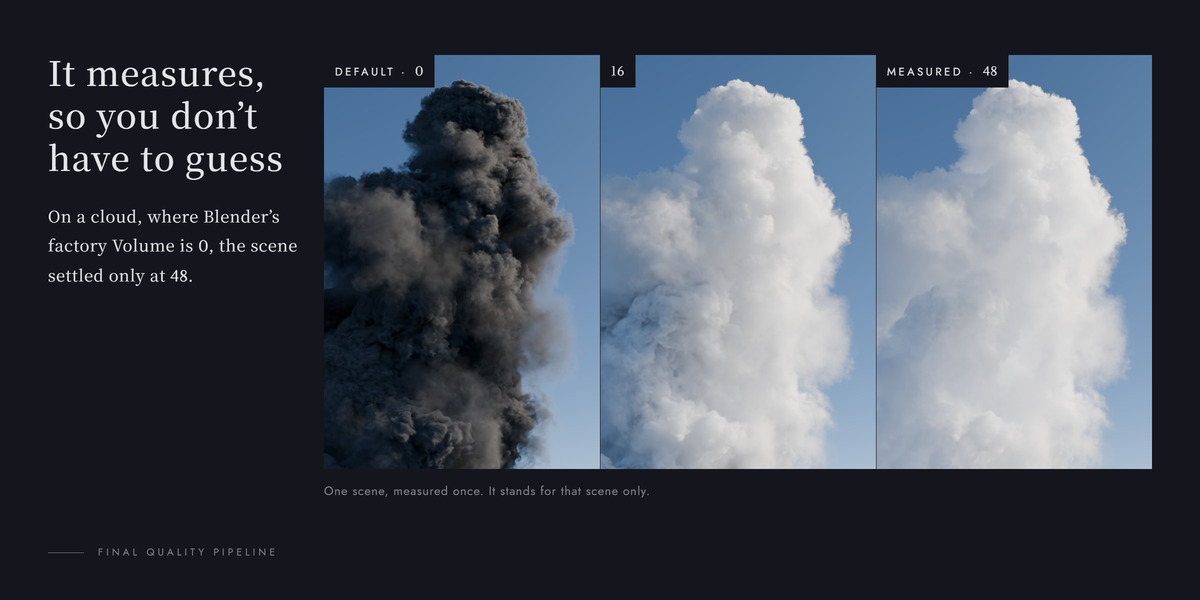
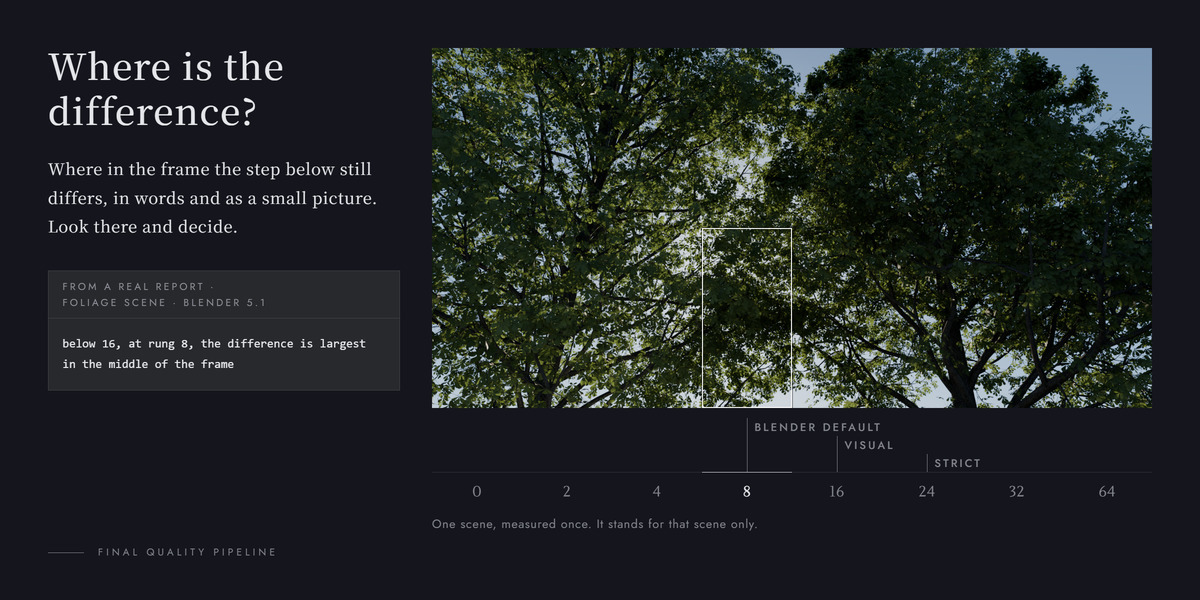
Why measure. Blender's factory values are Diffuse 4, Glossy 4, Transmission 12, Transparent 8 and Volume 0. Two measured examples follow; each stands for that one scene only, not for a rule. On a cloud scene, where the factory value of Volume is 0, the scene settled only at 48 — at rung 32 the colour difference against the reference was dE p99 4.075, at rung 48 it was 0.033 (limit 0.360). On a foliage scene, where the factory value of Transparent is 8, the measured Visual value was 16 (Strict 24).
It finds two values for each light path (Diffuse, Glossy, Transmission, Transparent, Volume). The report holds one set of each, and the panel has one Apply button for each:
- Strict: the error of the un-denoised image against the reference (rel.RMSE and tm.RMSE). Both metrics must come in under the threshold, 0.0020 (0.20%). rel.RMSE is the raw error; tm.RMSE is the same after mimicking how sensitive the eye is in the shadows. Linear-space error is dominated by the bright parts of a frame, so a difference that appears only in the shadows is easily drowned out, which is why both metrics have to pass.
- Visual: how far the displayed colours of the image after OIDN denoise are from the reference (dE2000, after a 1 px blur). A value has to be under both limits: dE p99 0.360 and dE>2 (the share of pixels) 0.100%. What that stands for: the difference is small, too small to matter when flipping against the reference.
They measure different things, so a set of values can pass one and not the other.
The two Visual limits come from a calibration, and its conditions are stated here as they were: one trained observer, still images, flipping against the top setting, taking the step from which that observer judged the difference too small to matter (2026-10-04; the bounce count was in view while marking, so that part was not a blind test). The same observer did a blind test on the same day: 82 trials, 12 of them control trials showing two identical images, and none of the 12 was answered as "different". An animation was not part of that calibration: how the picture changes from one frame to the next was not measured. Those conditions are the reach of Visual: one observer, still images.
How it measures, and how far.
- It measures up from your own settings. When your scene uses a value above the top of a channel's ladder, the ladder is lengthened up to that value and measured against a reference of at least twice it (128 at most).
- A channel that has not settled by the top of its ladder gets its reference doubled and rendered again and a few more rungs measured — for 2 rounds at most, and never past a reference of 128. A rung is never above half its reference (it would be measuring itself and the error would collapse to a false zero), so 64 is the highest value there is to measure. If it still has not settled, it is marked NOT converged.
- For a channel that did not settle, the report says what can be done next (the wording depends on the case). When it was measured to less than 64 the action is the same every time: raise this channel in your scene and run the analysis again, and the analyzer measures up to your own setting, 64 at most (against a reference of 128). Judge anything above 64 by eye.
- When two rungs in a row are within the threshold, the ladder stops there and the rest of it is not rendered; the report names the rungs that were left out.
- A light path that is not used in this frame — the image at 0 bounces is within 1e-05 of the reference on both errors — gets only that one image. A scene with a volume first has Diffuse, Glossy, Transmission and Transparent checked together in one image.
- When no volume is detected (no Volume input is connected on the world or on any material, and there is no Volume object either), the volume ladder is skipped and Volume is left as it was.
- The small analysis images limit textures to 1K (1024 px). That is for the analysis only: nothing in your scene is changed, and a final render uses its textures as the scene has them. The panel has no switch for it.
Both sets are checked again as a set. Each entry is measured on its own; whether they add up on top of each other is something only a joint render can tell you.
- Strict joint check: the Strict values are applied at once and really rendered. When that set is over the threshold, every channel that has a higher rung goes up one rung and the set is rendered again; if that set passes it is the one that is used (ESCALATED). If it still fails, the result is FAILED: when the error (tm.RMSE) came down by less than 10% the step up is not kept and the report lists the first set. The report names the ones that were already at their limit and could not go higher.
- Visual set check: every channel at its own Visual value, applied together and rendered, measured as the colour difference after denoise. When that set does not pass, every channel below its Strict value is raised one rung, all of them together, and the set is rendered again; if that does not pass either, the Visual values of this report are the Strict values. When the Visual settings are the same as the Strict settings, no separate set is rendered.
The "one rung up, all together" rule was compared with one observer's (the author's) judgement on five scene settings: four came out the same, on one (the bottle camera of the kitchen scene) the add-on went one rung higher than he did, and on none was it looser than he was.
When it is not sure, it does not lower your setting.
- A channel whose Strict ladder did not settle in the range measured (the report marks it "highest value measured, not settled"): your setting is kept when it is higher. Visual gives no value of its own there; it uses the Strict value.
- A channel where only the top rung met Strict, with no confirming rung above it (the report marks it "met at the top rung only, unconfirmed"): Visual uses the Strict value there too.
- A light path this frame does not use, and Volume when the analysis found no smoke or fog to measure, are left exactly as you had them and are not written.
- Max Bounces is never lowered. It is changed only when the sum of the values written is above the Max Bounces your scene has at that moment, and then it becomes that sum.
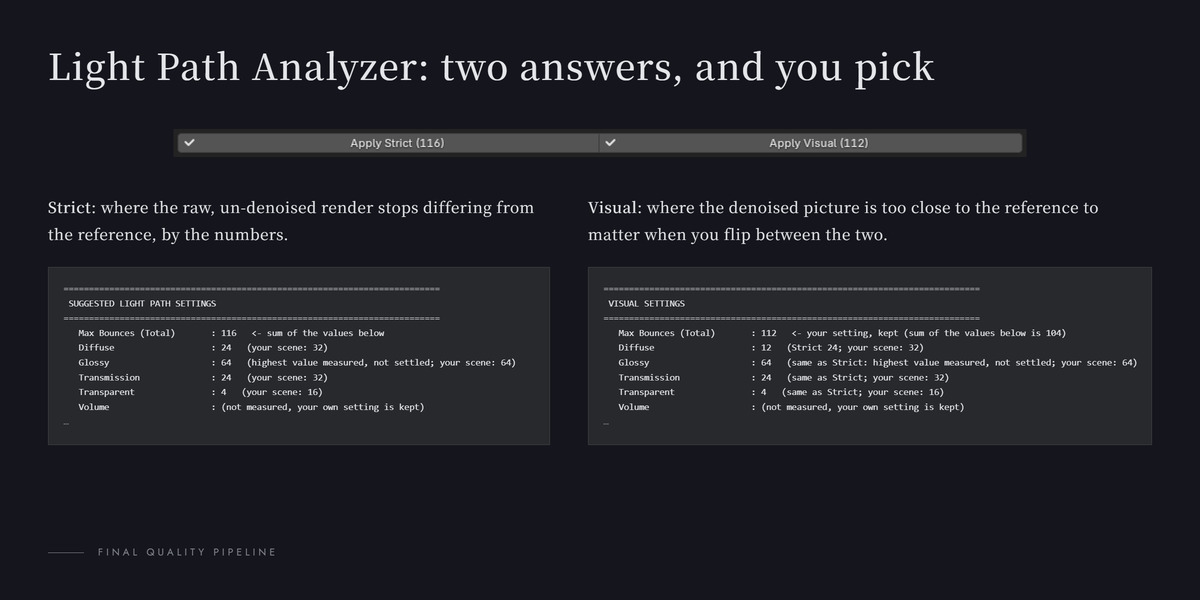
The two Apply buttons. Apply Strict writes the Strict set into Render Properties > Light Paths; Apply Visual writes the Visual set. The number in brackets on a button is the Max Bounces after applying, for example "Apply Strict (116)"; the tooltip lists the value of every channel. Both ask before they write. When the report has no Visual result, Apply Visual cannot be pressed and the panel says "No Visual result - run the analysis again".
A measured example (kitchen scene, bottle camera): the scene had Diffuse 32, Glossy 64, Transmission 32, Transparent 16 and Max Bounces 112. After Apply Strict it has 24, 64, 24, 4 and Max Bounces 116; after Apply Visual it has 12, 64, 24, 4 and Max Bounces 112.
Show Light Path Report gives you the short version in a popup: the values Apply writes (not the measured knees), the result of both set checks, and anything that needs attention. The rung-by-rung numbers go to the console and to <blend>.fqp_lightpath_report.txt.
Reading the report. Near the top of the report, under the lines that say "what the three numbers mean", a block headed "Strict and Visual:" says in a few lines what the two results measure and which limits each is held against. The excerpts below are from the report of that same kitchen scene. First, one channel's ladder:
TRANSPARENT   (scene.cycles.transparent_max_bounces, reference render used 32)
   secs = seconds each test image took (25% size, measuring overhead
   included); compare them only within this ladder
   bounces |   rel.RMSE |    tm.RMSE |    p99(tm) |   secs | note
   --------+------------+------------+------------+--------+-------------
         0 |   1.209767 |   0.629958 |   2.065150 |    1.8 |
         4 |   0.001582 |   0.001808 |   0.000000 |    1.8 | <== knee
         8 |   0.000000 |   0.000000 |   0.000000 |    1.8 |
   stopped here: two rungs in a row are within the threshold, so the rest of the ladder (16, 24) was not rendered
   verdict: converged (both metrics)
   visual check (display values after OIDN denoise, dE2000 vs reference 32, blur 1 px)
   bounces |   dE p99 |  dE>2 % | note
         0 |   45.980 |  93.199 |
         4 |    0.059 |   0.000 | <== Visual: difference small from here
8 | 0.051 | 0.000 | -
secsis the seconds each test image took; compare them only within this ladder. It is not the time of your final render. -
<== kneemarks the Strict knee;<== Visual: difference small from heremarks the Visual rung of this channel on its own. - The two columns of the Visual table are printed to three decimals; they are what the two limits (dE p99 0.360, dE>2 0.100%) are held against.
Then the two sets of settings:
 SUGGESTED LIGHT PATH SETTINGS
   Max Bounces (Total)       : 116   <- sum of the values below
   Diffuse                   : 24   (your scene: 32)
   Glossy                    : 64   (highest value measured, not settled; your scene: 64)
   Transmission              : 24   (your scene: 32)
   Transparent               : 4   (your scene: 16)
   Volume                    : (not measured, your own setting is kept)
   Time cost: in the 3 comparisons that could be made (the Strict value
   against your setting: 2; the Visual value against the Strict value: 1)
   a test image took about the same time either way. For 1 channel
   (Transparent) the Strict value could not be compared with your setting:
   the rung of your setting was not rendered there (the ladder stopped
   early). This is a rough level worked out from the small test images,
   not the time of your final render; if you know how long one of your
   frames takes, you can scale it by the seconds in the tables yourself.

 VISUAL SETTINGS
   Max Bounces (Total)       : 112   <- your setting, kept (sum of the values below is 104)
   Diffuse                   : 12   (Strict 24; your scene: 32)
   Glossy                    : 64   (same as Strict: highest value measured, not settled; your scene: 64)
   Transmission              : 24   (same as Strict; your scene: 32)
   Transparent               : 4   (same as Strict; your scene: 16)
Volume : (not measured, your own setting is kept)- SUGGESTED LIGHT PATH SETTINGS is the Strict set and VISUAL SETTINGS is the Visual set. "your scene" on each line is the value the scene had when the analysis started.
- "Time cost": when every comparison that could be made comes out "about the same", the report prints one summary sentence like this one, which says how many comparisons could be made and which channels could not be compared; as soon as one comparison is not, every channel gets its own line instead. Two test images count as about the same when their seconds differ by less than 10%, or by less than 0.5 seconds. No percentage is printed: it is a rough level worked out from the small test images.
- "same as Strict": the Visual value of this channel is its Strict value.
- "highest value measured, not settled": Strict did not settle in the range measured.
- "met at the top rung only, unconfirmed": only the top rung met Strict, with no confirming rung above it.
- "not used in this frame - your setting, kept; not in the sum": this light path is not written.
- The Strict joint check table has a
totalcolumn: the Max Bounces each image was rendered with — the values of its row plus what was not measured, at the value it had in that image. This report did not measure Volume (8 in that image), sototalis 8 above the sum of the row's values; the Max Bounces line of SUGGESTED LIGHT PATH SETTINGS adds up only the values it lists, without that 8. - The result of the Visual set check is printed at the end of VISUAL SETTINGS, together with the limits and the calibration conditions.
If you read the .json from your own code: read the structured fields (values and states). The explanatory text in it (visual_note, verification.note, verification.reference_note and the like) changes with the wording and the language, and is not guaranteed to stay the same.
When the Strict joint check does not pass. The report then ends with a short section that lists the settings to raise by hand; each line gives the value Apply Strict writes. General experience, not measured in that run: this is common in scenes with a lot of glass, metal or mirrors — light bounces back and forth inside them many times before it is done. A rule of thumb, not a measurement: after raising them, look at the picture again, and when the things behind glass or in reflections no longer look darker, that is enough. 64 is the highest value the analyzer measures; judge anything above it by eye.
One more thing worth knowing: a recommendation of 0 is flagged. It is correct for the scene as it stands and wrong the moment you add a material that uses that light path — an alpha-mapped leaf, for instance.
Sampling Analyzer
It renders one high-sample answer key with no threshold at all, then one image per threshold from loose to tight — the tightest rung, 0.002, is always included — timing each.
The important design decision: every one of those images is denoised first, and what gets compared is the finished picture. Measuring the raw noisy images would be circular — the noise adaptive sampling leaves behind is roughly the threshold itself, so you would be measuring the threshold with the threshold. And the denoised picture is what you actually look at.
Every rung is compared with the tightest one. The suggestion is the cheapest rung whose finished picture stays within 10% of the tightest rung — both on raw error and on the version that mimics the eye in the shadows. The ladder runs the opposite way to the light path one (loose to tight), so the search walks from the tightest end towards loose and stops at the first rung that is more than 10% off; one lucky loose rung cannot win. The report puts it as "Suggested Noise Threshold X: in this analysis, compared with the tightest rung (0.002), the error of the finished picture differs by no more than Y%".
The small 25% test images can miss a highlight. So when they pick a rung looser than the tightest, the scan runs once more at 50% and the tighter of the two answers is kept. When a scene really needs the tightest rung, the report says "this scene needs the tightest rung (the shadows or highlights are still changing)" and Apply fills that one in.
Sometimes the threshold hardly matters: most pixels stop at Max Samples before they ever reach the Noise Threshold. 1.4 says so plainly instead of the 1.3 hint about the two tightest rungs; see Held back by Max Samples under The report.
The analysis denoises on the CPU and with persistent data off, so the same scene gives the same answer every time; your settings are put back afterwards, also when it stops with an error.
Limits. Motion blur is not rendered during the analysis, so the answer for a motion-blurred shot does not include it. When the camera has depth of field, the pick is automatically made one rung tighter than the analysis result (the report and the Info line name the rung the analysis originally suggested). The analysis cannot judge the depth of field of a custom lens (for example an OSL lens add-on) - please judge it yourself. And an analysis takes from some tens of seconds to a few minutes, depending on the scene, on how many frames it looks at and on Detail comparison; analyse a shot once and the result keeps applying to it. For an animation, answer the first question with three frames (below).
Quick Check
Quick Check answers one question before you spend time on the full analysis: does your current setting already run into Max? It renders one image of the current frame with your own settings (the scene's Samples, Noise Threshold and Min Samples) at Analyze Res % (at the top of the Analysis box, 25% by default), without denoising, in its own console window. The scene is put back and the file is not saved. With adaptive sampling off it renders nothing: there is no threshold to judge. It and Analyze Sampling never run at the same time. It usually takes a small part of the time a full analysis takes.

The answer is one or two lines under the button (here "…" stands for the numbers):
| Lines | What it means |
|---|---|
| "Quick Check: …% hit Max (…)" and "Full analysis shows which Max is enough", in red | More than half of the pixels reach Max Samples. A looser Noise Threshold will not save time; the full analysis shows which Max is enough after denoising, and an animation can hand the remaining flicker to the Temporal Denoise window. |
| "Quick Check: only …% hit Max (…)" and "Room to loosen: run the full analysis" | Fewer than half reach Max. The full analysis can look for a cheaper threshold. |
| "Quick Check: Noise Threshold is off" and "May save time: run the full analysis" | Adaptive sampling is off, so every pixel is computed to Samples. Switching it on may save time. |
| "Quick Check did not finish: …" | It stopped or failed; the reason follows. Beside the button it only says "Not finished". |
| "Settings changed - check again" | The settings it checked are no longer the scene's. |
Under the result, a dim line reads "Full analysis: for animation, batches". That is when the full analysis earns its minutes: in an animation one frame can mislead, and for a batch of images rendered with one setting the time is paid back many times over.
Is it an animation
Analyze Sampling first opens a small dialog with one question, Is this shot an animation?, and three answers. The next time, the dialog starts on the answer you gave last. Without a camera or a saved file it does not open at all, and says why.
- No, a still (look at the current frame) analyses the frame the scene is on, exactly as described above.
- Yes: look at the first, middle and last frame analyses the first, middle and last frame of the frame range (1–48 gives 1, 25 and 48) with the same steps, and uses the strictest pick of all of them; the depth-of-field step comes after that, when the camera has depth of field on any of those frames. The report lists every frame's pick and names the frame that decided it, and "within Y%" is that frame's figure. Choose it for an animation: a single frame can pick a looser rung than the rest of the shot needs — a dark stretch that runs into Max Samples looks finished at 0.02 while the bright part needs 0.01. The dialog adds "Three frames can still miss the hardest part": a bright stretch that is short and does not include any of those three frames can still be missed. It takes about 3 times as long, and the point is to avoid a wrong pick, not necessarily to save time. An unbaked simulation can come out differently when the analysis jumps between frames than in the real render — bake it first. With a one-frame range it is the same as the current frame.
- Yes, but only look at the current frame (faster) analyses only the current frame, like a still, but the report is written for an animation: the Fast and Balanced options say "may flicker more in animation", and a scene stuck at Max gets the line that points at Temporal.
The answer is also written into the scene's Analyze Frames setting, the row the panel had until 1.3.
The report

Show Sampling Report brings up the report in a popup; the .txt file next to the .blend and the system console have all of it. New in 1.4:
- The options come first; see The options.
- The Max Samples ladder. Next to the threshold rungs, a second table renders the scene at your own Noise Threshold with Max Samples 128, 256, 512 and 1024, stopping at the ceiling of the analysis. Each row gives the seconds, the error against the standard answer, how much it improved on the row above, the average samples per pixel, and "…% of the pixels reached Max at this row". The seconds are measured at the analysis resolution; the full-size picture usually costs more. Below 128 there is no such table. With a loose Noise Threshold (0.1, say), raising Max Samples can make the error larger, not smaller; the report says so under the table.
- Your current setting. One row is rendered with the scene's own Samples, Noise Threshold and Min Samples, so you can see where you stand. When more than half of its pixels already reach Max Samples, the report says "At your current setting, more than half of the pixels already reach Max Samples." When your Samples is at least half of the standard answer's, the row is out of the measurable range and is not measured.
- Held back by Max Samples. When half or more of the pixels of the suggested rung stop at Max before they reach the Noise Threshold, the scene is held back by Max Samples, and the report starts with that: "This scene is held back by Max Samples: at Max …, …% of the pixels stop at Max before they reach the Noise Threshold, so which Noise Threshold you pick makes little difference." Tuning the threshold then changes almost nothing, so the options are laid out along Max instead (their setting reads "Max 256" rather than "Noise Threshold 0.02"), the popup leaves out the suggested threshold, and Apply Suggested Threshold is greyed out. Its tooltip says why.
- The detail column, with Detail comparison on: every row gets "still …% from the standard answer". See Detail after denoising.
- Device. When the file is set to render on another kind of device than the analysis ran on (CPU against GPU), the popup says "The file is set to render on …, but this analysis ran on …; the seconds of the real render can differ."
- View layer denoising. If a view layer's Denoising switch was off, the analysis switches it on while it runs and back afterwards. The
.txtreport and the console then say "View layer denoising was off on … - switched on for the analysis (and back afterwards)."; the popup does not.
When the popup leaves out some frames' tables, its last line says where they are: "All the frames and the full price list: the system console, or …".
Detail after denoising
A denoised picture that looks clean has not necessarily kept its detail. The denoiser takes the noise away, and with it some of the fine detail: wood grain, small print, fine bumps. The more samples a pixel gets, the less the denoiser has to guess, so more of the detail survives. Flicker in an animation is a different matter: adding samples does only so much against it, and that is the job of the Temporal Denoise window.
That is what Detail comparison measures (it costs "About 15% more time", as the line under it says). With it on (the default), the analysis renders one more standard answer, so every row of the table gets one more column, "still …% from the standard answer": how much of the detail is left after denoising. Lower is closer to the standard answer. To choose with it, look down the column for the cheapest row whose figure you can live with: a hero close-up may need a smaller figure than a background that sits behind depth of field. The column is measured at the analysis resolution; at full size the figures can be higher or lower. With Detail comparison off the analysis is quicker and the column is left out.
The options
The report popup starts with three options, Fast, Balanced and Safe, under "Options (measured on your scene; times are estimates):". Each line gives the setting it was measured with, its time against Safe's ("about …0% of Safe's time"), its detail figure and its error against Safe's. When you answered the dialog as an animation, Fast and Balanced also say "may flicker more in animation". The last line compares the scene's current Samples with them, for example "Current Samples …: same as …".
The time is worked out from the average number of samples a pixel actually used, not from the ratio of the Max values: adaptive sampling stops many pixels long before Max, so a high Max costs less than its number suggests, and a low Max's share of its time is larger than the plain ratio of the two Max values.
The options never go above the ceiling of the analysis ("These stop at the Max Samples set for the analysis (…)."). That is deliberate: they compare what was measured, and a Max that was never rendered cannot be compared. To see higher, raise Final Max Samples and analyze again.
The options are worked out during the analysis and stored in the report. A report made by 1.3 has none, and a report keeps the options it was made with: to get options worked out by a newer version, analyze again.
Under each line there is a button that names the option and its setting, for example Apply Safe (Max 512). It asks first (Apply this option?, Overwrite) and then writes the setting the option was measured with into the scene: adaptive sampling on, Noise Threshold, Max Samples (the scene's Samples) and Min Samples. Ctrl+Z (⌘Z on Mac) undoes it.
Two Max values
There are two Max values in play, and the buttons treat them differently:
- The scene's Samples (Render Properties > Sampling > Render). Quick Check and the your-current-setting row of the report use it, together with the scene's Noise Threshold and Min Samples. The Apply button of an option writes it.
- Final Max Samples in the FQP panel. It is the ceiling of the full analysis, shown in the Sampling Analyzer box as "Ceiling: … (the Final Max Samples above)": the Max ladder and the options stop there. Apply Final Sampling writes it into the scene's Samples, together with Noise Threshold 0.01.
So the order matters. Press Apply Final Sampling before the analysis, and Apply Suggested Threshold or an option's Apply button after it. Pressing Apply Final Sampling after an option puts Samples back to Final Max Samples and the threshold back to 0.01, and the option is gone.
Apply Suggested Threshold still sets only the Noise Threshold (and turns adaptive sampling on). Max Samples is left alone deliberately: the scan used Final Max Samples as its ceiling. If Final Max Samples has changed since the analysis, it applies the threshold all the same and warns: "This threshold was picked at Max Samples …, but FQP's Max Samples is now …. It was applied anyway; analyze again to be sure."
Progress and messages
While the analysis runs, the status beside Analyze Sampling reads "Running", and a line of its own underneath says where it is and about how long is left, for example "Frame … of …, …% analysis · about … left" (the second pass at a larger size says "re-check"). Under a minute the time is given in steps of 5 seconds, from a minute on in whole minutes; before the first image it says "estimating…", at the end "almost done". The time left is an estimate. It usually only goes down; once in a while it is corrected upwards once, after the first few images.
The Info line when you press the button gives a first rough time, says how many seconds a second pass can add at most, and that the panel shows a closer estimate after the first image.
The report goes by the .blend as it was saved when the analysis started. If you save the .blend while it runs, showing or applying the report afterwards says "Scene changed since analysis: the .blend was saved after the report was made - consider running Analyze again".
8. Background rendering
CLI Render Still and CLI Render Animation hand the job to a second, headless Blender with its own console window. The UI holds none of the VRAM, stays usable, and you may even close it — the render carries on.
The window reports live:
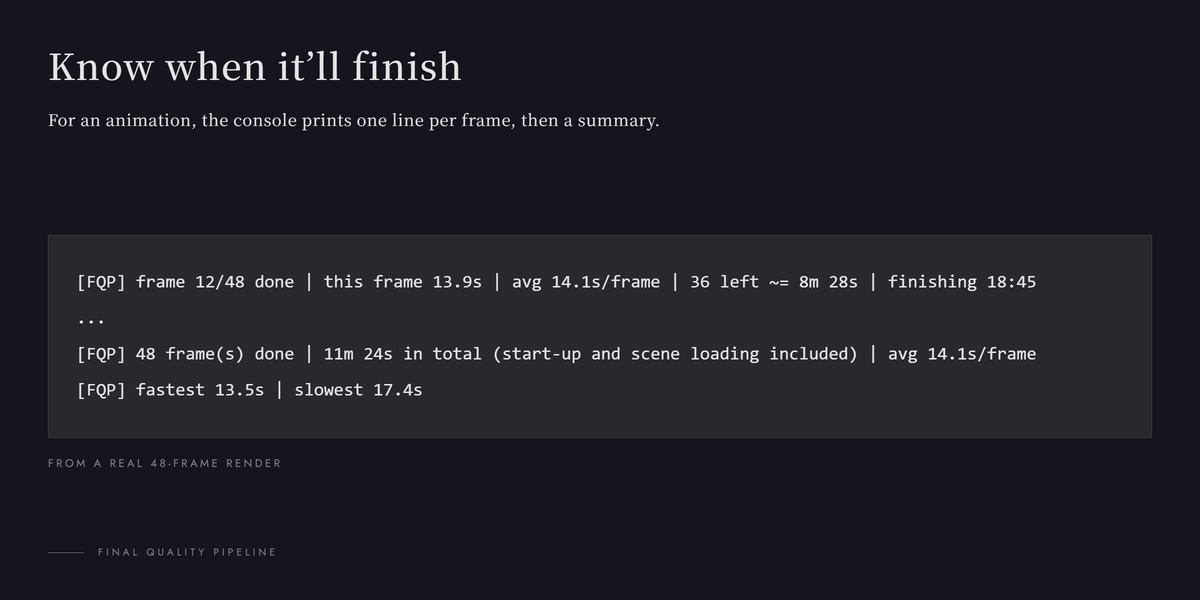
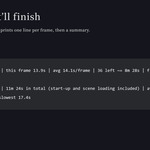
[FQP] frame 12/240 done | this frame 41.3s | avg 39.8s/frame | 228 left ~= 2h 31m | finishing 18:42It starts estimating after the first frame and keeps recomputing from the running average, so a scene that gets heavier later shows it. The per-frame seconds are Blender's own Time: figure, which excludes start-up and scene loading — that is what keeps the first estimate usable. The frame count follows your Frame Step.
Blender's own output is reprinted underneath, line for line. At the end you get totals, the fastest and slowest frame, and Blender's exit code.
Two warnings: it renders the copy on disk, so save first; and a GPU only has room for one render at a time, so do not press F12 as well.
Resuming an animation with Overwrite off (Output Properties > Output): the frame count and the finishing time cover only the frames that still have to render, and the window says how many existing frames it skips.
If no python interpreter can be found the progress summary is skipped and the buttons fall back to launching Blender directly. The render is unaffected.
For people who start the analyzer or watcher scripts by hand: their parameters must be a JSON object, with numbers written as numbers (16, not "16"). Anything else ends the job as failed with one sentence saying what was wrong.
9. Temporal Denoise window
The Temporal Denoise window is the 1.4 way to take the flicker out of an animation. It works on the frames already on disk, so you can tune it without rendering again: measure the noise, preview one frame, then process the whole sequence.
Before you start
- The usual groundwork for an animation: Build Pipeline, motion blur off, the file saved (see Animation, start to finish).
- Press Prepare Animation Output once in the Temporal (v2) box. Then, in the window's Source panel, press Prepare Again for Temporal Denoise, and render the animation. The window needs more passes than the 1.3 way; see What Prepare Again changes.
- The preview, the measurement and the processing run in a separate Python process, not in Blender (only the precise measurement starts a background Blender). If no usable Python interpreter can be found, the window says so.
- One job at a time: a preview, a measurement and the processing share one slot, and the window tells you what is holding it.
Opening the window
The Temporal Denoise Window panel is the last one in Properties > Render, at the very bottom of the FQP panel (after the CLI Render box and the closed Legacy: Temporal (Build / Run) panel). Its Open Temporal Denoise Window button opens a new Blender window: an image editor with the FQP Temporal side bar open and a second header row. In background mode it does nothing.
To use an image editor you already have instead, open its side bar on the FQP Temporal tab and press Show the Preview in This Editor (at the bottom of the Actions panel; it only shows up where the editor is not already showing the window's images).
The second header row holds the five view buttons (a drop-down when the editor is narrow), the frame being shown, Split Position, and a progress bar while something runs, for example "Previewing …", "Rendering …/…" or "Denoising …/…". On a frame that has no result yet, the place of Split Position reads "Not previewed yet" (or, while you look at the processed sequence, "Not processed yet").
The side bar
| Panel | What is in it |
|---|---|
| Source | The folder, the frames on disk ("Frames on disk: … to …") and whether all the data is there. Missing data is named: Image, Motion Vectors, Depth, Normal (denoising), Normal (world space), Object ID (layer 1), Object ID (layer 2), Reflection and Transmission. When the animation output is not the extended set yet, or its writer node is off, a line says so and Prepare Again for Temporal Denoise is right under it. It updates by itself while the window is open: when new frames land on disk (also from a background render), after you switch the language and after you open the file again. |
| Noise | Two boxes: Measure Noise and Measure Noise (Precise). See Measure the noise. |
| Temporal Denoise | The four sliders below, and the note "Anti-ghosting adapts on its own to how much each surface is turning". |
| Detail | One greyed-out line, "Detail Add-Back (experimental)". There is nothing to set in this version. |
| Actions | Preview This Frame, Process the Whole Sequence, the switch between Show the Preview and Show Results, and under it the buttons that make and play the previews. |
The sliders (the Temporal Denoise panel):
| Control | What it does |
|---|---|
| Frames Each Side (3) | How many neighbouring frames on each side are compared with the frame being cleaned, 1 to 3. More frames remove more flicker and take longer. |
| Threshold (0%) | How different a neighbouring frame may look and still be used, from −50% to +50%. Higher removes more noise and may smear moving detail; lower keeps more detail and more noise. 0% is the tested setting. |
| Strength (100%) | How much of the cleaned result is used: 100% is the full result, 0% leaves the frame as it was rendered. |
| Anti-Ghosting (50%) | Where the frames disagree, how little the neighbouring frames are trusted. Higher fights trails behind moving things; lower removes more noise there. 50% is the tested setting. |
What the image shows (View, in the header row):

| View | What you see |
|---|---|
| Result | The cleaned frame. |
| Original | The frame as it was rendered. |
| Split | The original on the left, the result on the right; Split Position moves the line (0 is the left edge, 1 the right). |
| Confidence | How much the neighbouring frames were used for each pixel: white is a lot, black is not at all. |
| Difference | What the cleaning changed, four times brighter: "Brighter = this frame was changed more". |
Preview Frame picks the frame that is previewed and shown. 0 means the first rendered frame; a number outside the rendered frames is moved to the nearest end.
The view only changes when you pick one: a preview or a processing run that starts or ends never switches it for you. Result, Split, Confidence and Difference need a result for the frame shown. On a frame that has none, the window shows the Original picture instead, the header row says "Not previewed yet" and the Actions panel says "This frame has not been previewed yet" (while you look at the processed sequence: "Not processed yet" and "This frame has no processed result"). Switching views keeps your zoom, and in Blender 5.2 the point you were looking at stays where it was too (see Known limitations).
Preview This Frame
Preview This Frame cleans the frame shown, with the sliders as they are now, in the background. Only this one frame is computed, so it is the place to try sliders. It needs a noise measurement first ("Measure the noise first: the preview uses that measurement"). The result goes into tdn_preview in the Frames folder and shows up in the editor as five images, one per view. Move a slider afterwards and the panel says "The sliders have moved, so this result is old: press Preview to update it".
Cancel Preview stops it; a second press a few seconds later stops it at once. The preview does not change any scene setting.
Measure the noise
The temporal denoiser needs to know how much noise is left in your frames, so it knows how far to go.
- Measure Noise reads three of the rendered frames and takes a second or two.
- Measure Noise (Precise) first renders those three frames (first, middle and last) again with another seed in a background Blender, then measures the difference between the two renders. It renders the .blend on disk, so a file with unsaved changes is refused: "The .blend has unsaved changes: save it first, then measure (the background render reads the file on disk)". It renders on the same device as your render settings: on the GPU when the scene is set to GPU and a GPU is switched on in Blender's preferences. What it changes for that render (where it writes, the seed, other File Output nodes muted) stays in the background Blender and is never saved into your .blend.
- While a measurement runs, Cancel asks it to stop after the frame it is working on, and Force Stop ends it at once. Once it is done the button reads Measure Again.
The status reads "Measured (normal)" or "Measured (precise)", and the Temporal Denoise Window panel in Properties says which one you have. If you render the frames again later, the window says "The frames were rendered again after the measurement - measure again".
Process the Whole Sequence
Process the Whole Sequence denoises every frame on disk with the sliders as they are now. It needs a saved .blend (the results go next to it), frames rendered after Prepare Again for Temporal Denoise, and a noise measurement. While it runs, a line says "Frame … of …, … elapsed, about … left". Cancel Processing asks it to stop after the frame in hand; the button then reads Continue Processing the Sequence and carries on from the frames that are not done.

The processing runs in its own Python process, not in Blender, so it carries on even if you close Blender.
The results go into temporal_denoise in the Stabilized Dir folder. If that folder holds results of other slider settings, it asks first, Replace the previous results?: "The results of the previous settings (… frames) are moved to a _previous_ folder (not deleted)". Press Process to go on. The old results move into a _previous_<time> folder; frames whose source data is newer than their result move into a _stale_<time> folder and are computed again. Neither is ever deleted.
When the whole sequence is done ("The whole sequence is processed (… frames)"), the window switches to Show Results by itself and, when it is open on screen, starts making the small previews right away, so Play Result shows up without another press (see Play the result). It also switches the writer node of the animation output off, so a later render cannot overwrite the footage, and the Source panel says so. To render the animation again, press Prepare Again for Temporal Denoise: it switches the writer back on.
Processing does not paint motion blur back on. Apply Motion Blur and Shutter belong to Run Temporal; the frames the window writes carry no added motion blur.
Show the Preview and Show Results choose what the window shows: the single-frame preview, or the processed sequence. With the results shown, the panel reminds you "These results were made with the settings of their run", and if the sliders have changed since, "The sliders are different now; Process the Whole Sequence asks first whether to replace the results".
Moving the project
Move or rename the whole project folder (the .blend together with its Frames and Stabilized Dir folders) and the processed frames stay valid: Process the Whole Sequence skips them instead of computing them again. What it goes by is where the Frames folder sits relative to the Stabilized Dir folder, so keep the two together. The fine print is under Known limitations.
Play the result

Under Show Results:
- When processing ends with the window open on screen, the window makes half-size JPEG previews of the processed sequence by itself, into
temporal_denoise_previewnext totemporal_denoise, with the scene's colour settings. While it works the panel shows "Making Preview …/…" and a Stop button. It switches the scene's output format settings for a moment and puts them back. - Play Result shows up when the previews are there. It plays them in a loop in the window, at the scene's frame rate, with the frame shown counted as …/…. Stop ends playing and puts every editor back the way it was: the image it showed, its zoom and its position.
- Make Preview shows up instead of Play Result only when the previews are not all there, for example because the window was not open when processing ended. Press it once, then Play Result.
The colours are those of the final output (view transform, look, exposure), so they can differ slightly from the single-frame preview, mostly at edges.
What Prepare Again changes
Prepare Again for Temporal Denoise does everything Prepare Animation Output does, and on top of that:
- it writes six more sequences into the Frames folder:
ddepth####.exr,dnormal####.exr,cryptoA####.exr,cryptoB####.exr,noisy####.exrandspec####.exr; - it switches the Cryptomatte Object pass on and raises its levels to at least 4, keeping the old value so Remove Animation Output can put it back;
- it adds a helper node group,
FQP_TDN_SPEC, to the compositor; - it needs the Beauty Source set to FQP Output (clean). When it is not, it asks first, Switch the beauty source to FQP?: "Temporal denoising reads the clean FQP output. This also changes what the old Run Temporal reads". Switch and Prepare goes ahead. Your own filters (Glare, grading) are then not part of the beauty sequence;
- it switches the writer node back on if processing switched it off.
It does not start another Blender. Pressing the ordinary Prepare Animation Output afterwards sets up the plain 1.3 output again and takes the extra passes away.
What the window writes
| Where | What |
|---|---|
| The Frames folder | The six extra sequences above, next to the four of every Prepare. |
seed2 in the Frames folder |
The three second-seed frames of the precise measurement (beauty####.exr), with its manifest, status and log. |
tdn_prof in the Frames folder |
The noise measurement, in single and dual. |
tdn_preview in the Frames folder |
The single-frame preview, and two scratch files, fqp_tdn_view_split.exr and fqp_tdn_view_diff.exr, that hold the Split and Difference views (overwritten each time). |
temporal_denoise in the Stabilized Dir folder |
The processed frames, each with a confidence image, plus a manifest and a status file; inside it, _previous_<time> and _stale_<time> folders as described above. |
temporal_denoise_preview in the Stabilized Dir folder |
The half-size previews tdn####.jpg and preview_manifest.json. |
| Inside the .blend | The images FQP_TDN_result, FQP_TDN_original, FQP_TDN_conf, FQP_TDN_split and FQP_TDN_diff for the views, and FQP_PLAY while Play Result runs (Stop removes it). About 0.4 seconds after you stop moving a slider, the Split and Difference images are saved into the two scratch files above, so saving the file or quitting Blender does not ask you to save them. |
<!-- MAC-TBD: confirm on the Mac that saving / quitting no longer shows "Save N modified image(s)" for the window's images (MX3/MX5; confirmed on Windows only). -->
Taking the frames further
The processed frames are ready for grading or editing as they are. What you get, in temporal_denoise inside the Stabilized Dir folder:
-
tdn####.exr, one per frame, the number being the frame number. Every frame of the sequence on disk is there, the first and last included. - Single-part OpenEXR, 32-bit float, ZIP, with R, G, B and A. A is the alpha of that frame's beauty (all 1 when the beauty has none). The add-on writes no colour space tag into the file: the values are the same kind of data as the beauty sequence they were made from.
-
tdn_conf####.exrnext to them: the confidence image, one channel named Y, 0 to 1. Handy as a mask if you want to treat the places where the neighbours were hardly used differently. - The JPEG files in
temporal_denoise_previeware only for playing in the window, not for grading.
The beauty these frames come from is the clean FQP output, so your own Glare and grading are not in them (see What Prepare Again changes). Put those after this step. There are two ways to do that by hand:
- In another program (compositing, grading or editing software that reads EXR sequences): import the
tdn####.exrsequence. - In Blender: add a new, empty scene, give it a compositor node tree (New in the Compositor header), and add an Image node. Open the first
tdn####.exrin it and set the image to Image Sequence: Start Frame 1, Offset 0, and Frames set to the number of the last file, with Auto-Refresh on. Connect it, through your grade, to the Group Output. Set the scene's resolution to the size of the files and its frame range to the frames you have, choose the output format, and render the animation.
The 1.3 way: Legacy
Build Temporal and Run Temporal are still there, unchanged, in the closed fold Legacy: Temporal (Build / Run), near the bottom of the FQP panel. They read the four sequences of an ordinary Prepare, use Temporal Radius, Clip Gamma, Depth Tolerance and the motion blur settings of the Temporal (v2) box, and write stabilized####.exr into the Stabilized Dir folder. See Temporal section.
10. Animation, start to finish
Before rendering
- Set the engine to Cycles, assign a camera, save the file.
- Build Pipeline → Apply Final Sampling → Set 32-bit EXR Output.
- Switch Motion Blur off. Leave Frame Step at 1.
- Press Prepare Animation Output, then open the Temporal Denoise window and press Prepare Again for Temporal Denoise in its Source panel (it sets the Beauty Source to FQP Output, after asking). For the 1.3 way, choose your Beauty Source and stop at Prepare Animation Output.
- Press Health Check and read its lines.
Rendering — once, and it is the expensive part. Ctrl+F12, or the CLI Render Animation button.
After rendering — cheap, and you can retry as often as you like:
6. In the Temporal Denoise window: Measure Noise, then Preview This Frame on a few frames, then Process the Whole Sequence (see Temporal Denoise window).
7. Look at the result: when processing ends, the window makes the small previews by itself; press Play Result. Trails behind moving things: raise Anti-Ghosting, or lower Threshold. Leftover flicker: more Frames Each Side, or Threshold up a little. Change, preview, and process again — no re-rendering involved.
8. Take the frames on to your grading or editing; see Taking the frames further.
The 1.3 way, after rendering: Build Temporal → Run Temporal (in Legacy: Temporal (Build / Run)), then look at the result. Ghosting behind moving objects means Clip Gamma is too high or the radius too wide; leftover shimmer means the opposite. Change and run again. The temporal pass works best on locked-off or slow shots; on a fast dolly or pan, also look at the outlines of objects moving across the background, which can come out slightly worse than without it (see Known limitations).
For Run Temporal, the frame range comes from the files actually on disk, not from the scene's frame range, and holes in the sequence stop the run rather than producing frames that silently read the wrong neighbour. If the holes are evenly spaced, the message points at Frame Step, or the -j command-line option. A sequence that starts at frame 0 gets frame 1 stabilized too. Frames outside the range you prepared, or older than your last Prepare, are reported as leftovers instead of being blended in.
A render that was stopped and resumed with Placeholders on and Overwrite off (Output Properties > Output) leaves 0-byte files, and the resumed render skips those frames. Run Temporal then stops and names them: delete the 0-byte files (in the Frames folder and in your Output folder) and render those frames again. For animation it is simpler to leave Placeholders off, or Overwrite on.
Patching a few frames
The sequence is processed (or Run Temporal is done), and a few frames need rendering again — or some are missing? You do not have to render the whole range again.
- Fix the scene. Keep the frame range exactly as it was when you pressed Prepare, and Frame Step at 1.
- Press Prepare, keep existing frames (under Prepare Animation Output; it only shows up when the Frames folder holds an earlier Prepare of this scene for the same frame range). The status bar says how many frames are kept and which ones are still missing.
- Render only the frames you need: set Frame Start and End to them and use Render Animation (a single F12 does not write numbered frames). A frame rendered again replaces its old files. Set the range back afterwards.
- Press Process the Whole Sequence in the Temporal Denoise window: frames whose source data is newer than their result, and missing ones, are computed again. For the 1.3 way press Run Temporal; all its checks still apply — 0-byte, resized or damaged files still stop it.
If the animation output was set up with Prepare Again for Temporal Denoise, Prepare, keep existing frames keeps that extended set, so the frames you render again carry everything the Temporal Denoise window needs.
The kept frames are not checked for being out of date. If you changed the scene, lights, materials or render settings since they were rendered, use the ordinary Prepare Animation Output and render the whole range. The button refuses a different frame range, a Frame Step other than 1, and a folder prepared for another scene, and says why. Two more things to know: the button also shows up right after an ordinary Prepare, before anything is rendered — pressing it then keeps all the old frames, so only do that if you know they are still good; and a .blend with the same file name in another folder counts as the same file, so it can patch frames in a Frames folder they share.
11. FAQ
Compositing has become slow. The tree carries a lot of Denoise nodes. Check that the compositor is on the GPU (Health Check reports it). Clean Guide Passes is off by default; if you switched it on for a dark, noisy shot, it adds two denoise nodes.
Prepare Animation Output refuses to run and tells me to turn off motion blur. Cycles writes no Vector pass while motion blur is on, and the temporal pass aligns frames entirely by that pass. With the 1.3 way (Run Temporal) you lose nothing: the blur is painted back on at the end with Vector Blur, using the scene's own shutter value. The Temporal Denoise window does not paint motion blur back on; see Process the Whole Sequence.
My animation is missing frames at the start and end. By design. The first and last frames have no neighbour on one side, so there is nothing to stabilize them against. Render a few frames of handle at each end.
Where did Build Temporal and Run Temporal go? Into the closed fold Legacy: Temporal (Build / Run), near the bottom of the FQP panel in Properties > Render. Open it and they work as before. The 1.4 way is the Temporal Denoise window.
The stabilized frames have ghosts trailing moving objects. In the Temporal Denoise window, raise Anti-Ghosting or lower Threshold. With Run Temporal: lower Clip Gamma, or narrow the radius, or lower Depth Tolerance. Ghosting means neighbouring frames are being trusted further than they deserve. A thin dotted line along the outline of an object moving across the background (a fast dolly or pan) is a different thing: the temporal pass works best on locked-off or slow shots, and these settings do not fix it. Use the per-frame result for that stretch (see Known limitations).
Can I use EEVEE? No. The pipeline runs on per-pass and denoising data that only Cycles produces.
I added a Glare node after building. Will it survive a rebuild? Yes. Build Pipeline walks your whole filter chain and splices itself in at the head, and if the tail of that chain is not connected to the Group Output it connects it (Remove leaves that link in place). Parallel branches that read the raw render image — a Glare mixed back over the original, say — are moved onto the denoised image as well, so no branch sneaks the noisy picture back in.
Transparent Film — anything to watch for? Include Environment is skipped automatically while it is on, and the panel says so. Otherwise the HDRI would leak back through the alpha. If you change Transparent Film after building, press Rebuild — the panel reminds you. The temporal pass keeps the alpha all the way to the finished frames.
Several scenes in one .blend? Each scene owns its own node group — including a scene made with Full Copy or Linked Copy, which gets its own group the first time you touch a slider there. Two scenes that point at the very same compositor tree share everything in it, FQP included. Build and Health Check tell you when that is the case; to give the scenes separate settings, give one of them a compositor tree of its own (tree selector in the Compositor header) and press Build Pipeline there. Undo also undoes the split, if you want the copy to share again.
Several view layers? Build uses the Render Layers node that feeds your final output and points it at the view layer you are on (if that layer is not rendered, at the first one that is). Remove puts it back.
Another scene in my Render Layers node, or several layers in one comp? FQP works on the scene it is built in. A Render Layers node that reads another scene (cross-scene compositing) is not supported: build FQP in the scene that renders, and composite its result in your comp scene. Only one view layer per scene is denoised; if you composite several layers, give each its own scene.
Can I animate the sliders? No. FQP's sliders and settings cannot be animated: their values live in the compositor nodes, or are read when you press a button, and are not re-read while frames render. Right-click offers no Insert Keyframe; to change the look mid-shot, render the parts separately. Keys that an older file carries on these settings do nothing — Health Check lists them. Delete them in the Dope Sheet or Graph Editor, then move each of those settings once so the panel and the nodes agree.
Shadow Catcher? Shadow Catcher needs Transparent Film. With an opaque background the pipeline rebuilds the picture from its light passes, and the caught shadows are lost; turn on Film > Transparent and composite over your plate. Build and Health Check warn when this happens.
My Group Output has several inputs. Blender renders only the first input of the active Group Output, so FQP connects and reads that first one too.
Run Temporal calls all my frames leftovers after I pressed Prepare again. Prepare starts a new round, so frames rendered before it count as leftovers. If those frames are still good, press Prepare, keep existing frames instead and render only what is missing — see Patching a few frames.
How much render time does raising the bounces cost? The light path report gives a rough level worked out from the 25% test images (how to read it is under Light Path Analyzer); it does not measure the time of your final render. The numbers below were measured separately on a few scenes and are not a promise (RTX 4090). For the surface bounces (Diffuse, Glossy, Transmission, Transparent) the measured increases were these: with every bounce setting at its highest, against Blender's factory values, the kitchen scene was about 9 to 11% slower at most (the largest values of the two sets of measurements are +11.3% and +9.07%) and the foliage scene about 6% at most (+5.6%). Volume bounces cost a lot: on a cloud scene (640×960, 256 samples) Volume 0, 16, 32 and 64 took 30, 183, 216 and 215 seconds.
How many Volume bounces for a cloud or smoke? Let the analyzer measure it. Blender's factory value is 0. A measured example (it stands for this one scene only): a cloud scene was set to 32, and both the Strict and the Visual value came out at 48 — at rung 32 the colour difference against the reference was dE p99 4.075, at rung 48 it was 0.033 (limit 0.360). If a dense cloud renders slowly, see the volume hint in Health Check as well.
Alpha-mapped leaves: how many Transparent bounces? Let the analyzer measure it. Blender's factory value is 8. A measured example (it stands for this one scene only): on a foliage scene the Visual values of Diffuse, Glossy and Transmission were 1, 1 and 2 (Strict 3, 2 and 4), and Transparent was 16 (Strict 24) — this light path needs a far higher value than the others there.
How do I roll back? Remove restores your original compositor wiring and the passes it had switched on, and undoes the rest of what Build changed (a tree it created, nodes it added, Compositing and the compositor device); Remove Animation Output does the same for the temporal node, including what Prepare Again for Temporal Denoise changed (its helper node, the Cryptomatte pass and levels). Nothing outside the compositor, the render passes, Light Paths and the sampling settings is ever touched, and those last two only change when you press the buttons that say they will — each of which asks first.
12. Platform notes
Windows opens a real console window for every background job. macOS asks Terminal.app through osascript. The first time, macOS asks once whether Blender may control Terminal (an Automation permission prompt). Allow it to watch the job in a Terminal window. While that permission is refused the job still runs, you just do not see it there: an empty Terminal window may open, and the progress is in the log file described below. It does not matter how long the prompt stays up before you decline: the job goes to the background either way. Linux takes the first of x-terminal-emulator, gnome-terminal, konsole or xterm it can find.
If no terminal can be opened — none installed, or macOS refused Blender permission to control Terminal — the job still runs: it detaches into the background and writes its output to a log file next to your .blend (the analyzers use <report>.log, background renders a timestamped fqp_<job>_<stamp>.log). Every job starts a new log; nothing is added to an old one. The panel says so in a red line under the button, with the reason and the path of the log (for a background render, inside the CLI Render box, until the next one starts). Open the log in a text editor, or tail -f it. The panel's status lines still update by themselves when the job is done.
On macOS the add-on's messages say ⌘S and ⌘Z where other systems say Ctrl+S and Ctrl+Z.
Testing status:
- Windows — tested on real hardware; this is where the add-on is used day to day.
- macOS — tested on real hardware by the author in two rounds (MacBook Pro M2, macOS 26.6.2, Blender 5.2.2 LTS, Metal; 2026-10-24 and 2026-10-27). The whole Temporal Denoise flow runs through, the precise noise measurement included, and leaves no processes behind. Blender 5.1 has not been tested on a Mac.
- Linux — covered by the test suite; not yet tested on real hardware.
13. Known limitations
- Cycles only. Not a preference, a dependency.
- The temporal pass needs consecutive frames. Frame Step above 1 produces a sequence it cannot use, and it will say so rather than guess.
-
The temporal pass is at its best on locked-off or slow shots. On a fast dolly or pan, the outline of an object moving across the background can come out slightly worse than without it, sometimes as a thin dotted line: the depth check works per pixel, and an anti-aliased outline pixel is part object, part background. Check moving outlines before you commit a sequence; where they matter more than the flicker, use the per-frame result (the
beauty####.exrfiles in Frames Dir) for that stretch. - On a shot where the object turns and the lights stay still, the temporal pass can come out worse than per-frame denoising. For example, a product on a turntable. This was measured by a separate study (on temporal denoising), and its conditions are copied here as given: a gacha machine scene, camera fixed, the machine turning 7° per frame, lights fixed; 16 samples, adaptive off, animated seed on, 960×480, 32 frames, frames 4–29 evaluated; a reference of 2×2048 samples per frame. The numbers (lower is better; tonemapped space, ×1000), Cycles' built-in OIDN per frame first and FQP 1.2.9 with Run Temporal second: per-pixel temporal error (flicker), whole frame, 2.03 against 2.75; temporal error in the edge regions, 21.3 against 29.5; error against the reference (tm-RMSE), whole frame, 5.72 against 7.97. This is one scene at 16 samples, not a general conclusion. In the same batch of tests, on fast indoor pan and dolly shots, Run Temporal beat per-frame: temporal error over the whole frame, again per-frame first and Run Temporal second, 19.62 against 17.71 on the pan shot and 15.73 against 14.79 on the dolly shot. Before you commit such a sequence, take a few frames and compare the result with the temporal pass side by side with the result without it. The numbers above compare against Cycles' built-in per-frame denoising, not against FQP's own per-frame result.
- The analyzers cost time up front. Analyse a shot once and the result keeps applying to it, so it pays back best over a sequence or a scene you render again and again.
- The Sampling Analyzer measures a stand-in. It uses Cycles' built-in denoiser as a proxy for this pipeline's per-pass denoising. The two do not differ in a fixed direction. Motion blur is not rendered during the analysis; when the camera has depth of field, the pick is automatically made one rung tighter (the depth of field of a custom lens, such as an OSL lens add-on, cannot be judged - please judge it yourself); scenes heavy on depth of field, motion blur or hair may need one step tighter than the report says — check one frame before you commit a sequence.
- The Light Path Analyzer measures one frame of one shot, and so does the Sampling Analyzer when you answer that it is a still, or an animation looked at on the current frame only. Reflections and lighting move during an animation. On a moving shot, one rung of margin is cheap — or answer Yes: look at the first, middle and last frame, which checks the first, middle and last frame of the range (a short bright stretch between them can still be missed).
- The Temporal Denoise window does not paint motion blur back on. Its frames carry no added motion blur; Apply Motion Blur and Shutter only act on Run Temporal.
- Visual was calibrated on one observer and on still images only. How the picture changes from one frame to the next in an animation was not measured; neither were other observers, or viewing side by side or one image at a time.
- On a dark scene the Strict value can differ by a rung or two. The Strict error is divided by the average brightness of the whole frame, so in a very dark frame a single pixel can decide the result. A measured example: on a dark alley scene (textures limited to 1K), changing nothing but the seed (the starting point of the random numbers a render uses; the analysis always uses seed 0) put the first Diffuse step within the threshold at 12, 8 and 6 for seed 0, 1 and 2, and the difference came from one pixel. Another: on a darkened kitchen scene, running the same code again once moved the tm.RMSE of the top Glossy rung by 8.4e-4 (42% of the 0.002 threshold); the verdict did not change. 1.3 does not change how Strict is measured. This entry is about running again in the same Blender version; another version is a different matter, see "A different Blender version" below — it has a dark scene on which the two versions differ even in the Strict verdict.
- The Visual numbers move a little from one run to the next. The analysis denoises on the GPU. What was measured: on the bottle camera of a darkened kitchen scene, the set check of one and the same set (Diffuse 8, Glossy 64, Transmission 12, Transparent 4) was run twice and its dE p99 was 0.2970 and 0.2866, about 0.01 apart (limit 0.360; it passed both times). GPU against CPU denoising, in set rounds close to the limit, differs by 0.0001 to 0.0044, and in those comparisons the verdicts did not differ because of it.
-
A different Blender version can give a different result: mostly a difference of one rung, and on a dark scene even a different Strict verdict. What follows is eight scene settings, each run once in Blender 5.1.2 and once in 5.2.1; it is not a promise.
- Foliage, a cloud, a gacha machine: both versions gave the same verdicts and the same values. The bottle camera of the darkened kitchen: the verdicts and the values Apply writes were the same in both.
- Kitchen and alley: some channels are one rung apart. On the bottle camera of the kitchen, Transparent was 4 (5.1.2) against 8 (5.2.1). On the other kitchen camera (the wide shot) the Diffuse knee (Strict) was 24 against 16, and three channels of the Visual set were one rung lower (Diffuse 12 against 8, Transmission 12 against 8, Transparent 8 against 4). On the alley, Diffuse was 8 (5.1.2) against 12 (5.2.1).
- The wide shot of the darkened kitchen: in 5.1.2 only the top rung of Glossy met Strict (it counts as settled, unconfirmed), and the Strict joint check passed after one step up; 5.2.1 judged the same channel not settled, and the Strict joint check still failed after the step up, which was not kept. The values Apply Strict writes differ accordingly (Diffuse, Glossy, Transmission, Transparent: 32, 64, 24, 8 against 24, 64, 16, 4). On this scene the Visual values were the same in both versions (8, 64, 6, 4).
This is the same kind of behaviour as in "On a dark scene the Strict value" above (its cause was not measured separately). So when one version reports "not settled" together with a Strict joint check that did not pass, and the other version does not, that is known behaviour and not a broken tool: for a channel it is not sure about, the report never goes below your own setting, and its last section lists what to raise by hand (see "When the Strict joint check does not pass" under Light Path Analyzer). A suggestion: after changing the Blender version, analyse again rather than reuse a report made with the other version.
- The 1K texture limit rests on three scenes only. A gacha machine, a kitchen and a foliage scene gave the same verdicts at no limit, 2048, 1024 and 512. The scenes that gain are the ones that do not fit in the graphics card's memory: on a 2.5 GB dark alley scene the whole analysis took 1273 seconds in 1.2.9, and 239 and 181 seconds were measured during 1.3 development (RTX 4090). A scene that fits anyway does not get faster; for a scene that still does not fit at 1K there is no answer yet.
- When the graphics card's memory overflows, the analysis still runs, but slower. A measured example: on the same alley scene each test image took 16 to 26 seconds without the texture limit and 3.8 to 4.0 seconds with the 1K limit. 1.3 does nothing further about an overflow.
- How long an analysis takes: these are measured numbers, not a promise (RTX 4090). The foliage scene took about 10 seconds, the kitchen about 85, the alley (2.5 GB) about 181 and a cloud about 400. The estimate the console prints is rough; last estimate against the seconds taken: foliage 9.7 and 10.1, kitchen 83 and 85, alley 180 and 181, cloud 339 and 400 (15% low). For the Sampling Analyzer, go by the progress and time left on the panel.
- With Clean launch off, the light path analysis can stall — see Clean launch.
- In a narrow panel the text of the two Apply buttons is shortened. Blender cuts the button text to "Apply Str..." (in the Chinese interface, "套用 Stric..."), and the number in brackets is no longer shown. What was measured: with the Properties editor 339 px wide the text is complete, at 225 px it is shortened. Make the Properties editor wider, or hover over the button and read the tooltip.
-
The popups fold a long line onto several lines, but there are cases the folding does not reach. This goes for three popups alike: Health Check, Show Light Path Report and Show Sampling Report. A line that is too long is folded onto several lines, and the continuation lines are indented a little further than the line they continue; the system console and the report files keep the text as it is, unfolded. The limits that remain: in a very narrow window, or at a large interface scale (Resolution Scale), the end of a line can still be cut; when a popup is taller than the Blender window, Blender shows scroll arrows. Both analyzers write the whole text into their
.txtreport files, and it is always in the system console as well (Window > Toggle System Console). - Background jobs read the file on disk. Unsaved edits are invisible to them, which is why they refuse to start on a dirty file.
- One scene, one view layer. Cross-scene compositing is not supported, and only one view layer per scene is denoised — see the FAQ.
- Shadow Catcher needs Transparent Film. With an opaque background the caught shadows are lost.
- Settings cannot be animated. Render the parts of a shot separately if the look has to change.
- Run Temporal's file checks have limits. A pass file that has the normal size but is damaged inside, or is cut short by only a little, is not caught. Multi-part EXR files — a multilayer EXR written by Blender 5.1 is one — are left out of the resolution check with a warning. The files FQP writes itself are single-layer and always checked.
- Kept frames are trusted. Prepare, keep existing frames does not check whether the kept frames are out of date.
- The black-reference check looks at the render itself. Color Management's view Exposure is not counted, so a scene that is only bright because of a large view Exposure is refused as black — brighten it with lights or Film exposure instead. With a very low reference sample count (1, possible only when you write the analyzer's parameters by hand; the panel always uses 2048) a black scene may not be refused.
The Temporal Denoise window
- Where the light itself moves, the improvement is smaller. Where the lighting itself changes from frame to frame (a moving light or a moving shadow edge) or an object moves quickly, the temporal pass stays close to the per-frame result in that area. It doesn't smear the light or the object, but the improvement there is smaller than on static parts of the shot.
- Switching views keeps your zoom, and in Blender 5.2 your position too. The five views share one zoom. In Blender 5.2 the point you were looking at also stays put; in 5.1 Blender itself keeps the position when the images are the same size. A Blender newer than 5.2 has not been tested: there, only the zoom is kept.
- Moving the project keeps the processed frames, with limits. Whether a result is up to date is judged partly from where the Frames folder sits relative to the Stabilized Dir folder. Move or rename the folders together and nothing is computed again. Change that relationship (for example by moving only one of them) and the frames are computed again. On Windows, if the two folders are on different drives, a move always makes them computed again. Windows and macOS write the path in different letter case, so results made on one system are not recognised on the other.
- Right after a move, the image area can be empty. The images the window keeps inside the .blend still point to the old place, so the image area can show an empty square until you switch the view once.
- Newer than its result goes by file times. Whether a processed frame is older than its source frames, and whether the second-seed frames of a precise measurement can be reused, is decided from file modification times (and file sizes). A file replaced by a copy that keeps its old time is not noticed.
macOS and the panel
- A job in a Terminal window waits for Enter. On macOS, a job that runs in a Terminal window stays open when it ends and waits for you to press Enter, so you can read the output. Press Enter, or close the window.
- Blender pauses while macOS asks for permission. While macOS is asking whether Blender may control Terminal, Blender does not redraw; it resumes when you answer.
-
A harmless line in the console. When the Temporal Denoise window opens, the system console may print a line about
active_panel_categorybeing read-only. It does no harm: the side bar still lands on the FQP Temporal tab. - A very narrow Properties editor cuts the buttons. At about 120 pt wide, almost every button's text is cut. Make the editor wider.
- A few line breaks stay awkward. In the sampling report popup, a short word or two of the Max ladder's lines can end up on a line of their own, and Blender's own tooltips may wrap with a line starting with a comma or a bracket; the add-on cannot change how Blender wraps its tooltips.
14. Troubleshooting
| Symptom | Likely cause | What to do |
|---|---|---|
| The panel does not appear | Add-on not ticked on, Blender older than 5.1, or it is installed twice | Check Edit > Preferences > Add-ons. Look in Properties > Render, at the very top. If it is listed twice, remove one copy. |
| Fog, smoke or god rays are gone from the result | The Volume passes were switched off after Build — by a preset, another add-on, or a view layer change | Press Rebuild Pipeline. It switches the passes back on. |
| Parts of the picture come out black after Build | The Render Layers node reads a view layer without the passes | Read the warning Build showed; switch to the view layer you render and Rebuild. |
| The analysis window vanished, or nothing seems to happen | The job crashed or was closed; the status line says failed | Open <blend>.fqp_*_report.log next to your .blend. If it makes no sense, message me on the Superhive product page, or email [email protected] (see Reporting a problem for what to include). |
| Apply refuses: the report belongs to another file or scene | The report next to your .blend was made for a different .blend or scene | Run Analyze on this file and this scene. |
| Stabilized frames have ghosts behind moving objects | The neighbouring frames are trusted too much | Lower Clip Gamma. Then narrow the radius, or lower Depth Tolerance. |
| A thin dotted line along an outline that moves across the background (fast dolly or pan) | A known limit of the temporal pass on moving outlines; it works best on locked-off or slow shots | Changing the settings does not remove it. Use the per-frame result for that stretch, or the temporal pass only on the locked-off parts. |
| "No frames found", or you cannot find the finished frames | With the default folders everything sits in a <blend>_<scene> subfolder |
Look inside //fqp_frames/<blend>_<scene>/ and //fqp_final/<blend>_<scene>/. The panel shows the name. |
| Run Temporal reports leftover frames | Frames from an earlier render are still in the folder | Empty the folder, or press Prepare Animation Output again and re-render. If the frames are still good and only a few need rendering, use Prepare, keep existing frames (see Patching a few frames). |
| Run Temporal stops: resolution changed, 0-byte or damaged files | Part of the sequence was rendered at another size, a render was stopped mid-frame, or a resumed render skipped placeholder frames | Delete the files it names (0-byte ones in your Output folder too), render those frames again at the same resolution, then Run Temporal. |
| Prepare Animation Output: a folder cannot be written | The drive or network share is not connected, the path is longer than 260 characters, or the folder is read-only | Connect the drive, or pick a shorter path or a folder you can write to, then press Prepare again. |
| F12 comes out black or wrong after switching away from Cycles | The pipeline only works in Cycles | Switch back to Cycles, or press Remove before switching engines. |
| An analyzer refuses: the reference is almost entirely black | No light reaches the camera: lights off, not rendered or excluded, exposure or world strength too low — or, less often, a GPU fault | Check the lights and exposure first, then the GPU. Brighten with lights or Film exposure, not view Exposure. |
| macOS: pressing Analyze opens no Terminal window (an empty one may open) | macOS has not allowed Blender to control Terminal | Allow it when macOS asks, or in System Settings > Privacy & Security > Automation. Until then the job still runs without a window to watch: the panel shows a red line with the path of the log, its progress is in <report>.log next to the .blend, and the result arrives in the panel as usual. |
| The background job errors out, or renders differently from F12 | The scene needs a third-party add-on and Clean launch is on | Turn off Clean launch in the add-on's preferences and run again. |
| Background render or analysis: a rig or a driver-controlled value sits at 0 | The .blend uses Python drivers or scripts and the background job did not run them: Auto Run Python Scripts is off, or Blender blocked this file's scripts | Turn on Preferences > Save & Load > Auto Run Python Scripts, reopen the file, start the job again. Allow Execution on a single file is not enough. See Clean launch. |
| Apply Suggested Threshold is greyed out | Max Samples holds the scene back: which Noise Threshold you pick makes little difference | Open Show Sampling Report and choose one of the options, or raise Final Max Samples and analyze again. See The report. |
| Measure Noise (Precise) refuses to start | The .blend has unsaved changes, and the background render reads the file on disk | Save, then press it again. |
| The window's Source panel says the animation output needs Prepare Again for Temporal Denoise | The frames were prepared the 1.3 way, or the ordinary Prepare was pressed afterwards | Press Prepare Again for Temporal Denoise and render the animation again. |
| Build Temporal and Run Temporal are gone from the panel | They moved into a closed fold in 1.4 | Open Legacy: Temporal (Build / Run) near the bottom of the FQP panel. |
Reporting a problem
Message me on the Superhive product page, or email [email protected]. Send these three things:
- Blender version — Help > About, or the splash screen.
- Health Check output — press Health Check, then copy the lines from the system console (Window > Toggle System Console on Windows).
-
The
.logfile —<blend>.fqp_*_report.logfor an analyzer,fqp_<job>_<stamp>.logfor a background render.
Logs and reports contain file paths, which include your user name. Look them over before you send them anywhere.
15. Living with other denoise add-ons
Two compositor denoise setups running at once stack on top of each other: the picture gets denoised twice and fine detail smears. Pick one per scene.
This add-on only changes the compositor when you press Build Pipeline (or Remove). It does not run anything in the background, and it does not touch the compositor when a file opens. If another add-on rebuilds the compositor after you built this one, Health Check line 9 tells you, and Build Pipeline puts it back in front.
Build does not look for a Denoise node already in your own chain. If you have one, mute or delete it yourself.
16. Uninstall
- In each scene where you built it, press Remove (and Remove Animation Output if you used the temporal flow). Save the file.
- Edit > Preferences > Add-ons (or Get Extensions), untick it.
- Open its entry and remove / uninstall it.
Files you did not clean up are fine. The pipeline is ordinary Blender compositor nodes, so such a file opens and renders without the add-on — the sliders just stop being live. The FQP_Temporal helper scene, if you built one, stays in the file until you delete it from the scene selector.
Have questions about this product?
Login to message
| Blender Extension Compatible | Yes |
| Published | 4 days ago |
| Blender Version | 5.1 - 5.2 |
| Extension Type | Add-on |
| Render Engine Used | Cycles |
| License | GPL |
Discover more products like this
noise threshold background render animation oidn denoise bounces light paths denoising compositor temporal denoise Cycles sampling