 Captain Pixel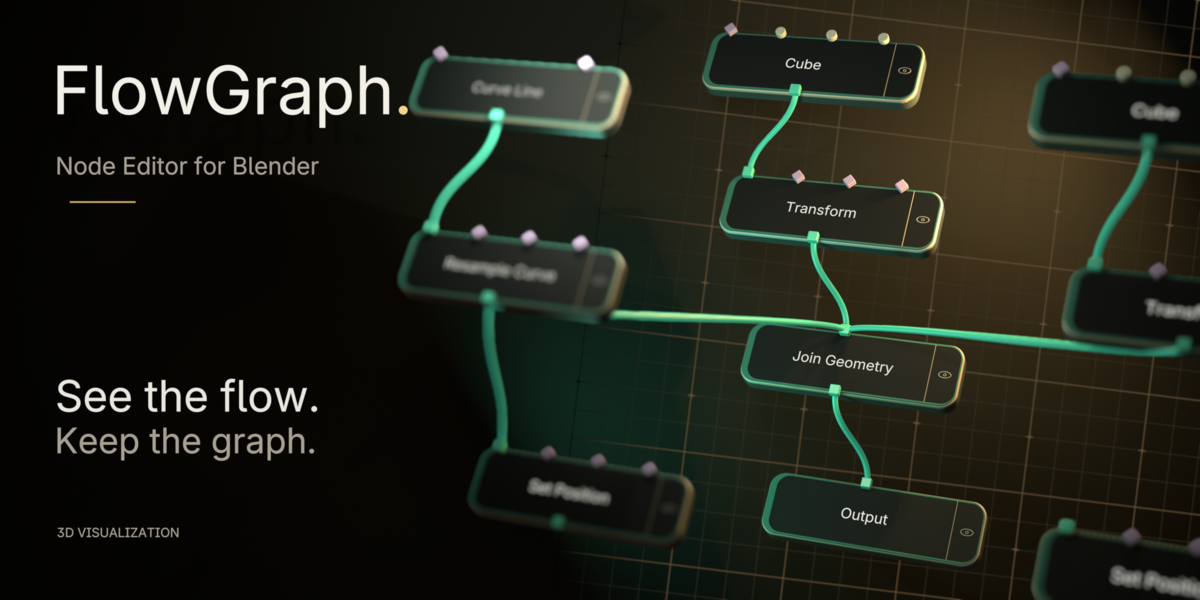
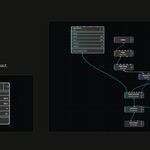
A DIFFERENT VIEW. YOUR EXISTING GRAPH.
Make room for the flow.
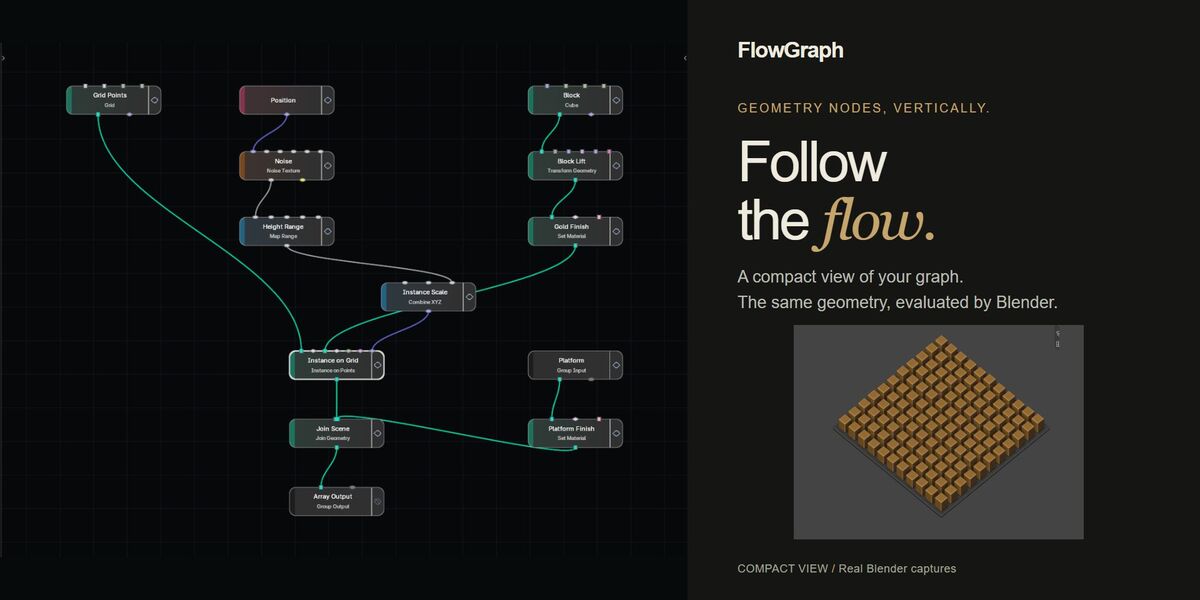
FlowGraph is a compact, top-to-bottom editor for Blender Geometry Nodes. Inputs sit above each node and outputs below, making it easier to follow a graph as it flows. It works directly with your active Geometry Nodes tree.
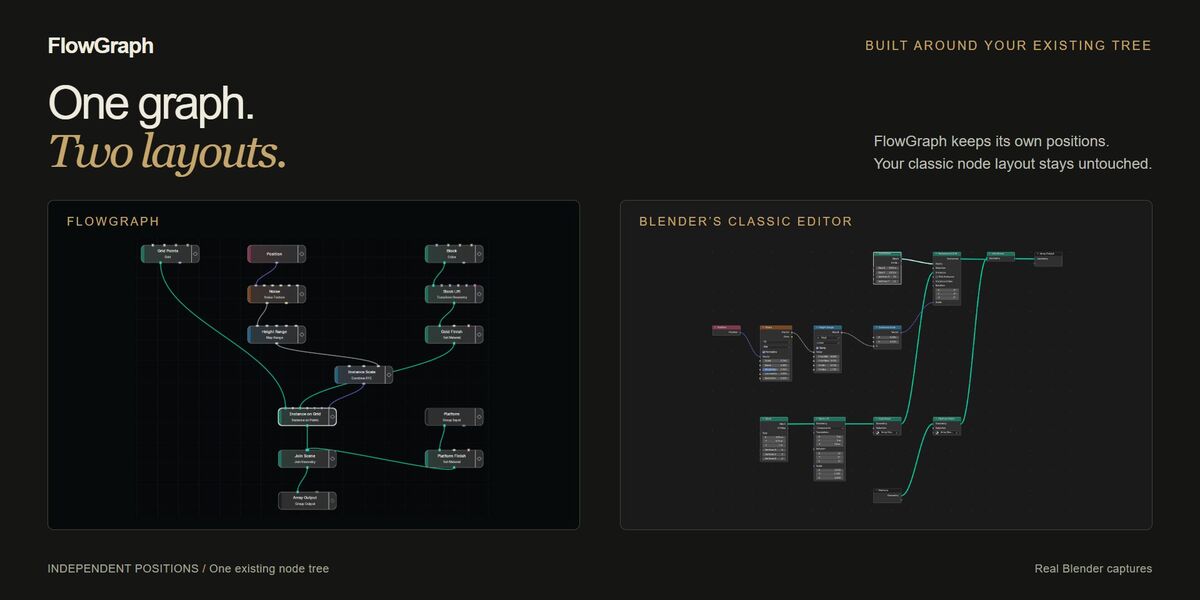
Blender evaluates the same nodes and connections. FlowGraph does not create a hidden evaluation tree, and moving nodes here leaves their positions in Blender’s classic editor untouched.
Choose the detail.
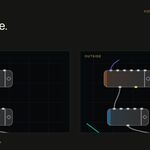
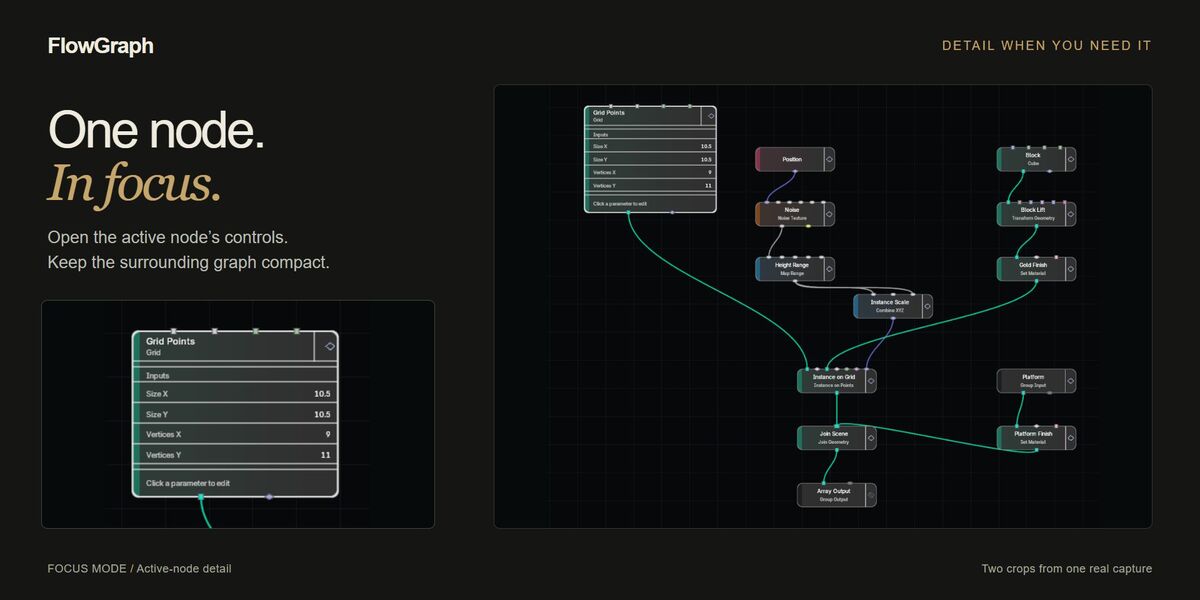
Compact keeps the graph overview small. Focus expands the active node. Full keeps supported parameter panels open. Low-profile Compact nodes use a one-line identity; hover for the node type and description.
Make it yours.
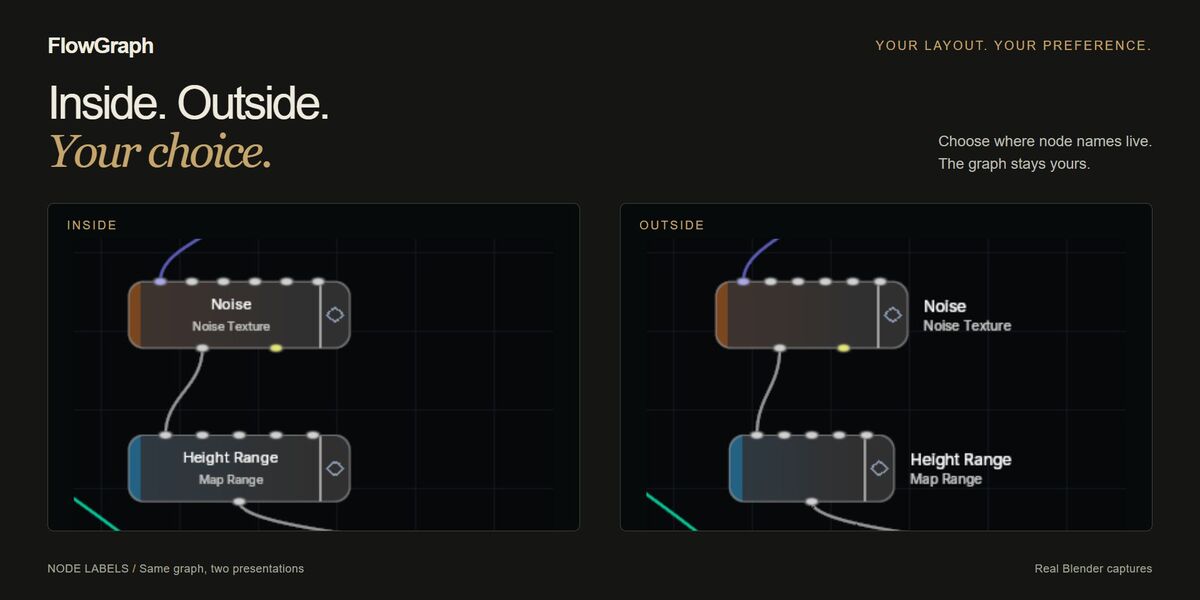
Keep compact node labels Inside or Outside. Arrange the FlowGraph layout independently, then use Back to GN to return to Blender’s classic editor.
Node, link and supported value edits affect the same underlying tree. The two editors share graph data, not node positions.
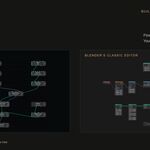
Keep the layouts independent.
FlowGraph and Blender’s classic Geometry Nodes editor work on the same graph, with separate node positions. Moving nodes here does not rearrange the classic layout.
Keep editing.
- Browse the native cascading Add menu with Tab or Shift+A, or type to search across categories. On Blender 4.2–4.4, use Search... for technical names and aliases.
- Group nodes in nested Frames and move a Frame with its contents.
- Use native graphical Curve and Color Ramp editors, plus supported inspector settings and item collections.
- Create and reconnect links, insert reroutes, reorder multi-inputs, and find compatible nodes from a socket or link.
- Use copy, paste and duplicate, group navigation, mute, and Blender’s native Undo/Redo.
- Inspect supported geometry outputs through the preview eye and a visible Blender Viewer.
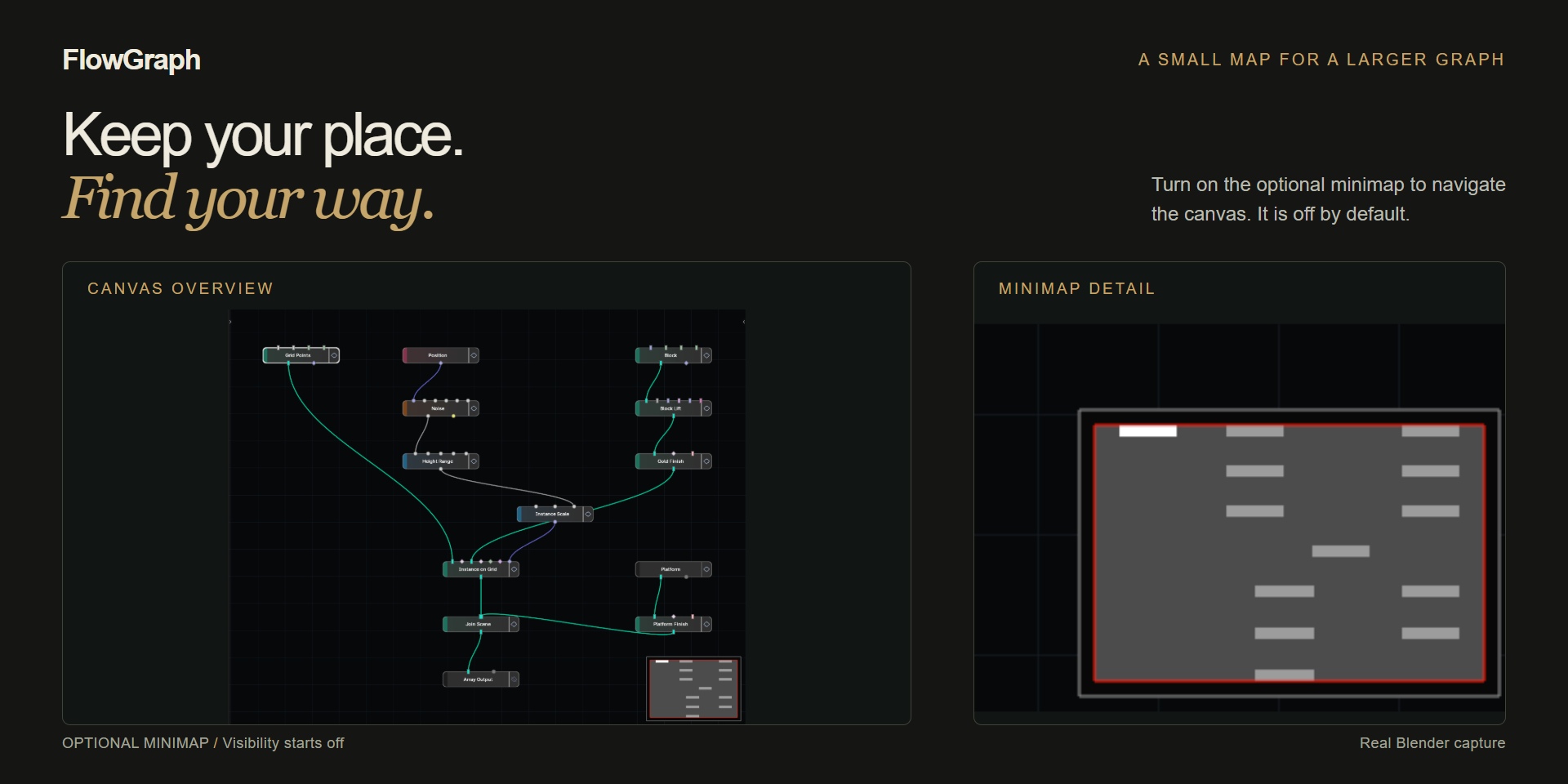
- Turn on the optional minimap for a navigable overview; it is off by default.
Find your way.
Keep an overview of larger graphs with the optional minimap. It shows your FlowGraph layout and the current viewport in the bottom-right corner. Click a point to recenter the view, or drag the viewport rectangle to move around without moving or selecting nodes.
The minimap is off by default. Enable it in the FlowGraph sidebar under Node Display → Show Minimap, and turn it off whenever you prefer an unobstructed canvas.
Start with your existing graph.
Install the extension ZIP through Blender Preferences → Get Extensions → Install from Disk. Open an existing Geometry Nodes tree, show the sidebar with N, choose its FlowGraph tab, then click Open FlowGraph. Use middle mouse to pan, the wheel to zoom, and Home to frame the graph.
Version 0.1.0. Verified Windows builds: Blender 4.2.23, 4.3.2, 4.4.3, 4.5.4, 5.0.1, 5.1.2 and 5.2.2. macOS, Linux, other patch releases and Blender versions outside 4.2–5.2 have not been verified.
The editors use separate layouts. Non-null direct Input Object and Input Collection values are read-only; copy or duplicate operations that need to restore them are rejected before mutation. Complex or conflicting NLA states that cannot be preserved safely are rejected. Operations that would change the externally pending Viewer Auto Remove state are guarded and rejected where FlowGraph cannot preserve native Undo. On Blender 5.2, a reduced 2D/3D Input Vector clone resets hidden components and warns; 4D values and fixed 3D values on Blender 4.2–5.1 are copied exactly. When a copied menu choice loses its definition owner, the affected clone menu is left unset with a warning.
For help, use seller messaging from the Superhive product page. Include your Blender build and operating system, steps to reproduce, expected and actual behavior, and a screenshot or minimal example when useful.