 NovaStrikes



FlowKeys Pro
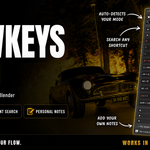
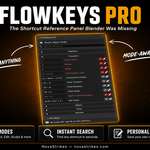
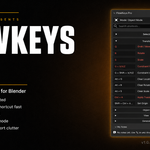
The shortcut reference panel, Blender, was missing. Search any hotkey, switch modes instantly, save personal notes across every project — and see your shortcuts live in the viewport as a HUD overlay. Now covering the Video Sequencer, Timeline, and Dope Sheet too. All without leaving your flow.
Blender 4.0 – 5.3+ · Windows · Mac · Linux · N-Panel + Viewport HUD · Zero Viewport Clutter
Three new editors, same panel you already know
🎬 Video Sequencer Support — FlowKeys now shows strip editing, playback, and marker shortcuts — including hidden ones — right in the Sequencer's own sidebar
⏱️ Timeline Support — keyframe and playback shortcuts surfaced directly in the Timeline editor
📊 Dope Sheet Support — keyframe selection, snapping, and editing shortcuts, including modal sub-constraints most people never discover
🔍 Notes, Favorites, Search & Copy Shortcut — all work the same way in these three new editors as they already do everywhere else
V3.4.0 is a free update for all existing Pro license holders. Just reinstall the new zip.
🆓 Try Before You Buy
Not sure yet? Download FlowKeys Lite for free — Object Mode shortcuts only, no search, no notes, no HUD. Get a feel for the panel before upgrading to Pro.
Lite Version Includes
✅ Object Mode shortcuts ✅ Clean N-Panel sidebar ✅ Zero viewport clutter ✅ Windows · Mac · Linux
🧠 Why FlowKeys Pro?
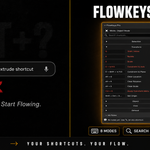
Every Blender user has been there — mid-sculpt, mid-rig, mid-edit, reaching for a shortcut they can't remember. You open a browser, search "blender extrude shortcut", lose your flow, lose your focus, lose your momentum.
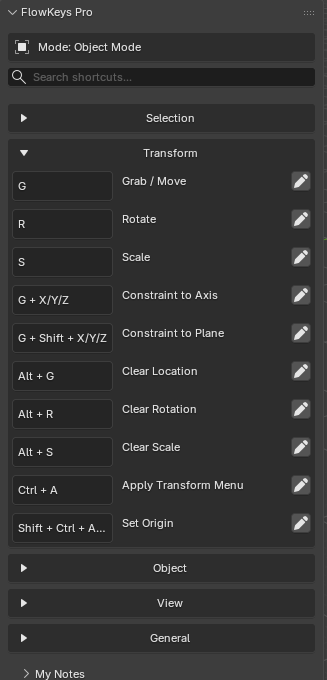
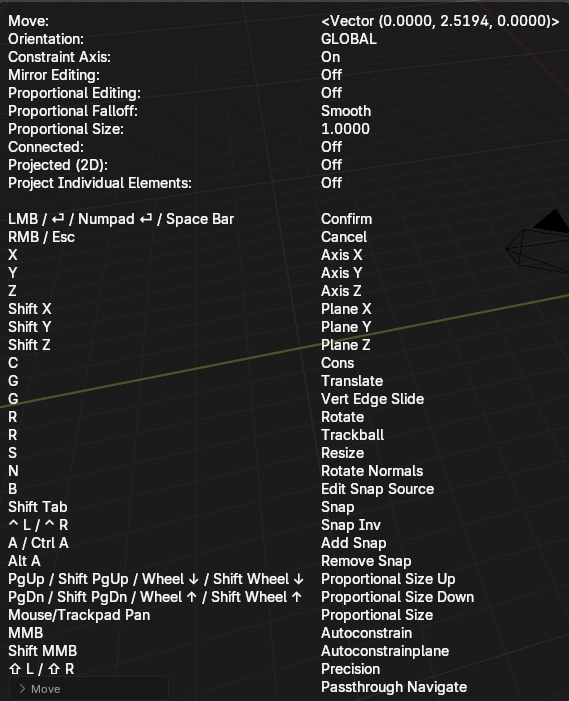
FlowKeys Pro puts every shortcut you need right inside Blender — in a clean, searchable N-Panel that automatically updates when you switch modes or editors. It can also show shortcuts directly in your 3D viewport as a live HUD overlay — so you never have to look away from your work.
Unlike static PDF cheat sheets, FlowKeys reads your actual custom keymaps, lets you add personal notes to any shortcut that follow you across every project, and helps you surface the hotkeys you'd never find just by clicking around menus — now across the 3D Viewport, the Video Sequencer, the Timeline, and the Dope Sheet.
⚡ FlowKeys Pro vs The Alternatives
| PDF Cheat Sheet | Keyboard Overlay | FlowKeys Pro ⭐ | |
|---|---|---|---|
| Lives inside Blender | — | ✓ | ✓ |
| Zero viewport clutter | ✓ | — | ✓ |
| Auto-detects current mode | — | ✓ | ✓ |
| Instant search | — | — | ✓ |
| Reads your custom keymaps | — | — | ✓ |
| Live viewport HUD overlay | — | — | ✓ |
| Personal notes — global across all projects | — | — | ✓ |
| Favorites — global across all projects | — | — | ✓ |
| Hidden Hotkeys filter | — | — | ✓ |
| Video Sequencer / Timeline / Dope Sheet coverage | — | — | ✓ NEW |
| Price | Free | $12+ | $3.99 |
🎯 Core Features
| 🎬 Sequencer, Timeline & Dope Sheet NEW V3.4FlowKeys now follows you into the Video Sequencer, Timeline, and Dope Sheet editors — same searchable sidebar, same Hidden filter, same Notes and Favorites, covering strip editing, keyframes, and playback shortcuts. | 🙈 Hidden Hotkeys FilterMost people learn Blender by clicking through menus — but plenty of useful shortcuts don't live in any menu at all. Flip the Hidden toggle in any mode or editor to see only those hard-to-discover shortcuts, filtered independently per mode. |
| 🌍 Global NotesYour notes live in a single file on your machine — not inside individual .blend files. Add a note once, and it's available in every project you open, forever. | ⭐ FavoritesPin the shortcuts you use constantly with one click. Stored globally, just like Notes — your favorites follow you into every project instead of resetting per file. |
| 📂 Independent CategoriesOpen or close any combination of shortcut categories at once — expanding one no longer force-collapses another. View exactly what you need, nothing more. | 🖥️ Viewport HUD OverlayShortcuts appear as a live floating overlay directly in your 3D viewport. Context-aware — only shows relevant keys when you're actively using a tool. Never clutters your screen otherwise. |
| ⌨️ Custom Keymap SupportFlowKeys reads your actual keymap from Blender — if you remapped G to something else, FlowKeys shows your key, not vanilla. Remapped shortcuts are marked with a ✱ indicator, so you always know which keys are yours. | ⌨️ All 11 Blender Modes & Editors FLAGSHIPObject, Edit, Sculpt, Pose, Weight Paint, Vertex Paint, Texture Paint, Grease Pencil, Video Sequencer, Timeline, and Dope Sheet. Every mode has its own curated shortcut list — organized by category, always accurate. |
| 🔍 Instant SearchType anything — "extrude", "loop", "parent" — and results filter instantly across the current mode's full shortcut list. Case-insensitive. No delays. Combines with the Hidden filter too. | 📎 One-Click CopyEvery shortcut has a copy button. Hit it, and the key combo is copied to your clipboard — useful when sharing workflows or writing team documentation. |
🎯 Who Is This For?
Blender Beginners
Stop googling shortcuts mid-session. FlowKeys keeps the most important hotkeys organized and visible — right where you're working, without covering your viewport or breaking your focus.
Intermediate Artists Expanding Their Toolkit
You know the basics but keep forgetting that one Sculpt Mode mask shortcut or that Edge menu combo in Edit Mode. The Hidden filter is built exactly for this — it surfaces the shortcuts you'd never find just by browsing menus.
Video Editors & Animators
If you live in the Sequencer, Timeline, or Dope Sheet, FlowKeys now covers you too — strip editing, keyframe manipulation, and playback shortcuts, hidden ones included, right in the sidebar you're already working in.
Artists Juggling Multiple Projects
With Global Notes and Global Favorites, everything you save in one project follows you into every other .blend file. Never re-type a note or re-star a shortcut twice.
Visually-Focused Artists Who Hate Leaving the Viewport
The Viewport HUD was designed for artists who keep their N-Panel packed with other tools. If you can't see the sidebar, the HUD floats the shortcuts right where you're looking — no panel required.
📋 Modes & Shortcut Coverage
Every mode includes shortcuts organized by category — not just a flat dump of every hotkey. Custom keymaps are detected automatically. Remapped keys show your binding, not vanilla.
⚖️ Lite vs Pro — Full Comparison
| Feature | Lite (Free) | Pro ⭐ |
|---|---|---|
| Shortcut Coverage | ||
| Object Mode shortcuts | ✓ | ✓ |
| All 8 3D Viewport modes | — | ✓ |
| Video Sequencer, Timeline & Dope Sheet | — | ✓ NEW |
| Features | ||
| Clean N-Panel sidebar | ✓ | ✓ |
| Auto mode detection | ✓ | ✓ |
| Instant search | — | ✓ |
| Independent collapsible categories | — | ✓ |
| Hidden Hotkeys filter | — | ✓ |
| Personal notes — global across all projects | — | ✓ |
| Export notes (TXT / JSON) | — | ✓ |
| Favorites — global across all projects | — | ✓ |
| One-click copy shortcut to clipboard | — | ✓ |
| Reads your custom keymaps ✱ | — | ✓ |
| Viewport HUD overlay | — | ✓ |
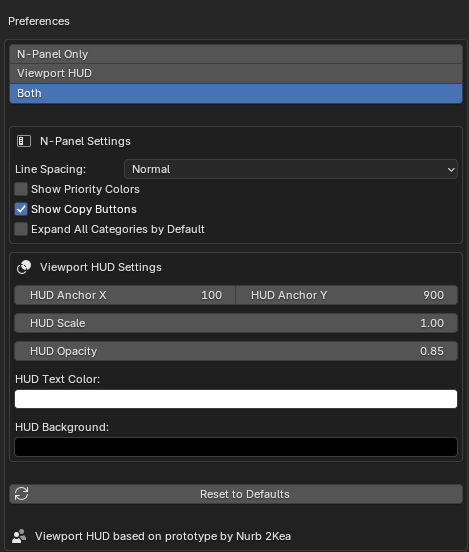
| Preferences (line spacing, colors, accent, HUD anchor) | — | ✓ |
❓ Frequently Asked Questions
Does it work with Blender 5.x?
Yes. FlowKeys Pro v3.4 is tested and fully compatible with Blender 4.0 through 5.3+.
How do I install it? (Important — read this)
FlowKeys Pro uses Blender's modern Extension format. Use Edit → Preferences → Get Extensions → Install from Disk, then select the zip. Do NOT use the legacy Add-ons → Install path — it will error on Linux and Mac.
Does FlowKeys work outside the 3D Viewport?
Yes, as of v3.4. Open the FlowKeys tab in the sidebar of the Video Sequencer, Timeline, or Dope Sheet editor and it'll show shortcuts relevant to that editor, same as it always has in the 3D Viewport. The floating Viewport HUD overlay is still 3D-Viewport-only for now — sidebar support for the new editors ships first, with HUD support planned as a follow-up.
What is the Hidden Hotkeys filter?
Most people learn Blender's shortcuts by browsing pulldown menus over time — but some genuinely useful shortcuts aren't listed in any menu, so there's no natural way to discover them. Toggle Hidden Only in any mode to filter down to just those hard-to-find shortcuts. It's tracked independently per mode, so your filter choice in Object Mode won't carry over to Edit Mode — and the same goes for the Sequencer, Timeline, and Dope Sheet.
Are the new Sequencer/Timeline/Dope Sheet hidden-hotkey lists fully verified?
They're a solid first pass, cross-checked against Blender's default keymap — but like any new coverage area, some entries may need refinement as more people put them to use. If you spot a shortcut that's flagged hidden but is actually menu-reachable (or vice versa), reply and let me know — this is exactly how the original 3D Viewport hidden list got sharpened over time too.
Does it slow down Blender?
No. The N-Panel is a passive UI element. The HUD overlay only activates during active modal operations — zero background processing otherwise.
What does the ✱ indicator on shortcuts mean?
FlowKeys reads your actual Blender keymap. If a shortcut has been remapped from vanilla, a ✱ appears next to it so you always know which keys are yours vs defaults.
Do my notes and favorites save automatically, and do they carry across projects?
Yes to both. Notes and Favorites are stored in global files on your machine — not inside individual .blend files. Save a note or star a shortcut once, and it shows up in every project you open. If you were on an earlier version, your existing per-file notes and favorites are migrated automatically on first load — nothing gets lost.
Can I back up or export my notes?
Yes. Use the Export TXT or Export JSON buttons in the Notes panel to save a full copy of your notes, organized by mode and category, to a file on your computer.
Can I use it on multiple computers?
Yes. Install it on any machine you own. The license covers personal use across all your devices. Note that Global Notes and Favorites are stored per-machine, so they won't automatically sync between two different computers — use Export to move your notes manually if needed.
Are future updates included?
Yes. All updates are free for Pro license holders. FlowKeys is actively maintained — new shortcut coverage, features, and compatibility updates ship regularly.
🚀 Installation — 60 Seconds
⚠️ FlowKeys Pro uses Blender's Extension format. Use the steps below — not the legacy Add-ons install.
- Download the ZIP from your Superhive purchases page
- Open Blender → Edit → Preferences → Get Extensions
- Click the dropdown arrow in the top-right corner → Install from Disk
- Select the downloaded zip and confirm
- FlowKeys Pro appears in your N-Panel under the FlowKeys tab (press N in the viewport, Sequencer, Timeline, or Dope Sheet)
- Configure display mode in Preferences — N-Panel, HUD, or both 🔥
🧩 Version
FlowKeys Pro v3.4.0
Supports Blender 4.0 – 5.3+. Windows, macOS, and Linux are fully supported.
📜 License
Licensed under the GNU General Public License v3 (GPL).
This program is distributed in the hope that it will be useful, but WITHOUT ANY WARRANTY — without even the implied warranty of MERCHANTABILITY or FITNESS FOR A PARTICULAR PURPOSE.
📌 Attribution is appreciated but never required.
🤝 Community Contributor
The Viewport HUD overlay was made possible with prototype code and insight from community member Nurb 2Kea, a long-time Blender artist whose accessibility needs directly shaped this feature. The Hidden Hotkeys filter and the new Sequencer/Timeline/Dope Sheet support in v3.4 were both built directly from customer feature requests. FlowKeys Pro is built with the community, not just for it.
🤖 AI Assistance Disclosure
Portions of this add-on's code were written with assistance from AI coding tools, based on a detailed human-authored specification covering architecture, logic, UI design, and feature decisions. All code was reviewed, tested, and approved by the developer. Promotional imagery was created using AI image generation guided by original 3D renders, screenshots, and creative direction by NovaStrikes.
💡 Created with ❤️ by NovaStrikes · novastrikes.com