 Mars0hod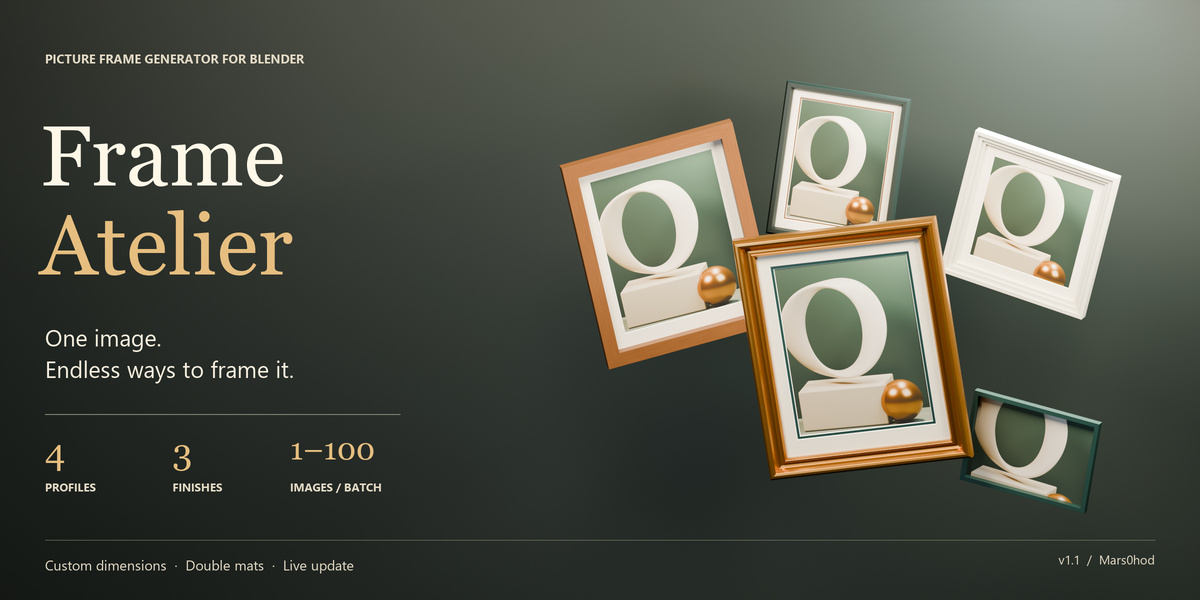
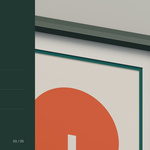
Frame Atelier 1.1 — User Guide
Create and customise picture frames, mats and framed artwork directly in Blender.
Author: Mars0hod
Minimum Blender version: 4.2
Tested versions: 4.2.0, 4.5.0 and 5.2.2
1. Installation
Download the add-on installer: frame_atelier-1.1.0.zip. Keep it zipped.
In Blender, open Edit → Preferences → Add-ons.
Open the menu and choose Install from Disk.
Select the installer ZIP and enable Frame Atelier.
In the 3D Viewport, press N and open the Frame Atelier tab.
2. Create your first frame
Choose a style preset: Gallery, Oak, Gold, Poster or Square.
Use Load image to select your artwork.
Enter the picture width and height, or use Match image aspect to calculate the height from your image.
Adjust the frame profile, finish and mat settings.
Click Create frame.
The frame appears at the 3D cursor. Move or rotate its parent empty to position the entire assembly.
3. Dimensions and appearance
Dimensions are entered in millimetres, regardless of the scene’s unit settings.
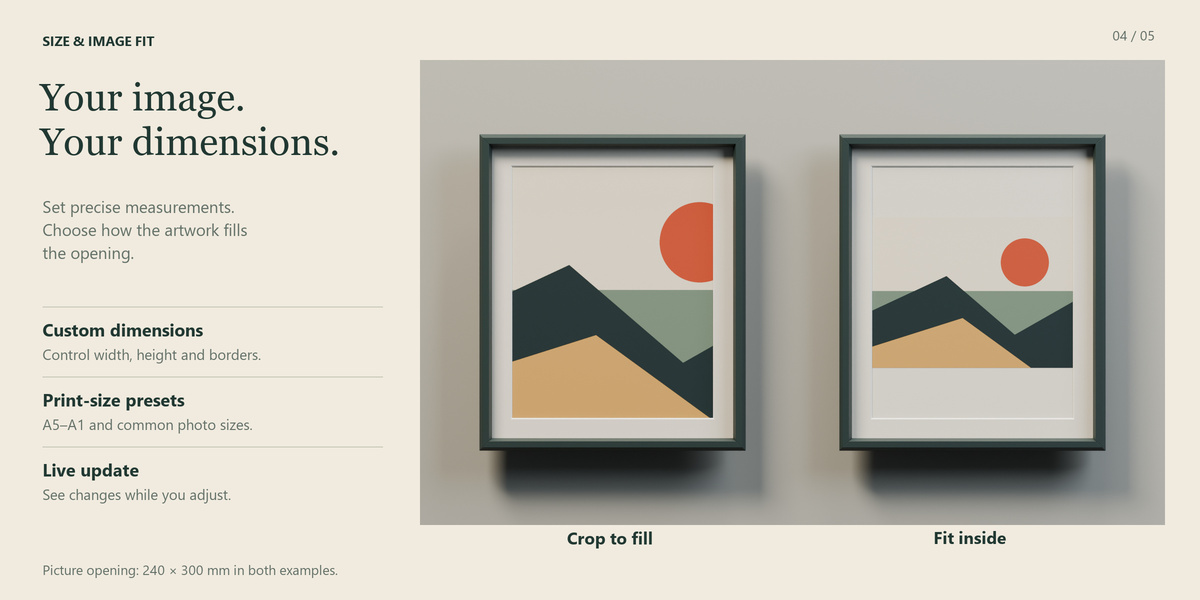
Picture width and height describe the picture opening. Mat borders and frame borders increase the overall outer dimensions.
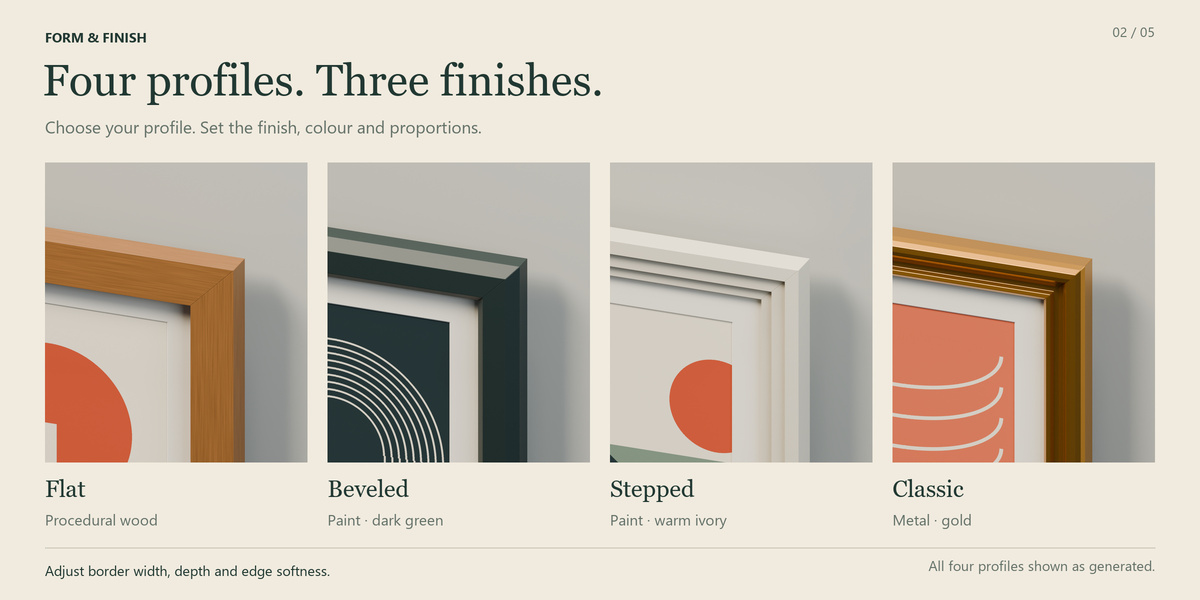
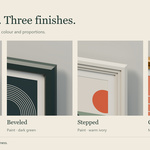
Choose from four profiles:
Flat
Beveled
Stepped
Classic
Adjust the border width, depth and edge softness. Choose Paint, Wood or Metal, then set the frame colour.
Size presets include A5–A1 and common photo sizes.
4. Artwork and image fitting
Load image packs the imported artwork into the Blender file.
Match image aspect: keeps the opening width and calculates its height from the image proportions.
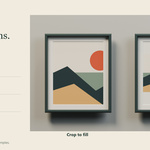
Crop to fill: fills the opening without stretching, cropping excess image content.
Fit inside: displays the entire image without stretching, leaving paper-coloured margins where necessary.
When changing an existing frame’s artwork or fitting mode, click Update frame or enable Live Update.
5. Mats, glass and backing
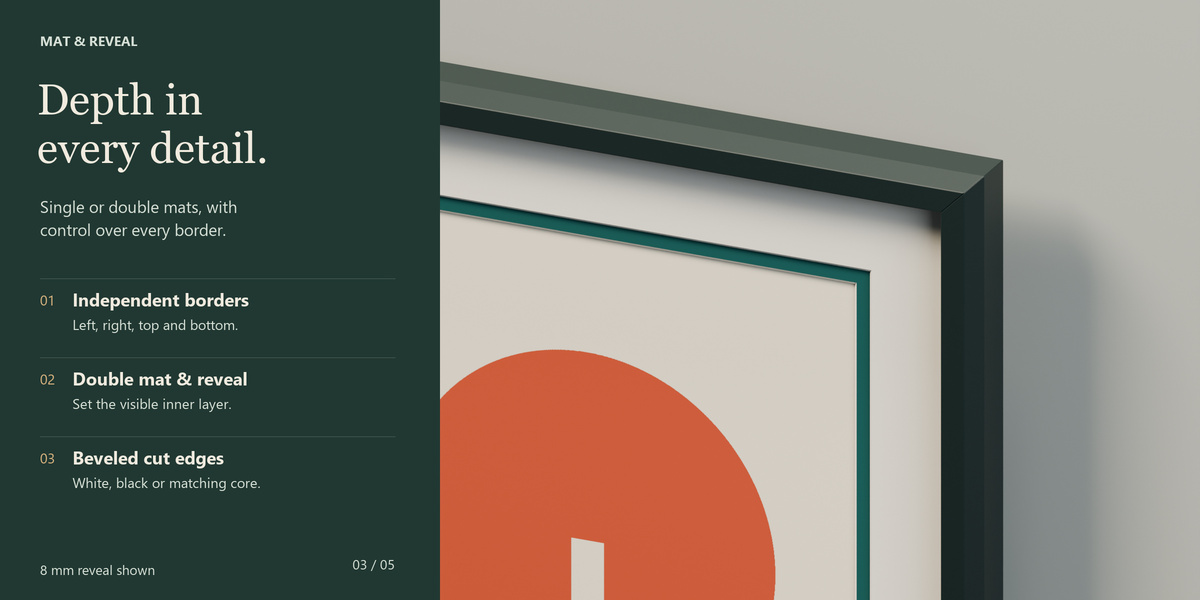
Enable Mat board and adjust the left, right, top and bottom borders independently.
Enable Double mat to add a second layer. Adjust its colour and the visible inner reveal.
Mat controls include thickness, bevel width and a White, Black or Match mat cut core. Thickness, bevel and reveal are limited to fit the assembly.
Glass and backing can be enabled independently.
6. Edit and duplicate
Select the parent empty or any generated frame part to access that frame’s settings.
Change the settings and click Update frame. Alternatively, enable Live Update to rebuild automatically after a short pause. Live Update is off by default.
Use Duplicate frame to create another independently editable frame.
Updates rebuild generated geometry and modifiers. Complete generator adjustments before making manual mesh edits.
7. Materials
Preserve materials is enabled by default. You can assign custom materials in the Materials section.
Edited generated materials are retained while their related colour, finish and image settings remain unchanged. Changing those settings regenerates the corresponding built-in material; explicit custom material assignments remain.
Reset materials clears overrides and restores generated materials. Recheck per-face assignments after changing the frame profile.
8. Batch framing
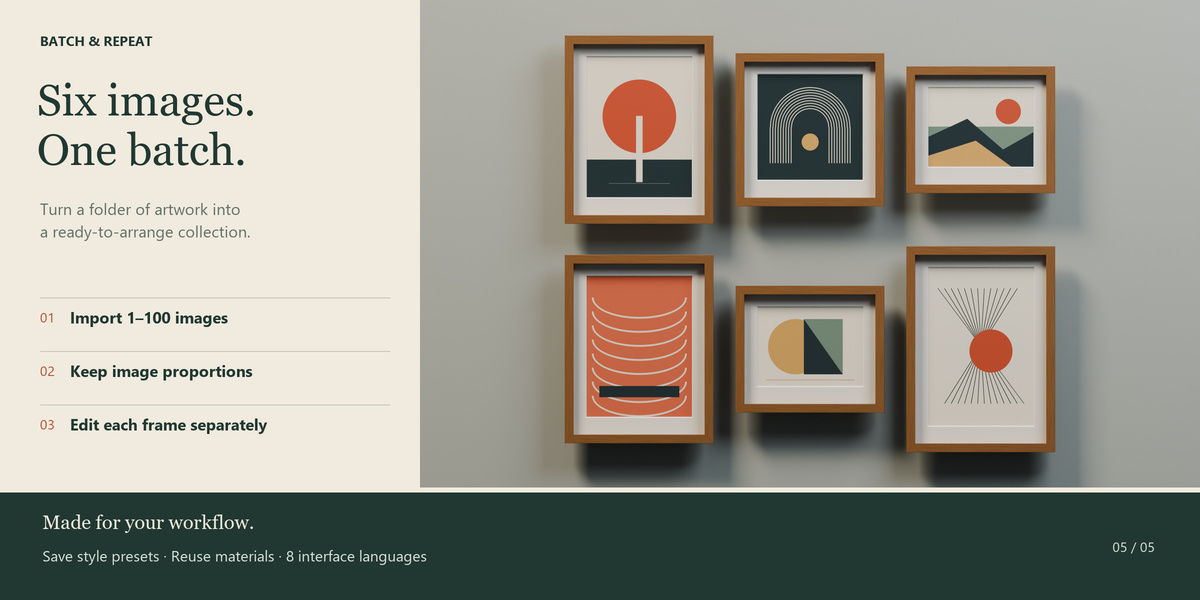
Set the frame style and picture opening width.
Open Batch and choose the number of columns and spacing.
Select 1–100 images in the file picker.
Files are processed in filename order. Each image receives an independent frame, using the current width and a height calculated from its proportions.
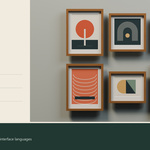
Frames are arranged in a new collection. Spacing is measured between their outer edges. Imported images are packed into the Blender file.
9. Save and reuse styles
Save named style presets in the scene to reuse your settings. These presets remain in the Blender file.
JSON export and import transfer preset settings and material names. They do not transfer artwork or material node graphs. Referenced materials must already exist with matching names in the receiving file.
10. Languages and rendering
The panel includes its own language selector:
English, Russian, German, French, Spanish, Portuguese, Simplified Chinese and Japanese.
English is the default. Blender’s standard dialogs follow Blender’s language setting.
Generated meshes and materials work with Cycles and Eevee. Cycles is recommended for glass previews; glass appearance in Eevee depends on ray-tracing settings.
Frame Atelier creates rectangular and square frames. Circular frames and carved ornamental decorations are not supported.
Have questions about this product?
Login to message
| Blender Extension Compatible | Yes |
| Published | 2 days ago |
| Blender Version | 4.2 - 5.2 |
| Extension Type | Add-on |
| Render Engine Used | Cycles, Eevee |
| License | GPL |
Discover more products like this
Interior Design batch framing frame generator procedural modeling picture frame photo frame wall-art ArchViz Artwork mat board gallery-wall passepartout