Fusion to Blender Bridge Pro
 Nexuslab


What you need
- Fusion 360 and Blender 4.1 or later, on the same Windows or macOS computer.
Everything runs locally: the two halves talk over 127.0.0.1 and the bridge itself never reaches the internet. No account, no licence server, no activation. The one exception is the optional STEP-support installer, which downloads the third-party cadquery-ocp package from PyPI -- only when you press the button, never on its own.
Installing
Windows or macOS. Close Fusion 360 and Blender first, then unzip the download. On Windows, double-click install.bat; on macOS, double-click install.command (if blocked, right-click and choose Open).
Choose I to install. It writes the Fusion add-in and the Blender add-on into your own user folders. Nothing goes outside them and no administrator rights are needed.
Then start both halves once:
- Fusion 360: Utilities > Add-Ins > fusion_to_blender_addon_fusion > Run. Tick Run on Startup if you want it there permanently.
- Blender: Edit > Preferences > Add-ons, enable Fusion to Blender Bridge.
First sync
- Open your design in Fusion.
- In Blender, press N in the 3D viewport and go to the Fusion 360 tab.
- Connect, then Sync.
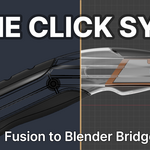
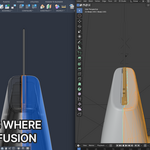
Every body in the active document arrives as a mesh object. The component tree becomes nested collections, occurrences keep their transforms, and bodies hidden in Fusion land in collections excluded from the view layer.
The sidebar
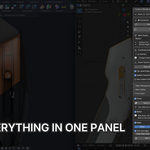
Four panels, all in the Fusion 360 tab of the N panel.
Fusion to Blender Bridge
The sync itself.
- Connect / Disconnect — the socket to the Fusion add-in. Localhost only.
- Sync — pull the active Fusion document.
- Mesh Quality — Low, Medium, High, Ultra (0.01 mm / 4°) or Custom (type the tolerances yourself; the fields appear right below). The tolerances each preset asks for are shown underneath. This is the only place mesh density can be set — the mesh is tessellated in Fusion, so nothing downstream recovers detail that was never generated.
- Coordinate System — leave on Z-up. Fusion 3D is Z-up like Blender. The Y option applies Rx(+90°) for Y-up source data.
Under Import Options:
- Show Hidden Bodies / Hide Hidden Bodies — one button that toggles. Ignores Fusion's visibility state and shows everything. Applied instantly, no re-sync needed.
- Top-level Empty Parent — an Empty at world origin per top-level occurrence, with its bodies parented to it, so the whole sub-assembly moves together.
- Update Transforms — also update position, rotation and scale on re-sync.
- Auto Update Collections — off by default. On, collections are moved to match Fusion component paths on every sync. Off keeps whatever organisation you built in Blender.
From Fusion
Everything Fusion knows besides the mesh. Four sections — mesh precision lives in the Mesh Quality dropdown above.
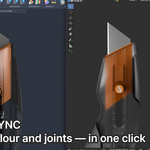
Colour — on by default. Each body gets the appearance assigned to it in Fusion, written into a Principled BSDF. Face-level overrides take their own material slots. Apply Fusion Colours runs it on the current selection without a sync.
Motion — on by default. Each Fusion joint becomes an Empty at the joint origin, aligned to the joint axis, with the joint's motion limits as constraints on the driven body. Joint chains are rebuilt in order.
Edges — off by default, because it changes shading on objects you may have already marked yourself.
- Sharp (on) and Seam (off) — which marks to place.
- Only real edges (on) — skip tangent-continuous boundaries, so a fillet running into the planar face it blends with stays unmarked. Off marks every BRep face boundary.
- Edge Angle (5°) — the dihedral threshold for the above.
- Mark Edges Now — run it on the current selection.
Topology — Tris to Quads, run on the current selection. Merging happens inside each BRep face, so no quad spans two faces and no vertex moves. There is no on-sync toggle for this: run it when the topology is what you want to keep.
Object Management
- Select Fusion Objects — select everything that came from a sync.
- Delete All Fusion Objects — remove them.
- X / Y / Z +90° and Reset Rotation — orientation fixes on the selection. The current offset is shown when one object is selected.
Mesh Utilities
Collapsed by default. Edit-mode helpers that use the BRep face data carried on the mesh.
- Select Fusion Face — grow the selection to the whole CAD face under the selected polygon.
- Select Fusion Face Boundary Edges — select the boundary of that face.
- Merge UV Seams — remove seams inside a face.
- Paint Fusion Faces — assign the active material slot per CAD face.
Add-on preferences
Edit > Preferences > Add-ons > Fusion to Blender Bridge.
- Language — Auto (follows Blender's interface language), English, or 한국어.
- Auto-connect on startup — on by default. Opens the localhost socket when Blender starts so Sync is one click.
- Privacy Policy — opens the policy: what is read, what is written to your own disk, how long it stays and how to remove it.
What survives a re-sync
Sync swaps mesh data on the existing objects rather than replacing the objects, so anything bound to the object survives a design revision:
- material slots and assignments, including materials you authored
- modifier stacks
- light linking
- Sharp, Seam, Crease and Bevel Weight you set by hand
Materials are protected specifically. A material you authored is never written to. A material this add-on created and you have since edited keeps your version; if the body's appearance changes in Fusion, the slot is repointed and your node tree is left alone. The console prints a per-sync summary of how many bodies carried an appearance, how many carried none, and how many kept a material you had edited.
What does not survive is edge marking applied by this add-on, because Sync rebuilds the mesh. That is why Edges has an on-sync toggle: with it on, the marks are reapplied per body as it arrives.
Importing STEP
File > Import > STEP via Fusion Bridge (.step/.stp). Fusion does not need to be running. The first use offers to install STEP support: this downloads the third-party cadquery-ocp (OpenCascade) package from PyPI (about 150 MB to download, a few hundred once installed) into Blender's Python user packages. This is the only feature that touches the internet, it only runs when you ask, and TLS certificate verification is never bypassed.
Updating, repairing, uninstalling
Run the same installer again and pick from the menu. Update replaces the code and leaves your scenes, settings and materials untouched. Uninstall removes both halves.
When a new version ships, download it from your Superhive library and run its installer over the top. There is no in-app updater and nothing checks for one.
Troubleshooting
Connect fails. The Fusion add-in is not running. In Fusion: Utilities > Add-Ins > fusion_to_blender_addon_fusion > Run.
Sync brings nothing. Fusion has no active design open, or the document is still loading from the cloud.
Everything arrives twice, or the panel appears twice. Two copies of this bridge's Blender add-on are enabled. The older copy is normally switched off automatically on first registration; if it was not, open Preferences > Add-ons, search for "Fusion", leave only one ticked, and restart Blender.
The Mesh Quality dropdown is blank in a .blend saved with an older build. Blender stores an enum by index and the item list changed. Pick a value again and save.
Colours did not arrive. Check the console line after a sync. "had a name but NO COLOUR" means the Fusion appearance carries no colour data, which is a Fusion-side issue. "kept the material you set" means the object already had a material you authored, and it was deliberately left alone.
Bodies are missing. They are probably hidden in Fusion, which puts them in a collection excluded from the view layer. Turn on Show Hidden Bodies.
Licence
The code is GPL-3.0-or-later; the full source is in the download. What the purchase covers is in LICENSE-COMMERCIAL.txt: the packaged build, one year of updates from the date of purchase, and support for your version during that year.
After the year, the version you have keeps working. Nothing expires and nothing checks in with a server. One purchase covers one person.
한국어
필요한 것
- 같은 Windows 또는 macOS 컴퓨터에 Fusion 360과 Blender 4.1 이상
전부 로컬에서 돕니다. 두 쪽은 127.0.0.1로만 통신하고 브리지 자체는 인터넷에 나가지 않습니다. 계정도, 라이선스 서버도, 활성화도 없습니다. 유일한 예외는 선택 기능인 STEP 지원 설치로, 버튼을 눌렀을 때만 PyPI에서 서드파티 cadquery-ocp 패키지를 내려받으며 스스로 실행되는 일은 없습니다.
설치
Windows 또는 macOS에서 설치할 수 있습니다. Fusion 360과 Blender를 먼저 닫고 다운로드한 zip을 풉니다. Windows에서는 install.bat을, macOS에서는 install.command를 더블클릭합니다(차단되면 우클릭 후 열기).
I를 눌러 설치합니다. Fusion 애드인과 Blender 애드온을 사용자 폴더 안에만 씁니다. 그 밖으로 나가지 않고 관리자 권한도 필요 없습니다.
그다음 양쪽을 한 번씩 켭니다.
- Fusion 360: 유틸리티 > 추가 기능 > fusion_to_blender_addon_fusion > 실행. 계속 쓰실 거면 시작 시 실행에 체크하세요.
- Blender: Edit > Preferences > Add-ons에서 Fusion to Blender Bridge를 켭니다.
- 애드온이 두 개 켜져 있다면 연결하기 전에 하나를 꺼 주세요. 두 애드온은 같은 포트를 사용하므로 가져온 모델이나 패널이 중복될 수 있습니다.
첫 동기화
- Fusion에서 디자인을 엽니다.
- Blender 3D 뷰포트에서 N을 누르고 Fusion 360 탭으로 갑니다.
- Connect, 그다음 동기화.
활성 문서의 모든 바디가 메시 오브젝트로 들어옵니다. 컴포넌트 트리는 중첩 컬렉션이 되고, 오컬런스는 트랜스폼을 유지하며, Fusion에서 숨긴 바디는 뷰 레이어에서 제외된 컬렉션으로 들어갑니다.
사이드바
패널 네 개, 전부 N 패널의 Fusion 360 탭에 있습니다.
Fusion to Blender Bridge
동기화 자체를 담당합니다.
- Connect / 연결 해제 — Fusion 애드인과의 소켓. localhost 전용입니다.
- 동기화 — Fusion에서 열려 있는 문서를 가져옵니다.
- 메시 품질 — Low, Medium, High, Ultra(0.01 mm / 4°), Custom(공차 직접 입력 — 고르면 바로 아래에 입력칸이 나타납니다). 각 프리셋이 요청하는 공차가 아래에 표시됩니다. 메시 밀도를 정할 수 있는 곳은 여기뿐입니다 — 메시는 Fusion에서 테셀레이션되므로, 생성되지 않은 디테일은 이후에 복구되지 않습니다.
- 좌표계 — Z-up 그대로 두세요. Fusion 3D는 Blender와 같은 Z-up입니다. Y 옵션은 Y-up 소스 데이터용으로 Rx(+90°)를 겁니다.
임포트 옵션 안에는:
- 숨김 Body 보이기 / 다시 숨기기 — 버튼 하나가 토글됩니다. Fusion의 표시 상태를 무시하고 전부 보여줍니다. 다시 동기화할 필요 없이 즉시 적용됩니다.
- 최상위 Empty parent — 최상위 오컬런스마다 월드 원점에 Empty를 만들고 그 바디들을 자식으로 붙여, 서브어셈블리 전체가 함께 움직이게 합니다.
- Transform 갱신 — 다시 동기화할 때 위치·회전·스케일도 갱신합니다.
- Collection 자동 갱신 — 기본 꺼짐. 켜면 동기화할 때마다 컬렉션이 Fusion 컴포넌트 경로에 맞춰 이동합니다. 꺼두면 Blender에서 직접 정리한 구조가 유지됩니다.
From Fusion
메시 말고 Fusion이 아는 나머지 전부. 네 섹션입니다 — 메시 정밀도는 위 패널의 메시 품질 드롭다운에 있습니다.
색·재질 — 기본 켜짐. 각 바디가 Fusion에서 배정된 appearance를 받아 Principled BSDF에 기록됩니다. 페이스 단위 오버라이드는 각자 머티리얼 슬롯을 받습니다. 지금 적용은 동기화 없이 현재 선택에 대해 실행합니다.
움직임 — 기본 켜짐. Fusion 조인트 하나가 조인트 원점에 놓이고 조인트 축에 정렬된 Empty가 되며, 조인트의 모션 한계값이 대상 바디의 컨스트레인트로 들어갑니다. 조인트 체인은 순서대로 재구성됩니다.
모서리 — 기본 꺼짐. 이미 직접 마킹해둔 오브젝트의 셰이딩을 바꾸기 때문입니다.
- Sharp(켜짐), Seam(꺼짐) — 어떤 마크를 찍을지.
- 진짜 모서리만(켜짐) — 접선 연속인 경계를 건너뜁니다. 필렛이 자기가 블렌딩하는 평면으로 이어지는 자리는 표시되지 않습니다. 끄면 모든 BRep 페이스 경계에 찍습니다.
- 모서리 각도(5°) — 위 판정에 쓰는 다이히드럴 기준값.
- 지금 적용 — 현재 선택에 대해 실행.
토폴로지 — 삼각형 → 사각형, 현재 선택에 대해 실행합니다. 병합은 각 BRep 페이스 안에서만 일어나므로 쿼드가 두 페이스에 걸치지 않고 정점도 움직이지 않습니다. 동기화 시 자동 실행 옵션은 없습니다. 토폴로지를 확정하고 싶을 때 누르세요.
Object Management
- Select Fusion Objects — 동기화로 들어온 것 전부 선택.
- Delete All Fusion Objects — 전부 삭제.
- X / Y / Z +90°와 회전 초기화 — 선택 대상의 방향 보정. 하나만 선택하면 현재 오프셋이 표시됩니다.
Mesh Utilities
기본으로 접혀 있습니다. 메시에 실려 온 BRep 페이스 정보를 쓰는 에디트 모드 도구입니다.
- Fusion Face 선택 — 선택한 폴리곤이 속한 CAD 페이스 전체로 선택을 확장.
- Fusion Face 경계 Edge 선택 — 그 페이스의 경계를 선택.
- Merge UV Seams — 페이스 내부의 seam 제거.
- Paint Fusion Faces — 활성 머티리얼 슬롯을 CAD 페이스 단위로 배정.
애드온 설정
Edit > Preferences > Add-ons > Fusion to Blender Bridge.
- Language — Auto(Blender 인터페이스 언어를 따름), English, 한국어.
- Auto-connect on startup — 기본 켜짐. Blender가 켜질 때 localhost 소켓을 열어두어 동기화를 한 번에 누를 수 있게 합니다.
- 개인정보처리방침 — 무엇을 읽고, 사용자 디스크에 무엇을 남기고, 얼마나 두고, 어떻게 지우는지를 여는 버튼입니다.
다시 동기화해도 남는 것
동기화는 오브젝트를 교체하지 않고 기존 오브젝트의 메시 데이터만 바꿉니다. 그래서 오브젝트에 묶인 것은 리비전을 넘어 살아남습니다.
- 머티리얼 슬롯과 배정 (직접 만든 머티리얼 포함)
- 모디파이어 스택
- 라이트 링킹
- 손으로 찍은 Sharp, Seam, Crease, Bevel Weight
머티리얼은 특히 보호합니다. 직접 만든 머티리얼에는 쓰지 않습니다. 이 애드온이 만들었더라도 이후에 손을 봤다면 그 버전을 유지하고, Fusion에서 바디의 appearance가 바뀌면 슬롯이 가리키는 곳만 바꾸고 노드 트리는 건드리지 않습니다. 동기화가 끝나면 콘솔에 몇 개가 appearance를 갖고 왔고, 몇 개가 없었고, 몇 개가 사용자가 수정한 머티리얼을 지켰는지 요약이 찍힙니다.
남지 않는 것은 이 애드온이 찍은 엣지 마킹입니다. 동기화가 메시를 새로 만들기 때문입니다. 모서리 섹션에 동기화 시 적용 토글이 있는 이유가 그것입니다. 켜두면 바디가 들어올 때마다 다시 찍힙니다.
STEP 임포트
File > Import > STEP via Fusion Bridge (.step/.stp). Fusion이 켜져 있지 않아도 됩니다. 처음 사용할 때 STEP 지원 설치를 제안합니다. 서드파티 패키지 cadquery-ocp(OpenCascade, 내려받기 약 150 MB)를 PyPI에서 내려받아 Blender 파이썬 사용자 패키지에 설치하는 과정으로, 인터넷을 쓰는 유일한 기능이며 요청할 때만 실행되고 TLS 인증서 검증은 절대 우회하지 않습니다.
업데이트, 복구, 삭제
같은 인스톨러를 다시 실행하고 메뉴에서 고르면 됩니다. 업데이트는 코드만 교체하고 씬·설정·머티리얼은 건드리지 않습니다. 삭제는 양쪽을 함께 제거합니다.
새 버전이 나오면 Superhive 라이브러리에서 받아 인스톨러를 그 위에 실행하세요. 앱 내 업데이터는 없고, 무언가를 확인하러 나가지도 않습니다.
문제 해결
Connect가 안 됩니다. Fusion 애드인이 실행 중이 아닙니다. Fusion에서 유틸리티 > 추가 기능 > fusion_to_blender_addon_fusion > 실행.
동기화했는데 아무것도 안 들어옵니다. Fusion에 활성 디자인이 열려 있지 않거나, 문서가 아직 클라우드에서 로딩 중입니다.
전부 두 개씩 들어오거나 패널이 두 개입니다. 이 브리지의 Blender 애드온이 두 벌 켜져 있는 상태입니다. 예전 사본은 보통 처음 등록될 때 자동으로 꺼지지만, 그러지 않았다면 Preferences > Add-ons에서 "Fusion"으로 검색해 하나만 켜두고 Blender를 다시 시작하세요.
메시 품질 드롭다운이 비어 있습니다. 예전 빌드에서 저장한 .blend입니다. Blender는 enum을 인덱스로 저장하는데 항목 목록이 바뀌었습니다. 값을 다시 고르고 저장하면 됩니다.
색이 안 들어왔습니다. 동기화 후 콘솔 한 줄을 보세요. "had a name but NO COLOUR"는 Fusion appearance에 색 데이터가 없다는 뜻으로 Fusion 쪽 문제입니다. "kept the material you set"은 그 오브젝트에 이미 직접 만든 머티리얼이 있어서 일부러 건드리지 않았다는 뜻입니다.
바디가 안 보입니다. Fusion에서 숨긴 바디일 가능성이 큽니다. 뷰 레이어에서 제외된 컬렉션으로 들어갑니다. 숨김 Body 보이기를 누르세요.
라이선스
코드는 GPL-3.0-or-later이고 전체 소스가 다운로드에 들어 있습니다. 구매에 포함되는 범위는 LICENSE-COMMERCIAL.txt에 있습니다. 패키징된 빌드, 구매일로부터 1년간 업데이트, 그 기간 동안 사용 중인 버전 지원입니다.
1년이 지나도 갖고 있는 버전은 계속 동작합니다. 만료되지도, 서버에 확인하지도 않습니다. 1회 구매는 1인 기준입니다.
Have questions about this product?
Login to message
| Published | 2 months ago |
| Blender Version | 4.1 - 5.2 |
| Extension Type | N/A |
| Render Engine Used | Cycles |
| License | GPL |

Discover more products like this
live link importer hard surface mechanical step cad engineering product Design Fusion360 product-visualization industrial design Fusion 360