GoldFlow Insole Designer
 zhounuanyun


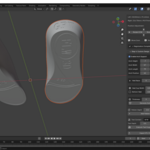
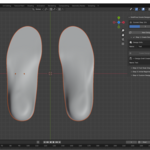
1. Product Introduction
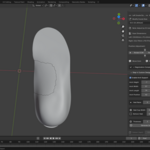
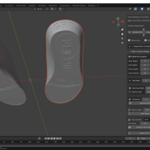
GoldFlow Insole Designer is a professional Blender add-on for designing custom orthotic insoles. It enables users to rapidly create personalized custom insoles from foot scan data. Traditional custom insole manufacturing requires multiple steps including plaster casting, manual shaping, and vacuum forming, with a total production cycle typically spanning 2-3 days. This add-on, through its automated design workflow optimized specifically for insoles, shortens the core design process to just 5-10 minutes while maintaining industrial precision (<0.5mm accuracy).

Key Features
· Independent left and right foot design to meet different needs
· Automatic template loading with encrypted template protection (AES-256)
· Automatic shoe size matching, supports Chinese sizing (18.0-50.0, 0.5 increments)
· Arch support adjustment with real-time viewport preview (height, width, length, position)
· Heel raise adjustment with real-time viewport preview
· Heel cup width adjustment with real-time viewport preview
· Bottom heel width adjustment with real-time viewport preview
· Adjustable thickness control (0.5-10mm) with multiple bottom surface types
· Text engraving with up to 3 uppercase letters for personalization
· Pattern engraving to enhance aesthetics and anti-slip performance
· One-click STL export with automatic mesh repair
· Automatic Python dependency installation (no manual environment setup required)
Workflow Overview
The add-on follows a streamlined four-step workflow that is simple and efficient:
|
Step |
Name |
Main Operations |
|
Step 1 |
Create Draft |
Enter project name, auto-load templates |
|
Step 2 |
Import Foot Scan |
Import STL/OBJ foot scan files (optional) |
|
Step 3 |
Registration |
Auto-match shoe size, adjust position |
|
Step 4 |
Custom Design & Export |
Configure arch/heel, set thickness, engrave, export STL |
|
TIP: The entire design process typically takes only 5-10 minutes to complete a pair of custom insoles. Compared to traditional manual methods (usually 2-3 days), design efficiency is improved by over 90%. |
2. System Requirements
Hardware Requirements
|
Component |
Minimum Requirement |
|
CPU |
Intel Core i5 or equivalent or better |
|
Memory |
8GB RAM (16GB recommended) |
|
Graphics |
Dedicated GPU with OpenGL 4.5 support |
|
Storage |
At least 500MB free space |
|
Display |
Resolution 1920x1080 or higher |
Software Requirements
|
Software |
Version Requirement |
|
Operating System |
Windows 10/11, macOS 10.15+, Linux |
|
Blender |
Version 4.2 or higher (required) |
|
Python |
Blender built-in Python 3.11+ |
|
Python Dependencies |
trimesh, scipy, numpy, geomdl, rtree, networkx, manifold3d, cryptography (auto-installed) |
|
WARNING: Please ensure you are using Blender 4.2 or higher and have a working internet connection for automatic dependency installation. Older Blender versions may not load the add-on correctly. |
3. Installation Guide
3.1 Installing Blender
If you have not yet installed Blender, please follow these steps:
1. Visit the official Blender website: https://www.blender.org/download/
2. Download the installer for Blender 4.2 or higher
3. Run the installer and follow the prompts to complete installation
4. Launch Blender and confirm the program runs normally
3.2 Installing the Add-on
The add-on is installed via a ZIP package. Follow these steps:
5. Launch Blender
6. Click "Edit" -> "Preferences" in the menu bar
7. Select the "Add-ons" tab on the left side of the Preferences window
8. Click the "Install" button in the upper-right corner
9. In the file selection dialog, choose the add-on ZIP file
10. Click "Install Add-on"
11. After installation, find "Object: GoldFlow Insole Designer" in the add-on list
12. Check the checkbox next to the add-on name to enable it

|
TIP: When enabling the add-on for the first time, the system will automatically detect and install required Python dependencies (trimesh, scipy, numpy, geomdl, rtree, networkx, manifold3d, cryptography). This may take 1-2 minutes. Please ensure your network connection is active. |
3.3 Verifying Installation
After installation, verify the add-on is properly installed by following these steps:
13. Find the "GoldFlow" tab in the right sidebar of the Blender 3D Viewport (press N to show/hide)
14. Click the tab to reveal the "GoldFlow Insole Designer" main panel
15. The panel should display "Current Step: 1/4"
16. The "New Design" and "Create Draft" buttons should be visible

|
WARNING: If you do not see the GoldFlow tab, please check: 1) Whether the add-on is enabled; 2) Whether you are in the 3D Viewport; 3) Try restarting Blender. If dependency installation fails, try running Blender as administrator. |
4. Quick Start
This chapter will walk you through a simple example to quickly complete the design of a pair of custom insoles. It assumes you already have foot scan files (STL format) and want to create insoles with arch support and heel adjustments.
Quick Start Steps
17. Create Draft: In Step 1, enter a design name and click "Create Draft"
18. Import Foot Scan: In Step 2, select the left and right foot STL scan files (optional - skip to use default templates)
19. Auto Registration: In Step 3, select the foot side and click "Auto Match Size & Reset"
20. Configure Arch Support: In Step 4, enable arch support and adjust height/width/position sliders
21. Adjust Heel: Configure heel raise, heel cup width, and bottom heel width as needed
22. Generate Solid: Set the thickness and click "Generate Solid"
23. Add Engraving: Add pattern and/or text engraving for personalization
24. Export File: Click "Export STL Files" and choose a save directory
|
TIP: After completing the above steps, you will obtain two STL files (left foot and right foot) ready for direct 3D printing. All arch support and heel adjustments are previewed in real-time before solid generation. |
5. Detailed Operation Guide
5.1 Step 1: Create Draft
The draft is the starting point for each insole project, used to record basic design information. When creating a draft, the system automatically loads the default insole templates from encrypted storage.
Operation Steps:
25. In the "Step 1: Create Design Draft" panel, locate the "Design Info" section
26. Enter a design name in the "Name" input field (required, e.g., "John-SportsInsole-20260627")
27. Click the "Create Draft" button

The system will automatically perform the following operations:
· Clear all objects from the 3D scene
· Automatically load encrypted insole templates into memory and decrypt them
· Load left and right foot insole templates (each foot includes a bottom surface template and an orthotic top surface template)
· Templates are displayed in light blue (bottom surface) and light orange (orthotic surface)
· View automatically adjusts to a top-down orthographic perspective
· Automatically advance to Step 2 (Import Foot Scan Data)
|
TIP: Design names should ideally include the client name, insole type, and date for easy management and lookup later. Example: "Smith-OrthoticInsole-20260627". |
New Design
If you need to start over, you can click the "New Design" button at the top of the main panel at any time. This will clear all current design content and reset all properties to the initial state.
|
WARNING: Creating a new design will delete all current work. Please ensure important data has been saved or exported before performing this operation. |
5.2 Step 2: Import Foot Scan Data
This step is used to import foot scan data for personalized insole design. The add-on supports both STL and OBJ, the two most common 3D scanning formats. This step is optional -- if skipped, the add-on will use default templates to generate standard-sized insoles.
Operation Steps:
28. Expand the "Step 2: Import Foot Scan" panel
29. Locate the "Left Foot Arch" section, click the folder icon to browse for the file
30. In the file selection dialog, select the left foot scan file (STL or OBJ) -- the file imports automatically
31. After import, the foot scan model appears in the 3D viewport (displayed in orange)
32. Repeat steps 2-4 to import the right foot scan
|
TIP: This step is optional. If you do not import foot scan data, the add-on will use default templates to generate standard insoles, which is suitable for batch production of standard sizes. Foot scans are automatically scaled from millimeters to meters (0.001 scale) on import. |
Supported File Formats
|
Format |
Advantages |
Description |
|
STL |
Best compatibility, small file size |
Most commonly used 3D scanning format, binary and ASCII supported |
|
OBJ |
Supports color/vertex information |
Suitable for textured scan models from photogrammetry |

Foot Scan Landmark Annotation
If precise alignment of the foot scan model is required, you can use the landmark annotation feature for manual registration:
33. Click the "Mark" button to enter annotation mode for the left or right foot
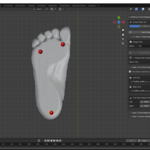
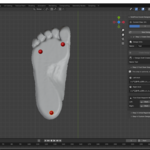
34. Click three key landmarks on the foot scan model in order: heel center, first metatarsal head, fifth metatarsal head
35. Annotation points are displayed as red spheres on the 3D model surface
36. Click "Reset" to clear annotations and start over
37. Use these keypoints for precise manual registration in Step 3
|
WARNING: Landmark annotation requires basic anatomical knowledge of foot structure. If you are unsure of landmark positions, it is recommended to use the automatic registration feature instead. |
5.3 Step 3: Initial Registration
Registration is the critical step of aligning the foot scan model with the insole template. Through registration, the generated insole can be perfectly matched to the user's foot shape, while automatically calculating the most suitable shoe size based on the Chinese sizing system.
Basic Operation Flow
38. Expand the "Step 3: Initial Registration" panel
39. Use the radio buttons to select which foot to register: Left Foot / Right Foot / Both
40. Click the "Auto Match Size & Reset" button
41. The system automatically calculates foot scan dimensions and matches the appropriate shoe size
42. The foot scan model is automatically moved and aligned above the insole template
43. Use the directional buttons to fine-tune the foot scan position (if needed)
44. If necessary, adjust the shoe size using the dropdown or +/- buttons (0.5 size steps)
45. After confirming correct alignment, click "Confirm, Next Step" to enter the design phase

Automatic Shoe Size Matching
After clicking the "Auto Match Size & Reset" button, the system automatically performs the following:
· Calculates the length of the foot scan model (distance from heel center to tip of the longest toe)
· Automatically calculates the most suitable Chinese shoe size using the formula: Size = Foot Length (cm) x 2 - 10
· Scales the insole template to the corresponding shoe size dimensions
· Aligns the foot scan model above the insole template (centered in X, bottom-aligned in Z)
· Updates the displayed shoe size and scan dimension information on the interface
· Hides landmark annotation markers after alignment
Shoe Size Adjustment
The system automatically calculates shoe size based on foot scan length. If manual adjustment is needed:
· Check the current shoe size displayed on the interface (e.g., "Left Insole Size: 40.0")
· Use the dropdown menu to select the target shoe size (18.0-50.0)
· Click the "+" or "-" buttons to increase or decrease by 0.5 size increments
· The insole template will automatically scale to the corresponding dimensions in real-time
Position Fine-Tuning
Use the directional control buttons to precisely adjust the foot scan model position (1mm per click, 1 degree per rotation):
· Up Arrow: Move foot scan 1mm toward the toe direction of the insole
· Down Arrow: Move foot scan 1mm toward the heel direction of the insole
· Left Arrow: Move foot scan 1mm to the left
· Right Arrow: Move foot scan 1mm to the right
· Rotate CW: Rotate the foot scan 1 degree clockwise
· Rotate CCW: Rotate the foot scan 1 degree counterclockwise
|
TIP: During registration, it is recommended to use the mouse scroll wheel to zoom in and carefully check the overlap between the foot scan and template, especially in the toe and heel areas. Pay attention to both the top view and side view. |
5.4 Step 4: Custom Design & Export
This is the final and most feature-rich step. It allows you to configure arch support, heel adjustments, generate the solid insole model, add personalized engraving, and export the final file for 3D printing. All surface adjustments feature real-time viewport preview via non-destructive modifiers.
5.4.1 Arch Support
Arch support is a key orthotic feature that provides customized support for the foot arch. The add-on allows precise control over the arch support shape with real-time visual feedback. When enabled, a Displace modifier is applied to the upper surface for live preview.
Operation Steps:
46. In the "Step 4: Custom Design" panel, find the "Arch Support" section
47. Check the "Enable Arch Support" checkbox to toggle the feature on
48. Adjust "Arch Height" (mm): Controls the peak height of the arch support bump
49. Adjust "Arch Width" (%): Controls the width of the arch support as a percentage of foot width
50. Adjust "Arch Length" (%): Controls the length of the arch support as a percentage of foot length
51. Adjust "Arch Position" (%): Moves the arch support peak forward/backward along the foot
52. Observe the real-time preview on the upper surface in the 3D viewport
53. The arch support modifier is only permanently applied when you click "Generate Solid"
Arch Support Parameters:
|
Parameter |
Range |
Description |
|
Height |
0-20mm |
Vertical height of the arch support peak. Higher values provide more aggressive arch support. |
|
Width |
10-200% |
Width of the arch support zone relative to foot width. 100% = full foot width. |
|
Length |
10-200% |
Length of the arch support zone relative to foot length. Covers the midfoot region. |
|
Position |
0-100% |
Forward/backward position of the arch peak. 50% = center of foot. Lower = closer to heel. |

|
The arch support uses cosine-decay weighting for smooth blending at the edges, ensuring a natural feel. The preview uses a non-destructive Displace modifier with a custom vertex group -- the original surface is preserved until solid generation. |
5.4.2 Heel Raise
Heel raise allows you to elevate the heel area of the insole, which is useful for leg length discrepancy correction, Achilles tendon relief, or general comfort preferences. The elevation is previewed in real-time on the upper surface.
Operation Steps:
54. In the "Step 4: Custom Design" panel, find the "Heel Raise" section
55. Adjust the heel raise slider to the desired value (in millimeters)
56. The heel area of the upper surface rises in the 3D viewport in real-time
57. Set to 0mm to disable heel raise (no effect on the final solid)
|
TIP: Typical heel raise values range from 2-8mm. For leg length discrepancy, consult a medical professional for the appropriate raise amount. The raise is applied with a smooth gradient to avoid abrupt transitions. |
5.4.3 Heel Cup Width
Heel cup width adjustment controls how much the heel cup wraps around the sides of the heel. Increasing this value creates a deeper, more enveloping heel cup for better rearfoot stability. The effect is previewed in real-time on the upper surface using a Displace modifier.
Operation Steps:
58. In the "Step 4: Custom Design" panel, find the "Heel Cup Width" section
59. Adjust the percentage slider (100% = original contour, up to 300% maximum)
60. Higher values create a deeper heel cup that wraps further around the heel
61. The heel cup modifier is previewed in real-time in the 3D viewport
|
TIP: Recommended heel cup width values: 100-150% for everyday comfort, 150-250% for sports/athletic use, 250-300% for maximum rearfoot stability. |
5.4.4 Bottom Heel Width
Bottom heel width adjustment controls the width of the heel area on the bottom surface of the insole. This is useful for accommodating different heel shapes and providing a stable base. The adjustment is applied as an X-axis scaling of the heel region and previewed in real-time.
Operation Steps:
62. In the "Step 4: Custom Design" panel, find the "Bottom Heel Width" section
63. Adjust the percentage slider to widen or narrow the bottom heel area
64. The bottom heel mesh updates in real-time to reflect the change
65. Set to 100% for the original heel width
5.4.5 Generate Solid
Generating the solid is the core operation that creates the final 3D-printable insole model. When you click "Generate Solid", all surface modifiers (arch support, heel raise, heel cup) are first applied (baked) to the upper surface, then the solid geometry is constructed by creating bottom and side surfaces and merging them into a watertight mesh.
Operation Steps:
66. In the "Step 4: Custom Design" panel, find the "Generate Solid" section
67. Select the bottom surface type from the dropdown: Narrow / Wide / High Arch / Extension / Custom
68. Set the insole thickness in the "Thickness" input field (default 3mm, range 0.5-10mm)
69. Choose edge type: Right Angle (sharp) or Rounded (smooth NURBS transition)
70. Choose whether to generate both feet or a single foot
71. Click the "Generate Solid" button
72. Wait for generation to complete -- solids named left_insole_solid / right_insole_solid appear in green

Bottom Surface Types:
|
Type |
Description |
Best For |
|
Narrow |
Narrower heel and midfoot bottom profile |
Dress shoes, narrow feet |
|
Wide |
Wider bottom profile throughout |
Wide feet, maximum stability |
|
High Arch |
Enhanced arch contour on bottom surface |
High arch feet, orthotic correction |
|
Extension |
Requires custom bottom surface object |
Advanced customization |
|
Custom |
Auto-generates flat bottom from template (default) |
General purpose, most common |
Thickness Recommendations:
· Daily Comfort Insoles: 2-3mm
· Sports Insoles: 3-4mm (extra cushioning)
· Medical Orthotic Insoles: 4-6mm (firm support)
· Diabetic Foot Insoles: 5-8mm (thicker cushioning layer required)
· Severe Flatfoot / Special Needs: 5-10mm
|
WARNING: Do NOT close Blender or switch steps during solid generation. The process involves complex geometry operations including NURBS surface fitting, boundary extraction, and mesh merging. Processing time varies with model complexity. |
5.4.6 Pattern Engraving
Pattern engraving adds aesthetic geometric textures to the top surface of the insole, enhancing both appearance and anti-slip performance. The pattern uses pre-defined templates and is applied as recessed engraving on the solid model.
Operation Steps:
73. Ensure solid generation is complete (required prerequisite)
74. Set the engraving depth in the "Pattern Depth" input field (default 0.5mm, range 0.1-3mm)
75. Click the "Add Pattern" button
76. The pattern is automatically engraved onto the top surface of the solid insole
77. Patterned objects are named with a "_Patterned" suffix
78. If re-engraving is needed, previous patterned objects are cleaned up automatically

5.4.7 Text Engraving
Text engraving allows personalized text to be embossed on the heel area of the insole surface, ideal for adding client initials, brand identifiers, or production codes.
Operation Steps:
79. Ensure solid generation is complete (required prerequisite)
80. Enter the text to engrave in the "Text Content" input field (up to 3 uppercase letters, A-Z)
81. Set the engraving depth in the "Text Depth" input field (default 0.5mm, range 0.1-3mm)
82. Click the "Execute Text Engraving" button
83. The text is engraved on the heel area of the insole
84. Supports engraving on a single foot or both feet
|
TIP: Text engraving is commonly used to add client initials, brand identifiers, or dates for personalization. Examples: "GFW", "L/R" (for left/right marking), "J26" (initials + size). |

5.4.8 Export STL Files
The final step exports the designed insole as STL files ready for 3D printing. The export process includes automatic mesh repair to ensure watertight, manifold geometry.
Operation Steps:
85. Confirm that all design adjustments (arch, heel, engraving) are complete
86. Click the "Export STL Files" button
87. In the pop-up directory dialog, select a save directory
88. Click "Accept" to start the export process
89. The system performs: mesh triangulation -> shoe size scaling -> engraving (if not already applied) -> mesh repair
90. Mesh repair includes: hole filling, normal correction, self-intersection removal, re-triangulation
91. Export completes with a summary showing processing time for each foot
92. File naming format: {design_name}_L.stl and {design_name}_R.stl
93. Split parts and out-support split parts are also exported if applicable

|
WARNING: The export process includes automatic mesh repair which may take 1-3 minutes depending on model complexity. Do not close Blender during export. The repair pipeline is critical for ensuring 3D printability. |
Post-Export Processing
The exported STL files can be directly used for 3D printing. Before printing, it is recommended to:
· Open the STL files in slicing software (e.g., Cura, PrusaSlicer, OrcaSlicer)
· Verify the model dimensions and orientation are correct
· Check the model for any visible mesh issues in the slicer preview
· Select appropriate print parameters based on the printing material
· For TPU material (recommended): nozzle temperature 220-240 degree C, heated bed 50-60 degree C, print speed 25-40mm/s
· For PLA test-fit samples: nozzle 200-210 degree C, bed 50-60 degree C, print speed 50-60mm/s
· 100% infill is recommended for optimal structural support performance
· Consider using variable layer height for better surface quality on the top surface
6. Feature Details
6.1 Shoe Size System
The add-on uses the Chinese shoe size system, supporting sizes from 18.0 to 50.0 with 0.5 size increments. Chinese shoe sizing is based on foot length with the conversion formula: Shoe Size = Foot Length (cm) x 2 - 10. For example, a foot measuring 25.0cm corresponds to size 40.0.
Common Shoe Size Conversion Chart
|
Chinese Size |
Foot Length (cm) |
EU Size |
US Size (Men) |
|
36.0 |
23.0 |
36 |
4.5 |
|
37.0 |
23.5 |
37 |
5 |
|
38.0 |
24.0 |
38 |
5.5 |
|
39.0 |
24.5 |
39 |
6.5 |
|
40.0 |
25.0 |
40 |
7 |
|
41.0 |
25.5 |
41 |
8 |
|
42.0 |
26.0 |
42 |
8.5 |
|
43.0 |
26.5 |
43 |
9.5 |
|
44.0 |
27.0 |
44 |
10 |
|
45.0 |
27.5 |
45 |
11 |
|
TIP: When selecting shoe size, it is recommended to choose 0.5-1 size larger than the actual foot length measurement to allow room for socks, swelling, and natural foot movement throughout the day. |
6.2 Thickness Control
Insole thickness is a critical parameter affecting comfort, support, and durability. The add-on supports uniform thickness settings ranging from 0.5-10mm. The thickness is applied during solid generation and affects the entire insole uniformly.
Thickness Selection Guide:
|
Application |
Recommended Thickness |
Notes |
|
Daily Comfort |
2-3mm |
Lightweight and breathable, suitable for everyday wear |
|
Sports Protection |
3-4mm |
Provides extra cushioning, reduces impact during sports |
|
Medical Orthotic |
4-6mm |
Provides sufficient structural support for foot correction |
|
Diabetic Foot |
5-8mm |
Requires thicker cushioning to prevent pressure points |
|
Special Needs |
6-10mm |
Severe flatfoot, post-surgery recovery, custom orthotics |
6.3 Arch Support
The arch support feature creates a raised area on the upper surface of the insole to support the foot's medial longitudinal arch. This is one of the most important orthotic features for treating conditions like flatfoot (pes planus), plantar fasciitis, and general foot fatigue.
How It Works:
· A Displace modifier with a custom vertex group is applied to the upper surface for real-time preview
· The arch bump uses cosine-decay weighting for smooth, natural-feeling edges
· The modifier is non-destructive -- the original surface geometry is preserved until solid generation
· During solid generation, the modifier is baked (permanently applied) before creating the 3D solid
· Left and right feet receive independent arch support configurations based on foot scan analysis
· World coordinate calculations ensure correct positioning regardless of object transforms
Clinical Recommendations:
· Flatfoot (Pes Planus): Moderate height (8-14mm), centered position, full width
· High Arch (Pes Cavus): Low height (3-6mm), forward position, narrower width for cushioning
· Plantar Fasciitis: Moderate height (6-10mm), slightly rearward position, medium width
· General Comfort: Low height (2-5mm), centered, medium width
6.4 Heel Adjustments
The add-on provides three independent heel adjustment parameters that can be combined for comprehensive rearfoot control:
Heel Raise:
· Vertically elevates the heel area of the insole surface
· Applied via Displace modifier with smooth gradient transition
· Common uses: leg length discrepancy correction (2-8mm), Achilles tendonitis relief, post-surgical adaptation
· The raise is measured in millimeters from the original surface level
Heel Cup Width:
· Controls the lateral wrapping of the heel cup around the sides of the heel
· Expressed as a percentage of the original contour width (100% = original)
· Higher values create deeper heel cups for improved rearfoot stability
· Uses Displace modifier for real-time preview
· Maximum value: 300% of original contour
Bottom Heel Width:
· Adjusts the width of the heel area on the bottom surface
· Applied as BMesh X-axis coordinate scaling of the heel region
· Provides a wider or narrower base for stability
· Previewed in real-time on the bottom template surface
|
Real-time preview: All three heel adjustments use non-destructive modifiers that are only permanently applied during solid generation. This allows you to experiment freely and see instant feedback without committing to changes. Toggle any adjustment back to its default to remove the effect. |
6.5 Text Engraving
The text engraving feature allows personalized text on the insole surface. The text is engraved as recessed (negative relief) characters on the heel area.
Parameters:
· Text length: Up to 3 uppercase letters (A-Z)
· Engraving depth: 0.1-3mm (0.5mm recommended for most cases)
· Engraving position: Heel area of the insole (rear portion of the top surface)
· Font: System default sans-serif font, scaled to fit the heel area
· Engraving type: Recessed engraving (negative relief, cut into the surface)
· Supports single foot or both feet engraving in one operation
|
TIP: Text depth should not be too deep, as it may compromise insole structural integrity. A depth of 0.5mm is recommended for most applications. Deeper engraving (1-2mm) may be used for very thick insoles (6mm+). |
6.6 Pattern Engraving
The pattern engraving feature adds aesthetic geometric texture patterns to the entire top surface of the insole. In addition to visual appeal, the texture increases surface friction for improved anti-slip performance between the foot and insole.
Parameters:
· Engraving depth: 0.1-3mm
· Recommended depth: 0.5mm (balances aesthetics, comfort, and structural integrity)
· Pattern type: Preset geometric texture from template library
· Engraving position: Top surface of the insole (foot contact surface)
· Pattern templates are stored in the Letter/ subdirectory
· Previous patterned objects are automatically cleaned up before re-engraving
· Batch ray casting and cache acceleration ensure fast processing
Have questions about this product?
Login to message
| Dev Fund Contributor | |
| Published | 4 months ago |
| Blender Version | 4.2 |
| Extension Type | N/A |
| License | Mit |
