 Skava
Skava

HandoffProof 1.2.0 — documentation
Requires Blender 4.2 or newer. Tested on 4.2, 5.1 and 5.2.
Installing
Download the zip and leave it zipped. In Blender open Edit, then Preferences, then Add-ons, click the arrow button in the top right corner of that window, choose Install from Disk and pick the zip. Tick the checkbox next to the add-on name. Press N in the 3D Viewport and the HandoffProof tab appears in the sidebar.
Before you press anything
Save the file. Everything HandoffProof does happens on the version written to disk, because that is the version your client receives. If your session has objects the saved file does not, the report says so at the top and names them, and then goes on to describe the file on disk.
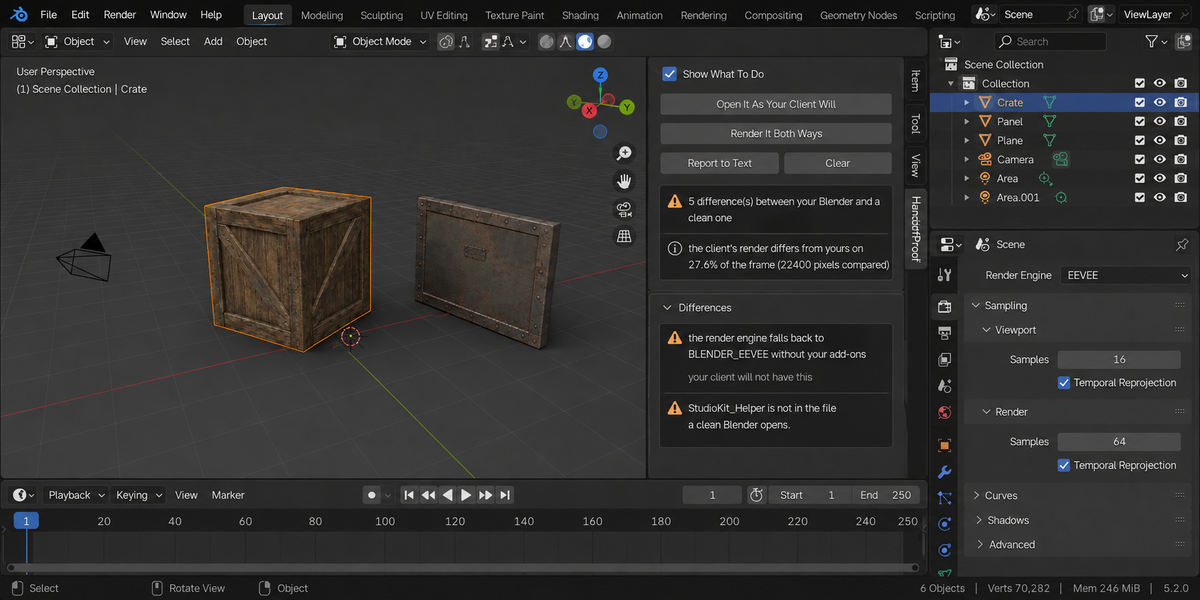
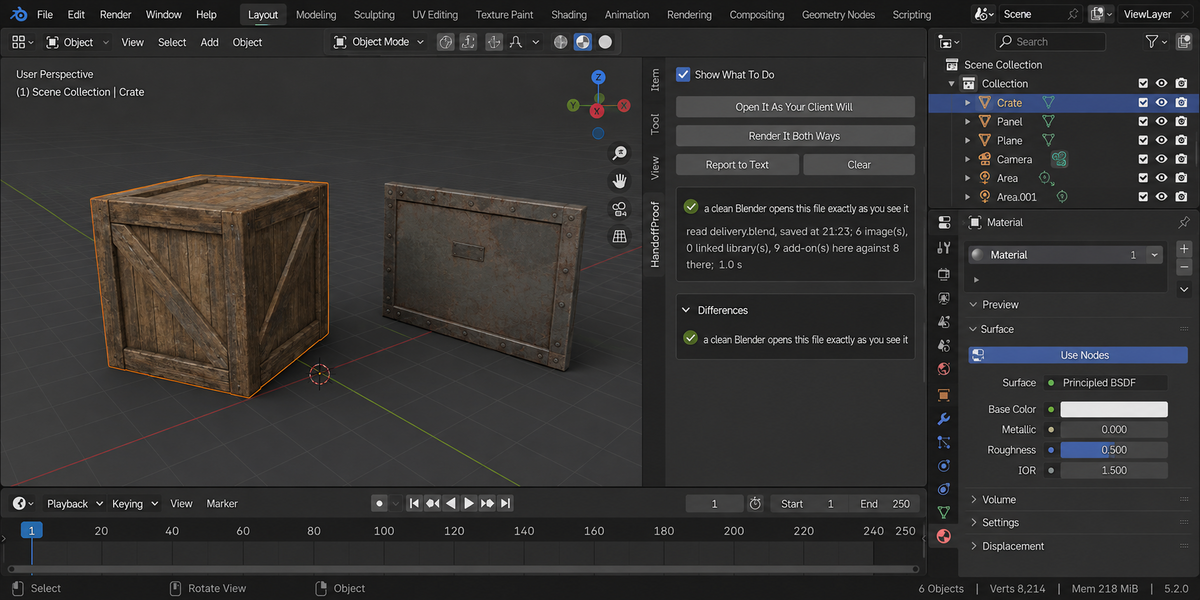
Open It As Your Client Will
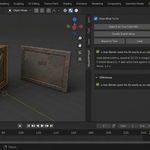
This starts two background Blenders on the same executable: one with your configuration, one with no add-ons and no preferences at all. Both open the same saved file and describe it with the same code, so any difference between the two reports can only come from the environment. Then the two descriptions are compared and you get a list.
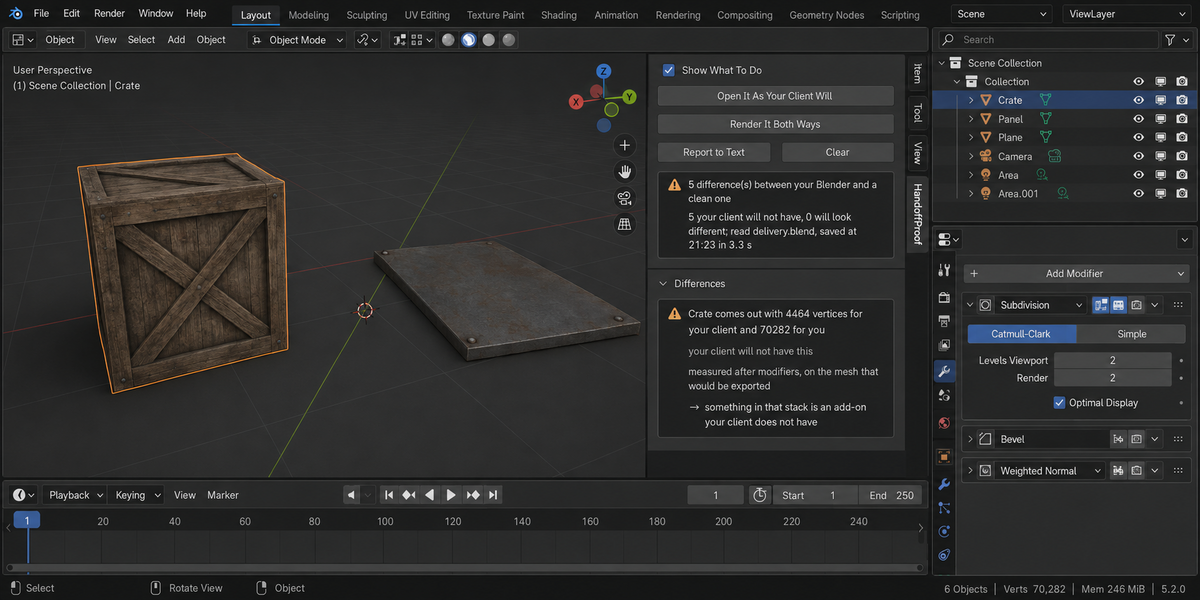
Each entry says what differs, gives the measurement behind it, and adds one line of what to do about it. Turn off Show What To Do if you would rather see the bare list. The panel also tells you which file was read and at what time it was saved.
Reading the list
- Your client will not have this — the difference will be visible or will stop something from working: a texture your machine redirects to a different file, a fallen-back engine, a node group or a world that is not rebuilt, a driver that fails, an object that is not in the file, geometry that comes out a different size, an output size or a start frame an add-on changes on load.
- This will look different — the file opens on both sides, but not identically: the same path resolving to a different image, a node group with a different number of nodes.
- Worth knowing — nothing is wrong with the file; you are being told something about the run itself, such as your session being ahead of what is saved.
Render It Both Ways
This renders one small probe frame from the saved file twice — once in your Blender, once in a clean one — with the same settings applied by the same script on both sides, and compares the two images pixel by pixel. The result is the share of the frame where they disagree.
The probe is shaped like your camera frame, so it looks at what your camera looks at, and it is deliberately small: it is a comparison, not a preview. Sequencer and compositor are switched off for the probe in both runs so that what is compared is the render itself. If there is no camera, you are told that no frame could be compared, rather than being shown a reassuring zero.
What it never does
It does not change your scene, your objects, your render settings or your file. Both buttons work entirely in separate processes on the copy already on disk; nothing in your session is written to. It does not repair anything either — deciding whether to pack a texture, apply a modifier or send the add-on along is a judgement about your project, and the add-on does not make it for you.
Report to Text
Writes the whole report into a text block inside your file, called HandoffProof Report, which you can open in the Text Editor and paste into an email. That text block is the only thing the add-on ever creates, and only when you ask for it.
When something goes wrong
- A clean Blender did not answer in time — the scene takes longer to open twice than the limit allows. That is worth knowing before you send it.
- A clean Blender refused the file — the last line of its error is shown. A file that a clean Blender cannot open at all is the most serious result this add-on can give you.
- Your own Blender refused the file — the second run with your configuration failed. Usually one of your own add-ons is erroring while the file loads.
- No camera — the probe needs one. The list still works without it.
Support
One thing this add-on deliberately does not answer: whether your textures live inside the project folder. Both Blenders run on your computer and see the same disk, so an ordinary absolute path resolves for both of them and is reported as fine — because from where this tool stands, it is. What it answers is the other half of the question: what your add-ons and your settings do that your client's Blender will not do.
Questions and bug reports through the marketplace message form. Include your Blender version and, if you can, the report text block.
Checking a whole folder
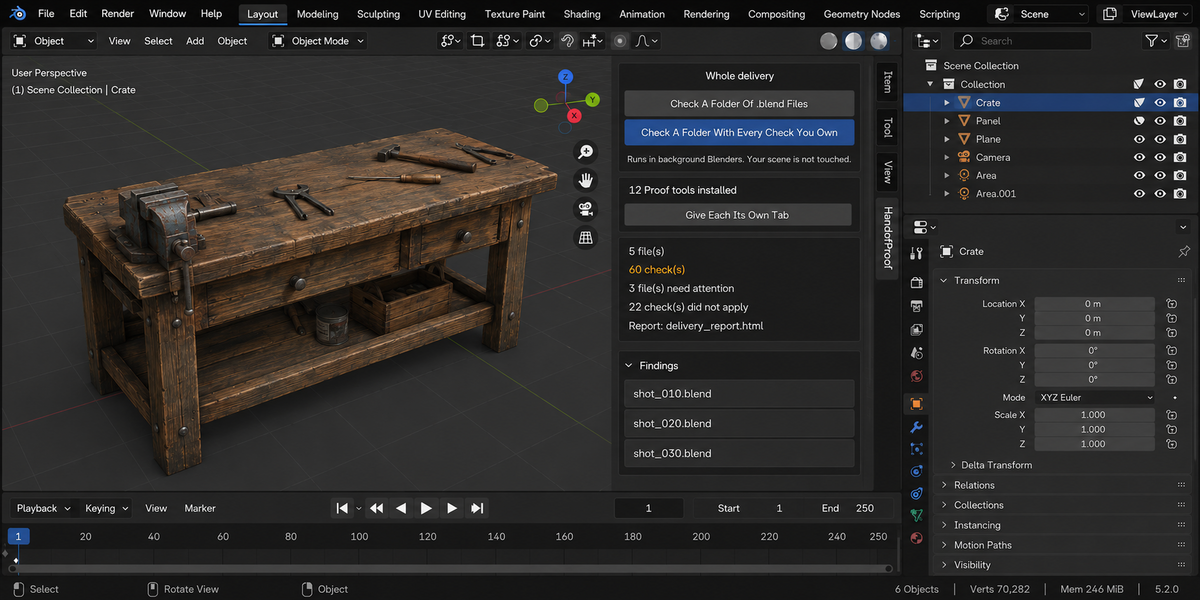
The sidebar has a Whole Delivery panel. It has two buttons.
Check A Folder Of .blend Files runs this product over every.blend in the folder you pick. Check A Folder With Every Check YouOwn runs every tool from this line that you have installed, over thesame files, in one pass — one report, one verdict.
Each file is opened in its own background Blender. Your open scene is nevertouched: not opened over, not saved, not modified in any way. This is also why afile that will not open costs you only that file — the rest of the delivery isstill checked. Press Escape to stop; nothing partial is written, because areport covering half a delivery is a report nobody should trust.
When it finishes you get an HTML report next to the folder. It is one filewith nothing loaded from the internet, so it can be attached to an email, put inthe delivery folder, or opened years later on a machine that has never seen thisadd-on.
Running it from a pipeline
The same check runs headless, with no interface and no person, and finisheswith a code your build system can read: one code for clean, another whensomething blocking was found, and a third when a file could not be checked atall. Those last two are deliberately different. A check that did not run has notpassed, and a gate that treats silence as success will one day wave through thedelivery it existed to stop. The exact command line is in the add-onpreferences.
Comparing against last week
Any run can be saved as a baseline. A later run then reports what changed:which numbers moved and in which direction, which findings are new, and whichones you have fixed since. Direction matters and is not guessed — eachmeasurement carries its own sense of which way is worse, so rising coveragereads as better and rising drift reads as worse.
Signing a file off
When a file is clean you can sign it off. The record lives inside the .blenditself, not in a folder next to it, so it travels with the file: open it nextmonth and it tells you when it was checked, by which version, and how it cameout. If the file is saved after that, the record says plainly that it is out ofdate — a sign-off that survives an edit it never saw would be worse than nosign-off at all.
One tab instead of twelve
Every tool in this line can put its panel under a single shared sidebar tabinstead of its own. One button does it for all of them at once, and each panelarrives collapsed, so twelve tools cost you one tab and no scrolling. Yourchoice is remembered, and a tool that you later use on its own can be given itsown tab back the same way.
What is deliberately not claimed
A check that could not run is reported as exactly that, never as a pass. If atool from this line is not installed, or is an older version that predates thecombined run, the report names it in a list of checks that did not take part,so the gap is visible rather than quietly absent.
Have questions about this product?
Login to message
| Published | 17 days ago |
| Blender Version | 4.2 - 5.2 |
| Extension Type | N/A |
| Render Engine Used | Cycles, Eevee |
| License | GPL |
Discover more products like this
pipeline delivery client dependencies Checker validation textures outsourcing freelance handoff drivers Render