Home – Procedural House Generator
 3DVision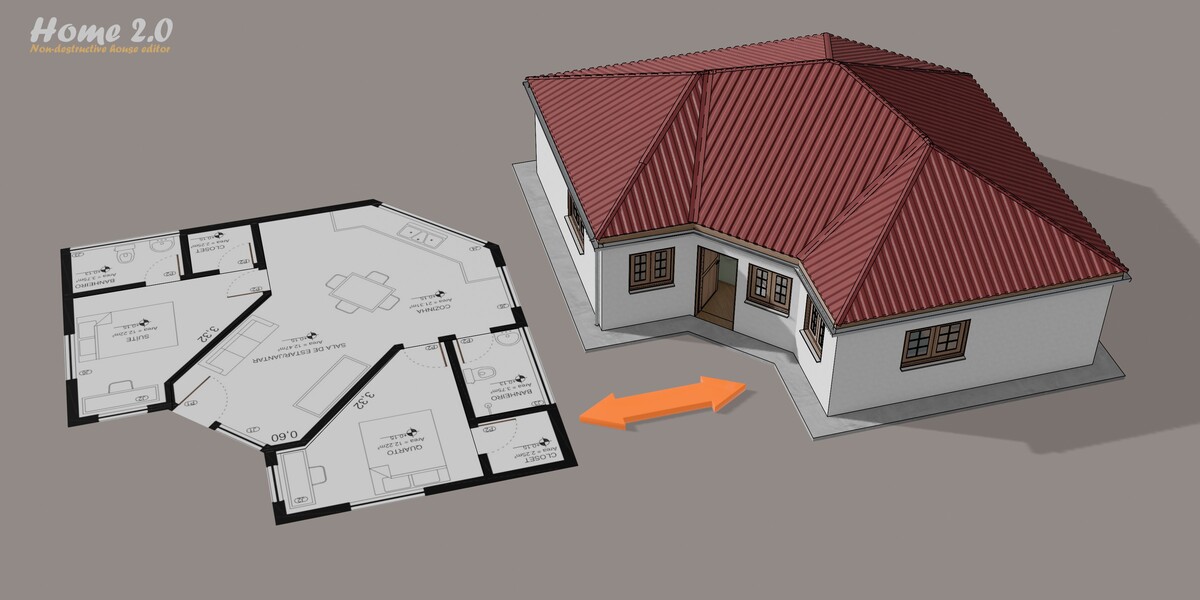
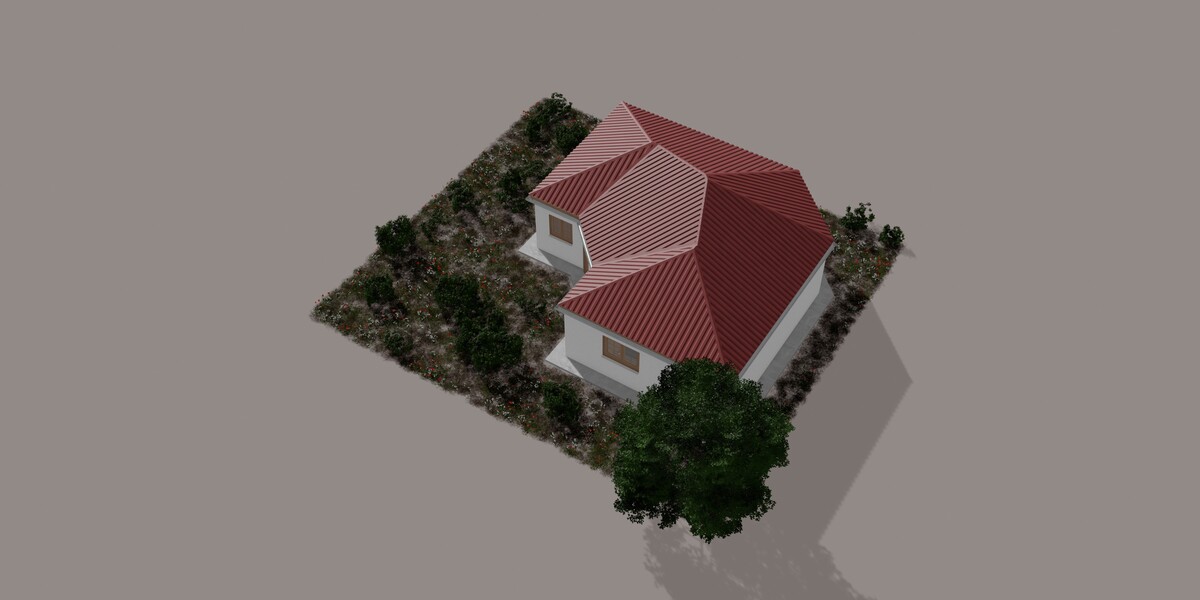
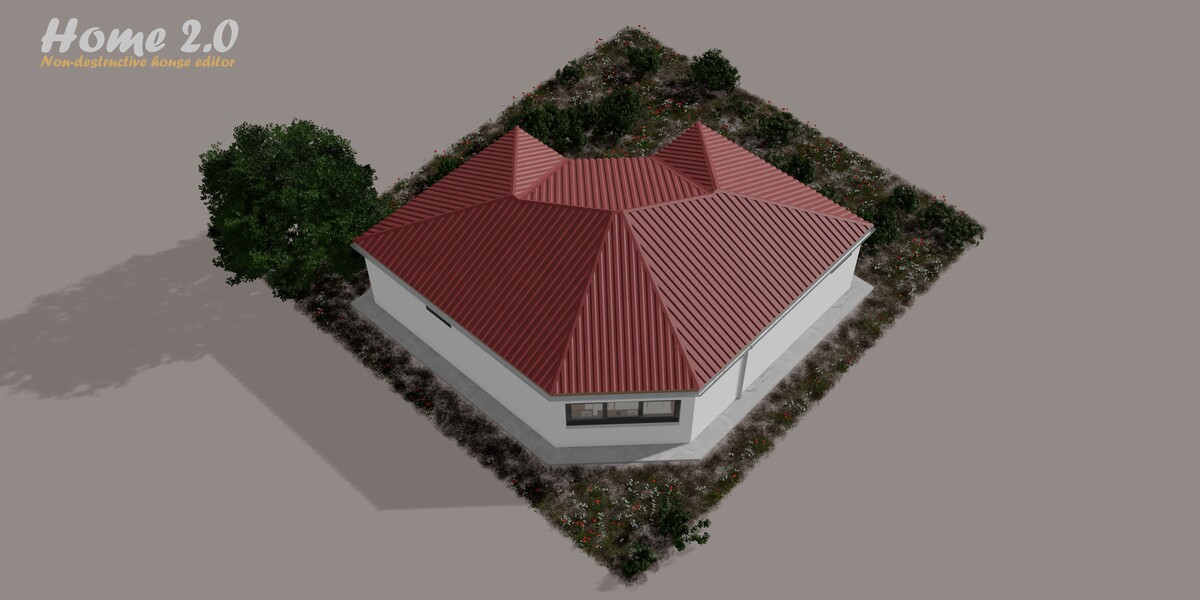
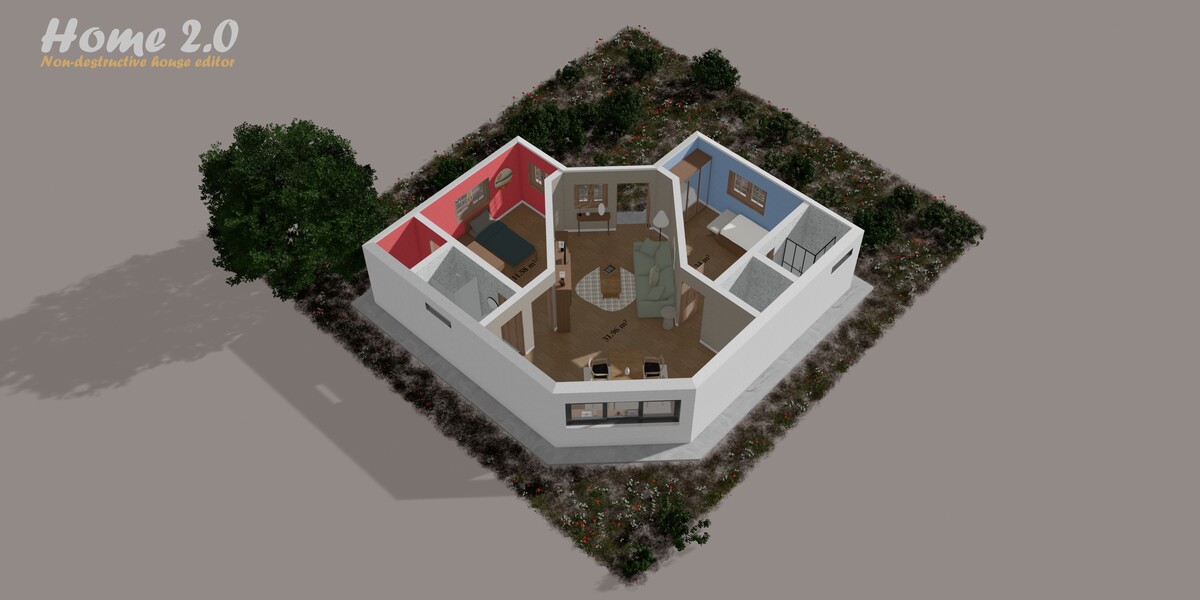
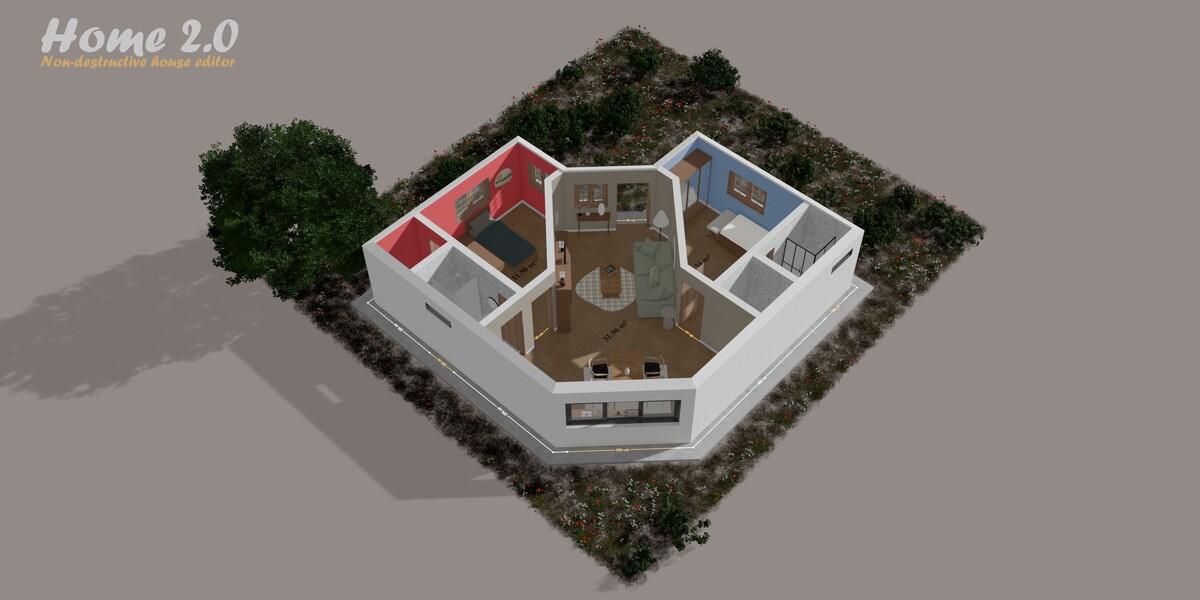
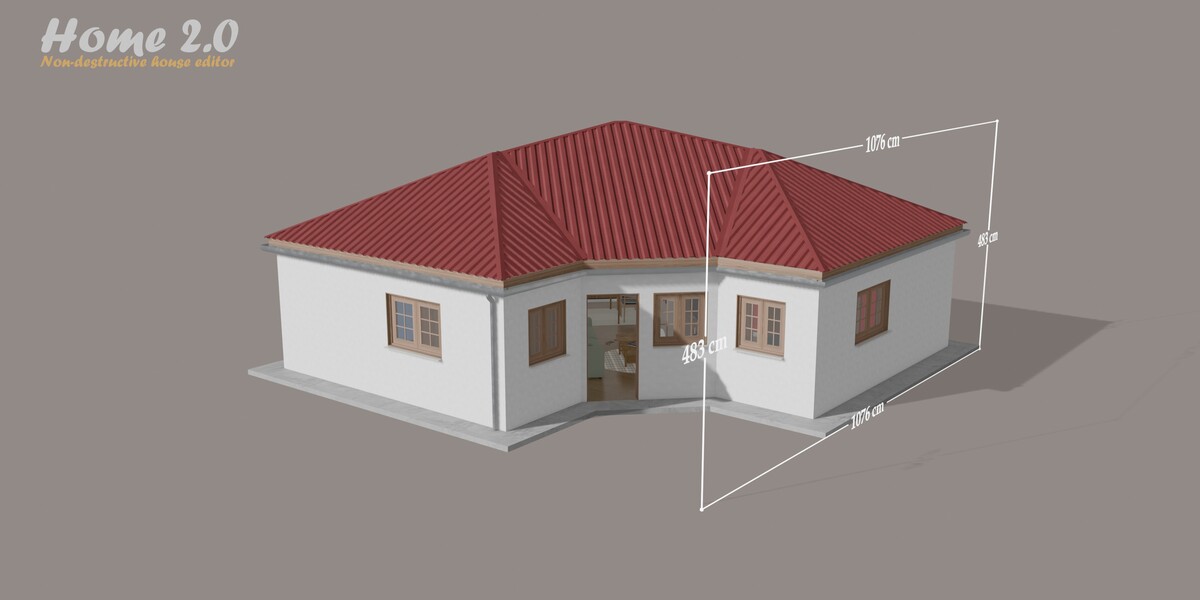
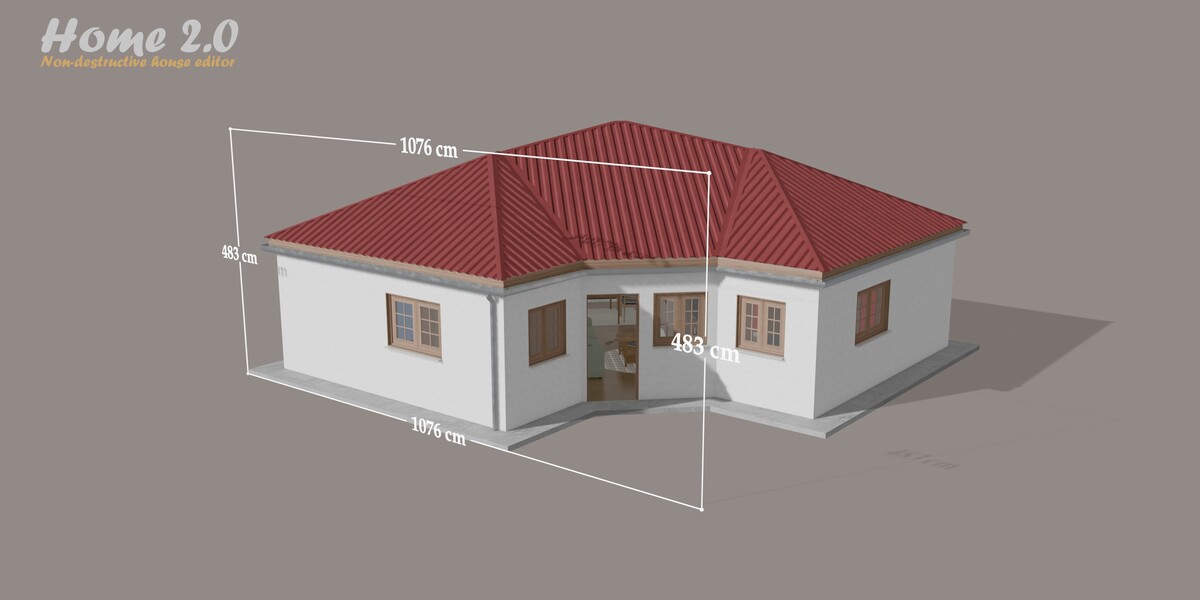
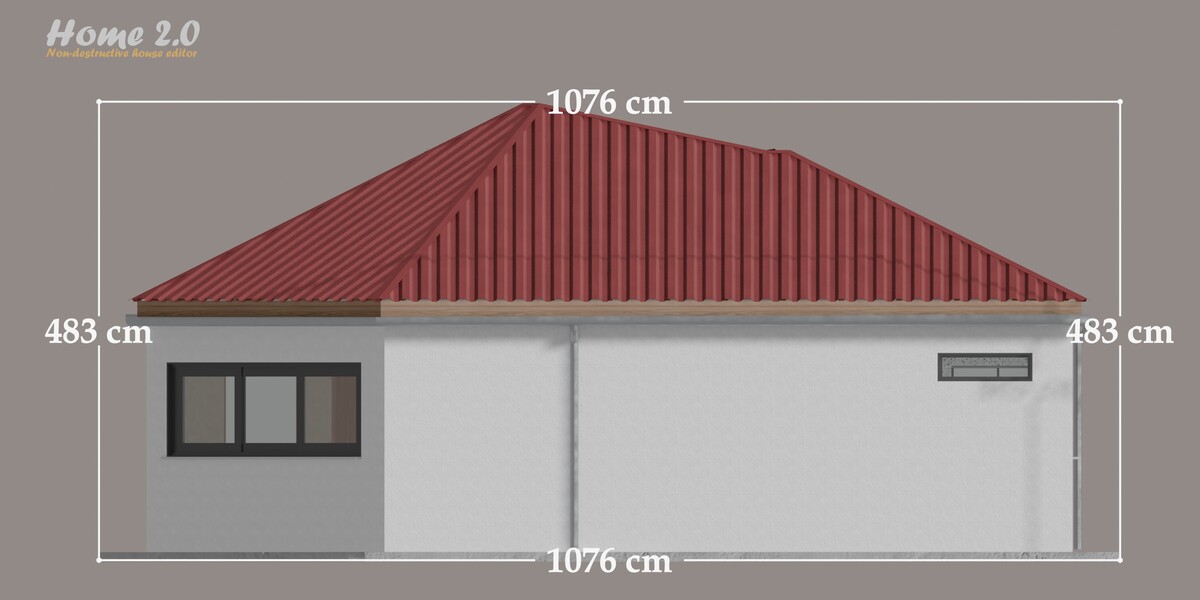
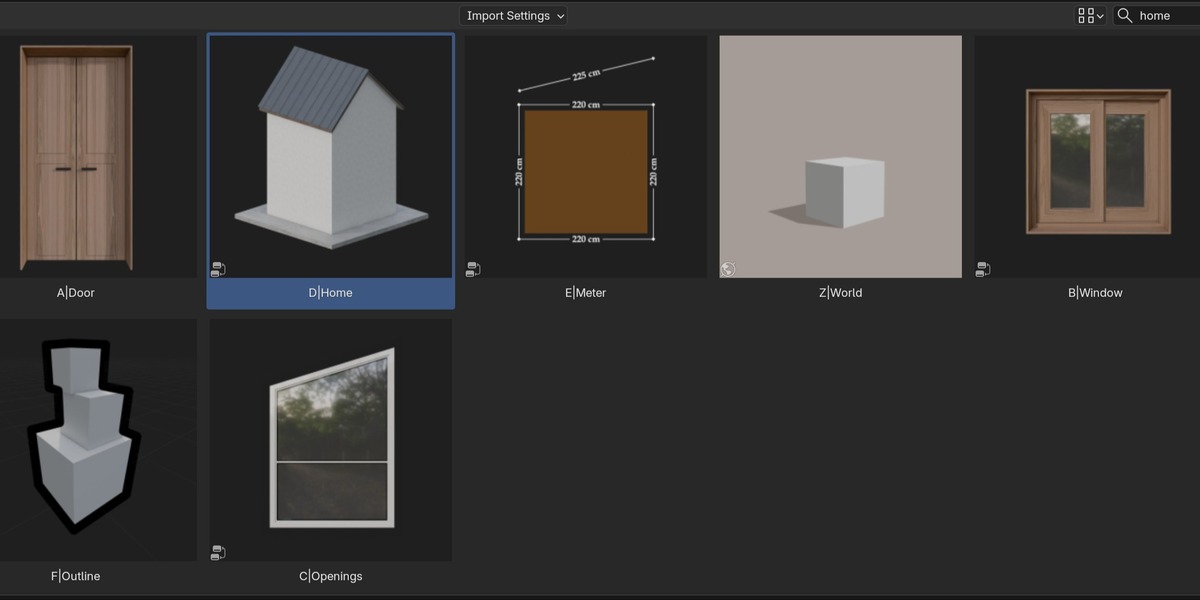
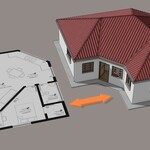
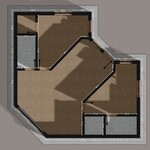
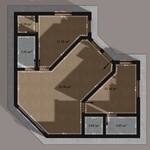
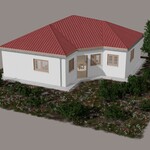
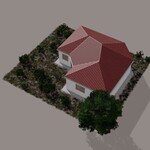
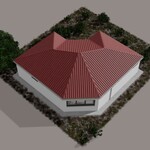
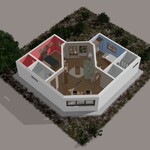
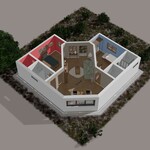
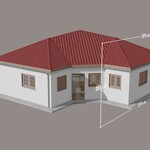
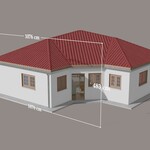
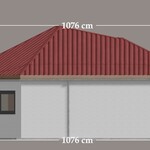
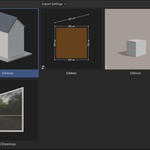
- Store the file in an asset library. Put the provided .blend file in a folder, then add that folder in Edit > Preferences > File Paths > Asset Libraries (the + button).
- Open the Asset Browser and choose your library. The assets are listed there: D|Home, A|Door, B|Window, C|Openings, E|Meter, F|Outline and Z|World.
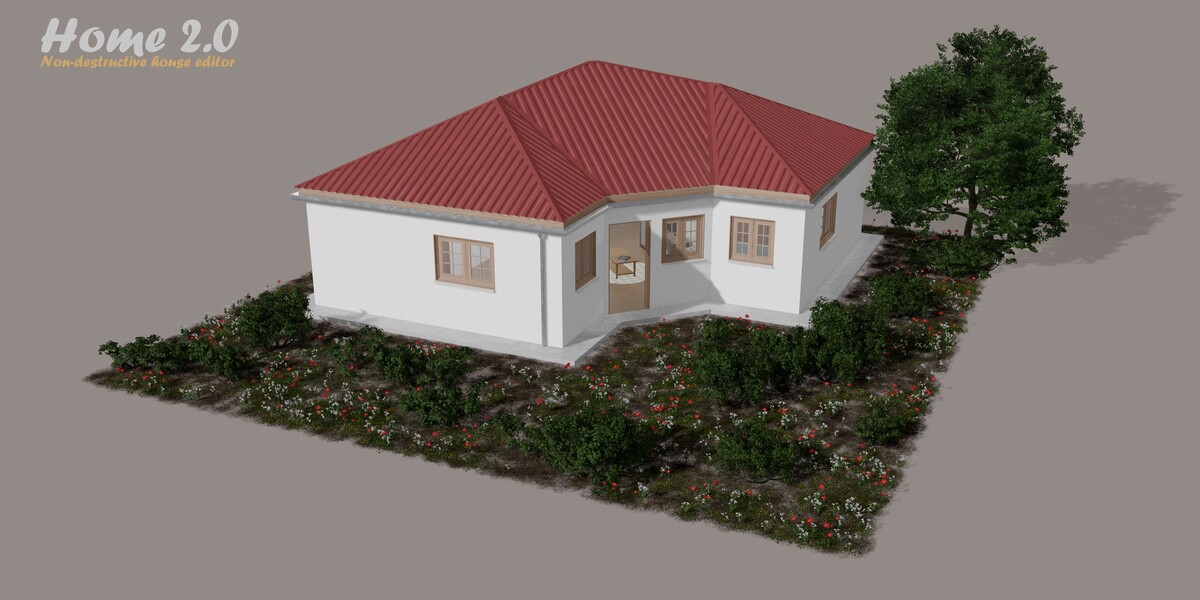
- Drag and drop D|Home onto your plan mesh. The modifier builds the house around it.
- Drag and drop A|Door and B|Window onto the same mesh, then move them above D|Home in the modifier stack. Place them with Wall and Set.
- Work in Preview mode and switch to Render for your final images.
Good to know
- The demo scene only gives you a preview of what Home can do. For your own projects, use the assets of the Asset Browser.
- In the Import Settings of the Asset Browser, choose Append if you want to edit the node groups, or Link to keep them untouched.
- Use your own plan: import it with “image to plan”, trace the outline to keep only the facades, then scale the mesh to the real dimensions in Edit Mode. The visibility of the plan can be switched on and off.
- Facade walls appear on faces only. Draw each volume of the building as a face.
- Partition walls appear on edges. Draw them with free edges (edges that are not part of a face).
Rules to follow
- Facade walls do not support intersections: faces that overlap or cross each other create bugs. Use free edges to draw the partitions.
- All the vertices of the plan must be at the same height on the Z axis, otherwise errors appear.
Every panel of the D|Home modifier can be switched on or off with its checkbox. Hover a setting to read its description.
| Display | Xray mode to see inside the building. |
| Wall | Facade walls (on faces) and partition walls (on edges): width, height and tint. |
| Roof | Roof type, roofing style, fascia board, gutters and downspouts, visible framing (rafters, purlins, battens) and the roof covering with its ridge caps. |
| Slab and Floor | Slab under the building and floor of the rooms. |
| Room | Paint per room, bathrooms and garages. |
| Ceiling and Molding | Ceiling of the rooms and baseboards along the walls. |
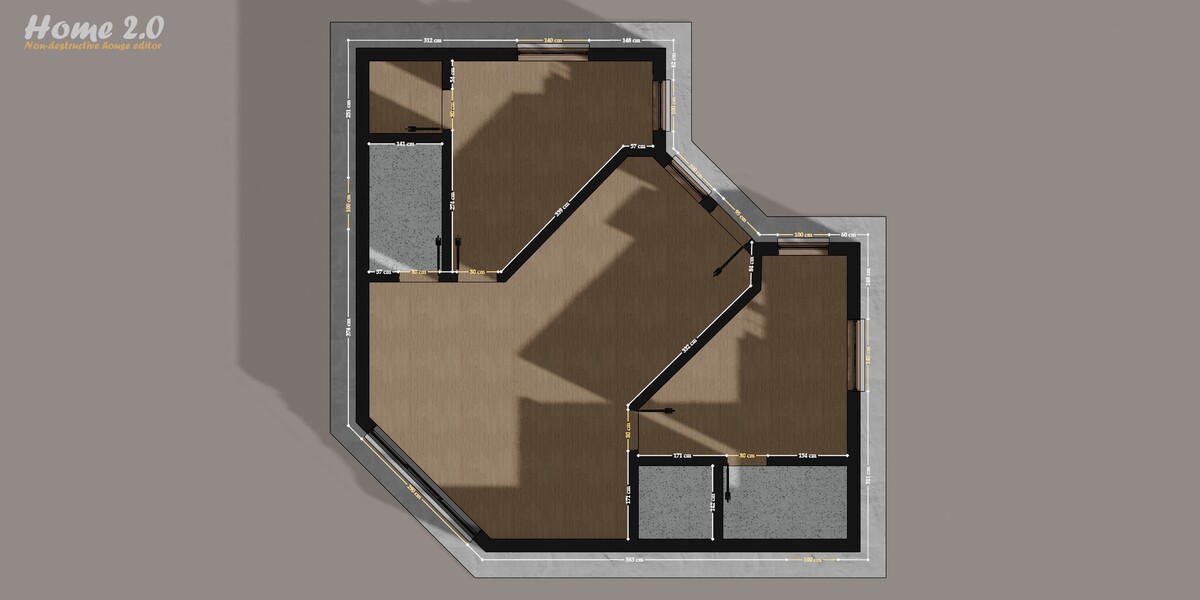
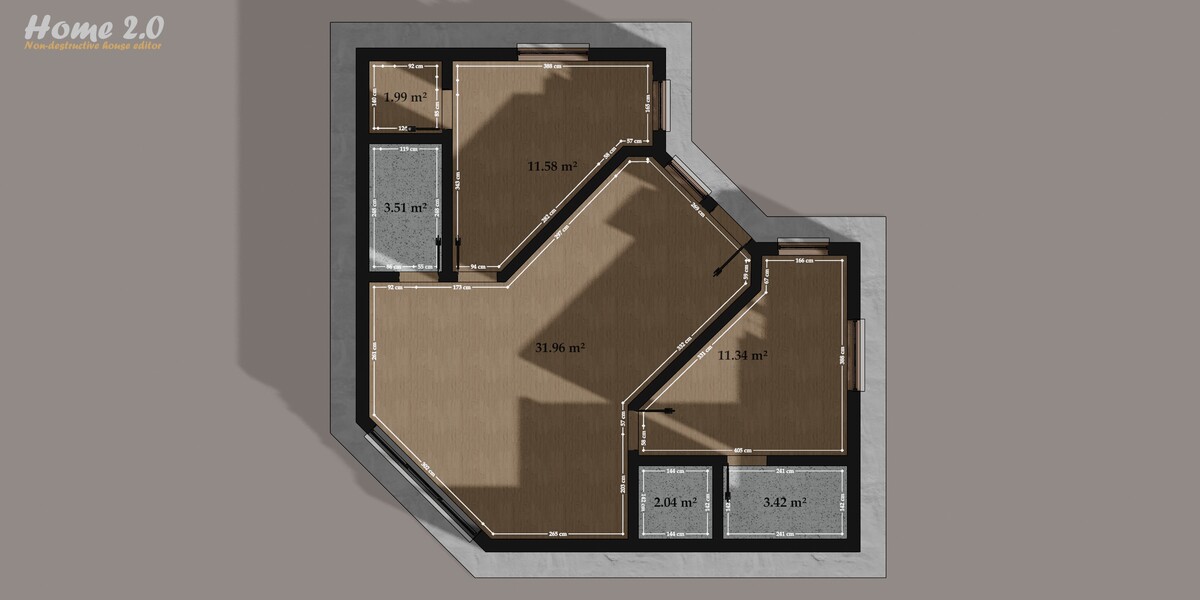
| Living Area and Measurement | Living area of the rooms and dimensions displayed on the plan. |
| Custom Openings | Cut your own openings into the walls. |
| Cutting Center | Horizontal cut of the building to see inside. |
| Smooth and Materials | Shading options and the materials used by the house. |
- Choose the roof type (10 types) and the roofing style (6 styles). Height and overhang are set in meters.
- Switch on Frame, Purlins and Battens to show the roof framing. It is tailored to the size of the house.
- Switch on Gutter to add a gutter along the low edges of the roof, then Downspout to add one downspout per separate gutter, with end caps.
- Use the slider to move the downspout along the gutter and Mirror to add a second one at the opposite end.
- Add the A|Door or B|Window modifier before D|Home in the stack.
- Choose the Kind (window, door or garage), the Shape (rectangle, arch, round or triangle), the Open type and the number of leaves.
- Place the opening with Wall and Set (see below).
- Add the details you need: handles, glazing bars, transom, sill, lintel, roller shutter, blinds, curtain or flower box.
Placement by wall
- Wall = 0: Set slides the door or window along the outline of the walls, then along all the interior edges.
- Wall = a number: the opening sits on that wall, and Set places it in meters from the start of the wall. In this mode, stretching one wall does not move the openings on the other walls.
- Opening only cuts the hole without the frame and the leaves.
Performance tip
- While you add doors and windows, hide the walls (switch the Wall panel off). The boolean operations accumulate and reduce the performance. Switch the walls back on when you are done.
- Create a plane mesh for your opening and add the C|Openings modifier. Border edges become the frame, edges between two panes become glazing bars and faces become the glass.
- Choose the type of each pane with an integer face attribute named pane: 0 clear glass, 1 frosted, 2 tinted, 3 solid panel, 4 open. Faces without the attribute are clear glass.
- In the D|Home modifier, enable Custom Openings and select the object or the collection of your openings. The walls are cut automatically. You can then hide the original object.
- The modifier has panels for the Bound (the volume that cuts the wall), the Glass, the Frame (width, depth, rebate and chamfer), the Joint (black gasket around each pane) and the colors.
- The mesh can be rotated freely, including in Edit Mode. All the faces of one object must lie in the same plane.
- Room colors A, B and C: each color is a thin layer of paint. Each color can be assigned to four rooms, picked by index.
- Bathroom: removes the baseboards and applies a tile suited to wet rooms on the walls. Assigned to four rooms by index.
- Garage: removes the baseboards in garages. Assigned to two rooms by index.
- Type the index of the room you want and change the number until the right room is painted.
- Xray (Display panel) makes the building transparent. Cutting Center cuts the building horizontally at a height you choose.
- Measurement displays the dimensions on the plan. Living Area displays the surface of each room.
To keep Blender fast
- Hide the walls while you add doors and windows: the accumulated boolean operations reduce the performance.
- The tile roofing styles (plain and Roman tiles) reduce the performance.
- Cutting Center reduces the performance while it is switched on.
- Work in Preview mode and switch to Render for the final images.
- Before converting, switch on Fix in Measurement > Main > Fix. It solves the boolean errors of the measurements.
- Select the object and go to Object > Convert > Mesh. The whole object is converted to a mesh.
Warning
- The lamps are not supported by the conversion.
Things to know
- The roof framing can show display bugs on the hip roof type.
- With some roof styles, small pieces of sheet metal can stick out.
- All the vertices of the plan must be at the same height on the Z axis.
- Facade walls do not support intersections: use free edges for the partitions.
- Opening editor: one plane per object. The gasket along the glazing bars is made of separate strips.
- On plans that are not rectangular, the roofing overhang can vary slightly near inner corners.
A problem not listed here? Use Contact the creator on the product page.
 Included
Includes 12 months of
- Support from 3DVision
- Product updates
Extend this product’s Support Period +12 months: 50% of product price
Have questions before purchasing?
Login to message
| Published | about 5 hours ago |
| Blender Version | 5.1 - 5.2 |
| Render Engine Used | Cycles, Eevee |
| License | Royalty Free |