Home – Procedural House Generator
 3DVision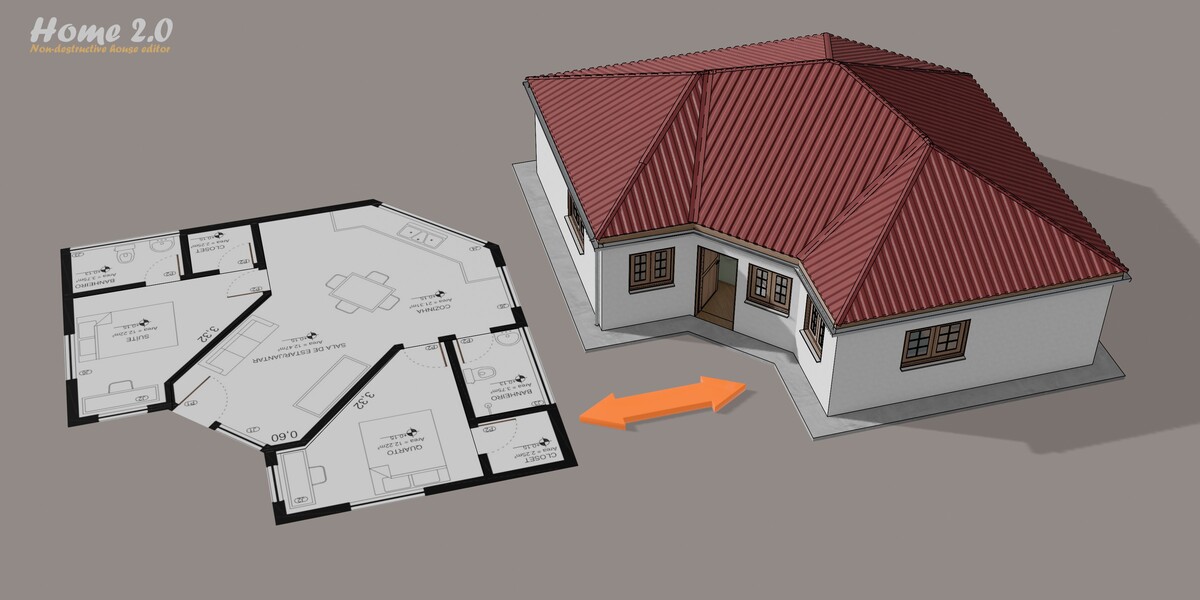
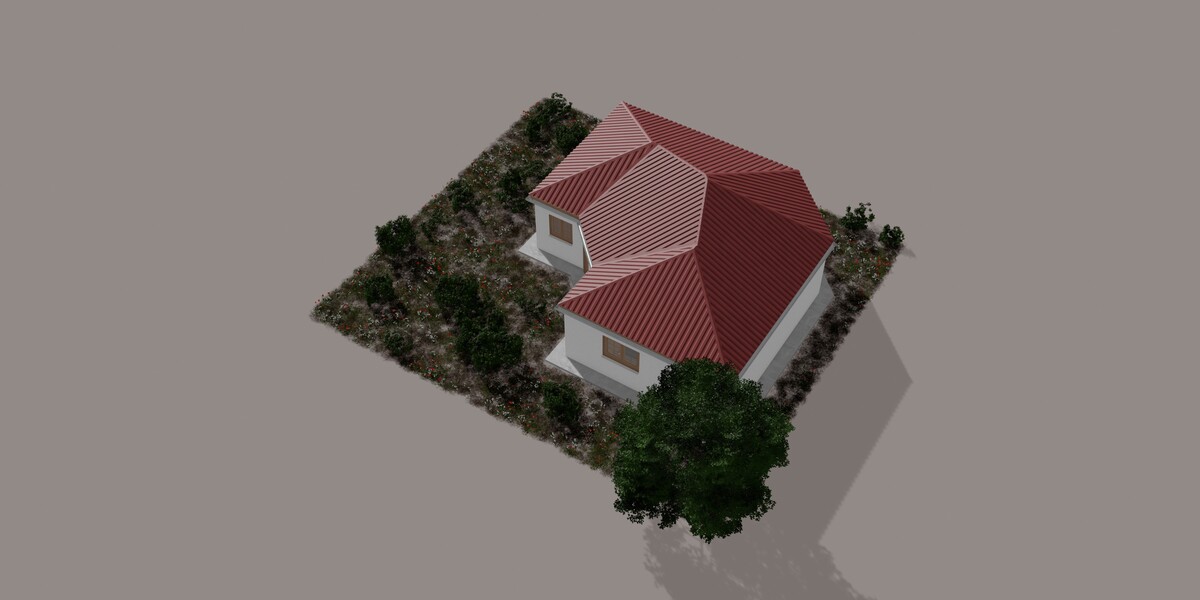
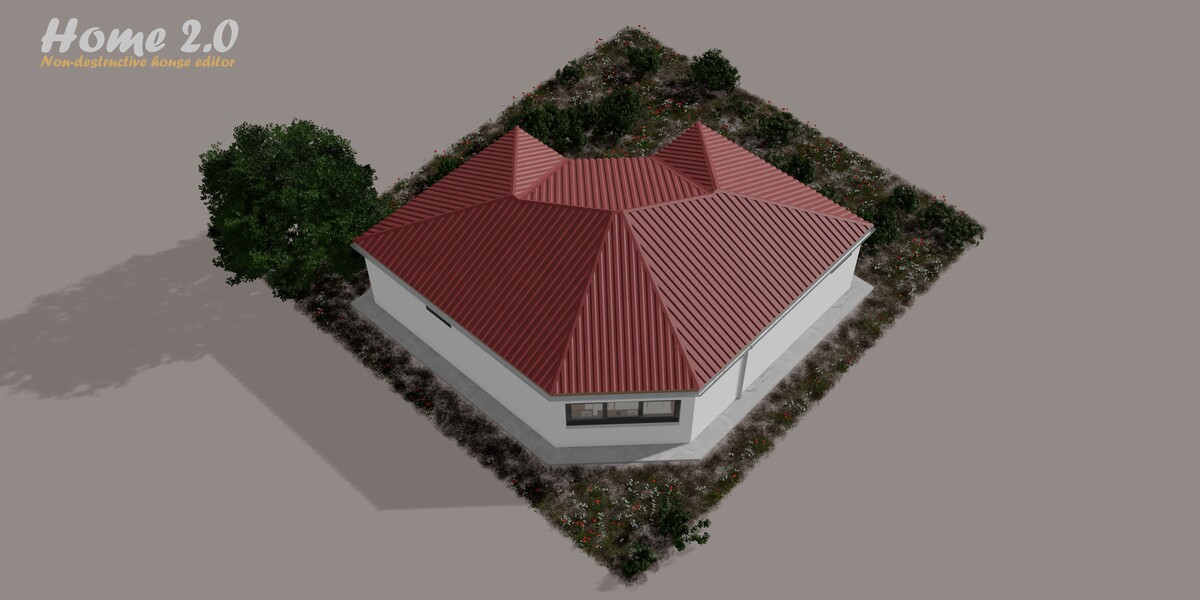
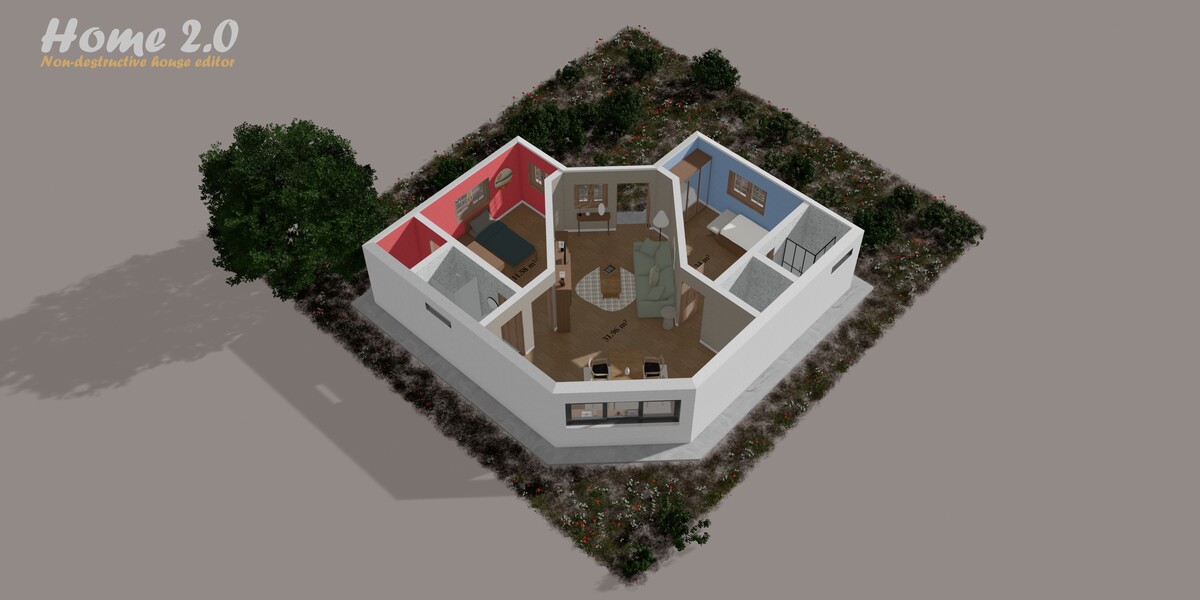
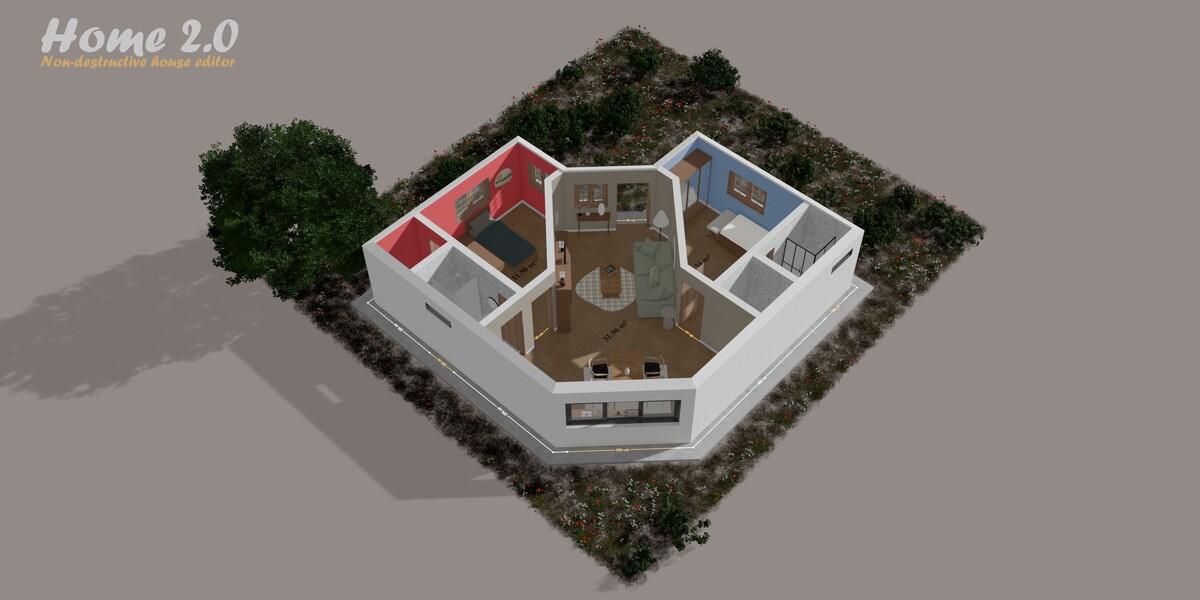
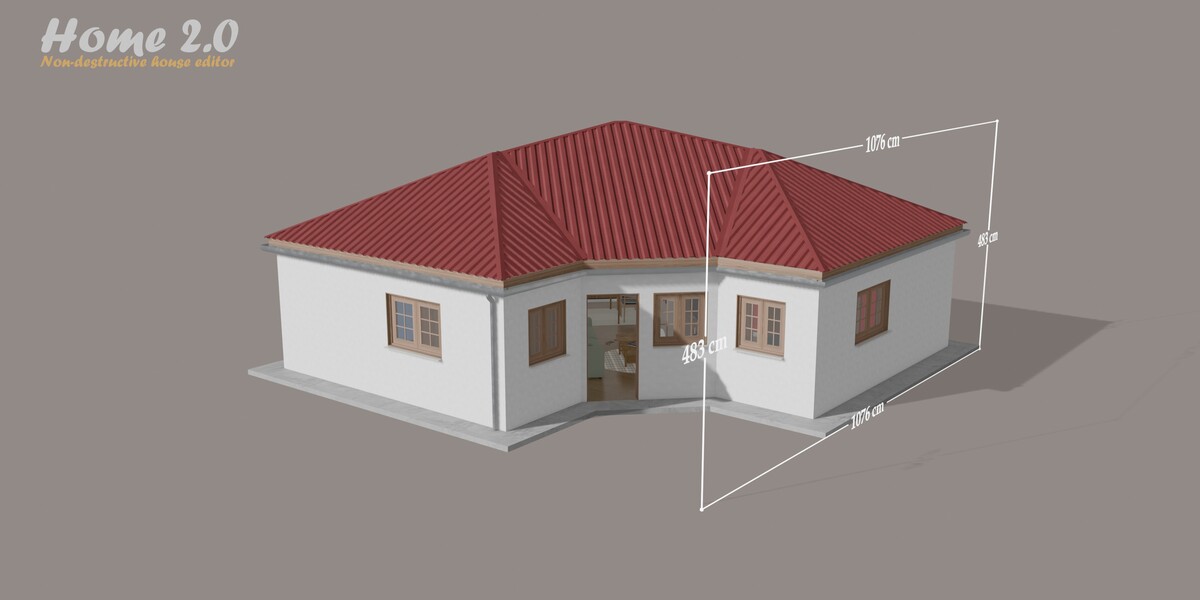
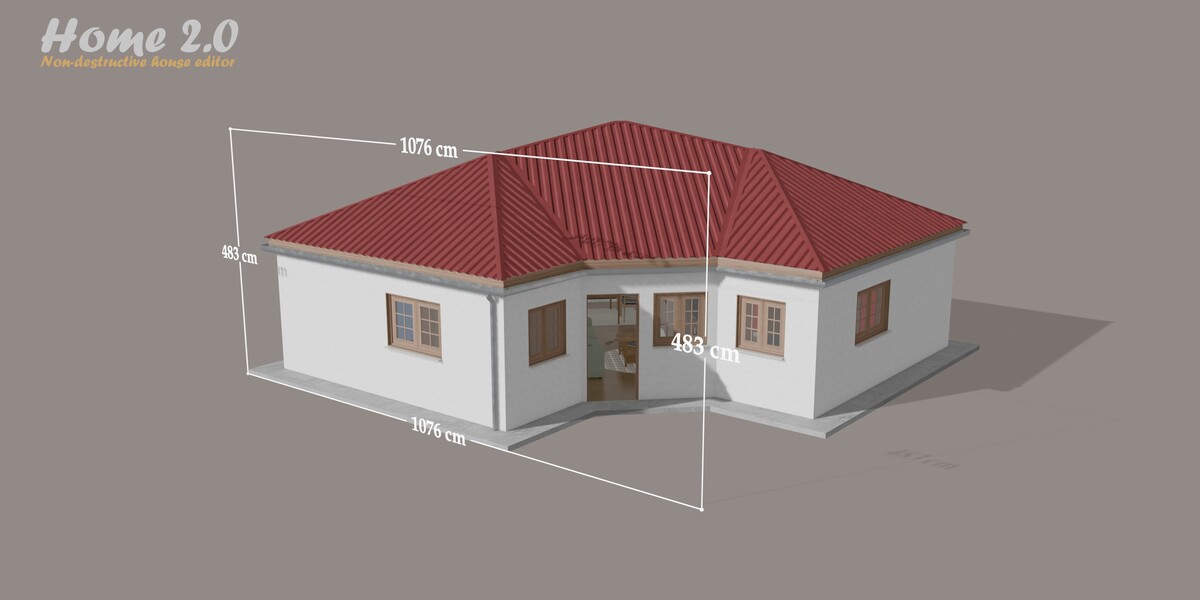
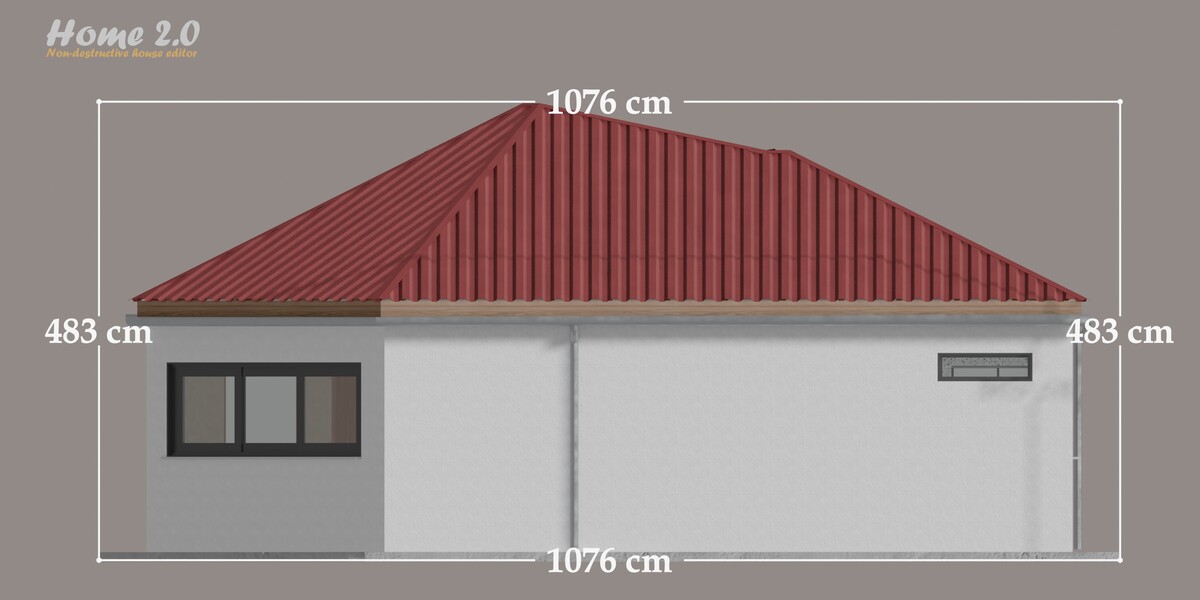
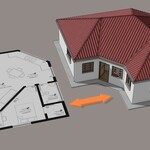
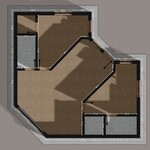
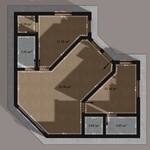
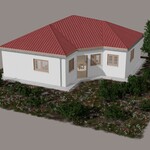
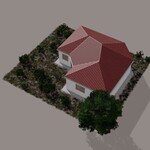
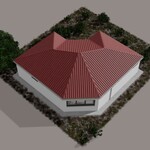
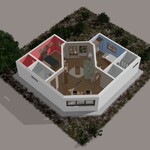
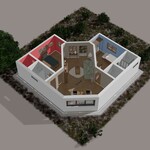
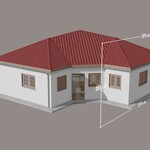
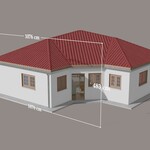
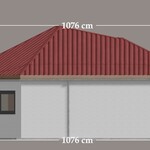
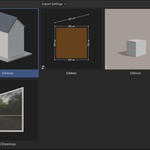
- Put the provided .blend file in a folder and add that folder in Edit > Preferences > File Paths > Asset Libraries.
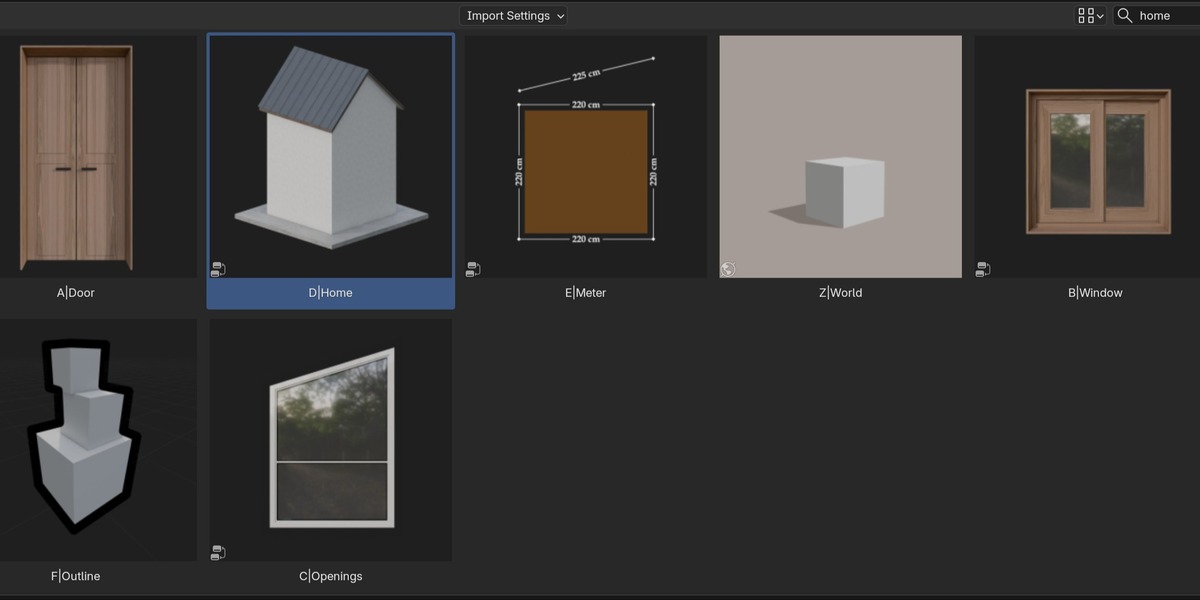
- Open the Asset Browser and select your library.
- Drag and drop D|Home onto your plan mesh, then A|Door and B|Window above it in the modifier stack.
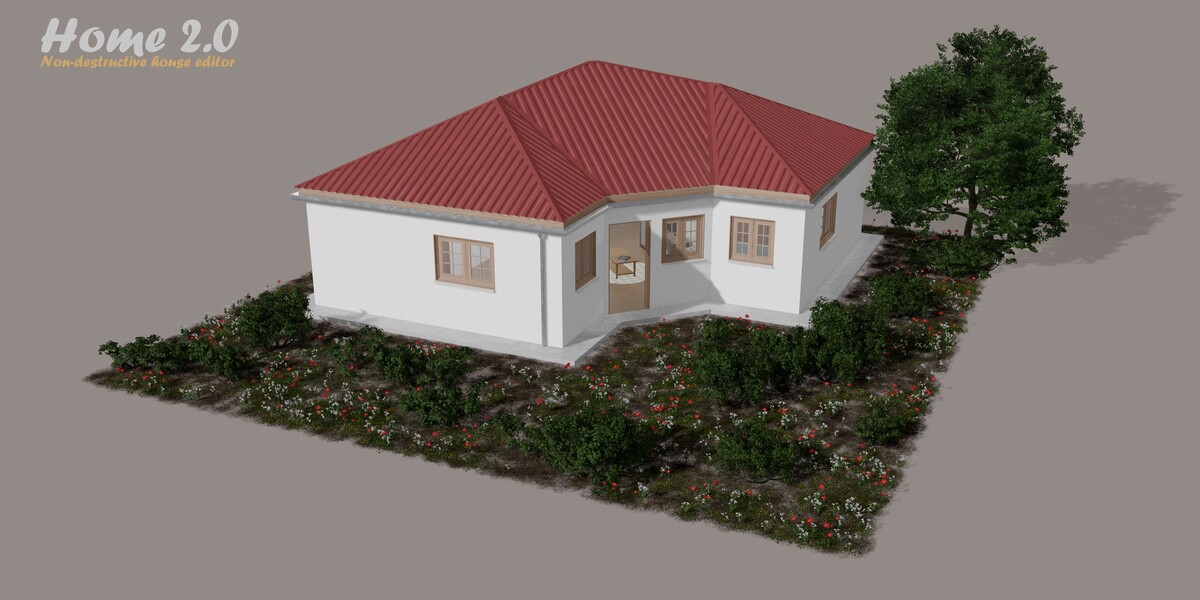
The demo scene only gives a preview of what Home can do.
Blender 5.1 or newer, tested up to 5.2. EEVEE and Cycles are supported.
No. Home is a .blend file that you use through Blender’s Asset Browser: add the file to an asset library and drag the assets onto your plan. No add-on and no external file.
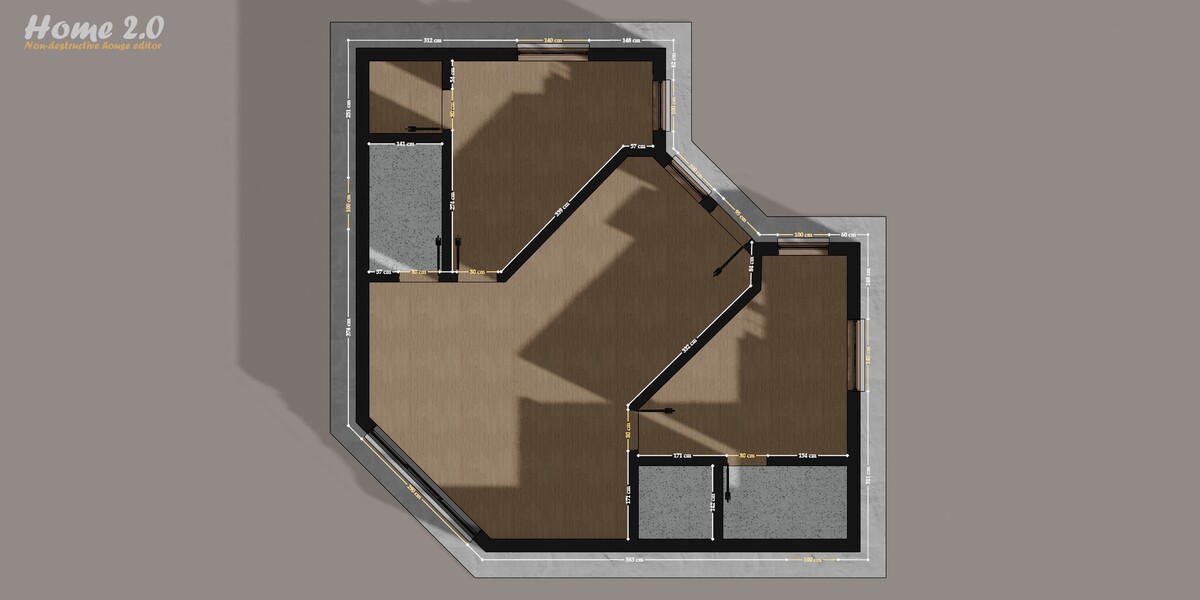
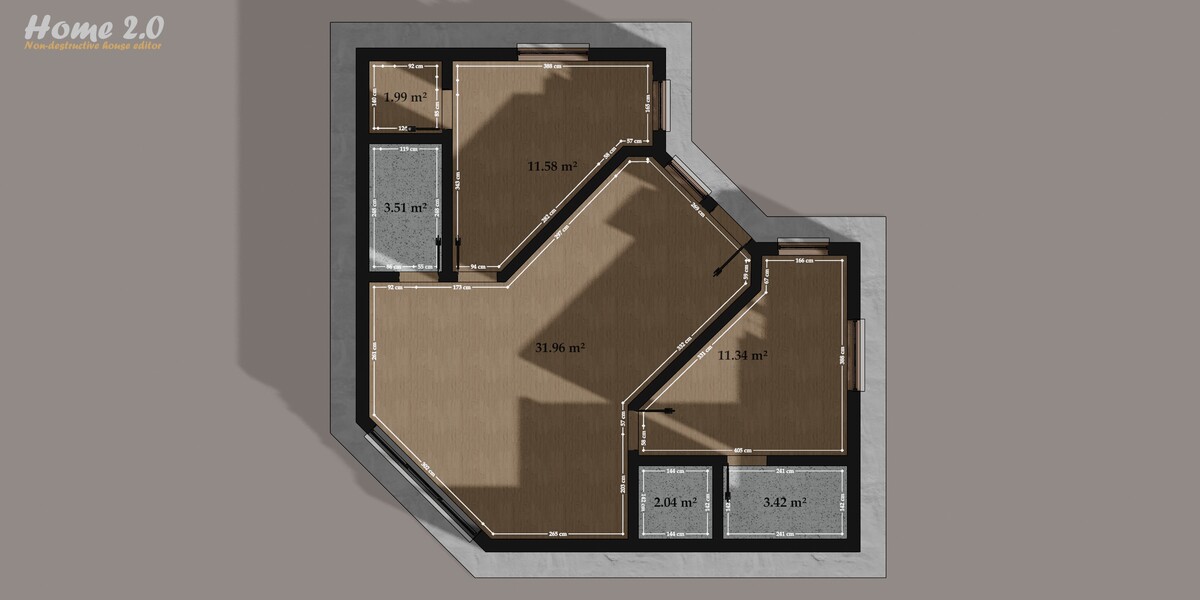
Yes. Import it with “image to plan”, trace the facades and scale the mesh to the real dimensions in Edit Mode. The visibility of the plan can be switched on and off. Facade walls appear on faces and partition walls on free edges.
Facade walls do not support intersections: avoid overlapping or crossing faces and use free edges to draw the partitions. All the vertices of the plan must also be at the same height on the Z axis.
- Hide the walls while you add doors and windows. The accumulated boolean operations reduce the performance.
- The tile roofing styles and the Cutting Center also reduce the performance.
- Work in Preview mode and switch to Render for the final images.
Add the A|Door or B|Window modifier before D|Home. Set Wall to the number of the wall, then use Set to place the opening in meters from the start of that wall. With Wall at 0, Set slides the opening along the whole outline, then along the interior edges.
Create a mesh with the C|Openings modifier. In the D|Home modifier, enable Custom Openings and select the object or the collection. The walls are cut automatically and you can then hide the original object.
First switch on Measurement > Main > Fix to avoid boolean errors in the measurements. Then select the object and go to Object > Convert > Mesh. The lamps are not supported by the conversion.
Switch on Xray in the Display panel, or use the Cutting Center to cut the building horizontally.
 Included
Includes 12 months of
- Support from 3DVision
- Product updates
Extend this product’s Support Period +12 months: 50% of product price
Have questions before purchasing?
Login to message
| Published | about 5 hours ago |
| Blender Version | 5.1 - 5.2 |
| Render Engine Used | Cycles, Eevee |
| License | Royalty Free |