Image to 3D
 Milad_Kambari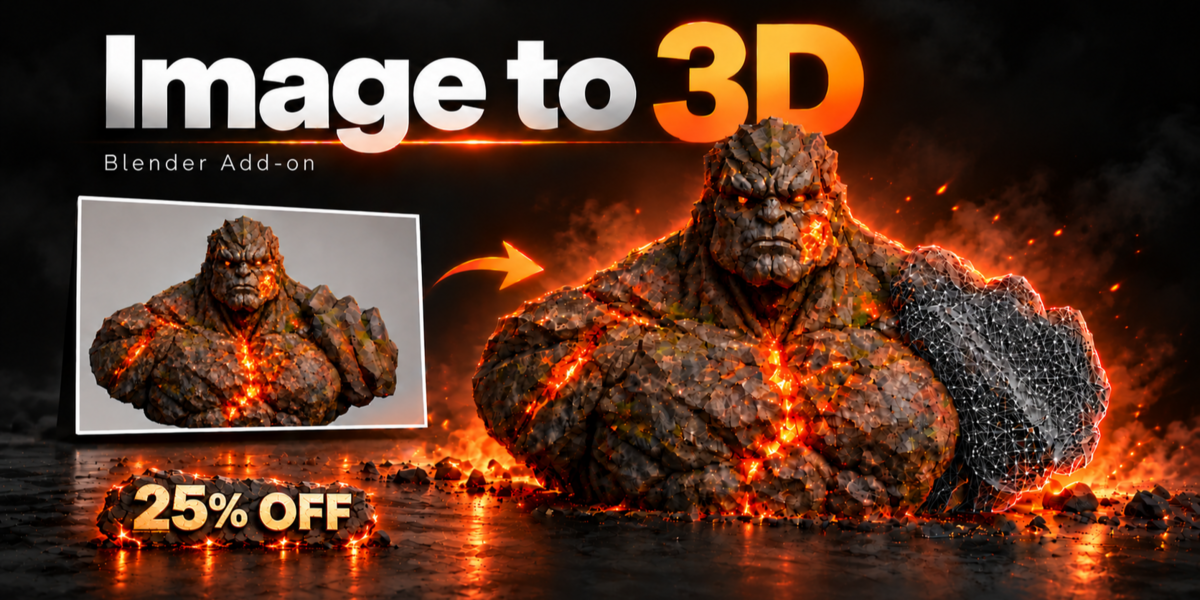




Image to 3D - Documentation
Image to 3D turns one picture into a textured 3D model inside Blender. Everything runs on your own PC: no cloud, no credits, nothing is uploaded.
Requirements
- Blender 4.2 or newer
- Windows 10 / 11
- NVIDIA graphics card with at least 8 GB VRAM
- 16 GB RAM or more
- Free disk space for the engines and models (about 25 GB for TRELLIS or Pixal3D, about 35 GB for Hunyuan)
Installation
- In Blender go to Edit > Preferences > Add-ons > Install from Disk and choose image_to_3d_v1.0.0.zip.
- Open the sidebar in the 3D Viewport (N key) and click the Image to 3D tab.
- Open the Downloads tab and pick the Install Folder (any drive with enough free space).
- Press Install for the engine you want, then download its models from the list. You only do this once.
The add-on can download every model for you (recommended), or you can download them yourself and put them in the Install Folder.
Making a model
- Drop a picture on the big Front slot (or click it to choose a file).
- Choose the engine: TRELLIS, Hunyuan or Pixal3D.
- Set Quality, Faces (from 5K for games up to millions for close-up renders), Texture size (1K, 2K, 4K) and Seed.
- Press Generate 3D. The finished model is added to your scene.
Multi-view (Hunyuan only)
With the Hunyuan engine you can add up to 3 more photos of the same object: Left, Right and Back. Front is needed, the others are optional. More views give cleaner sides and back.
Enhance
- Enhance Texture - select a generated model and press Enhance Texture. Its texture is rebuilt sharper with AI, on the same mesh and UVs. Works with models from every engine. Undo Enhance Texture brings the old texture back.
- Enhance Detail - adds real surface detail to the shape (Hi3D) and can paint a fresh texture on it (Repaint Texture) or keep only the shape (Shape Only). Back to Previous Model returns the old version.
- The Enhance 3D Model and Enhance Texture switches under Generate do this automatically right after a model is made.
Memory and speed
- The VRAM, RAM, GPU and CPU meters show how busy your PC is.
- Clear Cache frees graphics and system memory when the engine is idle.
- The engine stays loaded between runs, so the next model starts faster.
- If the viewport is in Rendered mode, it switches to Solid when a job starts, so the graphics card is free for the engine.
Support
Questions or problems: [email protected] or our Discord: discord.gg/EC8d7nPsYj
Discover more products like this
3D Generator blender ai blender addon Photo to 3D hunyuan3d AI texture image to 3d model pixal3d ai 3d model trellis ai model generator Image-to-3D