Instancer Editor +
 guillaume martin



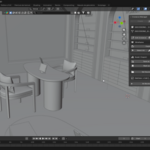
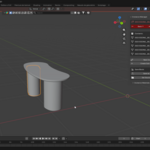
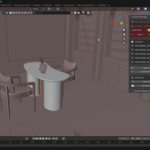
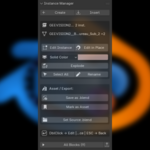
Table of contents
|
1. Installation 2. Concepts 3. Interface 4. Editing Instances 5. Nested Blocks 6. Creating & Inserting 7. Block Content 8. Replace & Make Unique 9. Block Origin |
10. Explode & Delete 11. Materials 12. Linked Assets 13. Save, Export, Report 14. Preferences 15. Shortcuts 16. Viewport Overlay 17. Troubleshooting 18. Technical Notes |
01
Installation
1. Download instancer_editor_plus.zip
2. Open Blender 4.2 or later
3. Go to Edit → Preferences → Add-ons
4. Click Install from Disk and pick the zip
5. Enable Instancer Editor +
6. The panel appears in 3D Viewport → Sidebar (N) → Instancer
If you previously had the add-on under its old name "BlenderBlocks", remove it and restart Blender first so the two do not register competing shortcuts.
02
Concepts
A collection instance is an Empty object that displays the contents of a collection. Several instances can point at the same collection, so editing the collection updates all of them at once. Blender ships the data structure but no workflow to edit it — that is what this add-on adds.
The collection is called a definition (or block) and each Empty pointing at it is an instance. If you come from Rhino, SketchUp or Illustrator, these are blocks, components and symbols.
Where the data lives
• The definition is a normal Blender collection, usually excluded from the view layer so it does not render twice.
• The instance is an Empty with Instance Type set to Collection.
• Nothing proprietary is stored: a file made with the add-on opens fine without it.
03
Interface
The panel is located in View3D → Sidebar (N) → Instancer. It adapts to context.
No selectionCreate and Insert, the shortcut reminder, and the block browser listing every definition with its instance count, a search field, a CSV report button and a batch export button. |
Instance selectedName and link status, contents summary, Edit Instance / Edit in Place, Make Local, locked-display settings, Replace, Make Unique, Explode, Select All, Rename, Set Origin, Asset / Export. |
During editingBreadcrumb path, Back / Exit All / Close, contents list, Pick & Add, Add Sel., Remove, Nest Instance, Create Sub-Instance, Save as .blend, Instance Materials. |
04
Editing Instances
Edit Instance
Isolated mode — Shortcut: Double-click
The rest of the scene is hidden so only the block remains. Its objects appear exactly where the instance sits, carrying the instance rotation and scale, so what you see is what the viewer sees.
Move, rotate, scale, add and delete freely. Objects created with Shift+A land inside the block automatically, because the add-on makes the definition the active collection while you edit.
Leave with ESC or the Close button. Objects return to their local coordinates and every instance shows the change.
Edit in Place
Scene visible — Shortcut: Ctrl + Double-click
The block behaves the same, but the surrounding scene stays visible and is locked so you cannot select or move it by accident. Use it when the block only makes sense in context — a window in a facade, a chair against a table.
The locked scene displays as wireframe, as a solid colour of your choosing, or as bounding boxes. Change mode while editing and it applies instantly.
Ghost Instances
With Ghost enabled (the ghost icon next to the display mode), the other copies of the block stay on screen as locked wireframes instead of disappearing, so you watch your edits propagate as you work. They are compensated so they do not shift while the block carries its edit transform.
05
Nested Blocks
A block can contain other blocks, at any depth. A desk containing chairs, a facade containing windows.
• Double-click the parent to enter it, then double-click a nested instance to go deeper.
• The banner shows the full path, for example Desk › Chair.
• ESC steps back one level and the level you left updates immediately.
• Shift + ESC leaves every level at once.
• Nest Instance drops an existing definition inside the one you are editing; Create Sub-Instance turns a selection into a new nested block.
Circular references are detected and refused: a block can never contain itself, however indirectly.
06
Creating & Inserting
| Create | Select objects, click Create, name the block. The objects move into a new definition and an instance replaces them at their centroid. |
| Insert | Pick an existing definition from the list to place a new instance at the 3D cursor. |
| Duplicate | Blender's Shift+D works as expected: the copy points at the same definition, so editing either updates both. |
| Rename | Renames the definition, its collection and every instance Empty, so the Outliner stays readable. |
| Select All | Selects every instance of the definition — handy before a batch move or a Replace. |
07
Block Content
Three ways to change what a block contains, all preserving positions.
| Pick & Add | While editing, click objects directly in the viewport to pull them into the block. Works on locked objects during Edit in Place and unlocks them as they join. Right-click or Enter to finish; the mouse wheel still navigates. |
| Add Sel. | Adds the selected objects to the block being edited. Outside editing, select the objects plus the target instance (active) and they join the definition at their world position within that instance. |
| Remove | Takes selected objects out of the block being edited; they stay where they are and become ordinary scene objects. |
Objects parented to something that is not coming along are un-parented cleanly, keeping their position. Adding an instance that would create a loop is refused with a message.
08
Replace & Make Unique
Replace
Select any number of instances, choose a target definition, and they all switch to it. Position, rotation and scale are preserved, so replacing fifty chairs with a different model is one operation.
Make Unique
Gives the selected instances a definition of their own, copied from the current one, so they can evolve independently. If your selection spans several definitions, each source gets one new shared copy — not one per instance.
The copy is deep: object data, particle settings and internal references are duplicated, so editing the new block never touches the original.
Both are unavailable while a block is open for editing, since they would change what you are looking at.
09
Block Origin
Set Origin moves the insertion point of a definition. Every instance is compensated, so nothing appears to move — only the pivot changes.
| Centroid | Average position of the block contents. |
| Bottom Center | Centred in X and Y, at the lowest point in Z. The one you want for furniture and anything that sits on a floor. |
| 3D Cursor | Wherever you placed the cursor, relative to the active instance. Use it to snap a pivot to a precise corner. |
After the change, rotating or scaling an instance pivots around the new point.
10
Explode & Delete
| Explode | Turns one instance back into ordinary geometry at its exact position. The link to the definition is broken. Objects are created in the same collection the instance lived in, so exploding a nested block while editing keeps its geometry inside the parent block. |
| Explode All | Recursive: nested blocks are converted too, all in a single undo step. |
| Delete Instance | Removes a definition. With "Explode first" the instances become real geometry beforehand; without it they are simply removed. Objects shared with another collection are unlinked rather than deleted. |
Explode is destructive but undoable with Ctrl+Z until you save and close the file.
11
Materials
The Instance Materials sub-panel appears while editing and lists every material used inside the block, with a colour swatch and a usage count.
• Click the select icon to select all objects using a given material.
• Assign any material from the file to the whole block in one click.
• Materials still linked from an asset library are made local when the block is localized, so your changes stick.
12
Linked Assets
Drag an asset from the Asset Browser and it arrives as a linked instance, read-only and bound to its source file. Double-click it and the add-on localizes it first, then opens it for editing. There is no separate step to remember; Make Local is there if you want to do it explicitly.
What localization preserves
The block is rebuilt by duplicating the objects as they exist in your file, not by re-importing them from the source. That distinction matters: re-importing would silently discard everything you had tuned on the library override, modifier settings first among them.
• Modifier settings, including Geometry Nodes inputs and the node-based Array and Mirror of Blender 5.x.
• Constraints, drivers, particle settings, parenting.
• Internal references — a Mirror Object, an Array offset, a constraint target or a driver variable pointing at another object of the block is rewired to the new copy.
• Materials and object data are made local.
References pointing outside the block are deliberately left alone: they were external by design, and localizing them would pull foreign data in. The file therefore keeps a library dependency, visible in the Outliner.
13
Save, Export, Report
| Save as .blend | Writes the definition to a standalone file with packed textures and a Scene data-block, so it opens ready to view. The contents are centred on the world origin; your scene is untouched. |
| Export All | Same treatment for every definition in the file, into a folder of your choice. |
| Update from Source | Reloads a block from the .blend it came from. |
| Set / Change Source | Associates a block with a source file, or points it at a different one. |
| Mark as Asset | Registers the definition in the Asset Browser with a generated preview and tags. |
| Export Report | A CSV schedule of every definition: instance count, object count, nested blocks, polygon total and source file. |
14
Preferences
In Edit → Preferences → Add-ons → Instancer Editor +.
| Double-Click Shortcuts | Turn the double-click bindings off if they conflict with another add-on. ESC and Shift+ESC stay active so you can always leave an edit. |
| Edit in Place defaults | Default locked display mode, colour and ghost setting for new scenes, with a button to apply them to the current one. |
| Debug Logging | Verbose [IE+] messages in the system console. Off by default; useful when reporting an issue. |
15
Shortcuts
| Double-click | Edit Instance — isolated mode |
| Ctrl + Double-click | Edit in Place — scene visible and locked |
| ESC | Step back one editing level |
| Shift + ESC | Leave every editing level |
Object Mode only. They can be reassigned in Preferences › Keymap like any other Blender shortcut.
16
Viewport Overlay
While editing, a coloured banner sits at the top of the 3D viewport.
• Isolated: the block name, and "ESC to close" on the right.
• In place: the block name, and "ESC to close — scene locked".
• Nested: the depth and the full breadcrumb path.
The colour changes with depth so you always know how deep you are. The banner draws in every open 3D viewport.
17
Troubleshooting
| The panel is missing | Check you are on Blender 4.2 or later, that the add-on is enabled, and look under Sidebar (N) → Instancer. Restart Blender after installing. |
| Double-click does nothing | The shortcut may be disabled in the add-on preferences, or another add-on may be claiming the double-click. Use the panel buttons meanwhile. |
| Block content looks offset | Blender collections have an Instance Offset. The add-on absorbs it into the block on entering, which is invisible and lossless. If you still see a shift, report it with the file. |
| An Array or Mirror preview looks wrong while editing | A modifier is referencing an object outside the block, so the reference does not travel with it. A warning names the modifiers concerned when you enter. Move the referenced object into the block for a correct preview; the final geometry is never affected. |
| Objects reappear in another scene | Fixed in 1.2.3. The add-on used to clear a visibility flag shared across scenes; it now tracks and restores it. |
| Modifier settings lost on a linked asset | Fixed in 1.2.4. Localization used to rebuild the block from the source file. Update to the current version. |
| The file was saved mid-edit | Reopen it: the add-on detects the stale state, restores the geometry and clears the edit. The console reports the recovery. |
| Reporting a problem | Enable Debug Logging, reproduce, and send the [IE+] lines from the system console (Window → Toggle System Console on Windows, or launch Blender from a terminal). |
18
Technical Notes
Modules
| core.py | Instance detection, edit state, single-pass scanning, library helpers. |
| operators.py | All operators, the per-level edit stack, localization and reference remapping. |
| panels.py | Sidebar panels and scene settings. |
| keymaps.py | Double-click and ESC bindings. |
| overlay.py | Viewport banner with breadcrumb. |
| asset_library.py | Save, export, update and asset operations. |
| preferences.py | Add-on preferences. |
How editing works
• The definition is temporarily linked into the scene so its objects enter the view layer.
• The rest of the scene is hidden (isolated) or locked (in place), and the previous visibility state is recorded.
• The instance world matrix is applied to the block objects so they appear in the right place; the instance itself is hidden to avoid a ghost copy.
• Every level pushes an entry on a stack holding its matrix, hidden objects, ghosts, temporary link, exclusion state and previously active collection.
• Leaving a level pops that entry and reverses all of it, which is what makes nested editing safe at any depth.
• Undo checkpoints are pushed at entry and exit rather than grouping the whole session.
Crash and save safety
If a file is saved while a block is open, the edit state and the applied transform persist in the file. On load, the add-on detects this, unwinds the stack to restore the geometry and clears the state, wrapped so a failure can never prevent the file from opening.
Verification
Localization is covered by two automated benches run inside Blender: 41 classic modifier types plus a Geometry Nodes modifier, and a second covering armatures with parenting, simulation and volume modifiers, Grease Pencil and Line Art, ten constraint types including the Armature constraint with its nested targets, particle systems and drivers. Every reference is checked not only by name but by whether it points inside the block and whether it is still linked, which is how dangling references are caught.
Instancer Editor + v1.2 — By Guillaume Martin / gmart3d
[email protected] — Blender 4.2 to 5.1+
Discover more products like this
instance block instance collection instance-editor 3D editing tools collection instances