 Bruno
Bruno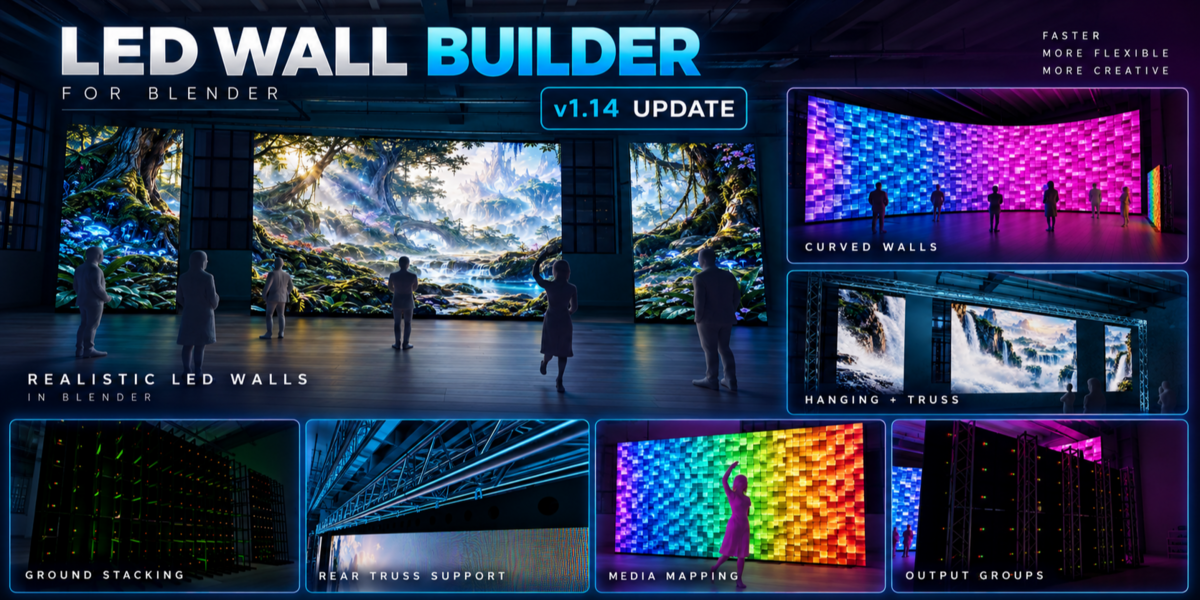
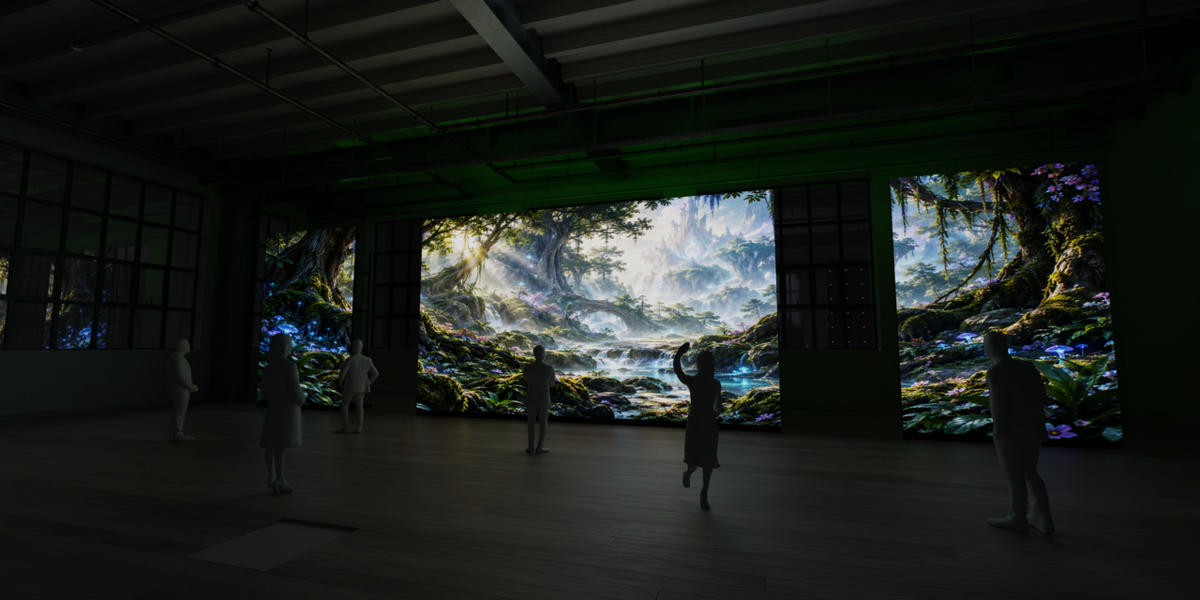

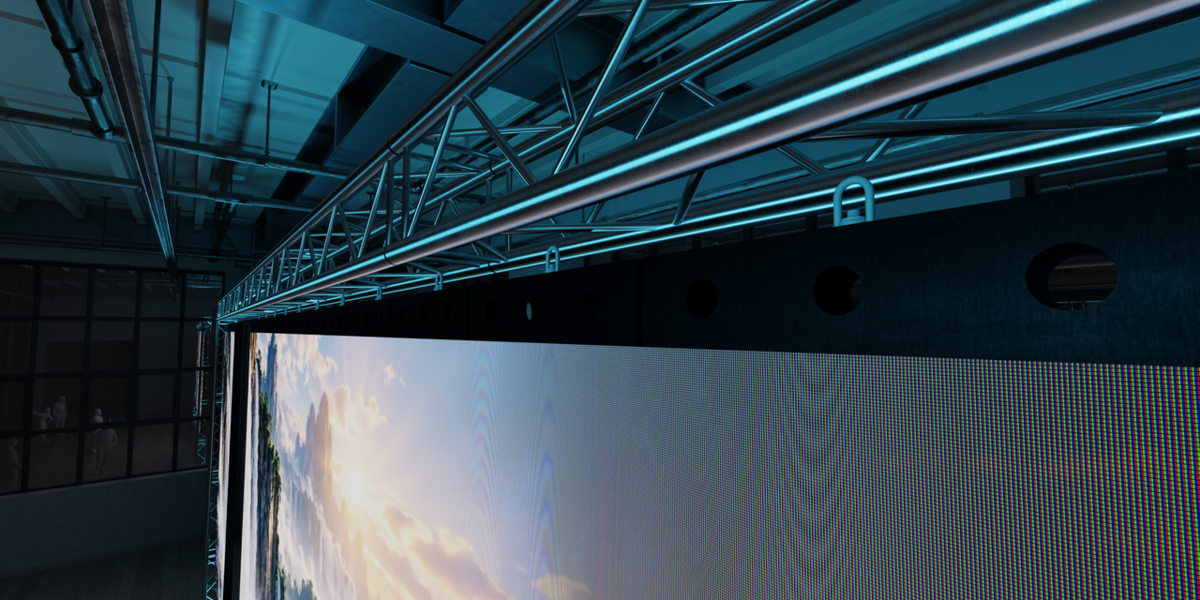

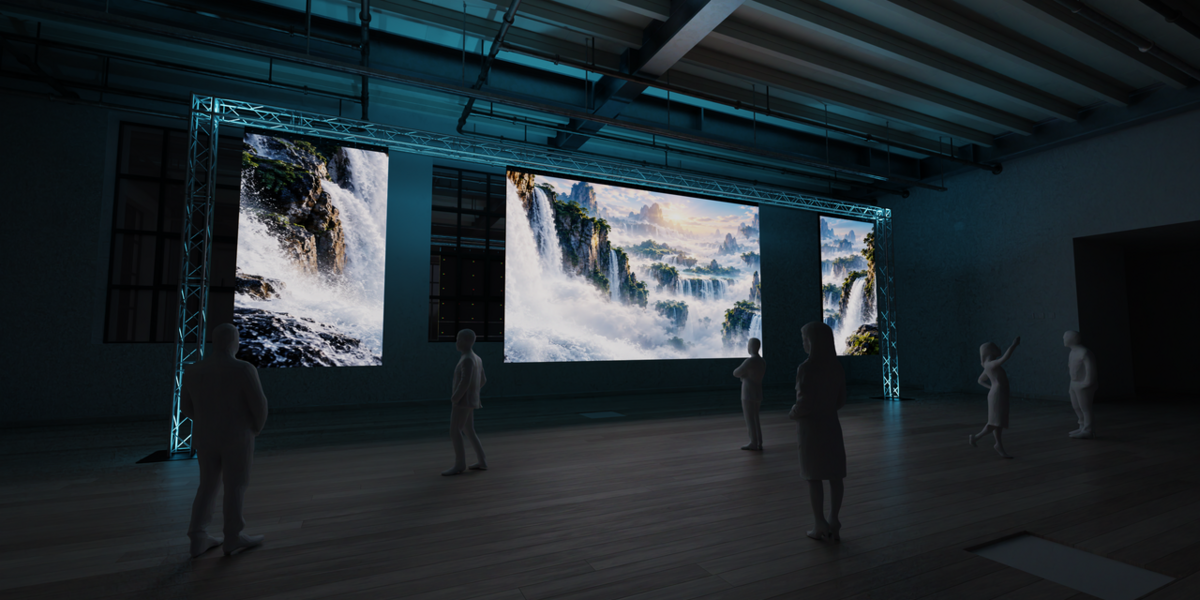


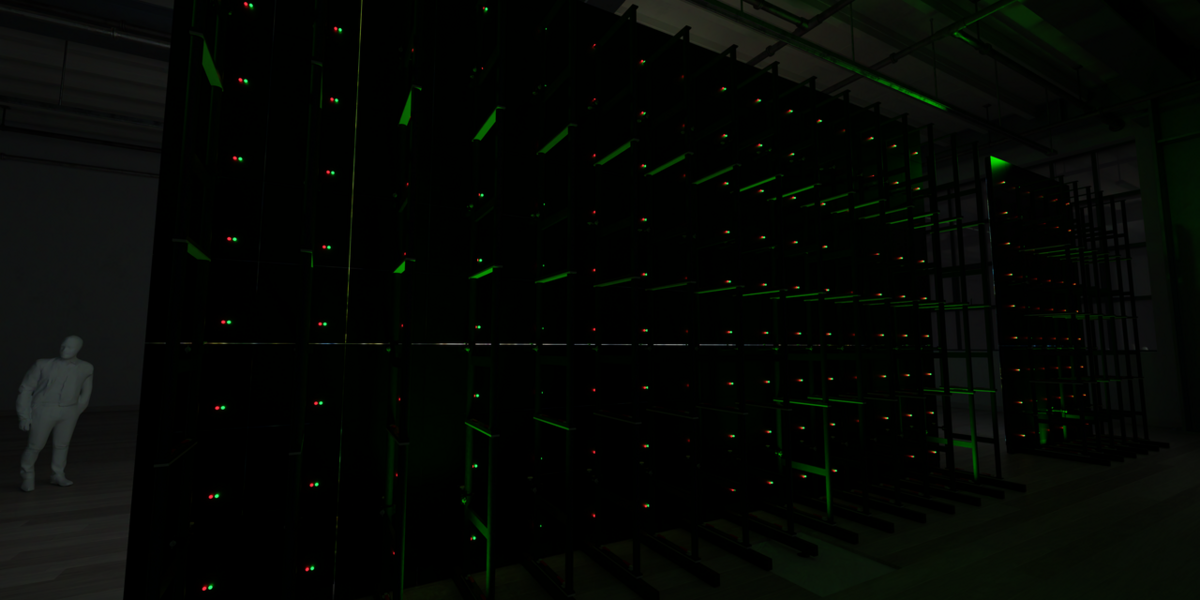
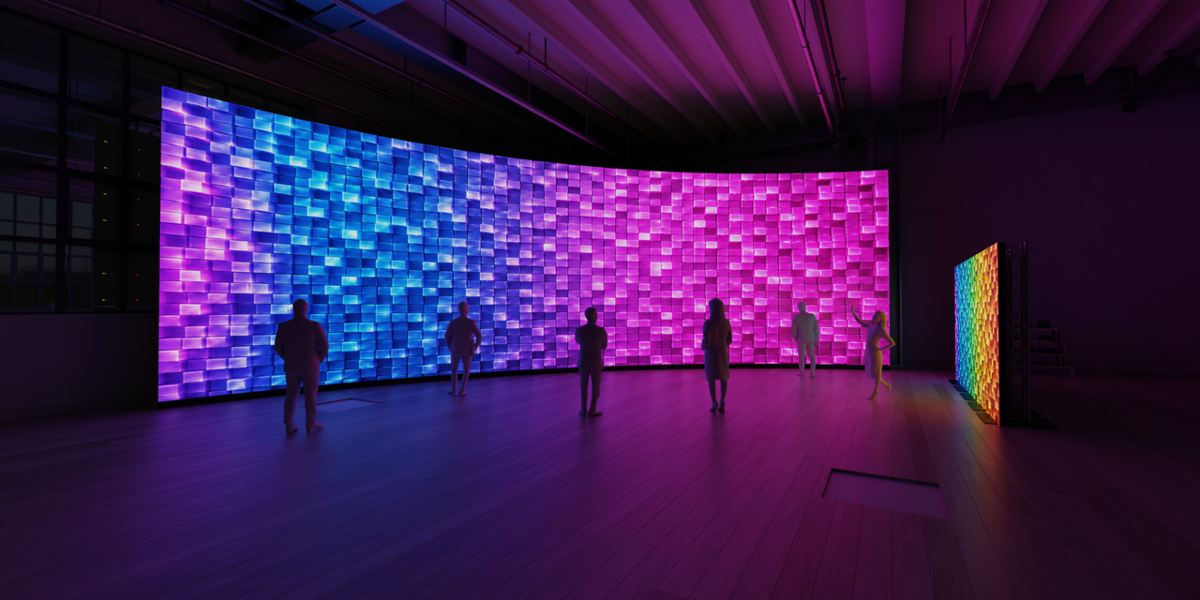
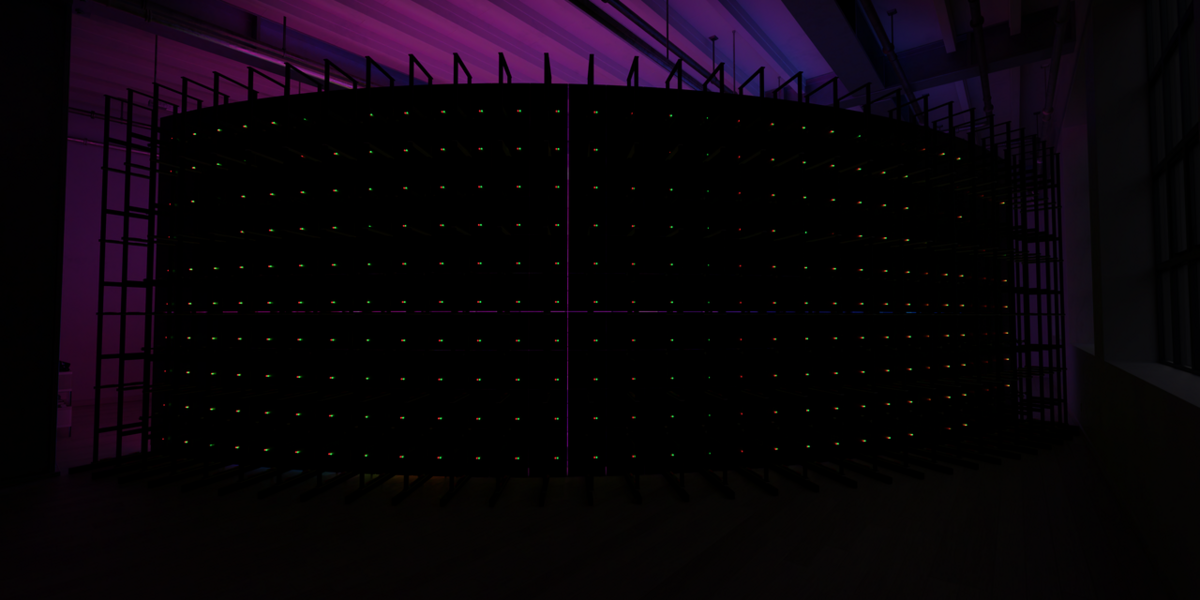
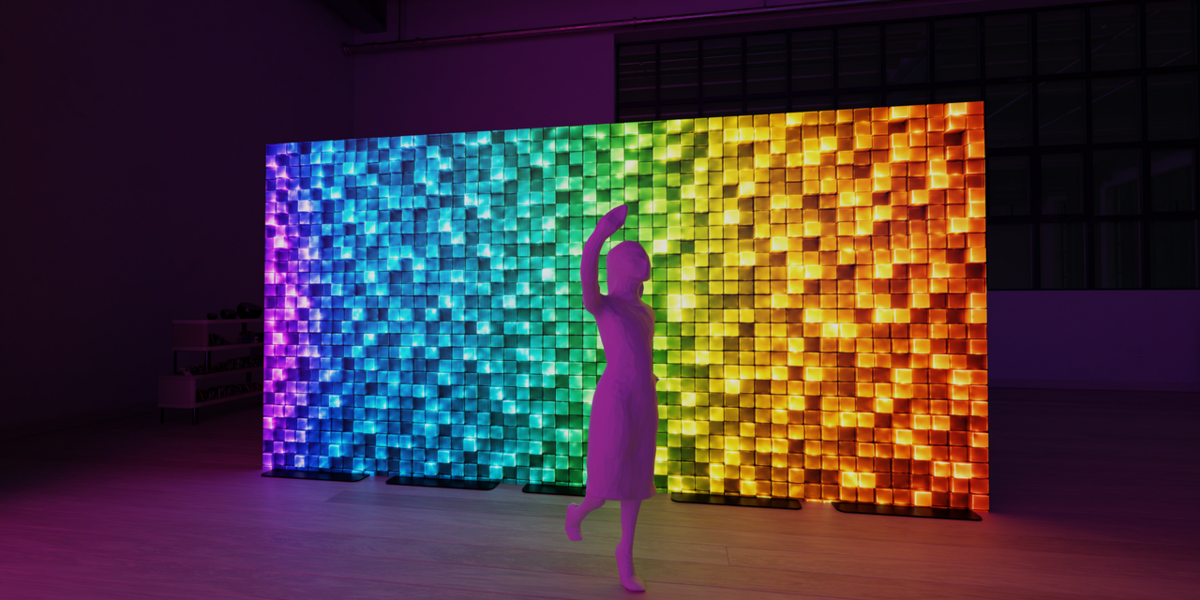
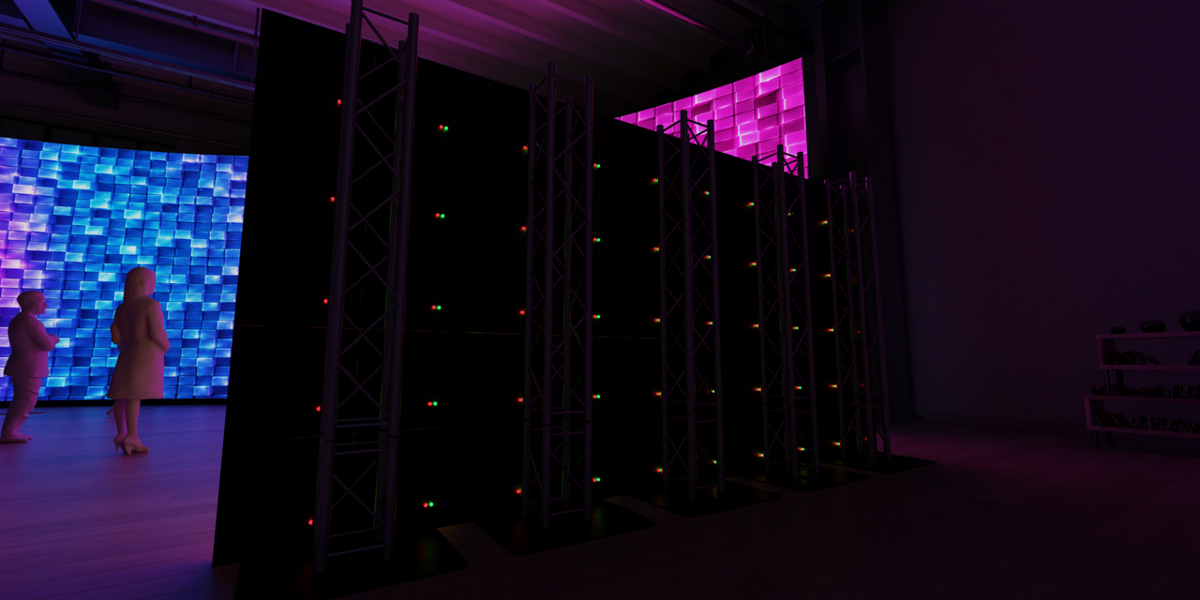
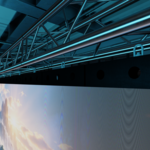
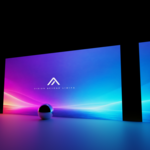
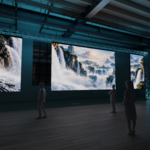
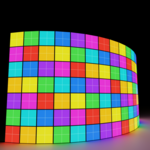
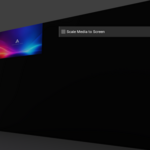
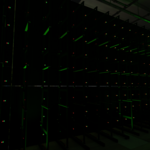
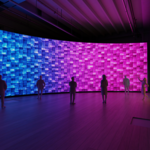
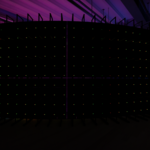
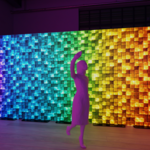
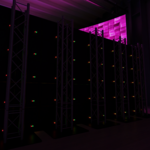
LED Wall Builder is designed to speed up the process of creating realistic LED screens for events, concerts, conferences, stages and previsualization projects directly inside Blender.
The workflow is based around real LED cabinet dimensions and resolutions. Instead of manually building panels, calculating screen resolution and setting up multi-screen media mapping, LED Wall Builder handles the repetitive setup for you.
Installation
-
Download the LED Wall Builder
.zipfile. - Open Blender.
- Go to Edit → Preferences → Add-ons / Extensions.
- Choose Install from Disk.
- Select the downloaded LED Wall Builder ZIP.
- Enable the add-on if required.
- Open the 3D Viewport.
- Press N to open the sidebar.
- Open the LED Wall Builder tab.
Do not manually extract the ZIP before installing unless your Blender version specifically requires it.
Quick Start
Creating your first LED wall only takes a few steps.
- Enter the physical dimensions of one LED cabinet.
- Enter the native pixel resolution of that cabinet.
- Enter the desired width and height of your LED wall.
- Choose the desired rounding method.
- Click Build New LED Wall.
LED Wall Builder automatically calculates the required number of cabinets and creates the complete screen.
For example:
Cabinet Size:
Cabinet Settings
Panel Width / Height
Sets the real physical dimensions of one LED cabinet.
For a standard 500 × 500 mm cabinet:
Width: 0.500 m
Panel Depth
Controls the physical depth of the generated cabinets.
This is useful when the LED wall is visible from the side or rear.
Panel Pixels X / Y
Enter the native resolution of one LED cabinet.
For example:
128 × 128 px
LED Wall Builder uses this information to calculate the native resolution and pixel pitch of the complete wall.
Visible Panel Gap
Adds a small visible separation between cabinets.
This can help individual cabinets remain visible in close-up renders and technical visualizations.
Building a Wall
Enter your desired physical screen dimensions under the Wall section.
LED Wall Builder calculates how many complete cabinets are required.
Because real LED screens must use complete cabinets, the requested dimensions may not always perfectly match the final wall dimensions.
The Rounding option determines how LED Wall Builder handles this.
For example, if your cabinet is 0.5 m wide and you request a 4.8 m screen, a perfect 4.8 m wall cannot be produced using complete 0.5 m cabinets.
The add-on will calculate the closest valid configuration according to the selected rounding option.
Calculated Result
Before building your screen, LED Wall Builder displays useful technical information including:
- Number of cabinets horizontally and vertically
- Total cabinet count
- Final physical screen dimensions
- Native screen resolution
- Calculated pixel pitch
This makes it possible to check the screen configuration before generating any geometry.
Updating Existing LED Walls
You do not need to completely rebuild a screen every time you want to change it.
Select an LED wall and use:
Update Selected
to rebuild/update the selected screen using the current settings.
Use:
Load Settings
to load the selected LED wall's existing configuration back into the LED Wall Builder controls.
This makes it easy to return to a previously created screen and continue editing it.
Flat & Curved LED Walls
LED Wall Builder supports both standard flat LED screens and curved configurations.
Curved walls are created using cabinet-to-cabinet angles, allowing the screen to bend while maintaining the individual cabinet structure.
Depending on the selected configuration, common curve values such as:
3°
can be used to quickly create curved LED layouts.
Curved walls remain based on the dimensions of the original LED cabinets, making them useful for stage and event previsualization.
Media Mapping
LED Wall Builder can apply media directly to generated LED screens.
Supported workflows include images and compatible video/media sources available inside Blender.
The add-on automatically maps the content across the LED surface rather than requiring every cabinet to be textured manually.
This allows you to quickly test stage graphics, presentation content, video walls and event visuals.
Native Resolution
Every LED wall has a calculated native pixel resolution.
For example:
One Cabinet:
This information is particularly useful when preparing content for real event screens.
Output Groups
Output Groups allow multiple independent LED screens to share one larger media canvas.
For example, an event could contain:
LEFT SCREEN
while all three screens receive different portions of one large piece of content.
Create an Output Group and add the required LED screens to it.
LED Wall Builder can then treat those screens as parts of one combined output canvas.
Canvas Position
Each screen inside an Output Group can have its own position inside the processor canvas.
Positions are measured in pixels.
For example:
LEFT
This allows screen placement inside Blender to remain independent from its position inside the video/processor canvas.
Processor Canvas
Output Groups support a combined processor canvas.
The canvas resolution can represent the complete area used by all screens inside the group.
This makes Output Groups useful for visualizing layouts similar to real LED processor workflows.
Apply One Media to a Group
Instead of applying separate media to every screen, LED Wall Builder can distribute one image or video across an entire Output Group.
Each LED screen displays the section of the source media corresponding to its canvas position.
This makes complex multi-screen layouts much faster to prepare.
Test Pattern Generator
Output Groups include tools for generating mapping test patterns.
Test patterns can help identify screens and verify their position inside the combined canvas.
Depending on the selected pattern options, the generated image can include:
- Individual screen colors
- Screen identification numbers
- Screen borders
- Adjustable labels
This is particularly useful when working with several LED screens that form one larger visual canvas.
LED Pixel Visualization
LED Wall Builder includes optional visual modes for representing the actual LED structure of a display.
Single LED Dot
Creates a simplified LED-dot appearance across the screen.
This is useful when the screen is visible close to the camera and a completely smooth display surface would look unrealistic.
RGB Subpixels
A more detailed visualization can represent separate:
Red
subpixels.
These modes are primarily intended for visualization and close-up rendering.
For large scenes or distant screens, simpler display modes will usually provide better viewport performance.
Multiple LED Walls
You can create as many independent LED walls as required inside a project.
Each generated wall stores its own configuration.
This means one Blender scene can contain screens with completely different:
- Physical dimensions
- Cabinet sizes
- Resolutions
- Pixel pitches
- Curvature
- Media
- Output-group positions
Recommended Workflow
For most projects, a simple workflow is:
- Configure your real LED cabinet.
- Build the required LED screens.
- Position the screens inside the stage.
- Create Output Groups when multiple screens share one canvas.
- Configure canvas positions.
- Apply media.
- Generate a test pattern if required.
- Switch to detailed LED visualization only when necessary for the final render.
Using the simpler display modes during scene construction will generally provide better viewport performance.
Important Technical Note
LED Wall Builder is intended for 3D visualization, previsualization and planning.
Calculated dimensions, resolution and pixel information can be useful for real production planning, but the add-on is not structural, electrical or rigging engineering software.
Always verify final specifications with the LED manufacturer, processor manufacturer, rental company or qualified production personnel before using calculated information for a real installation.
Support
If you encounter an issue, providing the following information will make troubleshooting much easier:
- Blender version
- LED Wall Builder version
- Screenshot of the LED Wall Builder panel
- Screenshot of the generated wall
- Cabinet dimensions and resolution used
- Steps required to reproduce the problem
Please also test unexpected behaviour in a simple or new Blender scene when possible.
About
LED Wall Builder was created to remove repetitive setup from LED screen visualization and make building realistic event screens inside Blender faster and easier.
Whether you are creating a small conference screen, a concert backdrop, multiple side screens or a large curved LED installation, the goal is simple:
Spend less time setting up LED walls and more time designing the event.
Have questions about this product?
Login to message
| Blender Extension Compatible | Yes |
| Published | about 2 months ago |
| Blender Version | 5.0 - 5.2 |
| Extension Type | Add-on |
| Render Engine Used | Cycles |
| License | GPL |
Discover more products like this
led wall Production Design Concert Visuals event visualization Blender Add-on previsualization stage design Media Mapping Video Mapping led-screen 3D visualization event design