 Skava
Skava


LipSync Studio — Documentation
v1.4.4 · Blender 4.2 LTS and later (tested on 4.2.9, 5.1.0, 5.2.0, 5.2.1 and 5.2.2) · Windows / macOS (Intel and Apple Silicon) / Linux. The optional Vosk engine runs on Windows x64, macOS and Linux x64.
1. Install
- Open Preferences, go to the Add-ons section, choose Install, and pick the add-on ZIP (do not unpack it first).
- Enable LipSync Studio in the list.
- Press N in the 3D Viewport and open the LipSync tab.
2. Quick start
- Load an audio file (WAV or MP3) and set the Target Mesh (a mesh with shape keys).
- Pick an engine in the Engine field of the LipSync panel: Built-in, Rhubarb, Whisper, or the optional Vosk.
- Optionally type the spoken line into Dialog, or press the folder button next to it to load a .txt script. Only Rhubarb and Vosk read this text — see section 5a.
- Click Analyze Audio.
- Pick a viseme preset (ARKit, FACEIT, Preston Blair, MetaHuman, CC4, or Generic) and Apply.
- Click Build Animation.
3. Engines
| Engine | How | Languages | Best for |
|---|---|---|---|
| Built-in | RMS energy to mouth amplitude to viseme | Any | Stylised characters, quick previews |
| Rhubarb | External tool to phoneme stream to viseme | Many (best English with text) | Production lipsync |
| Whisper | Speech to text to phonemes to viseme | English grapheme-to-phoneme only | English-only with no clean text track |
| Vosk (optional) | Offline aligner: places each word of Dialog Text on the audio, then word to phonemes to viseme; without text it recognises the words | English | Lip closures on B, M and P that land on time |
Rhubarb, Whisper and Vosk run in worker threads with a modal timer, so Blender's UI stays responsive.
4. Rhubarb setup
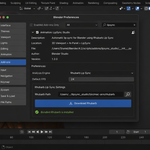
Easy: in Preferences set the Engine to Rhubarb, then click Download Rhubarb. The add-on auto-detects your platform (Windows x64, macOS Intel, macOS Apple Silicon, Linux x64) and fetches the official release (about 8 MB).
Manual: grab a recent Rhubarb build from its official releases page, then click Auto-detect Rhubarb or point the add-on at the file.
5. Whisper setup
The Whisper engine needs the OpenAI Whisper Python package inside Blender's bundled Python. Add it from Blender's Scripting workspace — the README covers the exact steps. The first run downloads the model (about 75 MB for the base size). Grapheme-to-phoneme is English-only; other languages are rejected with a clear message.
5a. Dialog Text and which engine reads it
Only Rhubarb and Vosk read Dialog Text. Built-in works from loudness and Whisper from its own transcription; both ignore the text. The Engine field sits right under Dialog in the LipSync panel, and when text is set while Built-in or Whisper is selected the panel says Text ignored by …. After each analysis the report and the timeline box say which engine ran and whether the text was used.
Multi-line scripts. The Dialog field holds one line, and pasting into any Blender text field keeps only the first line of the clipboard. Press the folder button next to the field to load a .txt file instead: UTF-8 with or without BOM, UTF-16 with BOM and Windows-1252 are read, and every line is joined into one. The eraser button clears the field.
What the text changes, measured. Share of words beginning with B, M or P where the lips close within 1.5 frames (24 fps) of the word start:
| Engine | 12 recordings of separate words (138 words) | 24 recordings of continuous speech, 8 voices (214 words) |
|---|---|---|
| Rhubarb, no text | 60.9 % | 65.9 % |
| Rhubarb + Dialog Text | 84.8 % | 83.6 % |
| Rhubarb + only the first line of a two-line text | 75.4 % | — |
| Vosk, no text | 81.9 % | 93.0 % |
| Vosk + Dialog Text | 100 % | 99.1 % |
Rhubarb uses the text as a hint for its recogniser, not as a forced alignment, so some closures are still missed. The recordings are synthesized English voices whose word timings are known exactly; we have no recordings of live speech with such a reference, so they are a test set, not a promise for every take.
5b. Optional Vosk engine
Off by default. Nothing is downloaded until you press Install Vosk Engine in Preferences → Add-ons → LipSync Studio. The button downloads, with SHA-256 checks, into /lipsync_studio_vosk/:
- libvosk 0.3.44 — the native Vosk library, taken from the official vosk package on PyPI (Apache-2.0), 4.7 MB on macOS, 7.2 MB on Linux, 12.2 MB on Windows (with the three MinGW runtime DLLs from the same wheel);
- vosk-model-small-en-us-0.15 — US English model from alphacephei.com (Apache-2.0), 39 MB;
- CMUdict — English pronunciation dictionary from github.com/cmusphinx/cmudict (BSD-style license), 3.5 MB.
No Python package is installed and pip is not used; Blender's own Python packages, numpy included, are not changed. Analysis runs offline: no account, no key, no cloud. Remove Vosk Engine deletes that one folder.
With Dialog Text, Vosk places each word of the text on the audio. If most of the text is not found in the audio, it warns that the text does not match and recognises the words from the audio instead. Speech that the text does not cover (a script for only part of the take) is filled from the audio. Words missing from the model's vocabulary, such as invented names, are listed in the report. English only; available on Windows x64, macOS (Apple Silicon and Intel) and Linux x64. The same take with the same text gives the same result on every run and on all three systems. Not available in the ARM64 builds of Blender for Windows and Linux.
6. Viseme presets
| Preset | For rigs built for |
|---|---|
| Generic | Blender default viseme naming |
| ARKit 52 | Apple ARKit / Live Link Face / iPhone capture |
| FACEIT | FACEIT Blender addon |
| Preston Blair | Classic 9-shape animator set |
| MetaHuman | Epic MetaHuman / Live Link Face control rig |
| CC4 | Reallusion Character Creator 4 / iClone 8 |
Apply fills all 17 viseme slots. Visemes without a perfect rig match route to the closest available shape. Auto-Detect Mapping scans shape-key names and matches them via common patterns.
7. Settings
- FPS — match your scene fps (default 24).
- Blend Mode — Linear, Smooth, or Sharp.
- Blend In / Out — ease frames (default 2 / 3).
- Intensity — amplitude multiplier (default 1.0).
- Animate All Character Meshes — drive the same visemes on every character mesh that shares the shape-key names, not only the target (on by default). See section 8.
- Override Control Rig — temporarily mute driven shape-key values so the lip-sync keyframes play (on by default).
- Loudness Intensity — scale each viseme by how loud the speech is at that moment, with a strength slider. See section 17.
- Rig Type — Shape Keys or Jaw Bone, with an armature and jaw-bone picker for bone-only mouths. See section 17.
- Bake Mouth Openness — also write a keyframed 0 to 1 openness property for driving shaders and rigs. See section 17.
- Auto Blink / Micro Idle — add natural blinks and a subtle idle sway. See section 17.
- Limit to Range — re-bake only a start-to-end frame window (punch-in). See section 17.
8. Multi-mesh characters
Faceit and ARKit characters are often split across several meshes that all carry the same blendshapes — a separate head, beard, eyebrows, tongue, or teeth. Earlier versions keyframed only the selected Target Mesh, so the other meshes stayed frozen at zero: a beard covering the mouth looked dead, and a separate tongue never moved.
With Animate All Character Meshes enabled (the default), Build applies the same viseme animation to the target and to every related mesh that has matching shape keys. The add-on gathers the meshes that share the character's armature, and each mesh resolves its own shape-key names independently — left and right halves of split shapes included — so it never forces one mesh's names onto another. Every mesh that receives keyframes also has its own matching control-rig drivers muted, so the mouth opens reliably even on meshes the rig was fighting.
The build report is honest about what happened, for example: lip-sync built on 3 meshes (head, beard, eyebrows) with the keyframe and muted-driver counts, and it names any related mesh that had no matching shapes and was skipped. Turn the option off to animate only the selected mesh, exactly as before. Clear removes the animation and NLA strips from every mesh it touched and restores only the drivers the add-on muted, leaving drivers you muted yourself untouched.
9. Push to NLA
Pushes each animated mesh's lip-sync action down into a dedicated NLA strip on that mesh's shape-key animation data. The active action slot is cleared so the strip blends with other NLA tracks (idle, expressions). The strip is named after the mesh. Re-runs replace it.
10. Emotion overlay
Optional additive emotion shape key keyframed on top of speech. Choices: None, Happy, Sad, Angry, Surprised — driving emotion shape keys named for each mood on the target mesh. Rename them if your rig differs. Emotion Strength controls amplitude.
11. Action reuse and Export
Re-runs overwrite the existing lip-sync action per mesh — no leak of numbered duplicate copies. The Export panel writes FBX (Unity / Unreal), glTF or GLB (Godot 4), or a JSON timeline (custom runtimes).
12. Audio preview
Preview Audio adds the audio file to the Video Sequencer aligned to frame 1 and extends the scene's end frame to cover it. Scrub the timeline to hear dialog over animation playback.
13. Windows specifics
- No console window flash when Rhubarb runs (the addon suppresses it).
- UTF-8 decoding throughout — cyrillic dialog text works regardless of system codepage.
- Auto-detect searches the standard install locations alongside the system path.
14. Troubleshooting
"The beard, tongue, or a second mesh doesn't move" (split Faceit / ARKit character) — keep Animate All Character Meshes enabled (section 8). Build then animates every mesh that shares the shape-key names, so facial hair and the tongue move with speech. If a mesh is still frozen, run Diagnose Rig to confirm it shares the character's armature and carries matching shape keys.
"Built but the mouth doesn't move" (ARKit / Faceit / MetaHuman) — your rig uses the ARKit blendshape set (52 shapes plus Basis). Pick the ARKit 52 preset (or FACEIT or MetaHuman) in the Viseme Mapping panel, or use Auto-Detect. The add-on drives both left and right halves of split shapes automatically, and mutes the control-rig drivers that would otherwise overwrite the animation, so the mouth moves.
"The mouth opens only sometimes" — this happens when a control rig keeps re-driving the mouth shapes. LipSync Studio mutes those drivers on every animated mesh during Build. If you later run your rig tool's own Connect or Bind step again, it can re-add fresh drivers on top; simply Build again (or Clear and Build) so the add-on re-mutes them.
"Object has no shape keys" — add them in the mesh's Shape Keys properties.
"Rhubarb executable not found" — click Download Rhubarb in preferences.
"WAV corrupted / unsupported codec" — the built-in loader supports PCM 8/16/32-bit mono or stereo. Re-encode to WAV PCM 16-bit for the cleanest path.
"Whisper supports English only" — use Built-in or Rhubarb for other languages.
15. Limitations
- Whisper grapheme-to-phoneme is English-only.
- Rhubarb is downloaded on demand, not bundled — the first run needs internet.
- Built-in engine is amplitude-only, not phoneme-aware.
16. Support and License
Through marketplace messaging. GPL-3.0 (addon) and Rhubarb is MIT. Animation you produce is yours to ship in any commercial project.
17. The v1.4.0 toolkit — six new tools
Baked mouth openness
Enable Bake Mouth Openness in Settings, or press Bake Openness Now, to write a keyframed custom property named for mouth openness on the target object. It holds a 0 to 1 value per frame, derived from the open-mouth visemes — open vowels read high, closed and pressed-lip shapes read near zero. Right-click any field in Blender (a shader value, a bone rotation, a corrective shape, a property on a second object) and Add Driver, then point the driver at this property for a baked mouth slider that follows the speech. When the toggle is on, Build bakes it automatically.
Auto blink and micro-idle
Turn on Auto Blink to add eye blinks on the eyeBlink shape keys — ARKit left and right, or a single blink or eyes-closed shape — at slightly randomised intervals set by Blink Interval. Each blink is a quick close and open. Turn on Micro Idle to add a gentle head sway on the character's head bone, kept to a couple of degrees so it never fights the lip-sync. Timing is reproducible from the frame span, so a rebuild gives the same blinks. Run both from Add Blinks / Idle, or let them run on Build. On a split character the blinks land on whichever meshes carry the eyeBlink shapes.
Jaw-bone rigs
For rigs whose mouth is a bone, set Rig Type to Jaw Bone, pick the Armature and the Jaw Bone, choose the Open Axis and Max Open Angle, and press Build Jaw Bone (Build and Quick Sync also route here while Jaw Bone is selected). The jaw rotates wide for open vowels and closes on pressed-lip and rest shapes, eased in and out like the shape-key path.
Copy to other characters
Analyse one audio track, then select any number of other character meshes and press Apply to Selected. Every selected mesh other than the target gets the same viseme timeline built onto its own shape keys, resolving its own names through the current preset, and its control-rig drivers are muted just like a normal build. One analysis drives a whole crowd or a dialogue partner.
Loudness intensity
Turn on Loudness Intensity to scale each viseme keyframe by the audio loudness at that moment — louder speech opens the mouth wider, quiet speech keeps it smaller. Loudness Strength blends between a flat performance and a fully loudness-driven one.
Range re-bake (punch-in)
To iterate on a single phrase, turn on Limit to Range, set Range Start and Range End, and press Re-bake Range (or Build, which honors the toggle). Only the keyframes inside the window are rebuilt with the current settings; every keyframe outside it is left exactly as it was, and the play range is not touched.
18. Changelog
1.4.4 — Load Dialog Text from a .txt file (folder button next to Dialog; several lines are joined, since pasting keeps only the first line). The panel shows the engine next to the text and warns when the selected engine ignores it; Analyze reports which engine ran and whether the text was used. The Dialog Text tooltip no longer claims Whisper reads it. New optional Vosk engine (Windows x64, macOS, Linux x64): offline word-by-word alignment of Dialog Text, off by default, installed with one button into its own folder — lips closed on time on 99.1–100 % of B/M/P words in our tests, against 83.6–84.8 % for Rhubarb with the same text.
1.4.3 — Auto-Detect Mapping recognises the rig family (ARKit / FACEIT) and applies its exact viseme table; a viseme can no longer land on an eye, brow, cheek or nose shape. On a full ARKit 52 rig: 17 of 17 visemes correct, 20 shapes moving instead of 14.
1.4.2 — Diagnose Rig no longer takes Blender down with it when there is no window — in a headless render farm or a batch script the popup it uses crashed the process outright, losing unsaved work. It now prints the report to the console in that case and shows the popup only when there is a window to show it in. Verified end to end on a character with 20 viseme shape keys: mapping, build, blinks, openness bake, timeline export, clear and rebuild — 12 checks, no problems.
v1.4.1 — Auto Blink and Micro Idle now work on control-rig characters (Faceit / ARKit / MetaHuman). Auto Blink mutes the driver on the eyeBlink shapes only, so the eyes actually close instead of being held open by the rig. Micro Idle plays on top of the rig's existing animation through an additive NLA track, picks a head bone the rig isn't already overriding, and no longer stacks when re-run.
v1.4.0 — six new animation tools.
- Baked mouth-openness driver — a keyframed 0 to 1 property tracking overall mouth openness, ready to drive any shader input, bone, or second object.
- Auto blink and micro-idle — natural eye blinks on the eyeBlink shapes at randomised intervals, plus an optional subtle head sway; reproducible from the frame span.
- Jaw-bone lip-sync — a Rig Type of Jaw Bone rotates a picked jaw bone open and closed for rigs with no mouth shape keys.
- Copy to other characters — build the current analysis onto every other selected mesh in one click, each resolving its own shape-key names.
- Loudness intensity — scale each viseme by the speech loudness at that moment, with a strength slider.
- Range re-bake (punch-in) — rebuild only a start-to-end frame window and leave everything outside it untouched.
- All six integrate with the multi-mesh build and are cleaned up by Clear (openness property and track, jaw and idle actions).
v1.3.0 — multi-mesh characters.
- Build now animates the target mesh and every related mesh that shares the viseme shape keys (head, beard, eyebrows, tongue, teeth), so a split Faceit or ARKit face speaks as one. Facial hair and the tongue move with speech instead of sitting frozen.
- Each mesh resolves its own shape-key names, including left and right split halves, so one mesh's names are never forced onto another.
- Control-rig drivers are muted per mesh on exactly the shapes that were keyframed, so the mouth opens reliably on every animated mesh.
- Clear now removes the actions and NLA strips from every animated mesh and restores only the drivers the add-on muted, leaving your own muted drivers untouched.
- New Animate All Character Meshes toggle in Settings (on by default); turn it off to animate only the selected mesh.
- Honest combined build report naming the meshes animated, keyframe and muted-driver counts, and any meshes skipped for having no matching shapes.
v1.2.0 — ARKit / Faceit mouth fix and NLA workflow fixes.
- ARKit and MetaHuman rigs now animate the mouth: split left and right shapes are detected and keyframed together.
- FACEIT preset targets the ARKit blendshape names modern Faceit bakes, so it matches straight away.
- Push to NLA is fully reversible — Clear and Export see the pushed strip, and Clear removes it.
- Rebuilding after a NLA push no longer doubles the animation or overwrites the strip.
- Clear restores only the drivers the addon muted, leaving your own muted drivers untouched.
Have questions about this product?
Login to message
Discover more products like this
ipsync cc4 dialog rhubarb Character Creator shape keys lip sync faceit blendshapes character gamedev animation