 Skava
Skava

LocoForge
v1.0.0 · Blender 4.2 LTS and later (tested on 4.2.9 and 5.2.2) · Unity 6 (tested; 2022.3 was not tested) · Windows / macOS / Linux
1. What it does
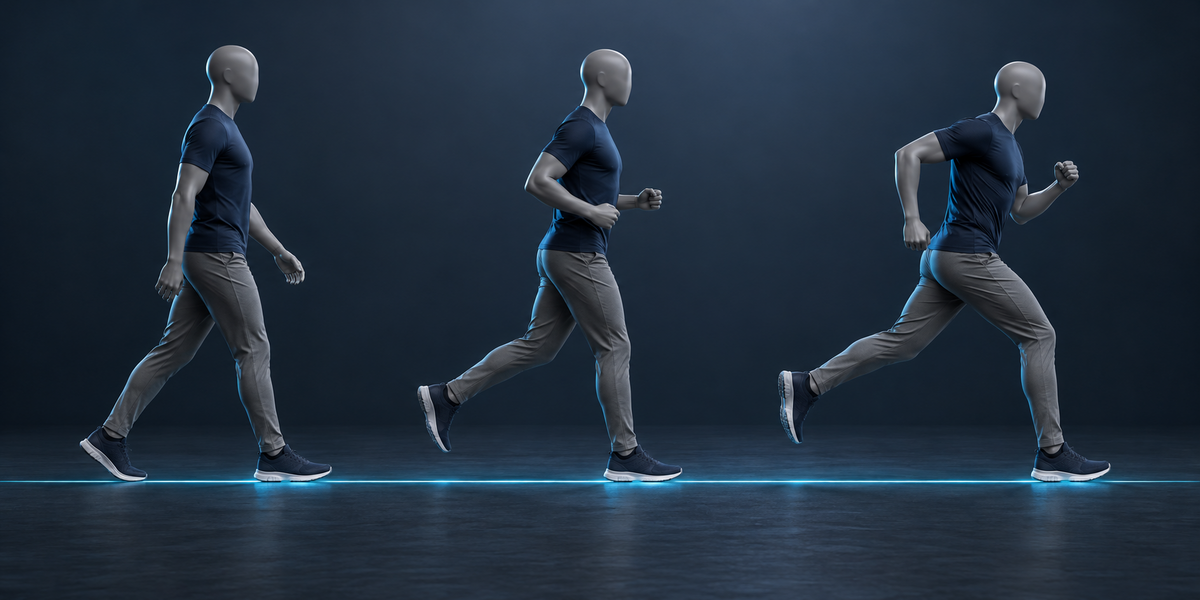
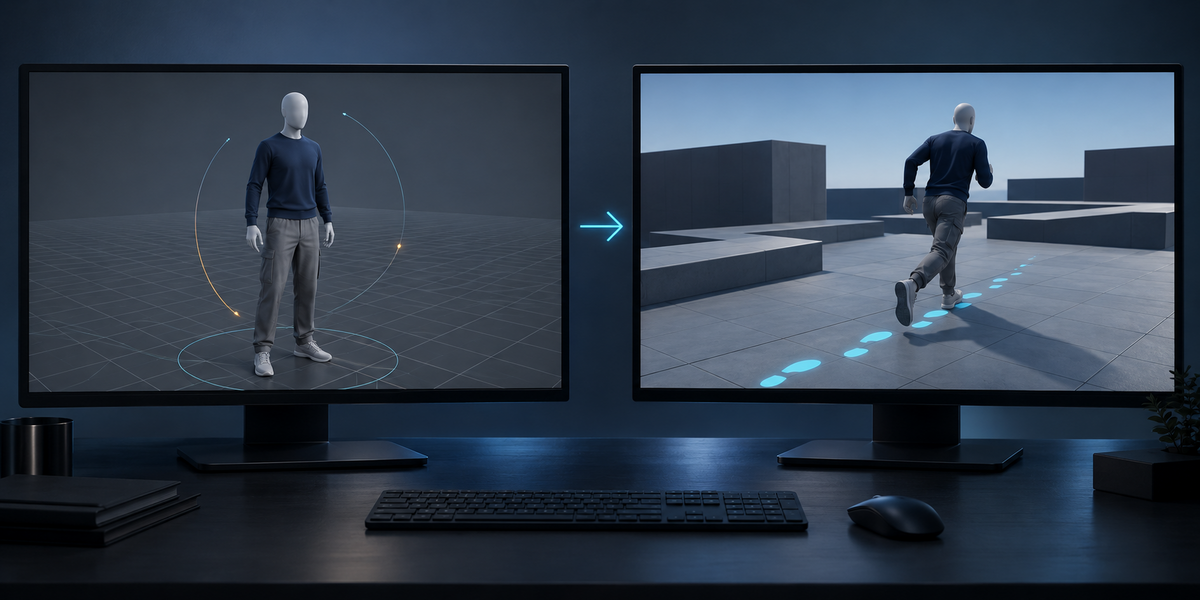
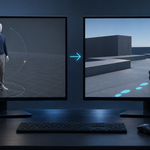
LocoForge turns a character's walks, runs and strafes into a Unity locomotion blend. In Blender it measures every clip from the feet (speed, direction, stride), writes one clean stride of each as a new in-place action that starts on the left foot, and exports the FBX with a small file of measurements. In Unity it builds the clips, an Animator Controller and a prefab, plays the blend across its whole range, measures how fast the planted feet travel at every point and every moment of the step, and moves the character exactly that fast.
2. Installing
Edit, Preferences, Add-ons, the arrow in the top right corner, Install from Disk, pick the zip, tick the checkbox. The panel is in the 3D Viewport sidebar (N), tab LocoForge.
3. Quick start
- Select the character's armature (or a mesh skinned to it) and press the eyedropper next to the Armature field.
- Press Read Clips. The list shows every action of the character and what it is: a walk or run (with its speed, direction and how cleanly its stride loops), the standing clip, or left out (with the reason). Markers LF_stride_start / LF_stride_end show the stride chosen in each action.
- Change a clip's role in the list if you disagree (Walk / Run, Standing, Leave Out) and press Read Clips again.
- Choose a folder under Unity and press Export for Unity: the stride actions are written (<action>_LF), then <armature>.loco.json, a LocoForge folder with three scripts and, with Also Export FBX on, the character as FBX with all its actions.
- In Unity, select the FBX in the Project window and choose Tools > LocoForge > Build Locomotion For Selected Model. It takes from a few seconds to about a minute.
- Drag <model>_LocoForge.prefab into the scene. Tick Demo on its LocoForgeMover to watch it walk the whole blend in Play mode, or set velocity from your own controller script.
4. Settings (Blender)
- Mirror Missing Directions — a strafe or diagonal that goes only one way gets its mirror for the other side, made from the same stride. Needs left/right bone names Blender understands (.L/.R, _l/_r, Left/Right) and bones that inherit their parent's rotation and scale.
- Unity Scripts — write the scripts with the export; once per Unity project (two copies of the same scripts stop Unity compiling).
- Also Export FBX — the armature, its meshes and all its actions through Blender's own FBX exporter. If the armature follows a control rig (Rigify and similar), the FBX is not written — the exporter would bake the control rig's current pose into every take — and the strides cannot be written for it: bake the actions onto the deforming armature first.
5. How the clips are measured
Feet. The parts of the skin that touch the floor in the rest pose, grouped by bone chain (a skeleton without a mesh uses the ends of its lowest bones). A foot is planted when it is low and moves with the ground.
Speed and direction. The body's velocity relative to the planted foot: a clip walked in place moves its planted foot backwards like a treadmill belt, a travelling clip moves its body while the foot stays — both give the same number. Direction is measured against where the character faces: the rig's own forward (or its root bone) for clips made in place — a game strafe turns the whole torso toward where it goes while the character keeps facing ahead — and the chest for travelling motion capture.
Loops. A clip whose last frame repeats its first is read as a loop one frame shorter; a loop without that repeat is read whole. A one-stride loop that starts on the right foot is read across its seam.
Stride. From one plant of the left foot to its next plant, with every other foot planting exactly once inside it (a foot brushing the floor mid-swing does not split a stride). Of all strides of a clip, the one that is steady, straight (turning less than 25° per second) and loops best is chosen. A clip with no such stride is left out with the reason: it turns in place, every stride turns, its loop jumps by more than a quarter of the body height, or it has no complete stride.
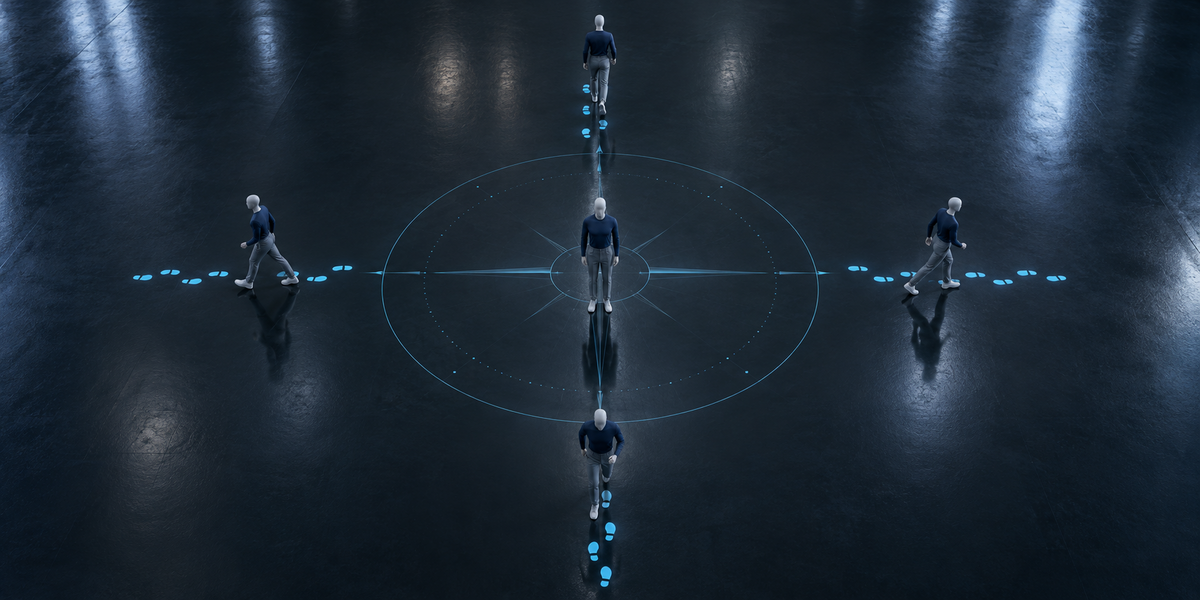
The blend. All clips going forward (within 20°): a 1D blend on speed. Otherwise a 2D blend on direction and speed. Two clips within 0.12 m/s of each other do the same thing: the cleaner loop is kept. A wide gap between directions is named.
6. What is written in Blender
- <action>_LF — one stride of the clip, every bone keyed on every frame, starting on the left plant. A clip that travels has its travel taken out of the bone that carries it in that clip (the stride plays in place; the engine moves the character); a clip made in place is written as it is, frame for frame. Channels other than bone transforms (an IK/FK switch, a constraint's influence, a custom property) are sampled in too. A looping clip whose stride runs over its seam is read across the seam. Mirrors are named <action> (mirrored)_LF.
- These actions carry a tag; exporting again replaces LocoForge's own and never touches an action of yours, even one with the same name (ours then takes a free name).
- Your actions, markers and settings are not changed; the scene frame and the armature's action are put back.
7. What happens in Unity
- Clips — for every stride, a clip named <action> [LocoForge] in the model's import settings, looping, root motion kept in the pose. Your own clips stay. If the model had No Avatar, Avatar Definition is set to Create From This Model (an Animator cannot play without it) and the report says so.
- <model>_LocoForge.controller — state Locomotion: the blend of the strides at the velocities measured in Blender, with a speed multiplier LF_Rate; state Idle: your whole standing clip. Parameters LF_Speed (m/s), LF_Right / LF_Forward (2D) and LF_Rate. Rebuilding updates it in place, so scenes that use it keep it.
- <model>_LocoForge.asset — the speed map: the blend is played at a grid of points (36 directions × up to 10 speeds) and the velocity of the planted feet is measured in 32 moments of the step. A blend does not move at the speed you type into it — clips of different length change each other's pace — and the feet's own speed changes through a step; the map holds what Unity actually plays.
- <model>_LocoForge.prefab — the model with the controller and the LocoForgeMover. On a rebuild an existing prefab keeps what you added to it; only its controller and profile are set.
- The report (dialog, Console, and in the asset): foot slide per step and drift of a planted foot, measured at points half way between the grid points and below the slowest clip, for your clips as they come (whole takes, the standing clip in the middle, moved at the blend value — compared only when your clips are made in place: a blend of travelling clips is moved by root motion) and for LocoForge; and each clip's speed as Blender measured it against what Unity plays. If Unity plays a clip at another speed than Blender measured (a Humanoid avatar mapped wrongly, a scale problem), the report starts with a warning naming it.
8. The mover
- velocity — the velocity you want, world space, m/s. Which way the character faces is yours: turn the transform; strafing and walking backwards come from the blend.
- Faster than your slowest clip, the blend plays; slower, the slowest strides play at a slower pace (feet keep their grip); below a fifth of the slowest clip's speed the Idle state plays and the character stands.
- Move Transform off — only drive the Animator; read playedVelocity and move a CharacterController or Rigidbody yourself.
- Acceleration — how fast the velocity may change (m/s per second). Demo — walk a figure of eight through the whole blend.
- The animation's own root motion is not used.
9. Limits
- Two feet for mirroring and for the reference foot (four-legged characters are measured, but nothing is mirrored).
- Turning while moving (yaw rate) is not a blend axis; turn the transform.
- Between two clips that differ a lot (a 0.9 m/s walk next to a 0.4 m/s side step that turns), Unity's blend of them moves the feet in ways no single speed matches; the report names those points. Clips in between (a diagonal, a slower walk) close the gap.
- Unreal and Godot are not built for in this version; the stride actions and the .loco.json are plain and engine-free.
- Unity's Optimize Game Objects must be off while building (the feet must be in the scene to be measured); it can be turned on afterwards if you do not rebuild.
10. Measured
Unity 6, the UE5 mannequin with its own locomotion clips, and CMU motion capture; foot slide per step, median (worst), at points the speed map was not measured at:
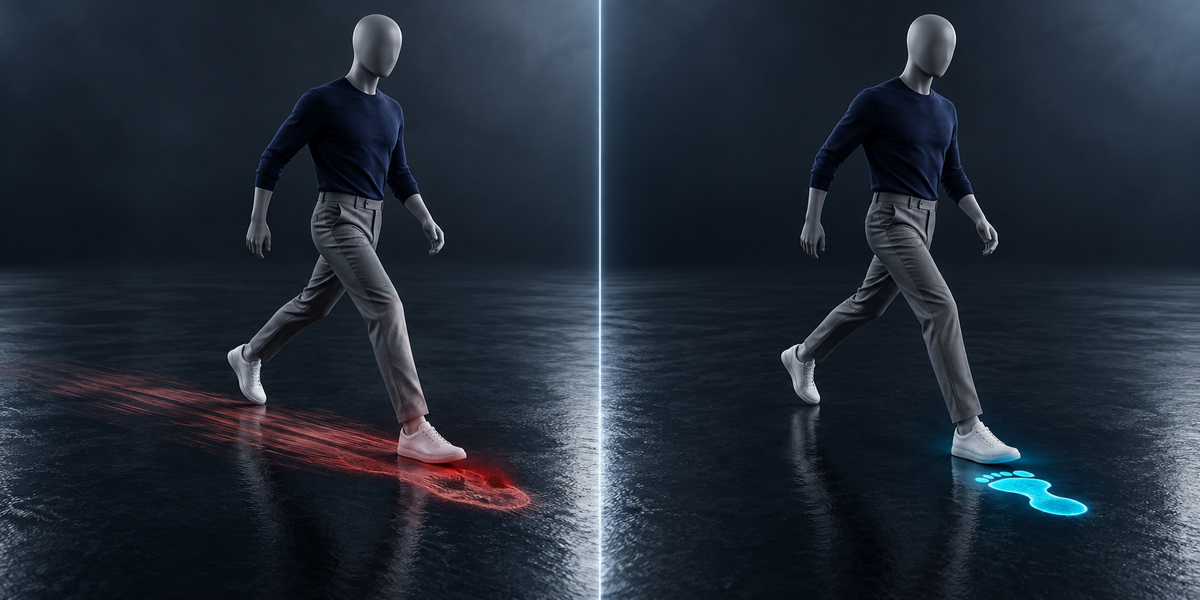
- Jog, four directions: as they come 206 mm (1635) → LocoForge 20 mm (65).
- Walk and run: 57 (525) → 15 (58). Crouch, four directions: 214 (1487) → 16 (115).
- The same model as Humanoid: jog 217 → 22, walk/run 63 → 19, crouch 182 → 22.
- Motion capture (CMU walk/jog/run, clips that travel, so not compared as they come): LocoForge 15 mm (92).
- The mover, end to end: asked velocities played and measured from the feet in the engine, median error 1.0–1.5%.
- Speeds read in Blender against the blend space shipped with those clips: walk 2.28 / 2.31 m/s, run 4.99 / 5.00 m/s; jog directions 0°, 90°, −89°, −179° (the shipped blend space: 0, 90, −90, 180).
Have questions about this product?
Login to message
| Published | about 10 hours ago |
| Blender Version | 4.2 - 5.2 |
| Extension Type | N/A |
| License | GPL |
Discover more products like this
root motion game development Export strafe mocap locomotion blend tree animator controller unity game ready foot sliding character animation