 Dreamy Art World


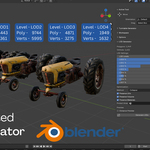
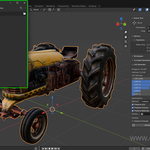

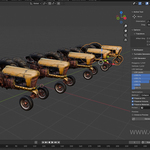
Table of Contents
Overview
LOD GENERATOR v2.0 is a professional Blender addon designed to streamline the creation of Level of Detail (LOD) meshes for game development and real-time rendering. The addon provides an intuitive interface for generating multiple LOD levels and exporting them directly to Unity, Unreal Engine, and AR/VR platforms.
Key Benefits
- Time-Saving: Automate the tedious process of creating multiple LOD versions
- Professional Workflow: Industry-standard presets and optimization methods
- Engine Integration: Direct export with proper axis orientation and metadata
- Real-Time Preview: Visualize LOD switching based on camera distance
- Flexible Control: Custom presets or manual control over every LOD level
Installation
Requirements
- Blender: 4.1.0 or higher
- Python: 3.10+ (included with Blender)
- Operating System: Windows, macOS, or Linux
Installation Steps
-
Download the Addon
- Download the
lod_generatorfolder or ZIP file
- Download the
-
Install in Blender
- Open Blender
- Go to
Edit > Preferences > Add-ons - Click
Install...button - Navigate to and select the
lod_generatorfolder (or ZIP file) - Click
Install Add-on
-
Enable the Addon
- In the Add-ons list, search for "LOD GENERATOR"
- Check the checkbox next to "LOD GENERATOR v2.0"
- The addon is now active
-
Access the Panel
- Press
Nin the 3D Viewport to open the sidebar - Click on the "LOD Generator" tab
- Press
Quick Start Guide
Basic LOD Generation
-
Select Your Mesh
- Select one or more mesh objects in your scene
-
Open the LOD Generator Panel
- Press
Nto open the sidebar - Click the "LOD Generator" tab
- Press
-
Choose a Preset
- Select a preset from the dropdown (e.g., "Mobile (Performance)")
-
Generate LODs
- Click the "Generate LODs" button
- Your LOD versions will be created with the naming convention:
ObjectName_LOD0,ObjectName_LOD1, etc.
Export to Game Engine
-
Select LOD Objects
- Select all LOD versions you want to export (including the base mesh)
-
Configure Export Settings
- Choose your target engine (Unity/Unreal/AR-VR)
- Select export format (FBX/GLB/OBJ)
- Set the export path
-
Export
- Click "Prepare & Export"
- Files will be exported to your specified directory
Features
LOD Generation Features
8 LOD Levels
Generate up to 8 different LOD levels for maximum flexibility. Each level can be individually enabled/disabled and configured.
Preset Configurations
| Preset | LOD Levels | Use Case |
|---|---|---|
| Mobile (Performance) | 100/50/25/10 | Mobile games, low-end devices |
| Console/PC Balanced | 100/70/40/20 | Balanced performance for most games |
| High-End PC (Cinematic) | 100/80/60/40 | High-quality visuals, PC games |
| VR/AR Optimized | 100/75/50/30 | Virtual and augmented reality |
| Strategy/RTS | 100/60/30/10 | Strategy games with many units |
| Ultra Mobile | 100/40/15/5 | Extreme optimization for mobile |
| Custom | User-defined | Full manual control |
Optimization Methods
-
Collapse (Recommended)
- Merges vertices to reduce polygon count
- Best for most mesh types
- Preserves overall shape well
-
Un-Subdivide
- Reverses subdivision operations
- Best for grid-like or regularly subdivided meshes
- May not work well on irregular geometry
-
Planar
- Reduces flat surfaces by dissolving coplanar faces
- Best for architectural models and hard-surface objects
- Uses angle limit of ~5 degrees
Preservation Options
- Preserve UVs: Maintains UV mapping during reduction
- Preserve Volume: Attempts to maintain object volume
- Preserve Materials: Copies materials from original to LOD versions
- Vertex Group Protection: Protect specific areas from reduction using vertex groups
Distance Preview
- Real-time preview of LOD switching based on camera distance
- Visualize how LODs will switch in your game
- Adjustable distance threshold
- Exit preview mode with ESC or Right Mouse Button
Export Features
Supported Engines
-
Unity
- FBX export with correct axis orientation (Forward: -Z, Up: Y)
- LODGroup component metadata generation
- Prefab metadata file generation
- Automatic transform baking
-
Unreal Engine
- FBX export with Unreal axis setup (Forward: -X, Up: Z)
- LOD system integration metadata
- Blueprint metadata file generation
- Optimized for Unreal's static mesh system
-
AR/VR Platforms
- GLB format (recommended for WebXR, AR, VR)
- Mobile optimization settings
- Manifest file generation
- Animation support
Export Formats
- FBX: Industry standard, works with Unity and Unreal
- GLB: Binary GLTF, optimized for AR/VR and web
- OBJ: Universal format, includes automatic texture copying
Export Options
- Bake Transforms: Apply all transforms before export
- Preserve Hierarchy: Maintain object hierarchy in export
- Group LODs: Group all LODs under a parent empty
- Custom Group Name: Name the LOD group container
User Guide
LOD Generation Workflow
Step 1: Prepare Your Mesh
Before generating LODs, ensure your mesh is ready:
- Apply Modifiers: Apply any modifiers you want included in the base mesh
- Check Topology: Clean topology works best for decimation
- Set Up Materials: Materials will be preserved if enabled
- Create Vertex Groups (Optional): Mark areas to protect from reduction
Step 2: Configure LOD Settings
-
Select Preset or Use Custom
- Choose a preset that matches your target platform
- Or select "Custom" for manual control
-
Enable Desired LOD Levels
- Check the boxes for LOD levels you want to generate
- LOD0 is typically the highest quality (100%)
-
Adjust Percentages (if using Custom)
- Set reduction percentage for each enabled LOD
- Lower percentages = fewer polygons
-
Configure Optimization
- Select optimization method (Collapse/Un-Subdivide/Planar)
- Enable preservation options as needed
- Set vertex group for protection (optional)
Step 3: Generate LODs
-
Select Target Objects
- Select one or more mesh objects
- You can generate LODs for multiple objects at once
-
Click "Generate LODs"
- Progress bar will show generation progress
- Each LOD will be created as a separate object
- Objects are named:
OriginalName_LOD0,OriginalName_LOD1, etc.
-
Review Results
- Check the generated LODs in the viewport
- Verify polygon counts match expectations
- Adjust settings and regenerate if needed
Step 4: Preview LODs (Optional)
-
Enable Distance Preview
- Check "Distance Preview" in the Preview section
- Adjust preview distance slider
-
Start Preview
- Click "Preview LODs" button
- Select camera if multiple cameras exist
- Move camera to see LOD switching
-
Exit Preview
- Press ESC or Right Mouse Button
- Or click "Exit Preview" button
Export Workflow
Step 1: Select Objects for Export
- Select all LOD versions you want to export
- Include the base mesh if needed
- You can select multiple objects
Step 2: Configure Export Settings
-
Target Engine
- Select Unity, Unreal, or AR/VR
- This affects axis orientation and metadata
-
Export Format
- FBX for Unity/Unreal
- GLB for AR/VR (recommended)
- OBJ for general compatibility
-
Export Path
- Set the directory where files will be saved
- Use absolute path (required)
- Path will be created if it doesn't exist
-
Advanced Settings
- Bake Transforms: Apply transforms before export
- Preserve Hierarchy: Keep object parent-child relationships
- Group LODs: Create parent empty for all LODs
-
Engine-Specific Settings
- Unity: Use LODGroup Component, Generate Prefab
- Unreal: Use LOD System, Generate Blueprint
- AR/VR: Optimize for Mobile, Generate Manifest
Step 3: Export
-
Click "Prepare & Export"
- Objects will be prepared (transforms baked, hierarchy organized)
- Export will begin
- Progress will be shown in Blender's status bar
-
Check Export Directory
- Navigate to your export path
- Verify files were created
- Check for metadata files (prefab.json, blueprint.json, manifest.json)
-
Import to Game Engine
- Import the exported file into your game engine
- Set up LOD groups using the metadata files (if generated)
- Configure LOD distances in your engine
Mesh Statistics Display
The UI panel displays real-time statistics for the selected mesh:
- Polygons: Current polygon count
- Vertices: Current vertex count
- Estimated Stats: For each LOD level, shows estimated polygon and vertex counts based on reduction percentage
This helps you plan your LOD strategy before generation.
Technical Reference
File Structure
lod_generator/├── __init__.py # Addon initialization and registration├── manifest.toml # Blender Marketplace manifest├── properties.py # Property definitions and presets├── operators.py # Operator registration wrapper├── lod_creation.py # LOD generation operators├── Smart_export.py # Export operators└── ui_panel.py # User interface panelOperators
LOD Generation Operators
smartasset.generate_lods
- Generates LOD versions for selected objects
- Parameters: Controlled via scene properties
- Returns:
{'FINISHED'}on success,{'CANCELLED'}on error
smartasset.preview_lod_distance
- Starts modal preview of LOD switching
- Parameters: Camera selection (if multiple cameras)
- Returns:
{'RUNNING_MODAL'}while active
smartasset.exit_lod_preview
- Exits LOD preview mode
- Returns:
{'FINISHED'}
Export Operators
smartasset.convert_to_game_export
- Prepares and exports LOD assets
- Parameters: Controlled via scene properties
- Returns:
{'FINISHED'}on success,{'CANCELLED'}on error
smartasset.export_error_popup
- Displays export error messages
- Internal operator, called automatically
Properties
All properties are stored in context.scene.smartasset:
LOD Properties
-
lod_preset: Enum - Preset selection -
lod0_enabledthroughlod7_enabled: Bool - Enable flags for each LOD -
lod0throughlod7: Float - Reduction percentages (1-100) -
optimization_method: Enum - Collapse/Un-Subdivide/Planar -
preserve_uvs: Bool - Preserve UV mapping -
preserve_volume: Bool - Preserve volume -
preserve_materials: Bool - Preserve materials -
vertex_group: String - Vertex group name for protection -
use_distance_preview: Bool - Enable distance preview -
preview_distance: Float - Distance threshold for preview
Export Properties
-
export_engine: Enum - Unity/Unreal/ARVR -
export_format: Enum - FBX/GLB/OBJ -
export_path: String - Export directory path -
bake_transforms: Bool - Bake transforms before export -
preserve_hierarchy: Bool - Preserve object hierarchy -
group_lods: Bool - Group LODs under parent empty -
lod_group_name: String - Name for LOD group
Unity-Specific
-
unity_use_lod_group: Bool - Generate LODGroup metadata -
unity_generate_prefab: Bool - Generate prefab metadata
Unreal-Specific
-
unreal_use_lod_system: Bool - Generate LOD system metadata -
unreal_generate_blueprint: Bool - Generate Blueprint metadata
AR/VR-Specific
-
arvr_optimize_for_mobile: Bool - Apply mobile optimizations -
arvr_generate_manifest: Bool - Generate manifest file
Naming Conventions
-
LOD Objects:
OriginalName_LOD0,OriginalName_LOD1, etc. -
LOD Group:
OriginalName_Group(or custom name) -
Exported Files:
OriginalName.fbx,OriginalName.glb, etc. -
Metadata Files:
OriginalName_prefab.json,OriginalName_blueprint.json,OriginalName_manifest.json
Export File Formats
FBX Export Settings
Unity:
- Axis Forward: -Z
- Axis Up: Y
- Apply Unit Scale: Yes
- Bake Space Transform: Yes
- Embed Textures: Yes
Unreal:
- Axis Forward: X
- Axis Up: Z
- Apply Unit Scale: Yes
- Bake Space Transform: Yes
- Embed Textures: Yes
GLB Export Settings
- Format: GLB (binary)
- Export Animations: Yes (if present)
- Export Materials: Yes
- Export Cameras: No
- Export Lights: No
OBJ Export Settings
- Export Materials: Yes
- Export Normals: Yes
- Export UVs: Yes
- Triangulated: Yes
- Textures: Automatically copied to export directory
Metadata File Formats
Unity Prefab JSON
{ "name": "ObjectName", "lodGroup": { "enabled": true, "lods": [ { "screenRelativeTransitionHeight": 1.0, "renderers": ["ObjectName_LOD0"] } ] }}Unreal Blueprint JSON
{ "name": "ObjectName", "lodSettings": { "enabled": true, "lods": [ { "screenSize": 1.0, "staticMesh": "ObjectName_LOD0" } ] }}AR/VR Manifest JSON
{ "name": "ObjectName", "version": "1.0", "platforms": ["webxr", "ar", "vr"], "optimization": { "mobile": true, "lods": [ { "level": 0, "distance": 1.0, "mesh": "ObjectName_LOD0" } ] }}Troubleshooting
Common Issues
LOD Generation Issues
Problem: "No objects selected" error
- Solution: Select at least one mesh object before generating LODs
Problem: "No LOD levels enabled" error
- Solution: Enable at least one LOD level checkbox before generating
Problem: LODs look distorted or broken
-
Solution:
- Try a different optimization method (Collapse usually works best)
- Check mesh topology - clean up non-manifold geometry
- Reduce the reduction percentage for that LOD level
- Ensure "Preserve Volume" is enabled
Problem: Un-Subdivide doesn't work
- Solution: Un-Subdivide only works on regularly subdivided meshes. Use Collapse instead for irregular geometry.
Problem: Planar reduction removes too much
- Solution: Planar reduction is aggressive. Use Collapse for better results on most meshes.
Export Issues
Problem: "Export Path is empty or invalid" error
-
Solution:
- Set an absolute path (not relative)
- Ensure the path doesn't contain invalid characters
- Path must be at least 3 characters long
- Use a valid directory path (e.g.,
C:\Exports\MyProject)
Problem: Export fails silently
-
Solution:
- Check Blender's console for error messages
- Ensure you have write permissions to the export directory
- Verify the export path exists or can be created
Problem: Exported file doesn't import correctly in game engine
-
Solution:
- Verify you selected the correct target engine
- Check axis orientation matches your engine's requirements
- Ensure "Bake Transforms" is enabled
- Try exporting as OBJ for compatibility testing
Problem: Materials/textures missing in exported file
-
Solution:
- Ensure "Preserve Materials" is enabled during LOD generation
- For OBJ export, textures are automatically copied
- For FBX, ensure "Embed Textures" is enabled (default)
- Check that materials use image textures (not procedural)
Preview Issues
Problem: Preview doesn't start
-
Solution:
- Ensure at least one camera exists in the scene
- Check that LOD objects exist (objects with
_LODin name) - Verify "Distance Preview" checkbox is enabled
Problem: Preview doesn't exit
-
Solution:
- Press ESC or Right Mouse Button
- Click "Exit Preview" button in the UI
- If stuck, restart Blender
Problem: LODs don't switch in preview
-
Solution:
- Adjust the preview distance slider
- Move the camera closer/farther from objects
- Ensure multiple LOD levels exist for the object
Performance Tips
- For Large Scenes: Generate LODs for objects one at a time to avoid memory issues
- For Complex Meshes: Start with fewer LOD levels and lower reduction percentages
- For Batch Processing: Use Blender's scripting API to automate LOD generation for multiple files
- Export Optimization: Export LODs separately if you have many objects to avoid large file sizes
Known Limitations
- Animation: LOD generation doesn't preserve animation data. Export animations separately if needed.
- Armatures: Armatures are exported but LOD generation only affects mesh geometry, not bone structure.
- Particle Systems: Particle systems are not included in LOD generation or export.
- Modifiers: Modifiers must be applied before LOD generation for best results.
- Texture Baking: The addon doesn't bake textures. Use Blender's texture baking tools separately if needed.
Examples
Example 1: Mobile Game Asset
Goal: Create LODs for a character model for a mobile game
Steps:
- Select character mesh
- Choose "Mobile (Performance)" preset
- Enable LOD0, LOD1, LOD2, LOD3
- Set optimization method to "Collapse"
- Enable "Preserve UVs", "Preserve Volume", "Preserve Materials"
- Generate LODs
- Export as FBX for Unity with LODGroup enabled
Result: 4 LOD levels (100%, 50%, 25%, 10%) optimized for mobile performance
Example 2: VR Environment
Goal: Create LODs for environment objects in VR
Steps:
- Select environment meshes
- Choose "VR/AR Optimized" preset
- Enable LOD0, LOD1, LOD2, LOD3
- Set optimization method to "Collapse"
- Enable all preservation options
- Generate LODs
- Use distance preview to test LOD switching
- Export as GLB with mobile optimization enabled
Result: VR-optimized LODs with smooth distance-based switching
Example 3: Strategy Game Unit
Goal: Create LODs for RTS game units (many on screen)
Steps:
- Select unit mesh
- Choose "Strategy/RTS" preset
- Enable LOD0, LOD1, LOD2, LOD3
- Set optimization method to "Collapse"
- Create vertex group for important features (face, weapons)
- Set vertex group in "Protect Area"
- Generate LODs
- Export as FBX for Unity
Result: Aggressively optimized LODs with protected important features
Example 4: Custom LOD Setup
Goal: Create custom LOD levels for specific performance targets
Steps:
- Select mesh
- Choose "Custom" preset
- Enable LOD0 (100%), LOD1 (80%), LOD2 (60%), LOD3 (40%), LOD4 (20%)
- Set optimization method based on mesh type
- Adjust preservation options as needed
- Generate LODs
- Test with distance preview
- Export with appropriate engine settings
Result: Custom LOD setup tailored to specific needs
FAQ
General Questions
Q: Can I generate LODs for multiple objects at once?
A: Yes, select multiple mesh objects and click "Generate LODs". Each object will get its own set of LOD versions.
Q: Will LOD generation affect my original mesh?
A: No, the original mesh is never modified. LOD versions are created as new objects.
Q: Can I edit LODs after generation?
A: Yes, LOD objects are regular Blender objects. You can edit them, add modifiers, etc. However, regenerating LODs will create new objects.
Q: How do I delete LODs?
A: Select the LOD objects and press Delete, or use Blender's normal object deletion methods.
Q: Can I use this with Blender's built-in LOD system?
A: This addon creates separate objects for each LOD level, which is more flexible than Blender's built-in system. You can use both approaches if needed.
Export Questions
Q: Which format should I use for Unity?
A: FBX is recommended for Unity. The addon automatically sets the correct axis orientation.
Q: Which format should I use for Unreal?
A: FBX is recommended for Unreal. The addon automatically sets the correct axis orientation.
Q: Which format should I use for AR/VR?
A: GLB is recommended for AR/VR platforms, especially WebXR.
Q: Do I need to use the metadata files?
A: The metadata files (prefab.json, blueprint.json, manifest.json) are optional helpers. You can set up LOD groups manually in your game engine if preferred.
Q: Can I export animations with LODs?
A: Animations are exported with GLB format. For FBX, animations are included but LOD generation doesn't affect animation data.
Technical Questions
Q: What's the difference between Collapse, Un-Subdivide, and Planar?
A:
- Collapse: Merges vertices (best for most meshes)
- Un-Subdivide: Reverses subdivision (best for grid-like meshes)
- Planar: Reduces flat surfaces (best for architectural models)
Q: How does vertex group protection work?
A: Vertices in the specified vertex group are protected from reduction, preserving important features like faces or details.
Q: What does "Preserve Volume" do?
A: It attempts to maintain the object's overall volume during reduction, preventing the mesh from collapsing inward.
Q: Can I use this with sculpted meshes?
A: Yes, but results may vary. High-detail sculpted meshes may need manual cleanup after LOD generation.
Q: Does this work with modifiers?
A: Modifiers should be applied before LOD generation for best results. The addon applies modifiers during export if "Use Mesh Modifiers" is enabled.
Performance Questions
Q: How many LOD levels should I create?
A: Typically 3-4 LOD levels are sufficient. More levels provide finer control but increase file size and setup complexity.
Q: What reduction percentages should I use?
A: This depends on your target platform and performance requirements. Use the presets as starting points and adjust based on testing.
Q: Will LODs improve my game's performance?
A: Yes, LODs can significantly improve performance by reducing polygon count for distant objects. However, proper LOD distance setup in your game engine is crucial.
Q: How do I set LOD distances in my game engine?
A: Use the metadata files as reference, or set up LOD groups manually in Unity/Unreal. Distances depend on your game's scale and camera setup.
