LS - Pro Auto LOD Generator | Professional Level of Detail System for Blender
 Ludiax Studio


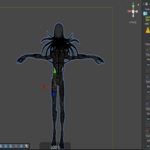
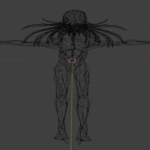
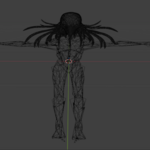
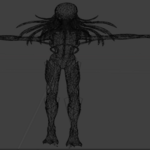
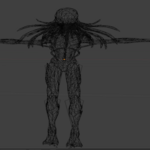
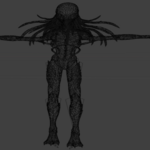
LS - Pro Auto LOD Generator
Professional LOD Generation System for Game Development
1. Installation
- Open Blender (version 4.2 or higher, including Blender 5.0)
- Go to
Edit > Preferences > Add-ons (or Extensions in newer versions)
- Click the gear icon (top-right) → Install from Disk...
- Select the ZIP file for your license edition:
-
LS_Pro_Auto_LOD_Generator_Personal_v3.6.0.zip (Single User)
-
LS_Pro_Auto_LOD_Generator_Team_v3.6.0.zip (Up to 4 Users)
-
LS_Pro_Auto_LOD_Generator_Studio_v3.6.0.zip (Unlimited Users)
- Enable the add-on by checking the box next to its name
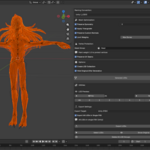
- The tool will appear in the Sidebar (N-panel) under the "LS - Pro LOD Tool" tab
- Open Blender (version 4.2 or higher, including Blender 5.0)
- Go to
Edit > Preferences > Add-ons(orExtensionsin newer versions) - Click the gear icon (top-right) → Install from Disk...
- Select the ZIP file for your license edition:
-
LS_Pro_Auto_LOD_Generator_Personal_v3.6.0.zip(Single User) -
LS_Pro_Auto_LOD_Generator_Team_v3.6.0.zip(Up to 4 Users) -
LS_Pro_Auto_LOD_Generator_Studio_v3.6.0.zip(Unlimited Users)
-
- Enable the add-on by checking the box next to its name
- The tool will appear in the Sidebar (N-panel) under the "LS - Pro LOD Tool" tab
2. Generating LODs
Select Your Model
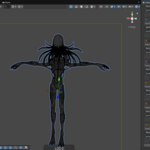
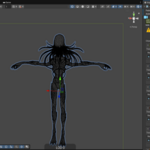
Select the rigged character or static mesh you want to optimize.
Select the rigged character or static mesh you want to optimize.
Configure LOD Levels
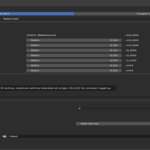
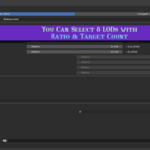
- Check the LOD levels (LOD0-LOD7) you wish to create
- Choose between Ratio Mode (e.g., 0.50 for 50%) or Target Mode (specific polygon count)
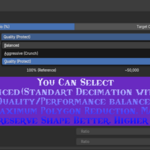
- Select your Decimation Style: Balanced, Aggressive, or Quality
- Check the LOD levels (LOD0-LOD7) you wish to create
- Choose between Ratio Mode (e.g., 0.50 for 50%) or Target Mode (specific polygon count)
- Select your Decimation Style: Balanced, Aggressive, or Quality
Rigging Settings
-
Use Single Armature: When enabled, all LODs share the same skeleton and stack at origin for perfect alignment
- Ideal for game engines that handle LOD switching automatically
- Use Single Armature: When enabled, all LODs share the same skeleton and stack at origin for perfect alignment
- Ideal for game engines that handle LOD switching automatically
Mesh Optimization
-
Preserve Symmetry: Choose your axis (X, Y, or Z) to maintain mirrored topology
-
Preserve Custom Normals: Keep your specific shading data intact
-
Preserve UV Seams: Protect UV boundaries during decimation
-
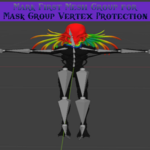
Vertex Group Protection: Paint weight 1.0 on vertices you want to protect from reduction
-
Limit Weights: Set Max Bones (default 4) for mobile and standard game engine compatibility
Tip: Click "Generate LODs" to create organized LOD collections. The original mesh will be hidden automatically.
- Preserve Symmetry: Choose your axis (X, Y, or Z) to maintain mirrored topology
- Preserve Custom Normals: Keep your specific shading data intact
- Preserve UV Seams: Protect UV boundaries during decimation
- Vertex Group Protection: Paint weight 1.0 on vertices you want to protect from reduction
- Limit Weights: Set Max Bones (default 4) for mobile and standard game engine compatibility
Tip: Click "Generate LODs" to create organized LOD collections. The original mesh will be hidden automatically.
3. Exporting to Game Engines
Naming Convention
Select your target engine from the dropdown:
-
Unreal Engine - Applies
_LOD0, _LOD1, etc. suffixes
-
Unity - Uses Unity-compatible naming
-
Custom - Define your own suffixes for Godot, CryEngine, or other engines
Select your target engine from the dropdown:
-
Unreal Engine - Applies
_LOD0,_LOD1, etc. suffixes - Unity - Uses Unity-compatible naming
- Custom - Define your own suffixes for Godot, CryEngine, or other engines
Export Settings
-
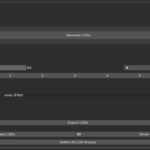
Export Target: Choose FBX (Unreal/Unity) or GLB (Godot/Web)
-
Export All LODs in Single File: Bundles all LOD levels into one FBX/GLB (recommended for Unreal auto-LOD detection)
Note: Click "Export LODs" and select your destination folder to save your game-ready files.
- Export Target: Choose FBX (Unreal/Unity) or GLB (Godot/Web)
- Export All LODs in Single File: Bundles all LOD levels into one FBX/GLB (recommended for Unreal auto-LOD detection)
Note: Click "Export LODs" and select your destination folder to save your game-ready files.
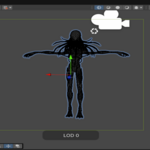
4. LOD Preview System
-
◄ Prev / Next ►: Cycle through LOD levels in viewport
-
Quick Buttons (0-7): Instantly view any specific LOD level
-
Show All: Display all LOD meshes simultaneously
- ◄ Prev / Next ►: Cycle through LOD levels in viewport
- Quick Buttons (0-7): Instantly view any specific LOD level
- Show All: Display all LOD meshes simultaneously
5. Utilities
-
Select LODs: Quickly selects all generated LOD objects in the viewport
-
Show Original: Reveals your original high-poly model
-
Delete All LOD Groups: Cleans up the scene by removing all generated LOD data and collections
- Select LODs: Quickly selects all generated LOD objects in the viewport
- Show Original: Reveals your original high-poly model
- Delete All LOD Groups: Cleans up the scene by removing all generated LOD data and collections
-
$130
Unlimited users, VIP support
-
$65
Up to 4 users, priority support
-
$39
Single user
Have questions about this product?
Login to message
| Blender Extension Compatible | Yes |
| Dev Fund Contributor | |
| Published | 9 months ago |
| Blender Version | 5.0 |
| Extension Type | Add-on |
| Render Engine Used | Cycles, Eevee |
| License | GPL |
Discover more products like this
Unreal Engine 3d modeling extension unity LOD vr game assets automation addon character optimization Workflow decimate mobile optimization indie-game blender mesh-reduction glb export game development pro tool godot optimization rigging ar armature level of detail FBX Export Polygon Reduction