LumiRig Pro: Light Rigs & Gobo Shadows
 Darksteady. Studio


1. Install
Blender 4.2 and newer (extension)
- Edit → Preferences → Get Extensions.
- Top-right dropdown (˅) → Install from Disk… → choose
lumirig_pro-6.0.3.zip. - Make sure LumiRig Pro is enabled.
Blender 4.0 / 4.1 (legacy add-on)
- Edit → Preferences → Add-ons → Install… → choose the zip.
- Tick the checkbox to enable it.
2. Where it lives
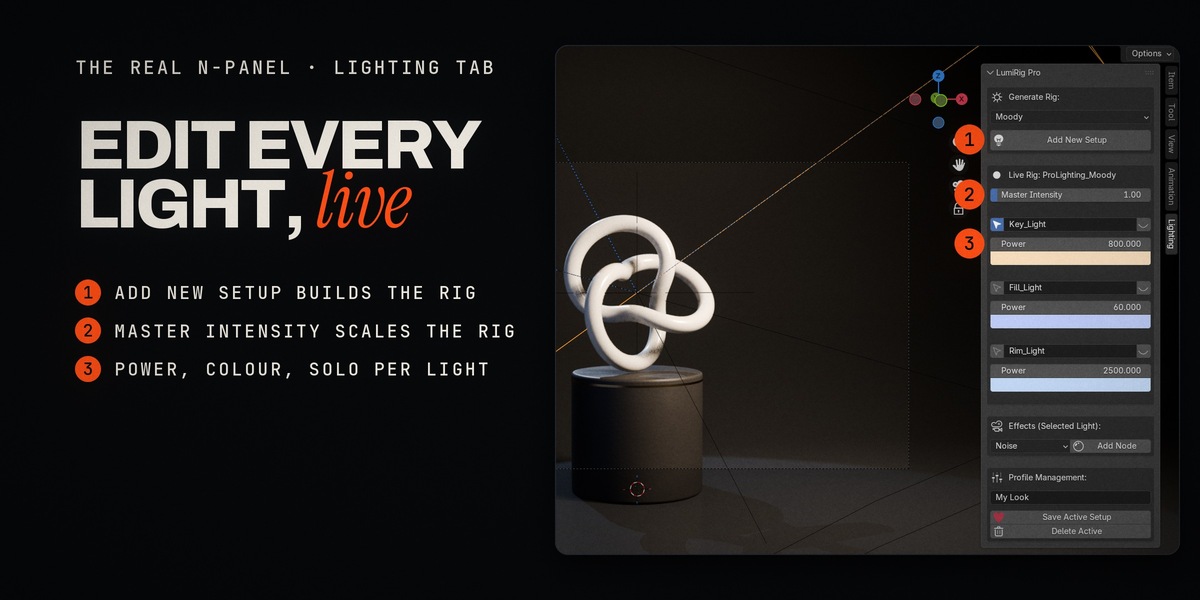
3D Viewport → press N (Sidebar) → Lighting tab → panel LumiRig Pro.
The panel has four parts:
| Box | What it does |
|---|---|
| Generate Rig | profile dropdown + Add New Setup |
| Live Rig: ProLighting_… | controls of the rig you have selected (only shown when a rig light or target is selected) |
| Effects (Selected Light) | gobo type + Add Node |
| Profile Management | name field, Save Active Setup, Delete Active |
3. First use
- Open any scene with an object to light (or add a Monkey: Shift+A › Mesh › Monkey) and select it.
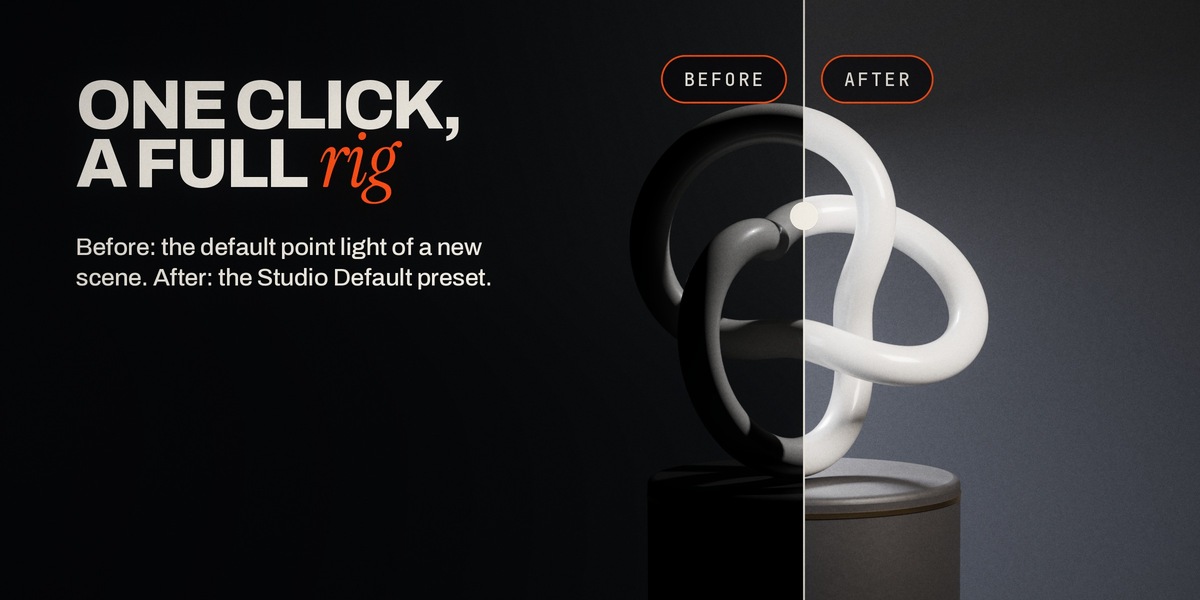
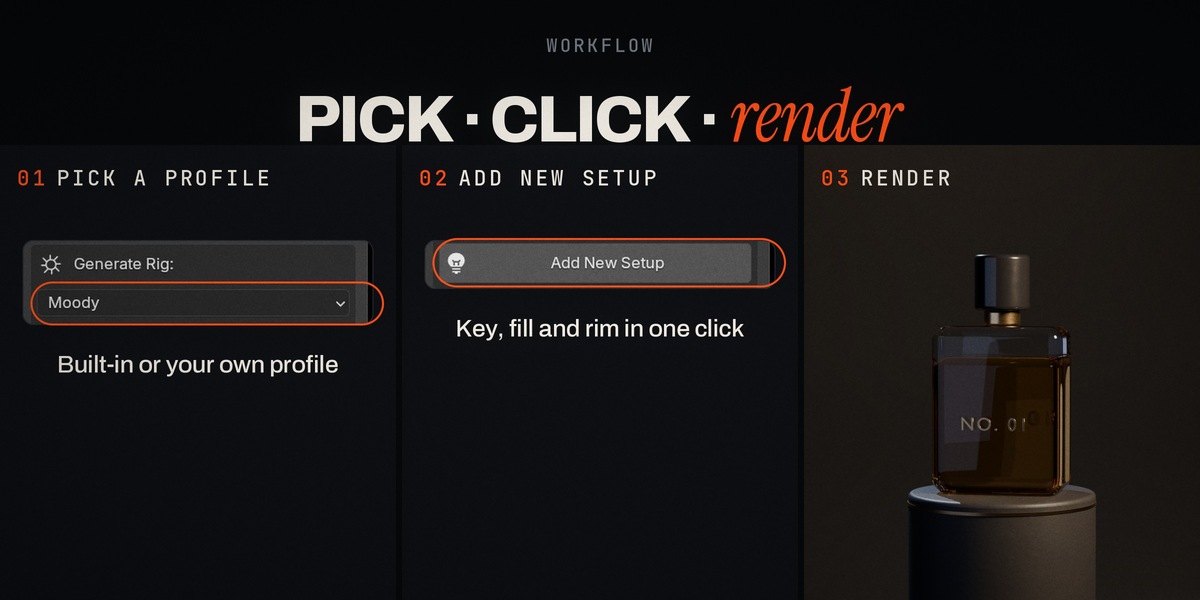
- Press N, open the Lighting tab, choose Studio Default and press Add New Setup.
- Look through the camera (Numpad 0) in Rendered shading: the key, fill and rim are already aimed at the object.
- Drag Master Intensity, change a light's Power or Colour, click an eye to solo it.
- Try Moody and Rim Light the same way. Each creates its own rig, so you can compare and delete the one you don't want (delete its
ProLighting_…collection).
3b. Quick workflow (3 steps)
- Select the object you want to light.
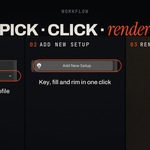
- Pick a profile (Studio Default, Moody, Rim Light or one of yours) and press Add New Setup.
- Shape it in Live Rig: Master Intensity, per-light Power and Colour, Solo. Optionally add a gobo.
4. Generate Rig
- Profile dropdown: built-in profiles first, then your own.
-
Add New Setup: creates a new collection
ProLighting_<profile>containing: -
Light_Target: an empty at the active object's world position (3D cursor if nothing is selected), - the profile's lights, placed relative to the target, each with a Track To constraint aimed at the target. Afterwards the target is selected, so the Live Rig box appears immediately. Running it from Edit Mode switches to Object Mode first.
- Move
Light_Targetto re-aim every light of that rig; move a light to change its angle.
5. Live Rig controls
Shown for the rig of the active object (any light or the target of a rig).
| Control | Behaviour |
|---|---|
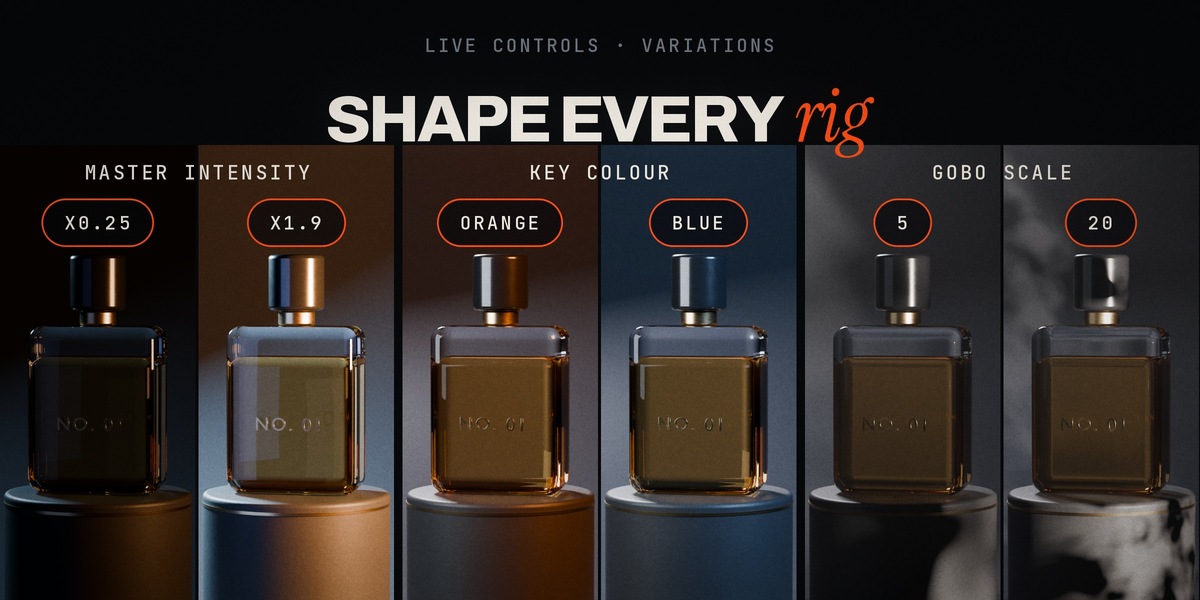
| Master Intensity (0 to 20) | scales every light of this rig; each rig keeps its own value. A Power typed by hand becomes that light's new base. |
| Select (arrow icon) | makes that light the active object (leaves Edit Mode first). |
| Name | renames the light. |
| Solo (eye icon) | shows only this light (viewport + render). Click again to bring the rig back; each light's own hidden state is restored. Solo is per rig. |
| Power / Colour | the light's own Power (W) and Colour. |
Solo and Select are undoable (Ctrl+Z).
6. Profiles
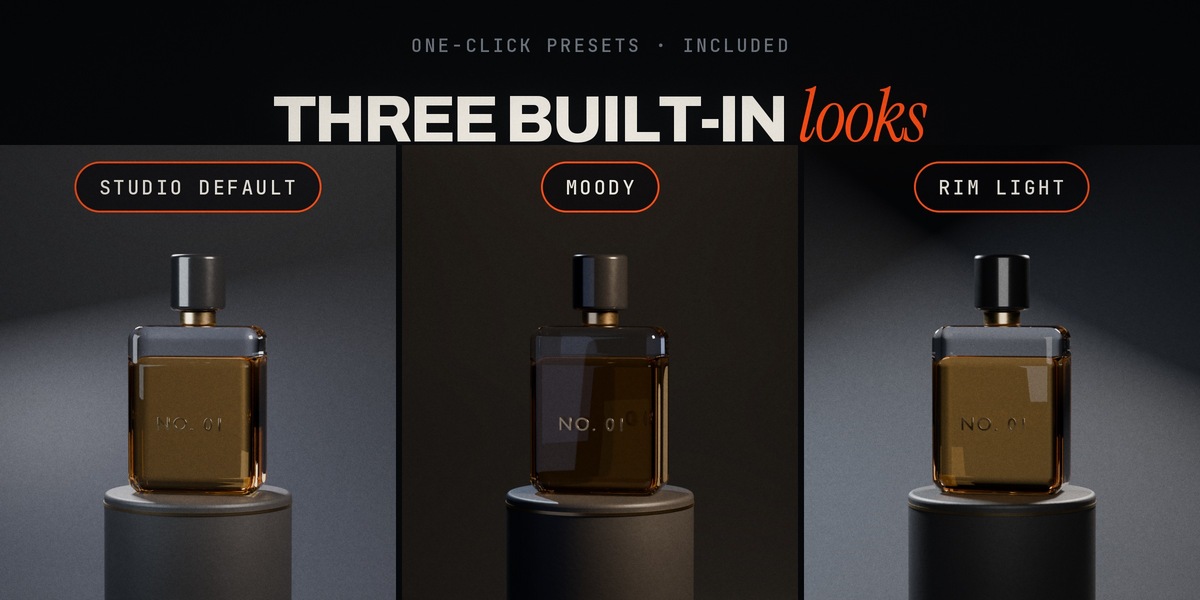
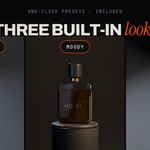
- Built-in: Studio Default (key / fill / rim area lights), Moody (warm key, faint cool fill, cool spot rim), Rim Light (two rims + soft front fill). Always available; can't be deleted.
- Save Active Setup: select any light or target of a rig, type a name, press the button. Saves what the rig shows now: each light's type, power, colour, size / spot size and offset from the target.
- Delete Active: deletes the selected profile if it's one of yours. Saving under a built-in name overrides the built-in; deleting that override brings the built-in back.
-
Storage: Blender's per-extension user folder (
light_profiles.json); legacy installs use<Blender user config>/lumirig_pro/. Updates never touch it.
7. Gobo shadows (Effects)
- Select a light of a rig.
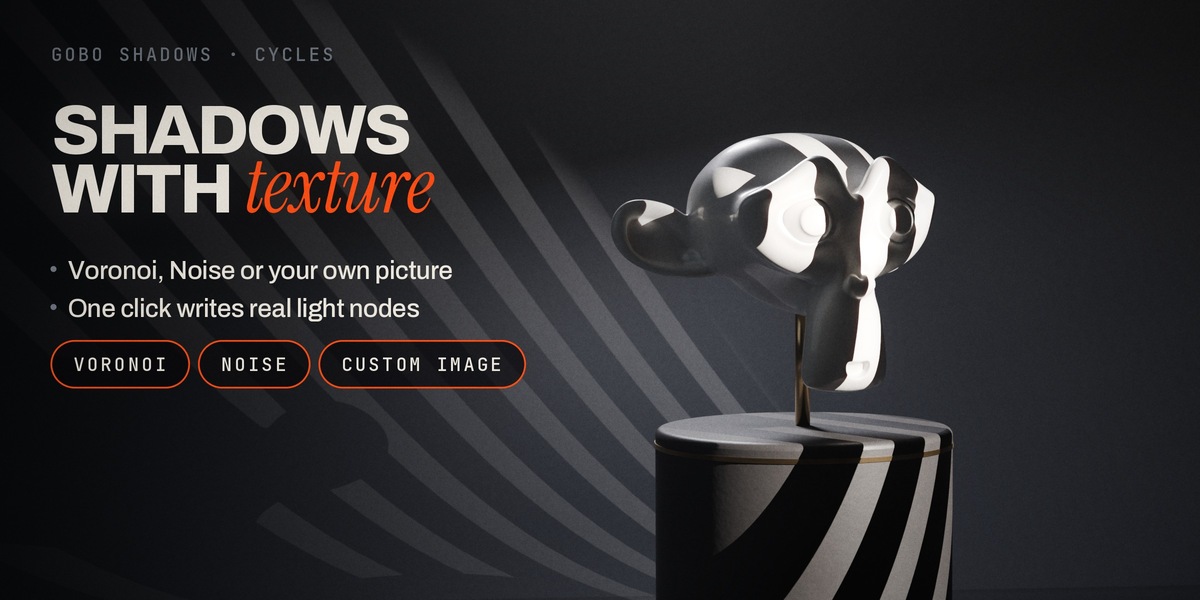
- Choose Voronoi (cell pattern), Noise (smoky / dappled) or Custom Image.
- Press Add Node.
LumiRig converts the light to a Spot and writes this node tree into it: Texture Coordinate (Normal) → Mapping → Voronoi / Noise / Image Texture → Color Ramp → Emission (Strength 1) → Light Output.
- Custom Image: open the light's node tree (Shader Editor → Object, with the light selected) and load your picture into the Image Texture node. A white placeholder keeps the light on until then.
- Tweak: texture Scale = pattern size; Mapping rotation/location = orientation and drift (animatable); Color Ramp stops = edge softness. Spot Size / Blend on the light = the beam.
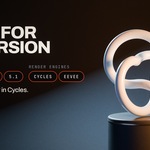
- Render engine: gobos are a Cycles feature; EEVEE ignores light node trees (the light still works there, without the pattern).
- Add Node replaces any existing node tree on that light.
8. Recipes
Product shot on a dark backdrop: Studio Default → lower Fill Power until the shadow side reads → raise the Rim until the silhouette separates → save it as your "Product" profile.
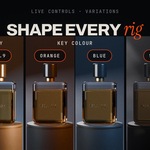
Warm / cool cinematic look: Moody → set the Key Colour warmer (orange) and the Rim cooler (blue) → Master Intensity to taste.
Silhouette with edge light: Rim Light → lower Front_Fill Power to almost zero → render with a dark world.
Dappled window or foliage light (Cycles): select the Key light → Noise → Add Node → in the light's node tree raise the Noise Scale for smaller patches; animate Mapping › Location for leaves moving in the wind.
Window blinds (Cycles): select the Key light → Custom Image → Add Node → load a picture of blinds/stripes into the Image Texture node → rotate with Mapping › Rotation.
Two subjects, two moods: select subject A → Add New Setup (Moody); select subject B → Add New Setup (Rim Light). Each rig has its own Master and Solo.
9. Troubleshooting
| Symptom | Fix |
|---|---|
| No "Lighting" tab | Press N in the 3D Viewport; check the extension is enabled. |
| Live Rig box missing | Select a light or the Light_Target of a rig (the box follows the active object). |
| "Profile not found!" | Pick a profile in the dropdown again (e.g. after deleting one). |
| Gobo pattern not visible | Render with Cycles; EEVEE ignores light node trees. |
| Custom Image gobo is plain white | Load your picture into the light's Image Texture node. |
| Rig aims at the wrong spot | Move Light_Target, or select the object and add a new setup (the target uses the object's origin). |
| Lights hidden after Solo | Click the eye of the soloed light again (Solo is per rig). |
| Could not save profiles | Check that Blender can write to its user config folder; the error names the path. |
10. Compatibility
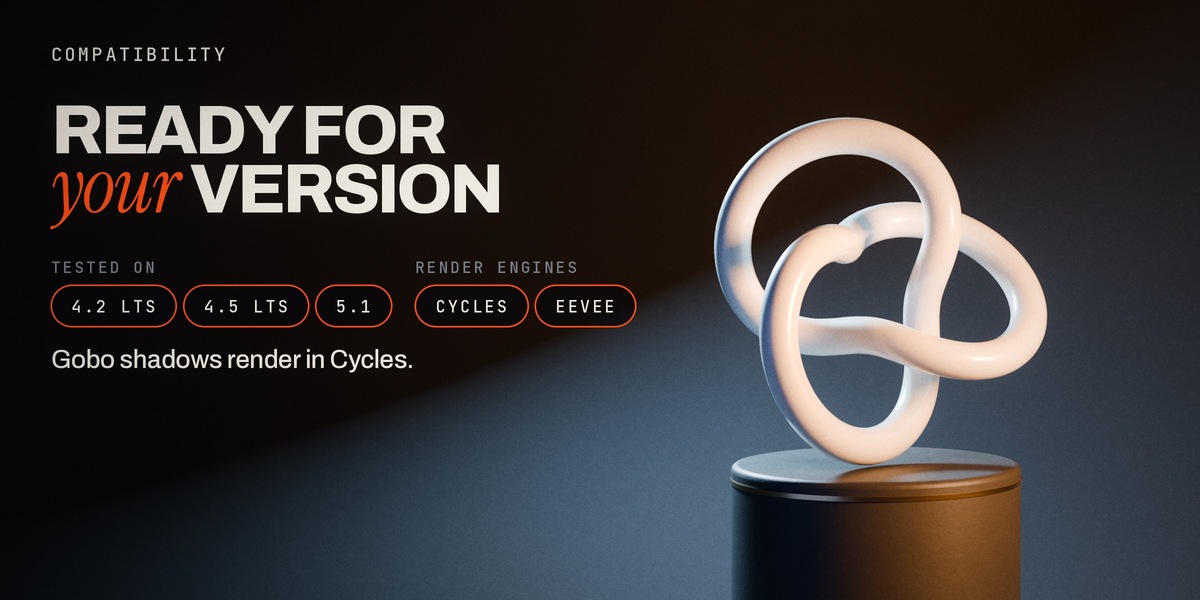
- Blender 4.2 LTS and newer as an extension (tested on 4.2, 4.5, 5.1); 4.0 / 4.1 as a legacy add-on.
- Render engines: EEVEE and Cycles (gobo patterns: Cycles).
- Licence: GPL-3.0-or-later.
11. Support
Use the message / support option of the store you bought LumiRig Pro from. Please include your Blender version and what you clicked.
 Included
Includes 12 months of
- Support from Darksteady. Studio
- Product updates
Extend this product’s Support Period +12 months: 25% of product price
Have questions before purchasing?
Login to message
| Blender Extension Compatible | Yes |
| Dev Fund Contributor | |
| Published | about 21 hours ago |
| Blender Version | 4.2 - 5.1 |
| Extension Type | Add-on |
| Render Engine Used | Cycles, Eevee |
| License | GPL |
Discover more products like this
product rendering light rig Studio Lighting cinematic-lighting Lighting rim light gobo three point lighting portrait lighting gobo-shadows lighting setup light presets