Material Cleaner Pro
 bashpacks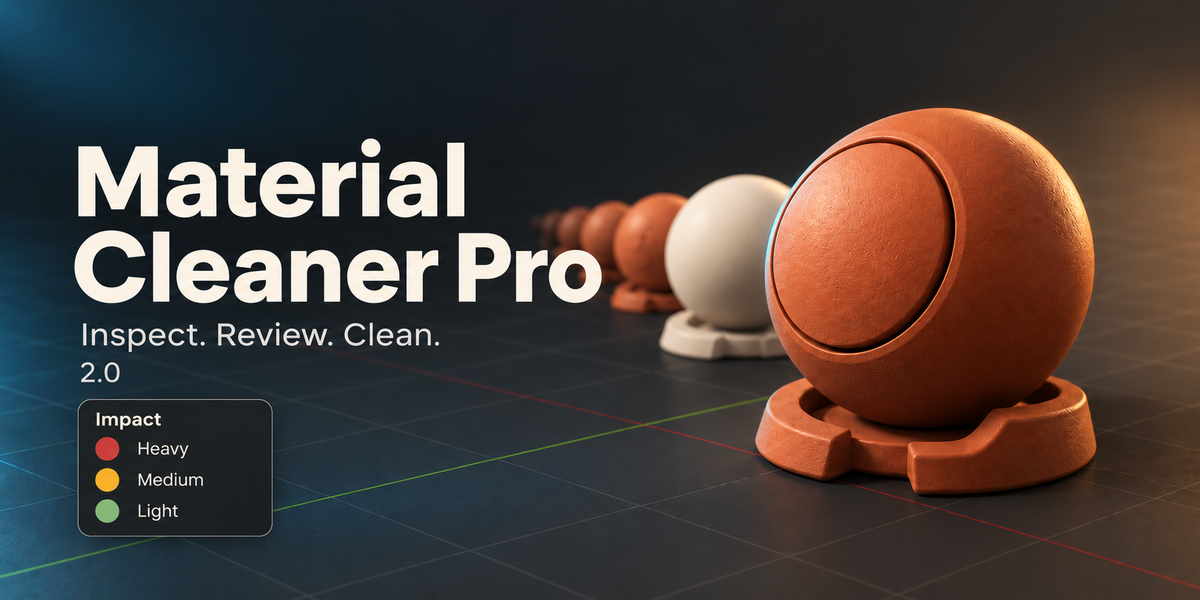

Safety update in 2.0.2: cleanup skips linked datablocks, library overrides, read-only data and local data with protected users, including shared meshes and node groups. Protected materials and images are excluded from merges and replacements. Whole-file orphan purge is skipped when protected local data or overrides are present.
Local diagnostics: the add-on writes material_cleaner_pro.log in Blender’s temporary directory, with the operating system’s temporary directory as a fallback. A new log handler overwrites the previous log. Operation and error messages may include datablock names. The add-on does not upload this file.
Customer release 2.0.2
Author and seller: bashpacks (Rimas Albert). License: GPL-3.0-or-later, full text included in the ZIP. Support: Contact the creator on this product page.
Install material-cleaner-pro-2.0.2.zip using Blender Preferences → Add-ons → Install from Disk. This release removes the automatic developer watcher and includes a customer README. Remove All Materials asks for confirmation and affects other objects sharing the selected mesh/data. Deep Cleanup remains material-scoped by default; enabling whole-file purge also removes unrelated unused meshes, images, node groups and other local datablocks after the warning. Undo can restore changes before saving.
Material Cleaner Pro 2.0 — User Guide
The current interface is marked Beta. Save a separate project copy before cleanup.
1. Install
Download the release ZIP and keep it zipped. Open Edit → Preferences → Add-ons → Install from Disk (Install in older Blender versions). Select the ZIP and enable Material Cleaner Pro. In the 3D Viewport press N and open the Material Cleaner Pro tab.
2. Compatibility
Minimum Blender 3.6; checked locally on Windows in 5.0 and 5.1. Other versions/platforms have not all been validated. This is a classic add-on ZIP. No AI account is required.
3. Analyze, review, clean
- Save a separate .blend copy.
- Choose Analyze Materials and review the scene material list.
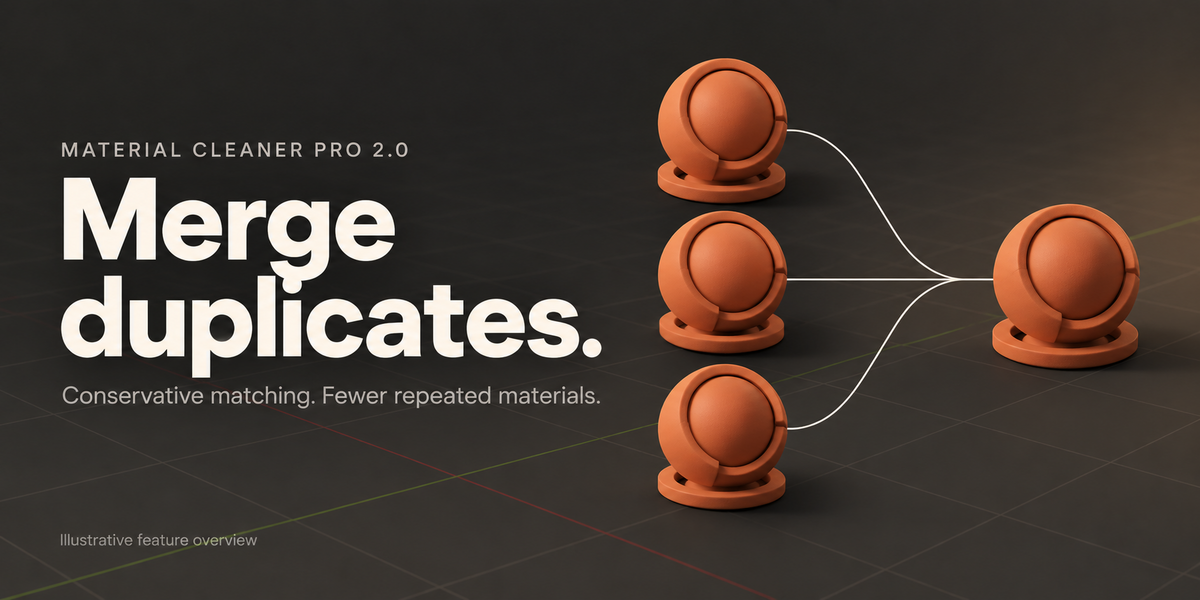
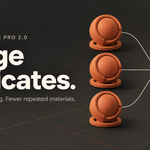
- Use Merge Duplicates to consolidate matching materials. Similar-looking materials are not necessarily equivalent.
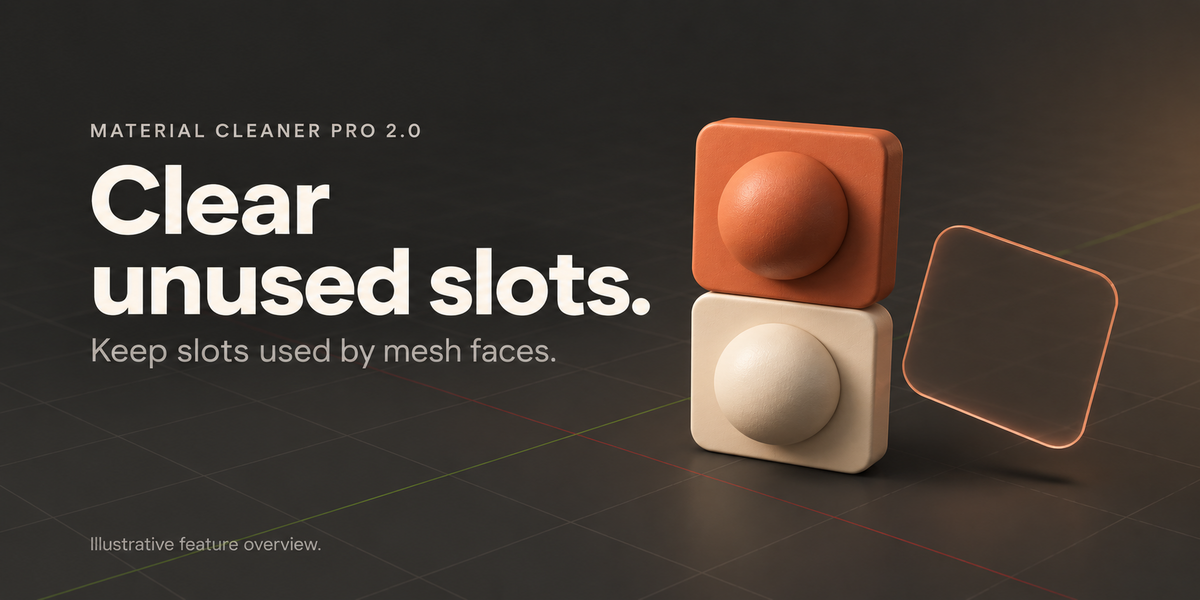
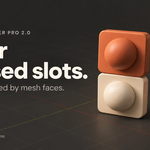
- Use Clean Unused Slots to remove unused mesh slots according to face assignments.
- Review the scene and assignments before saving.
4. Material browser
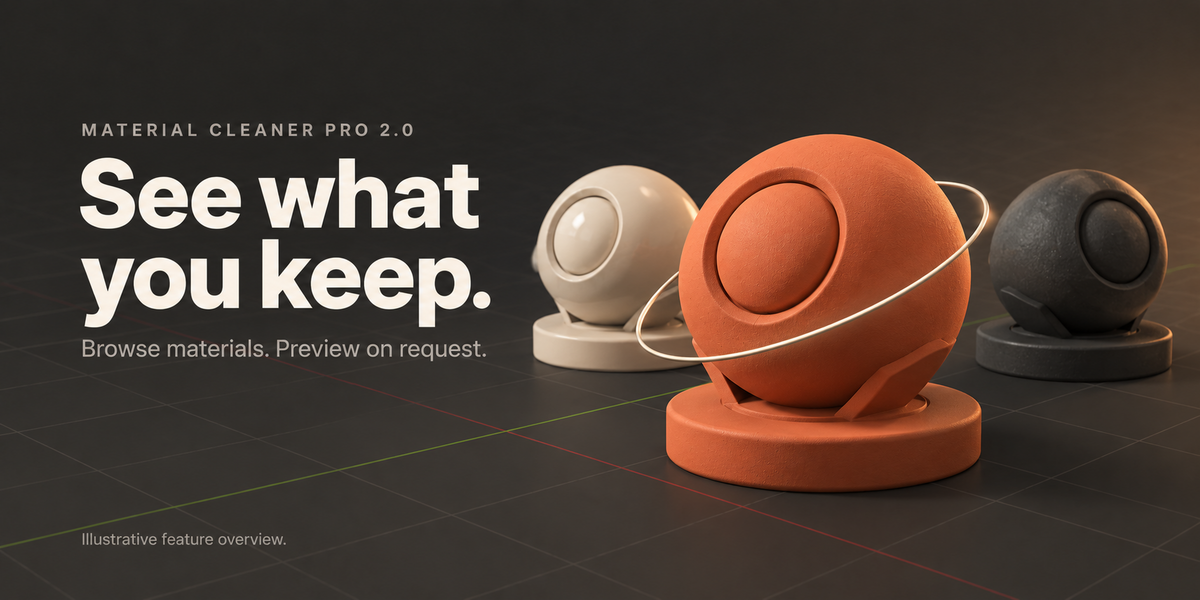
Choose Open Browser for a wider view. Search, sort and filter by Duplicates, Heavy, Unused or Selected. Select Objects finds objects using the active material; Find in Outliner reveals the first matching object. Select Similar selects exact duplicate matches.
Open Interactive 3D Preview enables Blender’s native preview in Material Details. Follow the interface prompt to close/reopen the popup if needed, then drag to orbit and use the wheel to zoom. Preview shapes are selectable. Previews are opt-in to avoid idle GPU work.
5. Optimize one material
Choose a material and use Optimize This Material. This consolidates verified duplicate materials and equivalent image datablocks and cleans unused mesh slots. Texture reduction is a separate action.
6. Reduce Texture Footprint
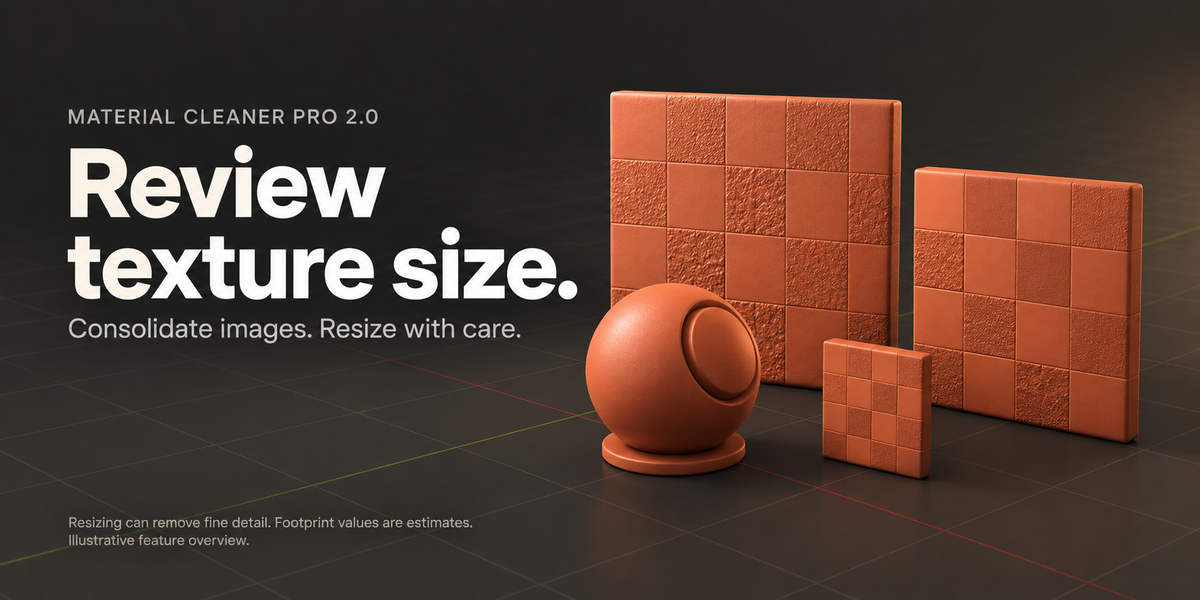
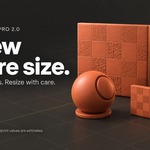
Select a material, choose Reduce Texture Footprint and set a maximum dimension of 1K, 2K or 4K. Read the quality warning before confirming. Supported oversized FILE or GENERATED images are resized into smaller packed copies; source image files are not overwritten. Fine detail may be lost. Inspect the result and use Undo if needed before saving.
7. Memory analysis and deeper cleanup
Analyze Memory reports estimated texture footprint, loaded images and cleanup signals; these are not measurements of actual VRAM. Analyze Images finds possible duplicate image datablocks. No specific performance or memory reduction is guaranteed.
Deep Cleanup merges exact duplicates and cleans slots while staying material-scoped by default. Its separate Purge all local orphan data option extends cleanup to unrelated orphan datablocks throughout the file. Leave it disabled unless that broader cleanup is intended.
8. Cycles texture cache
Prepare Low-Memory Rendering needs the Blender 5.2+ texture-cache API. It is unavailable on 5.1. The newer path enables cache settings and generates .tx files, and has not been validated by this release’s local 5.0/5.1 tests.
9. Troubleshooting
- No sidebar tab: check the add-on is enabled and that your cursor is in a 3D Viewport before pressing N.
- No duplicates found: matching is conservative; material settings, images or nested groups may differ.
- Preview inactive: enable the opt-in preview and select an active material.
- Texture skipped: it may already be within the size limit or be an unsupported image type.
- Unexpected result: undo the last operation or return to your saved backup.
10. Feedback
Use Contact the creator on the product page with Blender/OS/add-on versions, the exact error and steps to reproduce. Share only project content you are permitted to disclose. Feedback is welcome; I will do my best to investigate and fix issues.
Have questions about this product?
Login to message
| Dev Fund Contributor | |
| Published | 6 days ago |
| Blender Version | 3.6 - 5.1 |
| Extension Type | N/A |
| Render Engine Used | Cycles, Eevee |
| License | GPL |
Discover more products like this
material-management Duplicate Materials material cleaner material browser scene cleanup unused-slots texture resizing texture optimization blender addon