Max Group - Ultimate Grouping for Blender
 VertexModeler Inc.



Max Group Documentation
Version: 2.0.5
Blender: 5.2 LTS
Platforms: Windows, macOS, Linux
Interface languages: English, Simplified Chinese
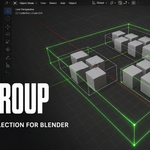
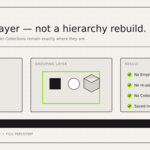
Max Group adds a fast, nested grouping workflow to Blender. It is an interaction and selection layer: it does not create Empty objects, change parenting, or move objects between Collections.
1. Installation
Download the original Max Group ZIP file.
In Blender, open Edit → Preferences → Extensions.
Open the Extensions menu and choose Install from Disk.
Select the ZIP file. Do not extract it.
Enable Max Group if Blender does not enable it automatically.
After activation, open the 3D Viewport Sidebar with N, then select the Max Group tab.
Updating from Max Group 1.x
Install and enable the 2.0 Extension package normally. Max Group 2.0 automatically disables the old legacy add-on entry point so that duplicate timers and selection listeners cannot run together. Existing group data stored in .blend files is preserved.
2. Essential Shortcuts
| Shortcut | Action |
|---|---|
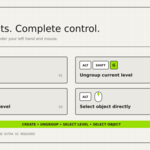
Ctrl + Shift + G |
Create a group or nested group |
Alt + Shift + G |
Ungroup the active group level |
Ctrl + Left Mouse |
Select the smallest group level under the pointer |
Alt + Left Mouse |
Select an individual object through group boundaries |
Shift + Left Mouse |
Add or remove a complete group from the selection |
All four primary shortcuts are editable in Preferences → Add-ons/Extensions → Max Group. Click shortcuts use Blender's CLICK event, so modifier-drag actions such as native Ctrl box selection remain available.
3. Basic Selection Behavior
Select a group
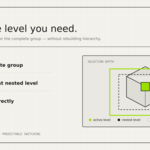
Click an object inside a closed group. Max Group selects the complete group level currently visible to you.
Open a group
Click an already selected group again. The selected group opens by one level, allowing access to its direct objects and child groups.
Switch to another group
Click an object in another group without holding Shift. The previous selection and open branch are cleared, and the newly clicked group becomes active.
Select an individual object
Use Alt + Left Mouse to bypass group selection and pick an individual object. Repeated Alt-clicks can cycle through eligible objects below the pointer.
Select the innermost group
Use Ctrl + Left Mouse to jump directly to the smallest nested group containing the object below the pointer.
Add or remove groups
Use Shift + Left Mouse when you intentionally want multi-selection. The complete group is added to or removed from the current selection.
Clear the current interaction state
Click empty viewport space. Max Group clears the selection and closes open group branches immediately.
4. Creating Groups
Enter Object Mode.
Select one or more objects.
Press
Ctrl + Shift + G.
Max Group creates a new group and assigns an automatic name such as Group.001.
Nested groups
Grouping complete existing groups creates a new outer group.
Grouping selected members inside an open group creates a child group at that level.
Grouping partial members from different parent groups moves those members into a new top-level group.
A one-object group is allowed.
Empty groups are removed automatically.
An object can belong directly to only one group at each path level. Nesting is represented as a group path rather than Blender parenting.
5. Ungrouping
Select the group level you want to remove, then press Alt + Shift + G.
Ungroup removes only the active level:
Direct objects remain selected.
Child groups keep their internal structure.
Parent groups remain intact.
Object parenting and Collection membership do not change.
You can also use Ungroup from the Max Group panel or Group Manager.
6. Adding and Removing Members
Add objects or groups to a group
Select the source objects or complete source groups.
Select the destination group last so it becomes the active group.
Choose Add to Group.
Existing source groups are moved as intact child groups. Their internal nesting is preserved.
Remove members from a group
Open the parent group.
Select the direct objects or child groups you want to remove.
Choose Remove from Group.
Child groups are moved out as complete groups. Their internal structure is not dissolved.
7. Group Manager
The Group Manager provides a scene-wide view of the Max Group structure.
Available actions include:
Search groups by name.
Expand or collapse nested branches.
Rename a group.
Select or frame a group in the 3D Viewport.
Open or close a specific group level.
Add the current selection to a target group.
Ungroup the selected group.
Isolate a group and restore the previous visibility state.
Toggle viewport visibility, selection lock, render visibility, wire display, or transform freeze for a complete group.
The member counter displays direct members and total descendant members.
8. Bounding Boxes
Bounding boxes show the current group state without becoming selectable UI elements.
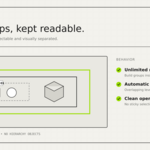
Closed / unselected: gray-white
Selected: orange
Open: green
Bounding boxes are visual indicators only. Selection always begins from a concrete object, preventing accidental picks from overlapping box lines.
Default display behavior
Unselected boxes stay hidden in Clean Viewport Mode.
Hovering a grouped object reveals its group box.
Selected and open groups remain visible.
Outer nested boxes expand slightly by depth to prevent coincident edges.
Depth Occlusion hides box segments located behind scene geometry.
Local View and local Collection visibility are respected; isolated or excluded objects cannot produce hover boxes.
Colors and line width can be changed in the Max Group preferences. The default line width is 1.5.
9. Behavior Settings
Open Max Group → Behavior Settings in the 3D Viewport Sidebar.
| Setting | Default | Purpose |
|---|---|---|
| Group Selection Affects Outliner | Off | Applies group-click behavior to the Outliner. When disabled, the Outliner keeps Blender's native object selection. |
| Automatic Nested Box Expansion | On | Expands outer boxes by nesting depth so overlapping levels remain readable. |
| Reveal Box on Object Hover | On | Shows an unselected group box while the pointer is over one of its visible objects. |
| Clean Viewport Mode | On | Hides boxes that are not selected, open, or hovered. |
| Depth Occlusion | On | Hides box segments behind scene geometry. |
| Protect Closed Groups from Edit Mode | On | Blocks Tab when a closed group is selected. |
| Allow Multi-Object Edit in Open Group | Off | Allows Blender's native multi-object Edit Mode for manually selected compatible objects inside an open group. |
| Large Scene Performance Guard | On | Reduces background polling and box-display load in very large scenes. |
Outliner behavior
By default, ordinary click, Alt-click, Shift selection, and box selection in the Outliner remain native Blender operations. Enable Group Selection Affects Outliner only if you deliberately want viewport-style group selection there.
10. Transform and Object Operations
When a closed group is selected, common object-level operations are applied as a group while respecting Blender's current transform pivot.
Supported workflows include:
Move, rotate, and scale.
Apply location, rotation, and scale.
Delete a complete group.
Shift + DandAlt + Dduplication.Join compatible selected group members with
Ctrl + J.Explicit Collection move/link synchronization when enabled.
Hidden or selection-locked group members can participate internally without being revealed in the viewport. Complete-group duplication creates an independent copied group structure; duplicating an individual member keeps the duplicate in the original group.
Max Group does not guarantee automatic compatibility with every third-party operator. If an external add-on replaces objects or performs a custom selection workflow, run Group Structure Health afterward.
11. Collections, Parenting, and File Data
Max Group does not replace Blender Collections.
Grouping does not:
Create Empty objects.
Change object parents.
Change world transforms.
Move objects between Collections.
Rebuild the Outliner hierarchy.
Group paths are stored as compact custom properties on grouped objects and are saved in the .blend file.
Append, Link, and Library Override
Append: group paths are preserved with the appended objects.
Link: linked group information is visible but read-only.
Library Override: local group edits are allowed where Blender permits the overridden data to be edited.
Use Collection Compatibility to inspect members in multiple Collections, excluded View Layers, linked data, Library Overrides, Collection instances, or objects shared by multiple scenes.
12. Group Structure Health
The health checker detects inconsistent or damaged group metadata, including:
Invalid group path data.
Repeated group IDs in one path.
Conflicting parent definitions.
Inconsistent group names.
Inconsistent group display states.
Mixed linked and local definitions.
Choose Check Group Structure to scan without changing the scene. If issues are found, Repair Group Structure normalizes editable local paths while leaving read-only linked data untouched.
Save a backup before repairing data that has been manually edited or modified by another script.
13. Troubleshooting
The panel shows no editable group
Confirm that an object is selected.
Confirm that the active object belongs to a Max Group.
Click a grouped object again to refresh the active group.
Linked groups are read-only and cannot be renamed, regrouped, or ungrouped locally.
The panel always displays a status message when editing is unavailable.
Alt-click does not select a single object in the Outliner
The Outliner uses Blender's native object selection by default. Alt-click through-selection is a 3D Viewport shortcut. Keep Group Selection Affects Outliner disabled when you want completely native Outliner behavior.
A bounding box appears for an invisible object
Update to Max Group 2.0.5 or later. Version 2.0.5 filters Local View, local Collection visibility, excluded objects, and non-surface object picking.
Ctrl-drag no longer starts Blender's native selection tool
Open Max Group preferences and confirm the click shortcuts still use the CLICK event. Avoid changing them to PRESS, because PRESS can consume the beginning of a drag gesture.
Group selection feels additive
Release Shift before clicking another group. Normal click replaces the current group selection; Shift + Click is the intentional add/remove mode.
The group structure behaves unexpectedly after another add-on runs
Open Group Structure Health, run a scan, and repair only if an issue is reported.
14. Privacy and Security
Max Group does not:
Access the network.
Collect telemetry.
Read credentials.
Start external programs.
Write external user files.
Group metadata is stored only in the active Blender file. Runtime diagnostics use a bounded in-memory buffer and are discarded when the extension is disabled.
15. Support Checklist
When reporting an issue, include:
Blender version.
Max Group version.
Operating system.
Exact reproduction steps.
Whether the affected objects are local, linked, appended, or Library Overrides.
Whether the problem occurs in the 3D Viewport, Outliner, or both.
A minimal
.blendfile when possible.
Copyright © 2026 VertexModeler. Licensed under GPL-3.0-or-later.
 Included
Includes 12 months of
- Support from VertexModeler Inc.
- Product updates
Extend this product’s Support Period +12 months: 50% of product price
Have questions before purchasing?
Login to message
| Blender Extension Compatible | Yes |
| Published | about 2 months ago |
| Blender Version | 5.0 - 5.2 |
| Extension Type | Add-on |
| License | GPL |
Discover more products like this
Object Management blender-extension groups max group blender grouping non-destructive object grouping productivity blender addon hierarchy