 miccoli3d


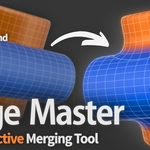
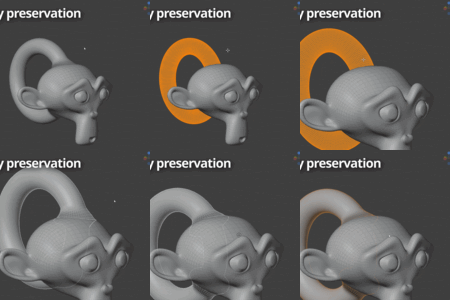
Merge Master — Documentation
Real-time, non-destructive mesh adhesion for Blender 5.0+.
This page covers installation, the basic workflow, every parameter in the panel, the finalizing options, known limitations, and troubleshooting. If anything isn't behaving as expected, please reach out at [email protected] before leaving a review, so we can sort it out together.
Requirements
- Blender 5.0 or newer (tested on the latest version).
- Eevee, Material Preview and Cycles are all supported. See the Renderer notes section for Cycles-specific behavior.
Installation
- Open Blender.
- Go to Edit, then Preferences, then Add-ons.
- Click Install, then select merge_master.py.
- Enable the add-on by ticking its checkbox.
- The Merge Master panel appears in the 3D Viewport's N panel, under the Merge Master tab.
Quick start
- Select the two objects you want to fuse. Object A is the active one (the last selected), Object B is the target it fuses onto.
- Press Ctrl+Shift+M, or click Activate in the panel.
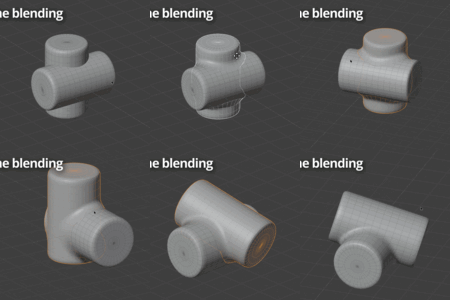
- Object A fuses onto the surface of Object B with a clean adhesion between them.
- Adjust the Global Merge slider to control the overall strength of the effect.
That's the whole loop. The default parameters land you at a clean adhesion immediately, so you can start tweaking from a good baseline.
The panel
Global Merge
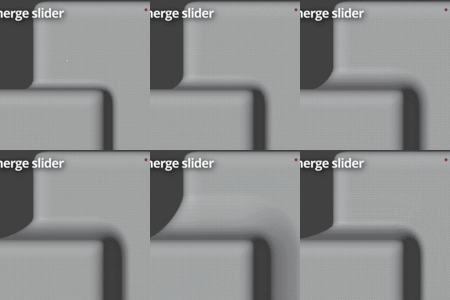
The main control. It scales Strength, Radius and Normals together proportionally in a single motion, and does about 90% of the work on its own. Start here.
Strength
How strongly Object A is pulled onto Object B's surface.
Radius
How wide the adhesion zone is around the contact area.
Normals
Controls the normal blending across the transition. Following the tuned defaults, Normals tracks Radius.
The individual sliders break free from Global Merge the moment you touch one of them, so you can fine-tune any single parameter without losing the others.
The default 2:1 Strength-to-Radius ratio produces clean adhesion curvature out of the box. If a result looks off, reset to defaults before adjusting individual sliders.
Falloff curve
Controls the profile of the blend across the adhesion zone. Four presets cover most cases:
- Smooth
- Linear
- Sharp
- Sphere
A custom curve editor lets you draw your own profile when none of the presets fit. The curve updates the blend live. When you change the curve, remember to refresh the normals.
Subdivision
Built-in subdivision control with two modes:
- Simple (default): always works, on any mesh, with no extra configuration. The result isn't mathematically 100% accurate, but it's clean and visually flawless in the vast majority of cases.
- Advanced: produces a mathematically correct subdivided adhesion. To deliver that, it may require higher polygonal density on Object B.
Blend Materials (optional)
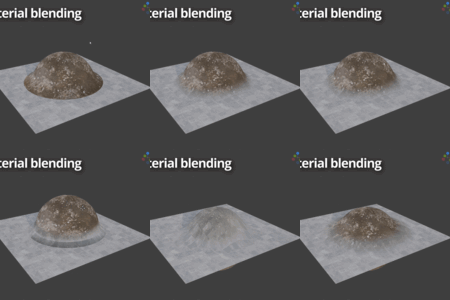
Creates a texture transition between Object A's material and Object B's material across the merge zone. You get independent intensity per side, so you control how far each material bleeds in.
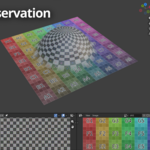
Refresh manually, or enable Auto Refresh to update on idle. UV maps are never rewritten, shifted or modified by this process.
Boolean operations (optional)
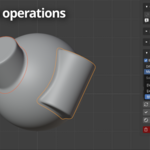
When enabled, Object A is cut against Object B so the finalized mesh carries no hidden interior geometry. It is very useful for 3d printing purposes.
Per-object settings
Multiple objects can merge onto the same Object B independently. Each one stores its own configuration directly on the object, so several meshes can blend onto a single body, each with its own strength, radius and falloff.
Finalizing
When you're happy with the result, you have two ways to commit it.
Bake to Mesh
Generates the final joined geometry and applies the adhesion permanently. An optional backup of the original setup can be saved into a dedicated collection, in case you want to revisit it later.
Bake for Cycles
Joins the two meshes and adds a Bevel node to the material that smooths the merge boundary at render time. This compensates for how Cycles renders the blended normals at the contact zone. See the Renderer notes section below for why this matters.
Full reversibility
Use Remove Setup at any moment before baking. Object A returns to its exact pre-merge state, with the same topology and the same UVs.
Renderer notes
Eevee handles the merge transition natively. It calculates the blended normals at the contact area consistently with what you see in the viewport, and renders cleanly with no extra steps.
Cycles computes indirect lighting from those blended normals slightly differently. On flat-lit matte surfaces this isn't a real problem, but on metallic or glossy surfaces the difference is more evident. The fix is Bake for Cycles, which adds a Bevel node to smooth the contact area at render time. On metallic and glossy surfaces the difference practically disappears entirely, since Bake for Cycles was designed specifically for these cases.
Merge Master is not suitable for glass or refractive materials.
Important behavior to know
- Existing modifiers are applied on activation. When you activate the merge (button or Ctrl+Shift+M), any existing modifiers on both Object A and Object B are applied automatically before the Merge Master stack is built. Make sure your objects are in the state you want before activating.
- Editing Object A in Edit Mode while the merge is active. If you add geometry in Edit Mode, reassign the vertex group: enter Edit Mode on A, select all geometry (press A), then in the Vertex Groups panel find MM_MergeGroup and click Assign.
Subdivision and mesh density. The adhesion is built on top of the mesh resolution of Object A. The denser the mesh, the smoother and more accurate the blend. Subdivision is optional. If Object A already has enough geometry, you can leave it off entirely, and most of the time that is the recommended approach. The subdivision control is meant for cases where the base mesh is too low-res to produce a clean adhesion on its own. When you bake, whatever subdivision is active at that moment gets applied to the final mesh. This means the baked result will be denser than the original geometry whenever subdivision was in use. To keep your baked output as light as possible, use only as much subdivision as the adhesion actually needs, and check the result before baking.
Limitations
These are the real edge cases, documented honestly.
- Cycles with diffuse / matte materials. See the Renderer notes section. A fully native Cycles solution is the headline feature planned for v2.0.
- Subdivision together with Blend Materials. Using both at once produces a visual artifact along the edge of the adhesion zone. For now, use Blend Materials without subdivision, or subdivision without Blend Materials, depending on what your shot needs. Fix planned for v2.0.
- UV seams on Object B inside the contact area. If Blend Materials is active and Object B has UV seams crossing the adhesion area, they'll show as small texture discontinuities on Object A's side of the blend. The fix is to re-unwrap B avoiding seams in that region, a one-time UV pass. If you're not using Blend Materials, this doesn't affect you.
- Pushing parameters too far. Pushing Strength or Radius past certain limits relative to your geometry can create holes or visible artifacts. The 2:1 defaults are tuned to avoid this in most cases. If you need more aggressive values, increase them gradually and watch the mesh as you go, rather than jumping straight to maximum.
Workflow tips
- Apply scale first. A scale other than 1 is the most common cause of unexpected behavior with any non-destructive workflow. Merge Master detects it and offers a one-click fix before activation.
- Trust the defaults. The 2:1 Strength-to-Radius ratio is tuned for a reason. If something looks off, reset to defaults before tweaking individual sliders.
- Check your normals. Standard hygiene for any non-destructive workflow. If results look strange, check your normals before troubleshooting anything else.
Troubleshooting
The result has holes or visible artifacts. Your Strength or Radius is probably pushed too far for the geometry. Reset to defaults and increase gradually.
Object A behaves unexpectedly after activation. Check that scale is applied (should be 1 on all axes). Merge Master offers a one-click fix for this before activation. Also check that your normals are clean.
A faint shading line appears at the contact zone in Cycles. This is the diffuse/matte Cycles behavior described in Renderer notes. Use Bake for Cycles, which is designed to resolve it, most effectively on metallic and glossy surfaces.
Texture discontinuities on A near the blend. This happens when Blend Materials is active and Object B has UV seams crossing the adhesion area. Re-unwrap B avoiding seams in that region.
An artifact appears along the adhesion edge. You likely have Subdivision and Blend Materials active at the same time. Use one or the other for now.
I edited A in Edit Mode and the merge stopped following the new geometry. Reassign the MM_MergeGroup vertex group: Edit Mode on A, select all (A key), Vertex Groups panel, MM_MergeGroup, Assign.
Support
If something isn't behaving the way you expect, please reach out first. Most issues are either a small fix on my end or a quick workflow tweak, and I respond quickly.
License
Merge Master is released under the GNU General Public License v3 (GPL v3), as required for Blender add-ons that use the Blender Python API.
Roadmap
- v2.0 — native Cycles solution for the diffuse/matte boundary shading.
- Beyond that, refinements based on real user feedback.
Merge Master v1.1.0 — by Miccoli3D
 Included
Includes 12 months of
- Support from miccoli3d
- Product updates
Extend this product’s Support Period +12 months: 50% of product price
Have questions before purchasing?
Login to message
Discover more products like this
Merge modeling blend hardsurface addon retopology non-destructive