Mesh Split
 Tachyon Studio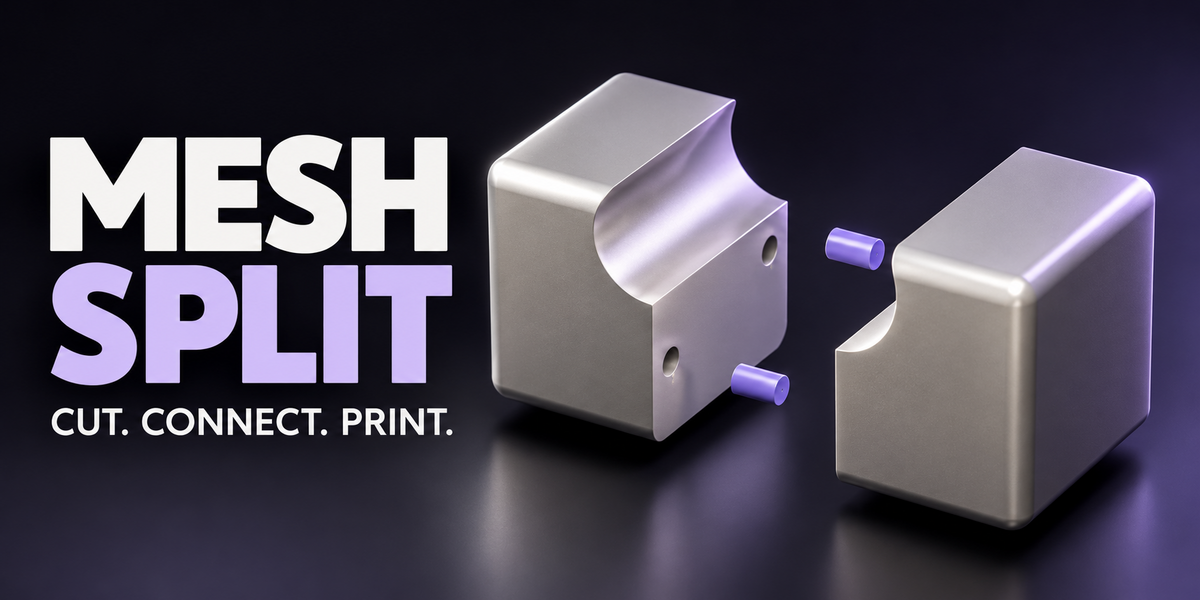
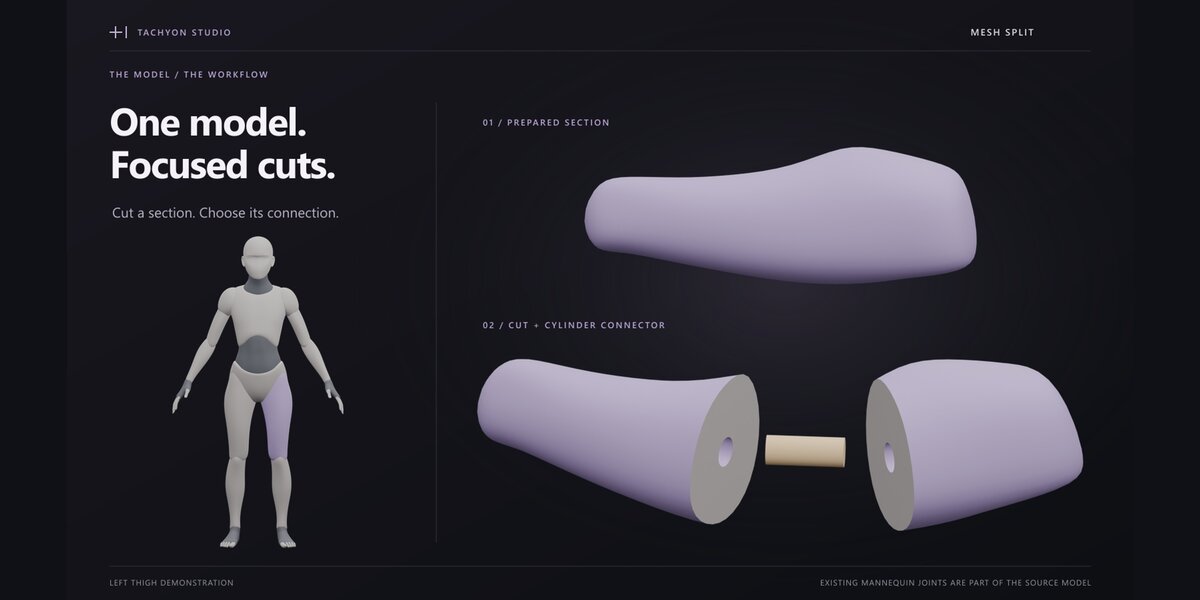

Mesh Split — User Guide
Version 1.1.1 · Tachyon Studio · Blender 3.0–5.2
This guide takes you from installation to an exported assembly, then explains the controls for more demanding cuts and connections. Mesh Split prepares geometry inside Blender; slicing, printer setup and physical fit testing remain separate steps.
Find your next step
Installation · First project · Quick & Advanced · Cut tools · Connectors · Live gizmo · Dimensions & fit · Presets & numbering · Assembly checks · Export · Undo & revisions · Troubleshooting
Installation and scene preparation
Mesh Split 1.1.1 supports Blender 3.0–5.2. Both installers contain the same feature code; choose the one that matches your Blender version.
Blender 3.0–4.1 — legacy Add-on
- Download
mesh_split-1.1.1-legacy-blender3.0-4.1.zipwithout unpacking it. - Open Edit → Preferences → Add-ons → Install, select the ZIP and enable Mesh Split.
Blender 4.2–5.2 — Extension
- Download
mesh_split-1.1.1-extension-blender4.2-5.2.zipwithout unpacking it. - Open Edit → Preferences → Get Extensions, open the menu and choose Install from Disk. Select the ZIP and enable Mesh Split.
In the 3D Viewport, press N and open the Mesh Split sidebar tab. Install only one variant. Before upgrading, save a backup of your .blend, finish or discard pending work, disable the previous installation and restart Blender. Keep exported preset-library backups when changing Blender versions.
The separate mesh-split-1.1.0-documentation-and-demo.zip is a learning package, not an installer. Extract it normally to access the illustrated manual, complete operator reference, six Blender scenes and six MP4 videos. Demo .blend files saved by newer Blender may not open in Blender 3.x; the add-on works independently of those optional scenes. Use the installation instructions on this page for the 1.1.1 compatibility release.
Start with a saved copy of your scene and a clean, closed mesh. Check its intended dimensions and apply object scale if you resized it. Check Mesh highlights non-manifold edges; Show Problems in Edit Mode selects them for repair. Complex self-intersections, coplanar surfaces or unsuitable paths may be rejected.
Verified on Windows x64: Blender 3.0.1, 3.3.21 LTS, 3.6.23 LTS, 4.1.1, 4.2.23 LTS, 4.3.2, 4.5.14 LTS, 5.0.1 and 5.2.0 LTS. All 180 final regression-suite runs passed, together with GPU shader/font/gizmo-batch drawing, STL/OBJ/3MF dimensions and orientation checks, and installation from the customer ZIPs. Not every minor or patch release was individually tested. macOS, Linux and other graphics hardware were not tested. Boolean topology, speed and UI appearance may differ; these checks do not cover every physical mouse gesture or guarantee printed fit.
Your first complete project
- Create a cube approximately 80 × 80 × 80 mm, apply scale and select it in Object Mode.

- Open Mesh Split and leave Quick mode enabled. In 1 Cut, select Straight and draw across the cube, starting and ending outside its silhouette.
- Inspect the pending pieces. Keep Cylinder and Separate Piece for a simple loose connector.
- Adjust Size and, if needed, select the connector and move it with the viewport gizmo. Resolve any red placement warning.
- Choose Apply Cut(s) and Connectors. Use Exploded View to inspect the real parts, then Reassemble to restore their positions.
- Calibrate the gap for your printer before committing to a full print. Finish or discard all pending operations, then export the complete job.


Apply, inspect and reassemble — edited steps from the real Blender interface. Click to enlarge.
Understanding Quick and Advanced
Both modes follow the same four sidebar steps: Cut → Connectors → Check → Export. The action at the top changes with the current state: pending cuts offer Apply/Discard; two cut pieces offer connector preview actions; an active preview offers Apply/Cancel. The Next line explains what to do next. Unavailable actions are hidden rather than greyed out.
Quick provides automatic fitting and a combined Size control. It offers Cube, Trapezoid and Cylinder. Advanced exposes all seven shapes, exact dimensions, connector counts, numbering and print settings. Switching modes does not change geometry or preset values, so you can continue or cancel the same operation in either mode.
Show Cuts Live displays the evaluated cut result while settings change, but can be slower on dense meshes. With it off, the connector overlays still update. Hide Connectors hides previews, labels and gizmos without deleting geometry. Apply always performs the complete validation and Boolean evaluation.
1. Draw, edit and queue cuts
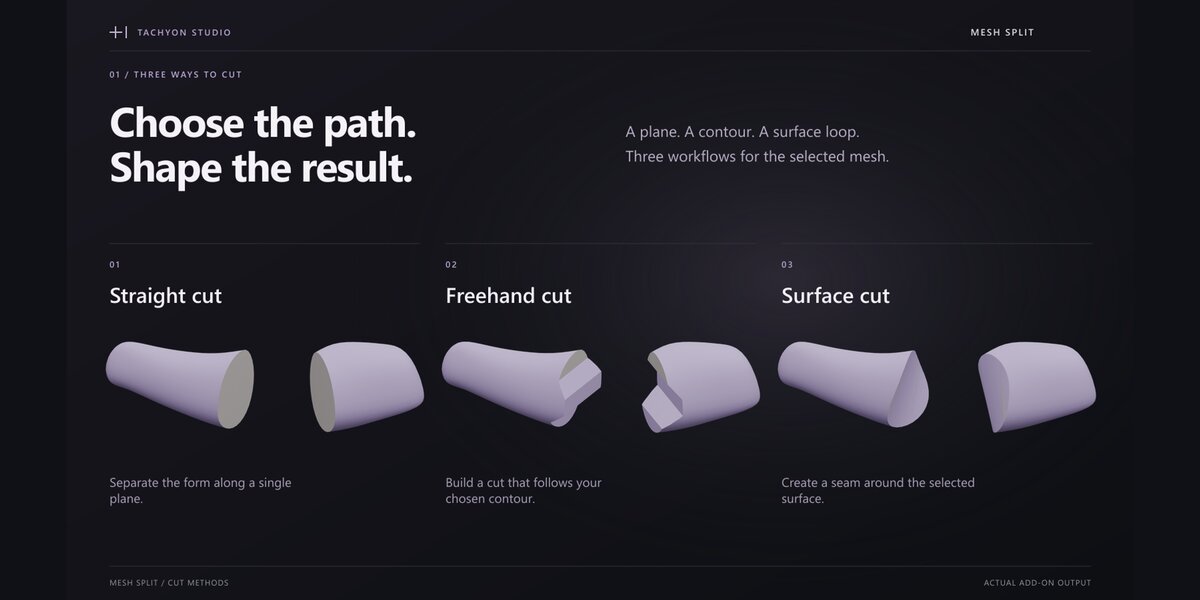
Choose the cut tool
- Straight: draw a line in the viewport. The stroke is finite; only crossed geometry is cut.

- Freehand: draw an open, view-projected path across the whole target silhouette. Start and finish outside the model. Endpoints on the model produce a warning rather than silently extending the cut.


- Surface: trace a closed loop directly on the active mesh. Orbit with the middle mouse button and continue tracing; close the loop to inspect the separating membrane.
Straight and Freehand can cut several selected meshes with one stroke. Each crossed mesh receives its own cut; missed meshes are skipped. Surface works on the active mesh only. You can also cut an already-previewed piece again to build a multi-cut plan.

Draw the cut — edited steps from the real Blender interface. Click to enlarge.
Edit before applying
Freehand and Surface use editable control points. Drag points to reshape the path and use the viewport editor's insertion and removal controls. Shift enables precision movement. Enter accepts the inspected cut; Escape cancels the current gesture or editor according to its state. Follow the tool's on-screen hints for the active editing mode.
Queued cuts appear in the pending list. Their tick boxes determine which cuts contribute to the live result and will be applied. Select a row to activate its connectors; Shift-click adds to the selection. Use Edit Points or Redraw to revise a queued cut. The list menu offers Tick All, Untick All and Discard All Cuts.
Apply Cut(s) and Connectors validates and commits the ticked batch. Discard Ticked Cut(s) removes the selected plans. Quick's Apply Each Cut Right Away can commit a completed stroke immediately when nothing else is waiting; leave it off when you want to review multiple cuts together.
2. Choose and apply connectors
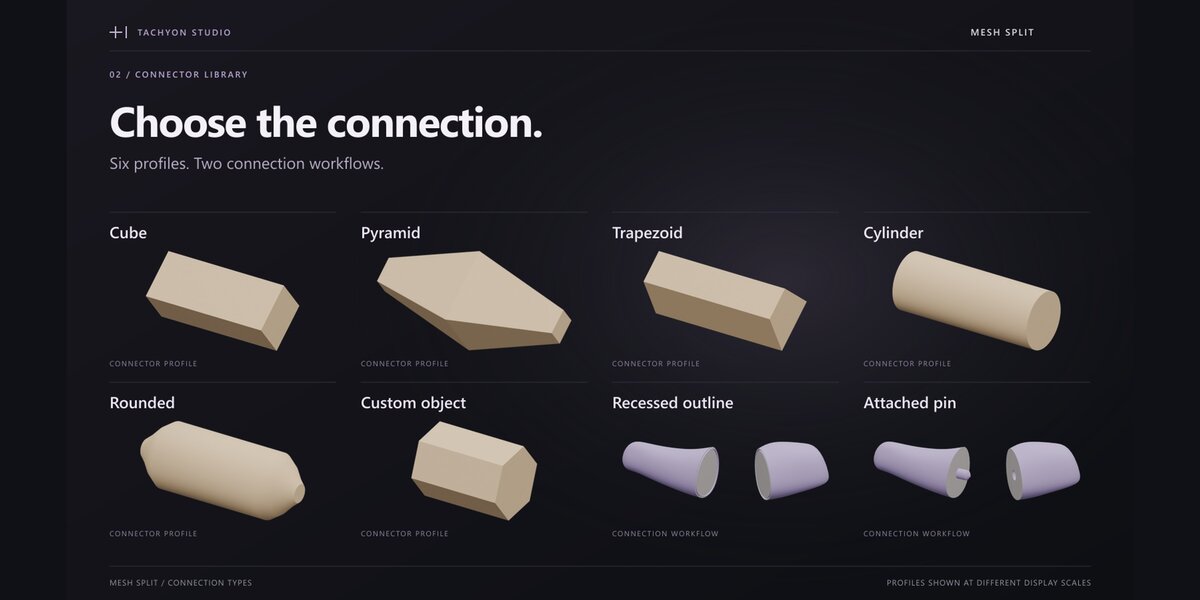
Connection types

Separate Piece creates a loose printable connector with a socket in each half. Attached to Half fuses the connector into the active or other selected half and creates a socket in the receiving half. Use Attach To to choose the host.
| Shape | How it is used |
|---|---|

| Cube | Straight rectangular connection. |

| Pyramid | Double-tapered rectangular connector with easy-entry tips. |

| Trapezoid | Trapezoidal profile that resists rotation. |

| Cylinder | Round connection controlled by diameter. |

| Rounded Pin | Round connector with multi-radius entry tips. |

| Custom Object | Your closed manifold mesh, uniformly scaled while preserving its proportions. |

| Cut-Outline Recessed Seam | Integrated tapered ridge and socket following the cut boundary. |
The outline seam needs a suitable boundary and receiving depth. Folded caps or offsets that cannot preserve a continuous rim require individual connectors instead. Custom Object and outline-seam settings apply to the whole cut, not one connector.
Pending cuts versus already-cut halves
Pending cuts already show live connector overlays: adjust them, then apply the cuts and connectors together. For two already-cut halves, select both and use Preview in Quick or Preview Connectors in Advanced. Quick's Fit and Apply recalculates safe dimensions before committing; Advanced uses Apply. Cancel removes the preview without changing either mesh.
Apply Later, Keep Cutting stores a connector plan in Waiting to Apply. Each waiting row can be activated, edited, ticked or removed independently. Apply or discard pending cuts first, then use Apply Ticked; connectors cannot be committed to temporary fragment meshes.
Live gizmo and individual edits

Click a connector, its socket or J-number handle to activate it. The panel shows which connector is being edited. Shift-click selects several; the last selected connector keeps the gizmo. Mixed settings are identified in the panel. Click empty space to return to shared editing.
| Control | Action |
|---|---|
| Red / green arrows | Move along the two cut-face axes. |
| Two-color center bracket | Move freely over the cut face. |
| Blue ring | Rotate the connector. |
| Yellow box arrow | Uniformly resize the connector and socket. |
| Shift / Esc | Precision dragging / restore the state before that drag. |

Adjust the connection with the live viewport gizmo. Click to enlarge.
Selected connectors can have their own shape, type, size, gap and insertion position. These overrides survive shared-setting changes; Reset returns a connector to the shared values. Push In / Out changes insertion position along the cut normal without resizing.
A red connector or cut sheet indicates an unsafe placement or size. Gizmos can temporarily move beyond the safe region so you can correct the position. Reposition, reduce the connector, or use Auto Size before applying. Changing connector count recalculates the distribution; compatible position and rotation edits are retained during other preview rebuilds.
Dimensions, clearance and test prints
Quick's Size scales automatically detected width, height and insertion depth together from 25% to 200%. Advanced's Connector Size exposes Width/Height for rectangular shapes, Diameter/Roundness for round shapes, Depth per Half and Gap. The outline seam uses Band Width, Outer Wall, Depth and Entry Taper instead.
Depth per Half is insertion into each mating piece: a loose connector with 12 mm per half spans 24 mm. Gap is added on every socket side. A 0.25 mm gap therefore makes a rectangular socket 0.50 mm larger across a complete dimension. This is a geometric allowance, not a promise of printed fit.
In Advanced, choose Compact, Balanced or Strong, then click Auto Size. It considers the real cut area, available depth, connector count, edge margin, gap and minimum back wall. Compact leaves more surrounding material; Strong uses more of the available safe area and depth. Recalculate after changing relevant settings.
Calibrate for the actual printer
- Open Fit and Printing. Choose a Print Process and Fit as starting values, not guaranteed tolerances.
- Under Calibrate with a Test Print, set First Gap, Step and Samples, then create the peg-and-ring test pieces.
- Print them with the intended material and printer settings. Compare the real assemblies.
- Enter Best Gap, Name, Material and Printer, then choose Save Fit.
- Use Use Saved Fit to reuse it. Saved fits belong to the current .blend file.
Use Process Defaults supplies safety limits. Turn it off, or choose Custom, when you need explicit Minimum Wall, Edge Margin, End Gap and Root Relief values.
Presets and matching IDs
A preset applies a complete configuration, including during a preview. Factory presets are protected: duplicate one before customizing it. In Advanced, Manage Presets provides Save New, Update, duplicate, rename and JSON library import/export. User presets persist outside the current scene: in Mesh Split's Blender configuration folder for the legacy Add-on, or its Extension user folder for the Extension. Use JSON library export/import when moving between installations or Blender versions.
Numbering applies to supported loose, separate connectors. Their tips can carry J01, J02 and matching IDs. Mark Both Halves adds the same ID to the mating parts. Choose Cut / Socket Area or Part Exterior, then control mark size and engraving depth. Exterior marks require a suitable flat surface with enough remaining wall.
Number Size can be exact millimetres or proportional to the connector. Keep small features readable for your printer. Attached connectors, Custom Object connectors and outline seams are not engraved with connector numbers. Numbering does not replace fit testing or assembly inspection.
3. Check the assembly
While a connector preview is active, Check Print and Assembly combines connector safety, manifold, assembly-path and print-orientation checks. Expand warnings and investigate them before committing.
- Assembly Path: samples movement along an insertion direction over a travel distance. Advanced lets you choose a custom vector, reverse it, set samples and include other visible meshes.
- Print Orientation: screens the chosen orientations for issues such as overhangs, layer loading, support damage and trapped resin or powder.
- Exploded View: spreads applied connected parts for inspection. Adjust direction and spacing; Reassemble restores their original transforms.
These are geometric and sampled checks, not physical strength certification or a guarantee that every real assembly will fit. Review the result in your slicer and test the intended print process.
4. Export parts and the assembly list
- Apply or discard pending cuts, active previews and waiting connectors. Export is blocked while any remain.
- Set Folder and choose what to export. Export Selected writes the chosen meshes; Complete Job / Export Whole Job gathers applied Mesh Split parts and loose connectors while excluding backups and previews.
- Select STL or OBJ for one evaluated file per object, or 3MF for one multi-object package in millimetres.
- Enable Assembly List if you want the optional JSON manifest alongside the geometry.
The manifest records part names, dimensions, cut lineage, connector IDs, shape, connection type and fit gap. Inspect exported dimensions and orientation in the destination slicer before printing.
Undo, revisions and preferences
Undo Last reverses one Mesh Split operation, including a whole applied cut batch. Restore Original rolls back the retained Mesh Split operation chain. History keeps ten operations by default; Advanced's Undo Steps changes that limit. Blender's Ctrl+Z is also available. Retained history is not a substitute for saving a source copy.
In Advanced, Edit Last Applied Connectors reopens the latest applied connector operation. Use Update Applied to commit changes or Keep Original to restore its previous meshes. Earlier connector operations cannot be reopened this way after later operations have changed the dependency order.
Under Edit → Preferences → Add-ons → Mesh Split, General controls the sidebar tab; Display controls icons and selection indicators; Freehand controls editing handles and picking distances. Help & Support includes the version, Discord link and Save System Info.
Troubleshooting and support
- The sidebar or action is missing: verify the correct Add-on or Extension installer is enabled, open N → Mesh Split, and check the selected objects and current operation state.
- A Freehand cut is rejected: extend both endpoints outside the silhouette. For Surface, use a closed separating loop; simplify folded, intersecting or overly detailed paths.
- A mesh cut fails: run Check Mesh and repair open or self-intersecting geometry. Save before modifying production topology.
- A connector is red or will not apply: inspect boundary clearance and available depth. Move it, reduce its dimensions or use Auto Size; do not ignore the warning.
- The live preview is slow: turn off Show Cuts Live while adjusting controls. Final Apply still evaluates and validates the complete result.
- Printed parts are too tight or loose: calibrate with the actual material and settings; adjust Gap from a test print rather than relying only on a preset.
- Export is blocked: finish or discard pending cuts, previews and Waiting to Apply entries first.
For every operator, keyboard option and scripting ID, use the complete operator reference in the documentation download. For help, join Tachyon Studio on Discord or contact us through Superhive. Include the add-on version, exact Blender version, OS, reproduction steps and relevant error message. Remove private details from shared files.
Software: GPL-3.0-or-later. Commercial use is included. See LICENSE and LICENSE-NOTICE.txt in the download.
Have questions about this product?
Login to message
| Blender Extension Compatible | Yes |
| Published | 4 days ago |
| Blender Version | 3.0 - 5.2 |
| Extension Type | Add-on |
| License | GPL |
Discover more products like this
connectors mesh split 3d printing Mesh Cutting STL modeling hard surface boolean Print Preparation alignment pins 3MF assembly