 astute industries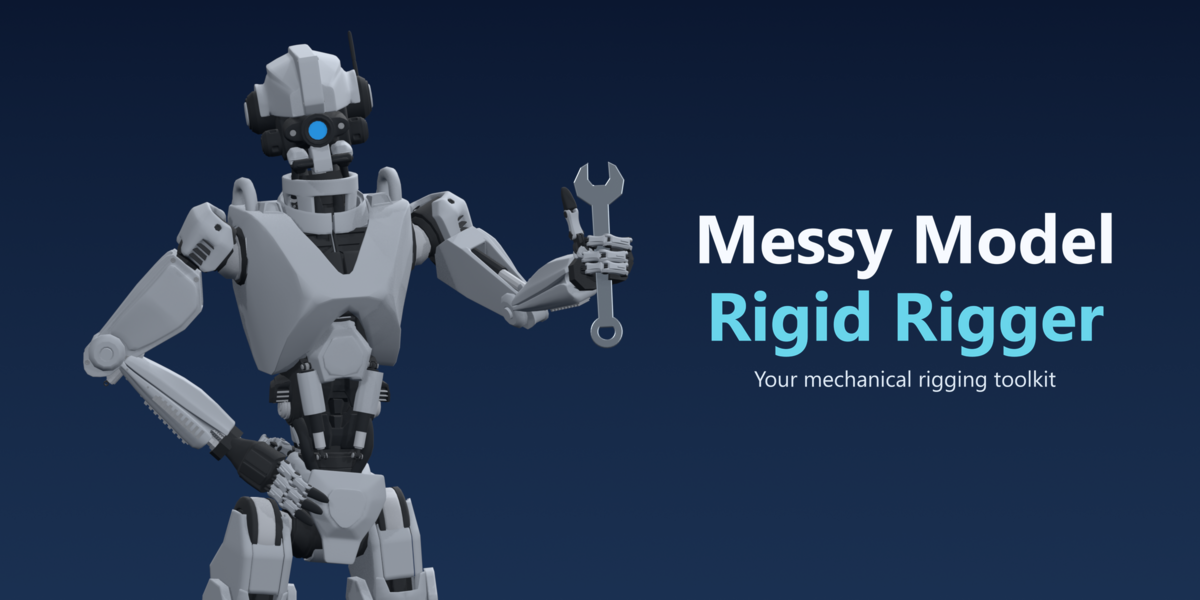
Messy Model Rigid Rigger
For when your mechanical model is too messy (or too clean) to rig.
Messy Model Rigid Rigger is a mechanical rigging workflow toolkit for Blender, designed to rig mechanical models with ease. Trying to create a rig with cluttered mechanical models can be highly tedious and infuriating. As such, this toolkit was designed with the intention of making the initial rigging process much more convenient.
Designed for noisy, cluttered mechanical models
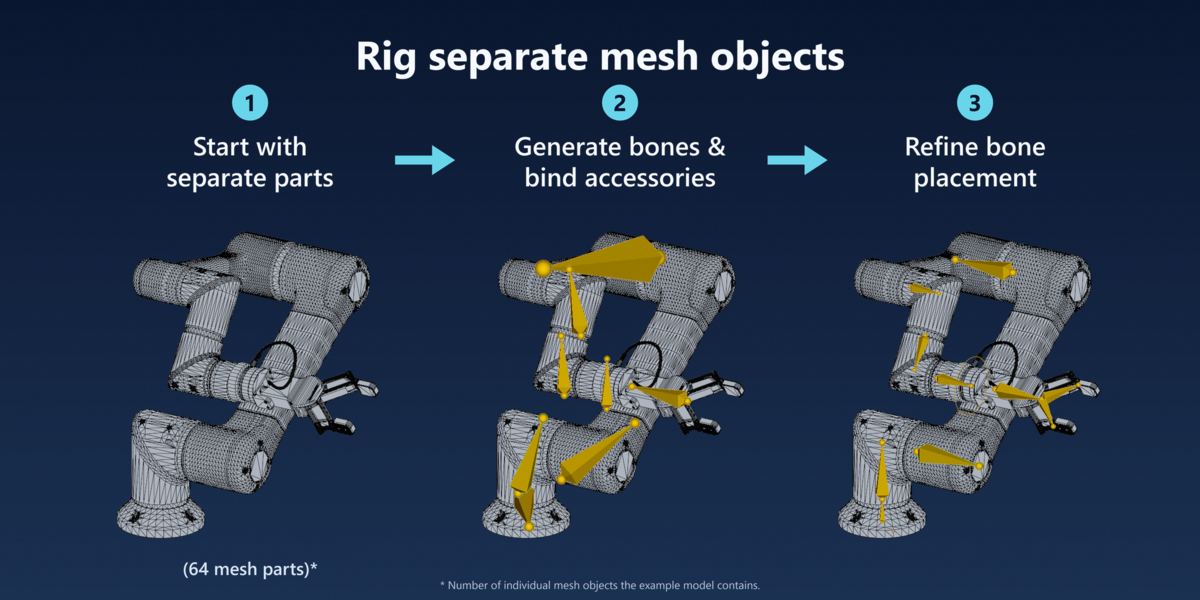
Mechanical models often arrive full of screws, covers and internal pieces that need to follow the right joint. Trying to find all of them during the rigging process could drive you crazy! MMRR lets you spend less time sorting through the mess and instead spend more time shaping how your model should actually move.
Model credit: Black Honey - Robotic Arm by re1monsen, via Sketchfab. Licensed under Creative Commons Attribution. Modified with rigging and posing for this Messy Model Rigid Rigger demonstration.
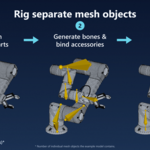
How it works: Mark the main moving sections as bone hosts; unmarked source parts become accessories. Construct the rig to generate host bones and assign accessories by proximity. With automatic binding enabled, each group is rigidly bound to its assigned bone. Review the result and correct ownership where needed.
Bones out of position?
Generated bones provide a starting layout. Use the repositioning helpers to place pivots and align joints to your intended movement, then pose-test the result.
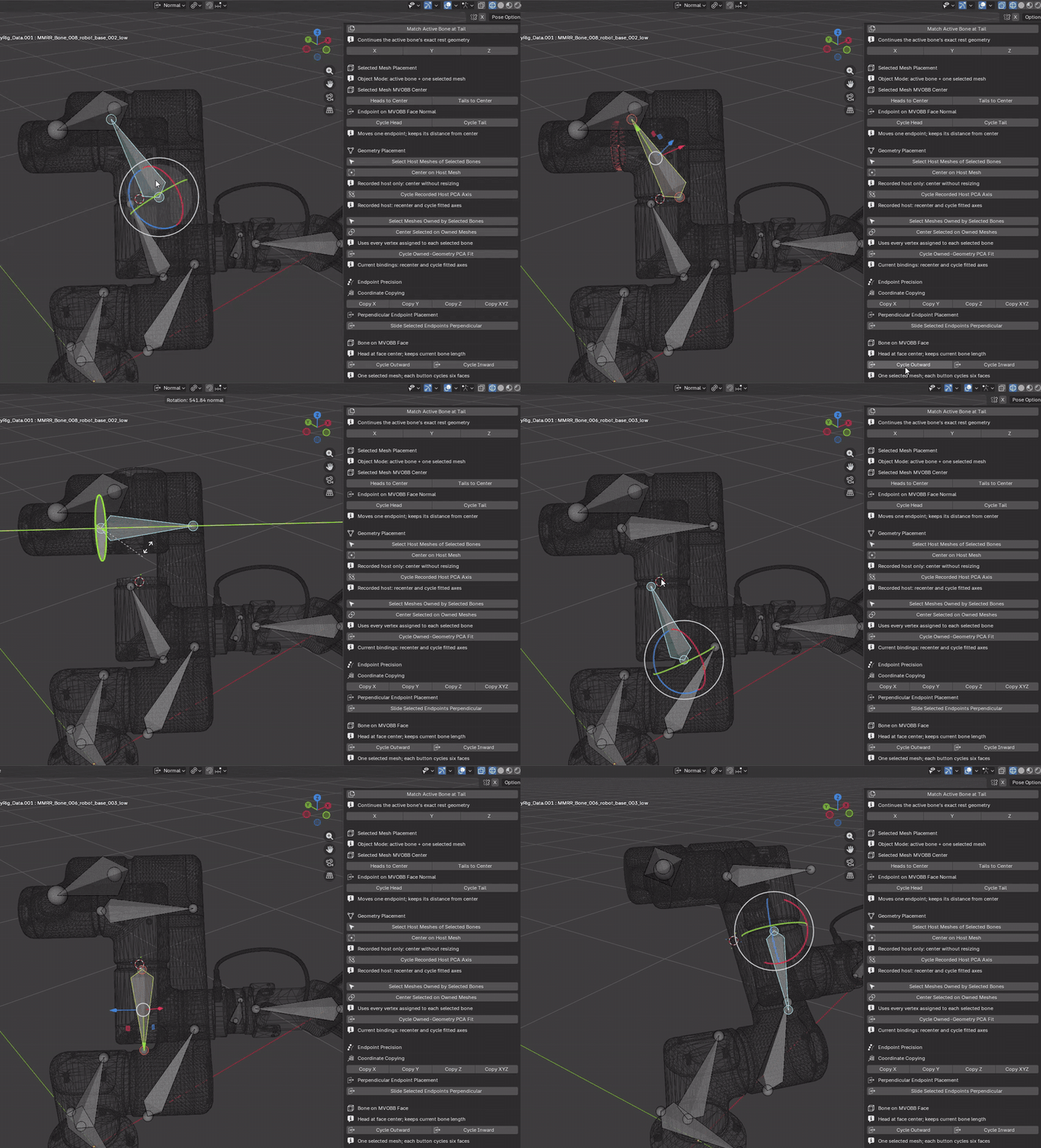
How it works: Repositioning tools read the geometry data and move the head/tail of the bone according to how the geometry was spatially arranged. Such concepts used are center points, minimum volume oriented bounding boxes (MVOBB), normal vectors, etc.
A part following the wrong bone?
If you see a part that should belong to another host, you can transfer that misassigned part to another bone easily! Refine your assignments without having to rebuild the entire rig.
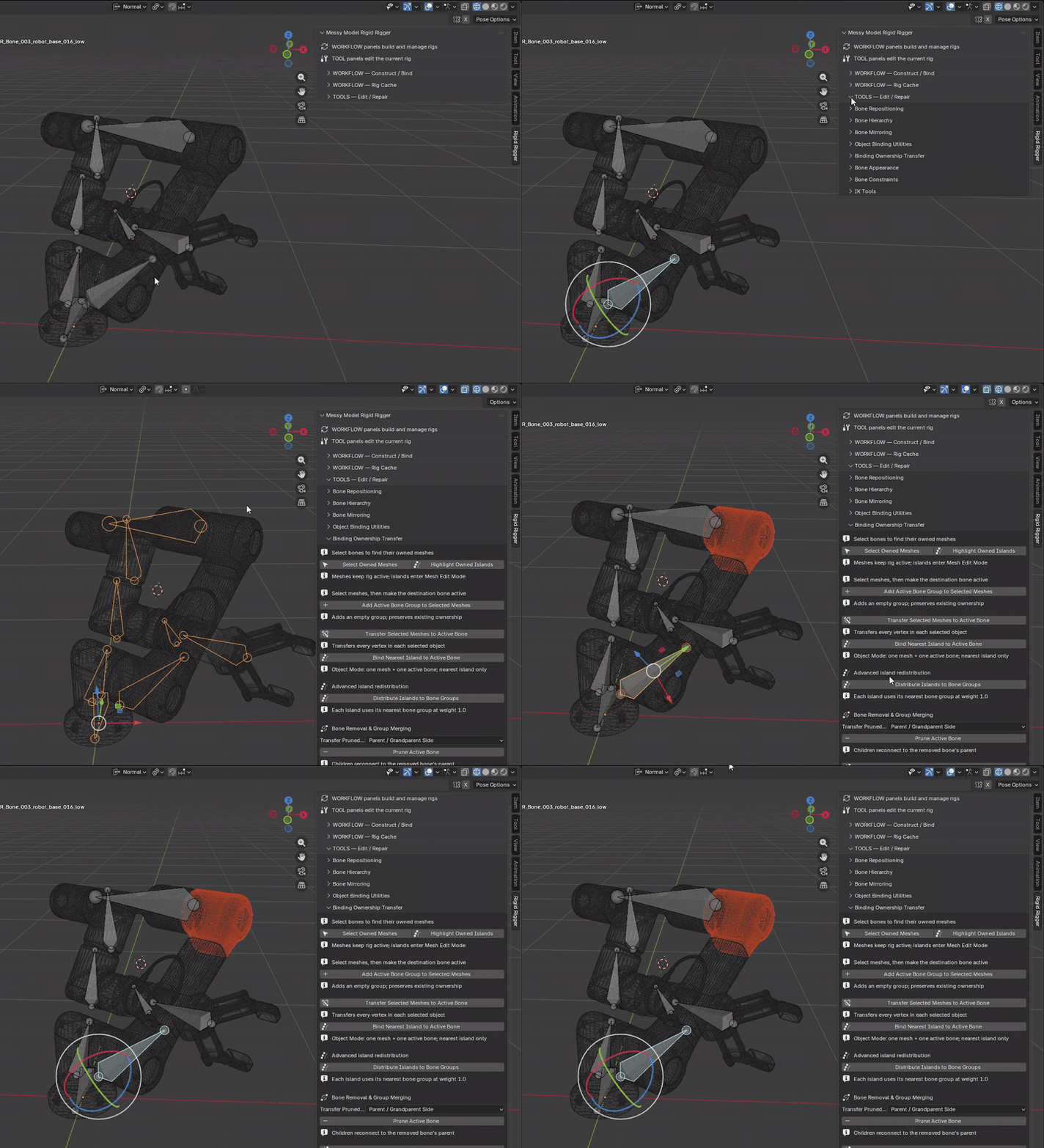
How it works: Ownership helpers highlight meshes and mesh islands assigned to selected bones. Transfer selected whole mesh objects, or bind the nearest disconnected island in one chosen mesh, to another deform bone at rigid weight 1.0.
Also designed for (clean) single-mesh mechanical models
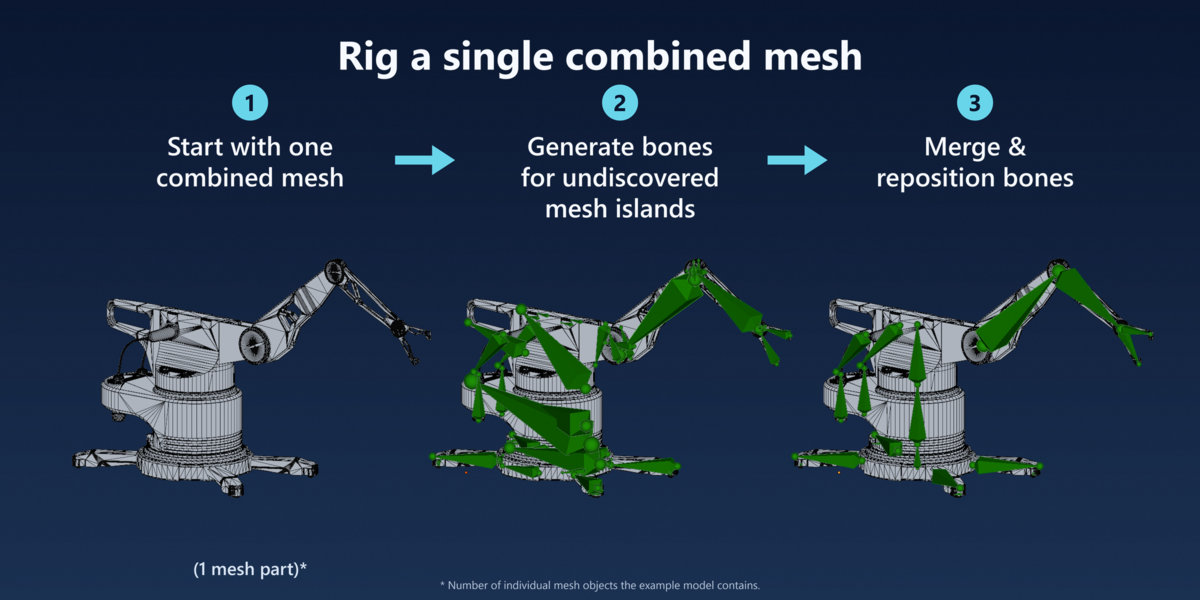
Sometimes mechanical models instead arrive as one mesh object. It can take a significant amount of time manually separating parts and picking the vertices you actually want to move. MMRR discovers the disconnected parts inside a single-mesh model and lets you decide how to rig them, without separating the object.
Model credit: Industrial Sci-Fi Robot Arm Futuristic by alexfoto, via CGTrader. Used under the CGTrader Royalty Free License (no AI). Rigging demonstration created using Messy Model Rigid Rigger.
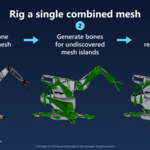
How it works: A single mesh object can contain disconnected mesh islands; they do not need to be closed or watertight. Enable Consider Mesh Islands Separately and mark the object as a bone host to generate a bone for each usable polygon island. Merge accessory bones into the main bones as needed. Welded surfaces are not automatically divided into moving parts.
Already have a skeleton?
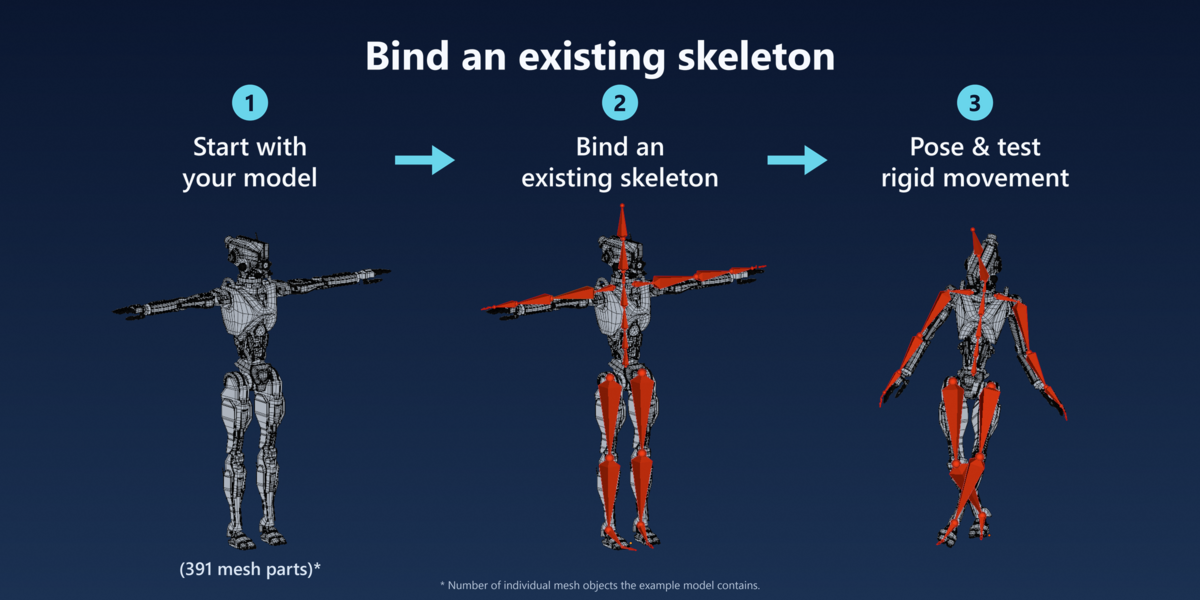
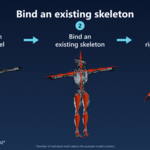
Want to use a premade skeleton? MMRR lets you quickly bind your mechanical model to a fitted skeleton! No need to spend ludicrous amounts of time skinning!
Model credit: Robot (Free to use) by rodrigoscar, via Sketchfab. Licensed under CC BY 4.0. Modified with rigid armature binding and posing for this Messy Model Rigid Rigger demonstration.
Skeleton and animation credit: sourced from Adobe Mixamo for this binding demonstration. No affiliation with or endorsement by Adobe is implied.
How it works: Fit the armature's rest skeleton to the model, choose the existing-armature workflow under Rig Target, and select the Existing Armature. MMRR assigns each whole object, or each island when enabled, to a nearby deform bone at weight 1.0. It preserves the skeleton and animation but replaces the relevant bindings. Save a backup, pose-test and correct assignments where needed; MMRR does not fit or retarget the skeleton.
Ensure that your robot moves like a robot
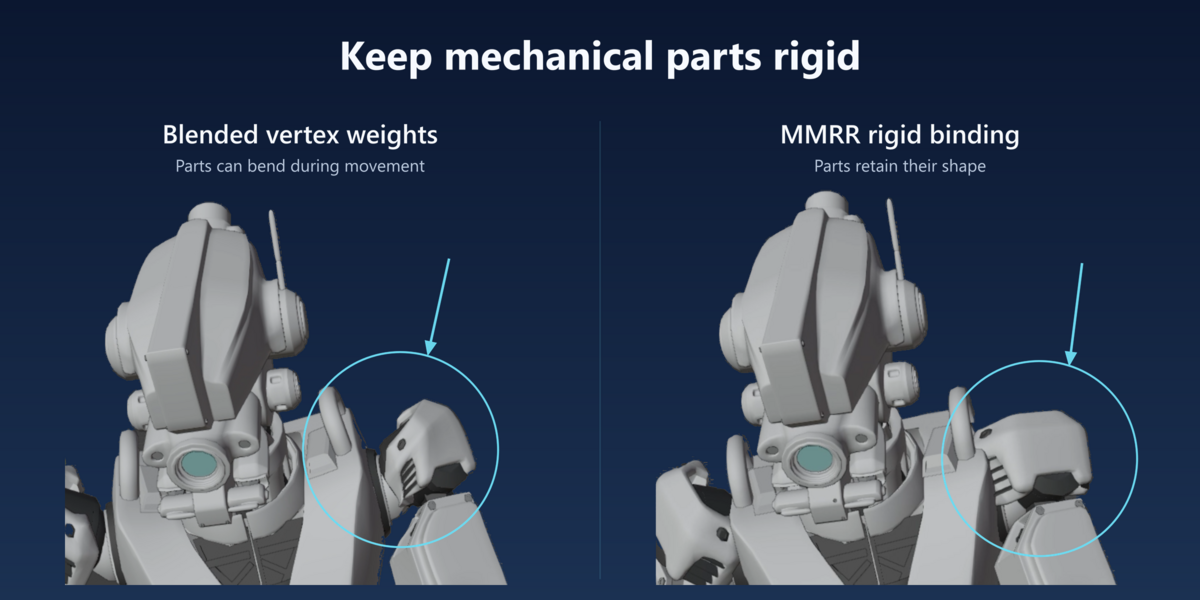
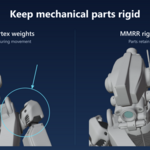
Blending weights across bones is common in deforming-character workflows. On a mechanical model, this can make parts bend like organic skin during animation. MMRR avoids blended weights during binding by assigning each rigid part to one bone at full weight.
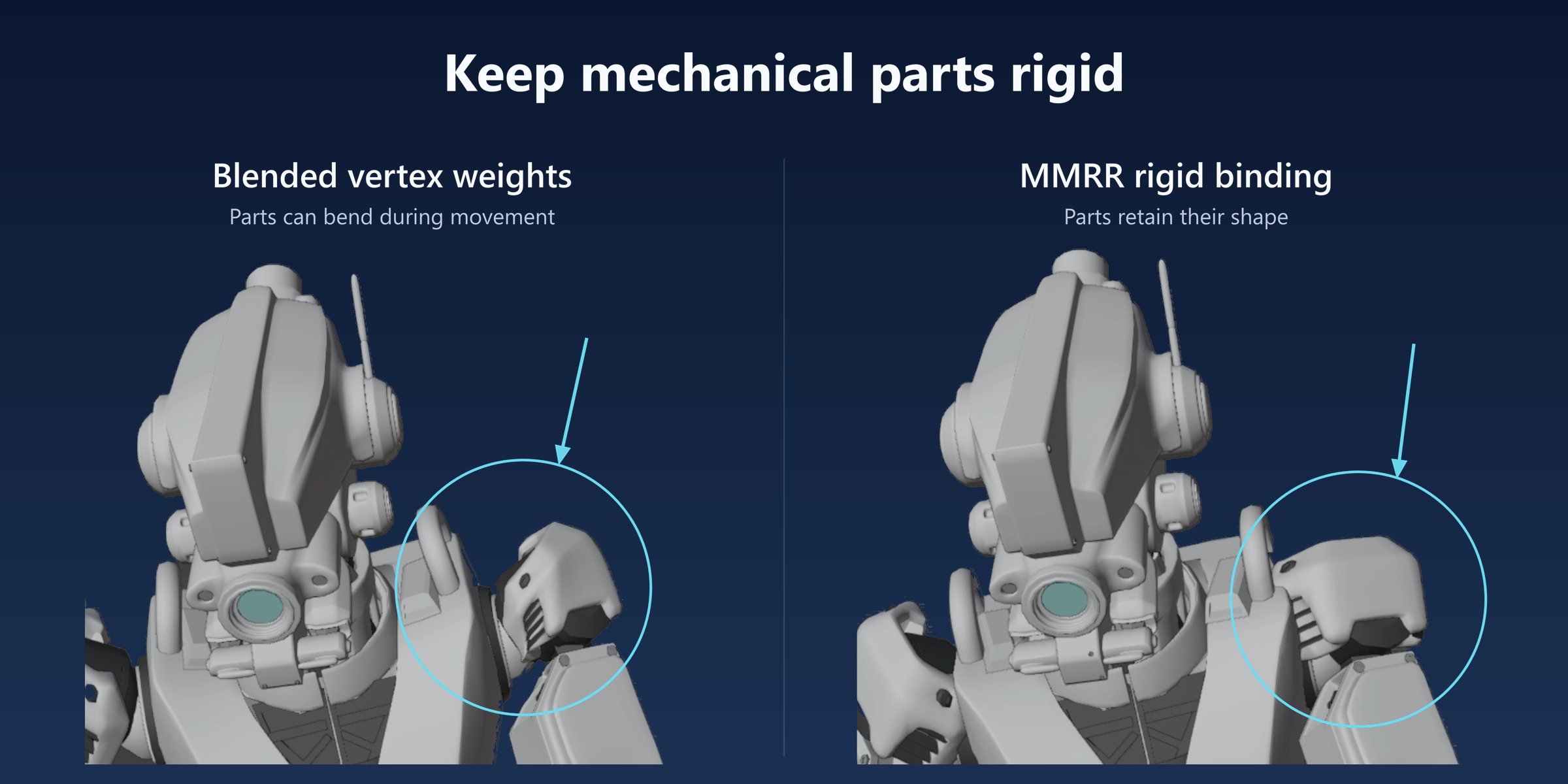
How it works: MMRR uses bone-named vertex groups at weight 1.0 and an Armature modifier, keeping rigid parts inside a standard Blender armature workflow. Rigid weighting is standard Blender functionality; MMRR helps organise and correct the assignments. Use rotation and translation without stretching to preserve shapes. Scaling, stretching or other deformation settings can still alter them.
Disclaimer: Flexible parts such as bending cables need manual weighting or a separate deformation workflow. A cable can still follow one bone rigidly when bending is not required. MMRR is also not a rigid-body physics or collision simulator.
Try different rigs without cluttering your scene
Want to try another setup without losing the version you already like? Rig Cache lets you save named versions of your generated rig, experiment with bone placement or mesh ownership, and switch back to a saved setup. Compare alternatives without filling your scene with duplicate armatures.
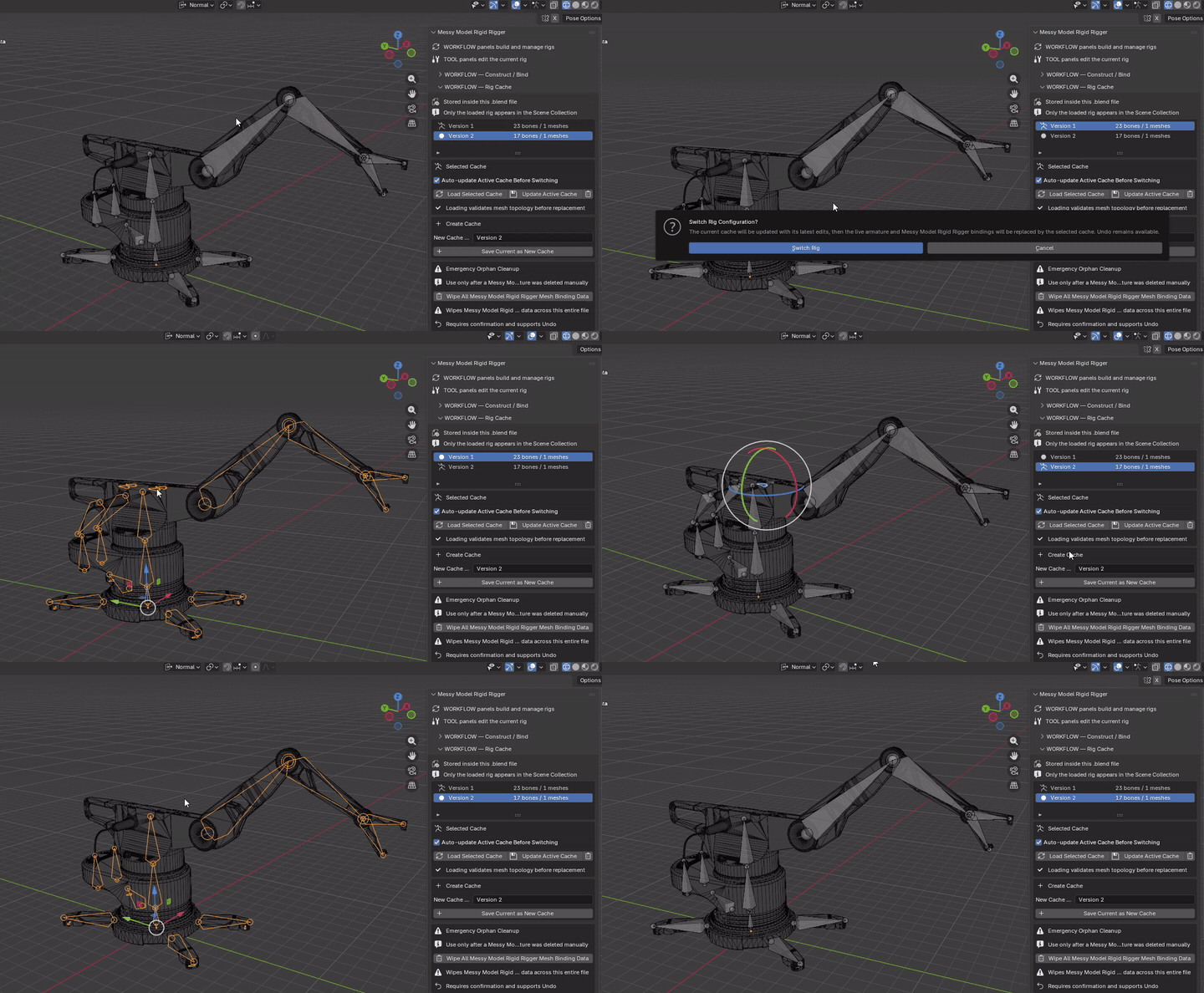
How it works: Rig Cache stores compatible MMRR-generated rig configurations and their mesh bindings inside your .blend file. It is not an animation or full-scene backup: cache loading is blocked while the current rig has animation data, and incompatible source-geometry changes prevent loading.
What's included
- The Messy Model Rigid Rigger Blender extension for constructing a rigid-part armature or binding your model to an existing one.
- Manual helpers for bone placement, hierarchy, mirroring, binding ownership, simple IK preparation and bone appearance.
- A README with installation and usage guidance, a changelog, and the GPL-3.0-or-later licence.
Demonstration assets are not included: the models, skeletons and animations shown on this page are credited examples. The workflow videos are sped up and include manual refinement.
Requirements and compatibility
- Blender 5.1.0 or newer.
- Local, editable polygon meshes. Shared mesh data must be made single-user before binding.
- Basic familiarity with selecting objects and bones, Armature Edit Mode and Pose Mode.
Current testing: release 1.0.0 has been tested on Windows with Blender 5.1.2. Other operating systems and later Blender versions have not yet been verified. Geometry analysis uses the original mesh rather than evaluated modifier results. Normal rigging operations run locally and do not upload your model.
Before you buy
Will it create a finished rig automatically?
MMRR provides a geometric starting point and tools to refine it. You choose the main parts, check which pieces follow each bone, and adjust pivots and parenting to suit the movement you want.
Does one mesh object need to contain separate parts?
For island-based rigging, yes. MMRR can give disconnected mesh islands their own bones without separating the object. It does not automatically split welded geometry into mechanical joints.
Does MMRR create or retarget animation?
No. You can bind to a skeleton that is already fitted to your model, including one with animation. MMRR handles rigid assignments and rigging helpers, not animation generation or retargeting.
Does it rig wires and other bendy parts?
MMRR does not automatically create flexible weighting. Bending cables and other flexible parts need manual weighting or a separate deformation workflow. A wire or cable can still follow one bone rigidly if it does not need to bend.
How long does construction take?
Processing time depends on geometry complexity, mesh-island count and analysis settings. Detailed models may take longer; the workflow videos are sped up, not timing benchmarks.
Is AI involved in automatic rig construction?
No, the rig construction is derived through spatial data provided by the model's geometry. The add-on calculates where it should place the bones and which meshes it should bind to by itself.
Getting started and support
Install the extension ZIP using Blender's Install from Disk option and enable it. Open 3D View > Sidebar > Rigid Rigger, choose your source, and follow the Construct / Bind workflow. Save a separate .blend backup before major changes.
Open the Documentation tab for installation, step-by-step workflows and individual tool demonstrations. Start with model preparation, choose your main bone hosts, then construct and pose-test the rig.
For product questions or reproducible problems, contact the creator through Superhive. Include your Blender version, add-on version and the steps that led to the issue. Share model files only when you have permission and are comfortable doing so.