Messy Model Rigid Rigger
 astute industries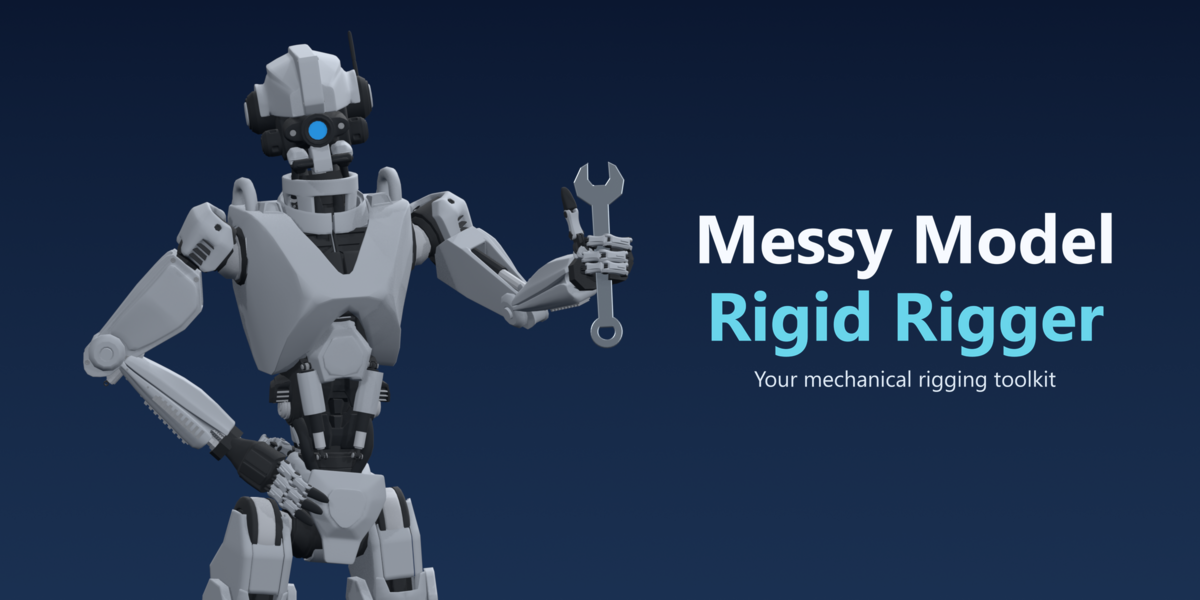

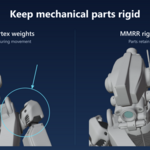
Messy Model Rigid Rigger Documentation
User Guide - Workflows and Tool Reference
Browse by add-on panel: 1. Construct / Bind · 2. Rig Cache · 3. Edit / Repair.
Start with hosts and accessories · Interface reference · Get help
Written for MMRR 1.0.0. Requires Blender 5.1.0 or later. The verified release-test environment is Windows with Blender 5.1.2; later versions and other operating systems have not yet been verified.
MMRR helps organise rigid mesh parts around bones. Choose main parts as bone hosts, attach accessories, then refine the joints and bindings. You can also bind a model to an existing armature, or treat disconnected islands inside one object separately.
Scope: this is rigid-part armature rigging, not rigid-body physics. MMRR does not automatically infer mechanical joints, create finished animation, or retarget motion. Flexible parts need manual weighting. Basic Blender selection, Edit Mode and Pose Mode knowledge is recommended.
Contents
Part 1 - Getting started
Part 2 - Workflow methodology
Part 3 - Interface reference
Part 4 - Troubleshooting and support
Part 1 - Getting started
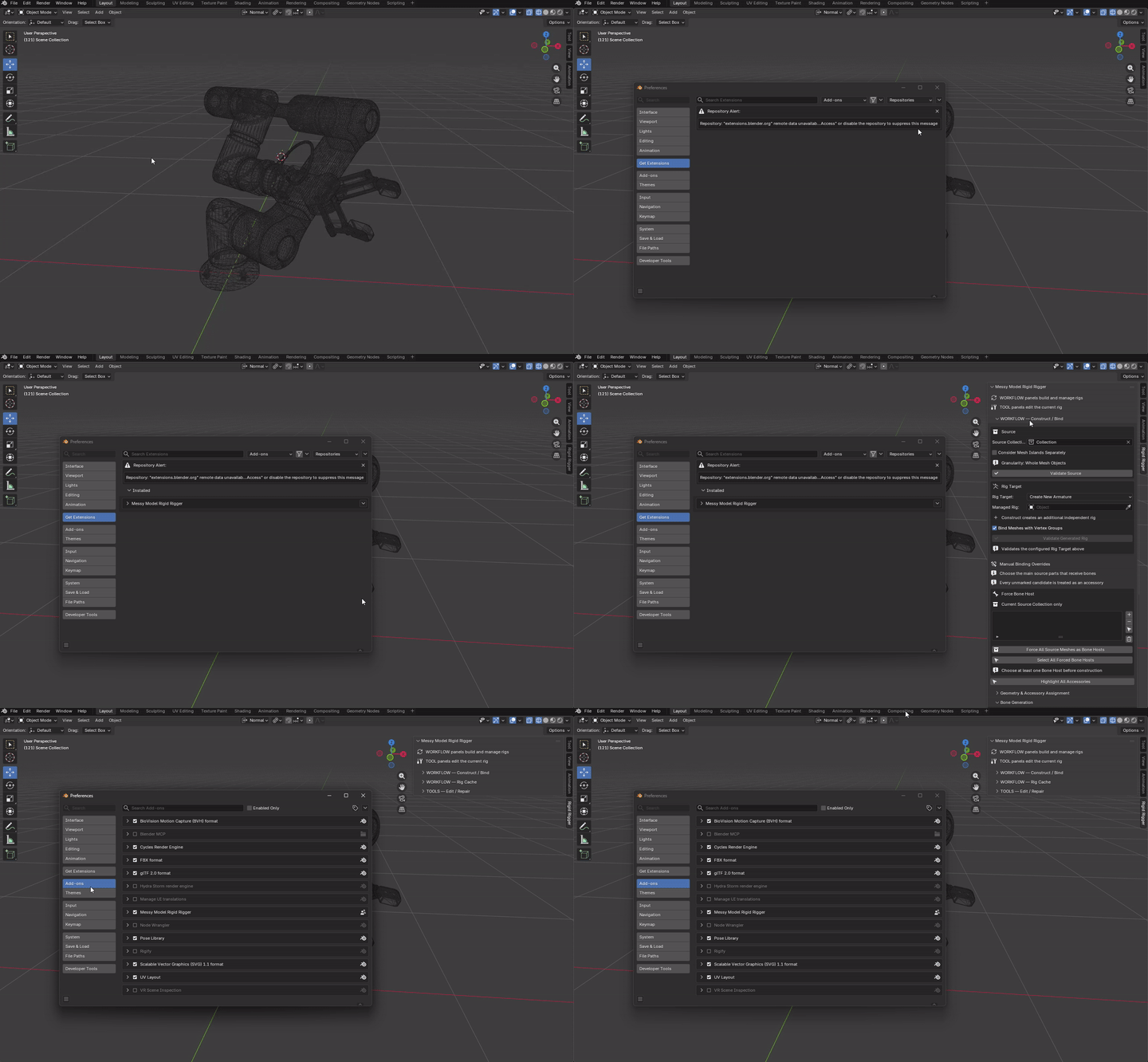
Install and find the panel
- Download
messy_model_rigid_rigger-1.0.0.zip. Do not extract it or substitute a ZIP of the GitHub source repository. - Open Edit → Preferences → Get Extensions. Open the repository menu and choose Install from Disk.
- Select the MMRR ZIP and enable Messy Model Rigid Rigger if needed.
- In the 3D View, press N and open Rigid Rigger.
Expected result: the sidebar contains Construct / Bind, Rig Cache and Edit / Repair tools. Confirm that Blender's extension details show version 1.0.0. Expand the helper group you need.
Before your first rig
Save a separate .blend backup before generating or binding a rig. Parent Bones to Each Other is off by default; enable it only when you want MMRR to infer a hierarchy. Settings you change are saved with the .blend file for your next session.
Prepare your model and understand selection
Source preparation checklist
- Save a separate .blend backup before construction, rebinding or destructive edits.
- Use local, editable polygon meshes. Convert curves/instances when their geometry must be analysed. Make shared mesh datablocks single-user before binding.
- Put source objects in one collection. A Source Collection is easier to repeat reliably than selection-based sourcing.
- Analysis uses original mesh geometry. Apply geometry-changing modifiers on a backup when their result must determine placement or proximity.
Make shared mesh data single-user
Two separate objects can share the same mesh data, for example after a linked duplicate. Single-user means each object has its own editable mesh data, so binding one does not affect the other. It does not mean one object per island, and shared materials do not need to be copied.
- In Object Mode, select only the source mesh objects you intend to bind.
- Choose Object → Relations → Make Single User → Object & Data. If prompted, choose Selected Objects, not all scene objects.
- Run Validate Source again. Making data single-user does not remove old bindings or make library-linked assets editable.
See Blender’s Make Single User reference for the underlying data-copy operation.
Hosts, accessories, islands and ownership
Key terms used in this guide.
Bone host
A source object explicitly selected to receive generated bones. At least one usable host is required for new-rig construction.
Accessory
An unmarked source candidate assigned to a host group rather than receiving its own bone. There is no need to mark every accessory individually.
Mesh island
A disconnected component within a mesh object. Island analysis can treat these components independently; it does not split a welded surface into mechanical parts.
Ownership
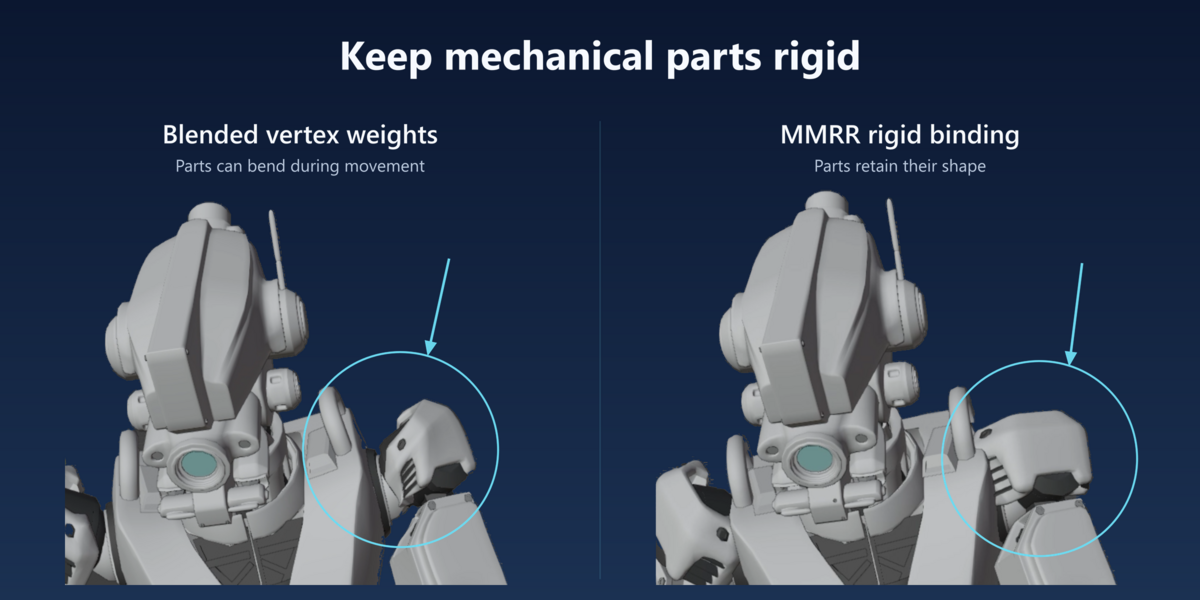
Vertices assigned to a bone-named vertex group. Automatic rigid binding uses weight 1.0 and an Armature modifier.
PCA
Principal component analysis: estimates the main directions in a set of vertices. These are not necessarily mechanical rotation axes.
MVOBB
Minimum-volume oriented bounding box: a rotated box fitted around geometry. MMRR uses an approximate fit to estimate centres and spans, not to detect joints.
Blender modes and selection order
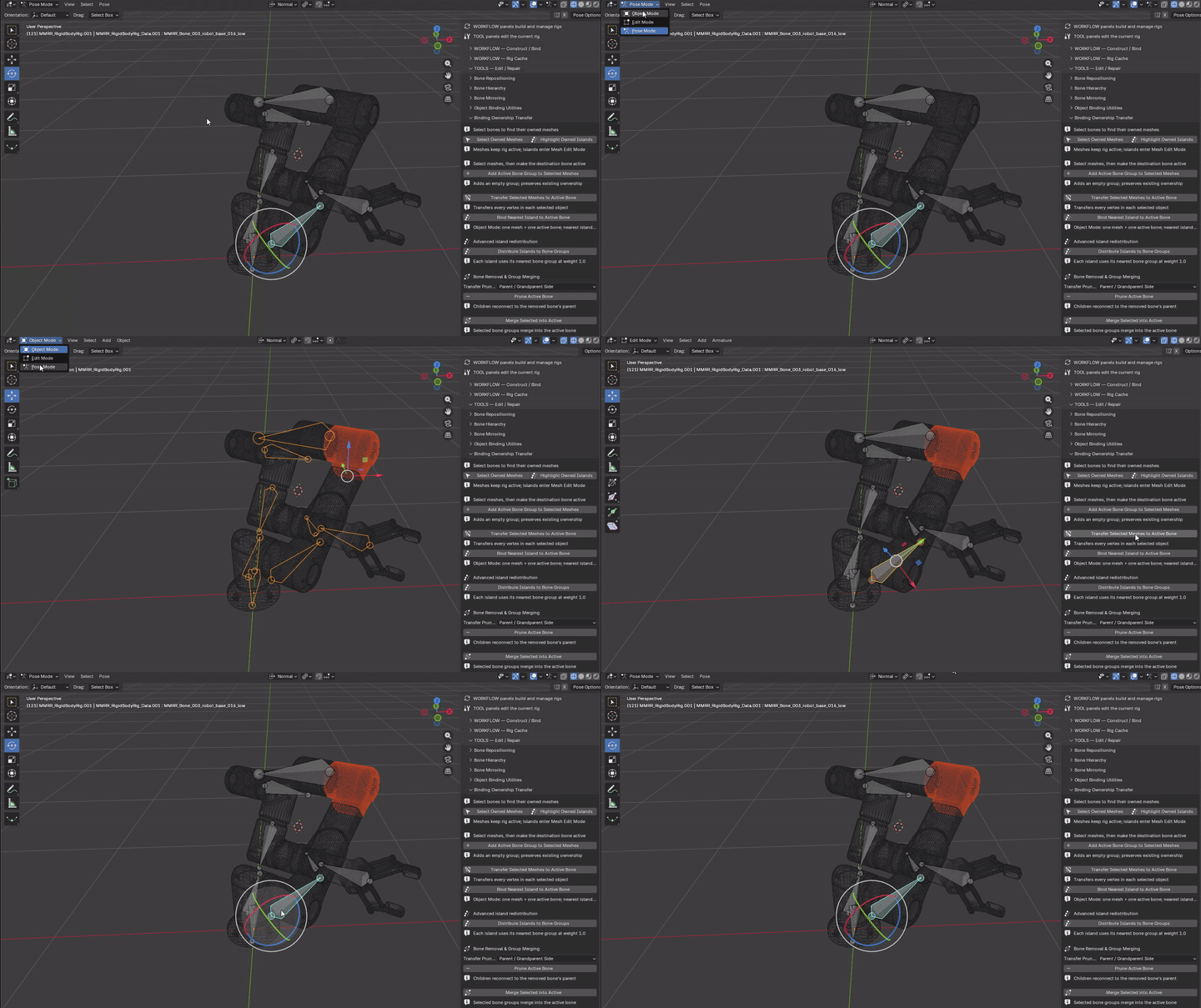
Modes matter: use Object Mode for source selection and object binding; Edit Mode for rest-bone placement; Pose Mode for movement tests and constraints. The active bone is the source or destination used by many helpers, not merely any selected bone.
For mesh-to-bone ownership tools:
- Select the intended armature and enter Pose Mode. Make the destination deform bone active.
- Return to Object Mode. Select the mesh objects, then Shift-select the armature last so it is the active object. MMRR remembers the bone chosen in the previous step.
- Check the configured Managed Rig or Existing Armature when several rigs are present. Use Transfer Selected Meshes to Active Bone for whole objects, or select exactly one mesh for Bind Nearest Island to Active Bone.
Pose-test and clear temporary transforms
For a new, unanimated rig, turn Auto Keying off. In Pose Mode, rotate one joint at a time and check that its intended parts follow. Use Select Owned Meshes or Highlight Owned Islands to inspect a suspicious assignment.
Before further rest-bone edits, return to Pose Mode, select the test bones and choose Pose → Clear Transform → All to reset their location, rotation and scale. Use A first only when you intend to reset all selectable pose bones. Do not use “Apply Pose as Rest Pose” to reset a test.
Animated or constrained rigs: clearing pose transforms does not remove Actions, keyframes, drivers or constraints. These can restore or override the evaluated pose, so it may not look like the rest skeleton. Keep an animated backup and use a separate copy for rest-rig changes; do not key the cleared values over existing animation.
See Blender’s Clear Transform reference.
Part 2 - Workflow methodology
Plan motion before generating bones
Decide what moves independently. Main parts receive bones; accessories follow those parts.
Choose your starting workflow
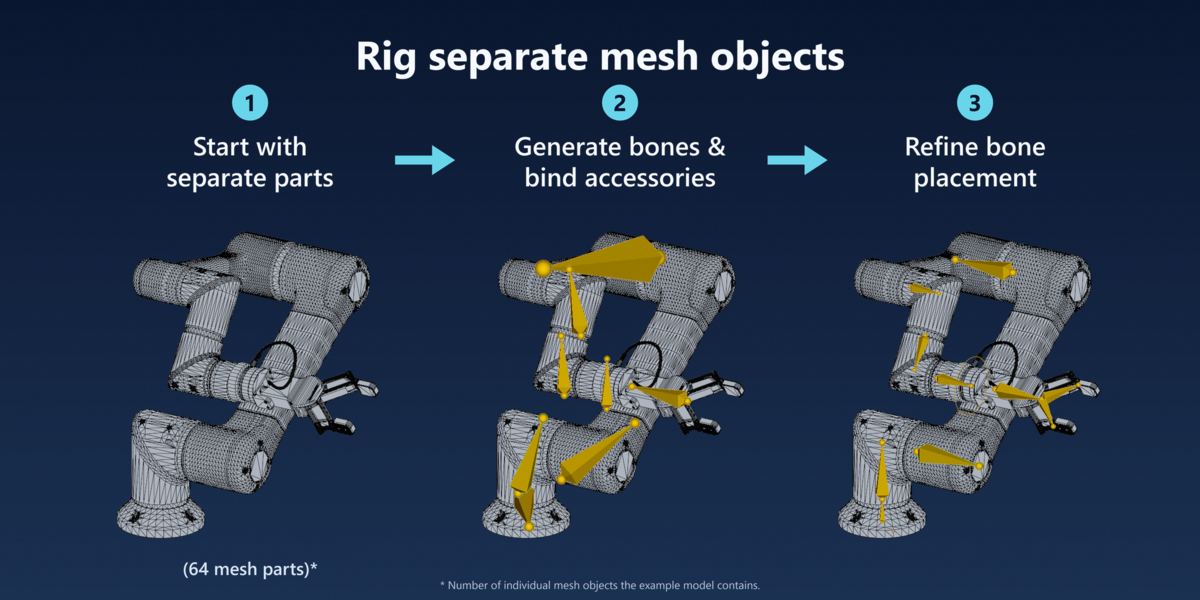
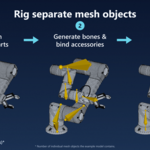
- Separate objects: choose hosts and attach accessories.
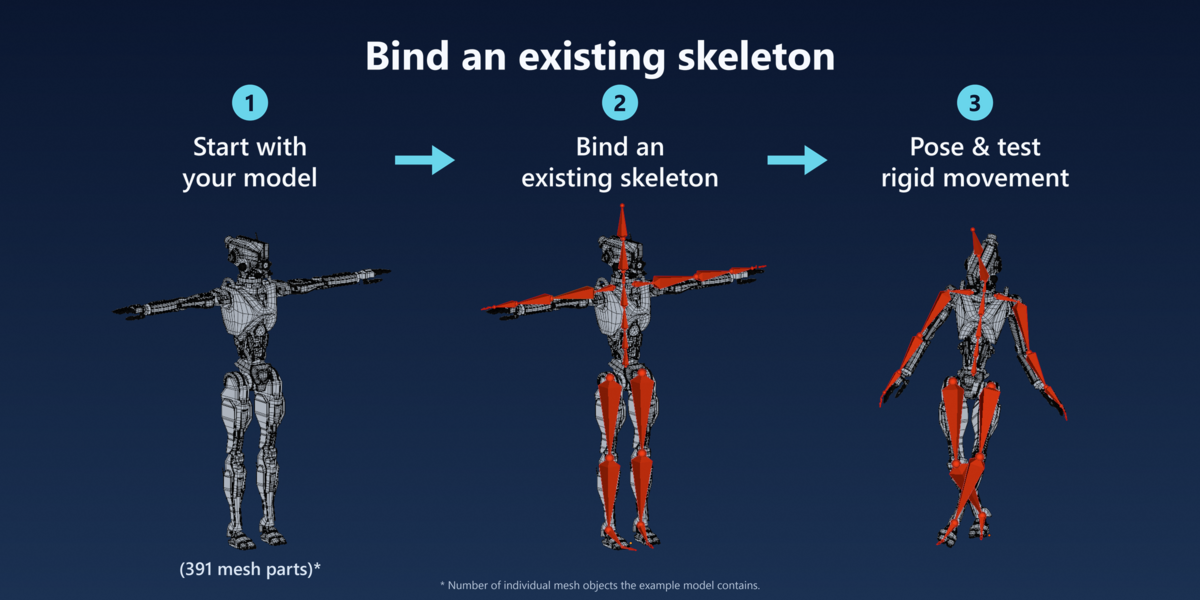
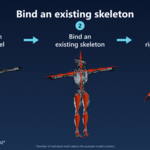
- Existing skeleton: bind to a fitted armature.
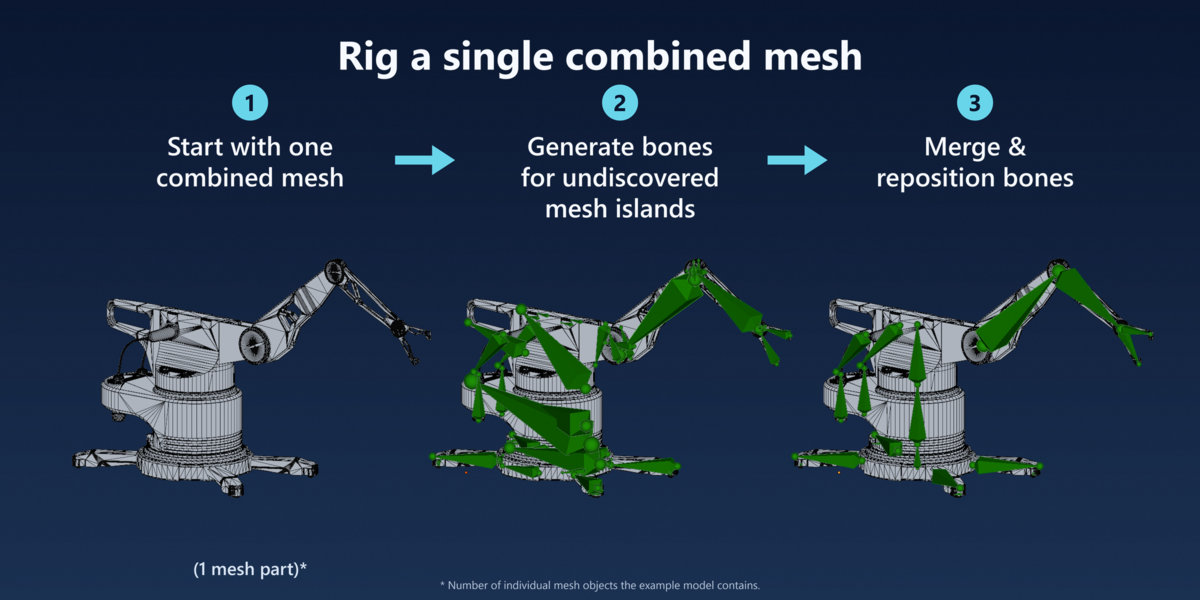
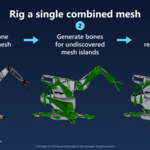
- Combined mesh: generate island bones, then simplify rigid groups.
The refinement loop
Prepare → Generate or bind → Inspect ownership → Correct pivots and parenting → Pose-test → Save.
Use ownership tools, repositioning and hierarchy helpers for local corrections. Reconstruct only when necessary because it can replace manual work. Before experimenting, use File → Save As for a separate .blend checkpoint; generated rigs can also use a Rig Cache.
Choose main parts and attach accessories
Use for: a model made from separate rigid objects, such as a robotic arm or another mechanical assembly.
- Prepare an unbound working copy, choose Source Collection, then click Validate Source.
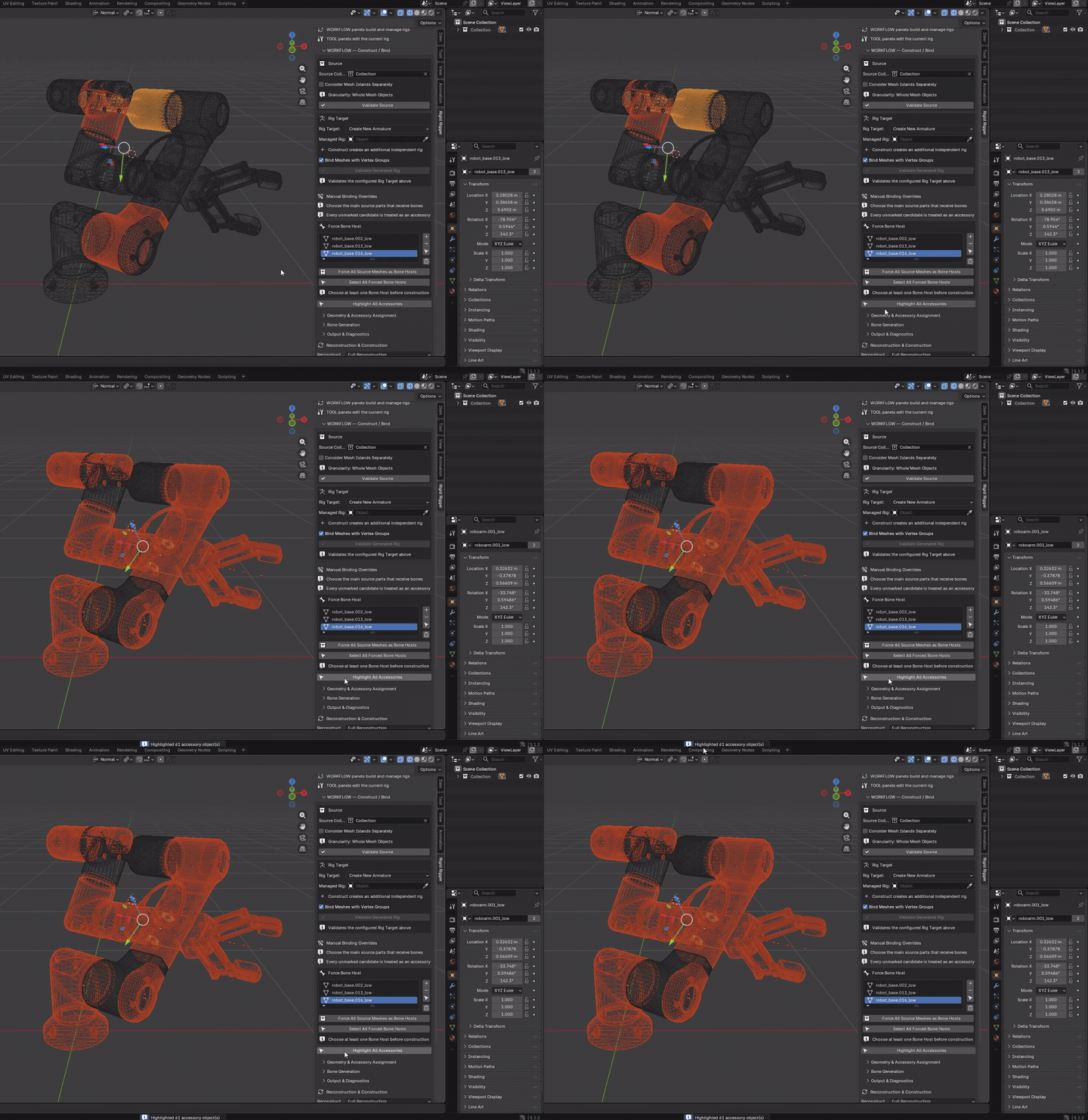
- Select the main independently moving parts and use Add Selected Meshes - + to mark them as hosts. Leave secondary pieces as accessories; check them with Highlight All Accessories. Keep Consider Mesh Islands Separately off unless disconnected regions need separate bones.
- Enable Bind Meshes with Vertex Groups and click Construct Rig. Refine pivots with Bone Repositioning and select a child and its intended parent, making the parent active, before using Set Active as Parent.
- Pose-test each group and inspect it with Select Owned Meshes. Correct misplaced accessories with Transfer Selected Meshes to Active Bone, run Validate Generated Rig, and save.
Success check: each main part and its accessories move together. Unparented segments do not follow one another; a fitted bone is not automatic hinge detection.
Optional: place bones first, bind later
For a generated rig, disable Bind Meshes with Vertex Groups before construction when you want to place and refine bones before assigning the geometry. Construction then creates the armature without MMRR rigid vertex groups or Armature modifiers. Existing bindings are not removed by this checkbox; start from an unbound working copy for this workflow.
- Mark hosts using Add Selected Meshes - +, disable Bind Meshes with Vertex Groups, then click Construct Rig.
- Refine rest positions with Bone Repositioning and parenting with Set Active as Parent. Make the intended binding destination bone active.
- For complete objects, use Transfer Selected Meshes to Active Bone. For one disconnected part inside an object, use Bind Nearest Island to Active Bone; this chooses the nearest island rather than an arbitrary vertex selection.
- Pose-test each assignment, inspect it with Select Owned Meshes, run Validate Generated Rig, and save a separate .blend checkpoint.
This is optional; rigidly bound models can also be refined with rest-bone helpers. Rest edits can alter evaluated poses or existing animation, so preserve an animated backup and test again.
Bind to an existing armature
Use for: geometry that should follow an existing skeleton, including one with animation.
Eligible target: the fitted, editable armature must contain at least one Deform-enabled bone. Non-deforming control bones are not binding destinations. Each whole object's geometry centroid - or each island centroid when island consideration is enabled - is assigned to the nearest deform-bone segment in the rest skeleton, not the posed control position or an inferred mechanical joint.
Existing weights: binding removes source-mesh vertex groups whose names match any bone in the target skeleton, including non-deforming controls, then writes new rigid assignments to Deform-enabled bones. Previous MMRR-managed bindings on the source are also replaced. Save a separate .blend if the previous binding needs to be retained. The target skeleton's bones, hierarchy, constraints and animation are not rebuilt.
- Use File → Save As to preserve a separate .blend before binding, then fit the armature's rest configuration to the model. MMRR does not fit the skeleton, import animation or retarget motion.
- Choose Source Collection and set Consider Mesh Islands Separately to match the model's structure. In Rig Target, choose the existing-armature workflow and select your Existing Armature. Host/accessory overrides are not used here.
- Click Validate Source, then Construct Rig to bind. Test poses or animation and inspect assignments with Select Owned Meshes or Highlight Owned Islands. Correct them with Transfer Selected Meshes to Active Bone or Bind Nearest Island to Active Bone. Use Blender Undo for a recent unwanted edit.
- Click Validate Existing Rig and save a new .blend checkpoint. Rig Cache is for generated rigs, not imported skeletons or animation.
Success check: rigid parts follow the prepared skeleton while its bones, hierarchy, constraints and animation remain intact. Several parts can share a bone; some bones may receive no geometry. Assignment is proximity-based, so pose-test the result and correct ownership where needed.
Rig a combined mesh with islands
Use for: a single mesh object containing disconnected polygon parts that may need independent movement.
- Check that the parts are disconnected islands, not a welded surface. Use an unbound working copy, choose Source Collection and enable Consider Mesh Islands Separately.
- Select the combined object and use Add Selected Meshes - + to mark it as a host. Enable Bind Meshes with Vertex Groups, run Validate Source, then click Construct Rig to create bones for its usable polygon islands.
- Use Highlight Owned Islands to inspect ownership. Select accessory bones with the main bone active, then use Merge Selected into Active. This transfers their geometry and deletes the accessory bones.
- Refine pivots with Bone Repositioning and hierarchy with Set Active as Parent. Pose-test, run Validate Generated Rig, and repeat until the moving groups are correct.
Success check: fewer main bones control regions inside the original mesh object. This starts detailed and needs manual simplification. Use disconnected polygon parts; connected surfaces are not automatically divided into moving parts.
Part 3 - Interface reference
Reading the setup: “active” means the active bone or object, not every selected item. For object-to-bone tools use the remembered active-bone selection sequence. Repositioning changes rest bones, not animation keys. Save a .blend backup before destructive actions.
WORKFLOW - Construct / Bind
Source
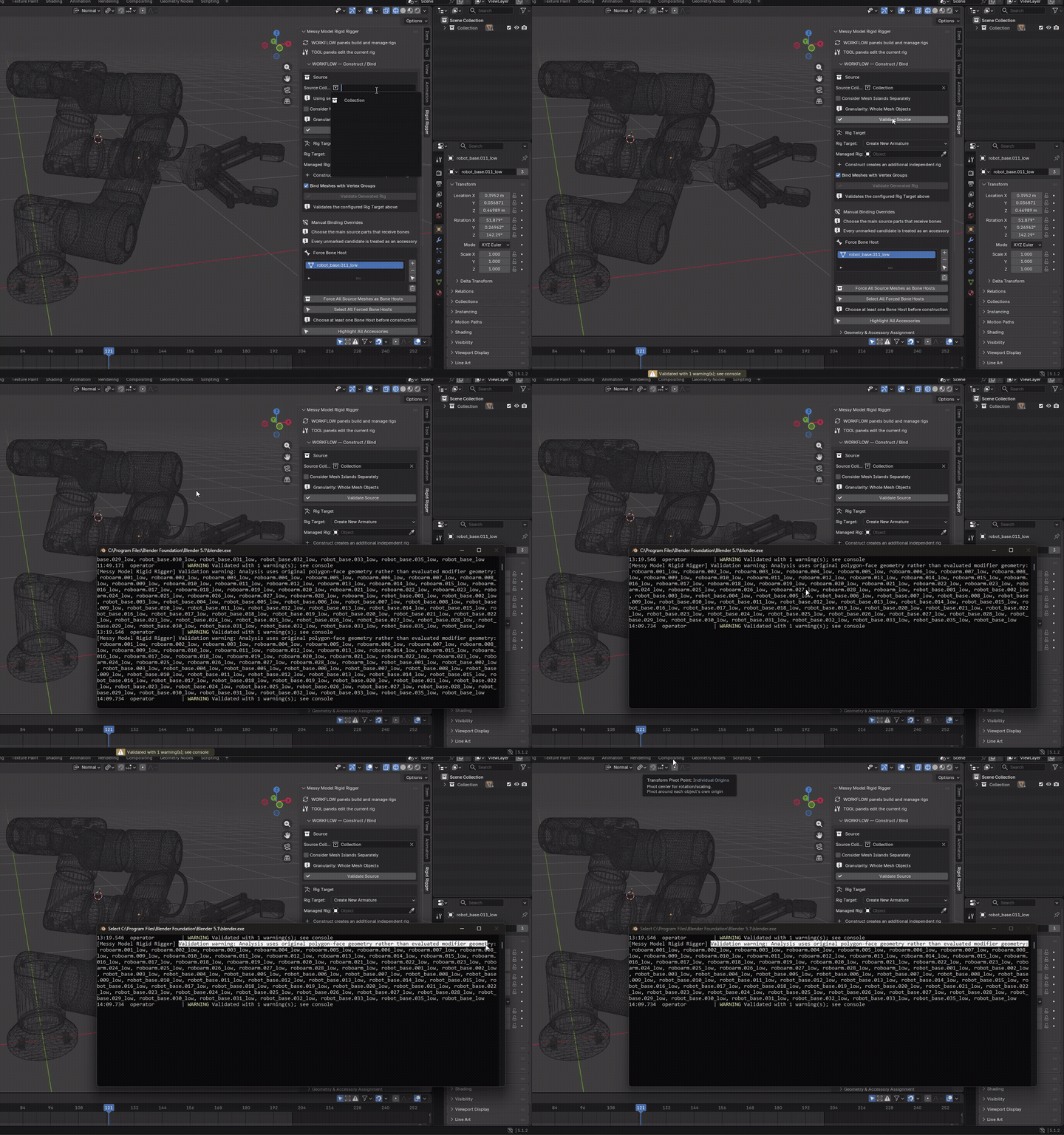
Choose Source Collection, then Consider Mesh Islands Separately. With no collection, the source comes from selected mesh objects. Validate before construction.
Validate Source
Mode: Object Mode
Setup: Choose Source Collection, or select the complete source if no collection is set.
Use: Checks source readiness without constructing a rig.
Keep in mind: Validation reports problems; it does not repair them.
Rig Target
Reading validation results: if validation reports a text name such as MMRR_Validation_…, switch an editor to Blender's Text Editor and choose that exact datablock from its header dropdown. Review missing ownership, conflicting modifiers, unowned vertices and non-rigid weights. Intentionally flexible hoses may have multiple bone weights; inspect such warnings rather than automatically deleting them.
Choose a generated rig or an Existing Armature. For generated output, Managed Rig identifies the rig to reconstruct or clear; leaving it empty creates an independent rig. Bind Meshes with Vertex Groups can be disabled for generated bones only. Existing-armature binding is always enabled and preserves the skeleton.
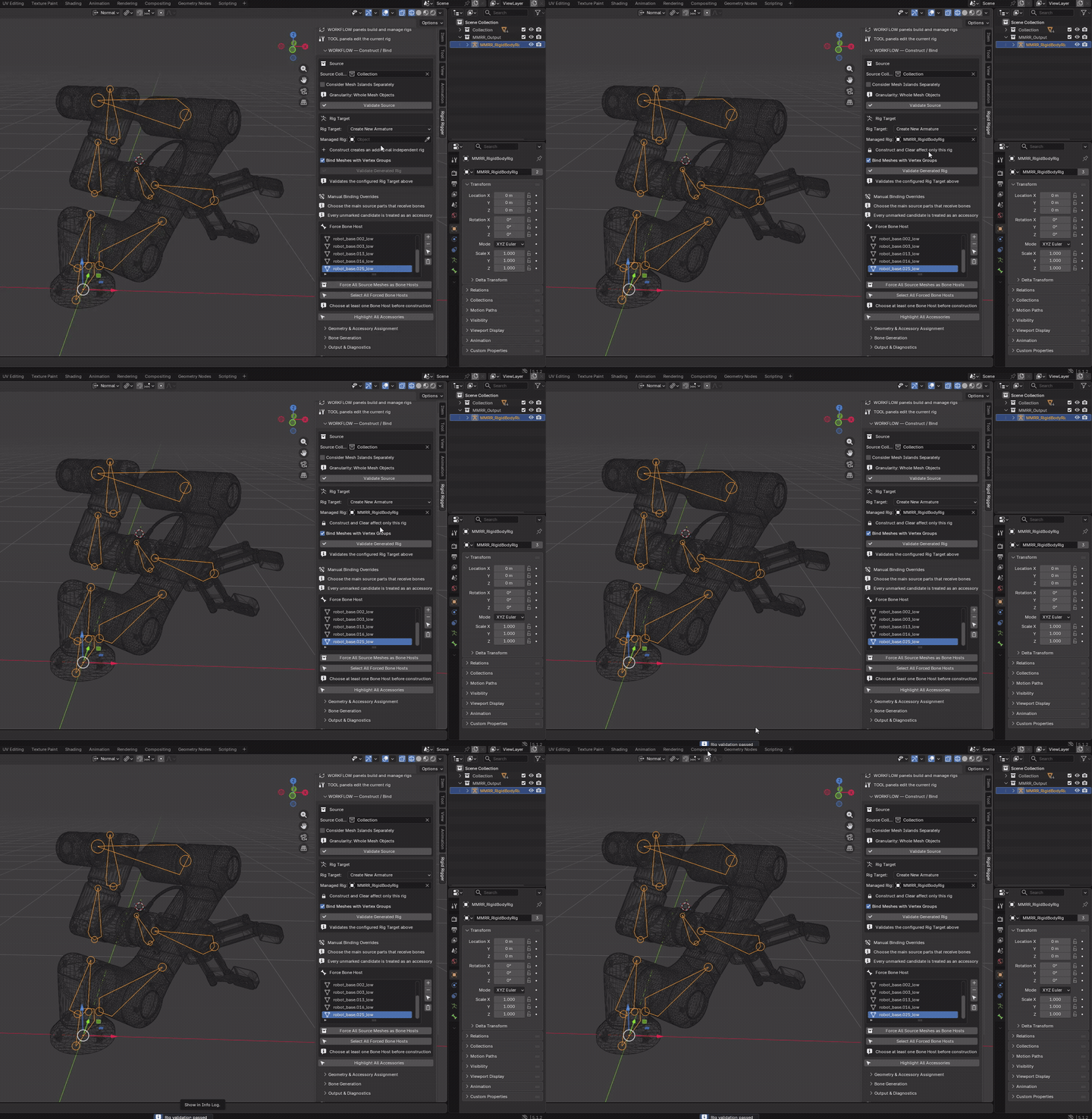
Validate Generated Rig
Mode: Object Mode
Setup: Configure the Managed Rig under Rig Target.
Use: Audits the configured generated rig and its ownership/bindings without repairing it.
Keep in mind: The construction report button is not a substitute for the separately named validation report.
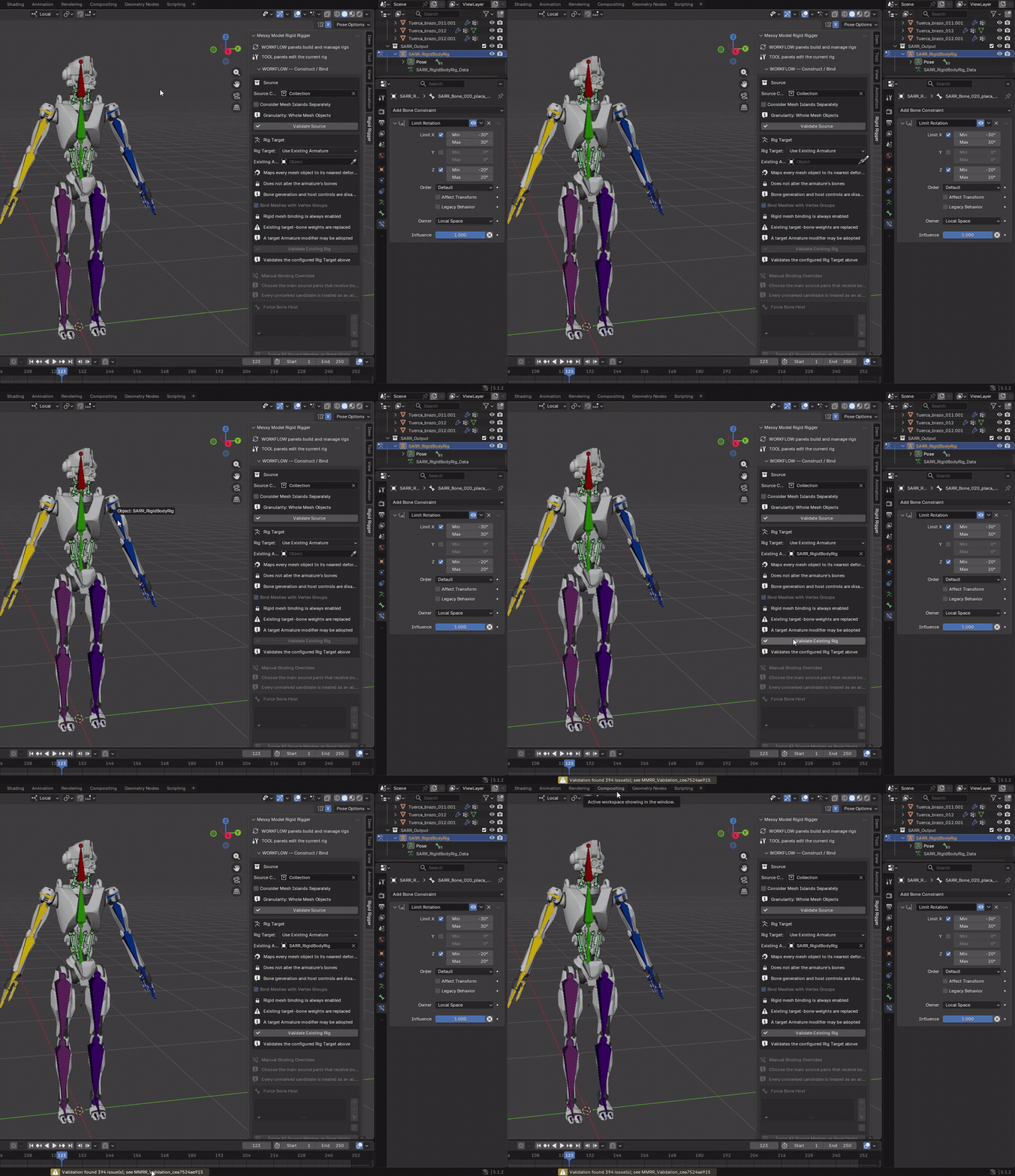
Validate Existing Rig
Mode: Object Mode
Setup: Configure the Existing Armature under Rig Target.
Use: Audits the configured existing rig and its ownership/bindings without repairing it.
Keep in mind: The construction report button is not a substitute for the separately named validation report.
Manual Binding Overrides
Generated-rig workflow only. Use Force Bone Host for the main source parts; all unmarked candidates are accessories.
Collection scope: when Source Collection is set, the host list and its add/remove/clear/select controls apply only to meshes in that collection and its child collections. Saved choices for objects outside the current source are hidden, not deleted, and reappear when switching back. Objects shared between collections share the same override. With no collection, the list is unfiltered and analysis uses the selected source meshes.
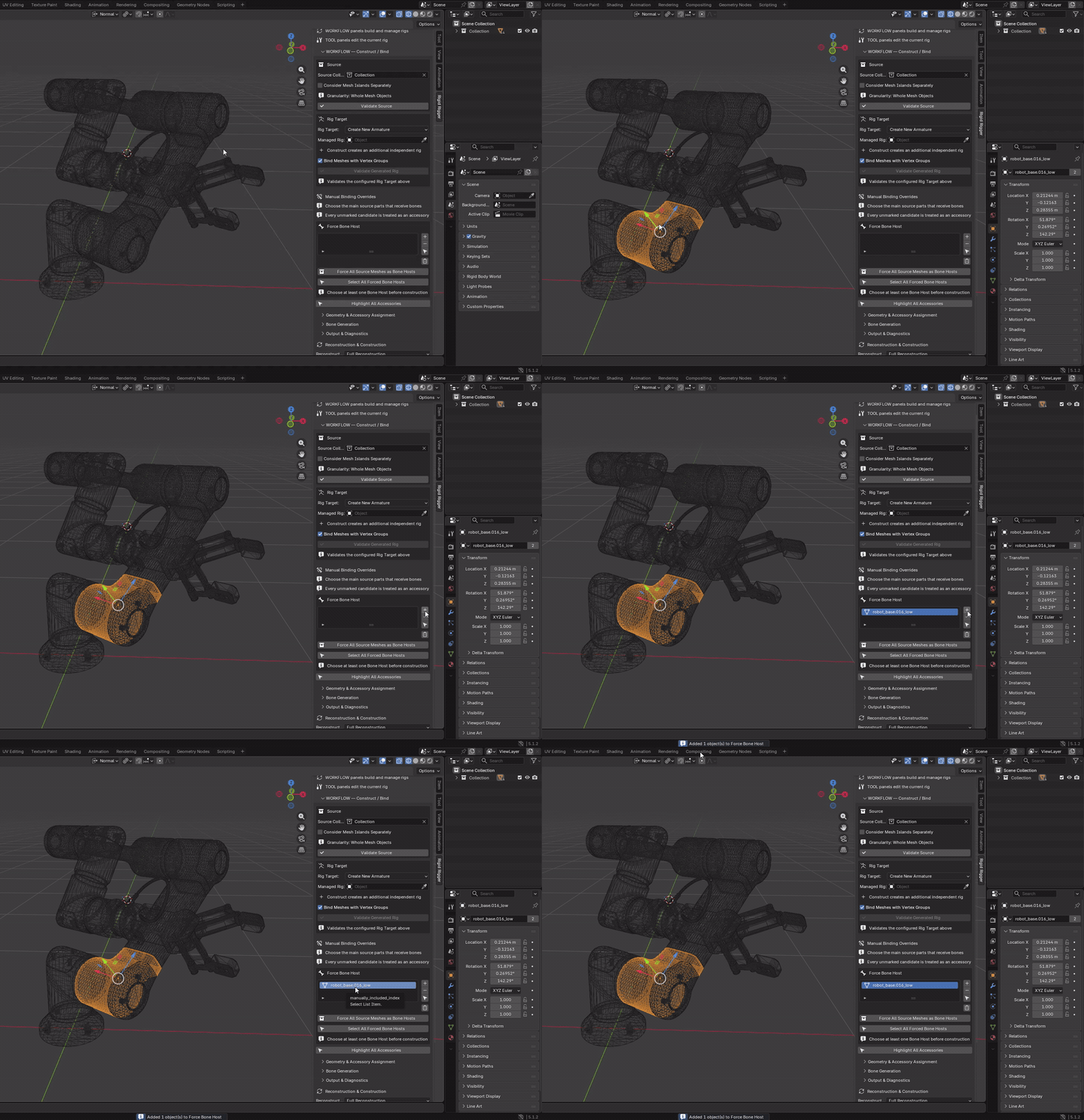
Add Selected Meshes - +
Mode: Object Mode
Setup: Select main source mesh objects.
Use: Adds selected meshes to Force Bone Host for future construction.
Keep in mind: Selected meshes outside the current Source Collection are skipped. Does not immediately change the live rig.
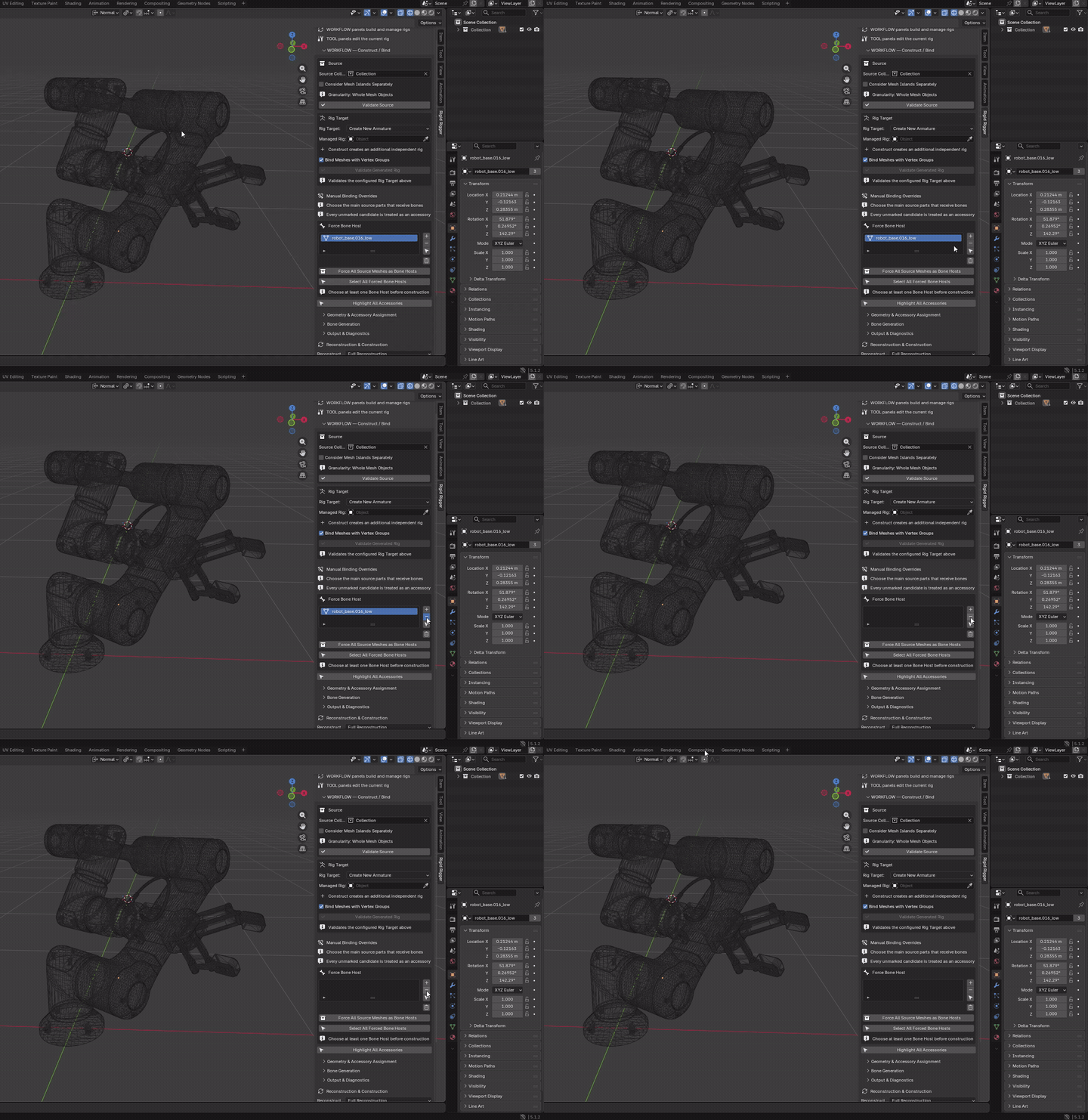
Remove Override - −
Mode: Object Mode
Setup: Highlight a visible entry in Force Bone Host.
Use: Removes that override; the object defaults to accessory treatment next construction.
Keep in mind: The object and its current bindings are not deleted.
Select Override Object - selection icon
Mode: Object Mode
Setup: Highlight a visible host-list entry.
Use: Selects that mesh and frames it when possible.
Keep in mind: Replaces the current object selection.
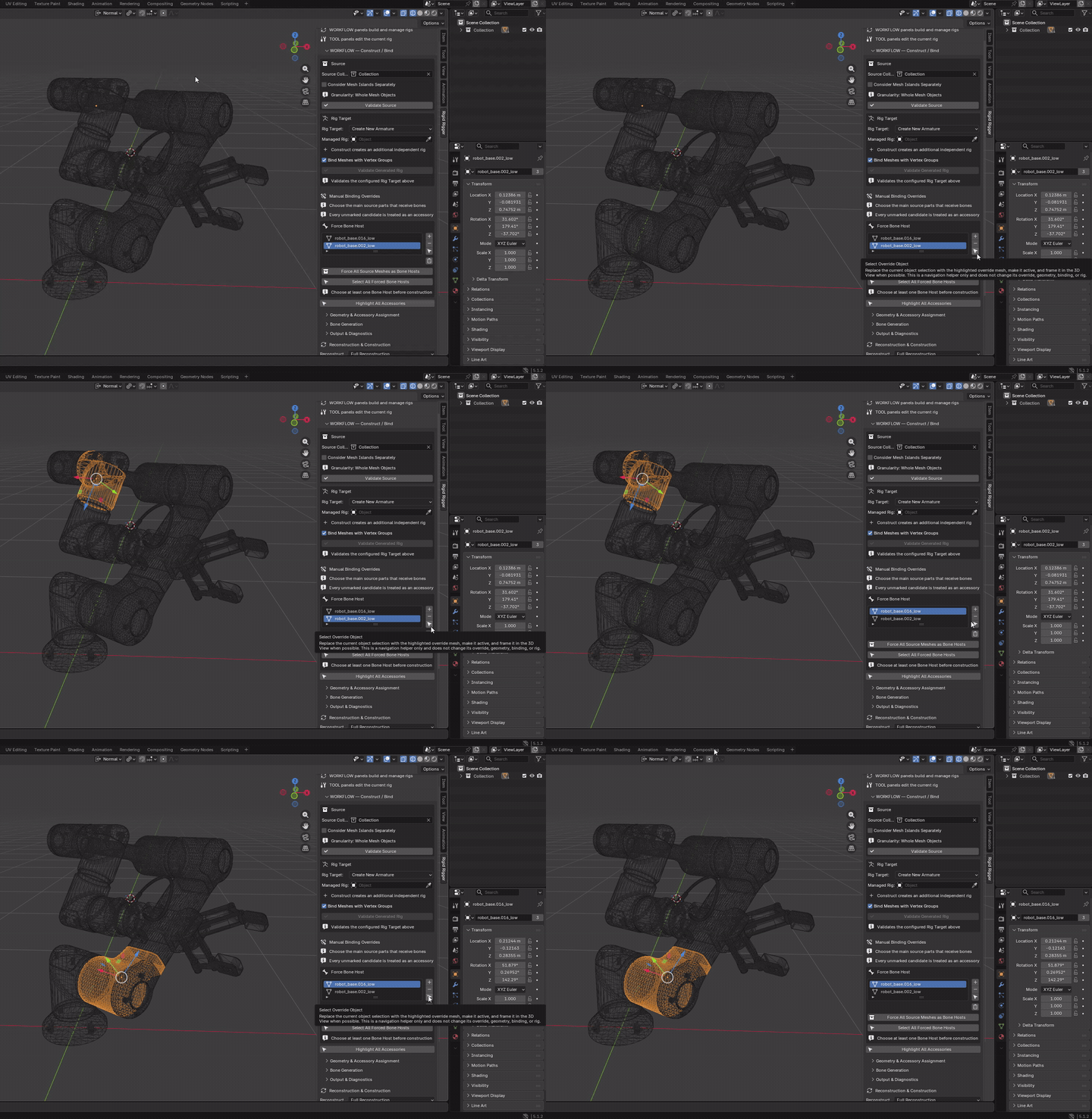
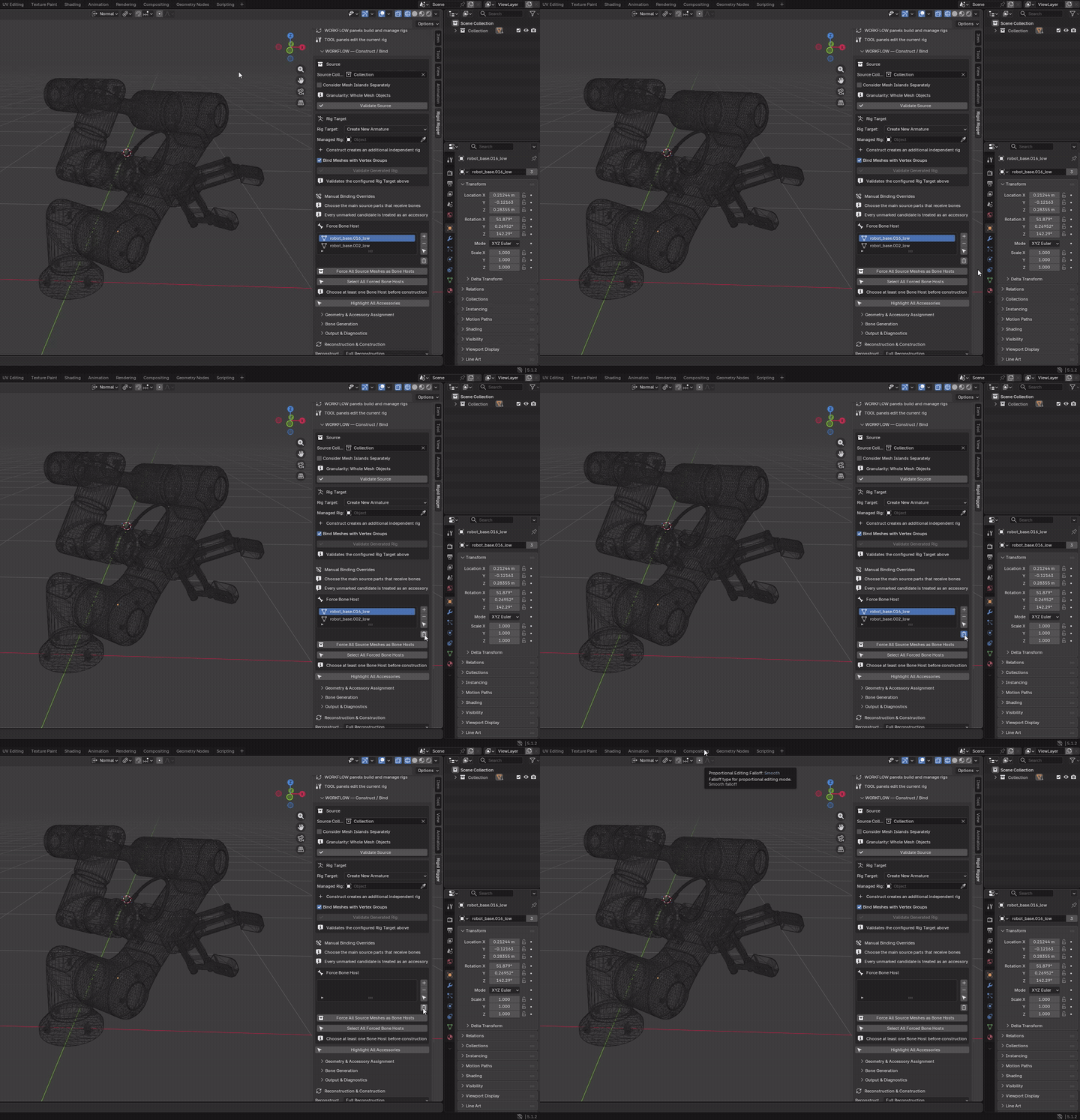
Clear Overrides - trash icon
Mode: Object Mode
Setup: Review the visible Force Bone Host list.
Use: Clears host overrides for the current Source Collection and its child collections; choices for objects outside that source remain saved. With no collection, it clears the unfiltered list. Removed hosts default to accessories on future construction.
Keep in mind: New-rig construction needs at least one usable host. No current bones or bindings are removed.
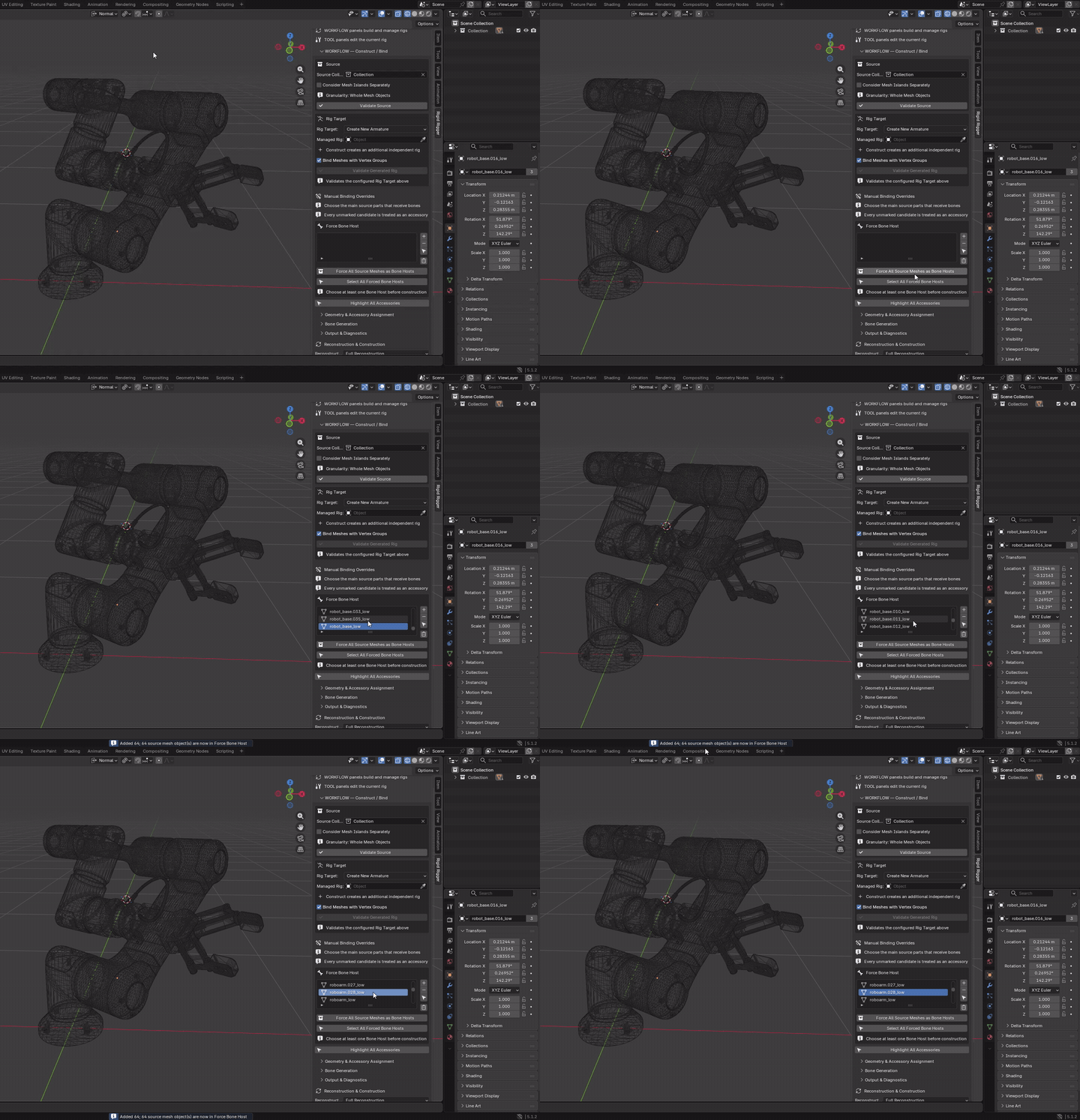
Force All Source Meshes as Bone Hosts
Mode: Object Mode
Setup: Choose Source Collection, or select the complete source.
Use: Marks every source mesh as a host.
Keep in mind: This can produce many bones, especially with island consideration. It only changes classification.
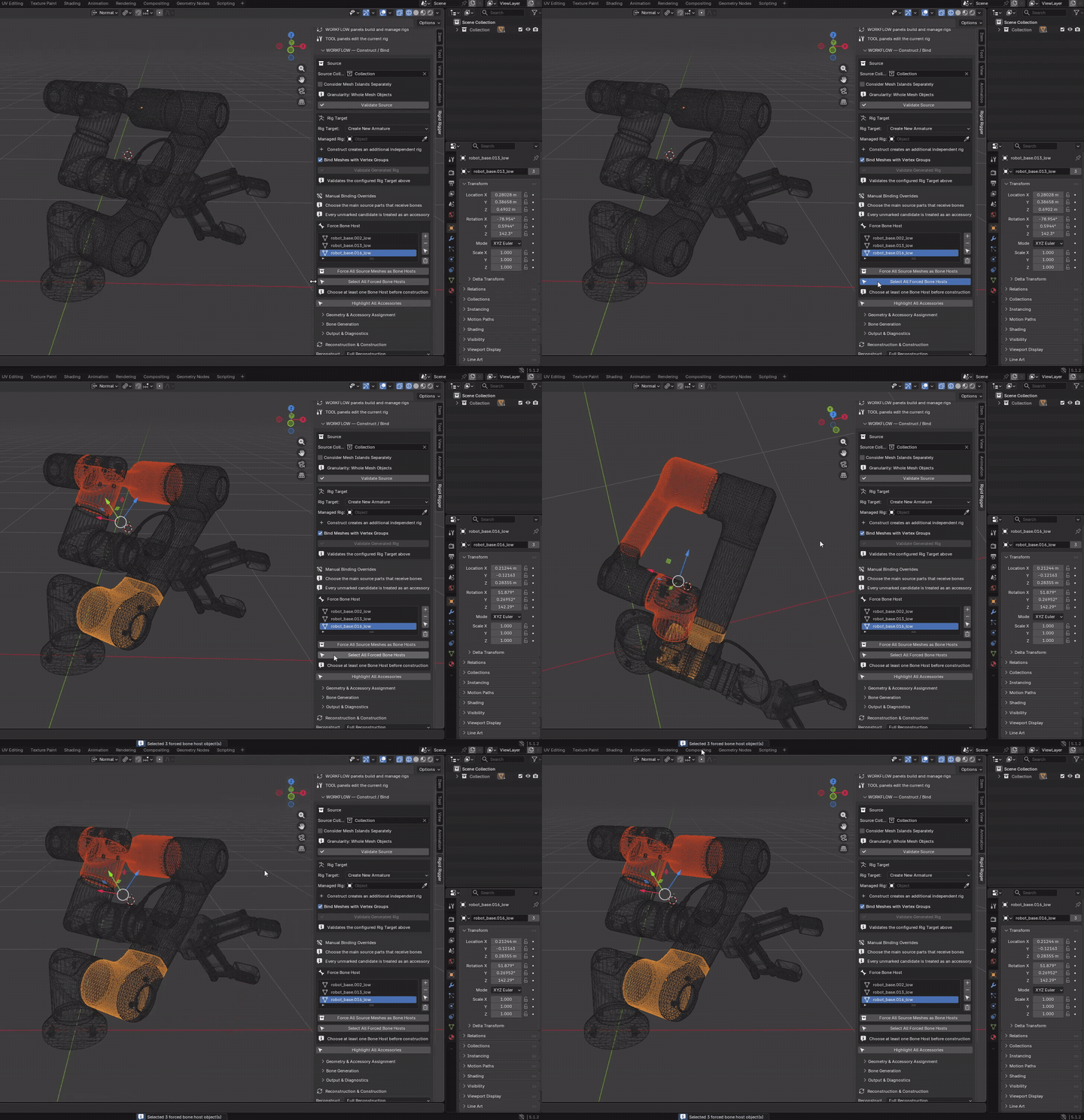
Select All Forced Bone Hosts
Mode: Object Mode
Setup: Have host-list entries available.
Use: Selects available listed host meshes within the current Source Collection, including child collections. With no collection, it uses the unfiltered host list.
Keep in mind: Missing entries are ignored; current selection is replaced.
Highlight All Accessories
Mode: Object Mode
Setup: Set Source Collection for repeatable selection; main hosts should already be marked.
Use: Selects source meshes not marked as hosts.
Keep in mind: Hidden/locked/excluded objects are skipped. Without a Source Collection, reselect the complete source before construction.
Geometry & Accessory Assignment
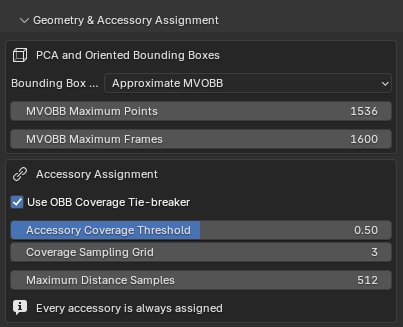
These settings control the fitted boxes and how accessories are assigned during generated-rig construction. They do not decide which objects are hosts: you choose those in Manual Binding Overrides.
Bounding Box Fitting
Approximate MVOBB (default) searches different orientations for a compact enclosing box. PCA OBB uses the principal geometry directions without that search, so it is faster but can produce a looser box for irregular parts. Switching modes can change box-based placement and coverage comparisons; neither mode detects the correct mechanical pivot automatically.
MVOBB Maximum Points
Default: 1536. Caps the geometry points used to search for a box orientation. A higher value represents detailed or irregular shapes more fully, but increases search work. A lower value reduces that work, but may overlook details that would suggest a better orientation. The final box still encloses all source vertices; reducing this value does not discard geometry or bindings.
MVOBB Maximum Frames
Default: 1600. Caps the candidate box orientations tested. Raising it allows a broader search that may find a more compact fit; lowering it limits the search and can leave a looser fit. This and Maximum Points apply only to Approximate MVOBB. Increasing a cap has no effect when the search already fits within it, and does not guarantee a better result.
Use OBB Coverage Tie-breaker
On by default. Allows box coverage to resolve an otherwise tied proximity comparison. Surface distance, contact support and center distance take priority, so coverage cannot override a clearly nearer part. Turning it off removes this final geometric tie-breaker; accessories are still assigned.
Accessory Coverage Threshold
Default: 0.50 (50%). Coverage is estimated by sampling inside the accessory’s box and checking how many points fall inside the other part’s box. It is not an exact solid-mesh overlap measurement. Only coverage at or above the threshold can influence a tie.
Raise it to require stronger box coverage, making the tie-breaker more selective. Lower it to let weaker coverage qualify. For example, estimated coverage of 60% qualifies at 50% but not at 80%. This does not change the distance limit or leave an accessory unassigned.
Coverage Sampling Grid
Default: 3. Sets sample points per box axis: 3 uses 27 points, 5 uses 125, and 7 uses 343. A higher value gives a finer coverage estimate but adds work to each comparison. A lower value is cheaper but coarser, particularly near the coverage threshold. This setting and the threshold are inactive when the tie-breaker is off.
Maximum Distance Samples
Default: 512. Caps sampled vertices, edge midpoints and triangle centers per candidate. These samples help measure contact support: how much of an accessory lies close to another part, rather than just whether they touch at one point.
Raise it for a fuller contact sample on detailed parts, at the cost of more sampling and distance queries. Lower it to reduce that sampling work, with a coarser contact estimate that may change close assignments. Polygon candidates also use triangle intersection and exact surface-distance checks, so this is not simply a “distance accuracy” slider. It is not a distance cutoff or accessory filter; every accessory is still assigned.
When to adjust: start with defaults. Try PCA OBB or lower MVOBB search caps if fitting is slow. Increase the search caps if a fitted box looks poorly aligned; increase the coverage grid only if a close coverage tie needs a finer estimate. Change one setting at a time and reconstruct to compare the result. These settings are disabled for existing-armature binding.
Bone Generation
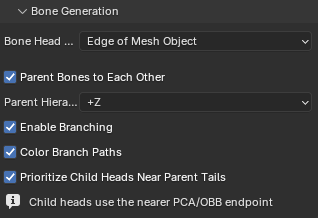
- Bone Head Position: choose the fitted-box edge or center placement.
- Parent Bones to Each Other: off by default; enable to infer a hierarchy.
- Parent Hierarchy Direction: chooses the hierarchy's directional starting arrangement, or uses the model centroid to choose a root.
- Enable Branching: allows branching paths when automatic parenting is enabled.
- Color Branch Paths: colors those generated branch paths.
- Prioritize Child Heads Near Parent Tails: chooses the nearer PCA/OBB endpoint as the child head.
These generated-rig settings are unavailable for an existing skeleton. Review inferred pivots and parents manually.
Output & Diagnostics
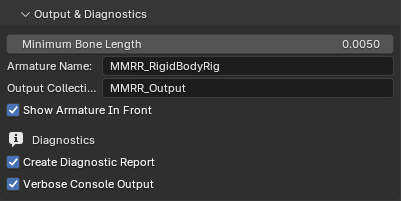
Minimum Bone Length is relative to the complete model diagonal. Armature Name, Output Collection and Show Armature In Front control generated output. These generation settings are disabled for an existing target.
Create Diagnostic Report stores a construction report; Verbose Console Output controls additional console messages.
Reconstruction & Construction
Reconstruction applies to the configured generated Managed Rig, not an existing-armature target.
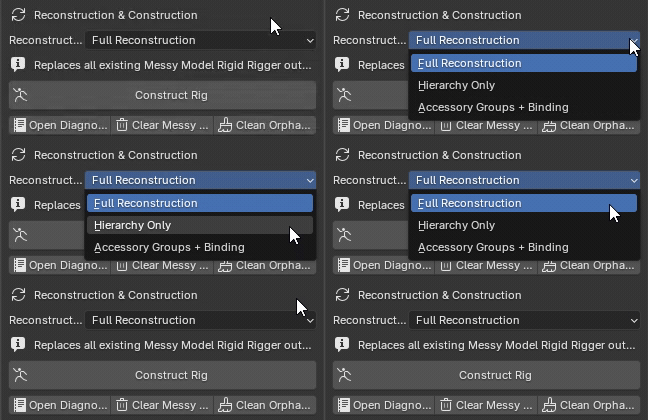
- Full Reconstruction: rebuilds bones and can discard manual bone edits. Save a cache or file backup first.
- Hierarchy Only: retains bone transforms and bindings but recomputes parenting.
- Accessory Groups + Binding: retains bones/hierarchy but recomputes ownership. Host candidates cannot outnumber deform bones; fewer hosts trigger a warning about unmatched bones.
Changing object/island granularity requires a full reconstruction.
Construct Rig
Mode: Object Mode
Setup: Choose source and target. A new generated rig needs at least one explicit Bone Host.
Use: Runs the selected construction/reconstruction workflow, or binds to the existing skeleton. Island mode changes the assignment unit.
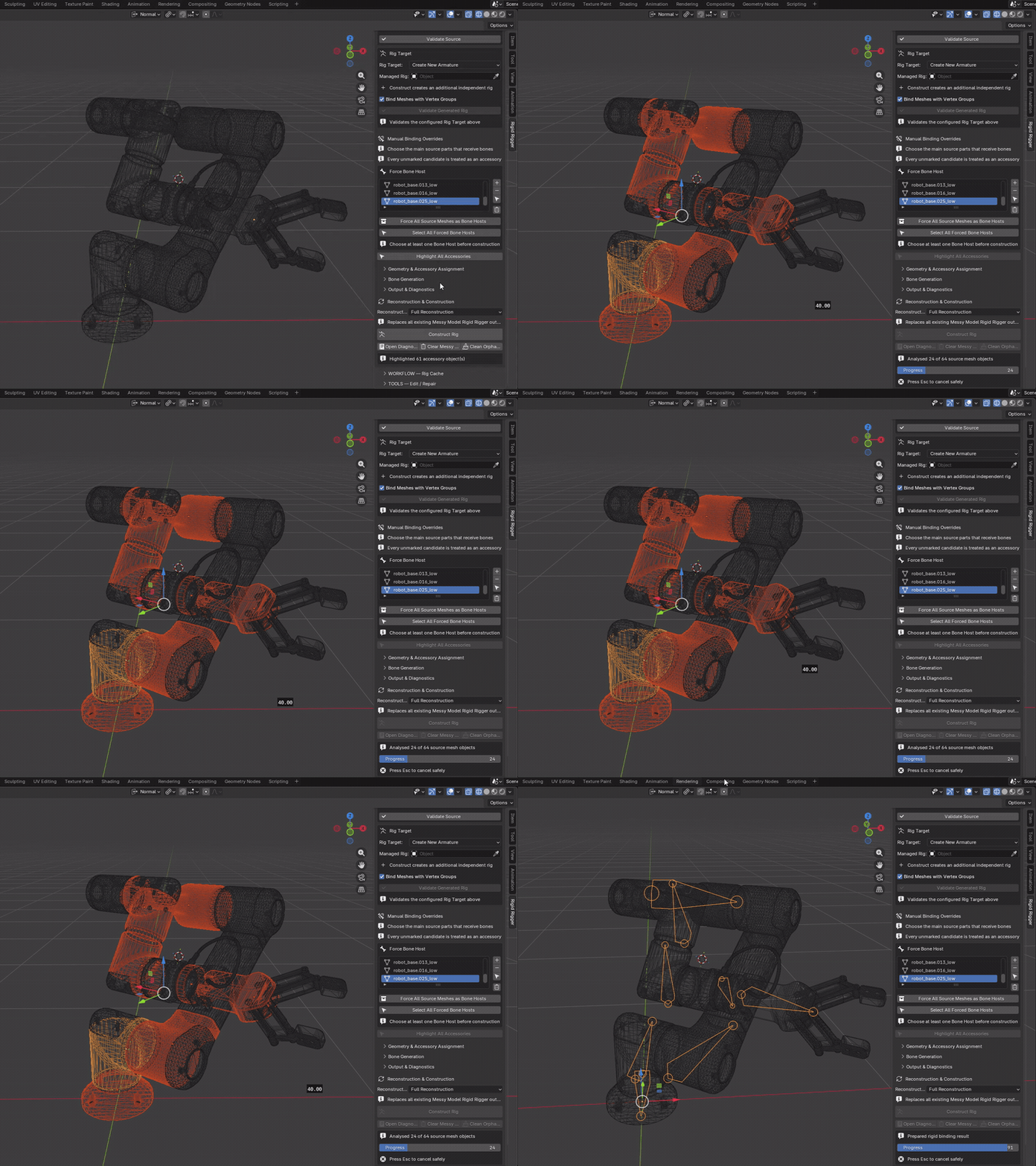
Keep in mind: Full Reconstruction replaces the chosen generated output; other modes preserve only the data described in Reconstruction. Existing mode overwrites target-bone weights. Back up first; Esc cancels between safe stages.
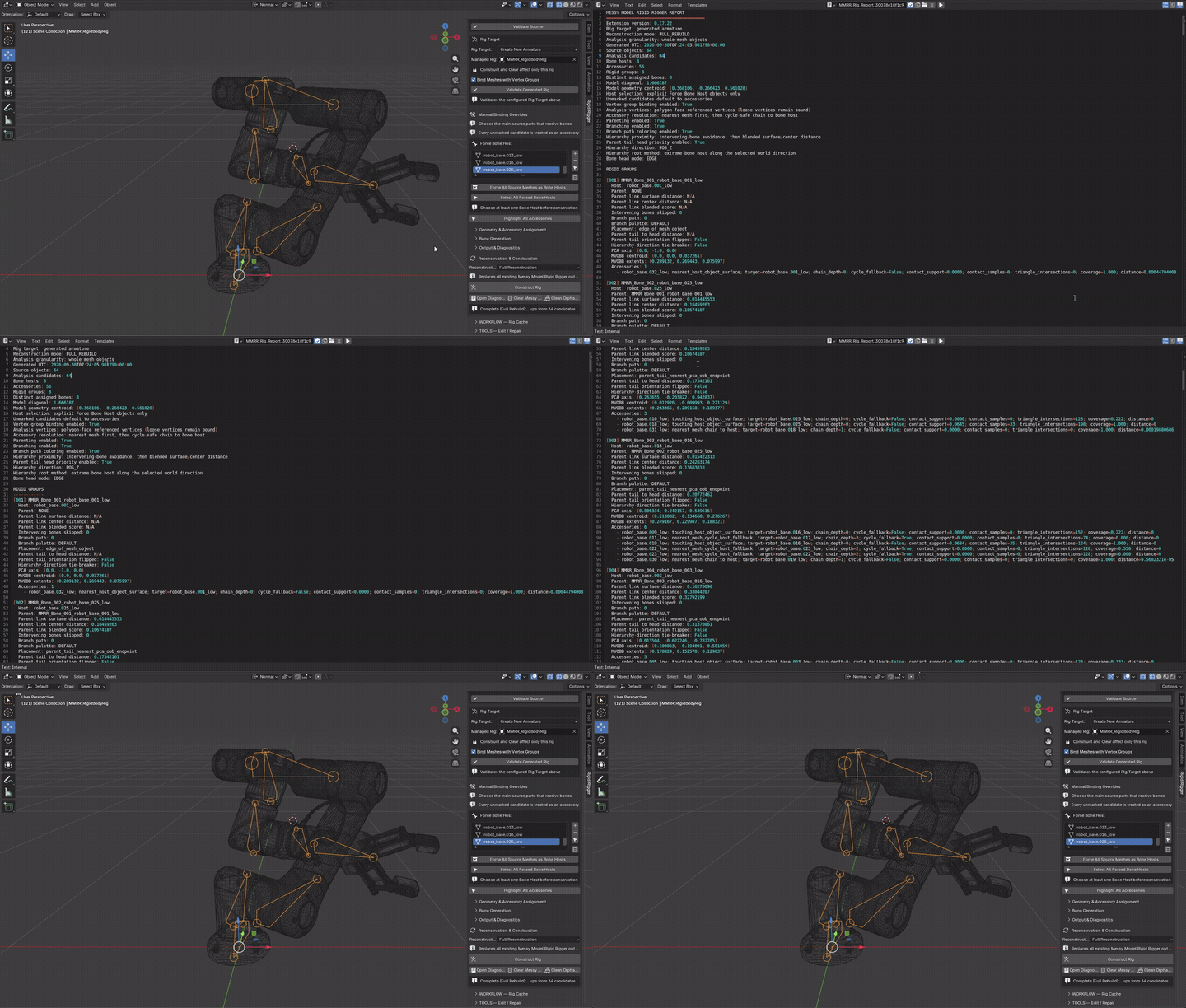
Open Diagnostic Report
Mode: Object Mode
Setup: Choose the managed rig with a construction report.
Use: Opens its construction Text report in the current editor area.
Keep in mind: This does not rerun analysis or open every validation report.
Clear Messy Model Rigid Rigger Output
Mode: Object Mode
Setup: Explicitly choose the intended generated or existing rig target.
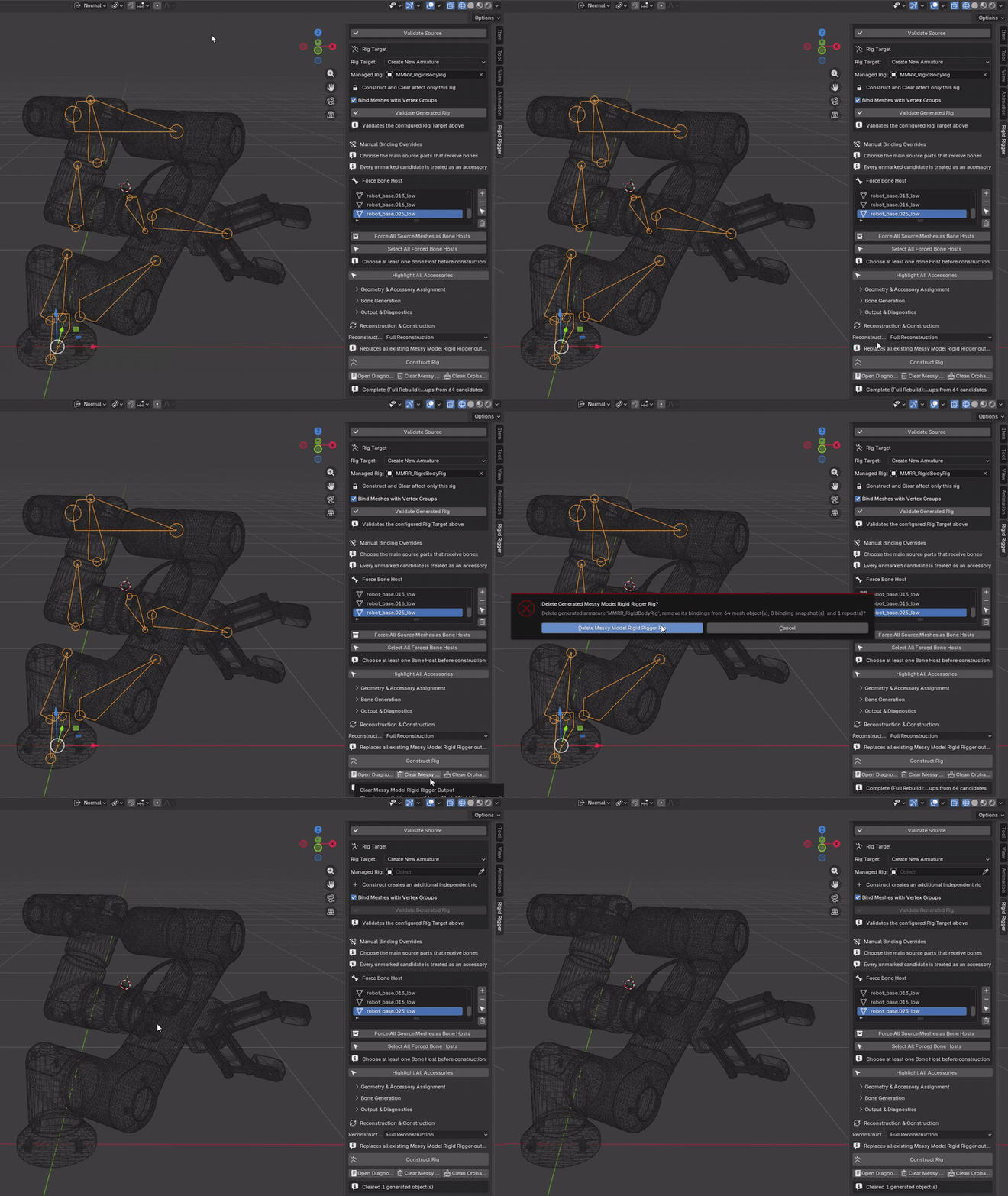
Use: Removes the chosen generated rig and its managed bindings/recovery data; an imported target skeleton itself is retained.
Keep in mind: Destructive. This is not pose baking; removing binding may change the visible posed result. Unrelated rigs are preserved.
Clean Orphaned Source Bindings
Mode: Object Mode
Setup: Choose the source whose recorded MMRR/SARR armature was deleted.
Use: Removes safely identified orphaned ownership groups, managed binding modifiers and binding tags from the chosen source when its generated rig is no longer in use.
Keep in mind: Preserves rigs still used in a scene or collection, including hidden rigs and rigs in other scenes. Does not restore a deleted rig; cleanup is source-scoped, not file-wide. Read the confirmation before proceeding.
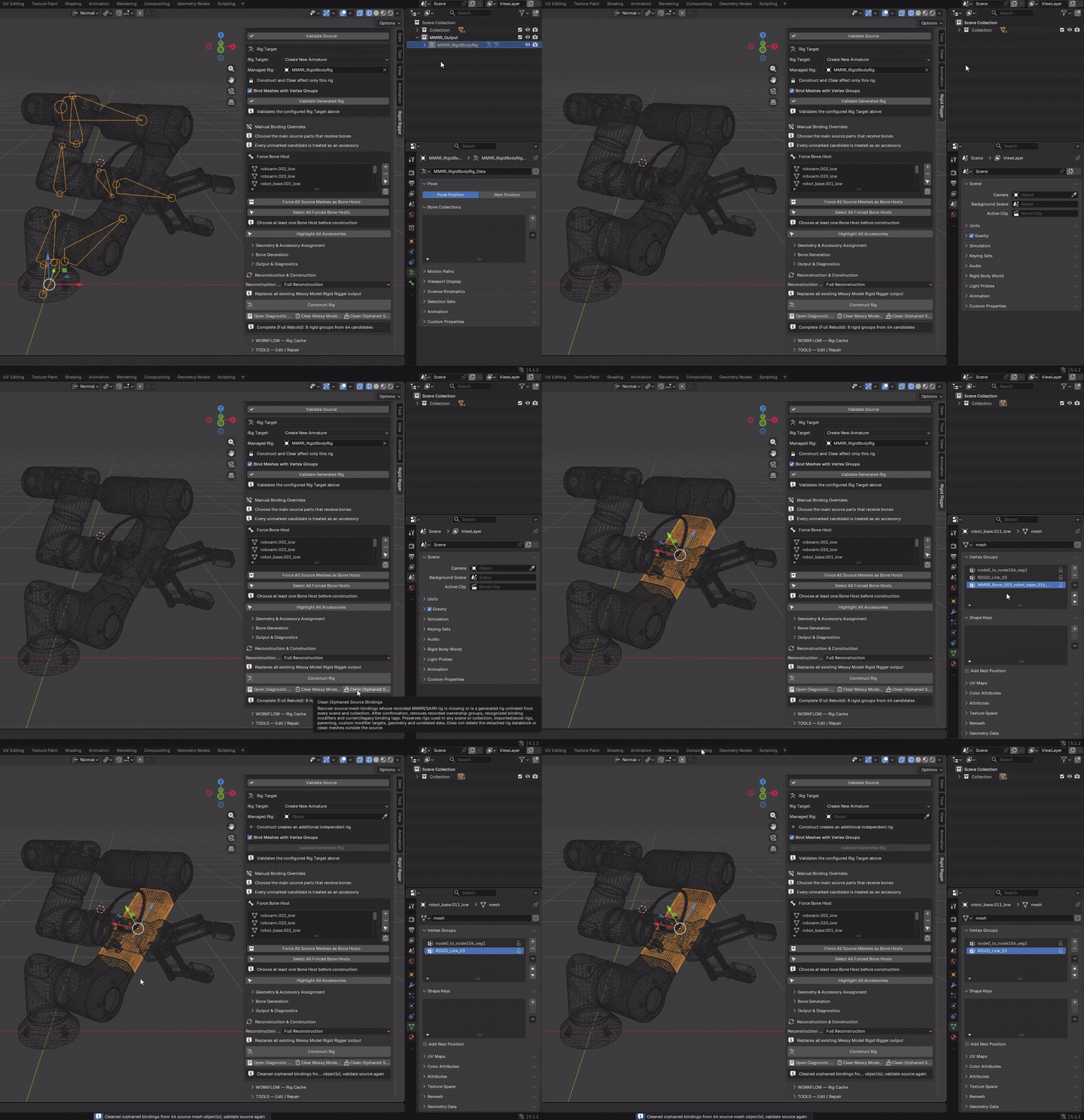
Press Esc to request cancellation between safe stages. Construction uses the settings and hosts chosen at the start and blocks other MMRR operations until it finishes or is cancelled. Cancellation before commit restores the previous managed bindings and rig metadata. Keep a saved file backup.
WORKFLOW - Rig Cache
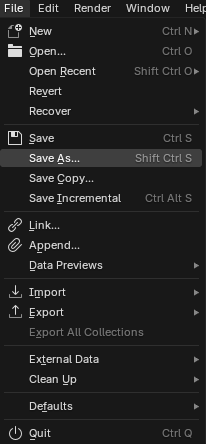
Rig Cache or Save As? a Rig Cache stores a generated bone layout and its bindings inside the .blend, without a visible duplicate rig. It does not store Actions, NLA tracks or drivers, and switching is blocked while the current rig has animation data. Use File → Save As for a separate complete-scene checkpoint, including imported armatures and animation. Use Blender Undo for recent unwanted edits while undo history is available; it is not a persistent backup.
Caches require compatible source topology, coordinates and vertex indexing. Do not assume they remain loadable after source-geometry edits. Save a separate .blend before binding, reconstructing or cleaning up. Cleanup deletes bindings or output; it is not recovery. Use the smallest relevant cleanup scope.
Full .blend backup
Generated-rig cache
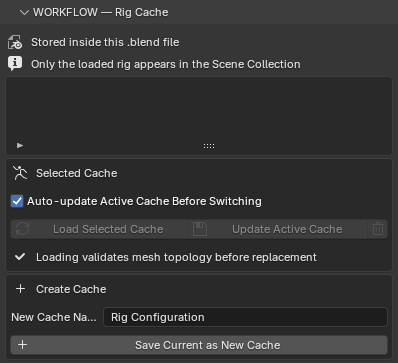
Selected Cache
Generated rigs only. Select a stored entry.
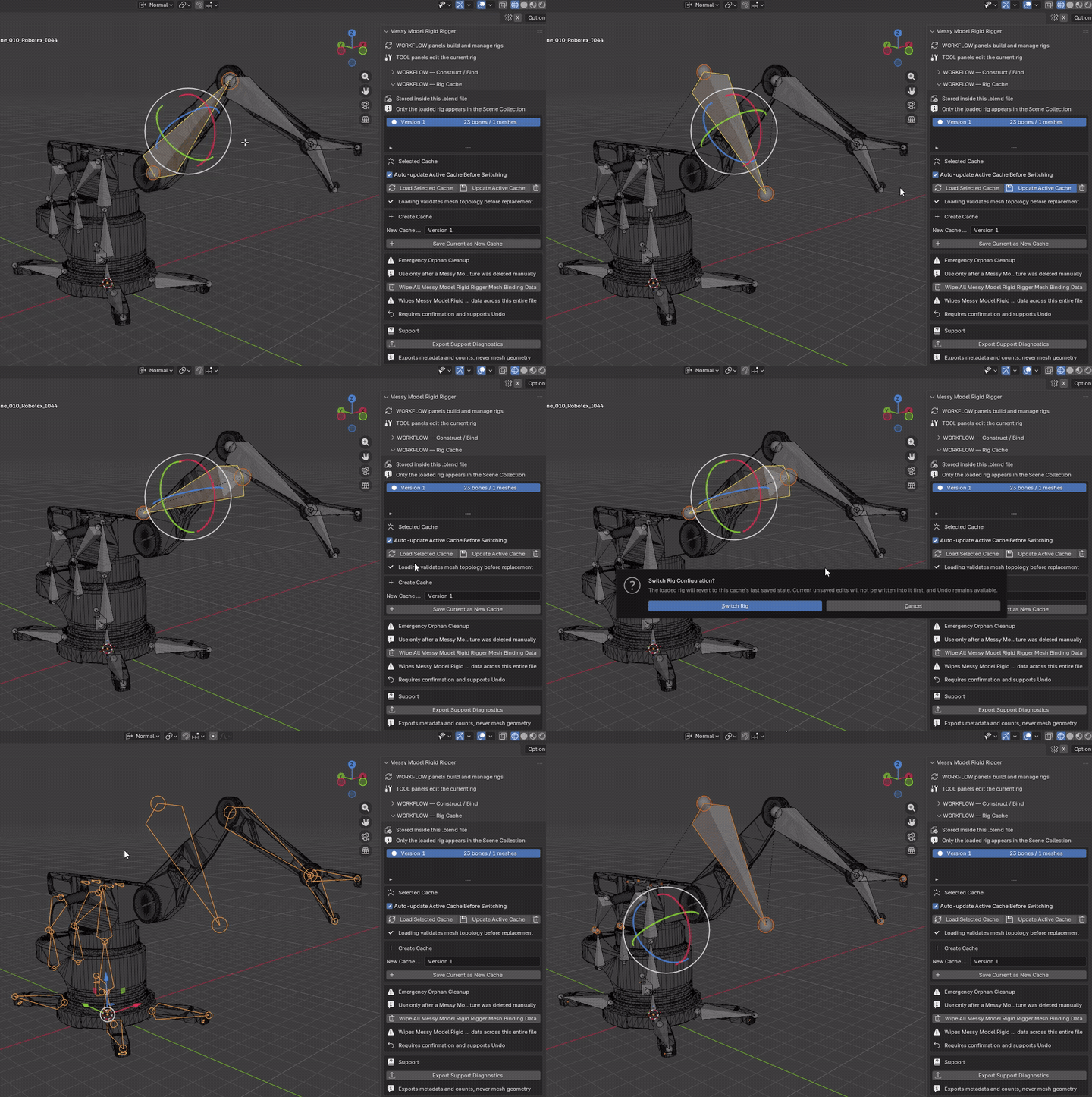
Auto-update Active Cache Before Switching: enabled by default, this saves current edits back into the cache linked to the live rig before loading a different entry. It overwrites that linked cache; it does not create another version. Disable it when you want to keep the linked cache's previous saved state. Use Save Current as New Cache first when both versions need to be retained.
Exceptions: loading the same cache always returns to its last saved state without auto-saving the current edits. A live rig that is not linked to a cache is not saved automatically; save it as a new cache before switching if you want to retain it. The highlighted list entry and the live rig's linked cache can be different.
Load Selected Cache
Mode: Object Mode
Setup: Highlight the desired saved configuration.
Use: Validates source geometry, then replaces the live generated rig and managed bindings with the saved state.
Keep in mind: Review auto-update before switching. Current-rig Actions/NLA/drivers block switching. Reloading the current cache discards its unsaved edits.
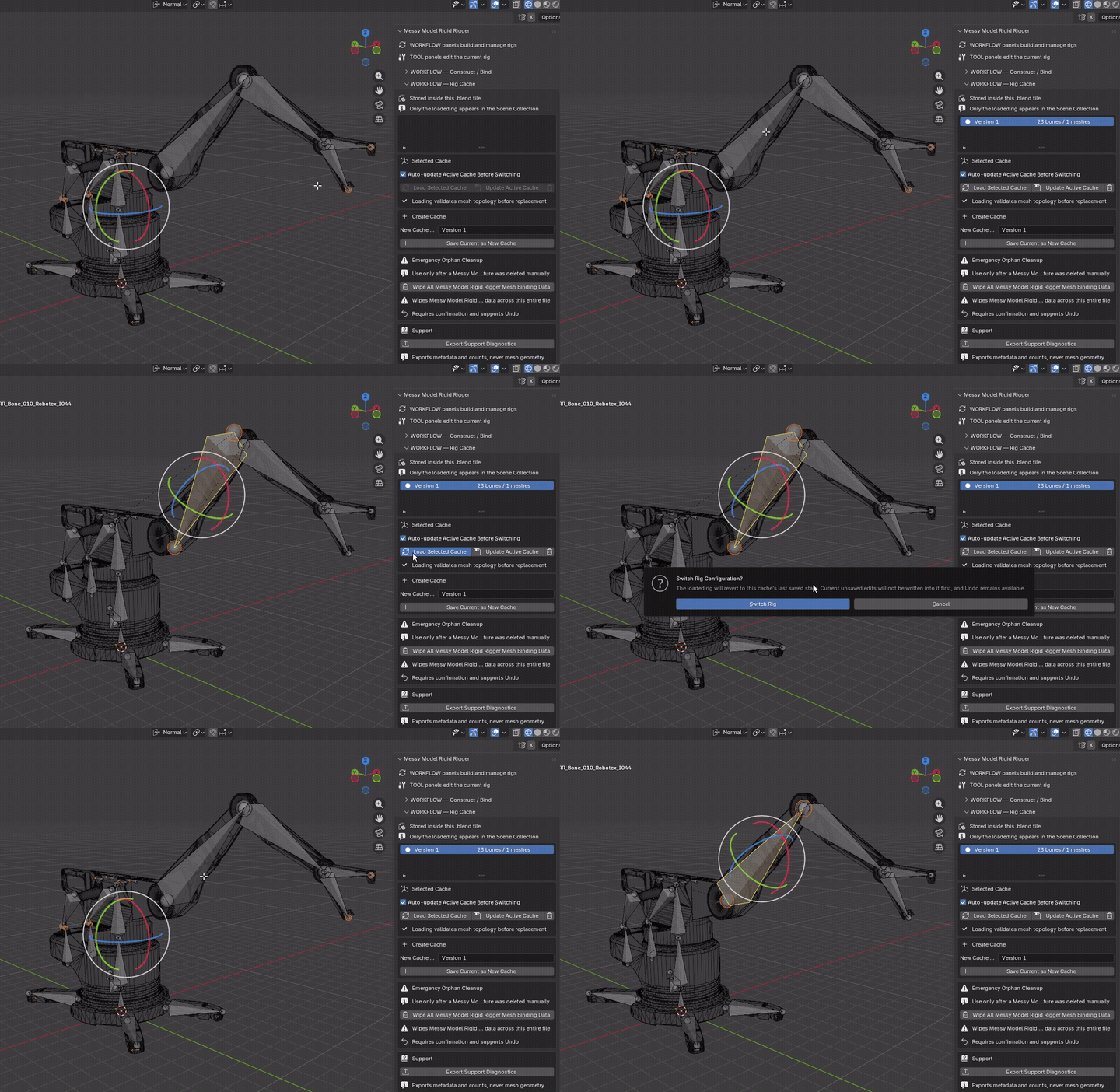
Update Active Cache
Mode: Object Mode
Setup: Use a generated rig already linked to a cache.
Use: Overwrites that linked cache with current rig edits.
Keep in mind: Updates the cache linked to the live rig, not an arbitrary highlighted list entry.
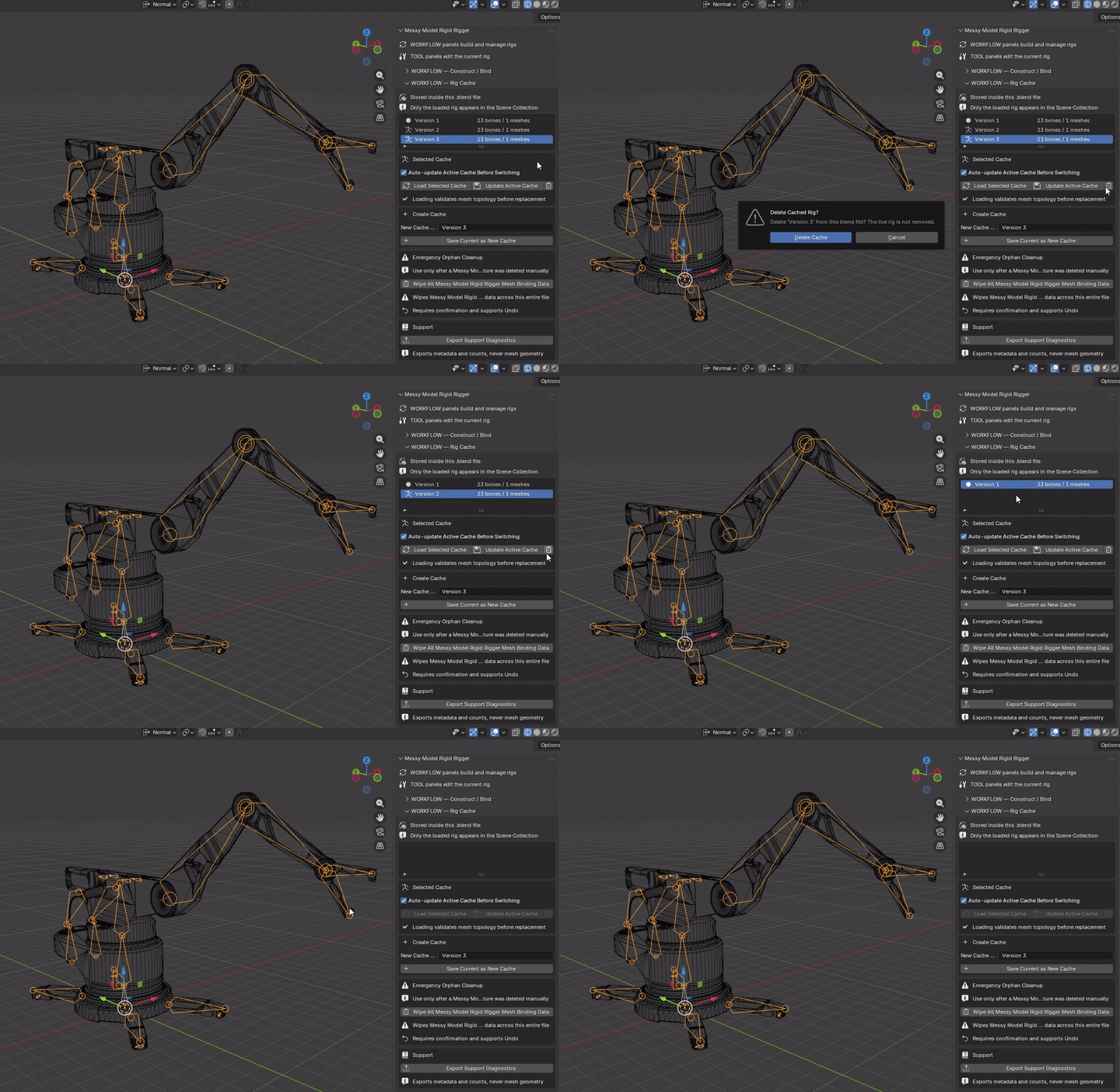
Delete Selected Cache - trash icon
Mode: Object Mode
Setup: Highlight the disposable cache entry.
Use: Deletes that stored cache without removing the live rig.
Keep in mind: Deletes a recovery option; retain another backup.
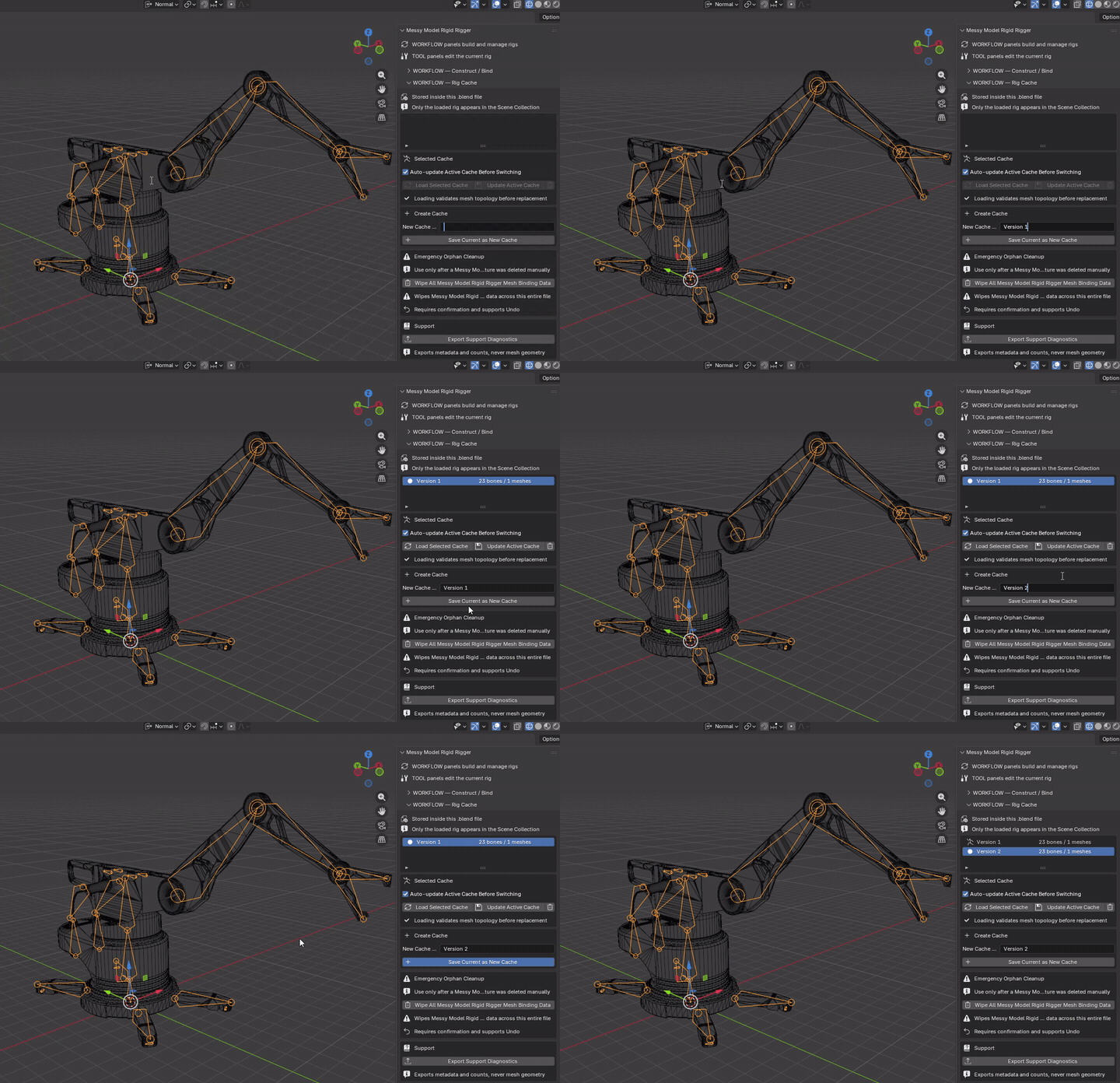
Create Cache
Enter New Cache Name before saving a new configuration.
Save Current as New Cache
Mode: Object Mode
Setup: Choose the generated Managed Rig and type a cache name.
Use: Stores a new configuration inside the .blend without another visible rig.
Keep in mind: Generated rigs only. Not a full scene backup; Actions, NLA and drivers are not stored.
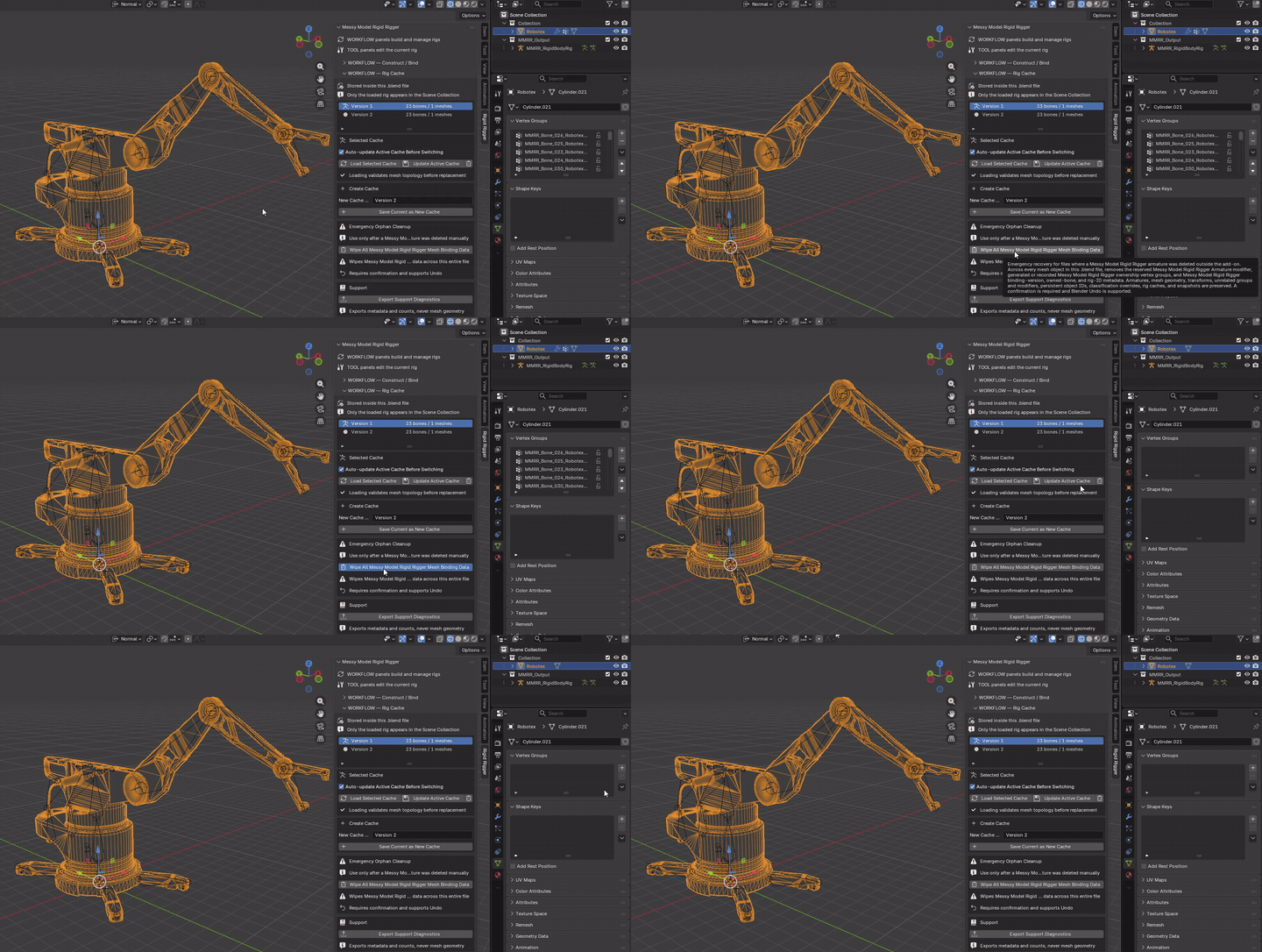
Emergency Orphan Cleanup
File-wide emergency action, not normal single-rig cleanup. Save a separate backup first.
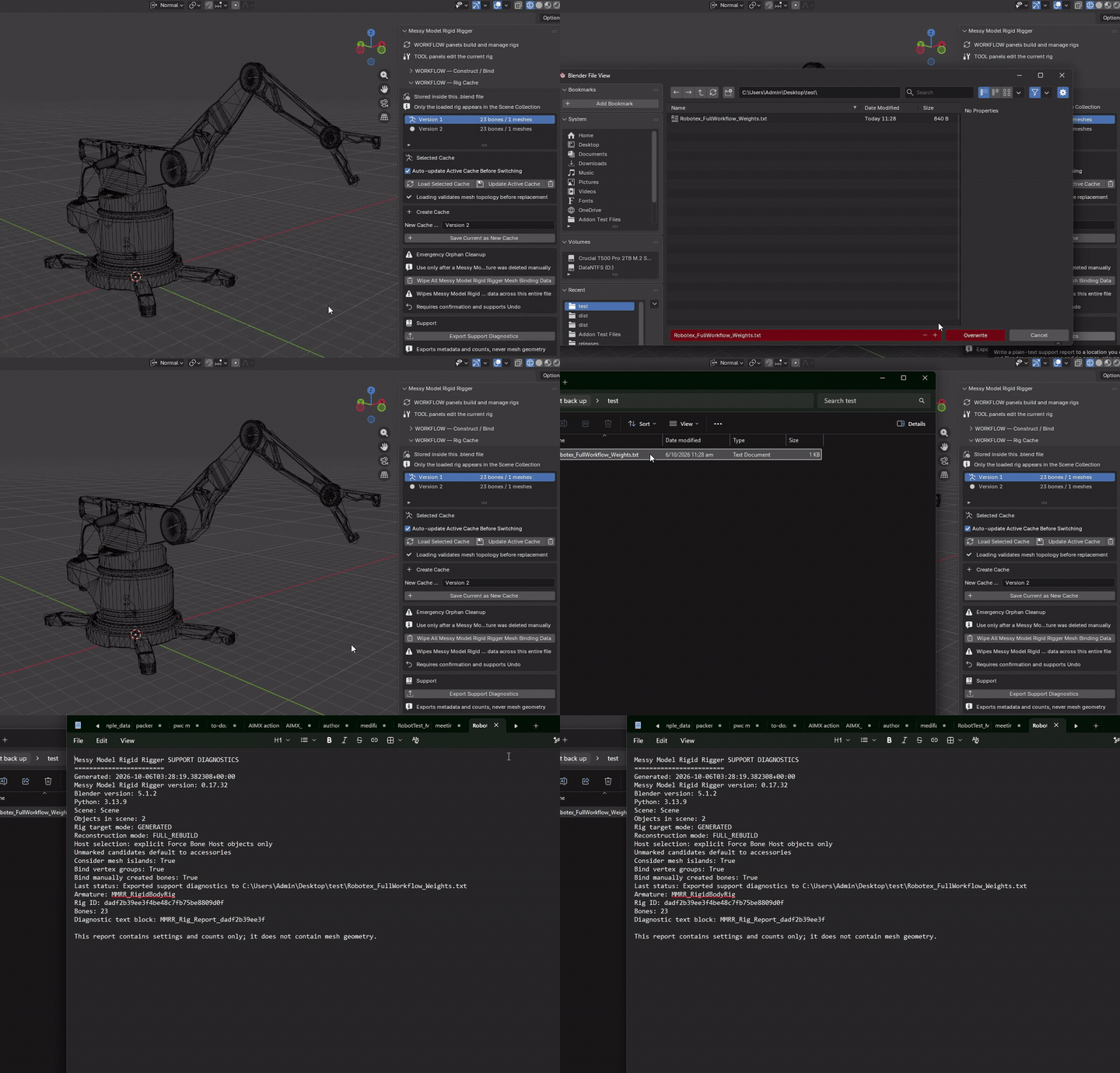
Wipe All Messy Model Rigid Rigger Mesh Binding Data
Mode: Object Mode
Setup: Save a separate backup; use only for deliberate file-wide emergency cleanup.
Use: Removes recognized MMRR mesh ownership groups, binding modifiers and binding tags across the entire file.
Keep in mind: Affects every mesh, not selection or one rig. Keeps armatures, geometry, unrelated data, persistent object IDs, caches and snapshots. Not a complete metadata-strip tool.
Support
Export Support Diagnostics
Mode: Object Mode
Setup: Have the affected scene and rig available.
Use: Writes a support report with versions, settings, names and counts, excluding model geometry.
Keep in mind: Review object/rig names and metadata before sharing. This is not a scene backup.
TOOLS - Edit / Repair
Refine the current rig.
Bone Repositioning
Before rest edits: reset test poses when judging alignment. Editing an animated model's rest rig can change its evaluated motion; preserve an animated backup. Some tools release physical connections to avoid pulling neighbouring bones, while retaining parent relationships. PCA/MVOBB fitting estimates geometry, not mechanical pivot locations.
Shared armature data: if another armature object uses the same bone data, helper invocations offer Make Independent and Continue. The confirmation names the sharing rigs and explains the copy. Continuing makes only this rig’s rest-skeleton data independent; its armature object and mesh modifier targets stay the same. Other shared assets, such as animation Actions, are not made independent. Cancel the first confirmation to change nothing. If you cancel a later helper dialog, the independent copy remains. Library-linked rigs must be made editable separately.
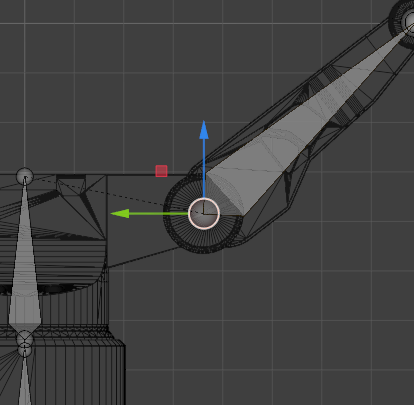
Rest-bone placement helpers. Valid .L/.R counterparts follow when X-Axis Mirror is enabled; check the mode and selection for each action.
Direction and Axis
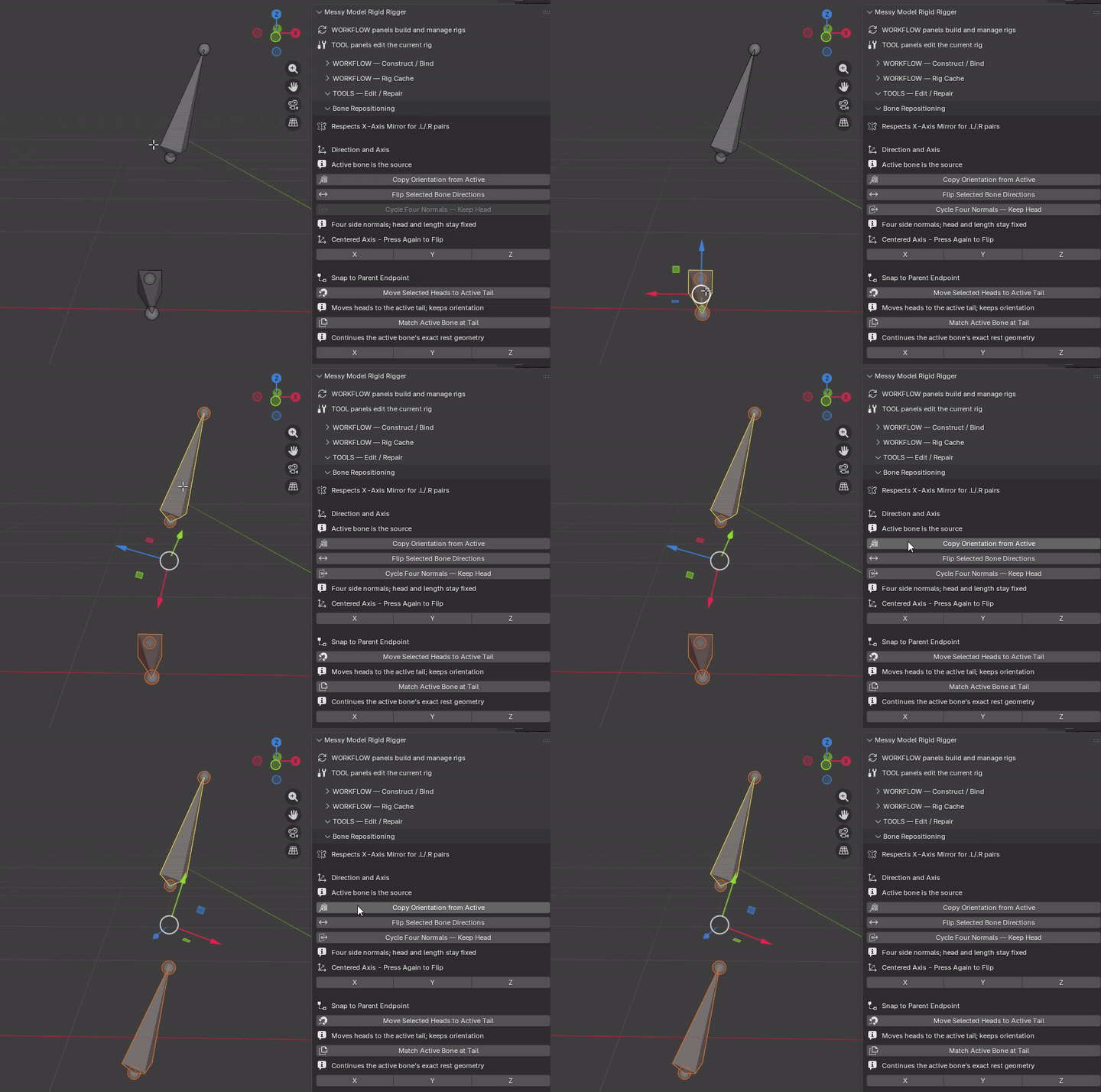
Copy Orientation from Active
Mode: Armature Edit Mode
Setup: Select destination bones first; leave the source bone active.
Use: Copies source direction and roll while keeping each destination's midpoint and length.
Keep in mind: Changes rest geometry, not a pose. Connected endpoints may be released.
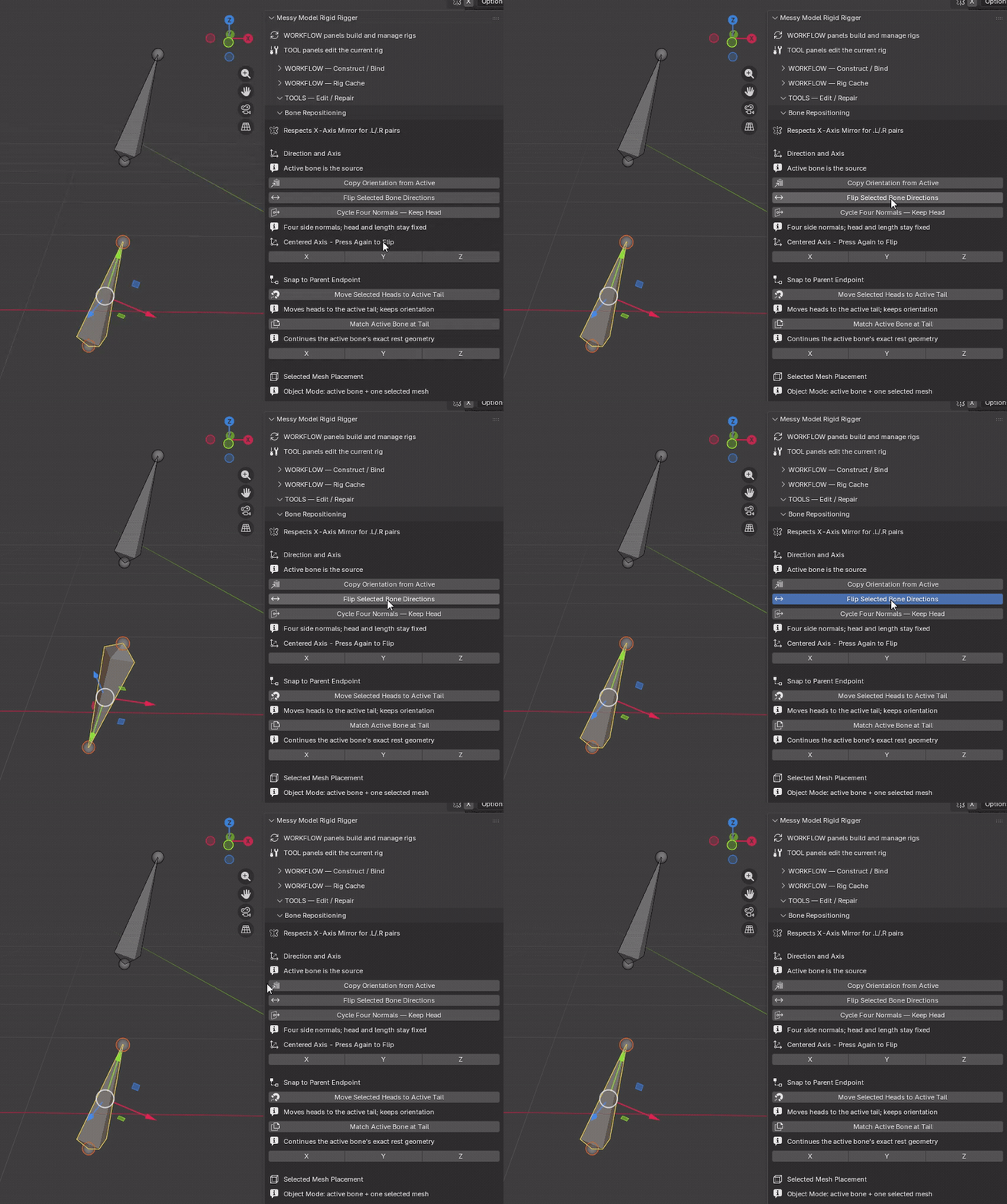
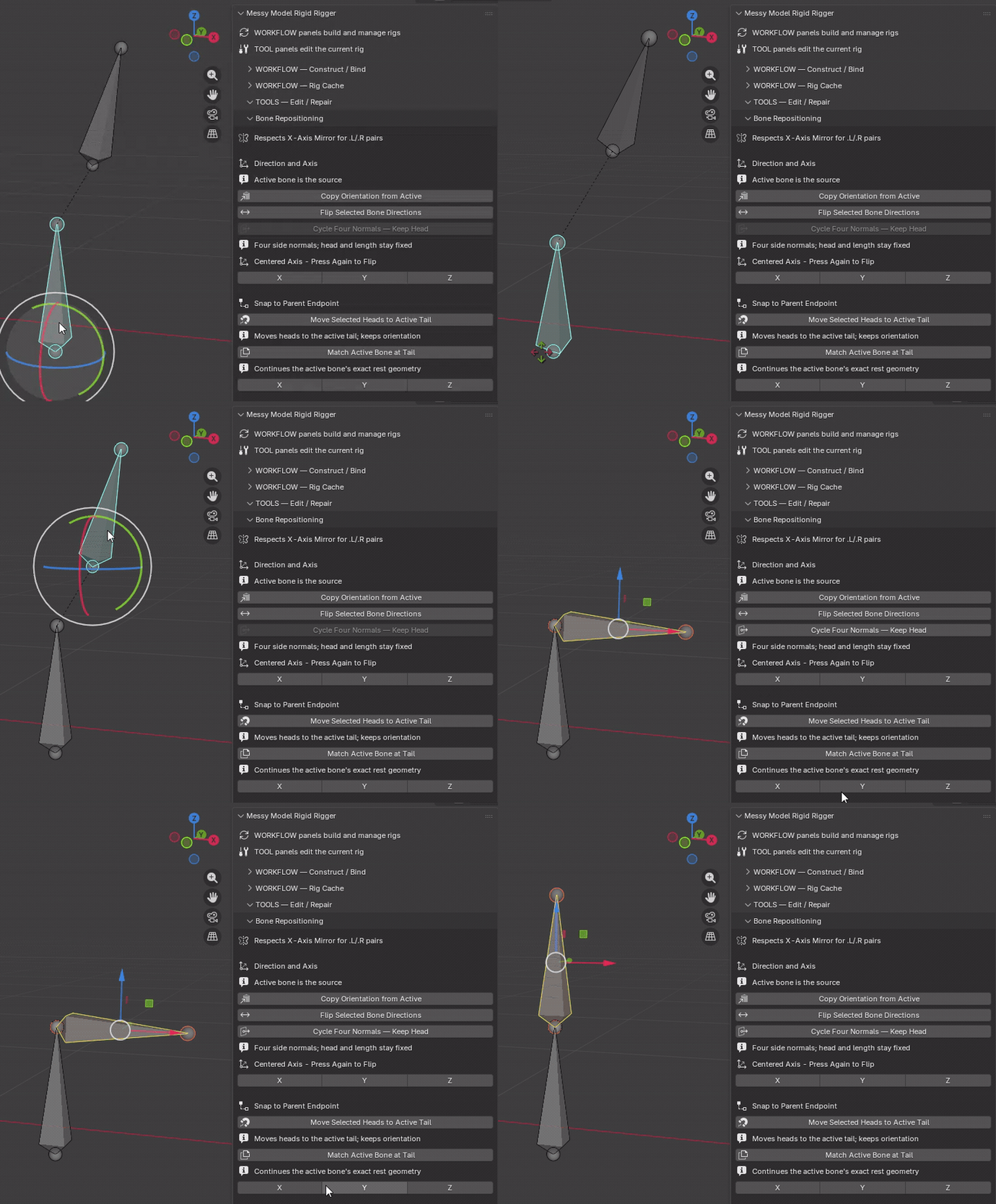
Flip Selected Bone Directions
Mode: Armature Edit Mode
Setup: Select bones to reverse.
Use: Swaps their heads and tails without changing names or ownership.
Keep in mind: Parenting is retained; physical connections are released when needed.
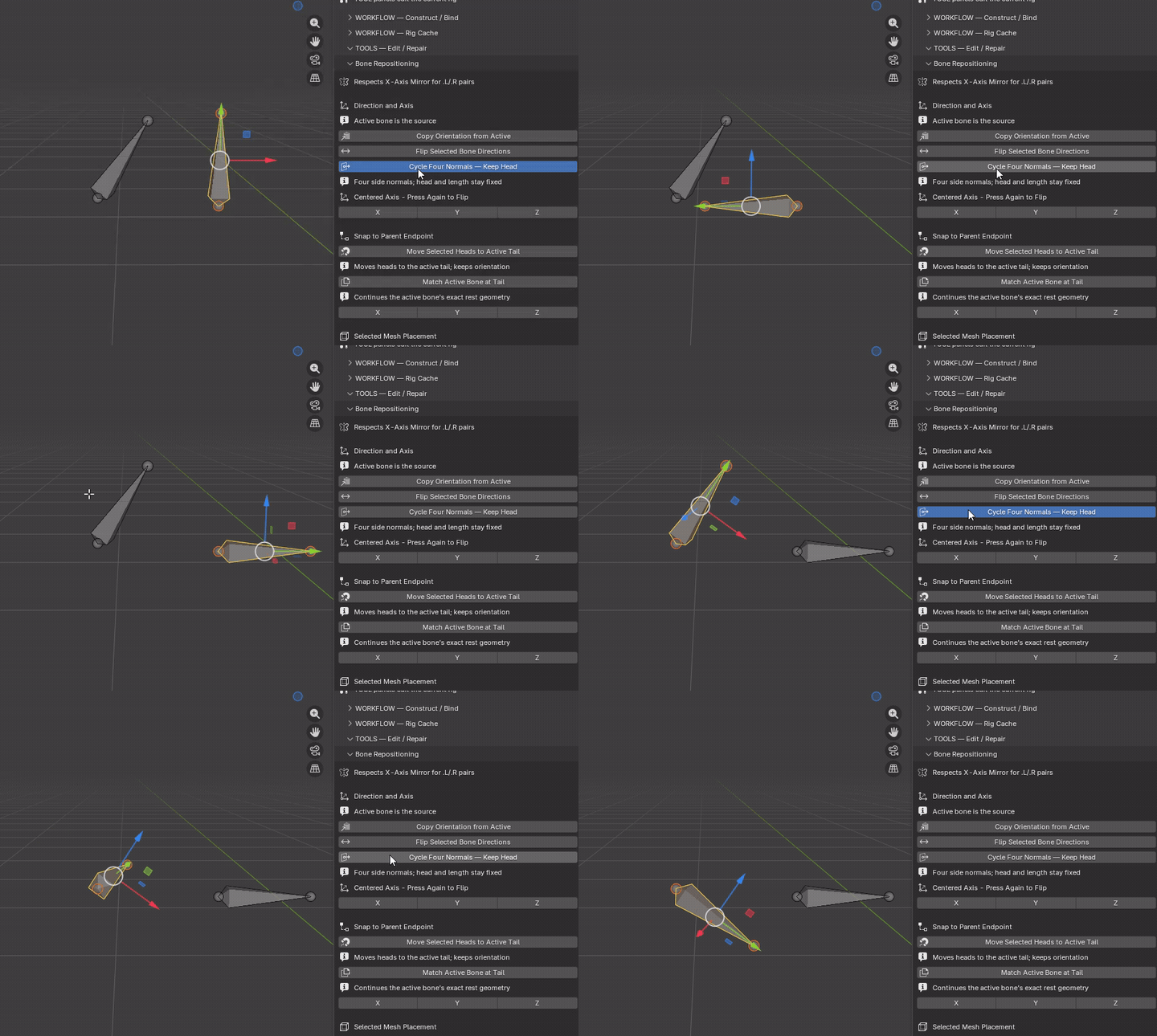
Cycle Four Normals - Keep Head
Mode: Armature Edit Mode
Setup: Select the bones whose heads must remain fixed.
Use: Cycles through original bone-local +X, +Z, −X and −Z side normals, keeping head and rest length fixed.
Keep in mind: Manual endpoint/roll edits restart the reference cycle. Releases connected endpoints without removing parents; mirror counterparts pivot around their own heads.
Reference frame: roll defines the original bone-local side directions; these are not world axes or mesh normals. The fifth click returns to +X, not the original forward direction. Local rest length stays fixed across the cycle. When both mirrored sides are selected, the active side leads; each keeps its own head and length.
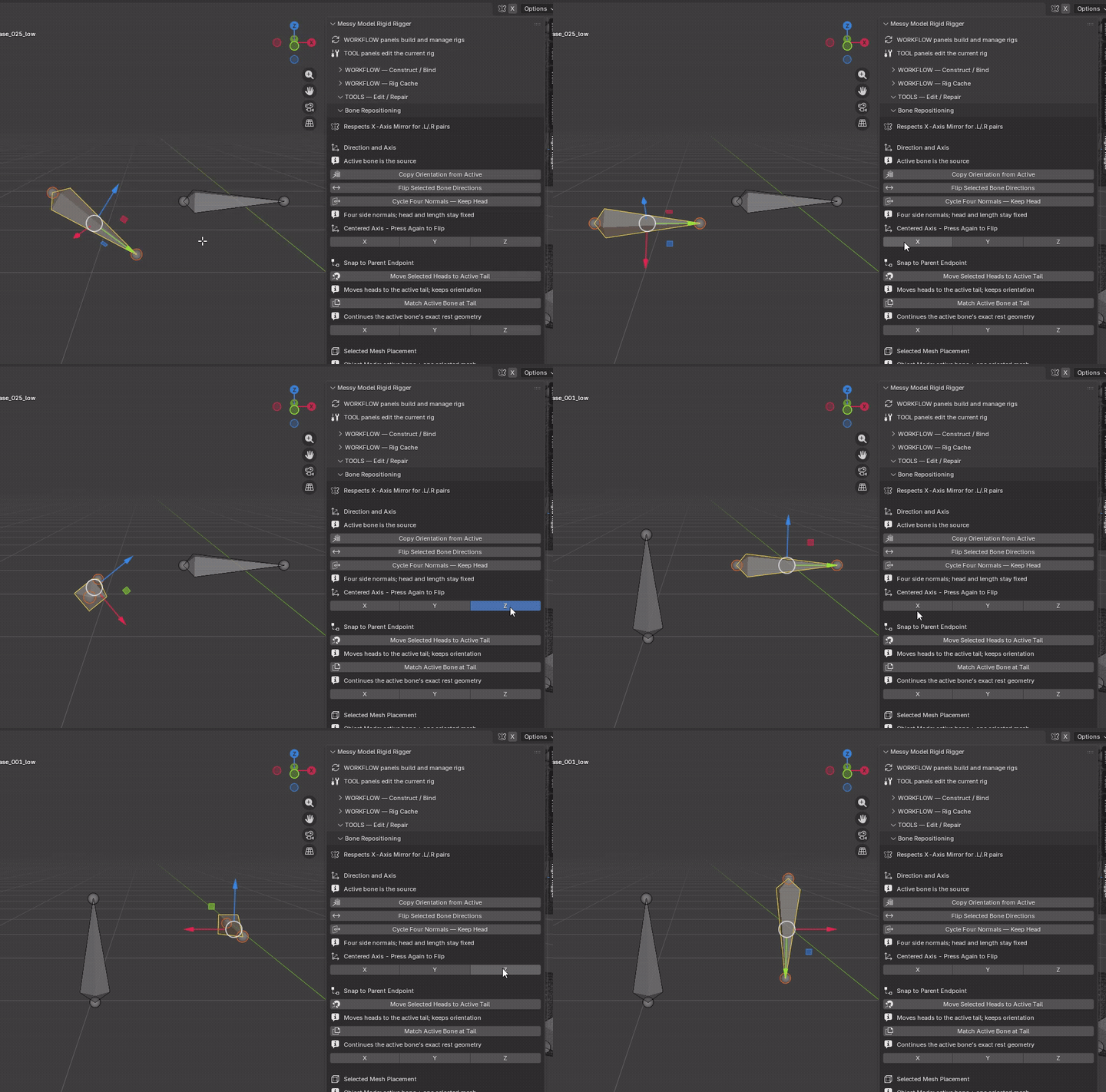
Centered Axis - Press Again to Flip
Mode: Armature Edit Mode
Setup: Select the bones to align.
Use: Press X, Y or Z to align each selected bone to that world axis, preserving its midpoint and length. Press the same axis again to reverse direction.
Keep in mind: These are world axes, not the armature’s local axes. Use the upper Centered Axis row, not the lower Snap to Parent Endpoint row.
Snap to Parent Endpoint
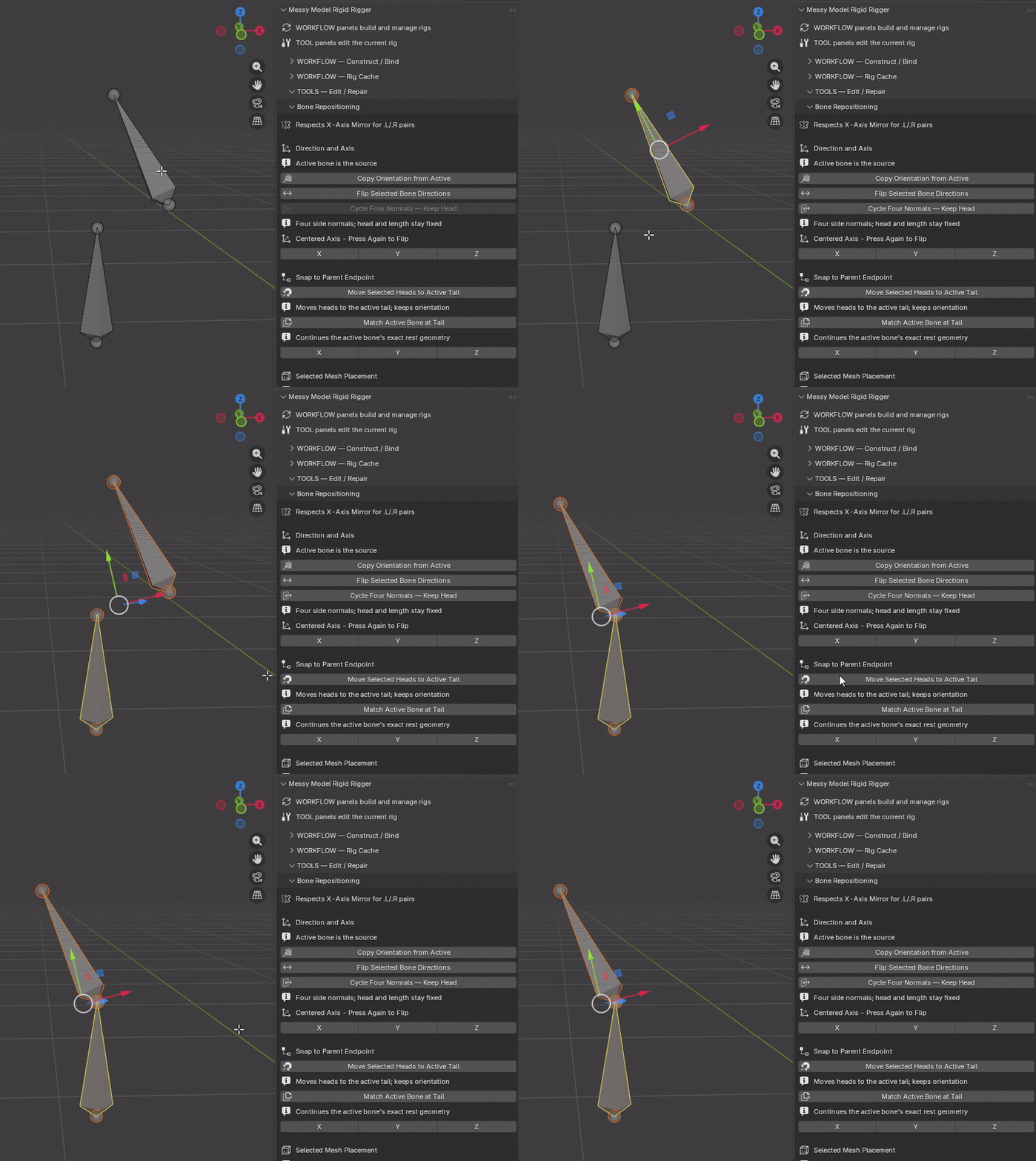
Move Selected Heads to Active Tail
Mode: Armature Edit Mode
Setup: Select destination bones; make the stationary source active.
Use: Translates other selected bones so their heads coincide with the active tail, retaining their direction, length and roll.
Keep in mind: Does not create a parent relationship. Existing physical connections may be released.
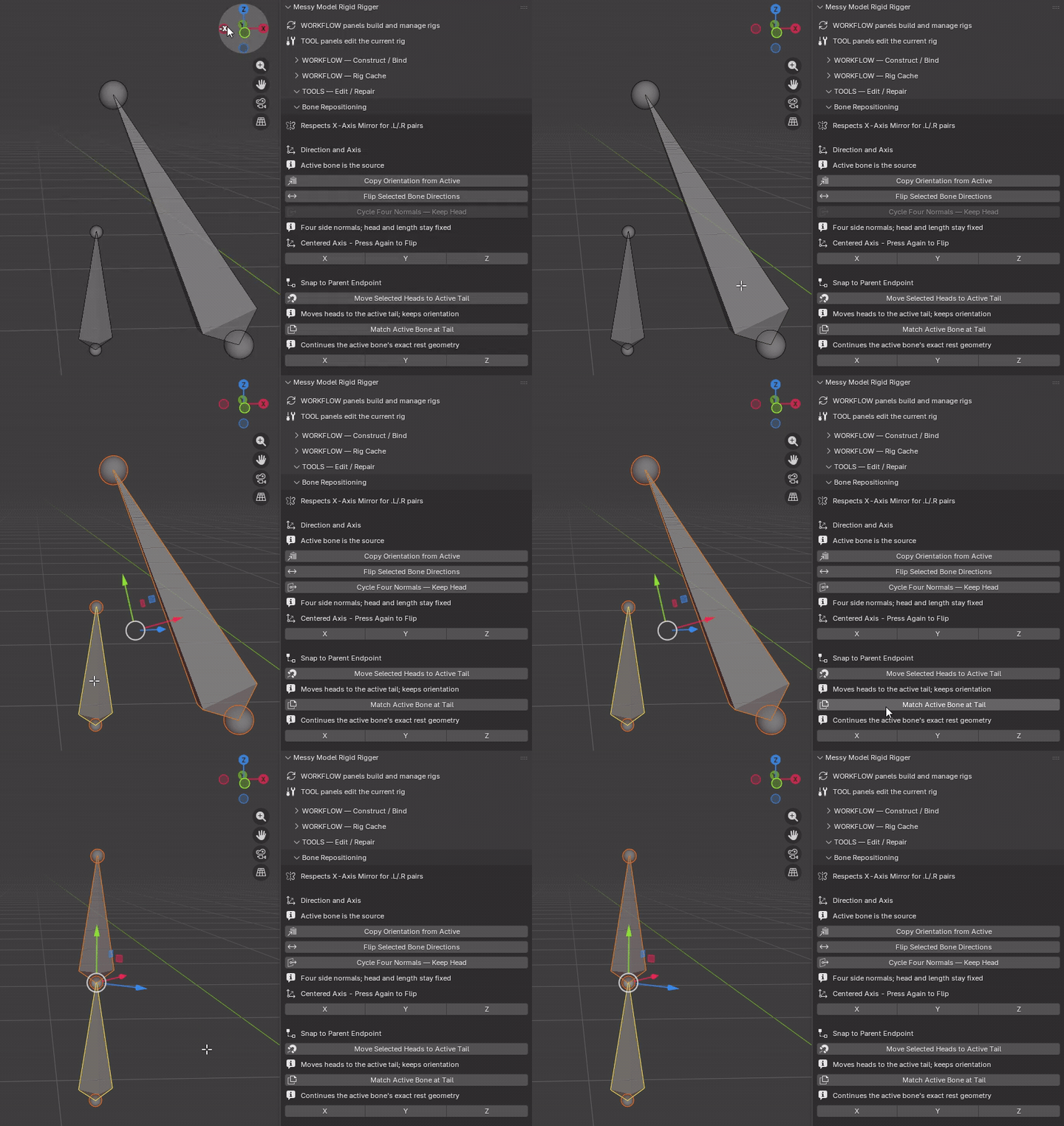
Match Active Bone at Tail
Mode: Armature Edit Mode
Setup: Select destination bones; make the source active.
Use: Places each destination head on the active tail and matches source direction, length and roll.
Keep in mind: Copies rest geometry, not hierarchy, weights or constraints. Multiple destinations overlap each other.
Parent-endpoint axis row
Mode: Armature Edit Mode
Setup: Select child bones with existing parents.
Use: Aligns children to the chosen world axis (X, Y or Z) and snaps the appropriate endpoint to their parent, preserving length.
Keep in mind: Positive-side children use head → parent tail; negative-side children use tail → parent head. Roots are skipped.
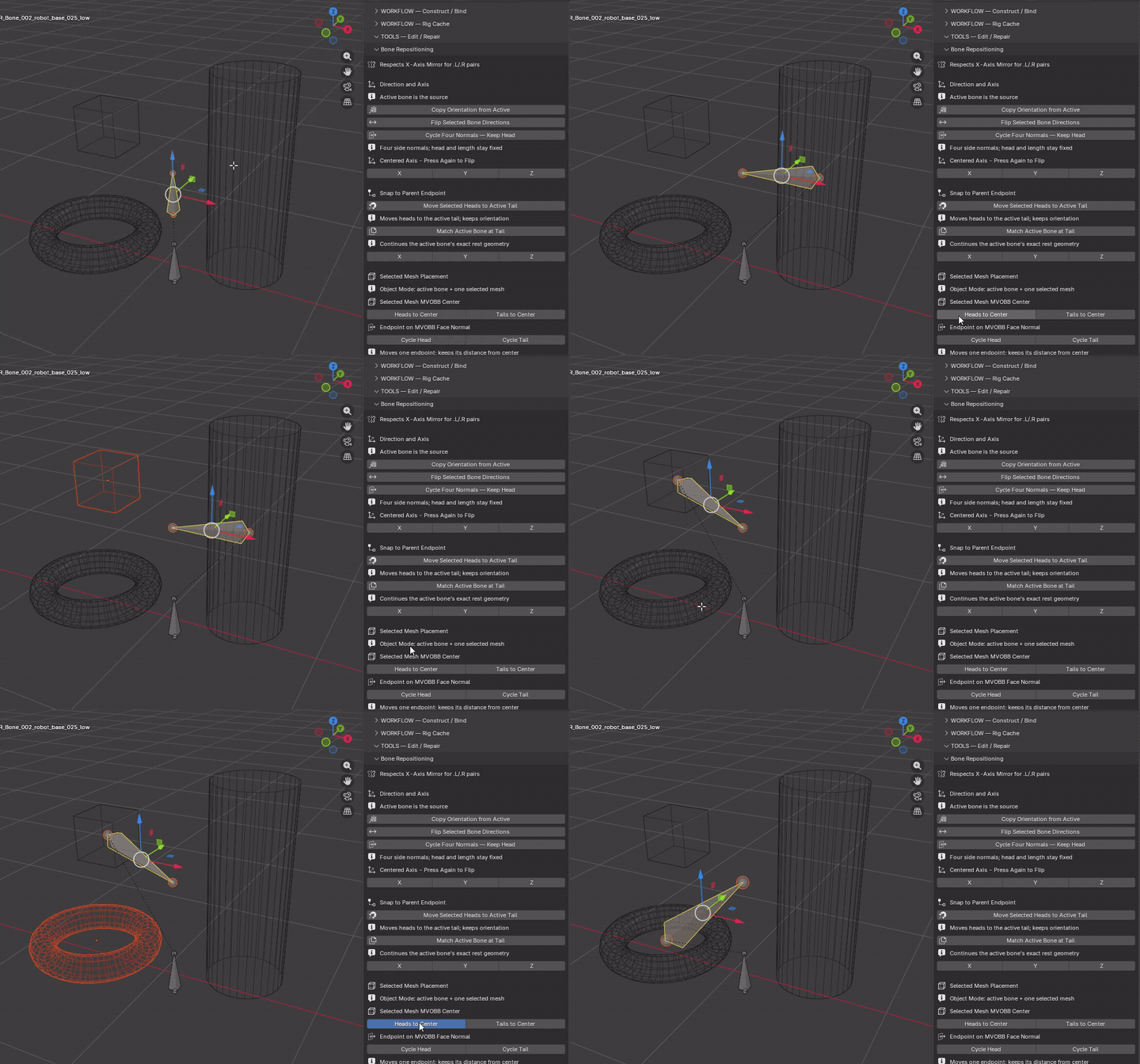
Selected Mesh Placement
Selected Mesh MVOBB Center
Heads to Center
Mode: Object Mode → Armature Edit Mode
Setup: Remember the destination bone, then select exactly one mesh with the armature active.
Use: Moves the head to the selected mesh's fitted approximate MVOBB center; the opposite tail stays fixed.
Keep in mind: May change length and direction. Uses original mesh geometry; connections are released and zero-length results skipped.
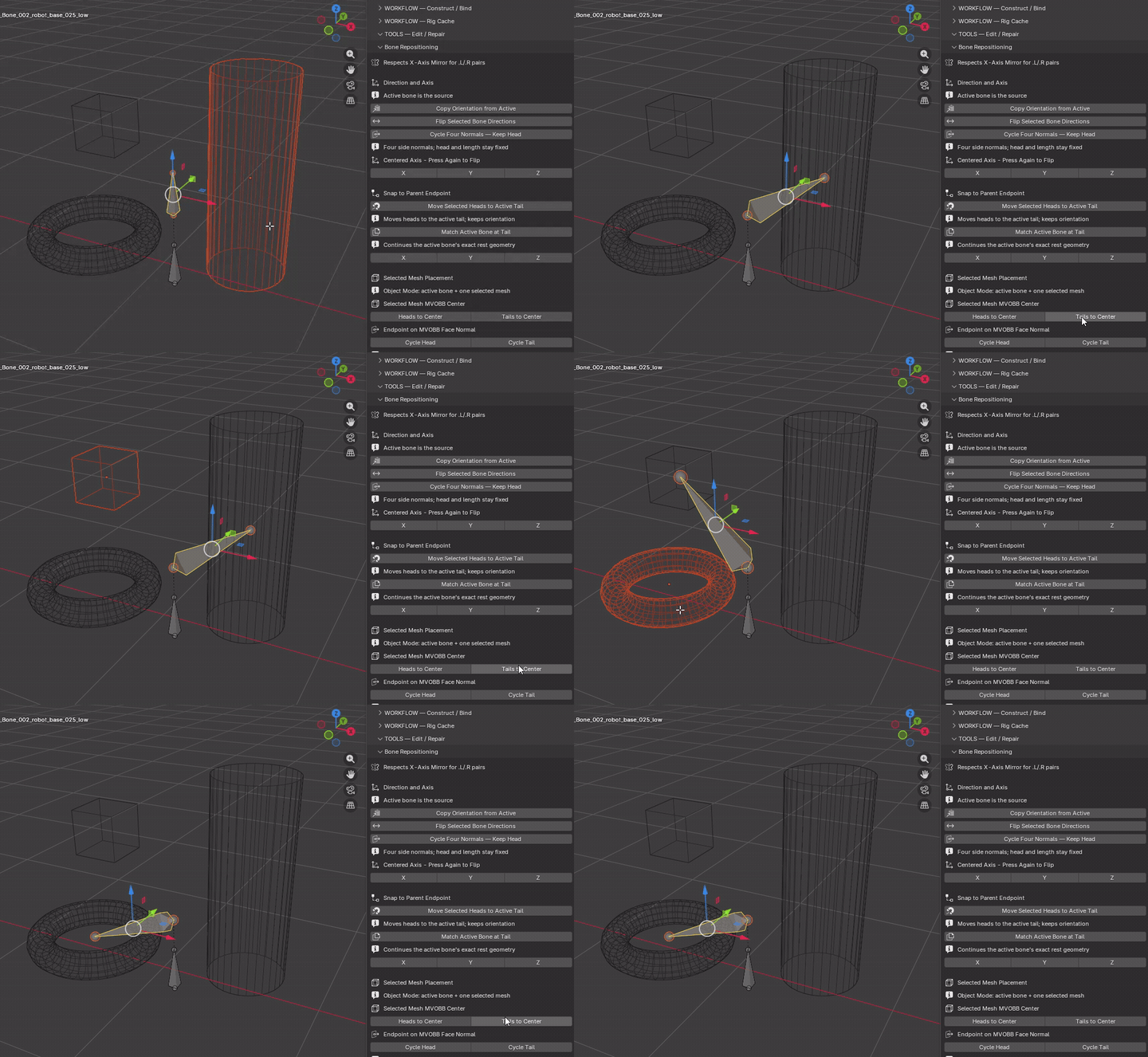
Tails to Center
Mode: Object Mode → Armature Edit Mode
Setup: Remember the destination bone, then select exactly one mesh with the armature active.
Use: Moves the tail to the selected mesh's fitted approximate MVOBB center; the opposite head stays fixed.
Keep in mind: May change length and direction. Uses original mesh geometry; connections are released and zero-length results skipped.
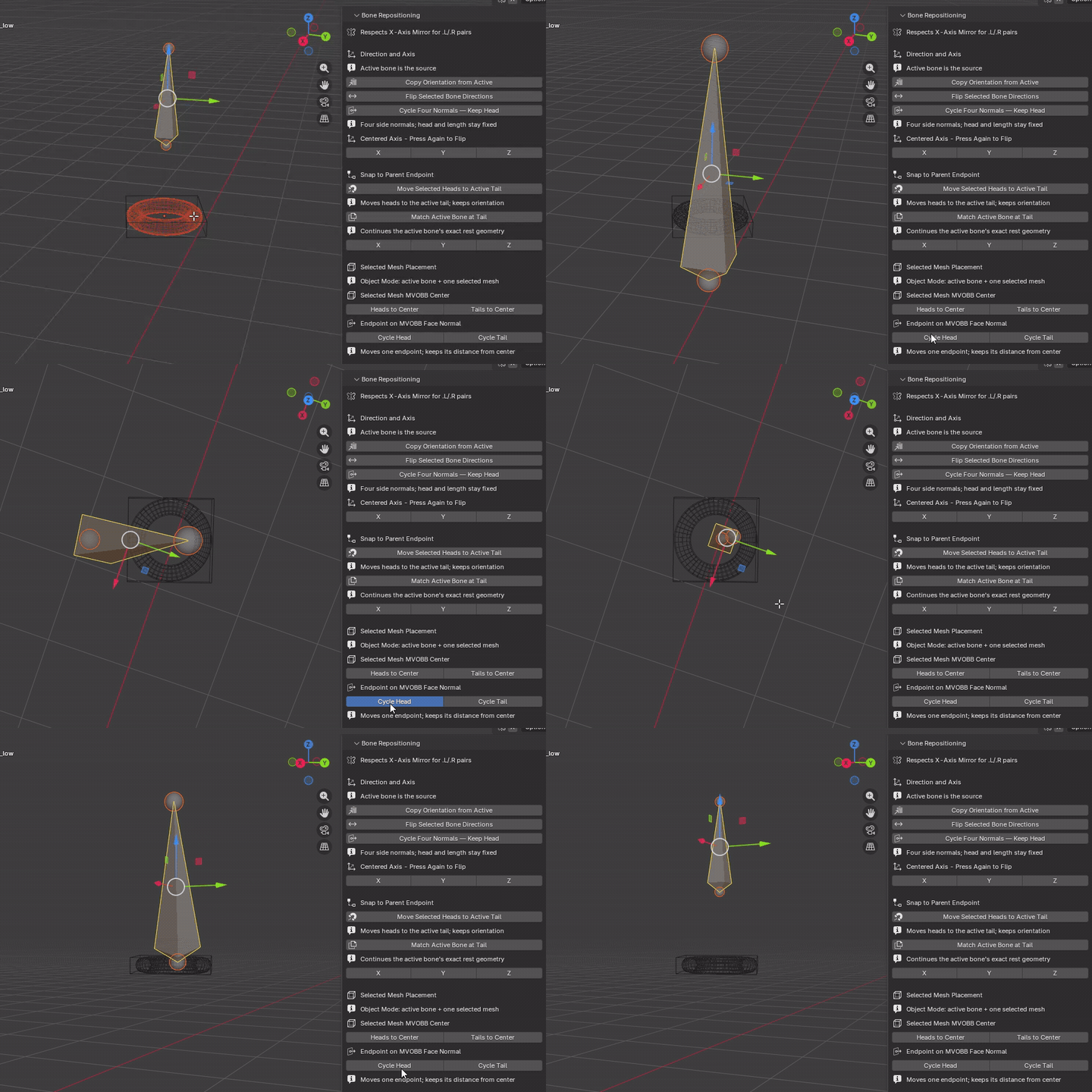
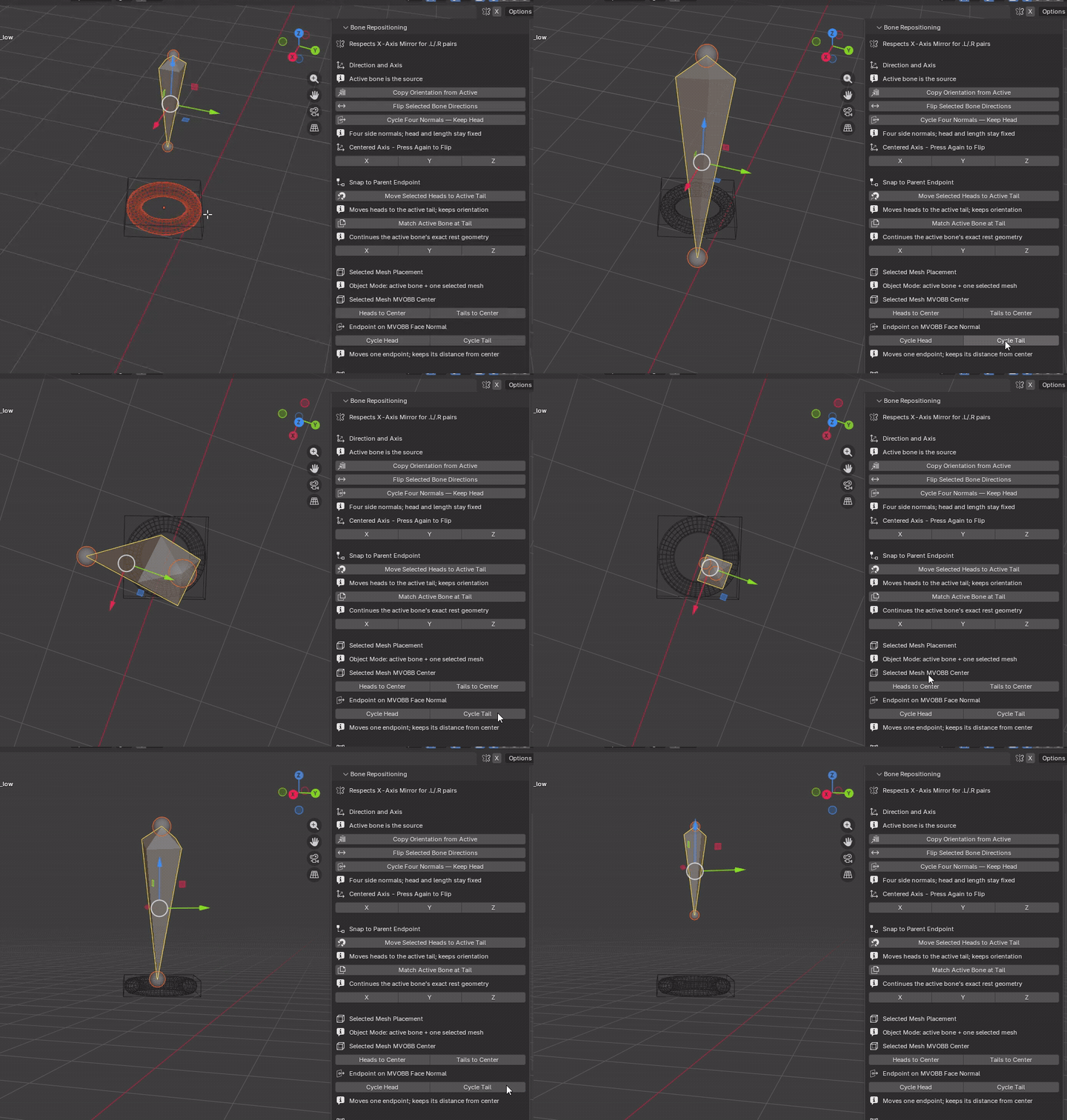
Endpoint on MVOBB Face Normal
Cycle Head
Mode: Object Mode for first use; Edit Mode for repeat cycling
Setup: Remember the bone; select exactly one mesh with the rig active. Later clicks can reuse that mesh.
Use: Moves only the head onto successive face-normal lines through the mesh's approximate MVOBB center.
Keep in mind: Keeps the moved endpoint's distance from the box center where possible, not bone length. This does not move the bone midpoint onto the center.
Cycle Tail
Mode: Object Mode for first use; Edit Mode for repeat cycling
Setup: Remember the bone; select exactly one mesh with the rig active. Later clicks can reuse that mesh.
Use: Moves only the tail onto successive face-normal lines through the mesh's approximate MVOBB center.
Keep in mind: Keeps the moved endpoint's distance from the box center where possible, not bone length. This does not move the bone midpoint onto the center.
Geometry Placement
Select Host Meshes of Selected Bones
Setup: Select bones with recorded hosts in Edit or Pose Mode, or keep a bone active in Object Mode.
Use: Selects only their recorded host objects, switches to Object Mode and keeps the rig active. Accessories are not selected. Renamed hosts are resolved by persistent ID.
Keep in mind: In island mode, the complete object containing the host island is highlighted. Missing, unrecorded, unavailable or locked hosts are skipped; ownership groups are not used to guess a host.
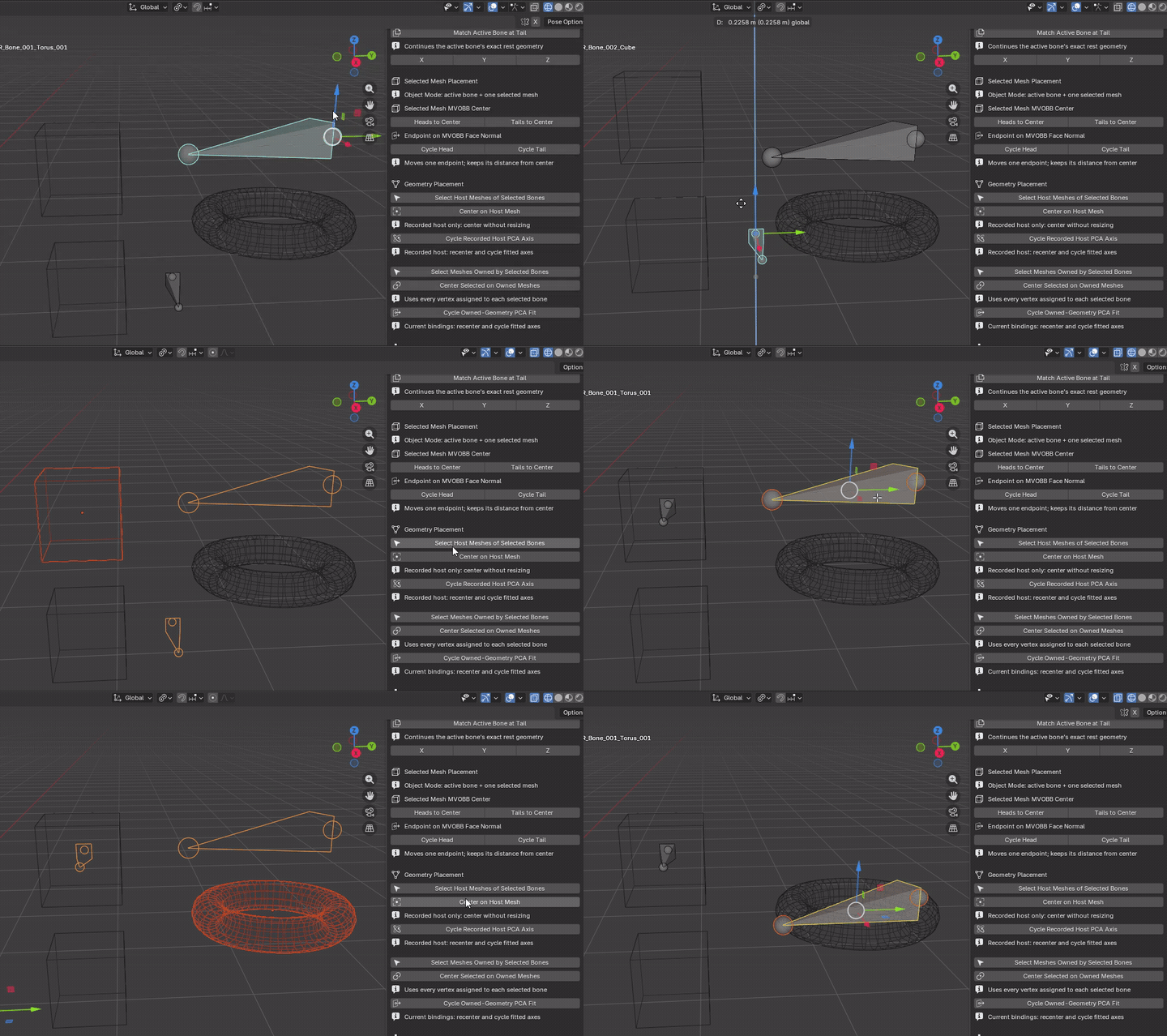
Center on Host Mesh
Mode: Armature Edit Mode
Setup: Select generated bones with recorded host objects/islands.
Use: Translates each midpoint to its recorded host's fitted box center; keeps direction, length and roll.
Keep in mind: Current accessory ownership does not influence the center. Missing/unresolvable recorded hosts are skipped.
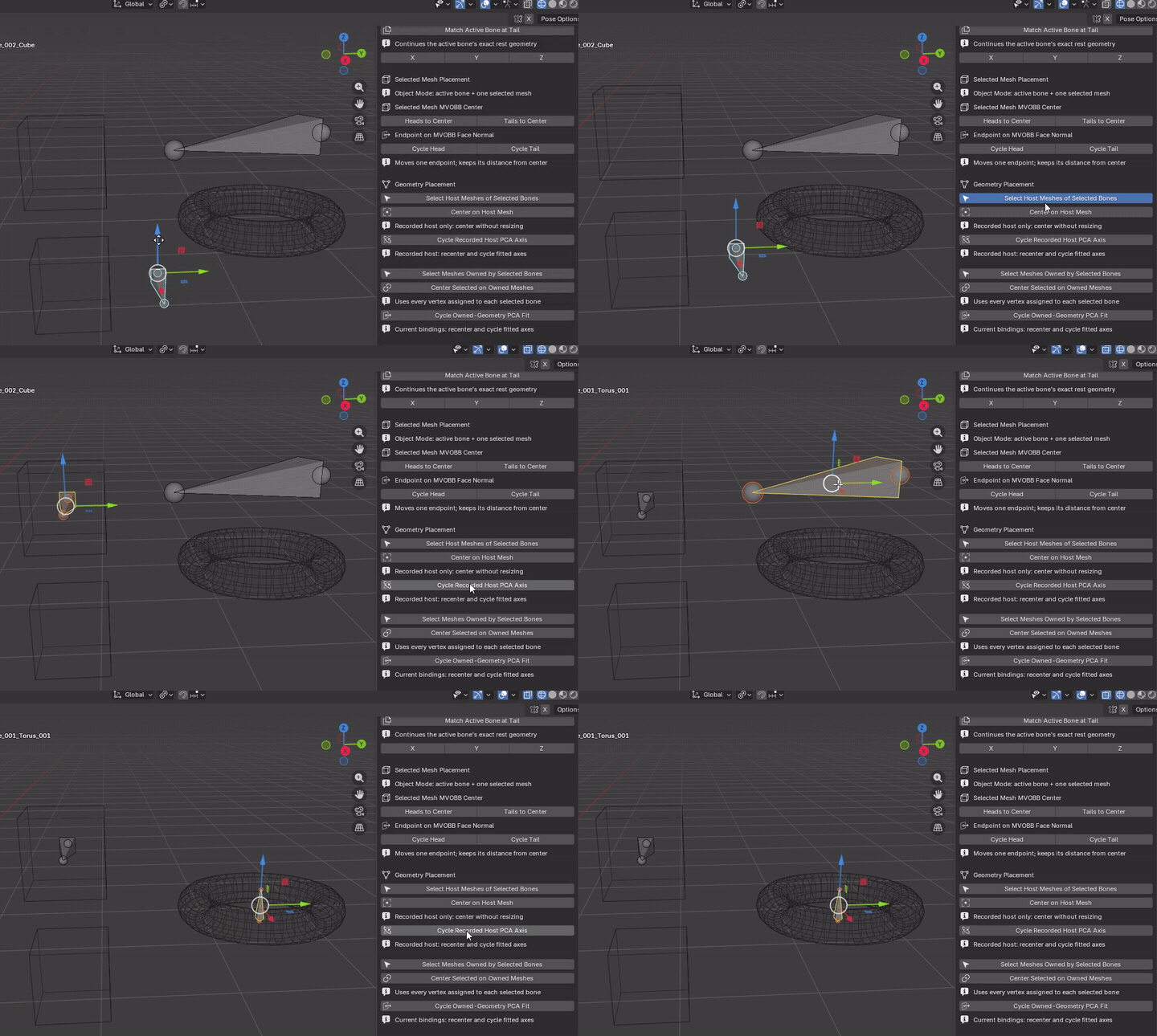
Cycle Recorded Host PCA Axis
Mode: Armature Edit Mode
Setup: Select bones with resolvable recorded host objects or islands containing usable polygon geometry.
Use: Recalculates PCA and the MVOBB from the recorded host geometry, cycles its PCA axes, moves the bone midpoint to the host's MVOBB center and fits length to the box span on the selected axis.
Keep in mind: Uses only the recorded host object or island. Current ownership and accessories do not influence the fit; connected endpoints are released.
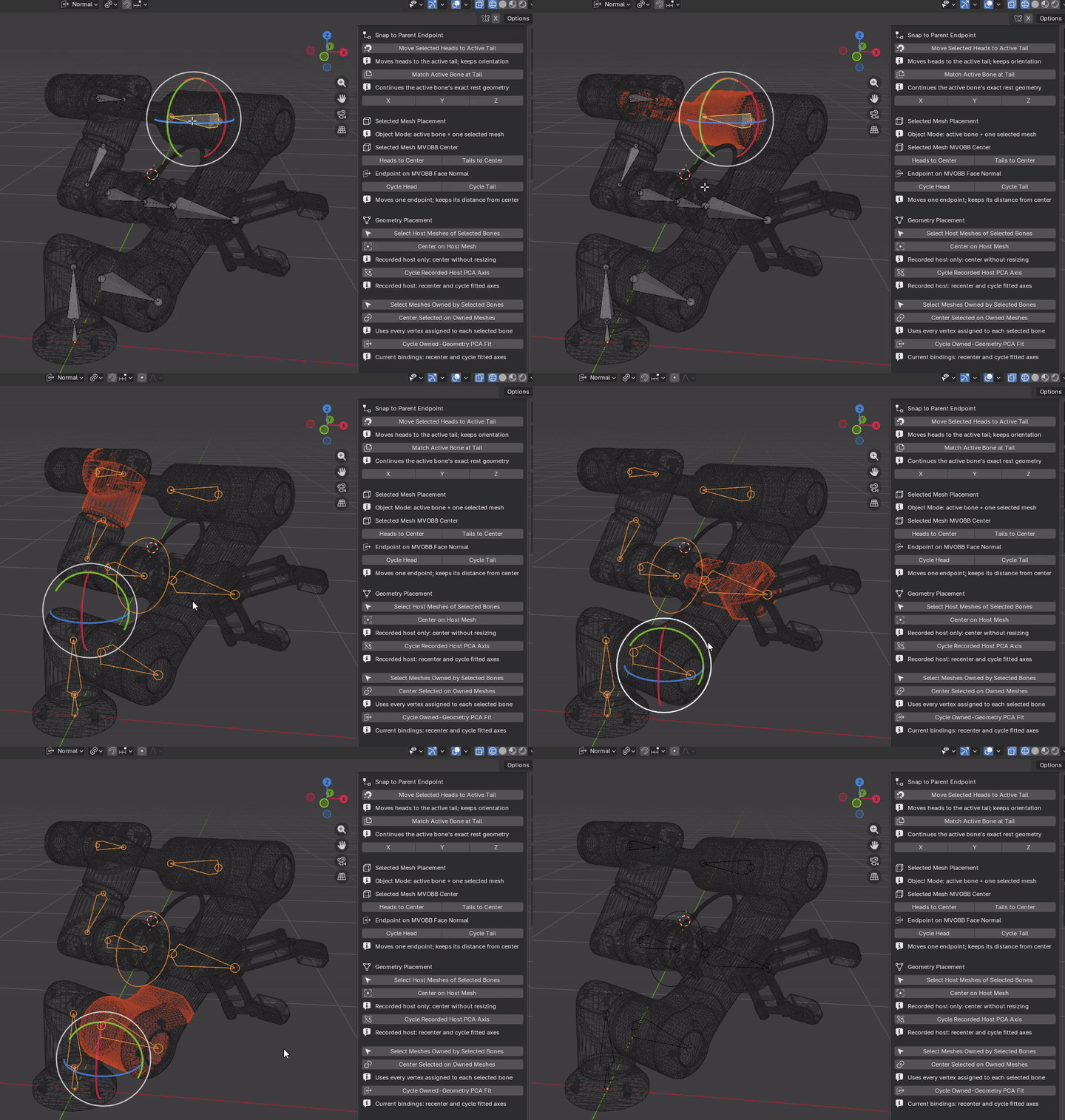
Owned-mesh selection: Select Meshes Owned by Selected Bones is available next, before the owned-mesh centering and PCA-fit buttons. It performs the same selection as the ownership-transfer shortcut.
Center Selected on Owned Meshes
Mode: Armature Edit Mode
Setup: Select bones with owned vertices.
Use: Moves each bone's midpoint to the center of one MVOBB enclosing all its currently owned mesh vertices, across every bound object. Keeps direction, length and roll; uses the box center, not the average vertex centroid.
Keep in mind: Uses one enclosing MVOBB, not an average of object origins. Unowned vertices are excluded.
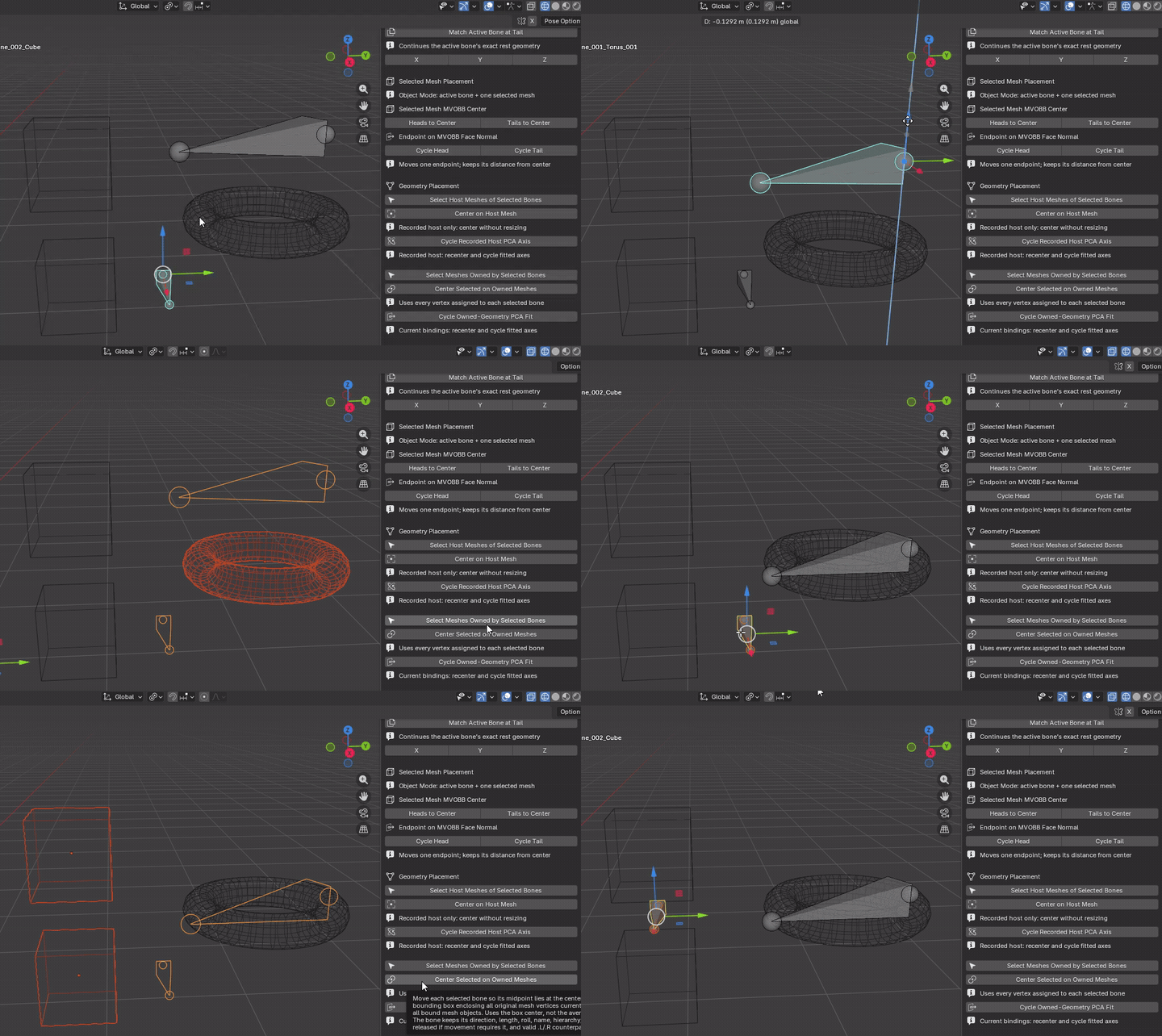
Cycle Owned-Geometry PCA Fit
Mode: Armature Edit Mode
Setup: Select bones with positively weighted owned geometry.
Use: Cycles three PCA directions of current ownership, recenters on its fitted MVOBB and resizes to the centered box span along that axis.
Keep in mind: Includes accessories and assignments across objects. Recalculates from current ownership; does not change weights.
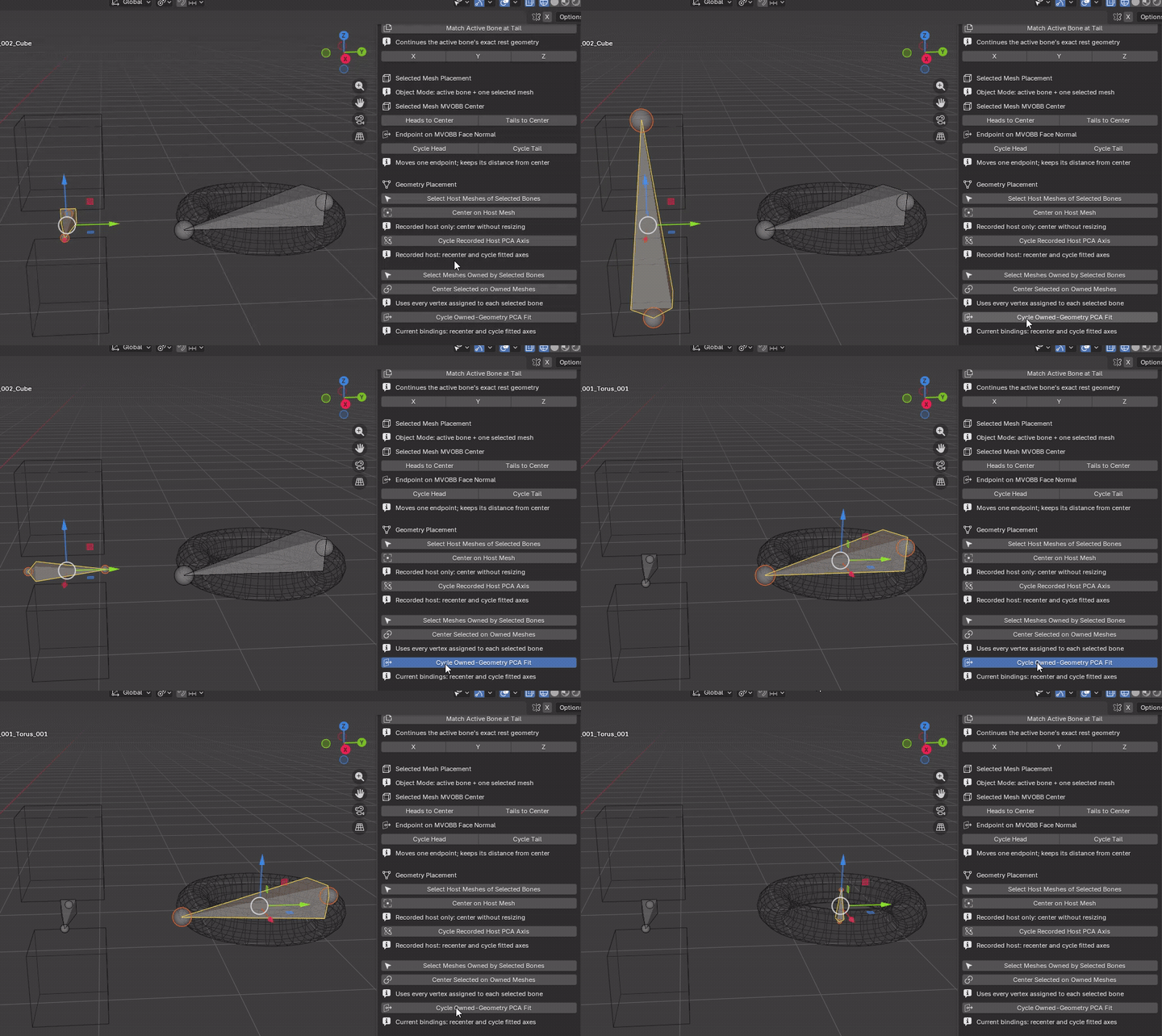
Endpoint Precision
Coordinate Copying
Mode: Armature Edit Mode for endpoints; Object Mode for object origins
Setup: Select exactly one source endpoint on the active bone plus destination endpoints. For object-only copying, select destinations then make the source object active.
Use: X, Y and Z copy only the chosen armature-local coordinate, leaving the other coordinates unchanged. XYZ copies the complete position.
Keep in mind: Uses the armature coordinate frame, not necessarily world axes. Cross-type bone/object operations finish in Object Mode for safe Undo. Zero-length results are skipped.
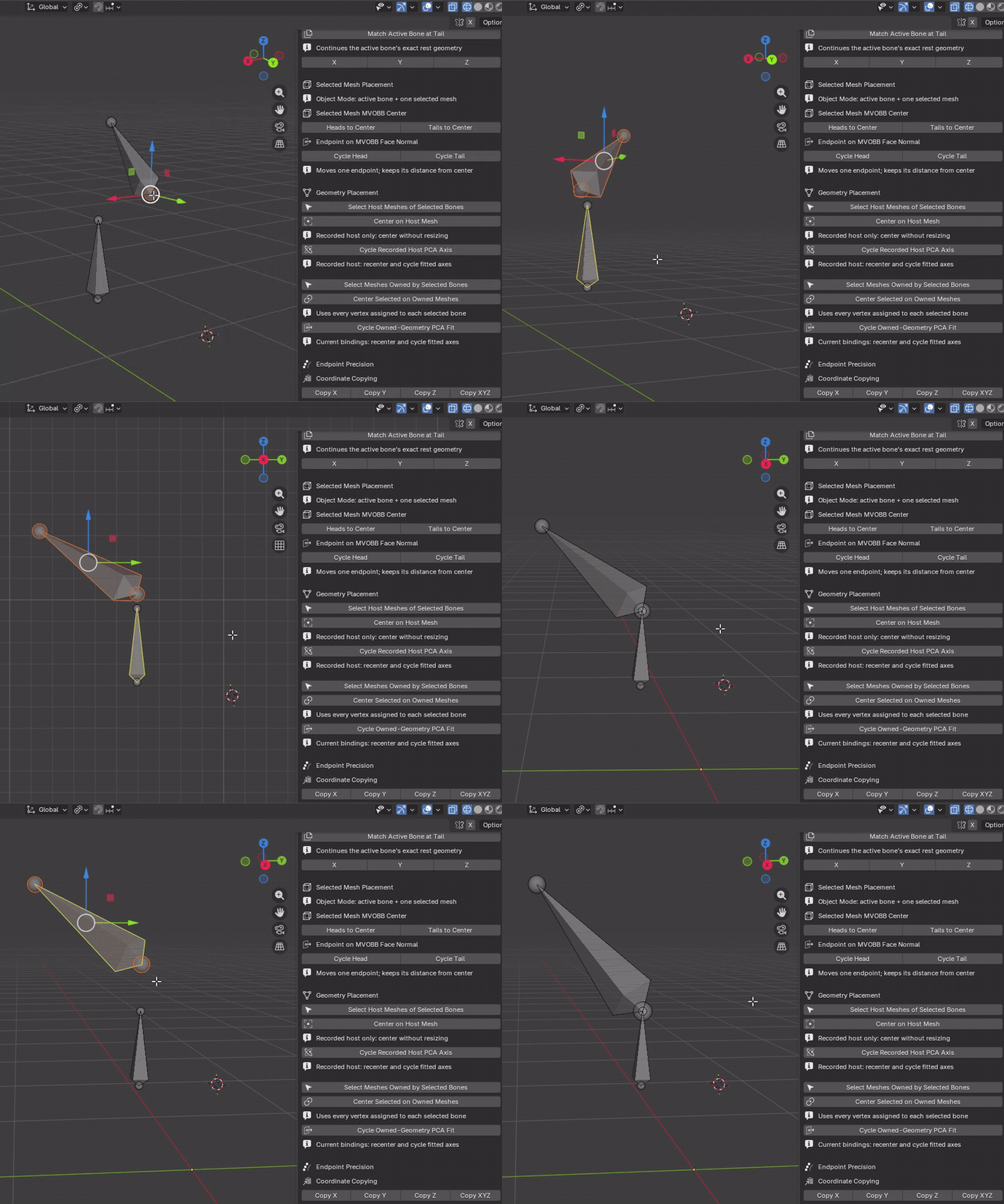
Perpendicular Endpoint Placement
Slide Selected Endpoints Perpendicular
Mode: Armature Edit Mode
Setup: Select one reference endpoint on the active bone and exactly one endpoint on each destination bone.
Use: Slides each destination endpoint along its own existing longitudinal local-Y axis to the closest projection of the reference point.
Keep in mind: May resize the bone. This is projection onto the bone-axis line, not free movement toward the reference. Degenerate results are skipped.
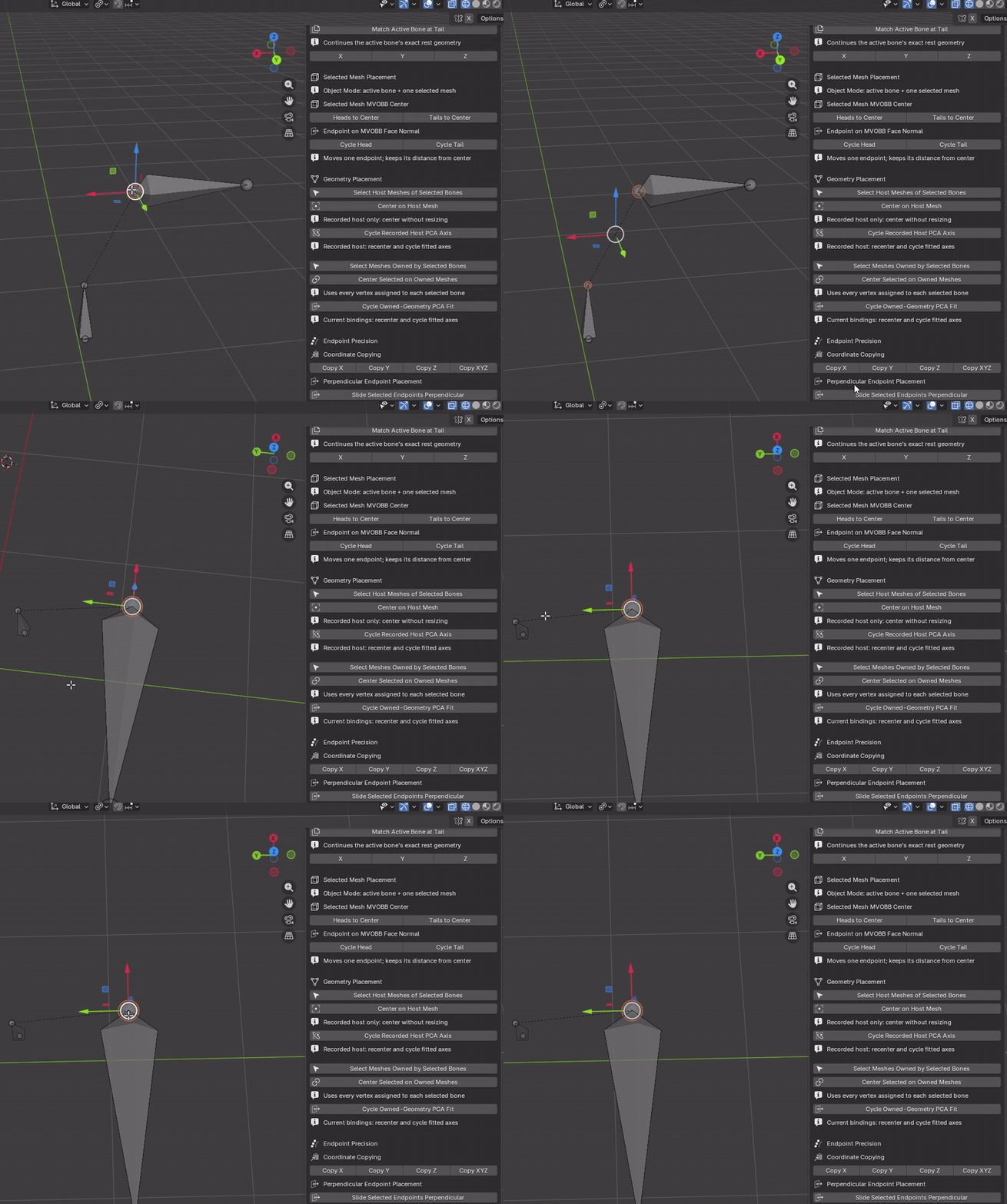
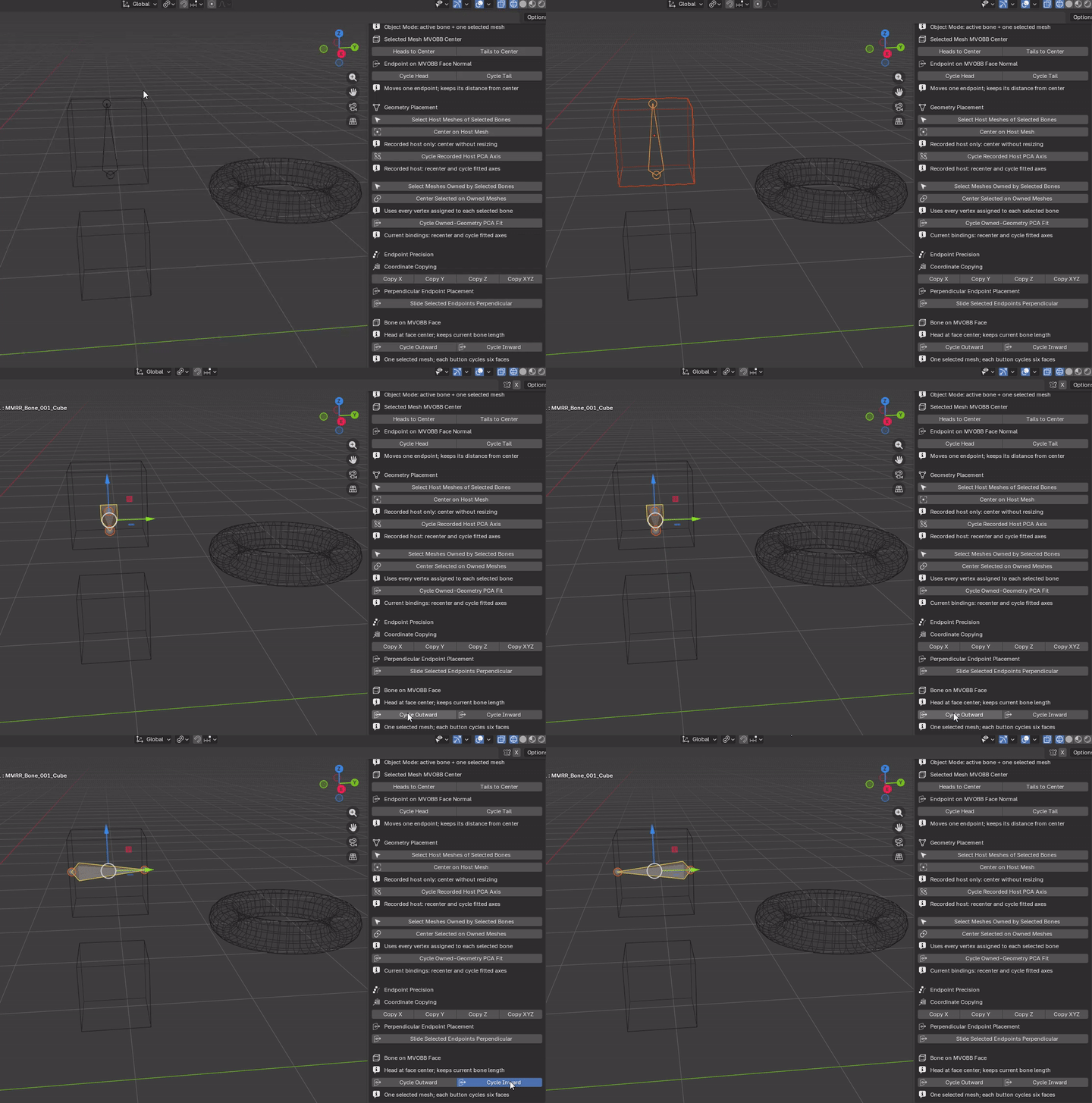
Bone on MVOBB Face
Cycle Outward / Cycle Inward
First-use setup: Choose the intended bone, return to Object Mode, select exactly one mesh, then Shift-select the armature last so the rig stays active. Use the remembered active-bone sequence when selecting the mesh. The tool remembers this mesh for later Armature Edit Mode cycling.
Use: Both buttons place the whole bone's head at an MVOBB face centre and point its tail perpendicular to that face. Cycle Outward points away from the box; Cycle Inward points into it. The bone keeps its current world-space length. Inward placement is not clipped to the opposite face, so a long bone can extend beyond the box. The tool fits an approximate minimum-volume box to original mesh geometry, not evaluated modifier results.
Cycling: Each button keeps an independent six-face cycle: positive/negative longest box axis, then the second and third axes. Selecting a different mesh resets both cycles. A renamed mesh is remembered by persistent identity; if it is deleted, unavailable or ambiguous, explicitly select the mesh again.
Keep in mind: This moves rest-bone endpoints, not mesh vertices or weights. Names, constraints and parent relationships are retained, but physical connections touching the moved endpoints are released. Valid .L/.R counterparts follow when X-Axis Mirror is enabled. Test existing poses/animation after a rest edit and use Undo for an unwanted placement.
Different from Cycle Head / Cycle Tail: those tools move only the head or tail onto a face-normal line through the MVOBB centre, keep the opposite endpoint fixed and may change bone length. This row positions the whole bone with its head on the face centre and preserves its length.
Bone Hierarchy
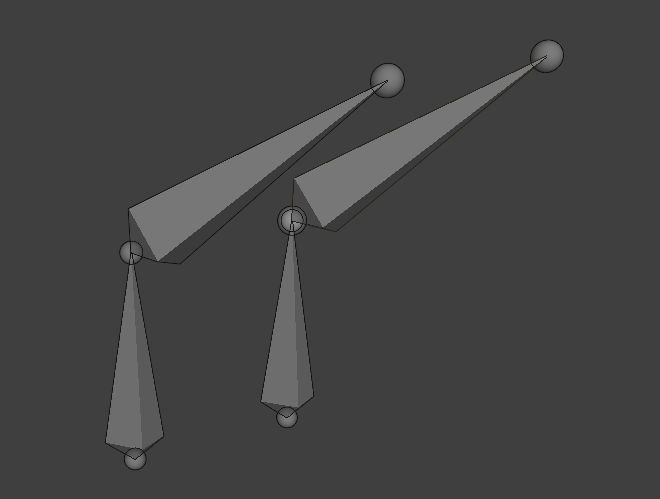
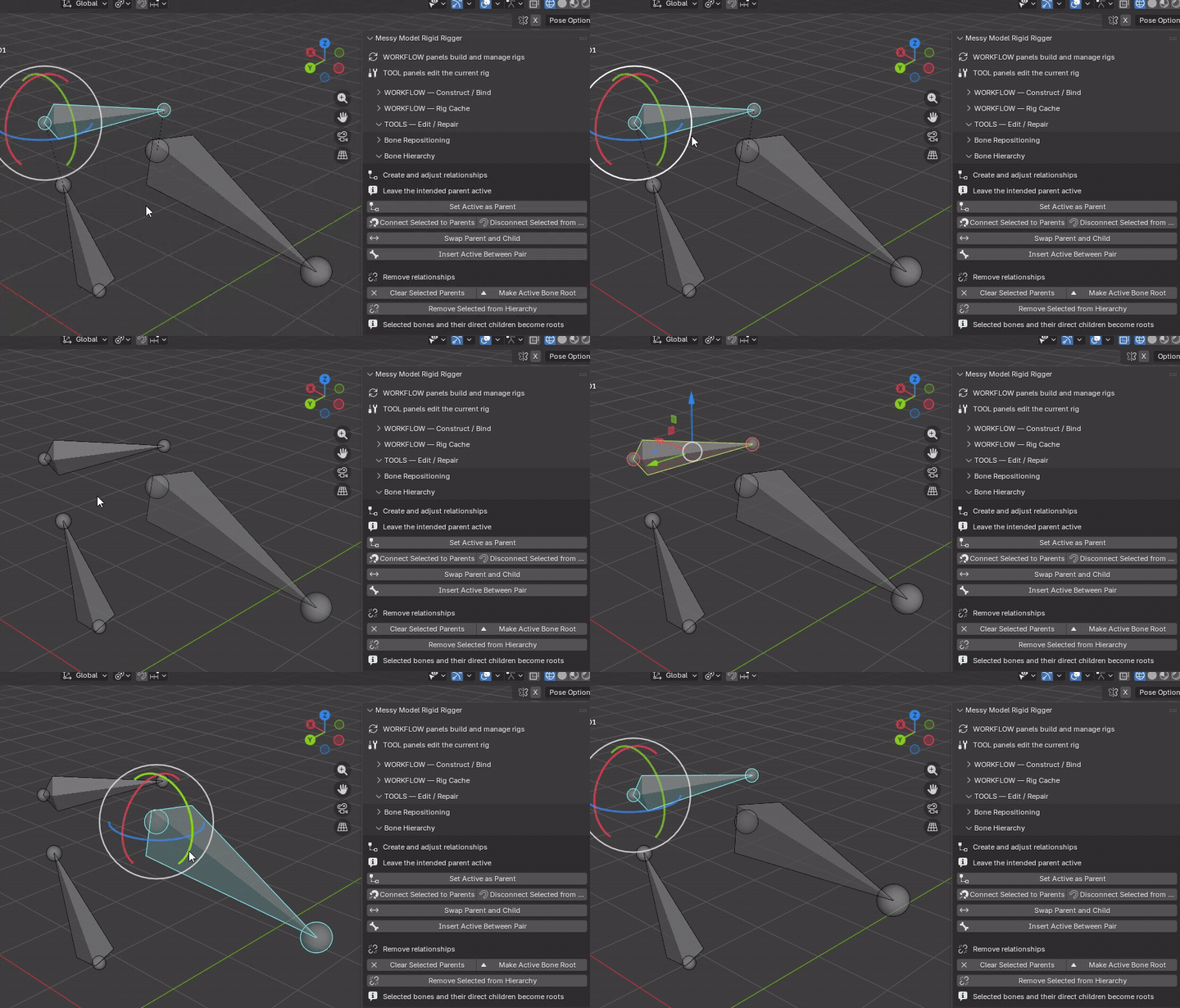
Parenting versus connection: parent links control inherited motion; physical connection additionally places a child head at its parent tail. Offset mechanical joints can remain parented but disconnected. These hierarchy tools do not transfer ownership weights; pose-test the changed chain.
Left: Connected Right: Disconnected
Create and adjust relationships
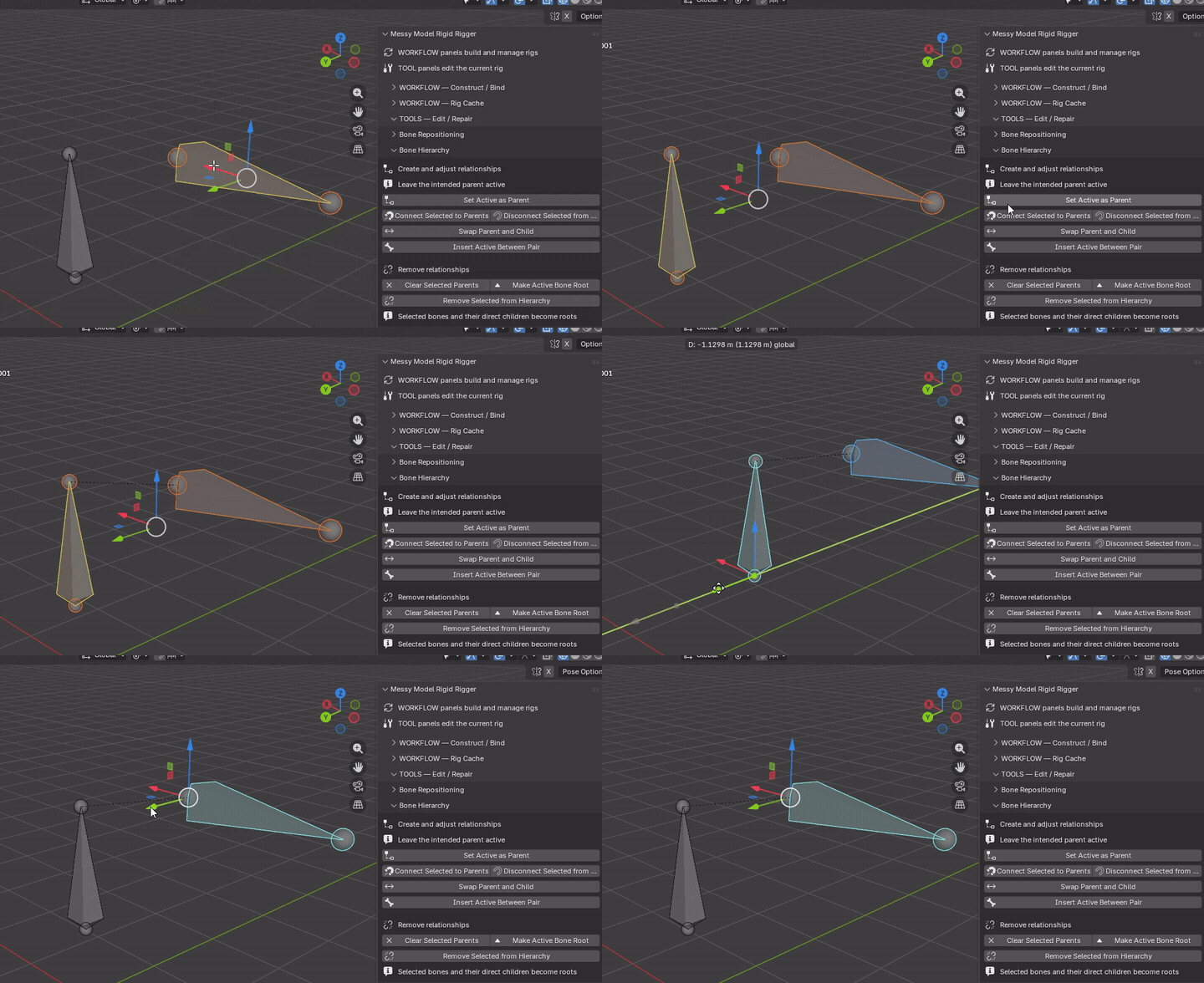
Set Active as Parent
Mode: Armature Edit Mode
Setup: Select children first; leave the intended parent active.
Use: Makes the active bone parent of the other selected bones without moving endpoints.
Keep in mind: Replaces existing child parent links; disables physical connection. Cycles are rejected.
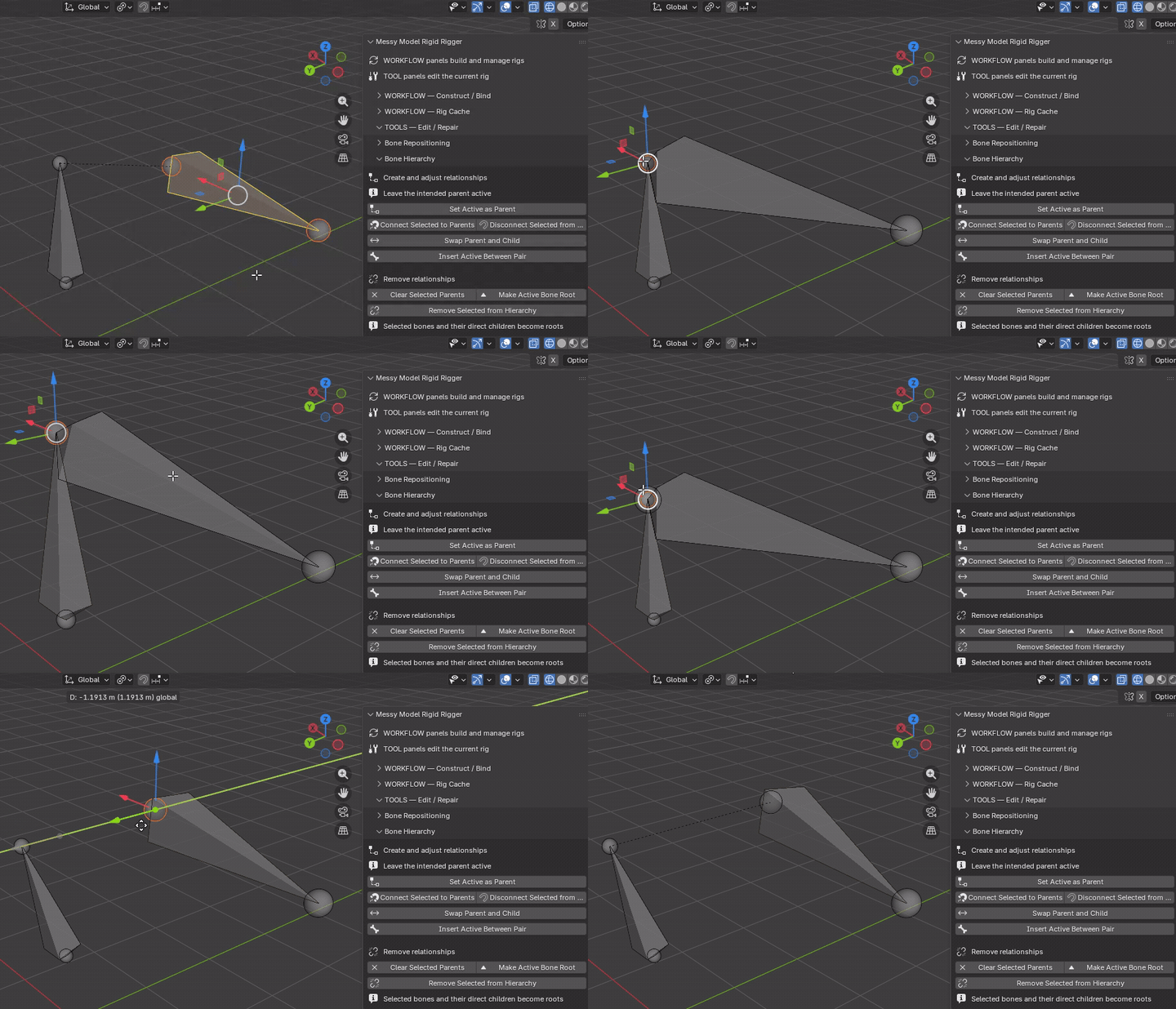
Mode: Armature Edit Mode
Setup: Select child bones with existing parents.
Connect Selected to Parents: Moves each child head onto its parent tail and enables physical connection. This can change the child's length; zero-length connections are skipped.
Disconnect Selected from Parents: Disables physical connection without moving endpoints or removing the parent. The child head can then be moved independently.
Keep in mind: Disconnect is not Clear Selected Parents. Both buttons retain hierarchy and bindings. With X-Axis Mirror enabled, valid .L/.R counterparts connect or disconnect from their own parents.
Swap Parent and Child
Mode: Armature Edit Mode
Setup: Select exactly two directly related parent/child bones.
Use: Reverses the pair: the original child takes the former parent's place; original child's children move under the original parent.
Keep in mind: Rest positions stay fixed; connected links may be released. This does more than swap two names.
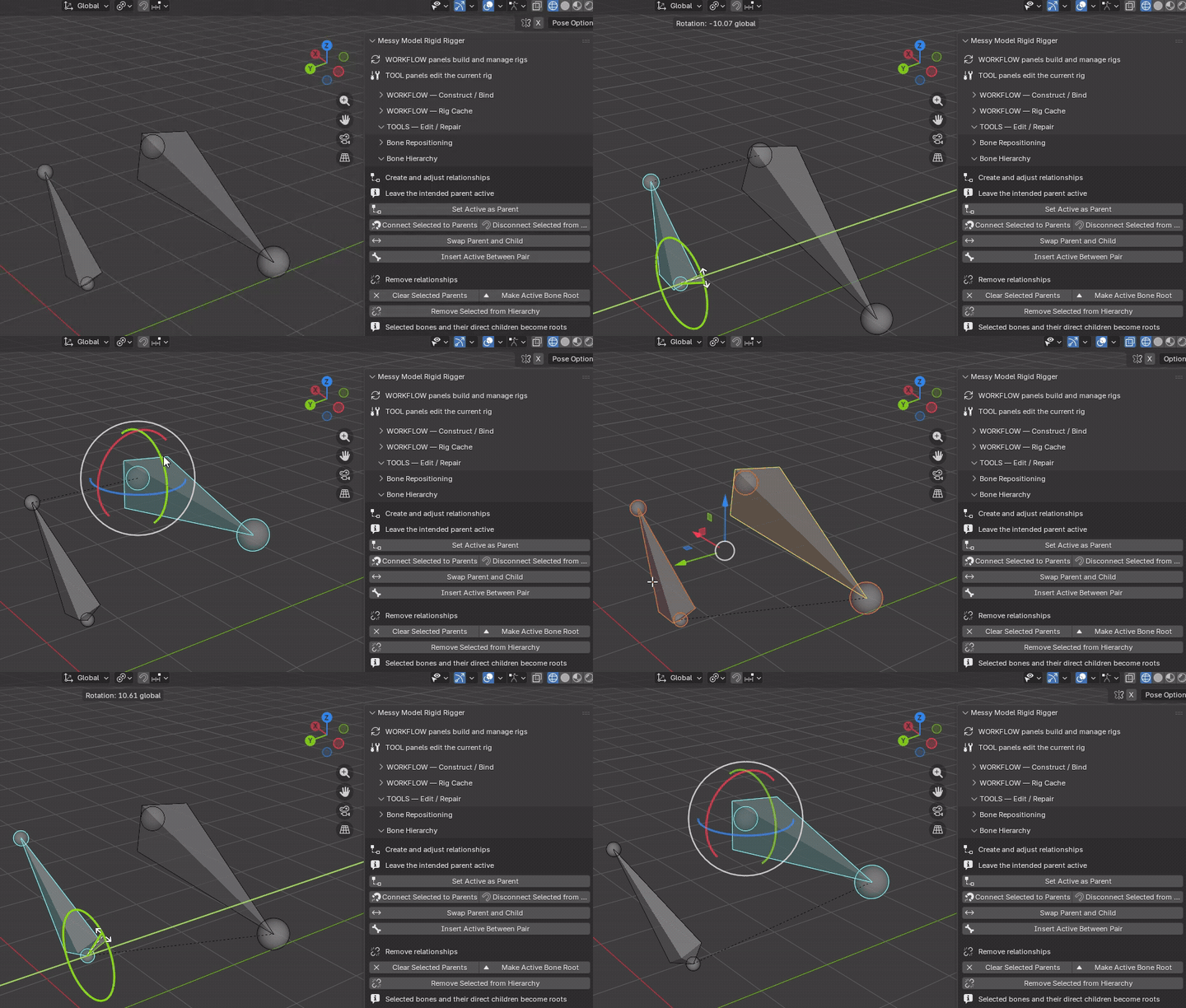
Insert Active Between Pair
Mode: Armature Edit Mode
Setup: Select a direct parent-child pair plus an unparented insertion bone; leave the insertion bone active.
Use: Inserts the active bone between the selected pair without moving or creating bones.
Keep in mind: Does not bind meshes or place the inserted bone automatically.
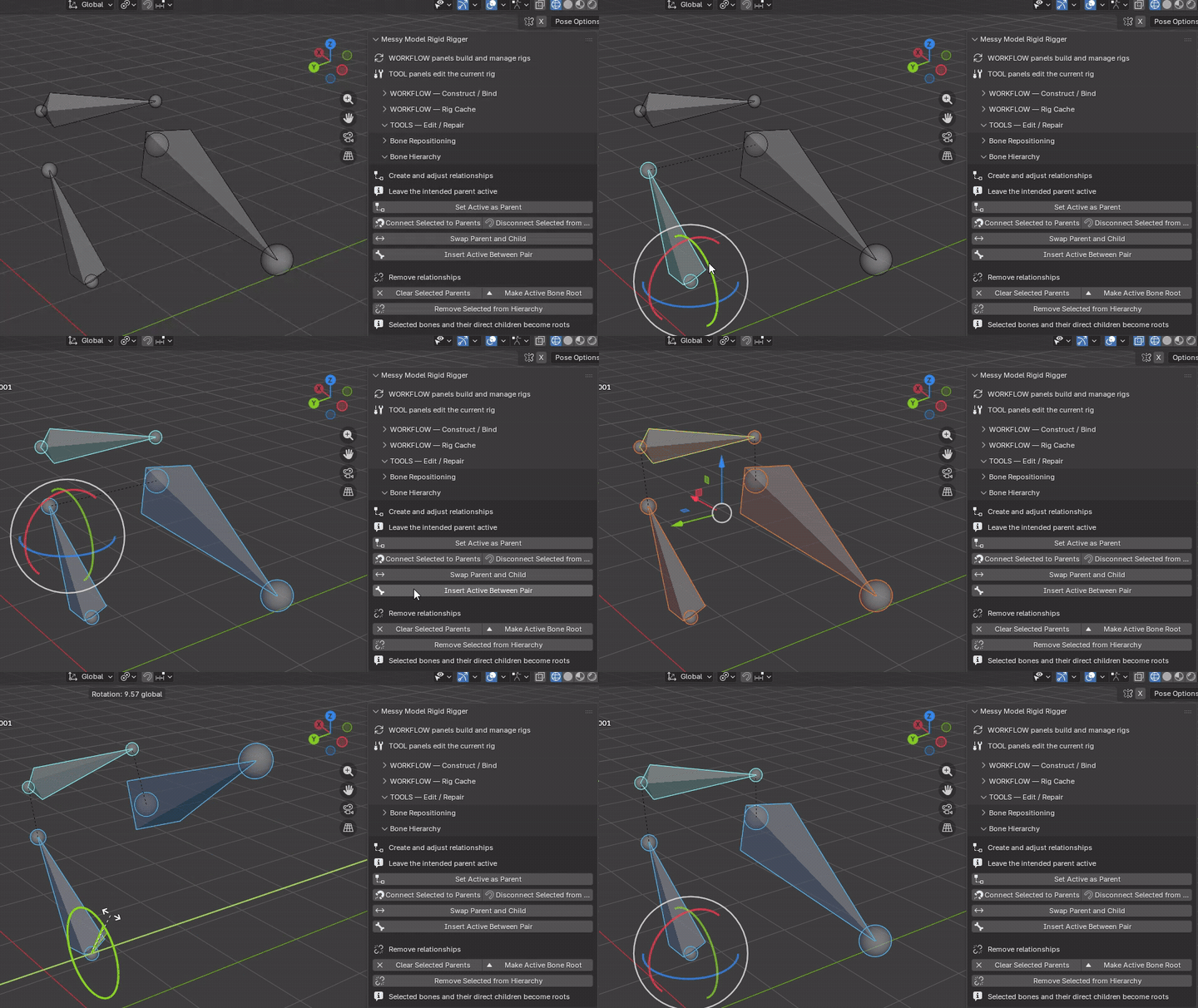
Remove relationships
Clear Selected Parents
Mode: Armature Edit Mode
Setup: Select bones whose own parent links should be removed.
Use: Detaches each selected bone from its parent, retaining its children.
Keep in mind: Rest positions are retained; this does not detach all outgoing child links.
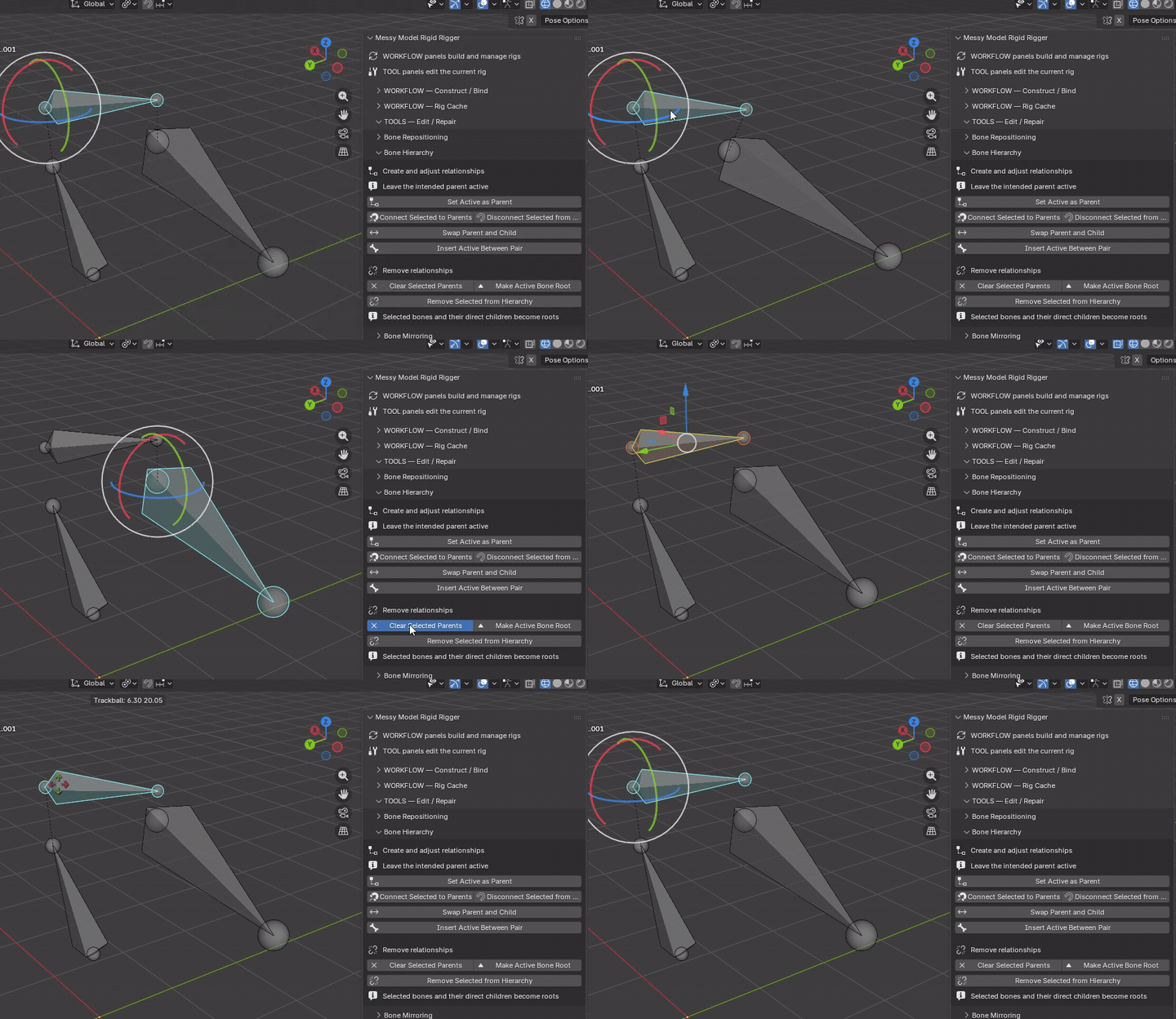
Make Active Bone Root
Mode: Armature Edit Mode
Setup: Make the intended root bone active.
Use: Reverses its ancestor path so the active bone becomes a root.
Keep in mind: Changes more than one relationship along the path; rest geometry remains, connections may be released.
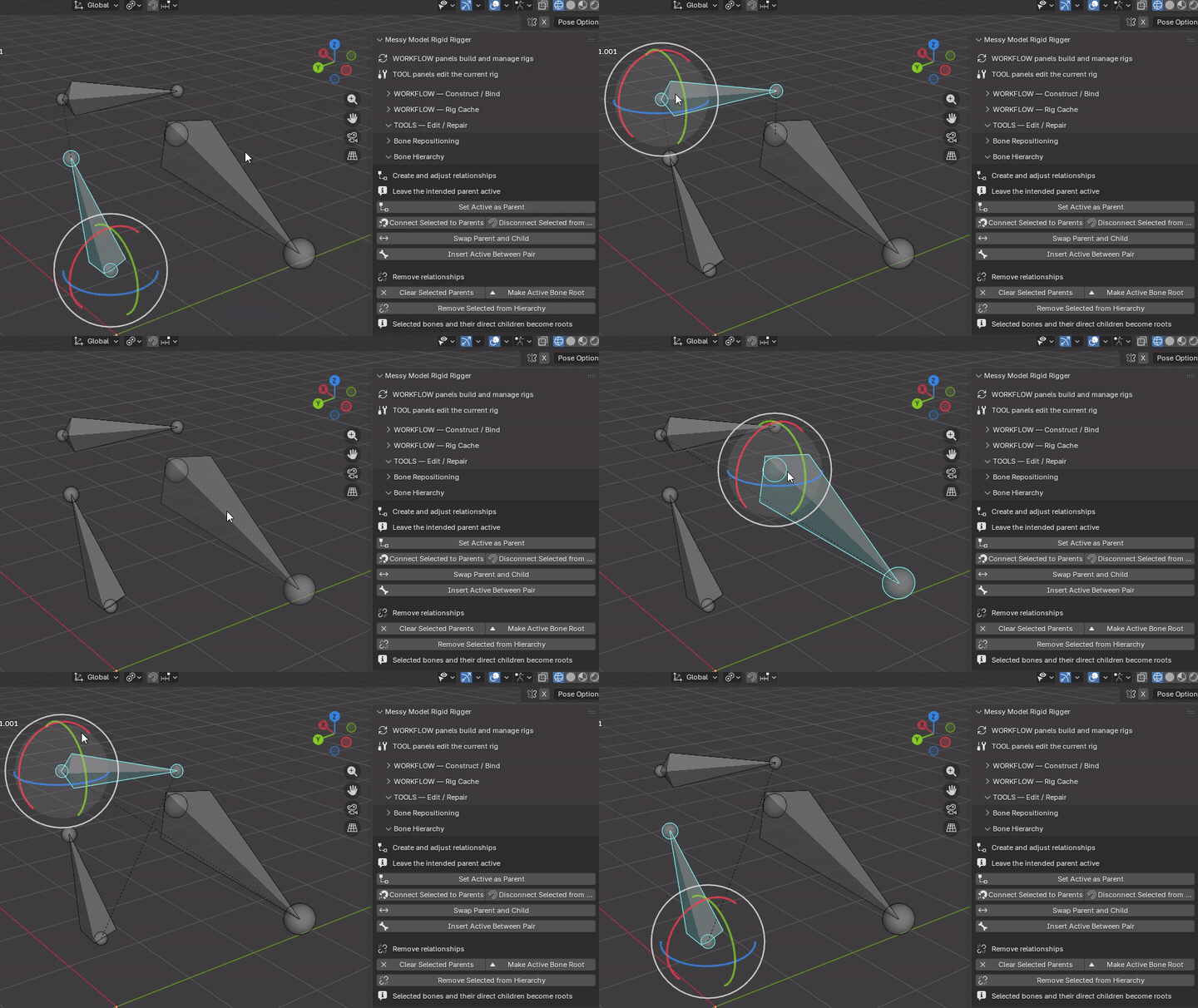
Remove Selected from Hierarchy
Mode: Armature Edit Mode
Setup: Select bones to isolate.
Use: Clears their parent links and detaches their direct children, without deleting bones.
Keep in mind: Use this when both incoming and outgoing links should be removed, not just the selected bone's parent.
Bone Mirroring
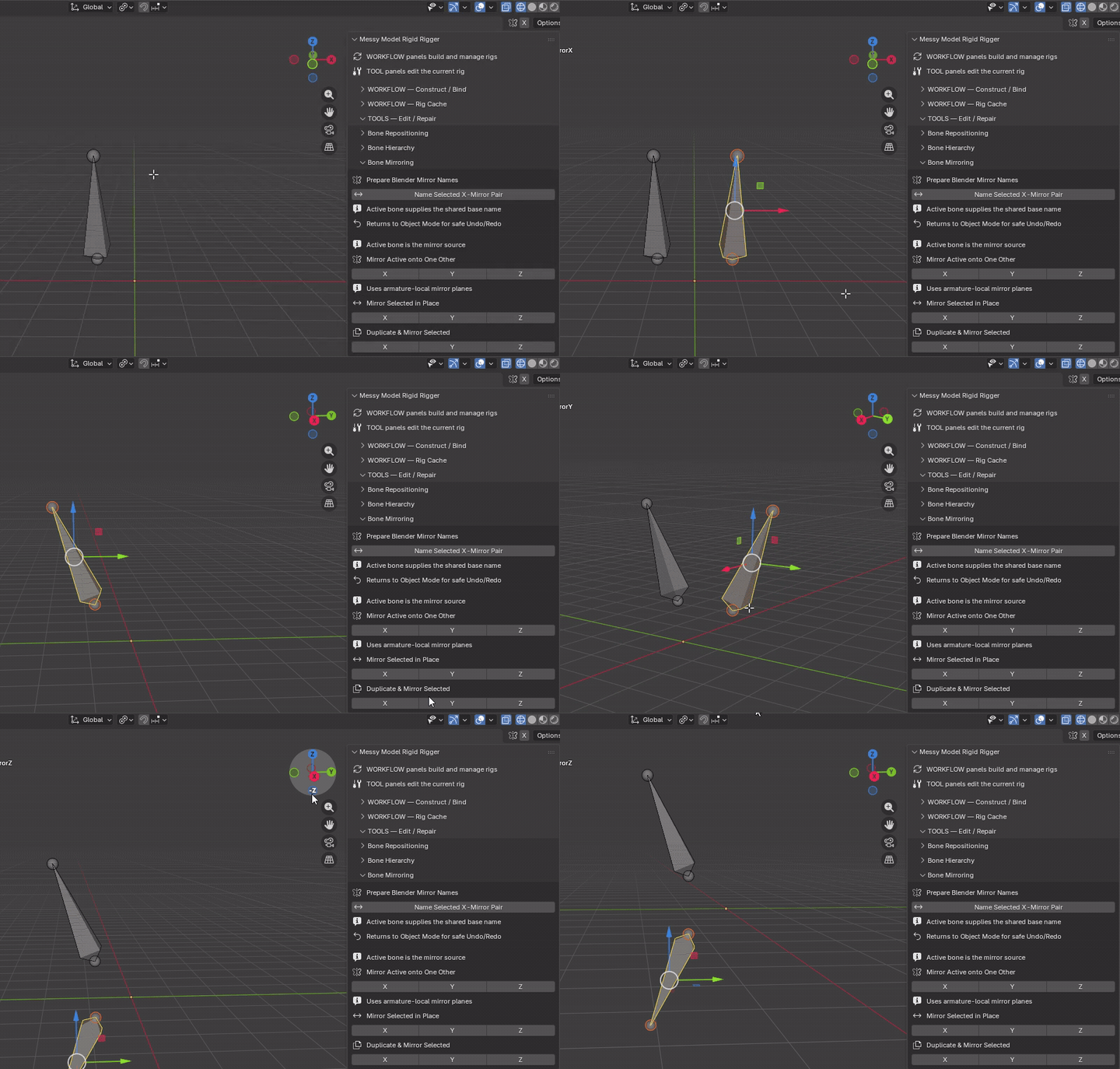
Prepare Blender Mirror Names
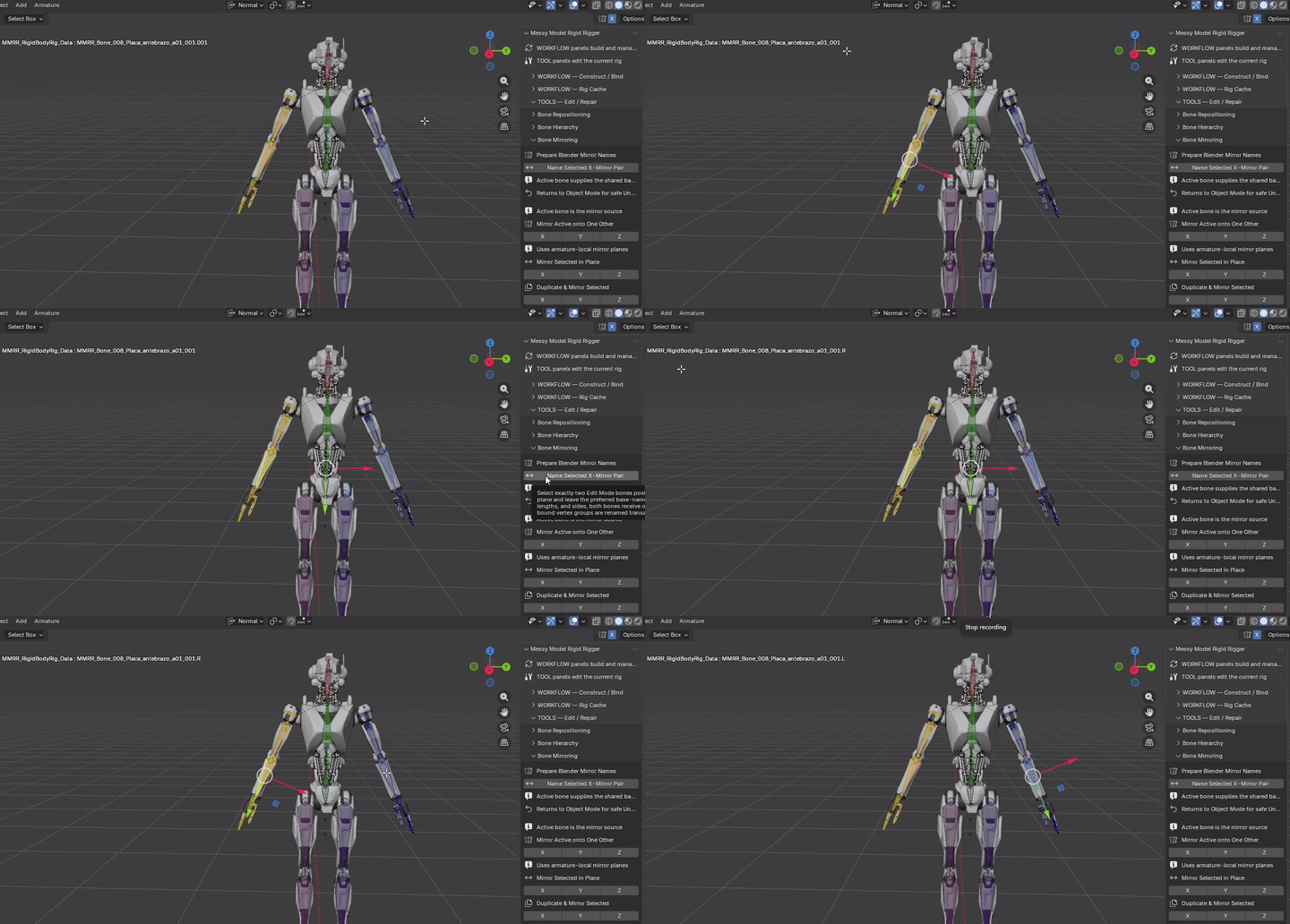
Name Selected X-Mirror Pair
Mode: Armature Edit Mode
Setup: Select exactly two approximately mirrored bones across armature-local X; leave the desired base-name source active.
Use: Renames the pair to a shared base with .L and .R, updating affected ownership names.
Keep in mind: Geometry tolerance and naming collisions are checked. Returns to Object Mode for safe Undo/Redo; naming does not itself move geometry.
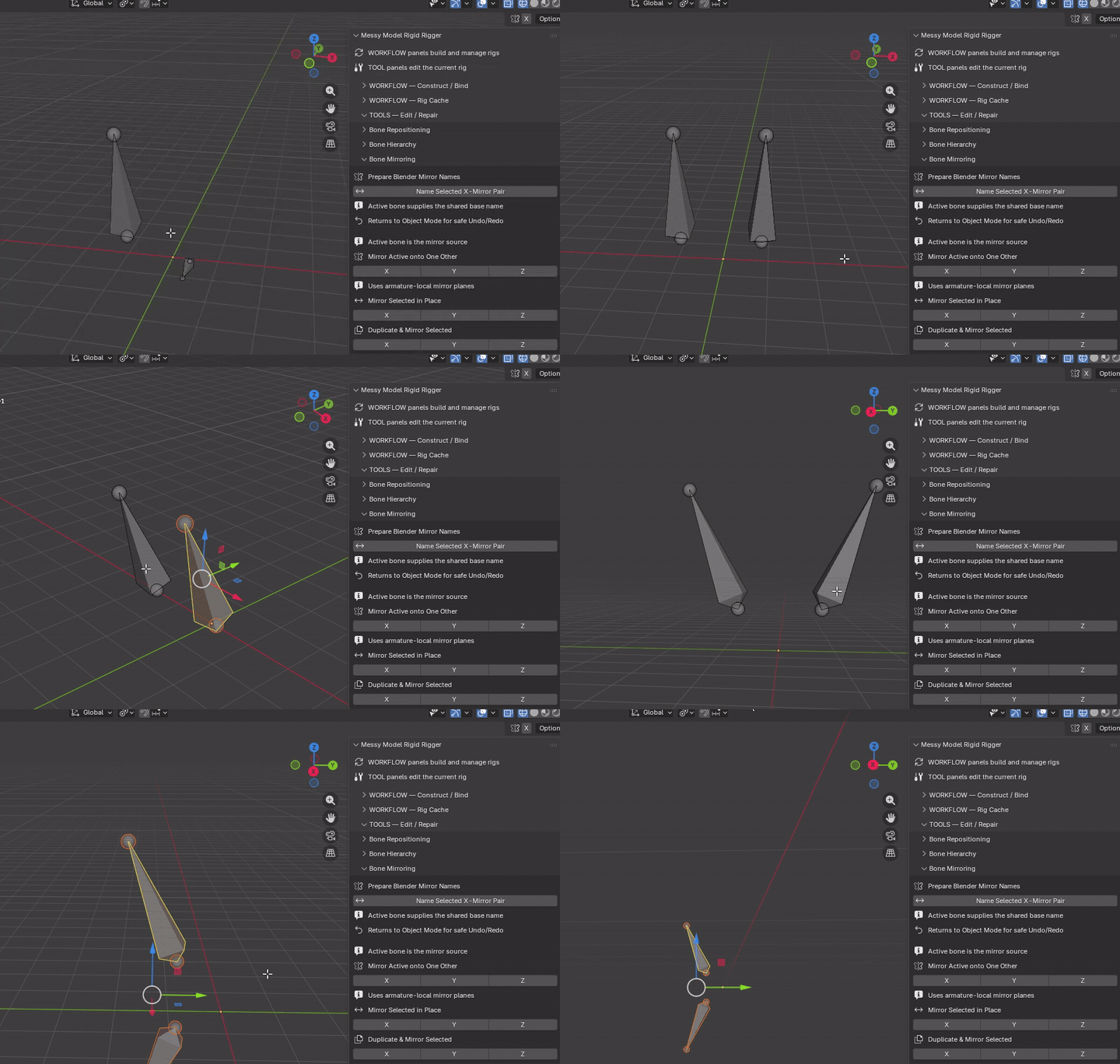
Mirror Active onto One Other
Mode: Armature Edit Mode
Setup: Select exactly two bones; make the unchanged source active.
Use: Reflects the active source's rest placement/orientation onto the other bone across the chosen armature-local plane: X=0, Y=0 or Z=0.
Keep in mind: Overwrites destination rest geometry; does not copy ownership or rename the destination.
Mirror Selected in Place
Mode: Armature Edit Mode
Setup: Select bones to relocate.
Use: Reflects the same selected bones across the chosen armature-local plane: X=0, Y=0 or Z=0.
Keep in mind: No copies are created. Names and bindings are retained.
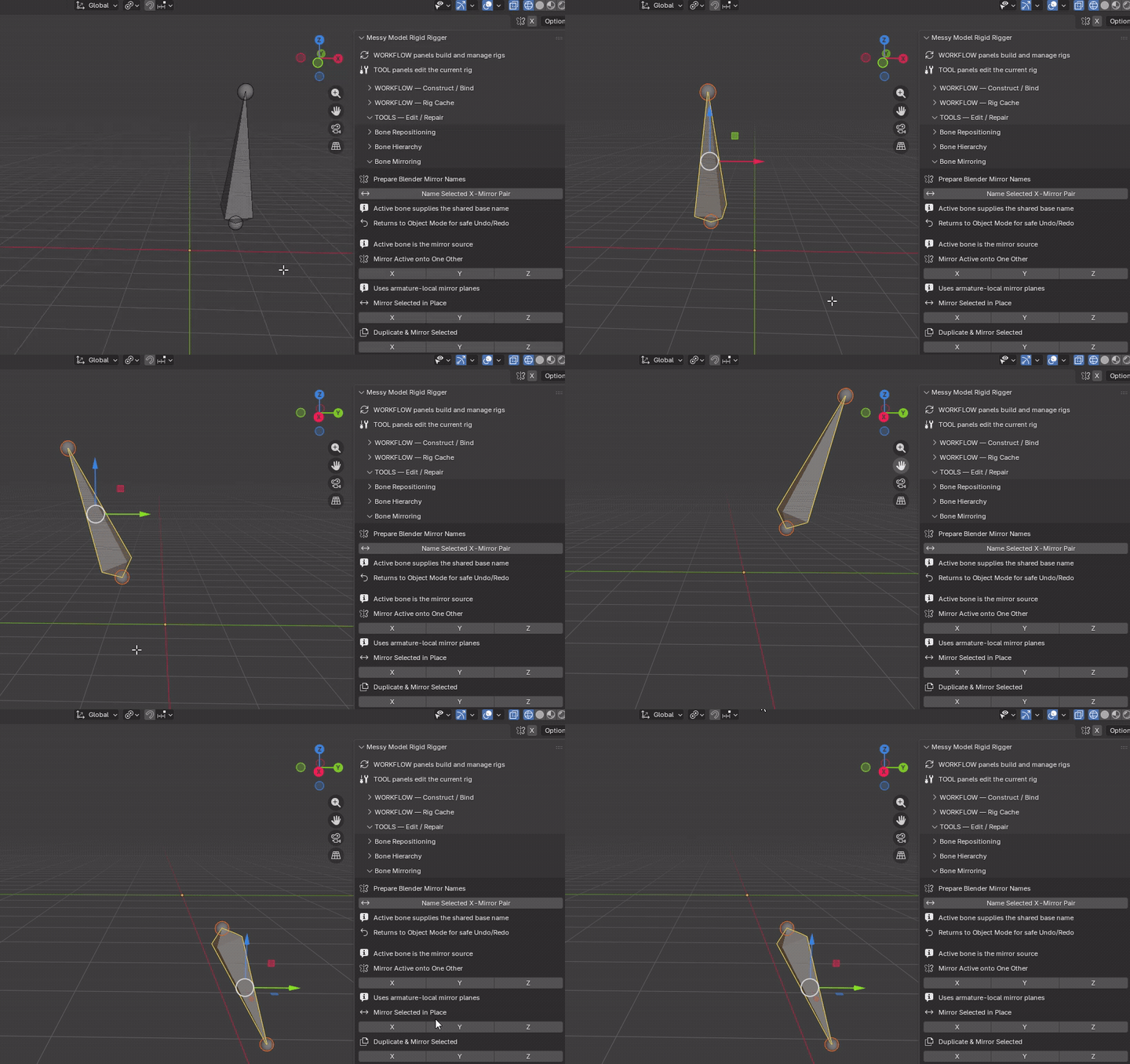
Duplicate & Mirror Selected
Mode: Armature Edit Mode
Setup: Select source bones to duplicate.
Use: Creates new mirrored bones across the chosen armature-local plane (X=0, Y=0 or Z=0) and reproduces selected internal hierarchy.
Keep in mind: Does not create vertex weights. Existing counterpart names can trigger confirmation and numbered names; inspect the result before binding.
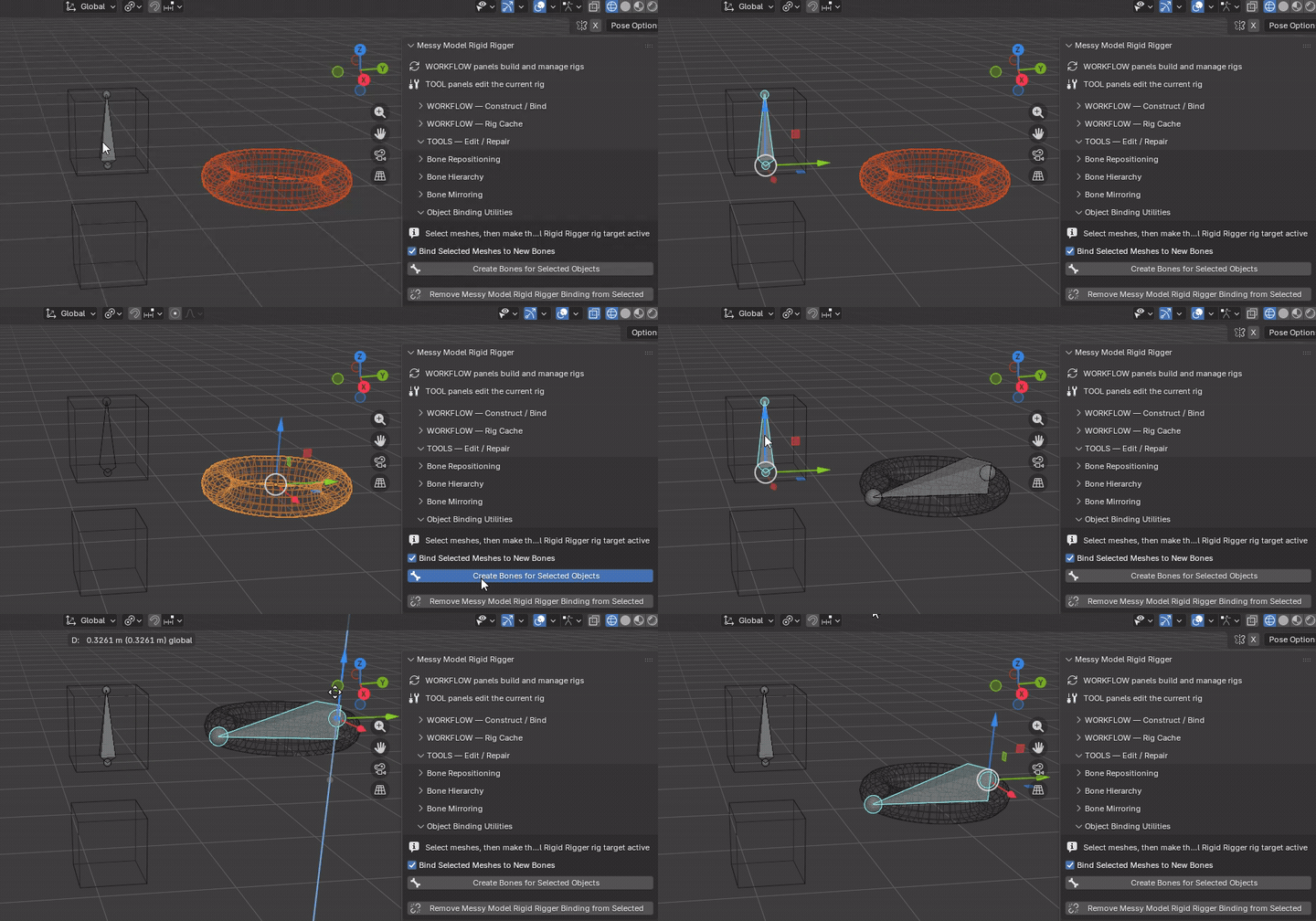
Object Binding Utilities
Create Bones for Selected Objects
Mode: Object Mode
Setup: Select mesh objects and make the intended rig target active. Set Bind Selected Meshes to New Bones.
Use: Creates a bone for each selected whole mesh object; optionally assigns the object rigidly to that new bone.
Keep in mind: The checkbox is independent of constructor binding. This tool does not create one bone per island.
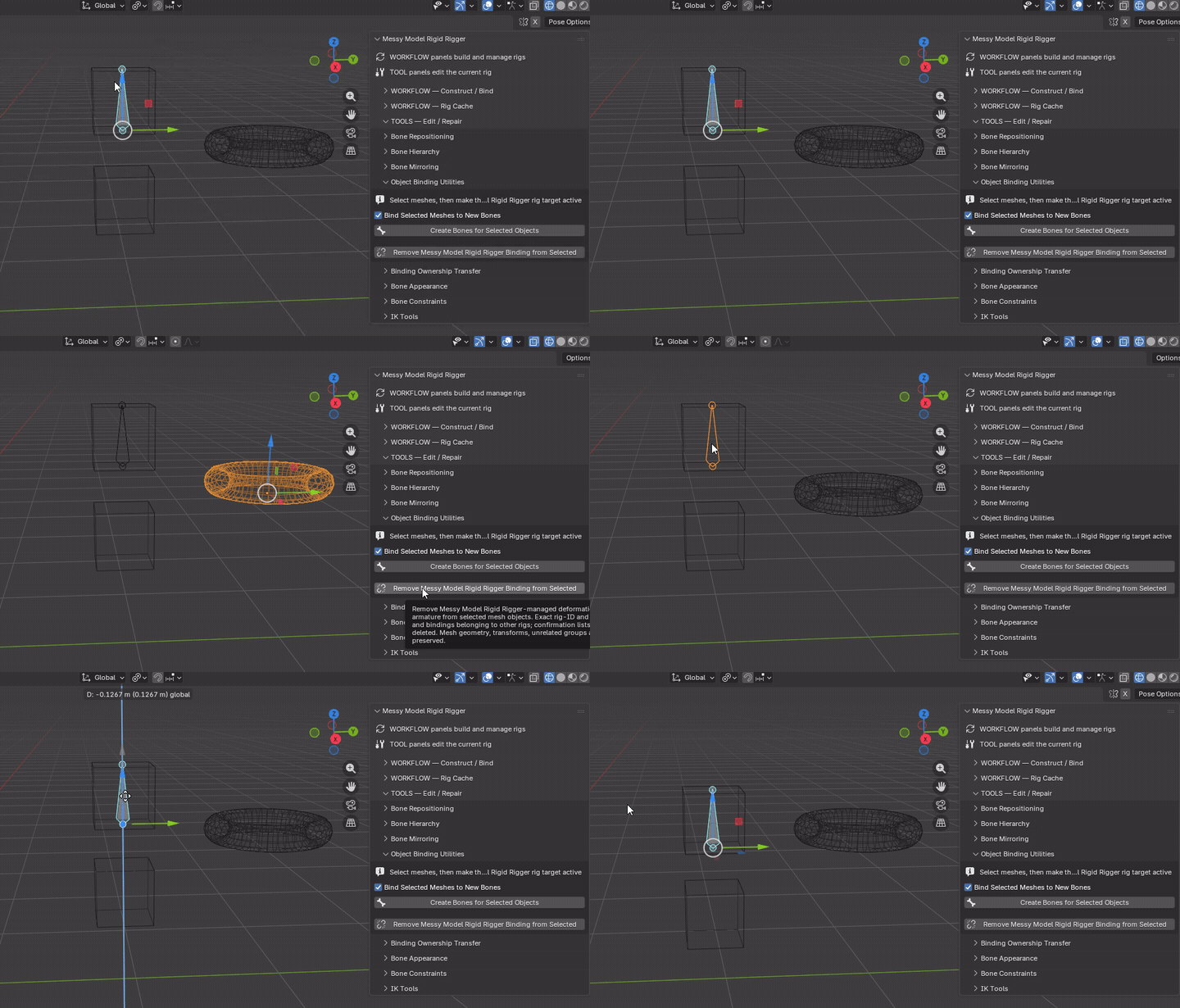
Remove Messy Model Rigid Rigger Binding from Selected
Mode: Object Mode
Setup: Select managed meshes and make their rig target active.
Use: Removes their managed binding groups/modifiers after confirmation.
Keep in mind: Not pose baking. Evaluated appearance can change when the modifier is removed; unrelated data is preserved.
Binding Ownership Transfer
Select Owned Meshes
Mode: Pose Mode or Armature Edit Mode; Object Mode with a remembered active bone
Setup: Select the bones whose ownership you want to inspect, or keep the intended rig and bone active in Object Mode.
Use: Switches to Object Mode and selects meshes with positively weighted vertices assigned to those bones, keeping the rig active.
Keep in mind: Selecting an object does not mean every vertex in it belongs to that bone.
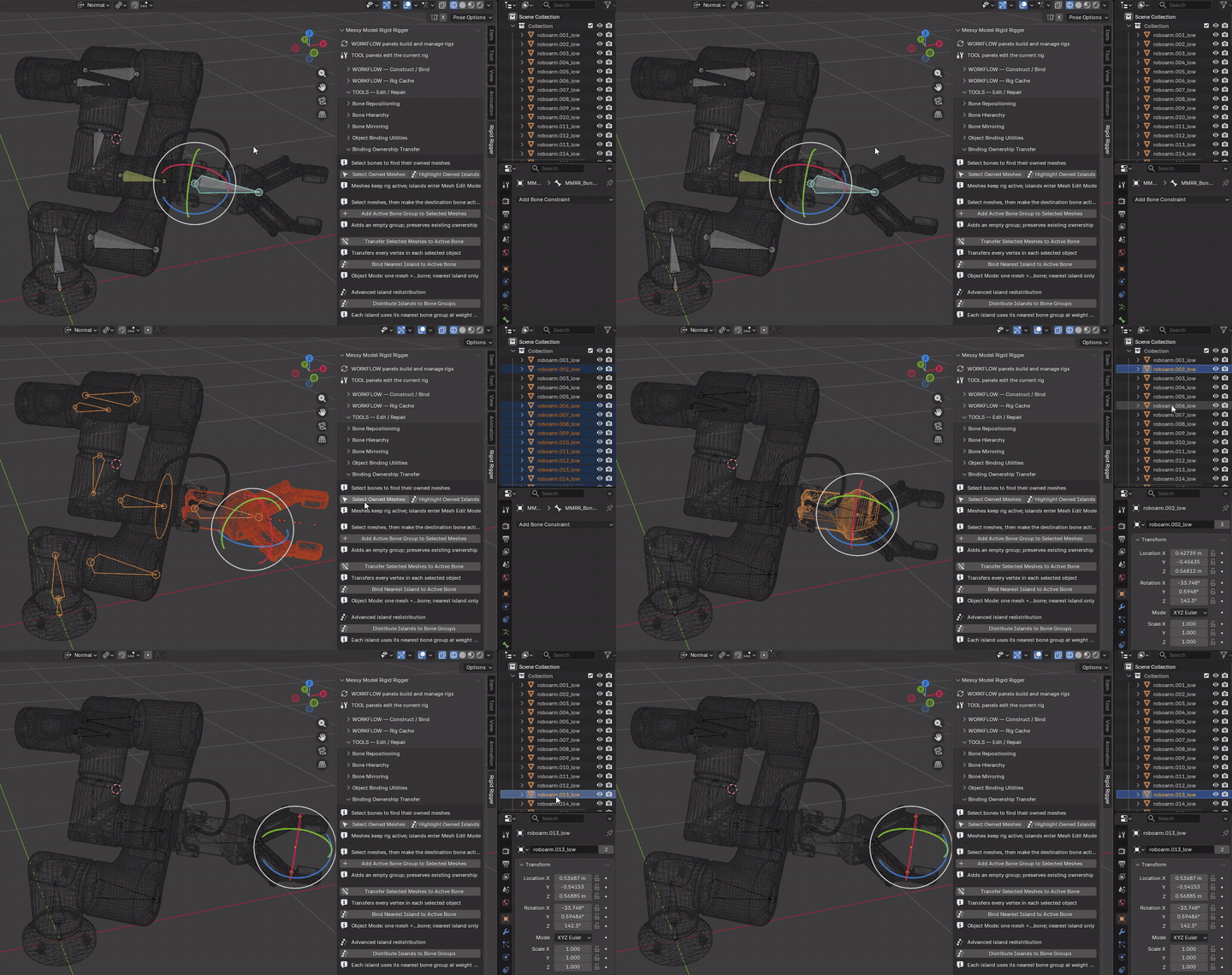
Highlight Owned Islands
Mode: Pose Mode or Armature Edit Mode; Object Mode with a remembered active bone
Setup: Select the bones to inspect, or keep the intended rig and bone active in Object Mode.
Use: Enters Mesh Edit Mode and selects complete connected islands with any positively owned vertices.
Keep in mind: An island with mixed ownership is still highlighted in full. This is selection, not reassignment.
Next step: after inspecting islands, return to Object Mode, select the armature and enter Armature Edit Mode before selecting bones to merge.
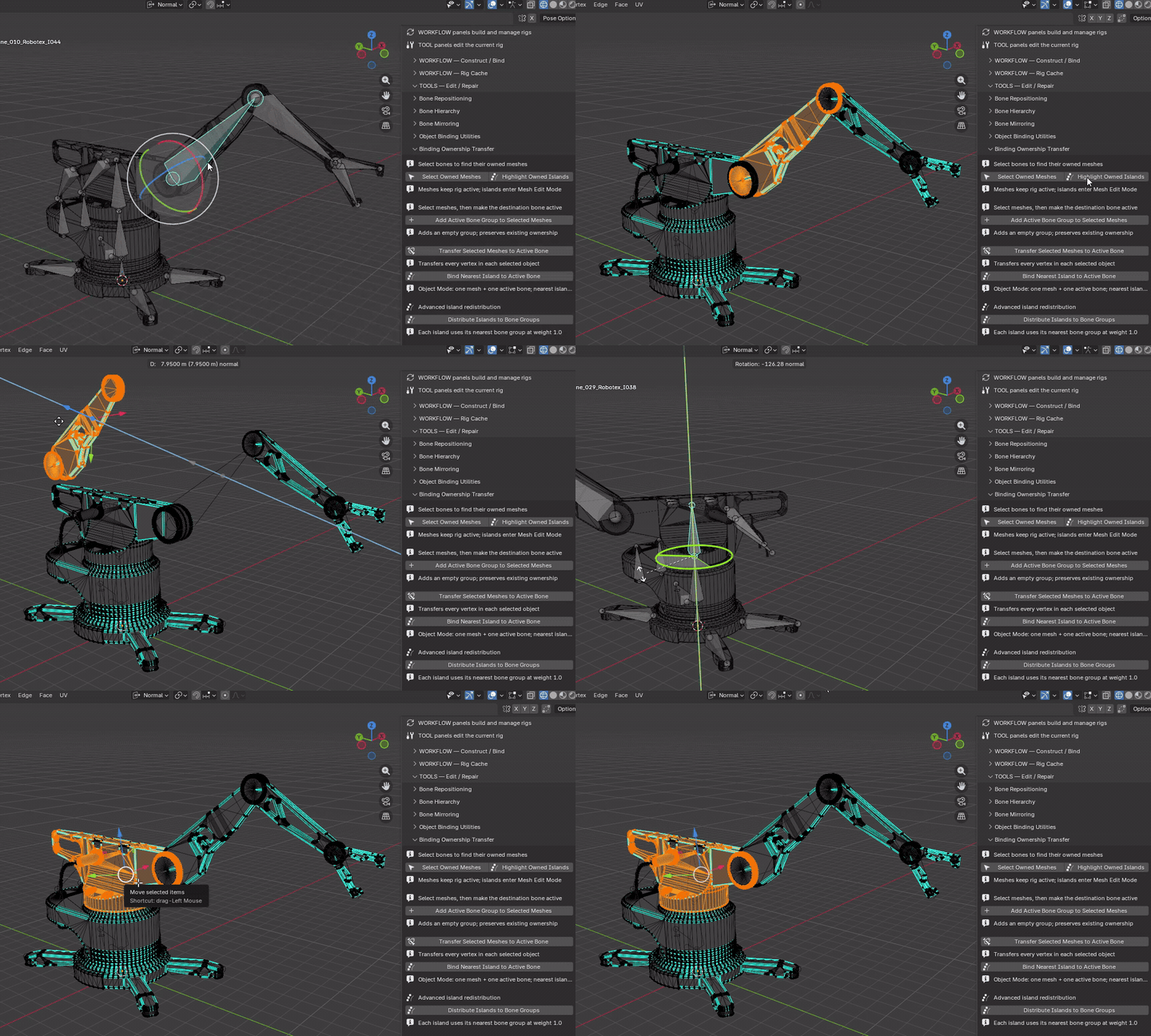
Add Active Bone Group to Selected Meshes
Mode: Object Mode
Setup: Select meshes; make the rig active with the desired bone remembered.
Use: Adds or reuses an empty bone-named vertex group without changing existing ownership.
Keep in mind: Does not assign vertices, add an Armature modifier or make the part follow the bone.
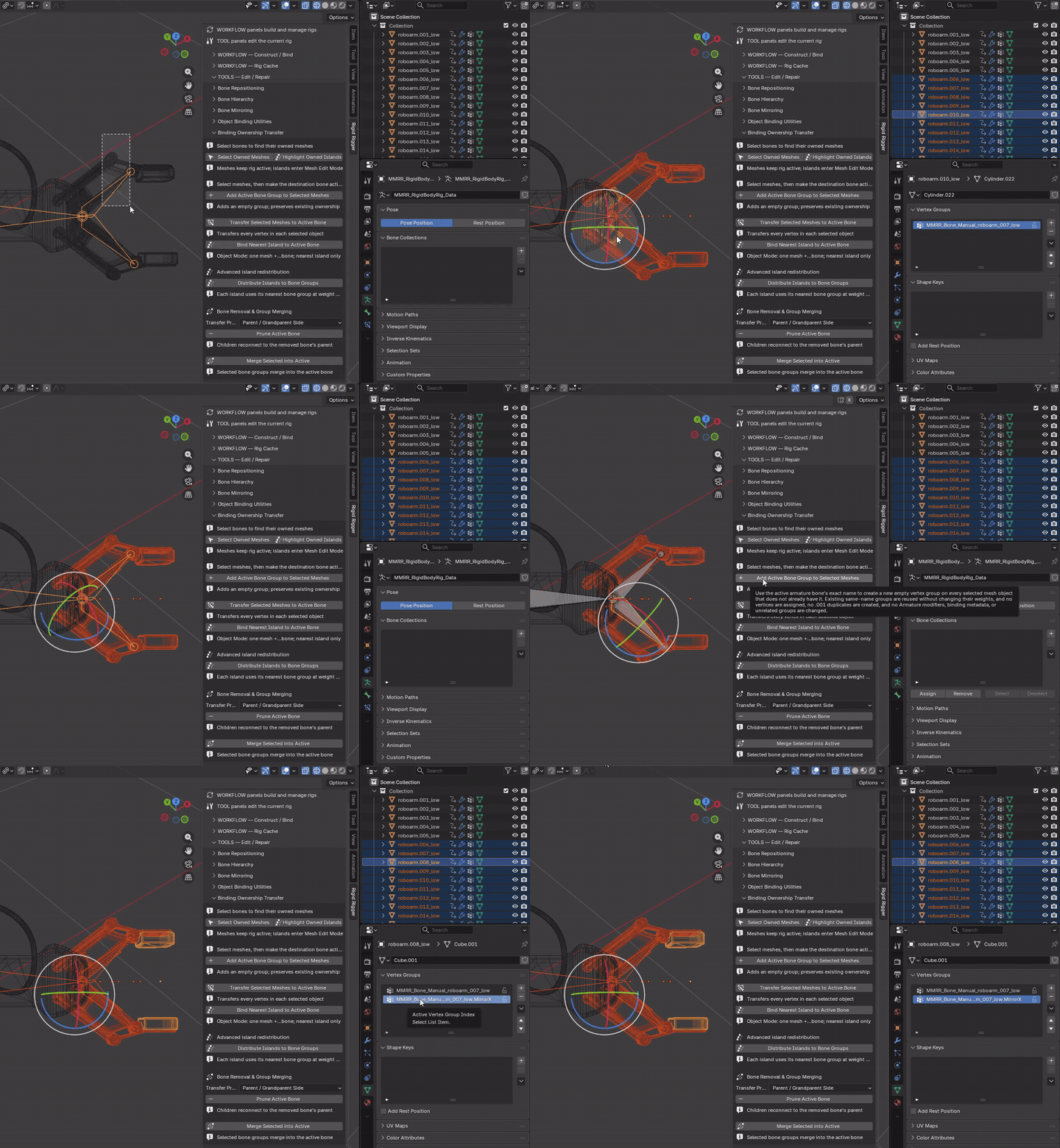
Transfer Selected Meshes to Active Bone
Mode: Object Mode
Setup: Select destination meshes; make the rig active with the intended owner bone remembered.
Use: Transfers every vertex of each selected object to that bone at weight 1.0.
Keep in mind: Whole-object operation. Multi-owner meshes are consolidated after confirmation; use nearest-island transfer for one island.
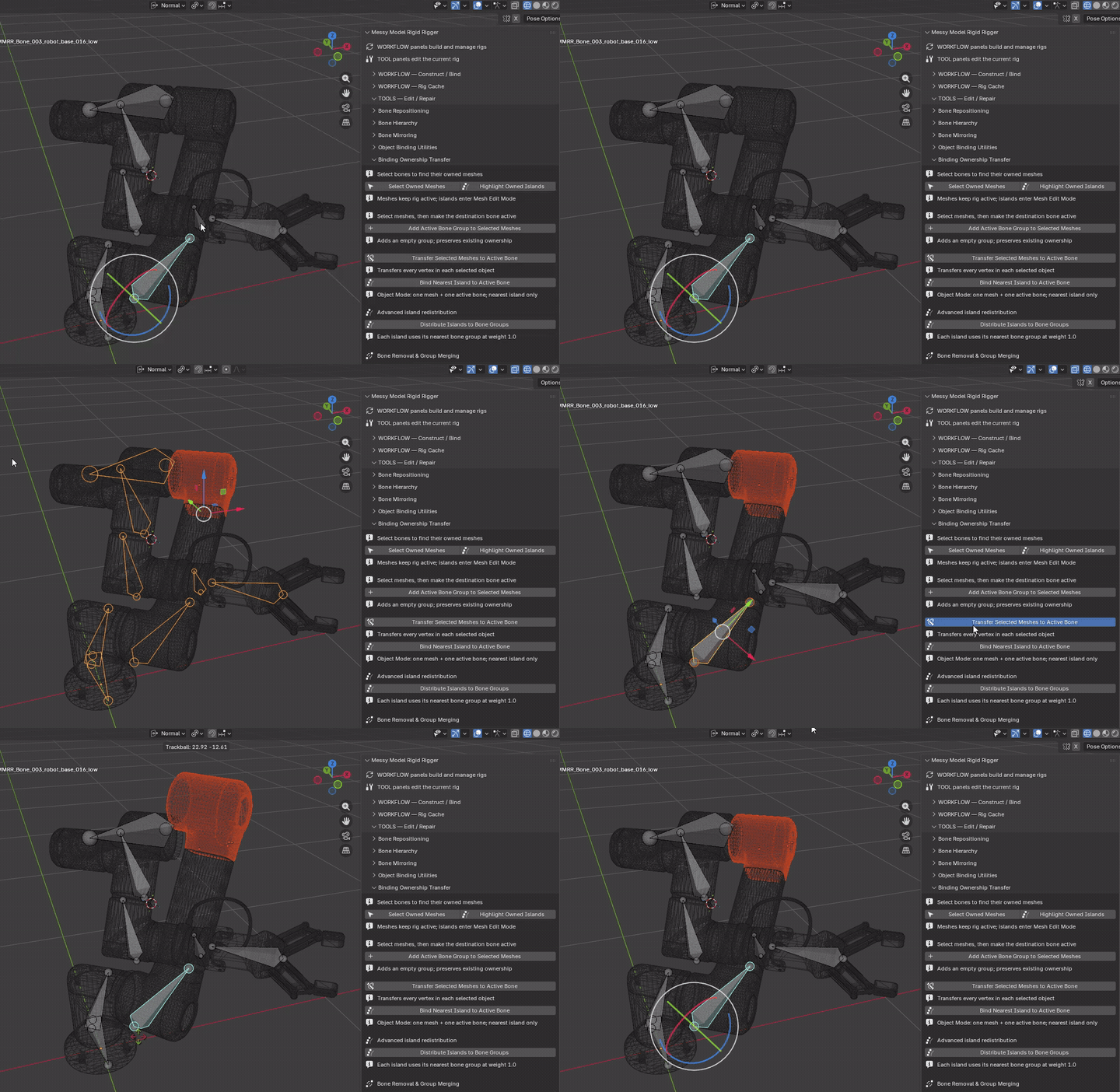
Bind Nearest Island to Active Bone
Mode: Object Mode
Setup: Select exactly one mesh plus the active rig with one intended deform bone remembered.
Use: Assigns the polygon island whose world-space vertex centroid is nearest to the bone's rest segment, at weight 1.0.
Keep in mind: Uses original geometry and rest-bone proximity, not visual posed contact. Repeated clicks select the same nearest island, not the next one.
If proximity picks the wrong island: Undo and use explicit Mesh Edit Mode vertex-group editing. Shared mesh data, foreign rig bindings and incompatible modifiers are rejected.
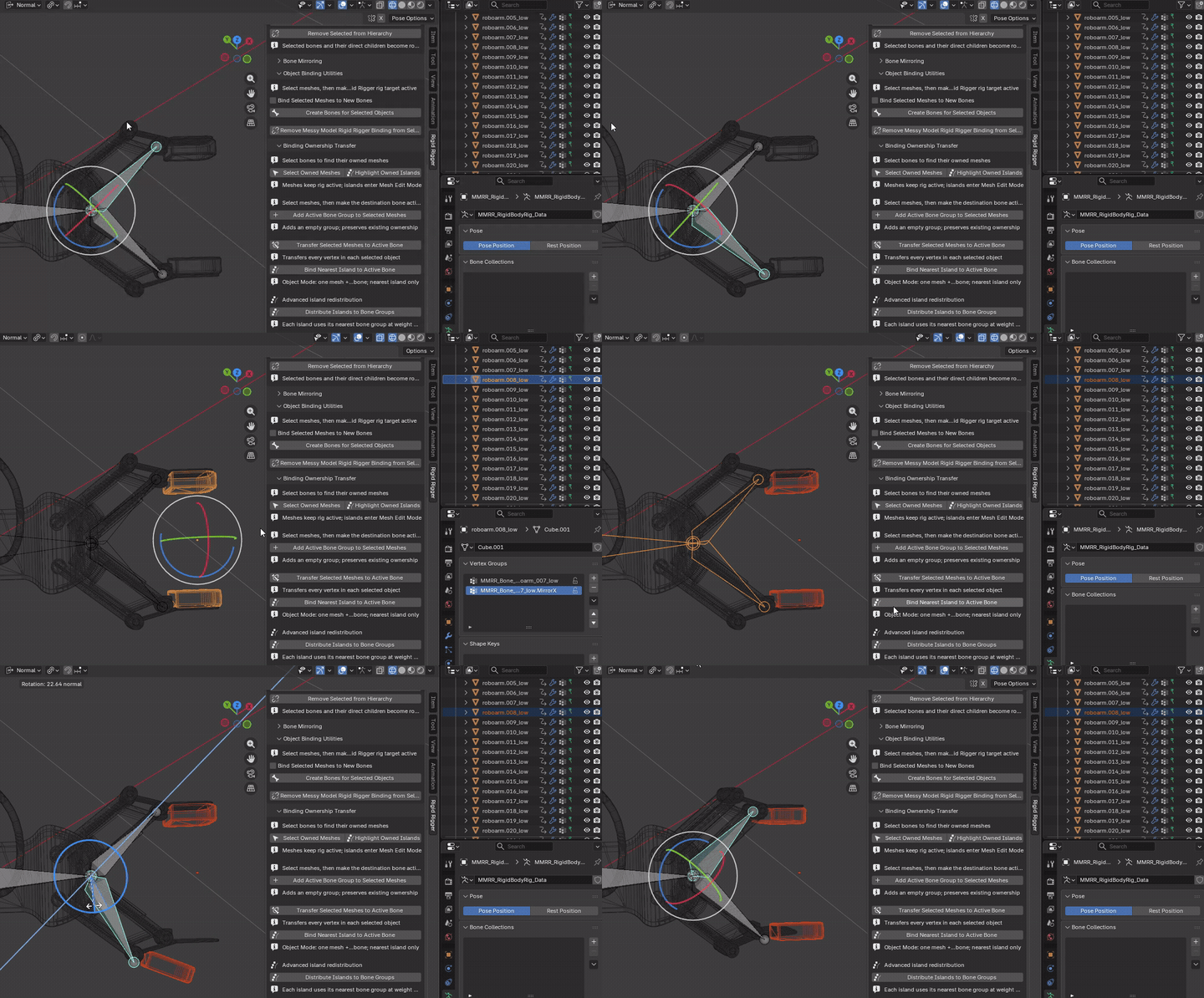
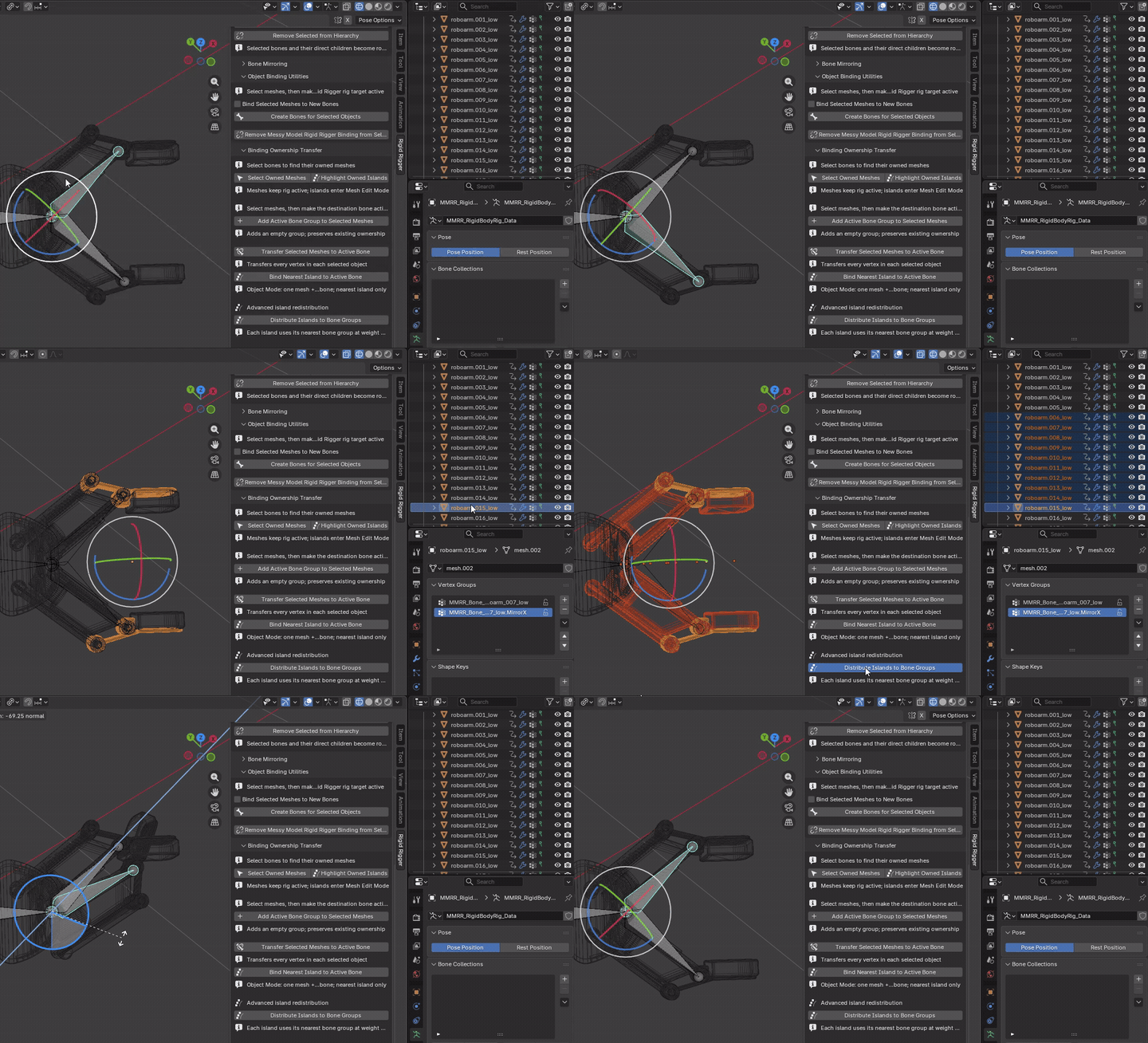
Advanced island redistribution
Distribute Islands to Bone Groups
Mode: Object Mode
Setup: Select bound meshes with two or more islands and two or more existing groups matching deform bones.
Use: Redistributes each island to its nearest eligible bone group at weight 1.0.
Keep in mind: Replaces prior candidate-group ownership; does not create new bones or split welded geometry.
Bone Removal & Group Merging
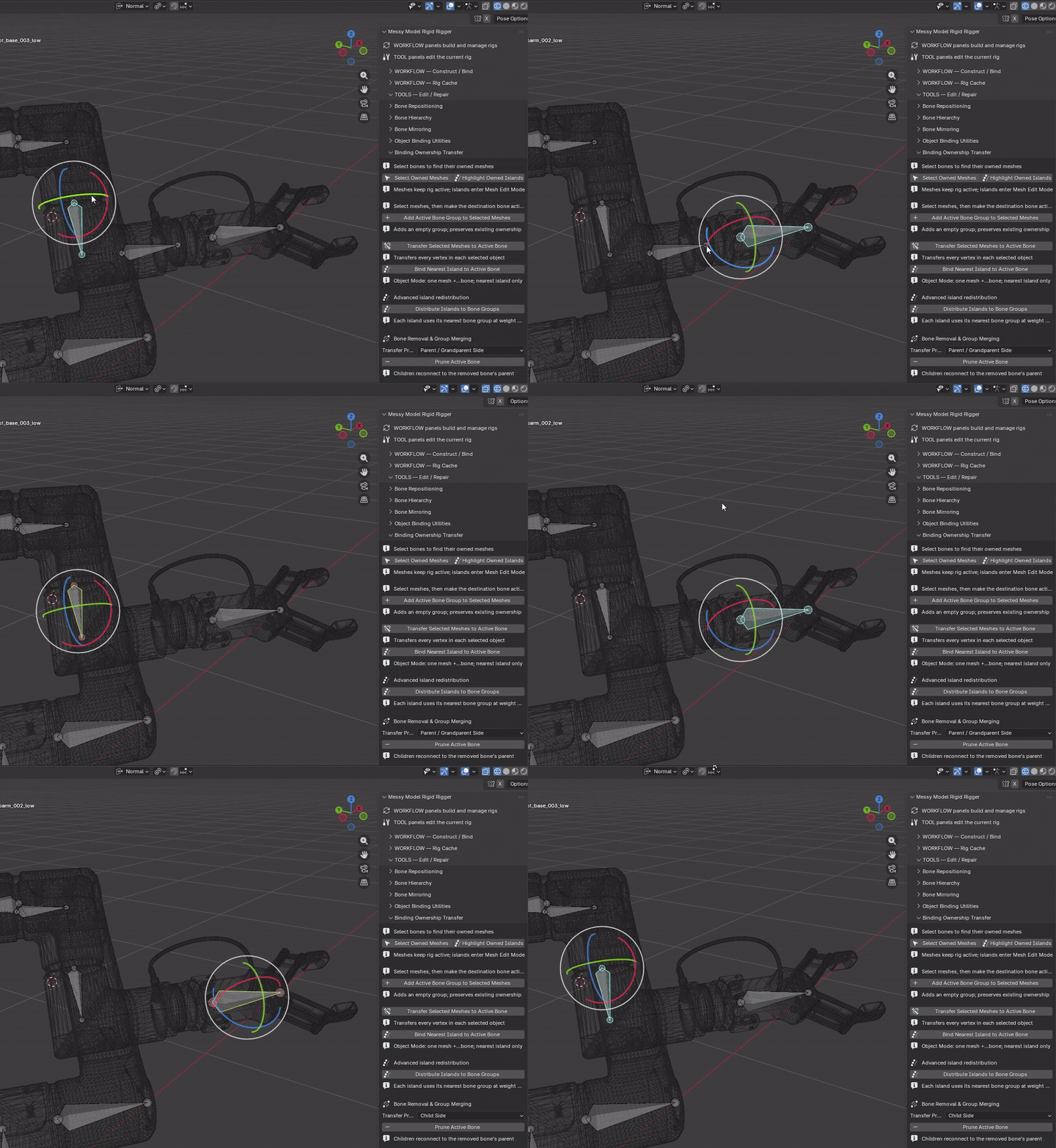
Prune Active Bone
Mode: Armature Edit Mode
Setup: Make a non-root bone active; choose whether its parent or child receives ownership.
Use: Deletes that bone, transfers its owned geometry and reconnects its children to its former parent.
Keep in mind: Child assignment requires a suitable single child. Bone deletion can affect animation/constraints; back up first.
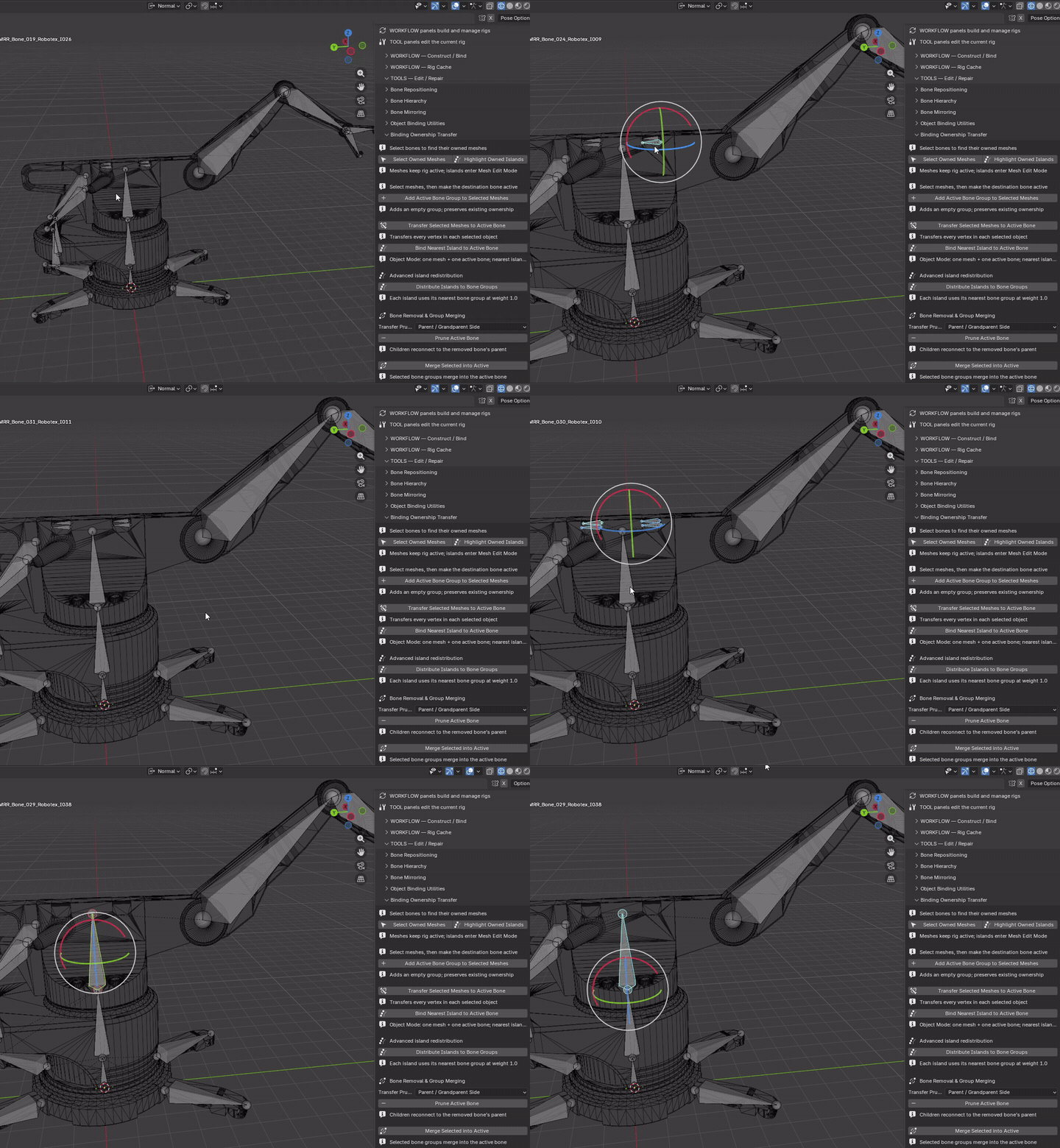
Merge Selected into Active
Mode: Armature Edit Mode
Setup: Select redundant bones and leave the survivor active.
Use: Transfers selected groups into the active bone, removes the other selected bones and repairs child links.
Keep in mind: Deletes bones; review animation and constraint dependencies before confirming.
Bone Appearance
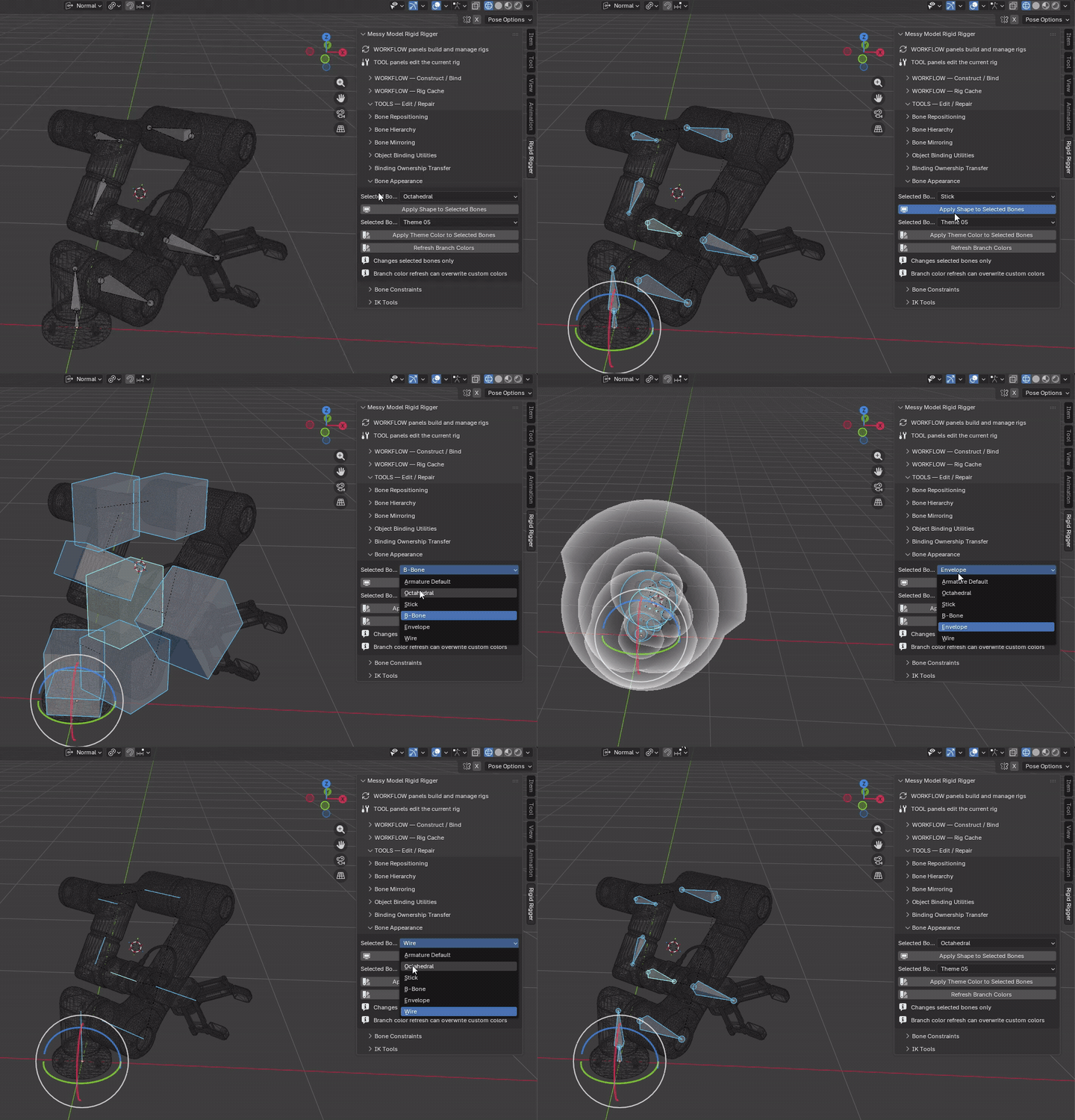
Apply Shape to Selected Bones
Mode: Pose Mode
Setup: Select bones and choose Bone Shape.
Use: Changes selected bones' viewport display shape only.
Keep in mind: No binding, transform or hierarchy changes.
Apply Theme Color to Selected Bones
Mode: Pose Mode
Setup: Select bones and choose a theme palette.
Use: Applies that theme color to selected bones.
Keep in mind: Theme colors are viewport organization, not mesh materials.
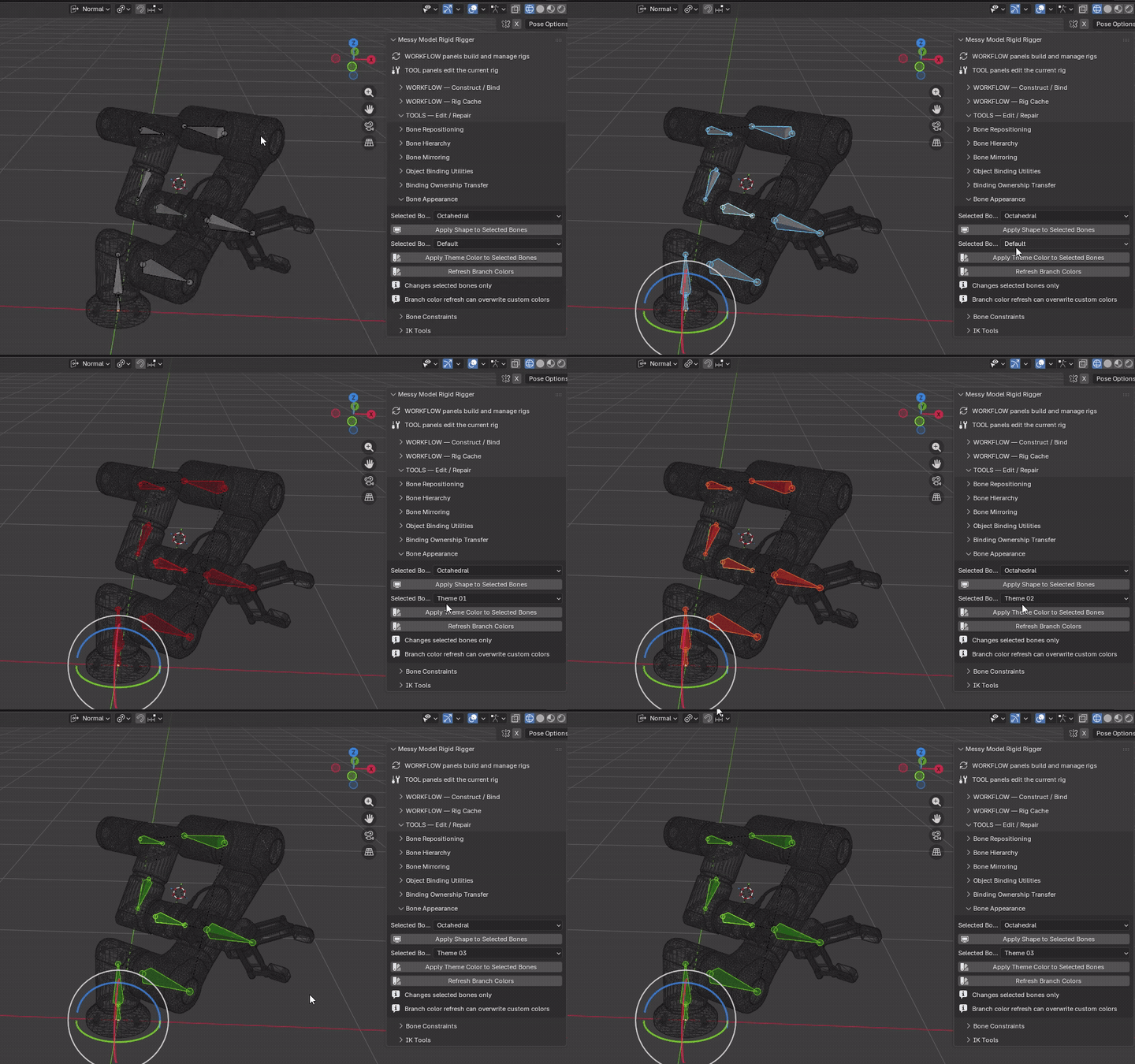
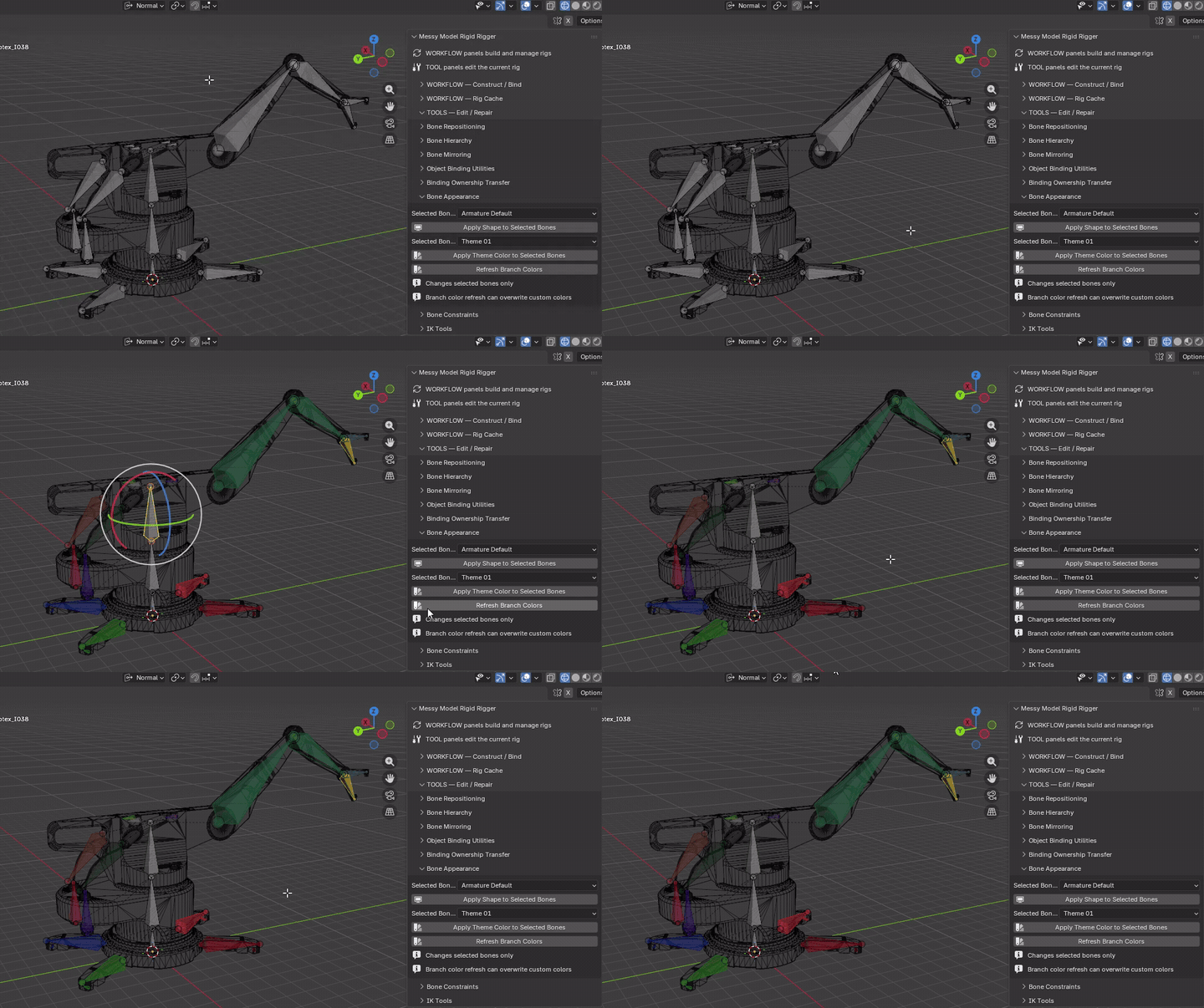
Refresh Branch Colors
Mode: Pose Mode
Setup: Choose the rig whose branch paths should be recolored.
Use: Recalculates branch-path colors from the rig hierarchy.
Keep in mind: Can overwrite custom colors across the rig. This is not limited to recoloring the selected bones and does not reparent them.
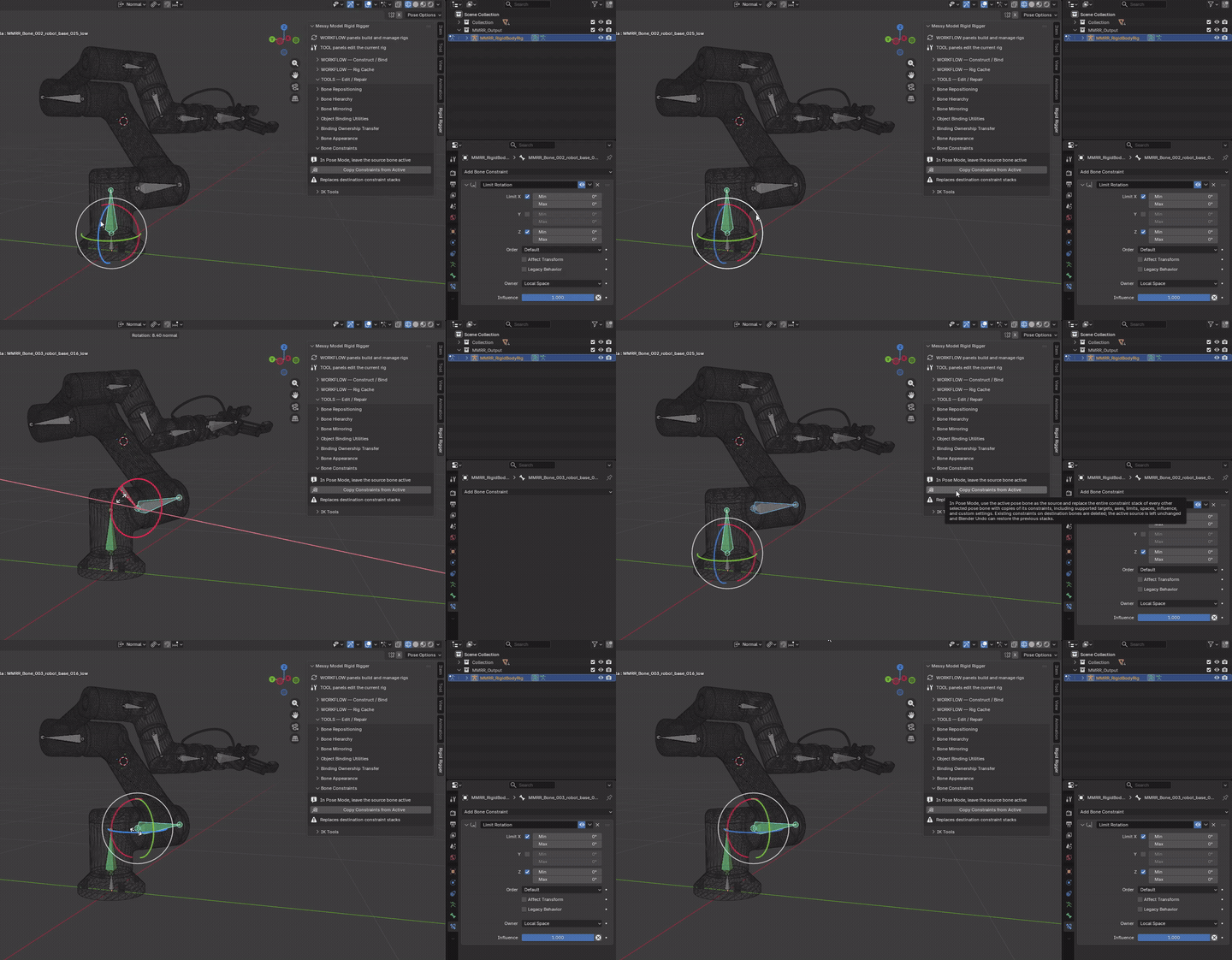
Bone Constraints
Copy Constraints from Active
Mode: Pose Mode
Setup: Select destinations first; leave the source pose bone active.
Use: Replaces destination constraint stacks with copies of the active bone's supported constraint settings.
Keep in mind: Deletes existing destination constraints. Copied target references are not automatically retargeted to analogous controls.
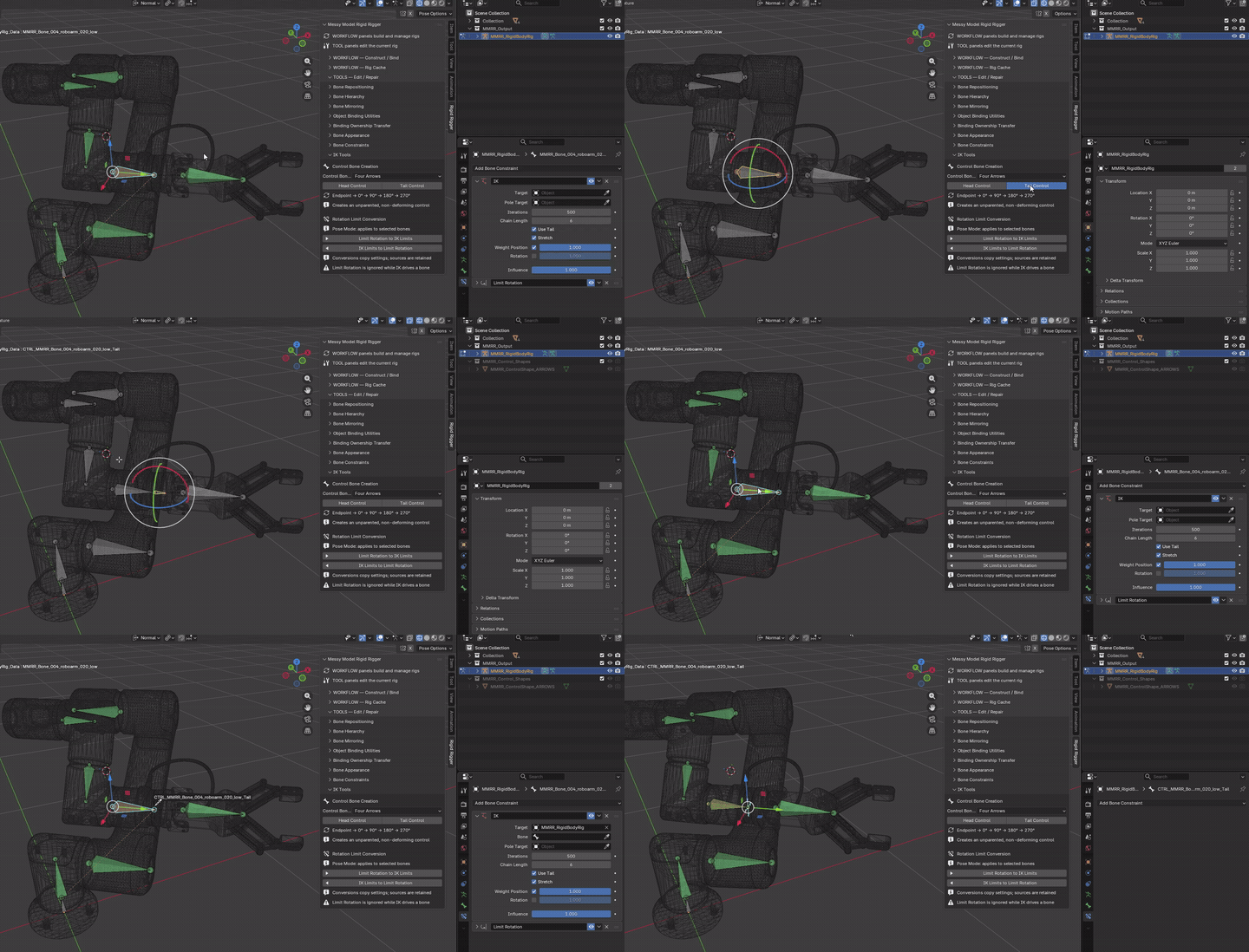
IK Tools
IK setup is separate: choose the generated handle as an IK target or pole in Blender's constraint settings. Keep the target independent of the chain it drives. Circle and arrow shapes are display aids, not solver configuration.
Mode: Object, Pose or Armature Edit Mode
Setup: Make the source bone (or its generated control) active and choose Control Bone Shape: Normal Bone, Circle or Arrows.
Use: Head Control creates a control at the source bone's rest head; Tail Control creates one at its rest tail. Each endpoint has its own non-deforming, unparented control.
Cycle: The first click places the control directly at the chosen endpoint. Repeated clicks move the same control through four perpendicular side offsets at 0°, 90°, 180° and 270°, then back to the endpoint.
Keep in mind: Changes control rest placement, not pose transforms. Does not add an IK constraint, parenting, weights or animation. The control is selected after creation; further clicks resolve it back to its source.
Rotation Limit Conversion
Limit Rotation to IK Limits
Mode: Pose Mode
Setup: Select bones with exactly one enabled, full-influence Local Space Limit Rotation constraint each.
Use: Copies enabled axes and numeric ranges into each bone's IK limits; retains the source constraint.
Keep in mind: Clears existing IK locks so ranges can apply. Ambiguous, muted, partial-influence or non-local sources are skipped.
Solver check: copying numeric limits does not guarantee every pole-driven IK chain will respect the intended mechanical limits. Test the configured solver separately.
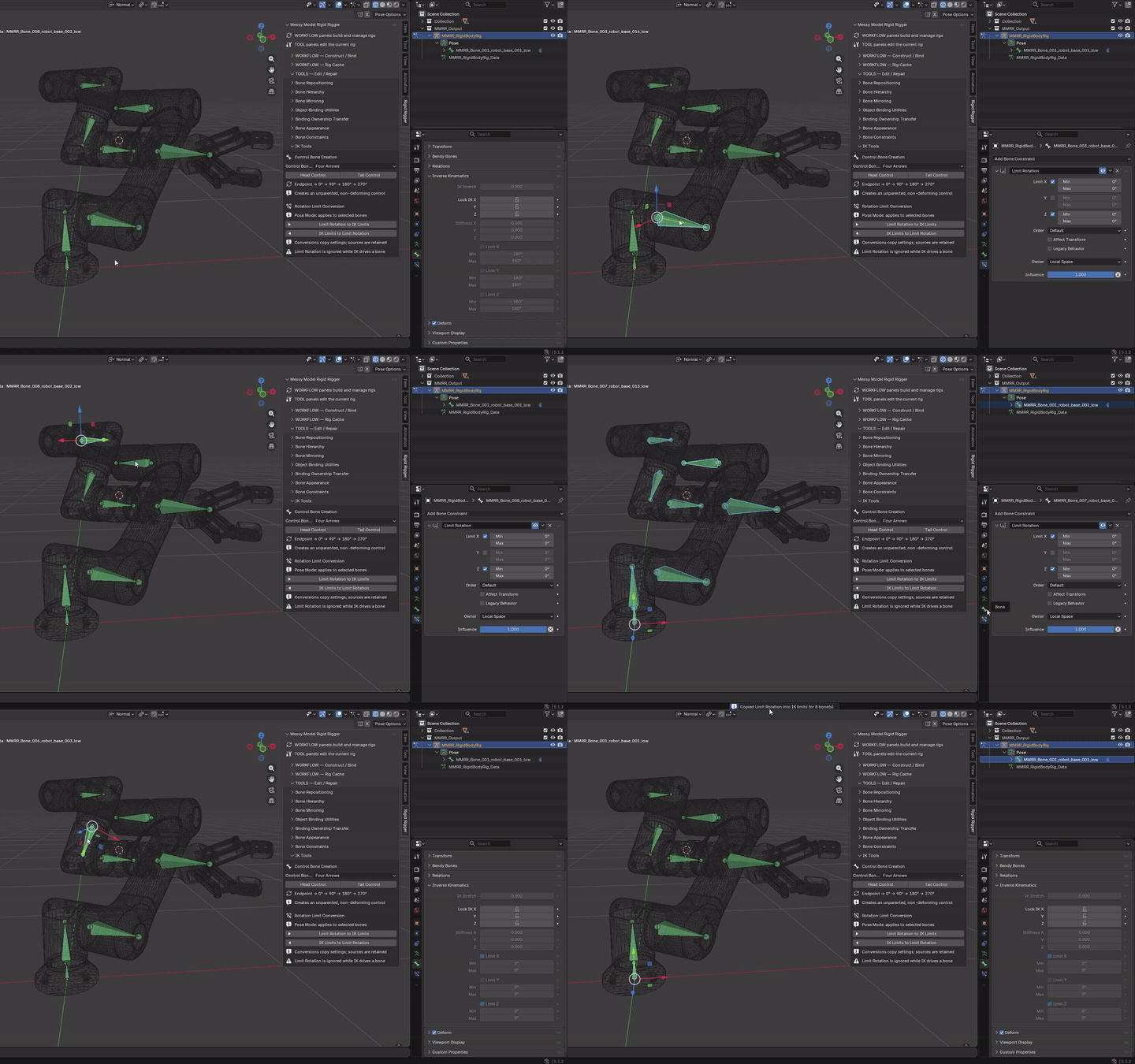
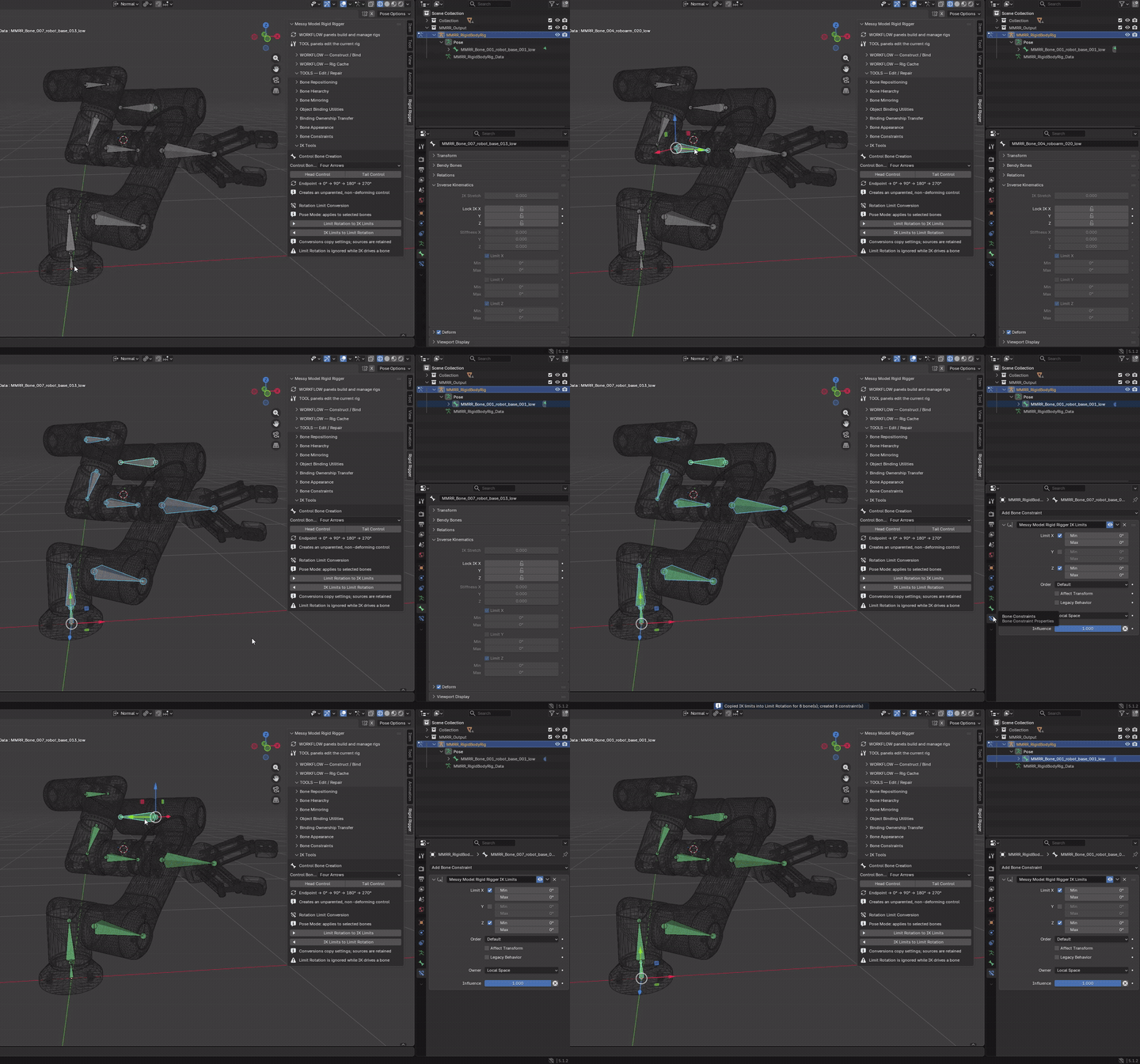
IK Limits to Limit Rotation
Mode: Pose Mode
Setup: Select bones with IK locks/ranges to copy.
Use: Creates or updates a full-influence Local Space Limit Rotation constraint from each bone's IK settings.
Keep in mind: IK settings remain. Blender ignores the ordinary Limit Rotation constraint while IK drives that bone.
Example: use the copied Local Space constraint for FK/non-IK motion, then inspect its ranges on each joint. Limit conversion is not a guarantee of solver behaviour.
Part 4 - Troubleshooting and support
Troubleshooting, limitations and support
Common problems
Construct asks for a host
For a new rig, add at least one usable source mesh to Force Bone Host. With Source Collection set, a host saved only for a different collection does not count toward the current source. All unmarked candidates default to accessories.
Too many bones
Check island consideration and the host list. Disable islands for whole-object treatment, or merge provisional island bones deliberately.
An accessory follows the wrong part
Proximity cannot infer intent. Highlight ownership, then use complete-object or nearest-island transfer as appropriate.
A helper does nothing or refuses to run
Check Blender mode, active rig, active bone and mesh count. Shared armature data requires the independent-copy confirmation; linked data must first be made local/editable. Wait for active construction to finish or cancel it. Hover over the button and read the reported error.
Control bone exists but nothing follows it
The helper creates the handle only. Add/configure the IK constraint and chain length in Blender. Creation/cycling works from Object, Pose and Edit Mode and selects the control. If creation reports an error, check the required mode and selection, confirm MMRR is enabled, and include the exact error when contacting support.
Binding is rigid but a part stretches
Weight 1.0 prevents blended bone ownership; it does not disable scaling, IK stretch, Bendy Bone deformation or other modifiers.
Cache load fails
Check source geometry changes, required external references and animation on the rig. Preserve your current scene; do not delete it to bypass validation.
Construction seems slow
Try a smaller collection and whole-object mode. Higher box/distance sampling costs time. Cancellation is available between safe stages, not during every individual calculation.
Source still reports an old rig after manual deletion
Choose the source collection and use Clean Orphaned Source Bindings. It only removes safely identified orphan bindings; references to rigs still used elsewhere are preserved. Validate the source afterward. Do not use file-wide emergency cleanup as the first response.
Known limitations
Known limits: automatic placement and grouping are starting points, not a finished rig. Review bone directions, ownership, parenting and pivots before animating. Flexible skinning, collision solving, automatic animation and retargeting are outside the tool's purpose.
Requesting help and sharing diagnostics
Support: contact the product's Superhive support channel. Include MMRR/Blender versions, operating system, mode/selection, the exact error and minimal reproduction steps. Export Support Diagnostics if useful; review names and metadata before sharing. Diagnostics do not include mesh coordinates or faces. Share a .blend only if you have permission and intend to share its contents.
The add-on runs locally and is licensed under GPL-3.0-or-later. Third-party demonstration models and animations are not included. This online guide and any accompanying demonstrations are separate from the installation ZIP.
Demonstration asset credits
Black Honey - Robotic Arm by re1monsen, via Sketchfab (Creative Commons Attribution). Rigging and posing added for MMRR demonstrations.
Industrial Sci-Fi Robot Arm Futuristic by alexfoto, via CGTrader, used under the CGTrader Royalty Free License (no AI).
Robot (Free to use) by rodrigoscar, via Sketchfab, licensed under CC BY 4.0. Rigid binding and posing added for MMRR demonstrations. Demonstration skeleton and animation sourced from Adobe Mixamo; no affiliation or endorsement is implied.
Have questions about this product?
Login to message
| Blender Extension Compatible | Yes |
| Published | about 5 hours ago |
| Blender Version | 5.1 |
| Extension Type | Add-on |
| Render Engine Used | Cycles |
| License | GPL |
Discover more products like this
3d-robot copy vertex groups mesh islands 3d machinery mesh binding 3D Artists Toolkit 3d vehicles 3D rigging 3d-models-mechanical Bone Tools 3D alignment tools armature generator