MSnapshot
 MNC Development


MSnapshot — Documentation
Requires Blender 5.0 or later.
1. In Blender, open Edit > Preferences > Get Extensions.
2. Click the dropdown arrow at the top right of the window and choose Install from Disk…
3. Select MSnapshot-1.0.0.zip. Blender asks you to confirm one permission — Files, because the add-on writes your snapshots to disk.
4. The extension installs and enables itself. Press N in the 3D Viewport and the MSnapshot tab is there, in the sidebar. The same tab is in the Image Editor.
To update later, install the newer zip the same way — it replaces the previous version. To remove it, find MSnapshot in the Add-ons list and uninstall it. Your snapshot images stay on disk; only the list stored in the .blend goes away.
The panel sits in the sidebar of the 3D Viewport and of the Image Editor, so a render can be captured and compared from the render window itself. It holds two sections: Snapshots and Capture.
| The list | Every snapshot with its thumbnail. Click one to select it, double-click its name to rename it. |
| X | Deletes the selected snapshot and its file on disk. |
| Trash | Deletes every snapshot and every file, after asking you to confirm. |
| Folder | Opens the snapshots folder in your file browser. |
| View Fullscreen | Opens the viewer. While it runs the button turns red — click it again, or press Esc in the viewport, to come back. |
Every capture is written at your scene's render resolution, including the percentage scale, so snapshots line up pixel for pixel in a comparison.
| Viewport | The 3D view as it is shaded right now. Only available in the 3D Viewport, and not while the viewer is running. |
| Current Slot | The render held in the active render slot. |
| All Slots | Walks through every render slot and captures the filled ones, skipping the empty ones. |
A capture in Solid, Material Preview or Wireframe shading mirrors the viewport, overlays included. Turn Show Overlays off in the viewport header if you want a frame without the grid, the gizmos and the selection outlines.
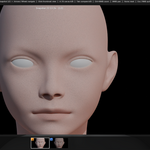
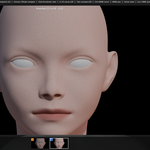
The viewer covers the editor it was opened from and shows one snapshot at a time, with a strip of thumbnails along the bottom. The snapshot on screen carries a white frame; the ones chosen as A and B carry their badge.
| Arrows, Wheel | Step to the previous or next snapshot, looping around. |
| Click a thumbnail | Brings that snapshot up. |
| A / B | Assigns the snapshot on screen to that side of the comparison. |
| Tab | Switches to the A/B comparison, and back again. |
| Ctrl + Middle drag Ctrl + Wheel | Zooms from a tenth of the fitted size up to forty times, anchored under the cursor. |
| Middle drag | Pans the image. |
| Home | Restores the fitted view. |
| Esc, Right click | Quits the viewer. |
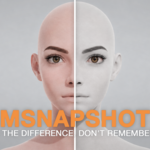
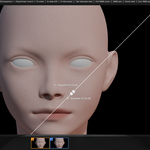
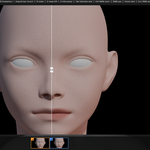
A sits on one side of the bar, B on the other. Both images are drawn in the same frame, so they stay aligned however you move or turn the split, and the zoom drives the two at once.
| Drag the bar | Grab it anywhere along its length and slide it across the image. |
| Arrows | Nudge the split in small steps. |
| R | Rotates the bar with the mouse. Hold Shift to snap to 45°, Ctrl to 15°. Left click or Enter confirms; Esc or right click cancels and puts the bar back. |
| S | Swaps the two sides. |
| H | Hides the two names for a clean look, and brings them back. |
The position, the angle and the name visibility are remembered, so the next comparison opens exactly as you left the last one. A and B can never land on the same snapshot: assign one to the side the other already holds and the two simply trade places.
Each capture is written as a PNG in a snapshots folder created next to your .blend file:
snap_20260818_143005.png
Captures taken from a render slot are named render_ instead, and a counter is added if two land in the same second. Until the .blend has been saved once, the folder is created in Blender's temporary directory instead — save your file first if you want to keep the images.
The list itself, with the names you gave, the A and B choice and the state of the bar, is stored per scene inside the .blend. Different scenes hold different lists, and reopening the file brings everything back as long as the PNG files are still where they were.
| MESSAGE | WHAT TO DO |
| The active render slot is empty | There is nothing in the slot you are on. Render first, or switch to a slot that holds an image. |
| No filled render slot found | Every slot is empty — nothing has been rendered in this session yet. |
| …could not capture the rendered viewport | Your engine would not draw the view outside the viewport. Render normally, then use Capture Current Slot. |
| Set snapshots A and B first | Open the fullscreen view, bring up a snapshot and press A, then another and press B. |
| Snapshot file not found on disk | The PNG was moved, renamed or deleted outside Blender. Delete the entry from the list and capture again. |
| Quit the fullscreen viewer first | The viewport cannot be captured while it is covered by the viewer. Press Esc, or click the red button, then capture. |
| Capture a snapshot or a render first | The list is empty, so there is nothing to view. Use one of the three capture buttons. |
MSnapshot · Requires Blender 5.0 or later
Have questions about this product?
Login to message
| Blender Extension Compatible | Yes |
| Published | about 2 months ago |
| Blender Version | 5.0 - 5.2 |
| Extension Type | Add-on |
| License | GPL |
Discover more products like this
A/B comparison productivity tool quick viewport snapshots Render viewport Workflow snapshot compare snapshot ab snapshot tool