 HR
HR


Requirements
- Blender 4.5 LTS or newer.
- The Multi-Camera Preview extension ZIP.
Installation
- Download the latest Multi-Camera Preview ZIP from the product page.
- In Blender, open Edit > Preferences.
- Open Get Extensions (or Add-ons, depending on the Blender version), use the menu in the upper-right corner, and choose Install from Disk.
- Select the ZIP without extracting it.
- Enable Multi-Camera Preview if Blender does not enable it automatically.
Quick Start
- Open a scene containing cameras, or add a camera from the Multi-Camera Preview controls.
- Open the Preview Board from the camera button in the 3D Viewport header, from the Multi-Cam tab in the N-panel, or with
Ctrl+Alt+C. - Use Preview All to create fast viewport thumbnails for every camera.
- Compare the cards. Click a thumbnail to select and inspect its camera; use the Inspector for common framing adjustments.
- Drag cards while Arrange mode is active, and use the Missing, Stale, or Selection filters when the scene contains many cameras.
- Use Render All Previews when you want thumbnails generated with the active render engine.
- Rendered previews are processed one at a time; Blender stays busy until each preview finishes.
- The progress bar shows completed cameras versus the total and names the camera currently being processed.
Editing Numeric Values
Drag a main numeric value horizontally to adjust it live. Hold Shift for finer control or Ctrl to snap the value. Release to confirm; while dragging, press Esc or right-click to restore the original value.
Click without dragging to edit the value inline. The number is selected first; use the mouse, Left/Right, Home/End, Backspace/Delete, or paste to refine it. Press Enter to confirm or Esc to cancel.
Preview Types
| Command | What It Creates | Intended Use |
|---|---|---|
| Viewport Preview / Preview All | A fast thumbnail captured from the viewport. | Rapid composition checks and browsing. |
| Rendered Preview / Render All Previews | A thumbnail generated with the scene's active render engine and the add-on's preview quality settings. | A more representative lighting and material check. |
Both types are preview thumbnails. They are packed into the .blend file and are not final renders. Multi-Camera Preview does not export a batch of production images, use the scene's final output resolution, or replace Blender's normal rendering workflow.
Rendered previews temporarily use the configured preview dimensions and, for Cycles, the configured preview sample count. The add-on restores the scene camera, render dimensions, pixel aspect, output format, output path, sample count, and active Render Result slot after generation.
Match Scene Aspect Ratio
Match Scene Aspect Ratio is enabled by default. It keeps preview framing consistent with the scene output, including non-square pixel aspect ratios. The configured preview width becomes the maximum output dimension and the other dimension is calculated from the scene aspect ratio.
Disable it only when you deliberately want to use the exact custom preview width and height, even if their aspect ratio differs from the scene output.
Processing and Persistence
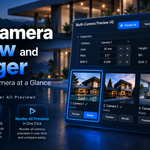
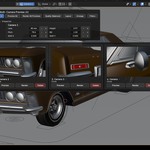
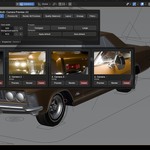
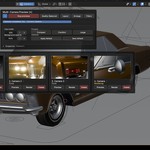
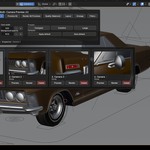
- The board presents each camera as a card with its thumbnail, name, state, and essential actions.
- Rendered previews use Blender's blocking render operators for maximum compatibility with complex files and third-party add-ons.
- Blender remains busy while each rendered preview is generated. In-process modal rendering is intentionally disabled because it can cause native Blender crashes with some complex third-party add-on profiles.
- Preview All and Render All Previews show aggregate camera progress. The bar updates between cameras and remains still while Blender performs the current blocking render.
- Preview images are packed Blender image datablocks. Saving the
.blendkeeps the thumbnails with the project instead of relying on an adjacent image folder. - Preview rendering uses a dedicated Render Result slot so the add-on can restore the slot that was active before the preview.
Known Limitations
- Stale detection is camera-focused, not scene-wide. It tracks the camera transform and selected framing values (lens, shifts, and sensor dimensions), together with preview mode, effective preview dimensions, rendered-preview samples, and Match Scene Aspect Ratio.
- General scene invalidation is not implemented. Changes to geometry, object transforms outside the camera, materials, lights, World settings, compositor nodes, frame or animation state, depth of field, orthographic settings, and most render-engine settings may change the image without marking an existing thumbnail as Stale.
- After any such scene-wide change, refresh the relevant camera manually or run Preview All / Render All Previews again.
- Stop Previews is processed between cameras. It cannot interrupt the current blocking render, but it prevents the remaining cameras from starting.
- Blender uses mode-specific undo stacks in Edit, Sculpt, and Paint modes. Live value edits still confirm or cancel correctly there, but camera and Board settings may not enter the global
Ctrl+Zhistory. Confirm them from Object Mode when an Undo step is required.
License
Multi-Camera Preview is licensed under the GNU General Public License, version 3 or any later version (GPL-3.0-or-later).
Have questions about this product?
Login to message

Discover more products like this
Camera Workflow multi-camera camera product rendering Camera Preview Camera Thumbnails packshot camera-manager rendered preview Blender Cameras preview board archviz cameras