Nexus Godot Pipeline
 Michael Kulzer



SETUP & EXPORT GUIDE
Documentation
v2.0.1 | Blender 5.2 & Godot 4.7 Ready
Install both addons, configure project paths, set collection export types, then export once - Godot imports ready-to-use scenes.
Get Started · Setup · Collections · Objects · Materials · Advanced · Quick Export · Batch
INSTALL
Get Started
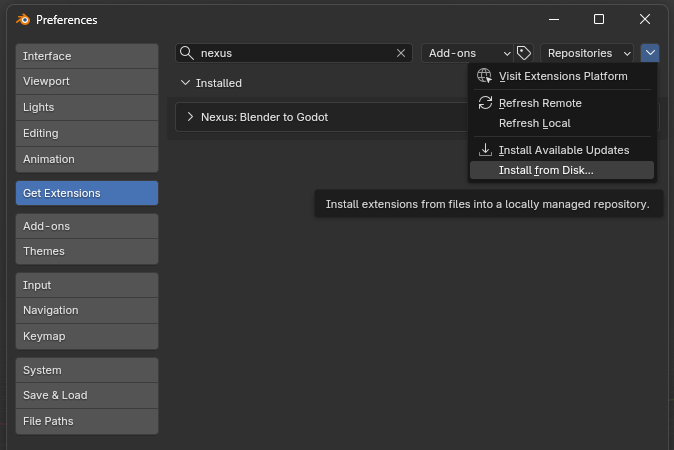
Install in Blender
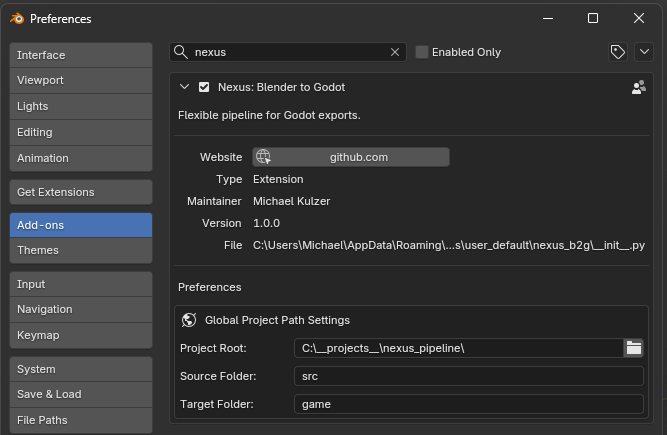
| 1 | Open Edit → Preferences and open the Extensions tab (or Add-ons in older versions). |
| 2 | Click Install and select the Nexus Godot Pipeline .zip from your purchase. |
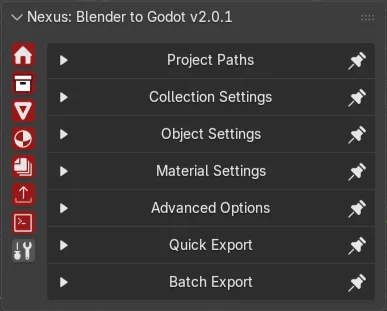
| 3 | Enable Nexus Godot Pipeline. Open the right sidebar with N - the Nexus panel lives there. |
Install in Godot
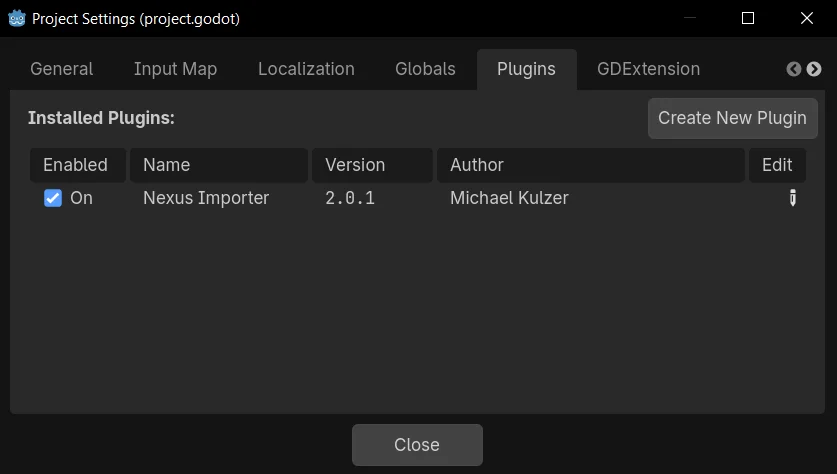
Go to Project → Asset Library, search for "Nexus Blender-to-Godot Pipeline", install, and enable it.
You're done! Next: configure Project Paths, then export your first collection.
PROJECT PATHS
Setup
Project Paths
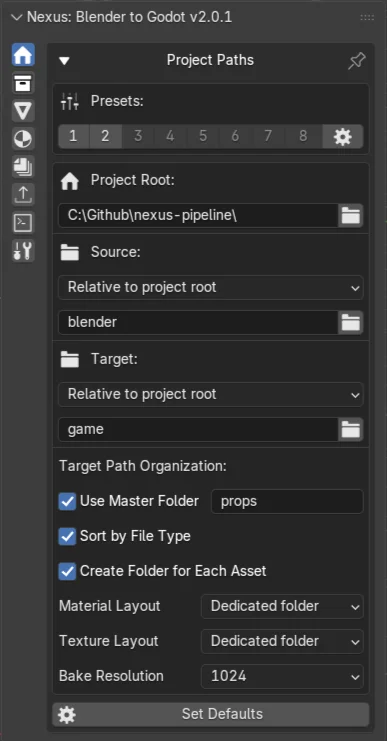
Expand Project Paths in the Nexus panel. Designed for a monorepo: Blender source and Godot target side by side.
- Project Root - Parent folder for the whole project.
-
Source Folder - Blender files and textures (e.g.
src). -
Target Folder - Godot project root (must contain
project.godot). -
Target Master Folder - Optional subfolder inside Godot for exports (e.g.
props).
Relative or absolute: Source and Target can be relative to Project Root or absolute paths. Browse outside the root and Nexus stores an absolute path.
Switch projects faster with Path Presets 1-8.
INDEX FILES
Nexus writes asset_index.json and material_index.json in your Godot project root. Do not delete them - both addons depend on them for instancing, materials, and reimport.
Material & Texture Layout
Under Target Path Organization you control where materials and textures are written - independently.
-
Dedicated folder (default) - Materials under
materials/, textures under sharedtextures/. - Best guess - Next to the asset when used once; shared materials go to the dedicated folder.
- Next to asset - Always in the asset export folder.
Also set Sort by file type and Create folder for each asset here. Use collection type Folder for Godot directory structure. After changing layouts, re-export materials so the index stays consistent.
EXPORT TYPES
Collections
Nexus uses Blender Collections as asset wrappers. Put your mesh(es) in a dedicated collection - the collection name becomes the asset name. Open the Collection section (icon bar at the top of the panel).
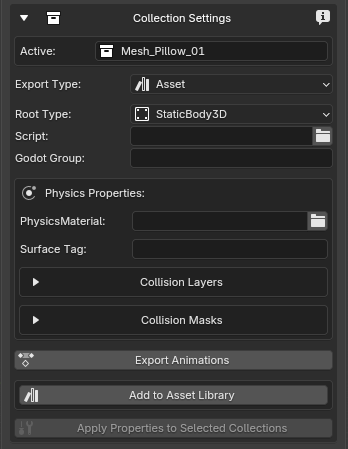
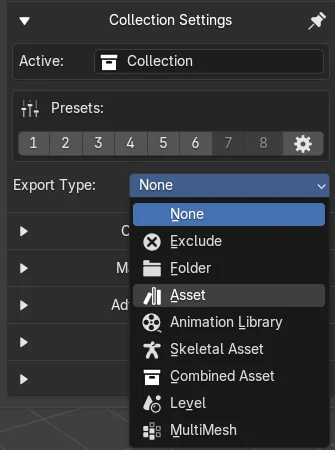
Export Types
- None - Organizer only. Children may still export; no extra Godot folder.
- Exclude - Skips this collection and its entire subtree from export.
- Folder - Godot path prefix only (no glTF). Child assets inherit the folder path.
- Asset - Props, furniture, most static or dynamic objects.
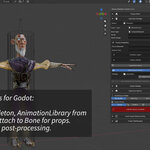
- Skeletal Asset - Assets with an armature (characters, rigged models).
-
Combined Asset - Prefab compositions (nested assets, lights, inline geometry). Exports to
combined_assets/. - Animation Library - Export animations separately for skeletal assets.
- Level - Assemble stored assets into a (sub-)level via Collection Instances.
-
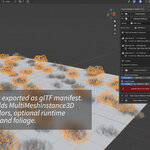
MultiMesh - Scatter instances as Godot
MultiMeshInstance3D.
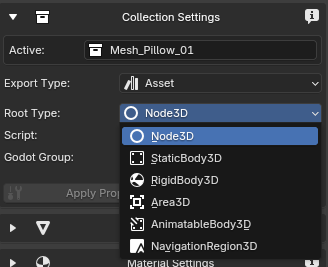
Root Types
For Asset or Skeletal Asset, pick the Godot root node:
- Node3D - No physics.
- StaticBody3D - Static collision (walls, floors).
- RigidBody3D - Physics-driven objects.
- AnimatableBody3D - Animated collision (doors, platforms).
- Area3D - Triggers / hit detection.
- VehicleBody3D - Vehicle physics root.
- NavigationRegion3D (Asset only) - NavMesh from collection geometry.
- CharacterBody3D (Skeletal Asset only) - Characters and agents.
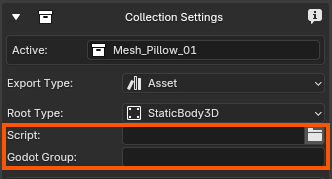
Link a Godot script and assign groups (comma-separated). Physics Properties show options for the chosen body: PhysicsMaterial, collision layers/masks, and body-specific settings.
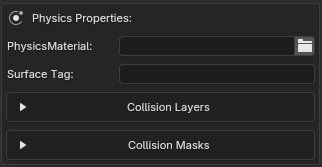
Scene Style & Metadata
- Scene Style - Choose Wrapper or Inherited scene generation in Blender (moved from Godot in v2.0). Use Set Defaults to store preferred styles per root type with the Source folder.
-
Metadata - Flexible key-value pairs applied in Godot via
set_meta(). Replaces the old Surface Tag system (legacy tags still work). - Collection Presets - Save and reuse export settings across collections.
Select multiple collections and click Apply Properties to Selected Collections to copy settings from the active one.
NESTED ASSETS & COMBINED
- Nested Assets / Skeletal inside Asset, Skeletal, Combined, or Level stay inline - no separate glTF; each keeps its own Godot root type on import.
- Nested Levels under another Level also export inline (wrapper Node3D named after the child collection).
-
Combined Asset is the prefab type for reusable compositions. Place Combined assets in Levels as child collections or via Collection Instance.
Nested Combined collections export their own glTF; reference them with Collection Instances. - Add assets to Blender's Asset Library - Level assembly becomes much easier.
TIPS
- Transformation animations export with assets. For skeletal animations: create character → Skeletal Asset → import into an Animation Library → export animations from there.
- Invalid export types and misplaced Collection Instances are highlighted in red in the sidebar and Outliner.
- MultiMesh and Animation Library are outermost shells - do not nest them inside Asset / Skeletal / Combined / Level.
PER OBJECT
Object Section
Everything in your collection is an object: meshes, empties, cameras, lights, or curves. The Object section changes with the selection.
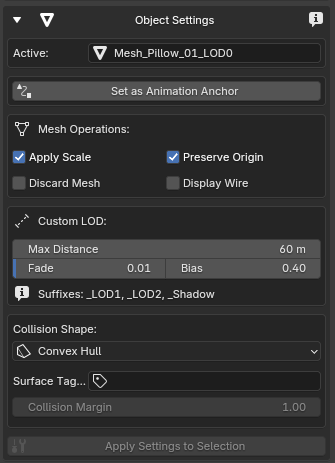
- Collision Shapes - Box, Sphere, Capsule, Convex, Trimesh, and more from mesh data. On an Empty you can also pick SeparationRayShape3D.
-
Custom LODs - Name meshes
_LOD1,_LOD2, etc. Godot visibility ranges are configured automatically. - Metadata override - Per-object metadata (e.g. different footstep keys) when parts need different values than the collection.
- Empty - Placeholder or BoneAttachment.
- Curve - Export as Path3D.
- Animation Anchor - Animate a mesh but drive the root node (doors, decorative AnimatableBodies). Root-level objects only; one per export collection.
-
Origin Pivot - Marks the collection origin for export. Contents recenter around the pivot; objects named with
_pivotare used automatically if none is marked. - Discard Mesh - Drop mesh for export while keeping collision / markers; toggles Viewport Display (Wire / Textured).
- Cameras & Lights - Set up in Object Data; lights support Area, gobos, cull mask, and more. Use Sync Lights from Godot when iterating lighting in-engine.
SHADERS & .TRES
Materials
With a mesh selected you get the Material Settings panel in the 3D View. Texture ingest, ORM packing, shader validation, and bake overrides live in the Shader Editor → Nexus tab.
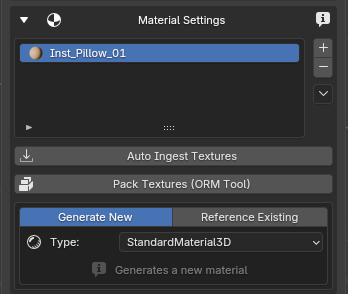
- Generate New - Creates a Godot material from the Blender material (StandardMaterial3D or converted shader).
-
Reference Existing - Links to an existing
.tresin your Godot project. The Blender material acts as a placeholder. - Auto Ingest Textures - Copies external textures into your source folder.
- ORM Tool - Packs Occlusion, Roughness, and Metallic into one texture for Godot's ORM workflow.
- Validate Shader Graph - Check node-based shaders before export (Nexus material pipeline).
PER BLEND FILE
Advanced Options
-
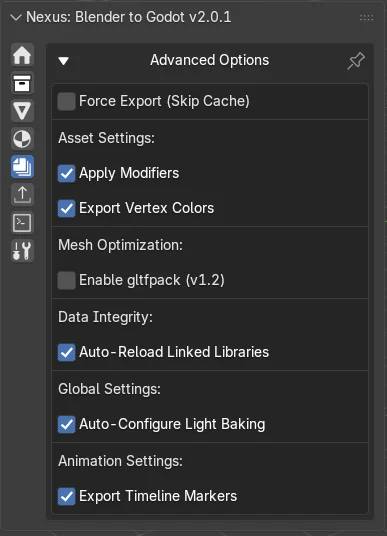
Optimize Mesh (gltfpack 1.2) - Optional post-export mesh optimization.
- Clean (default) - No quantization
- Compressed - Smallest files; may cause issues
- Optional: simplify, mesh instancing, tangents, KTX2 texture compression.
- Auto-Reload Linked Libraries - Updates linked assets when the library changes (team workflows).
- Auto-Configure Light Baking - StaticBody → static; RigidBody / AnimatableBody → dynamic.
- Apply Modifiers - Applies modifiers before export.
- Export Vertex Colors - Exports the first vertex color layer. Pair with Nexus Vertex Painter in the Godot Asset Library for painting in-engine.
- Force Export - Bypass the hash cache; always re-export.
- Export Timeline Markers - Markers become animation signals in Godot (e.g. footsteps).
- Sync Lights from Godot - Pull light settings back into Blender after in-engine tweaks.
Path organization options moved under Project Paths (Master Folder, Sort by type, Material/Texture Layout, Folder export type).
CTRL+SHIFT+E
Quick Export
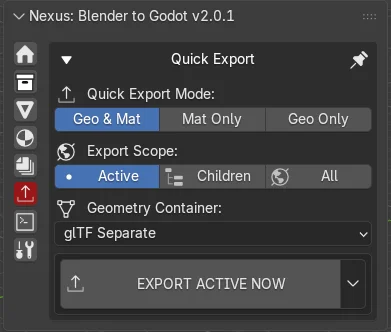
Geometry Container
-
glTF Separate (default) -
.gltf+ buffers/textures; Nexus.tresvia material index. -
GLB Separate - Single
.glbwith the same Nexus material pipeline. -
GLB - Shareable file with materials/textures embedded. Export Mode locks to geometry; Godot writes editable sidecar
.tresnext to the file.
Export Mode Geo & Mat - Geometry and materials | Export Scope Active - Active collection only |
Mode and Scope combine - e.g. materials only for children of the active collection. Without Force Export, Nexus hashes content and skips unchanged assets.
MANY BLENDS
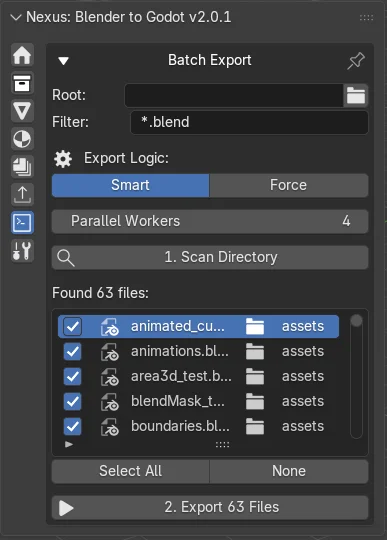
Batch Export
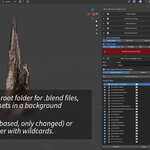
- Pick a folder that contains your
.blendfiles. - Select or deselect files in the list.
- Run batch export into your Target folder.
- Smart Batch - Skips unchanged blend files entirely (Force still re-exports everything).
- Parallel Workers (opt-in) - Export several blends at once.
- Errors and summaries go to
nexus_batch_log.txtin Project Root.
In Godot
- Enable Auto import on the Nexus Importer, or use Tools → Nexus Importer → Reimport Assets after export.
- Import order: Assets / Skeletals → Combined → Anim Lib → MultiMesh → Level.
- Tools → Nexus Importer also offers Asset and Material Sanitization for orphaned index entries.
Nexus Godot Pipeline Documentation | v2.0.1 | Blender 4.2 - 5.2 | Godot 4.4+

Discover more products like this
Workflow gamedev 3D game development pipeline blender-to-godot productivity Exporter Game level design tool 3D Game Assets godot gltf