 Sonaka Tools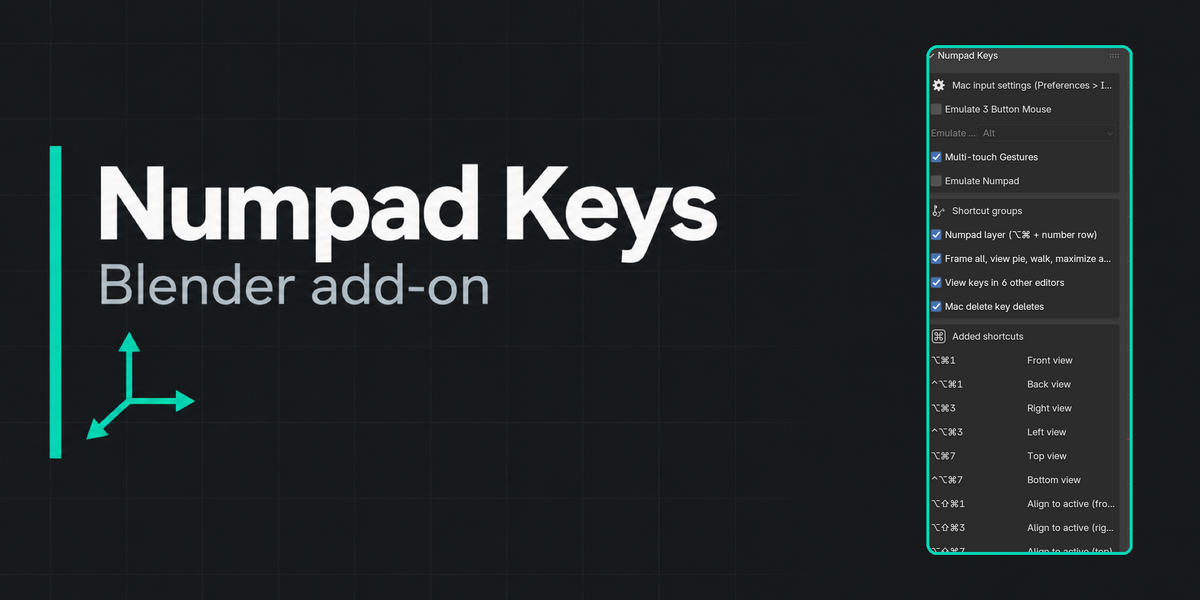
Numpad shortcuts you can press on a MacBook keyboard
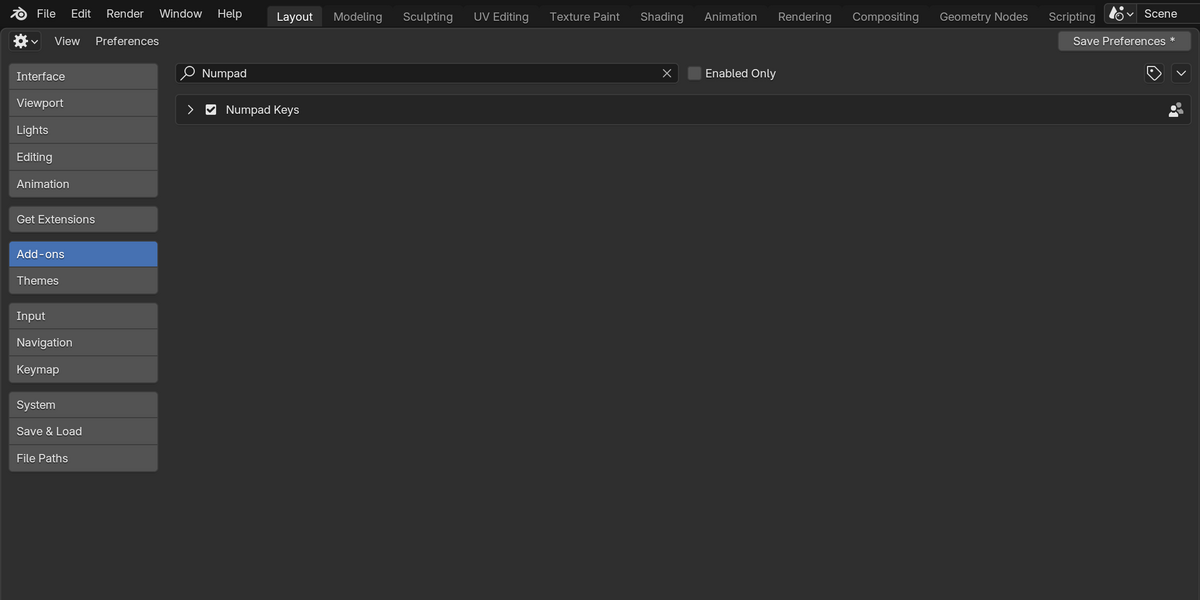
A MacBook has no numpad, no Home key, no middle mouse button, and a JIS (Japanese) keyboard has no ` key at all — so several of Blender's default view shortcuts are simply unreachable. Numpad Keys adds Mac-friendly shortcuts next to Blender's defaults. It never removes or changes an existing key; disable the add-on and every added shortcut is gone.
What it adds
Numpad layer — Option+Command + number row
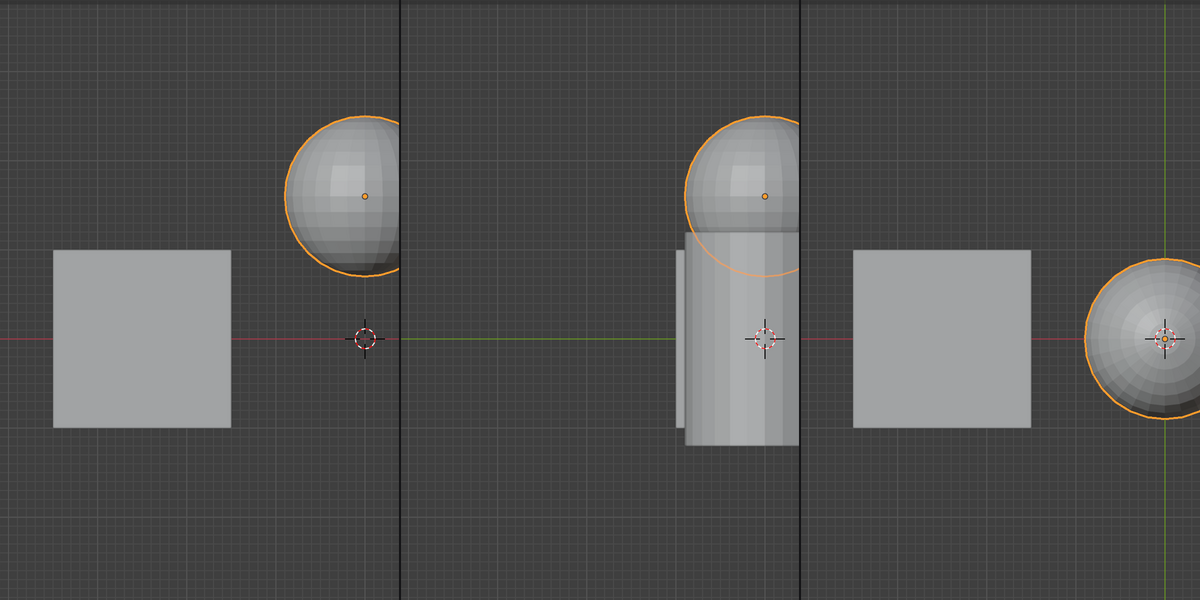
- ⌥⌘1 / ⌥⌘3 / ⌥⌘7 — Front / Right / Top view, add ⌃ for Back / Left / Bottom
- ⌥⌘0 camera view · ⌥⌘5 perspective/orthographic · ⌥⌘2/4/6/8 orbit · ⌥⌘9 opposite side
- ⌃⌥⌘ + arrow keys pan the view · ⌥⇧⌘4/6 roll · ⌥⇧⌘1/3/7 align view to active object
- ⌃⌥⌘0 set active object as camera · ⌥⇧⌘0 align camera to view
- ⌥⌘. frame selected · ⌥⌘- / ⌥⌘= zoom (JIS keyboards: ⌥⌘; zooms in)
Unlike Blender's own "Emulate Numpad" preference, the number row keeps its normal job — edit-mode select modes (1/2/3), collection visibility, node viewer shortcuts — because this add-on uses a separate modifier combination instead of replacing the row.
Frame All, the View pie menu, Walk mode, Maximize Area
- ⌥⌘, frame all in view (there is no physical Home key on a MacBook)
- ⌥⌘V opens the View pie menu · ⌥⇧⌘V starts Walk/Fly navigation (Blender's default uses the ` key, missing on JIS keyboards)
- ⌥⌘Return maximizes the active area · ⌥⇧⌘Return toggles fullscreen area (macOS takes ⌃Space for input-source switching, so that default is avoided)
View keys in six other editors (each editor gets only the keys it has a matching default for)
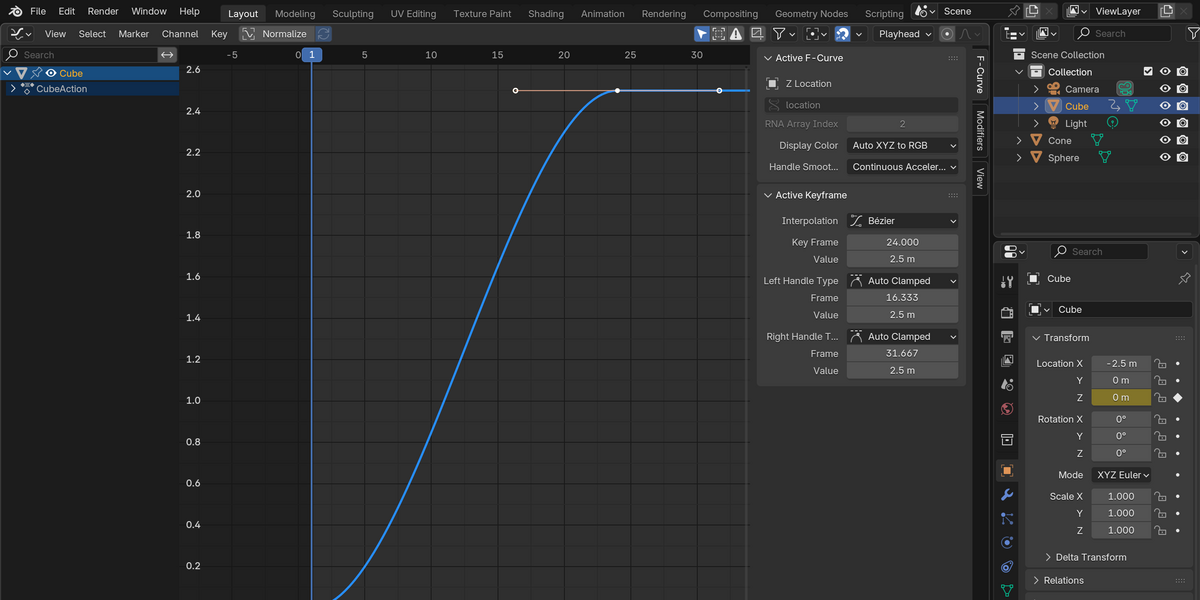
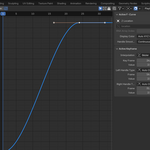
- Graph Editor, Dope Sheet, Sequencer: ⌥⌘. frame selected · ⌥⌘, frame all · ⌥⌘0 go to the current frame
- Node Editor, Image/UV Editor: ⌥⌘. frame selected · ⌥⌘, frame all
- Outliner: ⌥⌘. show the active item
A real Delete key, finally: the Mac's delete key (which Blender receives as Backspace) deletes selected objects in Object Mode, opens the delete menu in mesh, curve, armature and Grease Pencil edit modes, and deletes items in the Outliner, Node Editor, Graph Editor and Dope Sheet — the same thing fn+Delete (forward delete) already does.
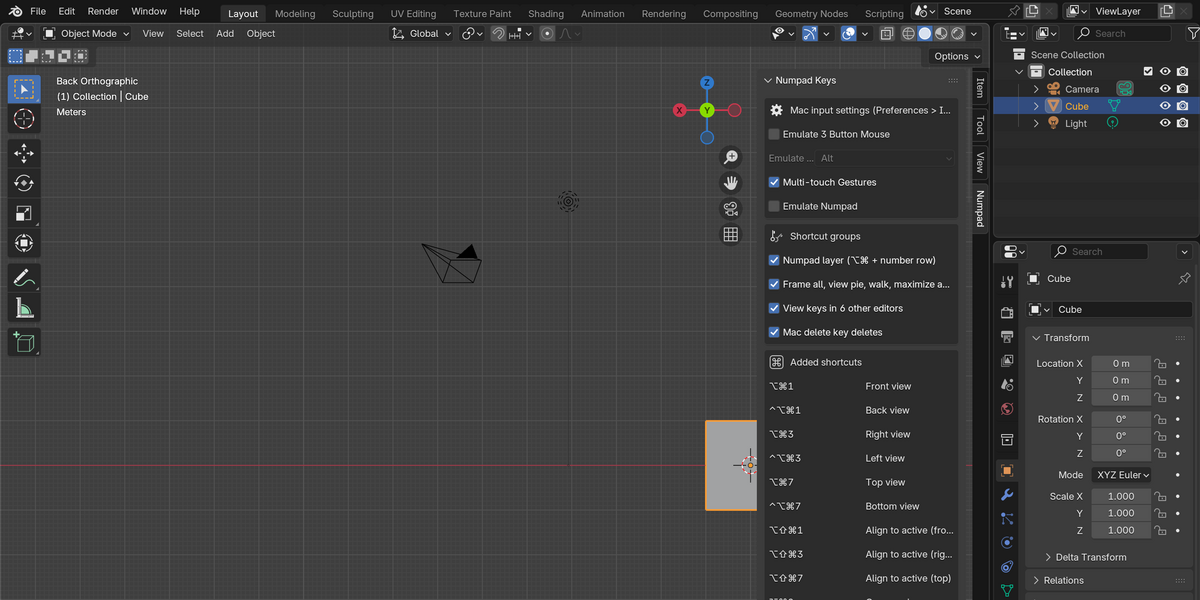
Numpad sidebar tab (3D Viewport › N › Numpad)
- One-click switches for Blender's own "Emulate 3 Button Mouse" (and its modifier key), "Multi-touch Gestures" and "Emulate Numpad" preferences
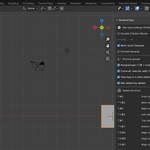
- Every shortcut this add-on adds, written with Mac symbols (⌃⌥⇧⌘): 3D Viewport keys one per line, the other editors summarized per editor
- The shortcuts of your current 3D Viewport mode, read live from your own keymap — so your own customizations show up too. Ctrl-based shortcuts that also respond to Command are marked with ⌘.
Checked against Blender's own keymap, not guessed
- Every added shortcut was checked against Blender 4.5.13's default keymap on macOS, across every editor and mode where it is active: 0 conflicts with Blender's own bindings.
- None of the added shortcuts use a macOS system shortcut (⌘Space, ⇧⌘3/4/5, ⌘H, ⌥⌘H, ⌥⌘M, ⌥⌘D, ⌃⌘Q, ⌃⌥⌘8, and others were deliberately avoided).
- Real key events were sent to a running Blender 4.5.13 on macOS — ⌥⌘1/3/7/0/5/./, , ⌃⌥⌘1, ⌃⌥⌘↑, Delete and ⌥⌘Return — and each one performed the documented action (view change, pan, delete, area maximize).
- Disabling the add-on removes all added keymap items from every affected keymap; no leftover bindings.
Installation
- Download
numpad_keys-1.0.0.zipfrom your Superhive receipt page. - In Blender: Edit > Preferences > Get Extensions, open the ▾ menu (top right), choose Install from Disk…, and select the ZIP. (Dragging the ZIP into a 3D Viewport also works.)
- Open a 3D Viewport sidebar (press N) and select the Numpad tab.
Quick start
- Open the Numpad tab in the 3D Viewport sidebar (N panel).
- Turn "Emulate Numpad" off if it is on — the added ⌥⌘ shortcuts are made to work alongside a free number row, not through it.
- Try ⌥⌘1 / ⌥⌘3 / ⌥⌘7 for Front/Right/Top, ⌥⌘, to frame everything, and the delete key to delete a selected object.
- Check the sidebar's shortcut list any time you forget a combination.
Compatibility
- Blender 4.2.0 or later (tested on 4.5.13 LTS).
- macOS only — ⌘ (Command) is a Windows key on other platforms, so the add-on installs but is not useful there.
- Blender Extension ZIP:
numpad_keys-1.0.0.zip. - Key labels assume the default Blender keymap with left-click select.
- US and JIS (Japanese) MacBook keyboards are both supported; the keys that differ between layouts are called out above.
Licence
GPL-3.0-or-later. Full source code is included in the download.
Support policy
Support is provided through messages on this Superhive product page. Please include your Blender version, macOS version, and the exact key combination that did not behave as described. Replies are provided within 72 hours.
A note on the product images
The cover image on this listing was made with an image-generation AI. The in-app screenshots in the gallery are real Blender 4.5.13 screens with no edits beyond cropping.
Numpad Keys is an independent add-on by Sonaka Tools. It is not affiliated with, sponsored by, or endorsed by Apple Inc. or the Blender Foundation. Mac and MacBook are trademarks of Apple Inc., registered in the U.S. and other countries. Blender is a registered trademark of the Blender Foundation.