Numpad Keys for MacBook Users
 Sonaka Tools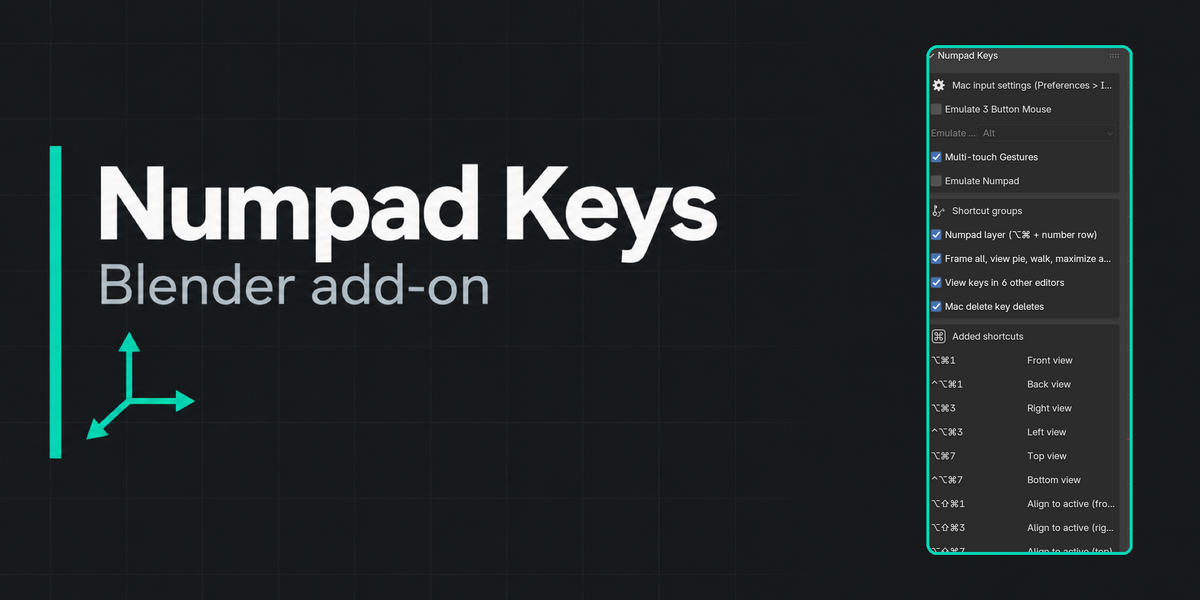
Installation
- Download
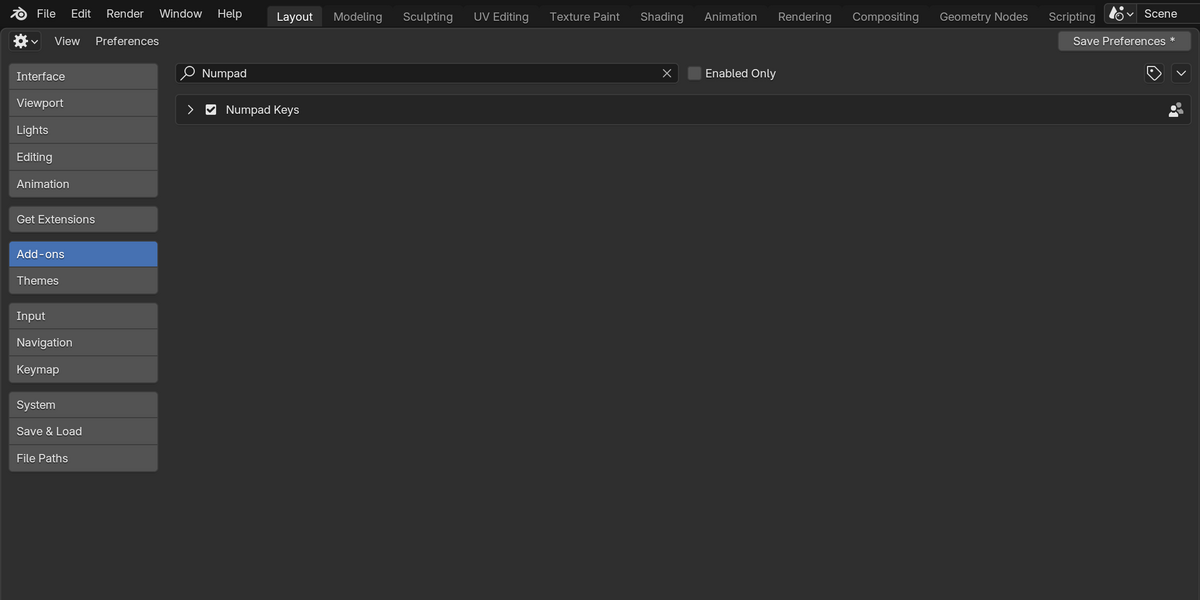
numpad_keys-1.0.0.zipfrom your Superhive receipt page. - In Blender: Edit > Preferences > Get Extensions, open the ▾ menu (top right), choose Install from Disk…, and select the ZIP. (Dragging the ZIP into a 3D Viewport also works.)
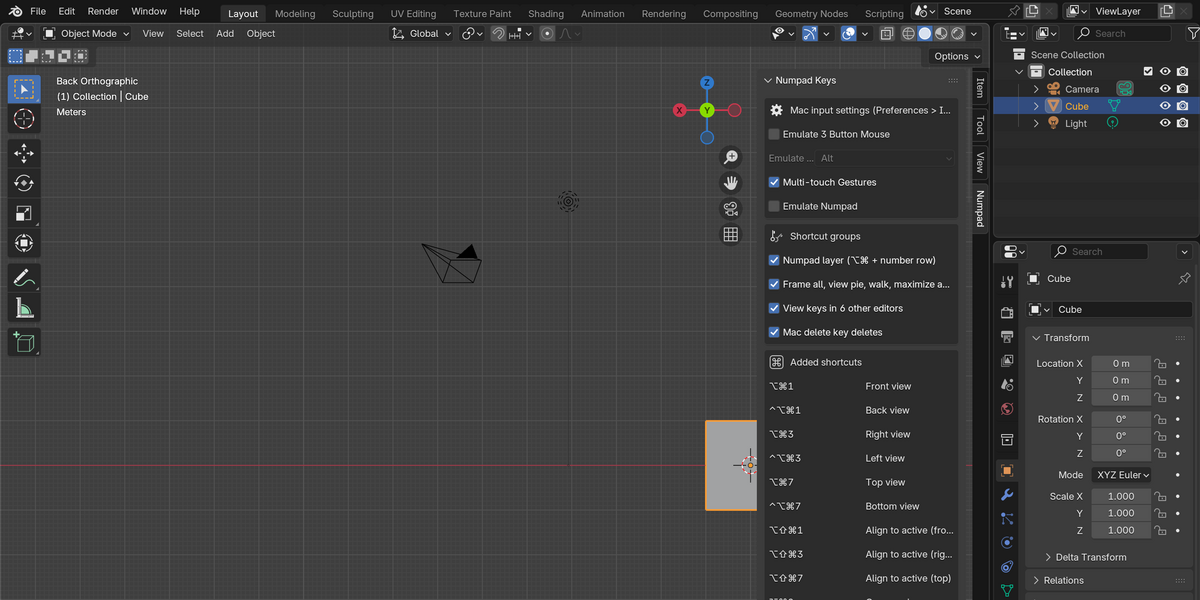
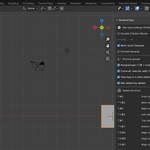
- Open a 3D Viewport sidebar (press N) and select the Numpad tab.
Quick start
- Open the Numpad tab in the 3D Viewport sidebar (N panel).
- Turn "Emulate Numpad" off if it is on — the added ⌥⌘ shortcuts are made to work alongside a free number row, not through it.
- Try ⌥⌘1 / ⌥⌘3 / ⌥⌘7 for Front/Right/Top, ⌥⌘, to frame everything, and the delete key to delete a selected object.
- Check the sidebar's shortcut list any time you forget a combination.
Compatibility
- Blender 4.2.0 or later (tested on 4.5.13 LTS).
- macOS only — ⌘ (Command) is a Windows key on other platforms, so the add-on installs but is not useful there.
- Blender Extension ZIP:
numpad_keys-1.0.0.zip. - Key labels assume the default Blender keymap with left-click select.
- US and JIS (Japanese) MacBook keyboards are both supported; the keys that differ between layouts are called out in the product description above.
Licence
GPL-3.0-or-later. Full source code is included in the download.
Support policy
Support is provided through messages on this Superhive product page. Please include your Blender version, macOS version, and the exact key combination that did not behave as described. Replies are provided within 72 hours.
Have questions about this product?
Login to message
| Blender Extension Compatible | Yes |
| Published | about 4 hours ago |
| Blender Version | 4.2 - 4.5 |
| Extension Type | Add-on |
| Render Engine Used | Cycles |
| License | GPL |