Obssidian Blender MCP — Safe AI Automation
 Obssidian Art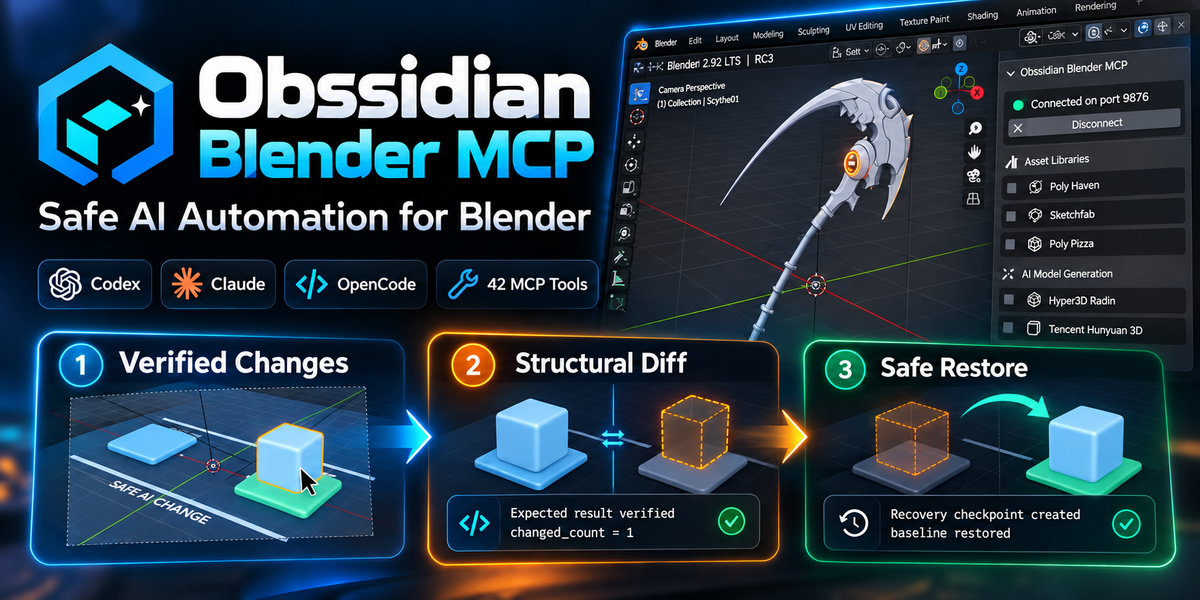
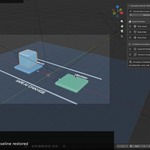
# Obssidian Blender MCP — Superhive Documentation & FAQ
## Documentation
### Installation
1. Download `Obssidian_Blender_MCP_v0.3.12_SUPERHIVE_RELEASE.zip`.
2. Open Blender.
3. Go to **Edit → Preferences → Get Extensions**.
4. Open the drop-down menu and choose **Install from Disk**.
5. Select the downloaded ZIP file.
6. Enable **Obssidian Blender MCP** if Blender does not enable it automatically.
7. Open the Obssidian Blender MCP panel from the Blender sidebar.
8. Start the MCP connection from the panel.
Do not extract the ZIP before installing unless Blender specifically requires it for your configuration.
### AI Client Setup
Obssidian Blender MCP is designed for MCP-compatible AI clients.
The extension includes guided setup and connection information for:
- OpenAI Codex
- Claude Desktop
- OpenCode
- Other MCP-compatible clients
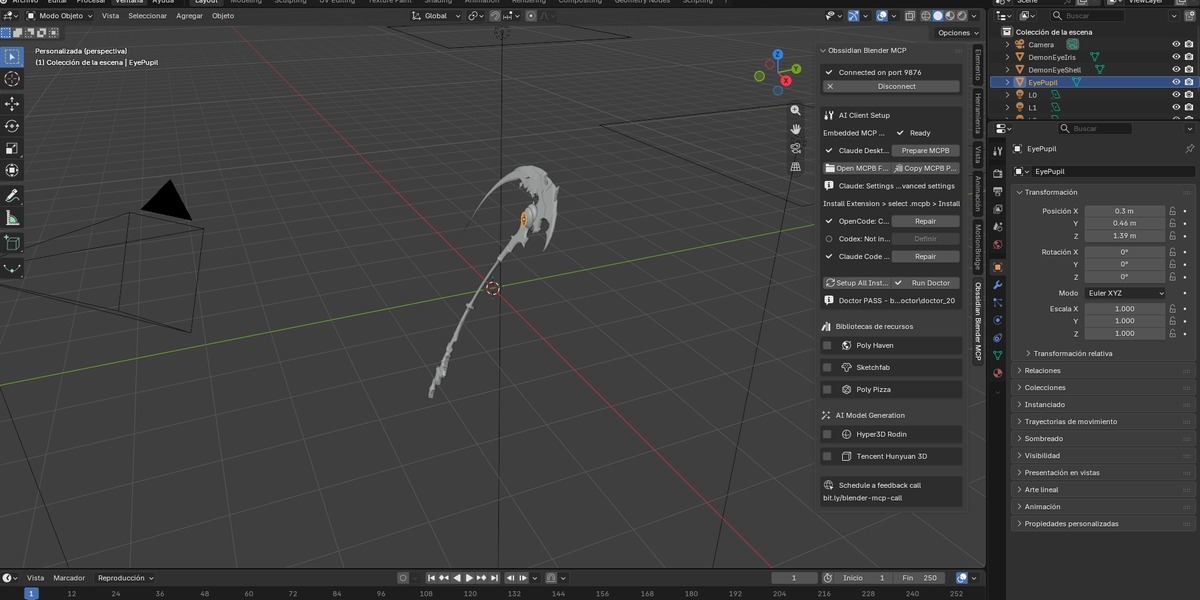
Use the **AI Client Setup** section inside the Blender panel to prepare or repair your client configuration.
After configuration, connect Blender and confirm that the extension reports a successful MCP connection before asking the AI client to modify your project.
### Recommended Safe Workflow
For important Blender projects, use the following workflow:
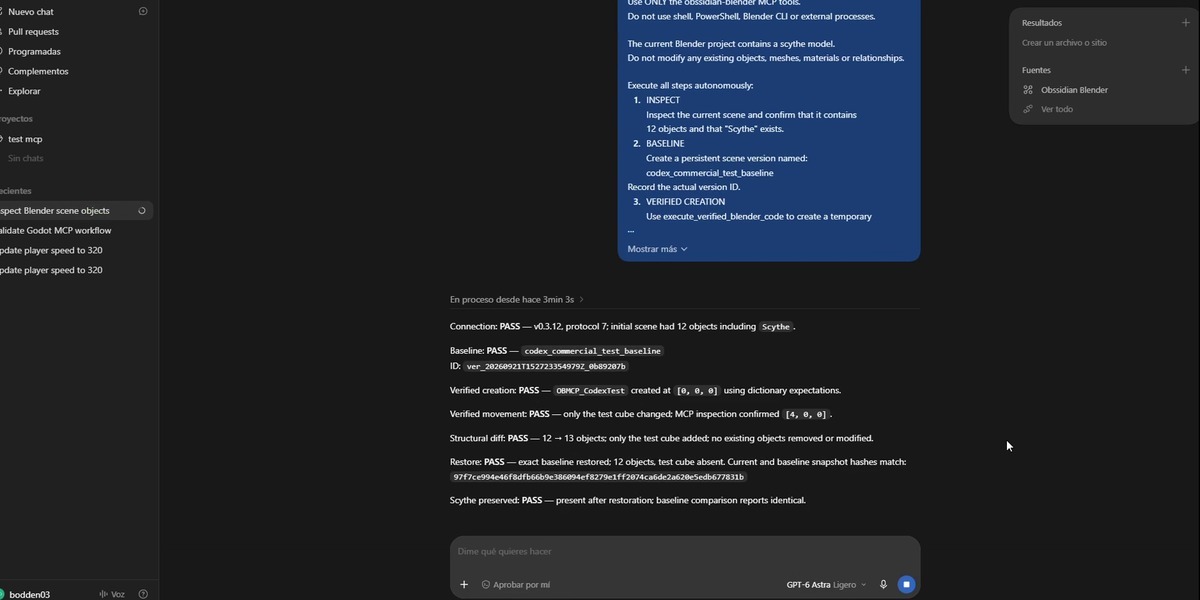
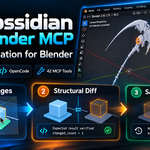
**Inspect → Version → Change → Verify → Diff → Keep or Restore**
1. Inspect the current scene.
2. Create a persistent baseline or recovery version.
3. Ask your AI client to perform the required operation.
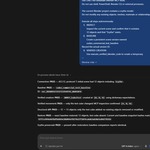
4. Use verified execution when the operation has a specific expected result.
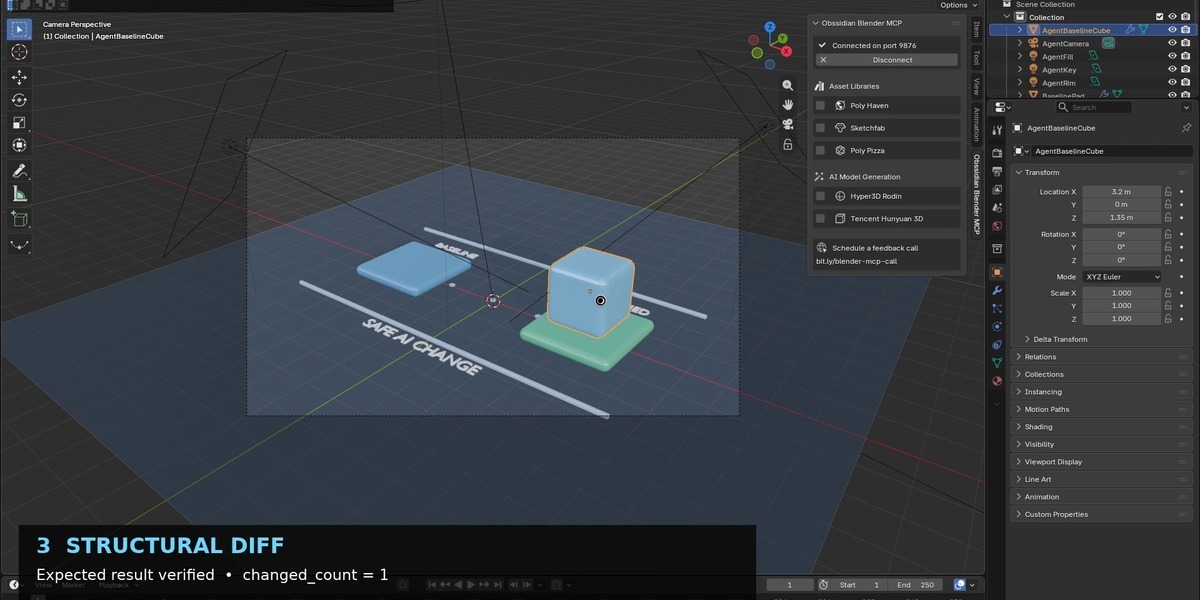
5. Inspect the resulting structural diff.
6. Keep the result if it is correct.
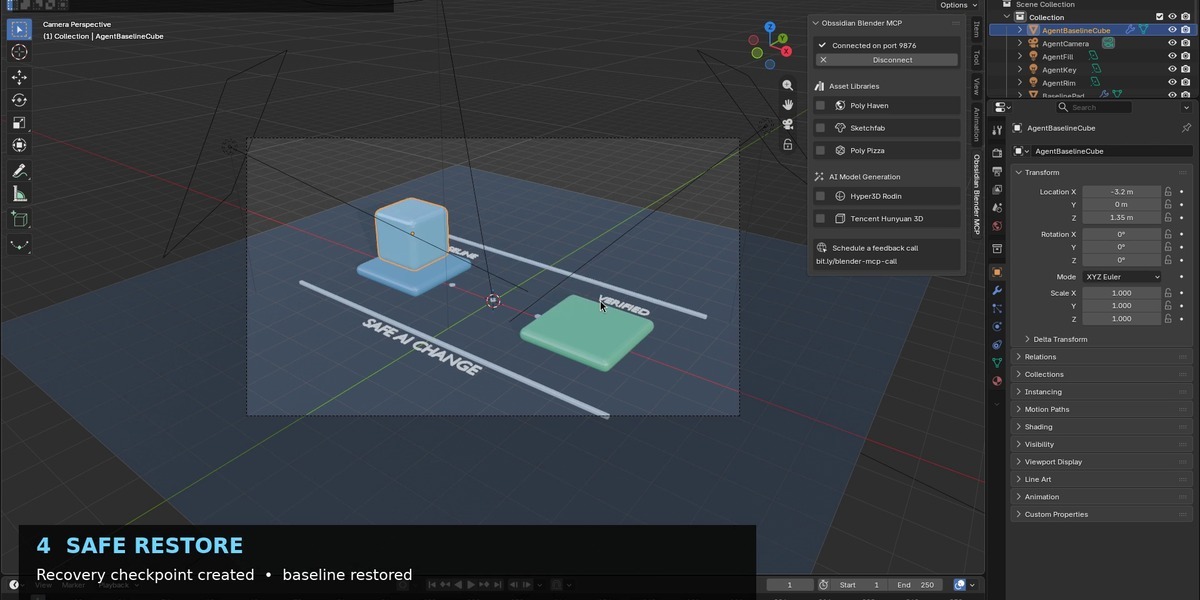
7. Restore the previous version if the result is not acceptable.
This workflow is designed to reduce the risk of unnoticed or unwanted AI-driven scene changes.
### Main Features
- 42 MCP tools
- Scene inspection
- AI-driven Blender operations
- Verified changes
- Persistent scene versions
- Recovery checkpoints
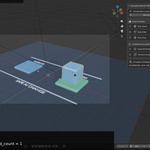
- Structural scene diffs
- Safe restore workflow
- Change history / audit-oriented workflow
- Embedded MCP host
- AI client setup helpers
- Connection diagnostics
- Doctor / repair workflow
### Compatibility
Minimum supported Blender version:
**Blender 4.2**
Validated release range:
**Blender 4.2 – 5.2**
An MCP-compatible AI client is required for AI-controlled operations.
### Troubleshooting
If the client cannot connect:
1. Confirm that Obssidian Blender MCP is enabled.
2. Confirm that the Blender MCP server is running.
3. Check the port shown in the Blender panel.
4. Run **Doctor** from the extension.
5. Use the appropriate **Repair** or setup button for your AI client.
6. Restart the AI client after configuration changes.
7. Reconnect from Blender.
If an AI operation produces an unwanted result, use a previously created scene version or recovery checkpoint to restore the known-good state.
### Important Safety Recommendation
AI-generated actions can modify Blender scenes. Save important work and create a baseline/version before significant automated operations.
The verified-change and restore systems are designed to improve control and recoverability, but they do not replace normal project backups.
### License
Obssidian Blender MCP is distributed under:
**GPL-3.0-or-later**
Third-party acknowledgements and applicable upstream licenses are included in the distributed package.
---
Have questions about this product?
Login to message
| Published | 9 days ago |
| Blender Version | 4.2 - 5.2 |
| Extension Type | N/A |
| Render Engine Used | Cycles |
| License | GPL |
Discover more products like this
productivity claude AI Tools Workflow Scene Management Rollback Codex Blender Automation Versioning MCP AI Automation OpenCode