What does Oh Snap! actually do?
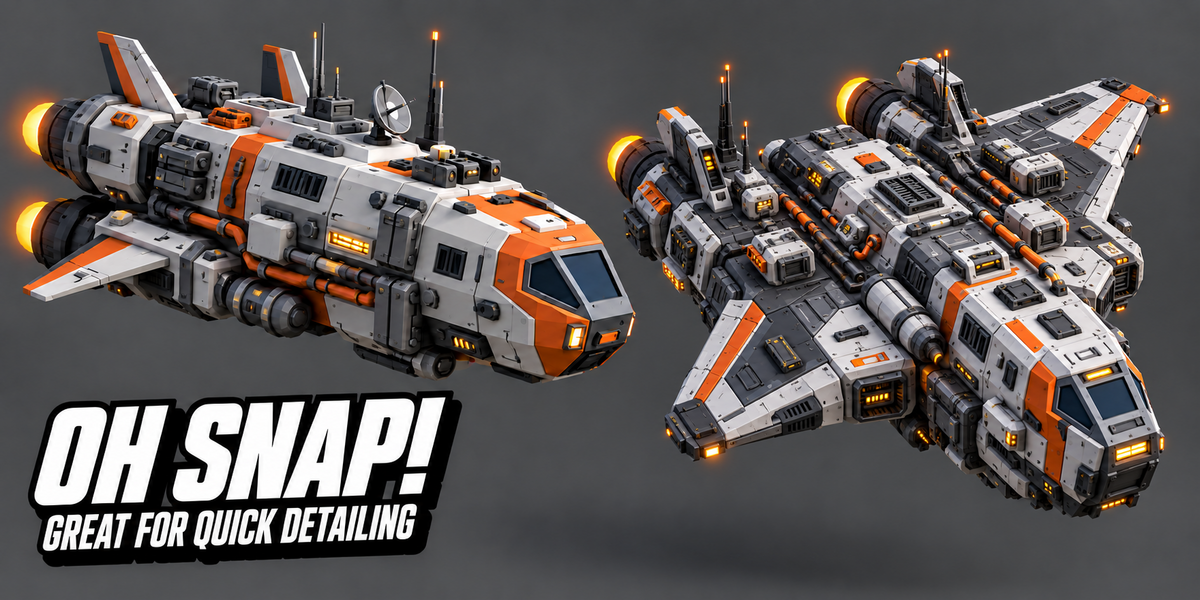
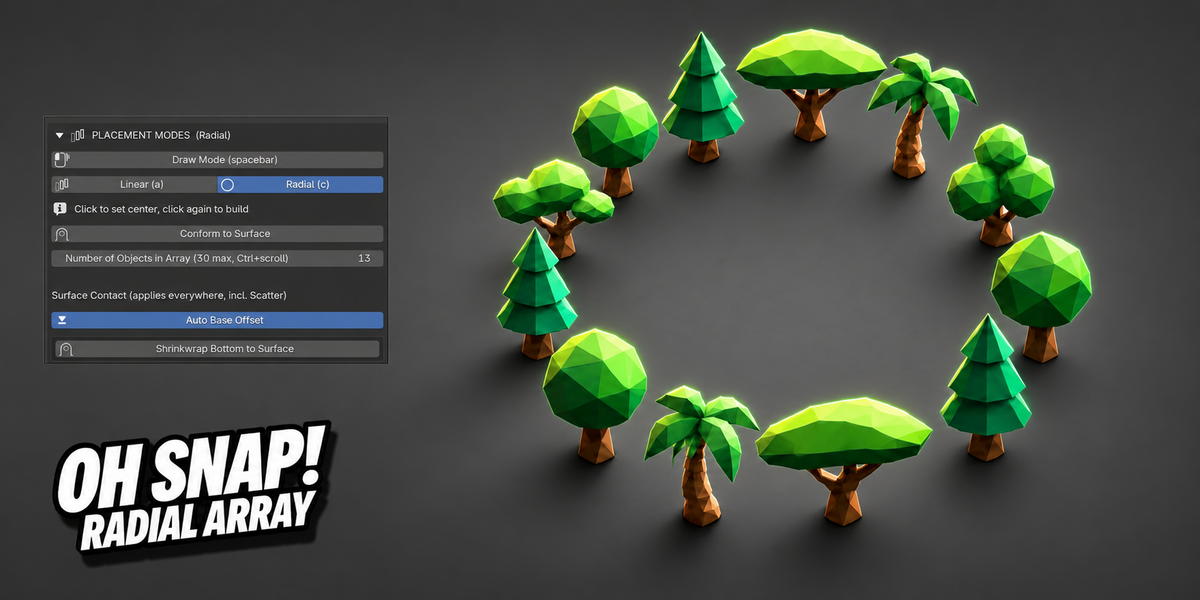
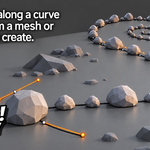
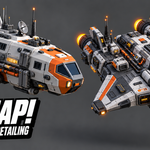
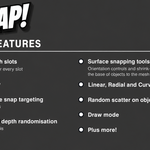
It's a placement tool: you load up objects (bolts, screws, rocks, foliage, anything), then snap, scatter, or array them onto any surface. Instead of manually duplicating and positioning small detail objects one at a time, you click (or drag, or draw a shape) and Oh Snap! handles the positioning, rotation, and randomization for you.
Is this only for robots and hard-surface work?
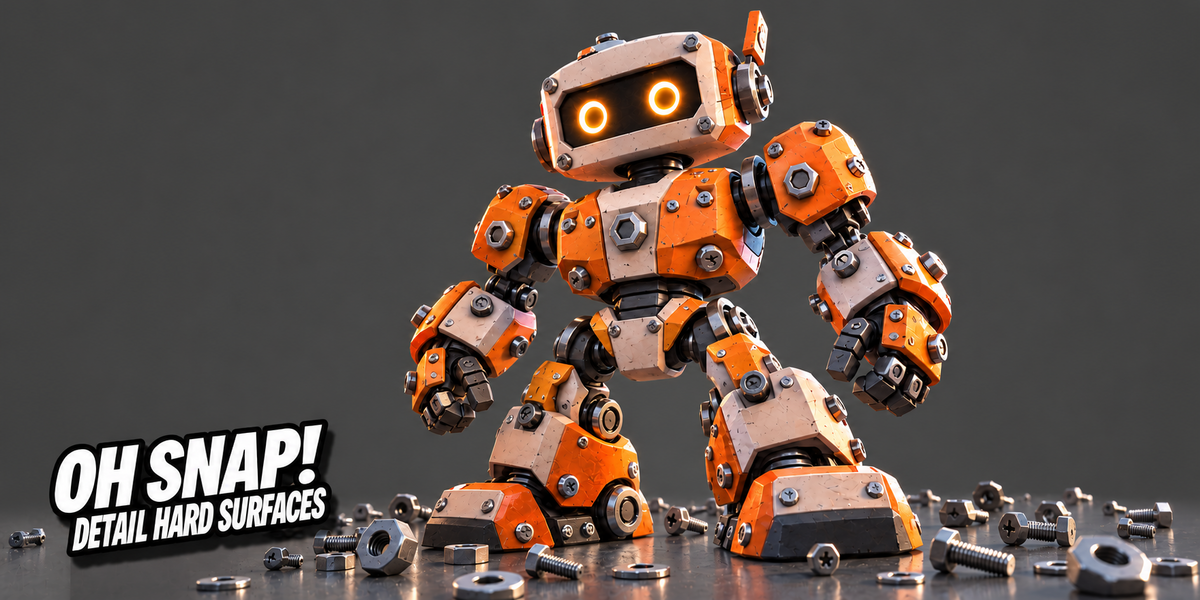
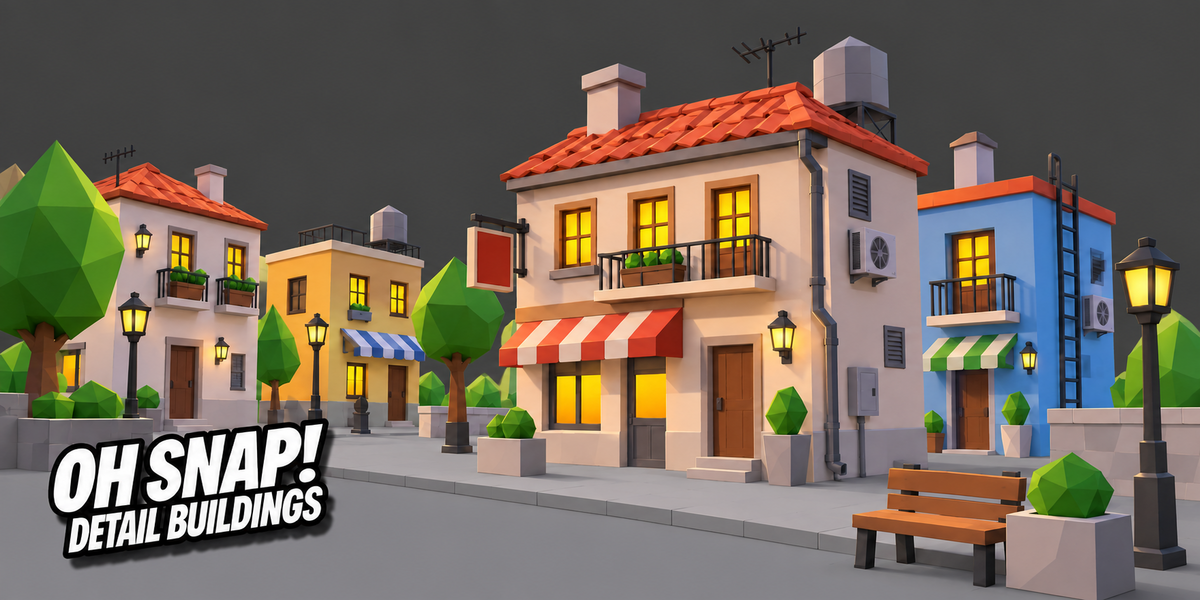
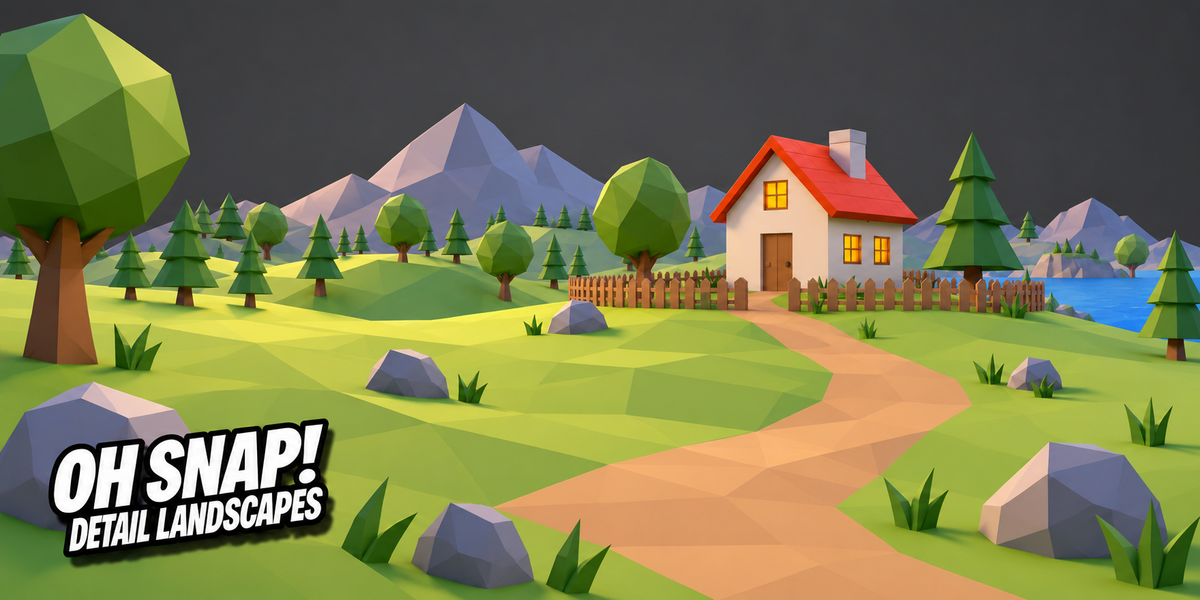
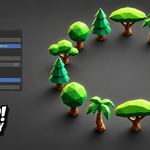
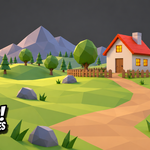
It started there, but it's general-purpose. The Scatter and Array tools work just as well for architecture (rivets, panel details), landscapes (rocks, foliage, debris), or anywhere you need to place a lot of small objects across a surface convincingly.
Do you take feature requests?
Yes several of the tool's features started as user suggestions. Message through the product page.
I found a bug, or a feature isn't working as expected what do I do?
Reach out through the Superhive product page's messaging, and I'll get back to you.
What happens to objects I've already placed if I update the addon?
Objects you've placed are ordinary Blender objects already saved in your file updating the addon doesn't change or remove anything you've already created. It only affects the tool itself going forward.
What license is this released under, and what does that mean for me?
GPL, which is required for all Blender addons. In practice: you're free to use it on any number of your own projects, and the license guarantees you (and anyone you might share the file with) access to the source code and the right to modify it. Buying it directly supports continued development, updates, and support.
Can I save my settings and reuse them later?
Yes. Snap Presets save your whole setup (snap mode, randomization, array settings, and optionally which meshes were loaded) and switch instantly. If you've changed something since loading a preset, it'll offer to save those changes before switching away.
Does Scatter require the main tool to be running first?
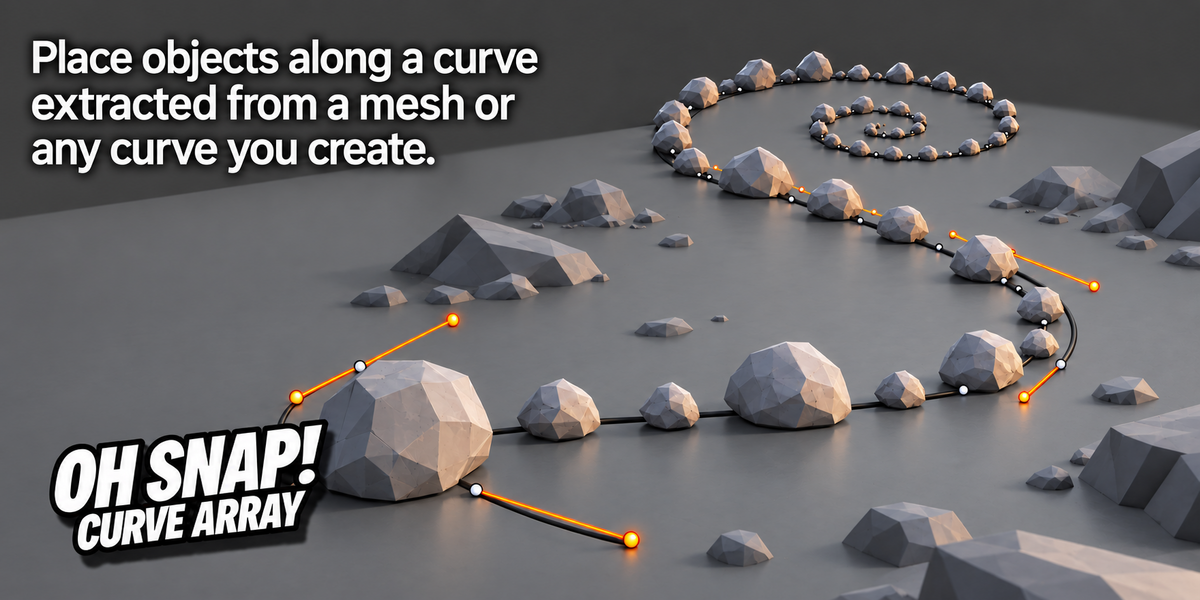
No. Scatter and Curve Array are both standalone. Select a mesh (or a curve), use the relevant panel section, and go, no need to press "Snap It!" first.
Will placing thousands of objects slow down my scene?
Placement itself scales with how much you ask for, a few thousand scattered objects on a dense mesh may take a moment to generate, which is normal processing time rather than a freeze. Once placed, performance in your scene depends on the same things any other objects would (polycount, modifiers, etc.) Link mode can help keep memory use down for large batches of the same object.
Can I undo a placement?
Yes. Backspace undoes the last object placed while the tool is running. There's also a panel button to remove the most recent whole batch (covering every placement mode, not just single clicks), which you can press repeatedly to work backward through your placement history.
Why do my objects look embedded in the surface, or floating above it?
This usually means your source mesh's origin isn't at its base. Turn on Auto Base Offset (on by default) and it's handled automatically; it measures the object's own lowest point and uses that to sit it on the surface, instead of relying on the origin.
Does it work with linked or instanced objects?
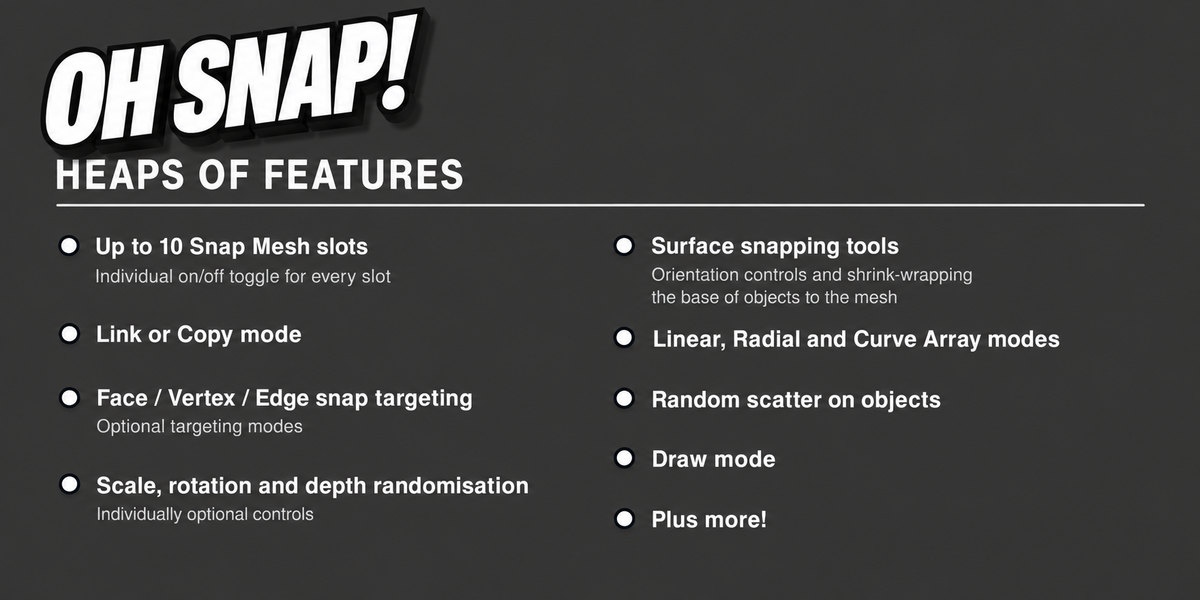
Placed copies can be set to Link mode (sharing mesh data with the source, so editing the source updates every copy) or Copy mode (fully independent geometry) your choice, per session.
Does it work with Geometry Nodes?
Oh Snap! places real, individual mesh objects rather than working through a Geometry Nodes setup. It doesn't require Geometry Nodes to be enabled or set up in your file, and placed objects are ordinary Blender objects you can do anything with afterward, including feeding them into your own Geometry Nodes setups if you want to.
Is this a legacy addon or a Blender Extension?
It's distributed as a standard Blender Extension (.zip, installable through Get Extensions) and as a legacy single-file .py for anyone who prefers the older Add-ons installation method. Use whichever your download came as; don't install both at once, since they register the same tool and can conflict.
Can I use my own custom objects, or only the included examples?
Any mesh object in your scene can be loaded into a Snap Mesh slot; your own models, downloaded assets, anything. There's nothing built in that you're limited to.
Do I need any scripting or Python knowledge to use it?
No. Everything is controlled through the panel and viewport; no code, no node setups.
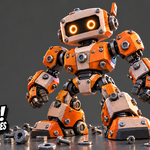
 Space Robot