 Tesselune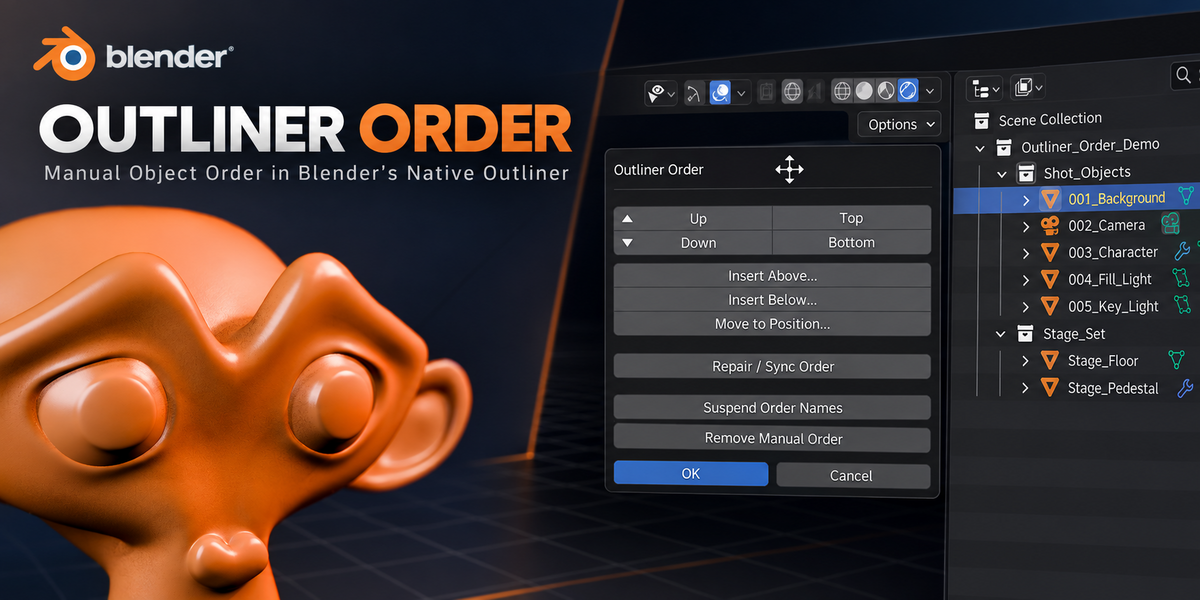
OUTLINER ORDER — DOCUMENTATION
Overview
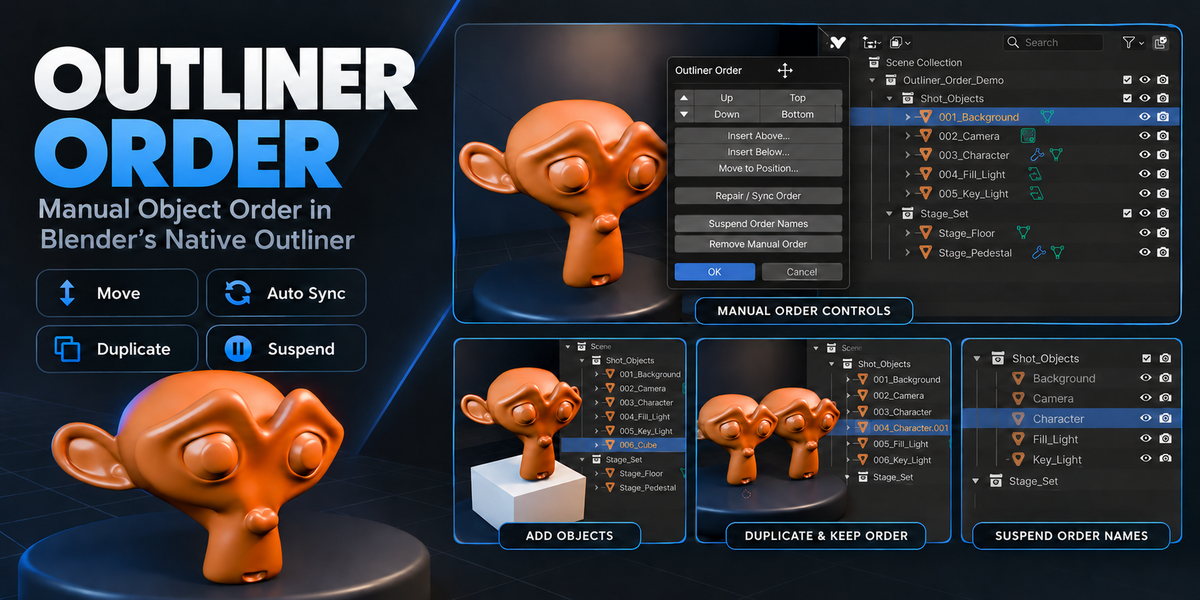
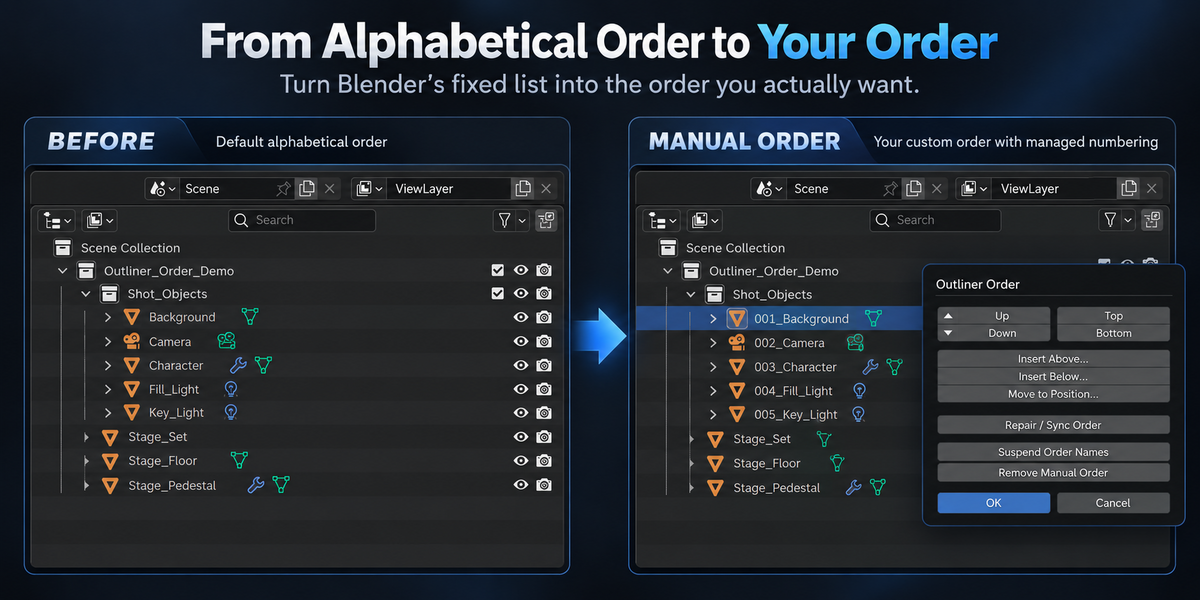
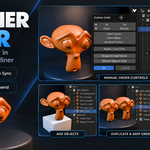
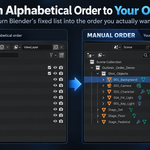
Outliner Order adds manual Object ordering to Blender’s native Outliner.
Because Blender does not expose an independent arbitrary display-order value for Object siblings, Outliner Order creates the requested order by managing numeric prefixes in the actual Object names.
Example:
Camera
Character
Key_Light
can become:
001_Camera
002_Character
003_Key_Light
Installation
1. Download the provided outliner_order ZIP file.
2. Open Blender.
3. Go to Preferences > Extensions.
4. Choose Install from Disk.
5. Select the downloaded ZIP file.
6. Enable Outliner Order if Blender does not enable it automatically.
Do not extract the ZIP before installation.
Quick Start
1. Open Blender’s Outliner.
2. Right-click an Object.
3. Choose Outliner Order.
4. Select Enable Manual Order.
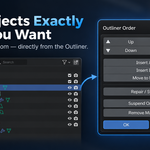
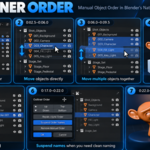
5. Use the Outliner Order dialog to move Objects into the desired order.
For the clearest result, use Blender’s normal alphabetical/name-based Outliner sorting.
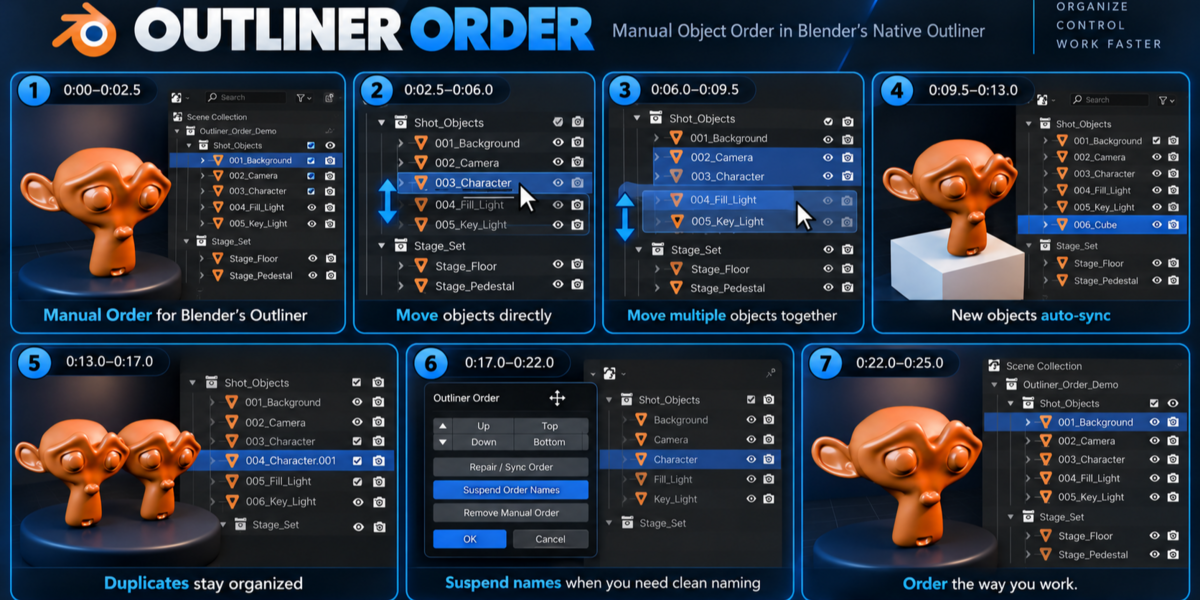
Reordering Objects
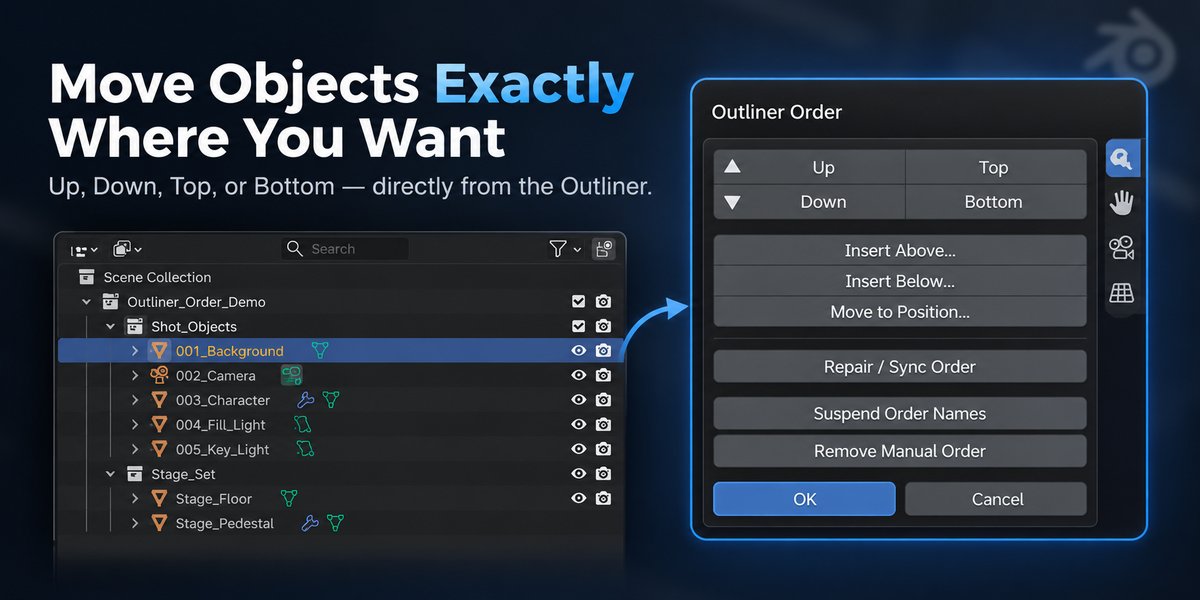
When Manual Order is active, the following operations are available:
Up
Moves the selected Object or selected block one position upward.
Down
Moves the selected Object or selected block one position downward.
Top
Moves the selection to the top of the current sibling group.
Bottom
Moves the selection to the bottom of the current sibling group.
Insert Above
Places the selection above a target position.
Insert Below
Places the selection below a target position.
Move to Position
Moves the selection to a specific final position.
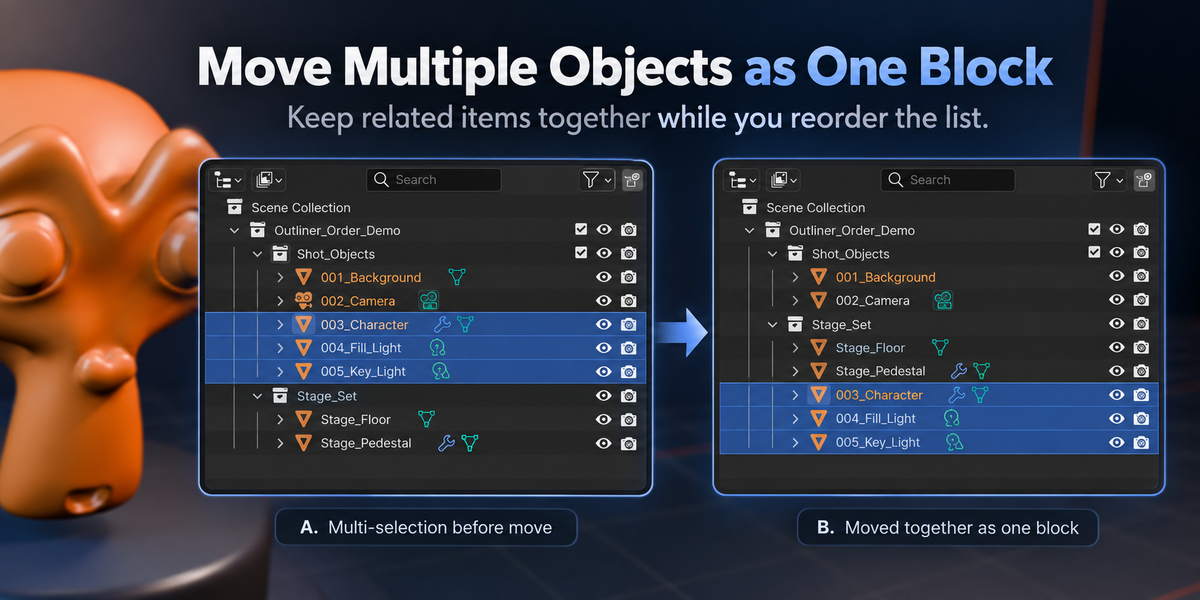
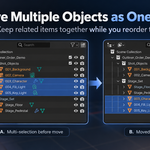
When multiple Objects are selected, they are moved as one block while preserving their internal order.
Auto Sync
Outliner Order can keep managed groups synchronized while you continue working.
Adding Objects
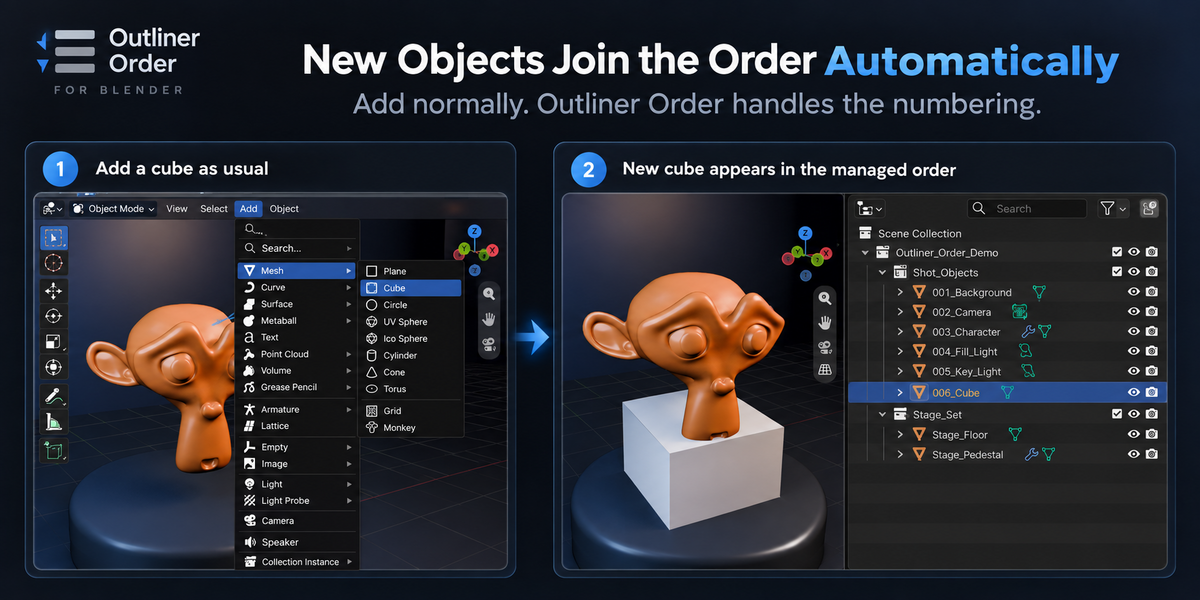
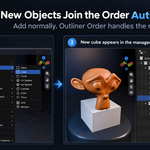
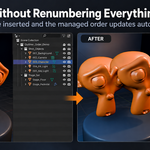
When a new supported Object is added to a managed sibling group, Outliner Order automatically adds it to the managed sequence and updates the numbering.
Duplicating Objects
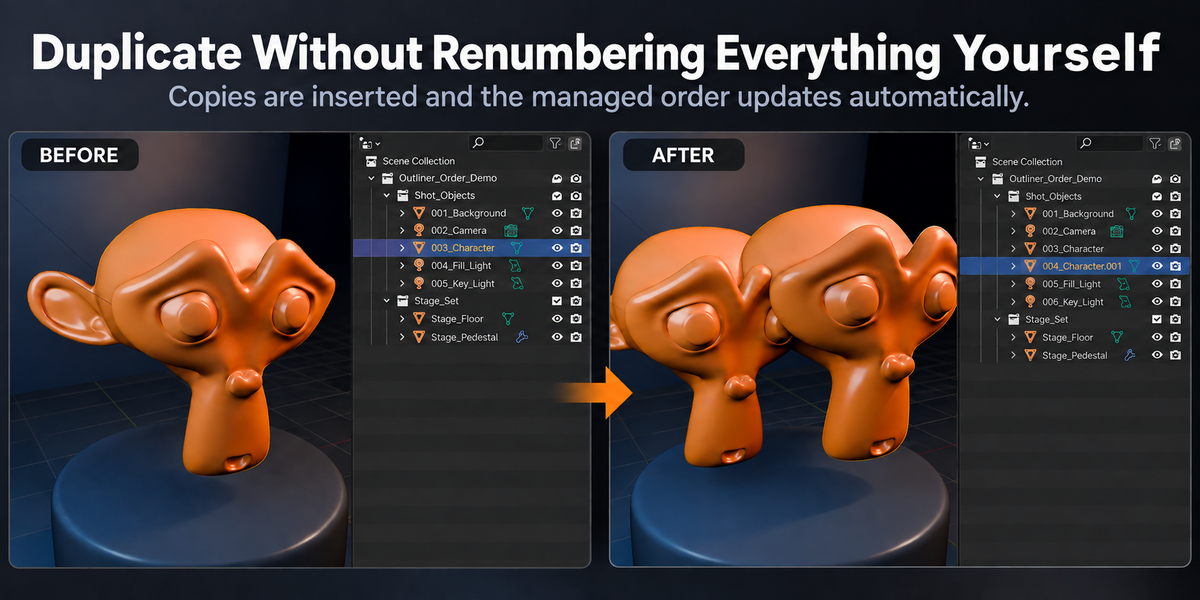
Normal Object duplication is also synchronized.
For example:
003_Character
may become:
003_Character
004_Character.001
with the following managed Objects renumbered automatically.
Blender’s semantic suffixes such as .001 are preserved separately from the ordering prefix.
Suspend Order Names
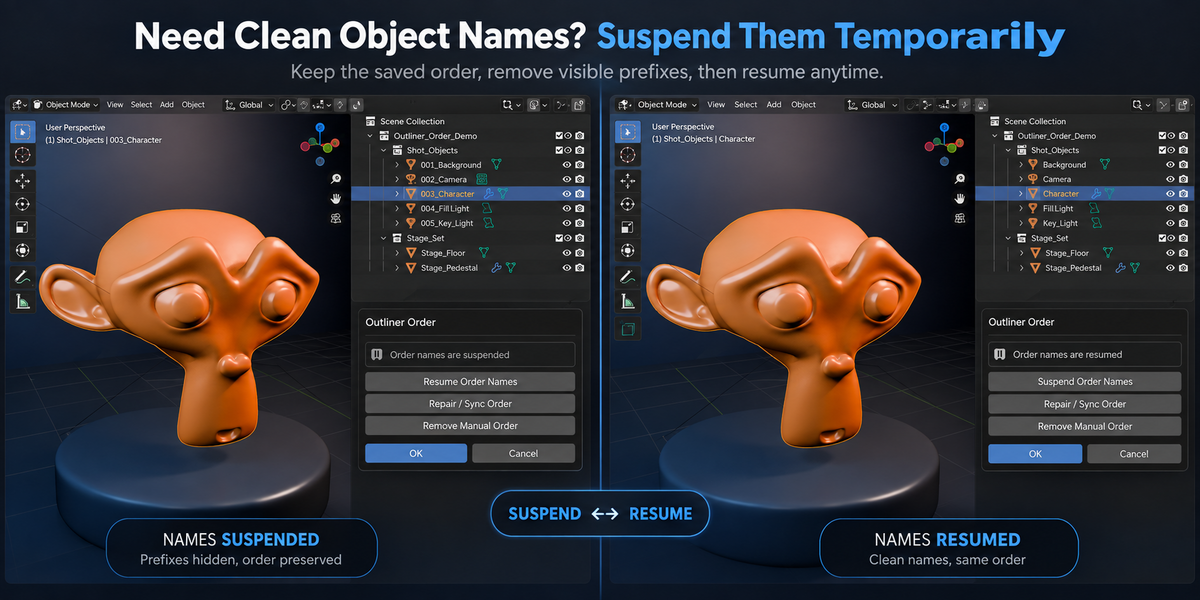
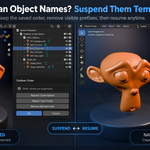
Use Suspend Order Names when another workflow requires clean Object names.
Example:
001_Camera
002_Character
becomes:
Camera
Character
The saved manual order is retained.
Use Resume Order Names to restore the managed prefixes.
This is useful for exporters, scripts, external tools, or pipelines that depend on exact Object names.
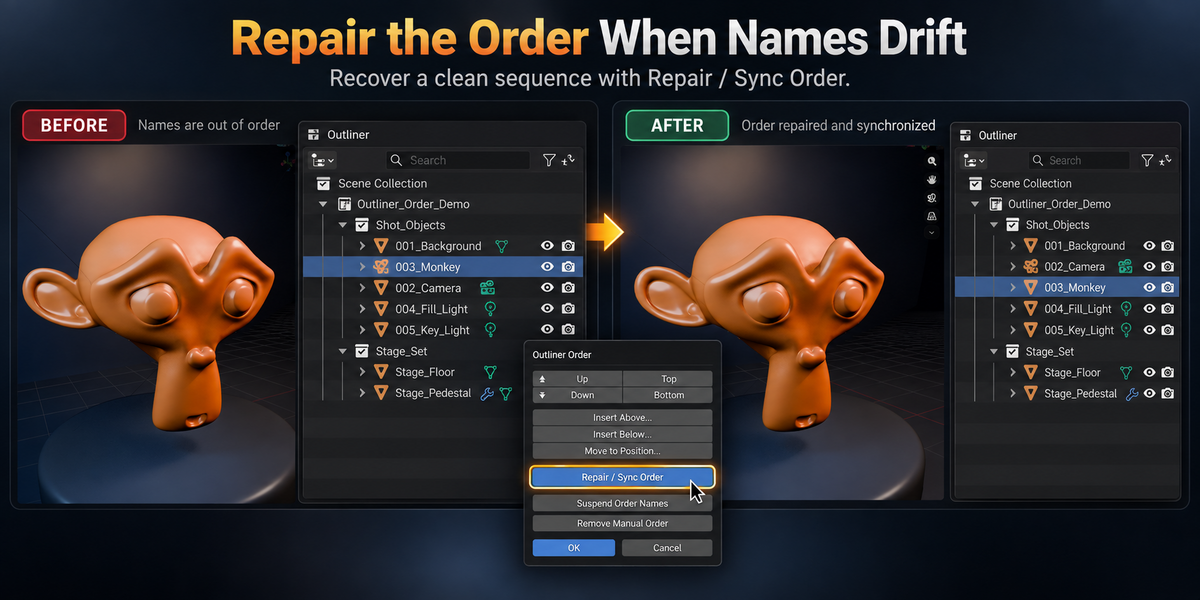
Repair / Sync Order
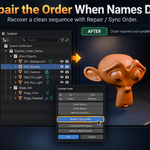
Use Repair / Sync Order if managed names become inconsistent after manual name edits or other changes.
Repair / Sync Order:
- Restores a dense managed sequence
- Preserves semantic Object names where possible
- Rebuilds the visible numbering for the managed sibling group
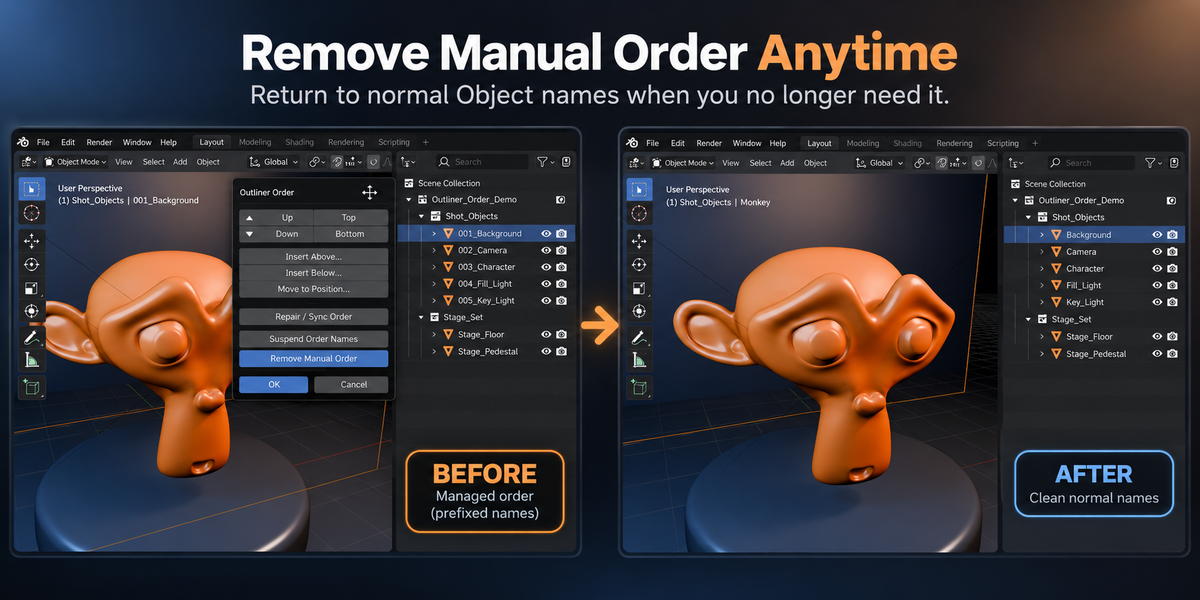
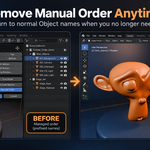
Remove Manual Order
Use Remove Manual Order when you no longer want Outliner Order to manage the group.
The managed ordering metadata is removed and the Objects return to their semantic names as safely as Blender’s global name-uniqueness rules allow.
If you plan to uninstall Outliner Order and do not want numeric prefixes to remain in your file, run Remove Manual Order first.
Undo / Redo
Supported ordering operations use Blender’s normal Undo workflow.
For supported Auto Sync operations, the user action and its corresponding ordering update are designed to undo together rather than requiring a separate cleanup step.
Save / Reopen
Managed order information is stored with the Blender data used by Outliner Order.
A managed file can be saved, closed, and reopened. Outliner Order restores the managed group so that Auto Sync can continue.
Important: Actual Object Names Are Changed
The numeric prefix is part of the real Blender Object name.
Example:
Character → 003_Character
This is not only a visual Outliner label.
If another script, exporter, driver workflow, external application, or pipeline depends on exact Object names, use:
Suspend Order Names
→ Run the external workflow
→ Resume Order Names
Scene Structure
Ordering operations do not intentionally change:
- Collection membership
- Parent relationships
- Object data
- Blender’s normal scene hierarchy
Outliner Order manages the Object ordering layer only.
Supported Scope
Manual Order applies to supported Object sibling groups.
Collections themselves continue to use Blender’s native Collection behavior.
Outliner Order does not provide arbitrary mixed ordering between Collections and Objects.
Safety Restrictions
Some cases are intentionally blocked where one safe ordering result cannot be determined.
These include situations such as:
- Objects shared across multiple relevant Collections or Scenes
- Linked Objects
- Unsupported library override cases
- Ambiguous sibling groups
Outliner filtering or search can also prevent row-relative operations because the visible rows may no longer represent the complete sibling group.
Manual Renaming
Changing the semantic part of a managed Object name is supported by the repair workflow.
For example:
003_Character → 003_Player
can be adopted as Player by the managed order.
Manually changing the ordering prefix itself, such as:
003_Player → 777_Player
does not request a new position.
Use Repair / Sync Order to restore the managed sequence.
Name Collisions
Blender Object names are globally unique.
If the desired semantic name already exists elsewhere, Blender may require suffixes such as:
.001
.002
Outliner Order preserves Blender’s uniqueness requirements rather than forcing duplicate names.
Compatibility
Outliner Order 1.0.0 has been validated with:
Blender 4.5.13 LTS
Blender 5.0.1
Blender 5.1.2
Blender 5.2.1 LTS
Future Blender versions are not considered supported until they have been tested.
Support
Outliner Order is maintained by Tesselune.
For reproducible issues, please include:
- Outliner Order version
- Blender version
- Operating system
- Steps to reproduce
- Expected result
- Actual result
- Screenshot or short recording when useful
Have questions about this product?
Login to message
| Blender Extension Compatible | Yes |
| Published | 1 day ago |
| Blender Version | 4.5 - 5.2 |
| Extension Type | Add-on |
| Render Engine Used | Cycles |
| License | GPL |
Discover more products like this
Scene Management hierarchy productivity Object Management utility object order sorting naming outliner interface Workflow scene organization