Overscan Render
 Dani K Daniel
Overscan Render: Documentation
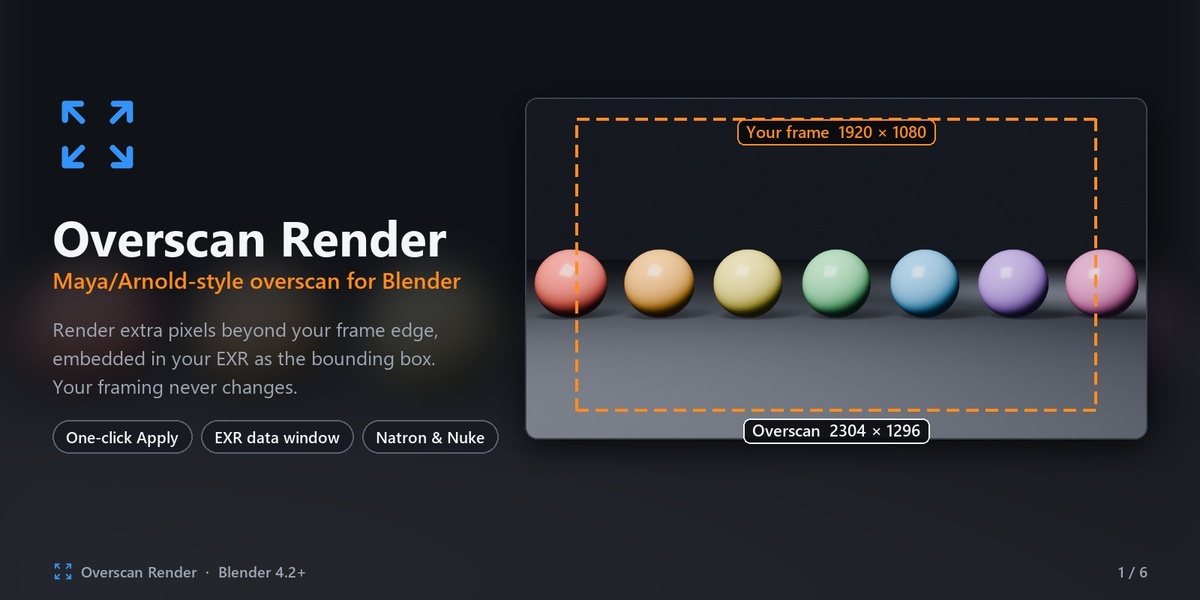
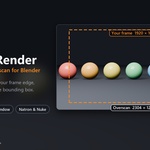
Overscan Render adds Maya/Arnold-style overscan to Blender. It renders extra pixels around your frame and writes them into the EXR as the data window (bounding box), with overscan metadata. Your framing never changes.
Requirements
Blender 4.2 or newer, including Blender 5.x.
Output format OpenEXR or OpenEXR MultiLayer, for the overscan to be embedded.
Installation
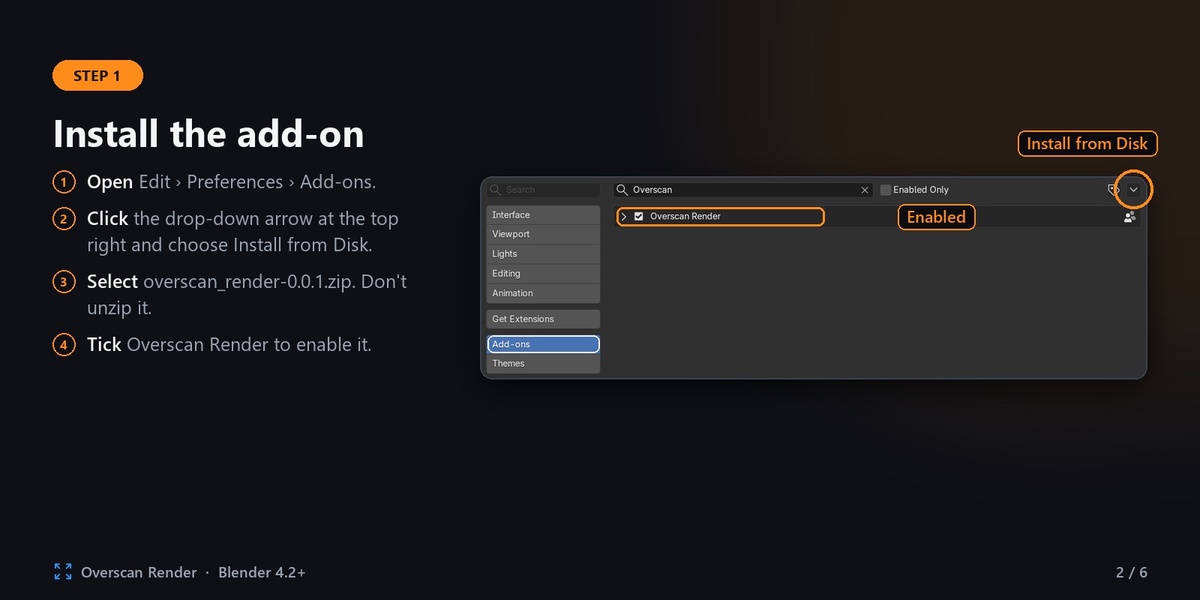
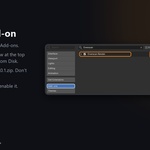
Download overscan_render-0.0.1.zip. Don't unzip it.
In Blender, open Edit � Preferences � Add-ons.
Click the drop-down arrow at the top right and choose Install from Disk.
Select the zip file.
Make sure Overscan Render is ticked.
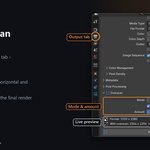
The panel appears in Properties � Output � Overscan.
Quick start
Set your normal delivery resolution in Output � Format (for example 1920 � 1080).
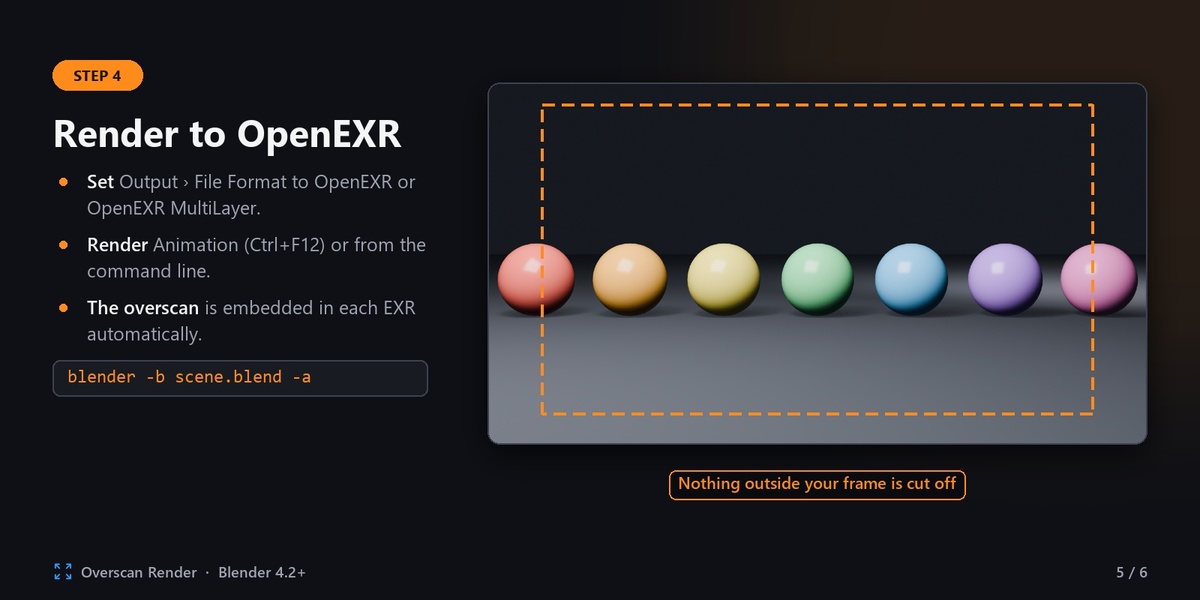
Set Output � File Format to OpenEXR or OpenEXR MultiLayer and choose an output path.
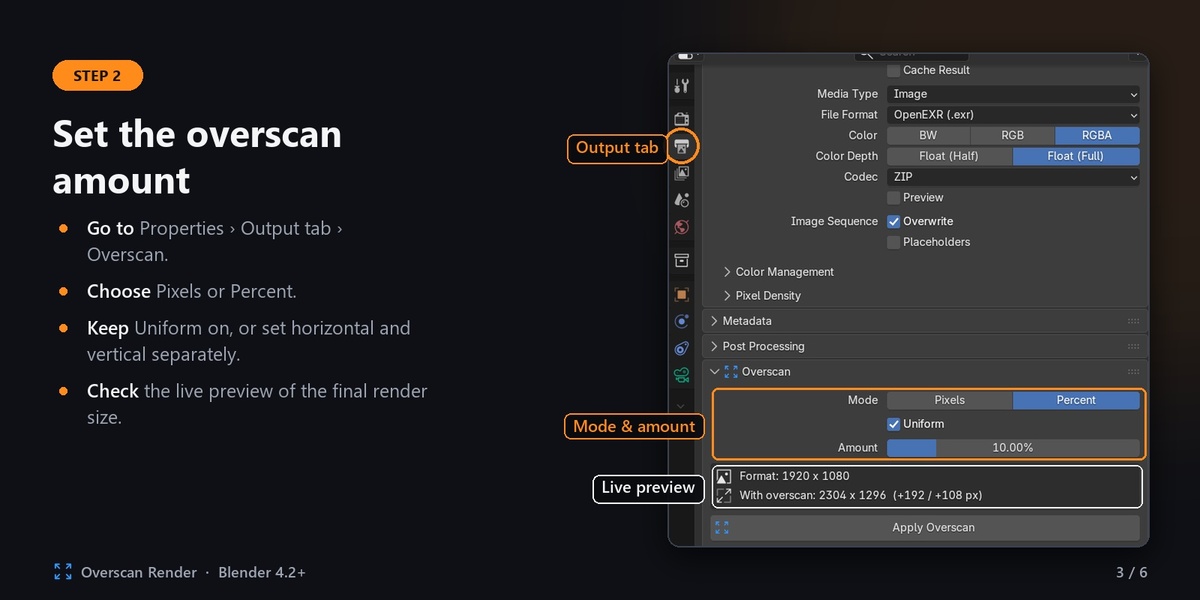
In the Overscan panel, choose Pixels or Percent and enter the amount.
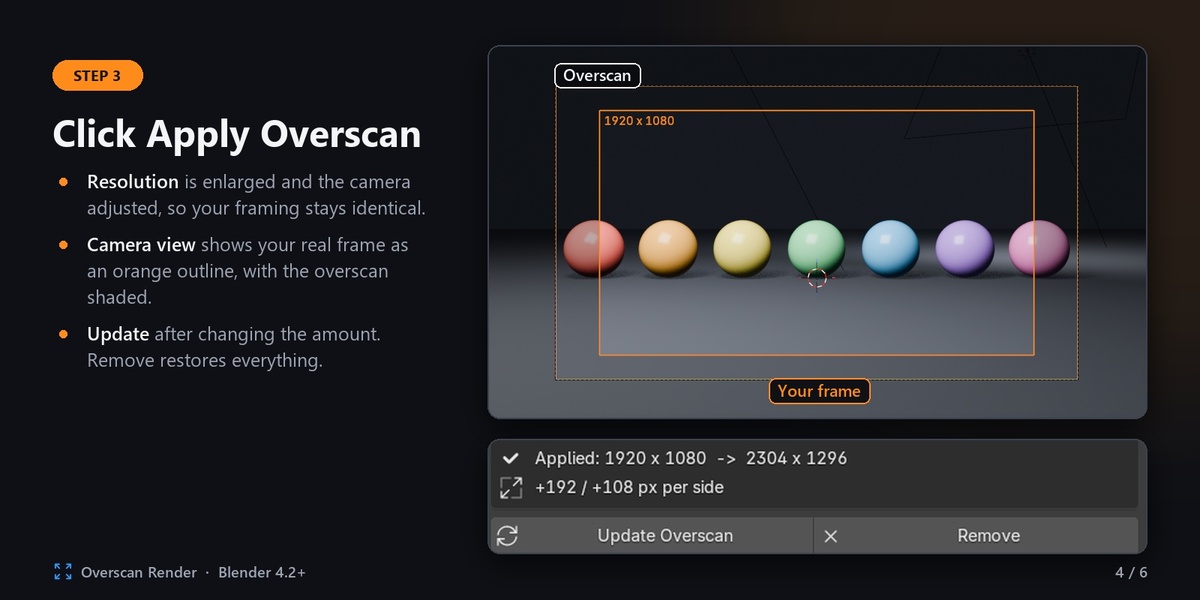
Click Apply Overscan.
Render with Render � Render Animation (Ctrl+F12) or from the command line.
Open the EXR in Natron, Nuke or any other EXR-aware compositor.
Panel settings
Mode: Pixels adds a fixed number of pixels per side. Percent adds a percentage of the frame size per side.
Uniform: on uses one amount for all sides. Off lets you set Horizontal and Vertical separately.
Amount / Horizontal / Vertical: how much overscan to add on each side.
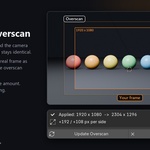
Preview box: before applying, it shows your format and the final render size. After applying, it shows the applied sizes and the pixels per side.
Apply Overscan: enlarges the resolution and adjusts the camera so everything inside your original frame renders exactly the same.
Update Overscan: applies a changed amount. It always starts from your original settings, so updates never stack.
Remove: restores your original resolution and camera exactly.
Overscan is calculated on the final render size, so the Resolution % setting is taken into account. Percent amounts are rounded to whole pixels.
Viewport frame
While overscan is applied, camera view (Numpad 0) shows an outline around your original frame with its size label, and shades the overscan area outside it. Blender's own dashed camera border marks the full render.
Viewport Frame checkbox: shows or hides the guide.
Color: colour of the outline and label.
Shade Overscan: how strongly the overscan area is darkened.
Rendering
The overscan is embedded when Blender itself writes the EXR file to your output path:
Render Animation (Ctrl+F12): embedded.
Command line (blender -b scene.blend -a or -f 1): embedded.
Render farms that render the .blend with Blender and have the add-on installed: embedded.
F12 followed by Image � Save As: not embedded. The image has the extra pixels but no data window or metadata.
File Output nodes in the compositor: not embedded. Only the main output is.
The settings are saved in your .blend file, so command-line and farm renders pick them up automatically.
Compositing
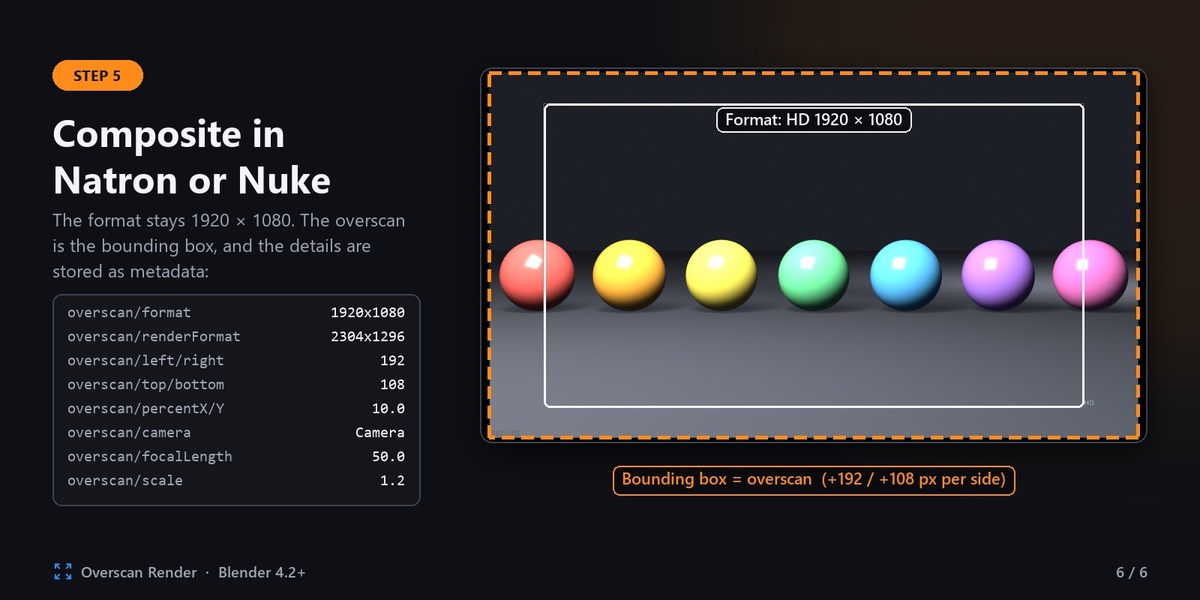
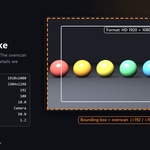
Each EXR uses two windows, the same layout Arnold uses for overscan:
Display window: your original format, for example 0,0 to 1919,1079.
Data window: the full render including the overscan, starting at negative coordinates, for example -192,-108 to 2111,1187.
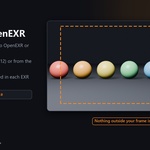
Natron: load the file with a Read node. The project format stays 1920 � 1080, and the overscan is the bounding box (the dotted rectangle outside the frame in the Viewer). To see the overscan pixels, turn off Clip to project in the Viewer.
Nuke: load the file with a Read node. The format is your original resolution and the overscan is the bbox, available to Transform, LensDistortion, stabilisation and other nodes.
Other software: any application that reads EXR data and display windows handles the files the same way.
Metadata
Each EXR includes these attributes:
overscan/format: original format, for example 1920x1080.
overscan/renderFormat: full render size, for example 2304x1296.
overscan/left, right, top, bottom: pixels per side.
overscan/percentX, percentY: overscan as a percentage.
overscan/mode: pixels or percent.
overscan/camera, cameraType, scale, sensorFit: camera details.
overscan/focalLength, sensorWidth, sensorHeight for perspective cameras, or overscan/orthoScale for orthographic cameras.
overscan/frame: frame number.
overscan/software: Blender and add-on version.
Supported cameras
Perspective and orthographic cameras, including lens shift and every sensor-fit mode (Auto, Horizontal, Vertical).
Scenes that switch cameras with timeline markers: every camera is adjusted.
Animated focal length is supported.
Limitations
Panoramic cameras are not supported.
Cameras linked from another .blend library can't be adjusted.
Cameras with animated sensor size, sensor fit, ortho scale or lens shift can't be adjusted.
In all of these cases the add-on shows an error and changes nothing.
Uninstalling
First, click Remove in the Overscan panel of every .blend file where overscan is applied. Without the add-on there is no Remove button, and those files keep the enlarged resolution and camera.
In Preferences � Add-ons, click the drop-down arrow at the right end of the Overscan Render row and choose Uninstall.
Troubleshooting
No bounding box in the compositor: check that the file format is OpenEXR, that you rendered with Ctrl+F12 or the command line, and that the panel shows "Applied".
"Resolution changed after applying" or "Camera � was not adjusted" warning: the resolution or active camera was changed after applying, and renders are not embedded until this is fixed. Click Remove, set the resolution and camera you want, then click Apply Overscan again.
"Overscan amount is zero": enter an amount greater than 0.
"Scene has no active camera": set a scene camera in Scene properties, then apply.
The overscan looks cut off in Natron: turn off Clip to project in the Viewer.
"Missing manifest" when installing: you selected a zip that contains another zip. Unzip the download first, then install overscan_render-0.0.1.zip.
Version 0.0.1 � by Dani K Daniel � GPL-3.0-or-later
Have questions about this product?
Login to message
| Blender Extension Compatible | Yes |
| Published | about 7 hours ago |
| Blender Version | 4.2 - 5.2 |
| Extension Type | Add-on |
| Render Engine Used | Cycles |
| License | GPL |
Discover more products like this
Render nuke openexr camera Compositing visual effects bounding box metadata natron VFX overscan exr