 GreenJin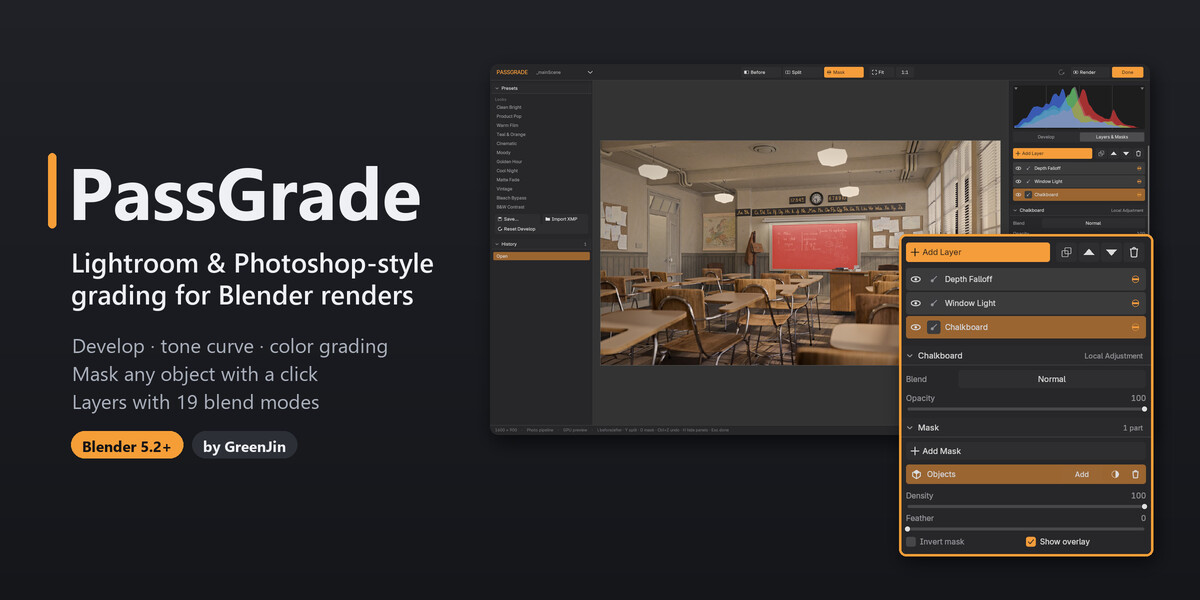




How do I update?
Install the new zip the same way (Edit → Preferences → Get Extensions → ▾ → Install from Disk…). Your presets are kept, and files graded with an older version upgrade when you open them.
Can I use my Lightroom presets?
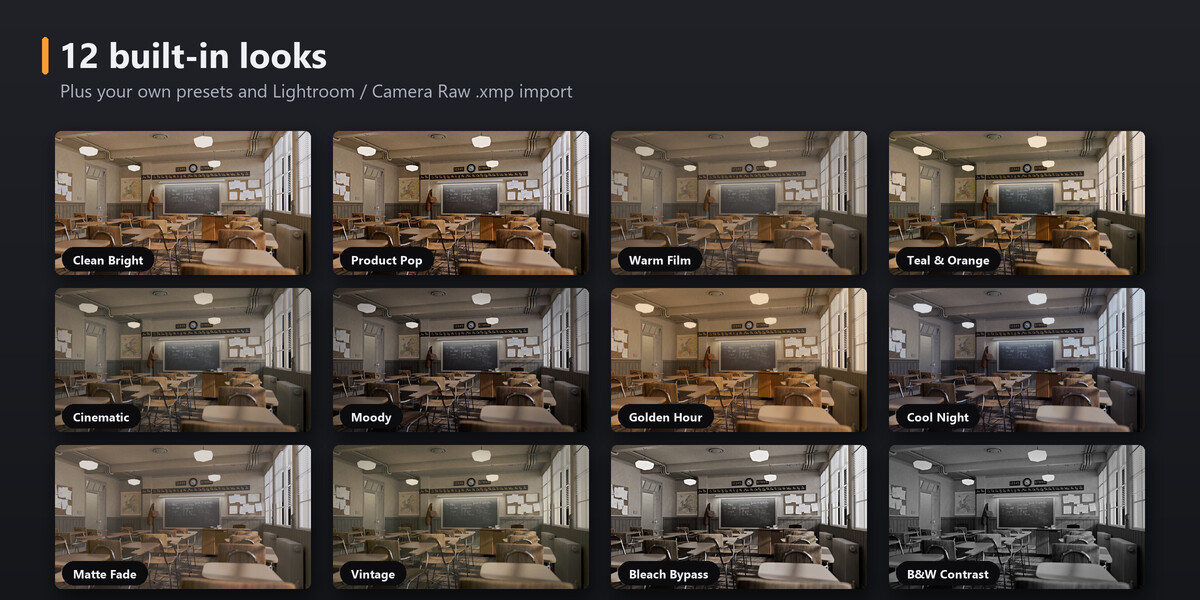
Yes. Press Import XMP and pick a Lightroom or Camera Raw .xmp preset. PassGrade applies the settings it can map, tells you how many Lightroom-only settings it skipped, and saves it among your presets. Your presets are kept when you update the add-on.
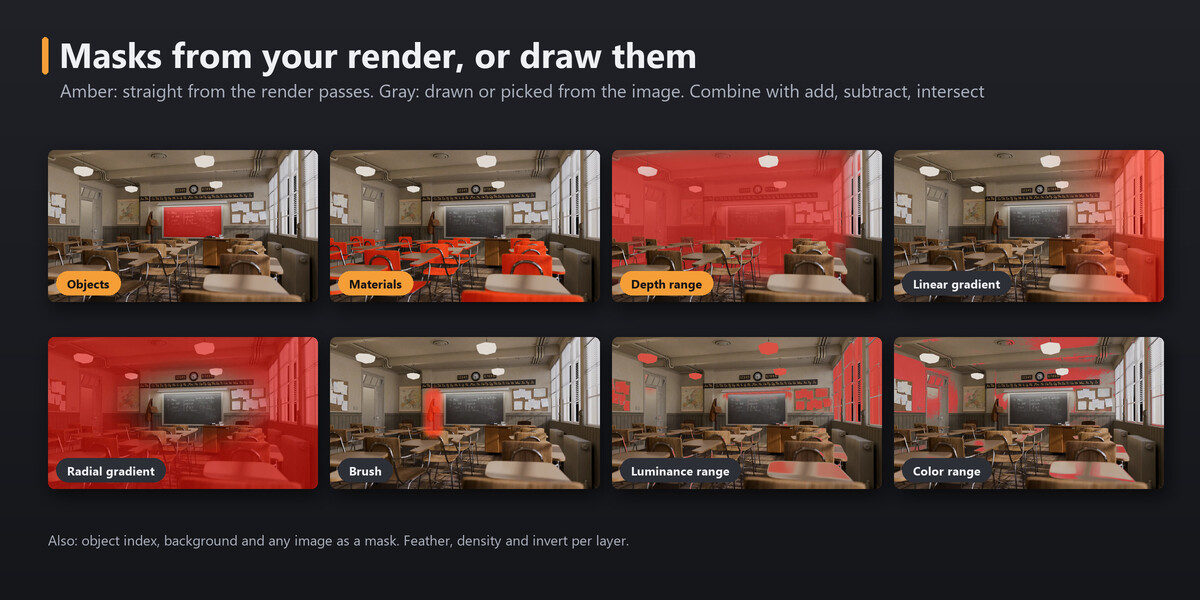
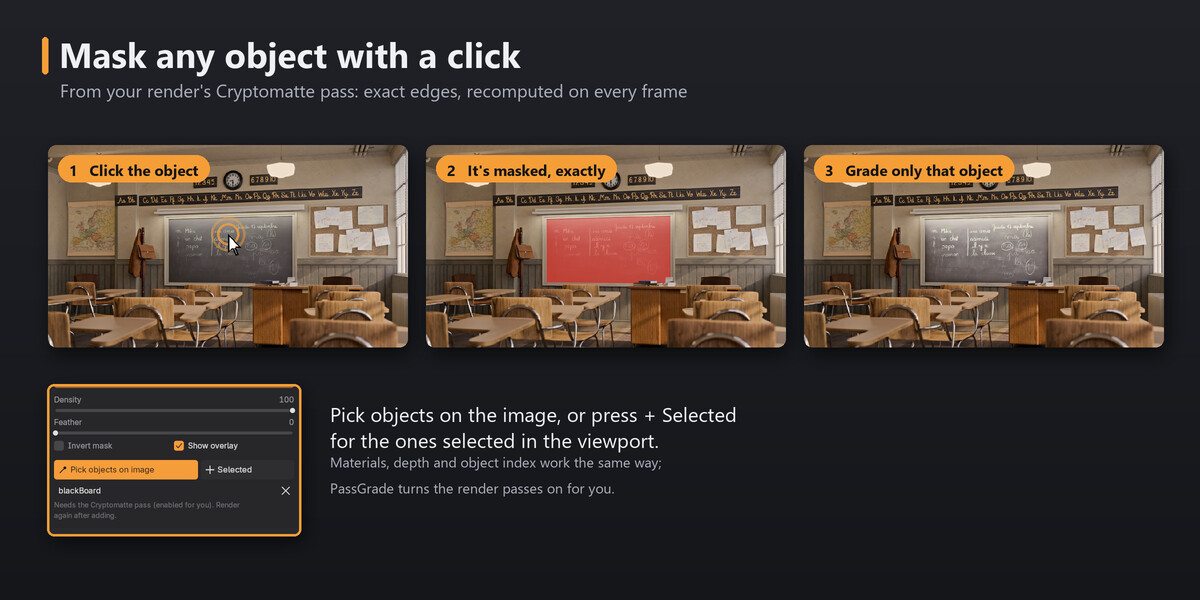
I added an Objects (or Materials / Depth) mask and it is empty. Why?
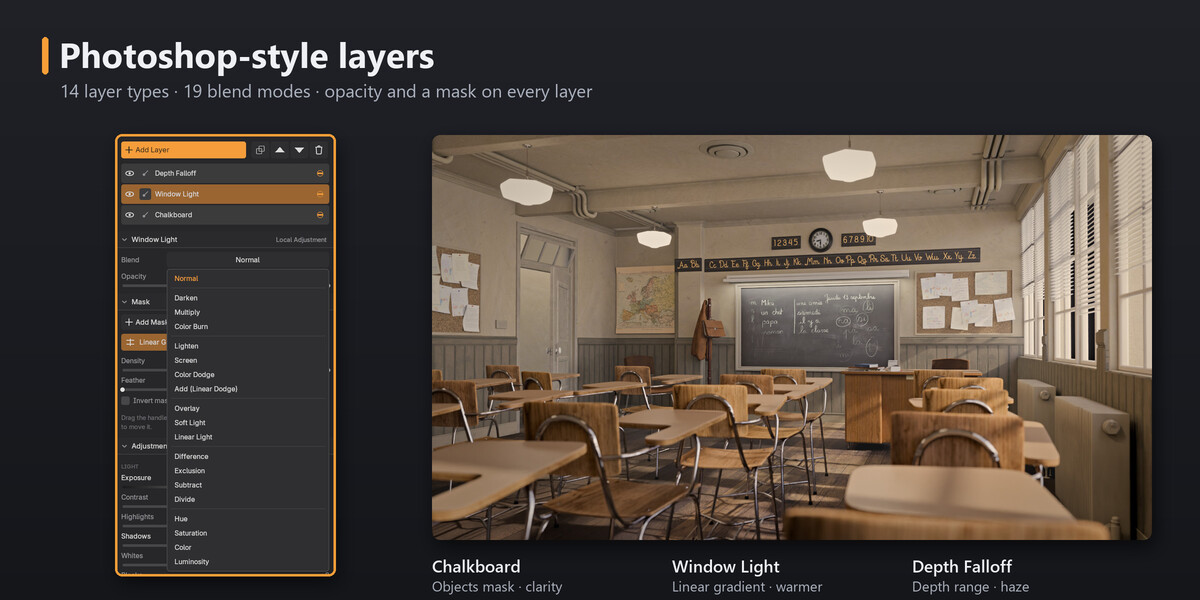
These masks read a render pass. PassGrade turns the pass on when you add the mask, but the render you already have was made without it. Render once more (F12, or the Render button in the room) and the mask appears. EEVEE has no Object Index pass, so in EEVEE use an Objects mask instead.
Does it work with animation?
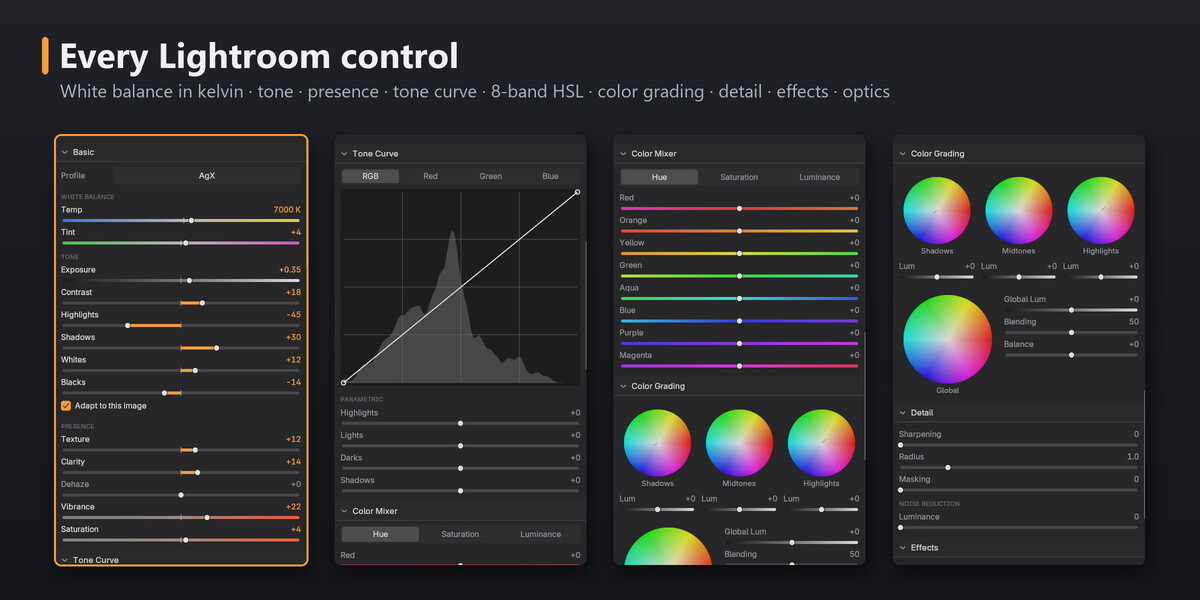
Yes. The grade renders on every frame. The PassGrade tab in the sidebar (N) has the settings you would animate (white balance, the Basic and Presence sliders, vignette, grain, bloom and layer opacity): hover one and press I to keyframe it. Every other value can be keyframed in the Compositor: Tab into the PassGrade node, hover the value and press I. Masks from the render (objects, materials, depth, index) follow moving objects and cameras. Brush masks stay fixed on the screen, and so do gradients unless you keyframe their handles.
Can I keep my own compositor effects?
Yes. PassGrade grades whatever your compositor produces. Nodes that move the image (Lens Distortion, Transform, Crop) belong after PassGrade, or use its Optics section. Placed before it, they shift the image away from the render-pass masks.
Will it change my scene or my compositor?
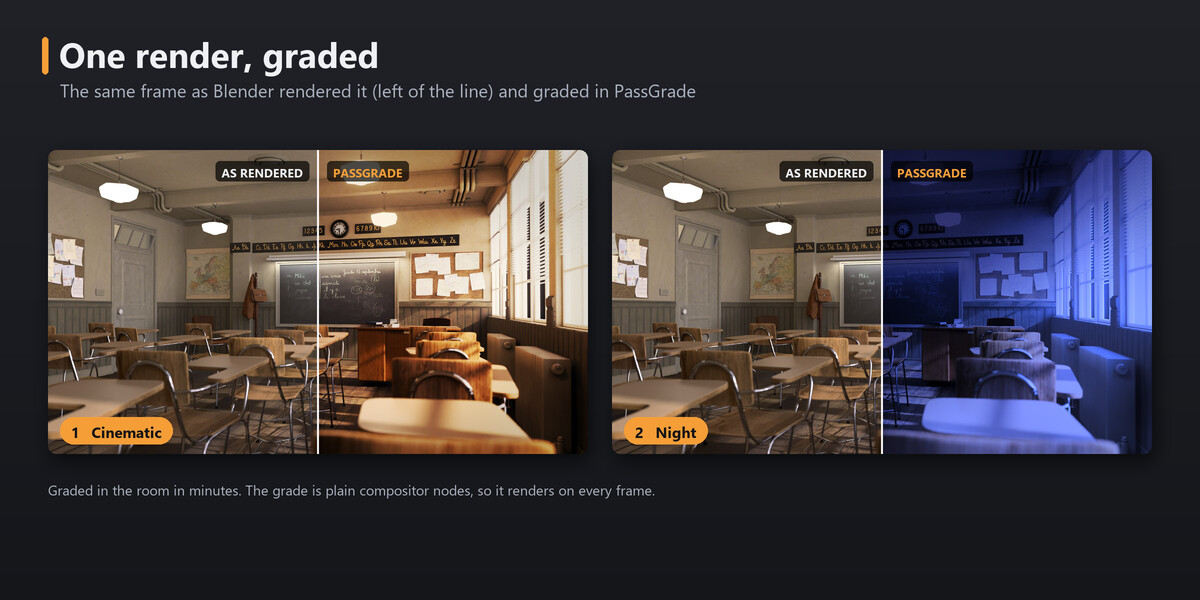
It adds one node group before your compositor's output, and your own nodes keep working. In the default Photo pipeline your view transform (AgX, Filmic…) moves inside the grade and the scene's view is set to Standard, so curves and blend modes behave like in Lightroom. Choose Scene-referred to keep Blender's view transform. Remove PassGrade, in the PassGrade tab of the sidebar (N), takes the grade out and restores your compositor and view transform.
Do I need a powerful GPU?
No. The grade runs in Blender's compositor on the GPU or the CPU, whichever is set in Render Properties → Performance. While you grade, PassGrade previews on the GPU because it is much faster. You can turn that off under Color Pipeline, and your own setting comes back when you leave the room.
Does it work with Cycles and EEVEE?
Yes, and with Workbench. PassGrade grades the render in the compositor, so the engine doesn't matter for Develop and layers. Masks that read a render pass depend on what the engine renders: Objects and Materials need Cycles or EEVEE, Object Index needs Cycles, and Depth Range and Background work with all three.
Does it run on macOS and Linux?
On macOS, yes: it is tested on Windows (OpenGL and Vulkan) and macOS (Metal). The same pure-Python package installs on Linux too, but Linux has not been tested yet. If something doesn't work on your system, please send me a message and I'll fix it.
Which Blender versions are supported?
Blender 5.2 LTS and newer. PassGrade uses compositor features that are new in 5.2, so Blender 5.1 and older won't install it.
How do I start?
Render first (F12), then press the PassGrade button in the header of the render window. It is also in the Compositor's header and under Render → Open PassGrade. PassGrade grades your render result, so there has to be a render to grade.
$20
Have questions about this product?
Login to message
| Blender Extension Compatible | Yes |
| Published | 2 days ago |
| Blender Version | 5.2 |
| Extension Type | Add-on |
| Render Engine Used | Cycles, Eevee |
| License | GPL |

Discover more products like this
Render Compositing Post-Processing tone curve adjustment layers masks lightroom color grading photoshop compositor presets cryptomatte