PassPilot
 Dmitrii Smirnov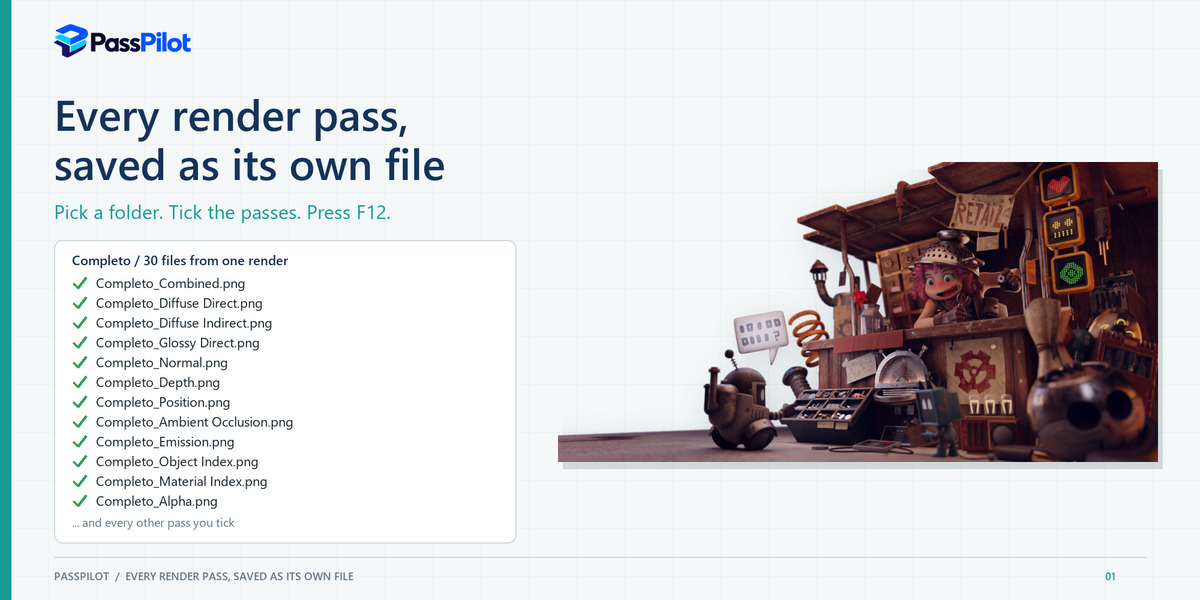
PassPilot documentation
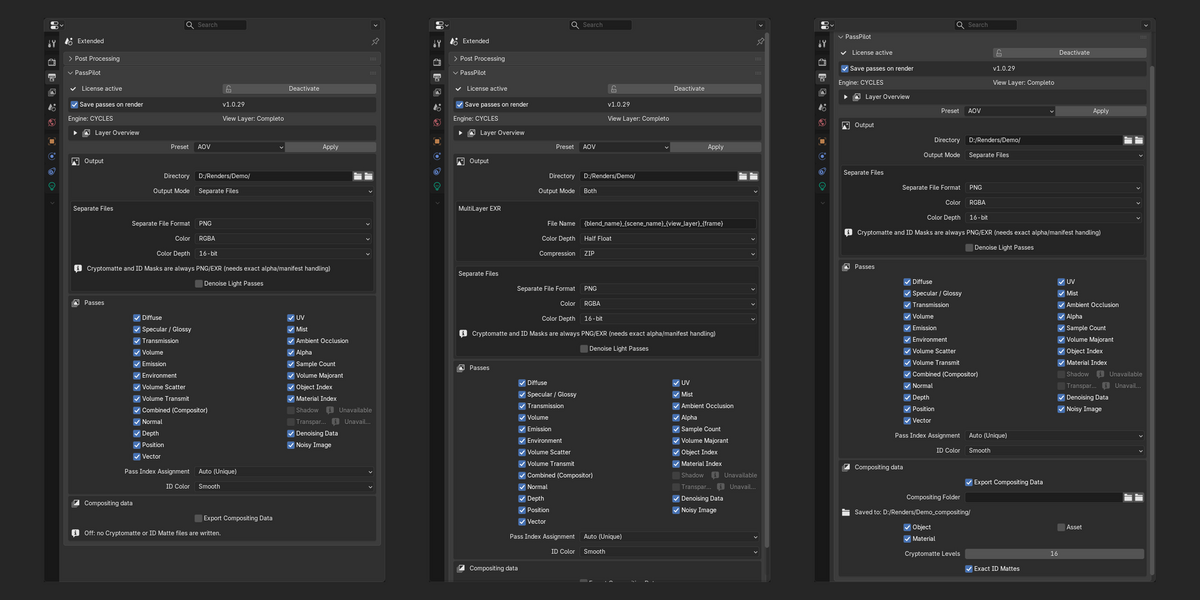
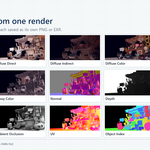
PassPilot saves every render pass of a Blender render as its own file, automatically. This page explains every control of the panel with real screenshots, so you can use it without any video: install, activate, choose a folder, tick the passes, render. Orange numbers in the screenshots match the numbered lists under them.
1. Requirements and installation
- Blender 5.2 (Windows x64). Other versions and systems have not been tested.
- Render engine Cycles or EEVEE.
- A PassPilot license code (you receive it after purchase; it looks like PO-XXXXX-XXXXX-XXXXX-XXXXX).
- An internet connection once, to activate the license.
- Download the PassPilot ZIP from your Superhive order. Do not extract it.
- In Blender open Edit → Preferences → Get Extensions.
- Open the menu at the top right of the Extensions page and choose Install from Disk.
- Select the PassPilot ZIP. Enable the extension if Blender does not enable it automatically.
- Restart Blender after installing an update, so the new version is loaded (the panel shows the running version).
2. Where is the panel?
Open the Properties editor, click the Output tab (the printer icon in the column on the left) and scroll to the PassPilot panel. It is shown only when the render engine is Cycles or EEVEE.
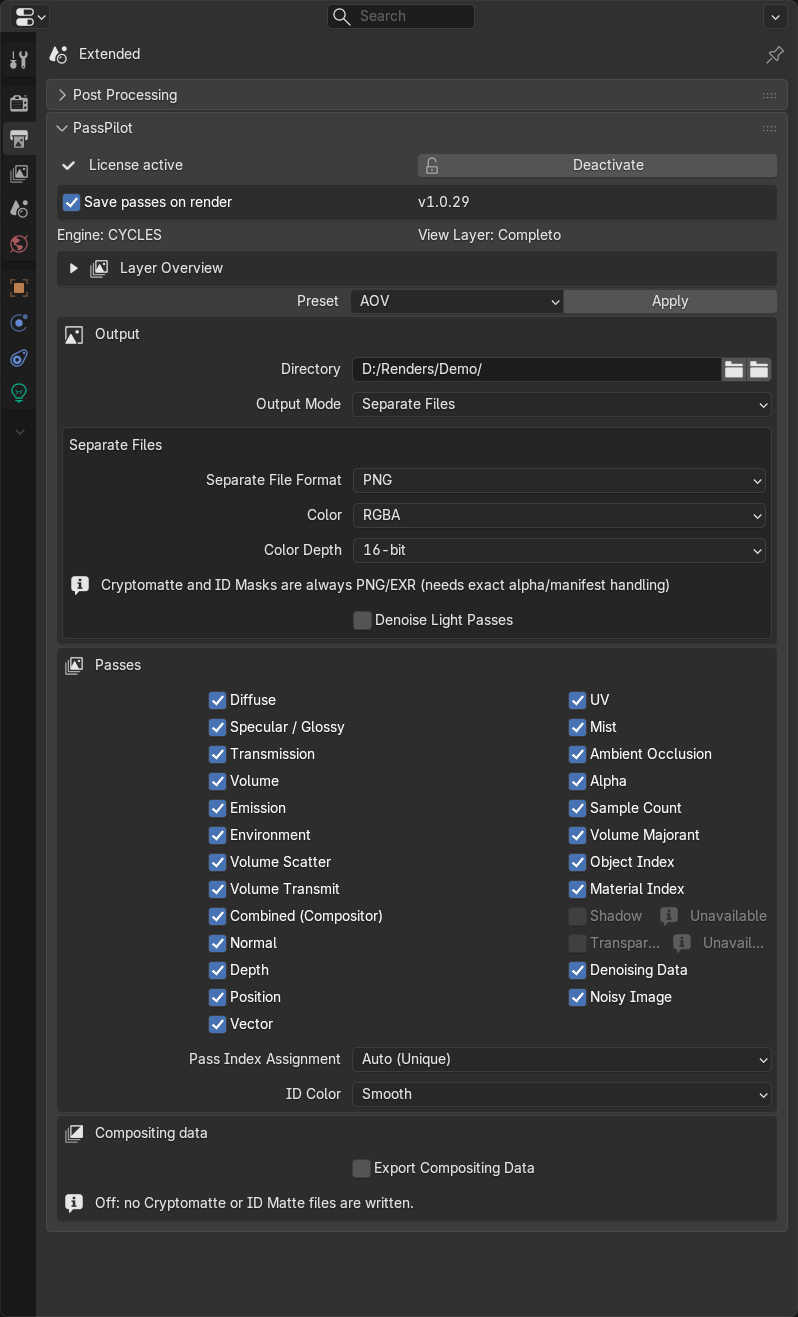
The Output tab (printer icon, highlighted on the left) with the PassPilot panel. Everything PassPilot offers is in this one panel.
3. Activate your license
Until a license is active the panel is visible but locked (greyed out), so you can see what it offers.
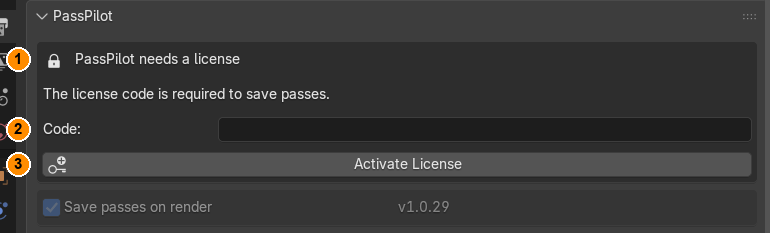
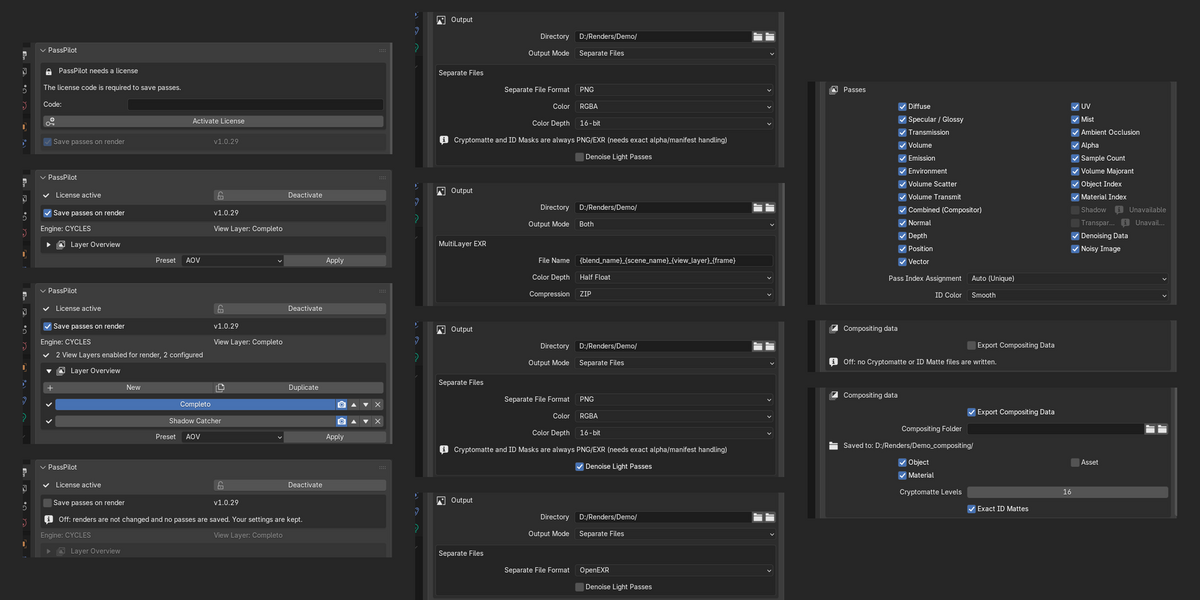
The panel before activation.
| 1 | PassPilot needs a license. The padlock line tells you the panel is locked. |
| 2 | Code. Paste your license code here exactly as you received it. |
| 3 | Activate License. Click it. Activation needs the internet once; afterwards the license is checked on your computer without a network. |
After activation the first line of the panel says License active and shows a Deactivate button. One license code works on up to 2 computers. To move PassPilot to another computer, click Deactivate on the old one first (this needs the internet too) and activate on the new one.
4. Quick start: your first render
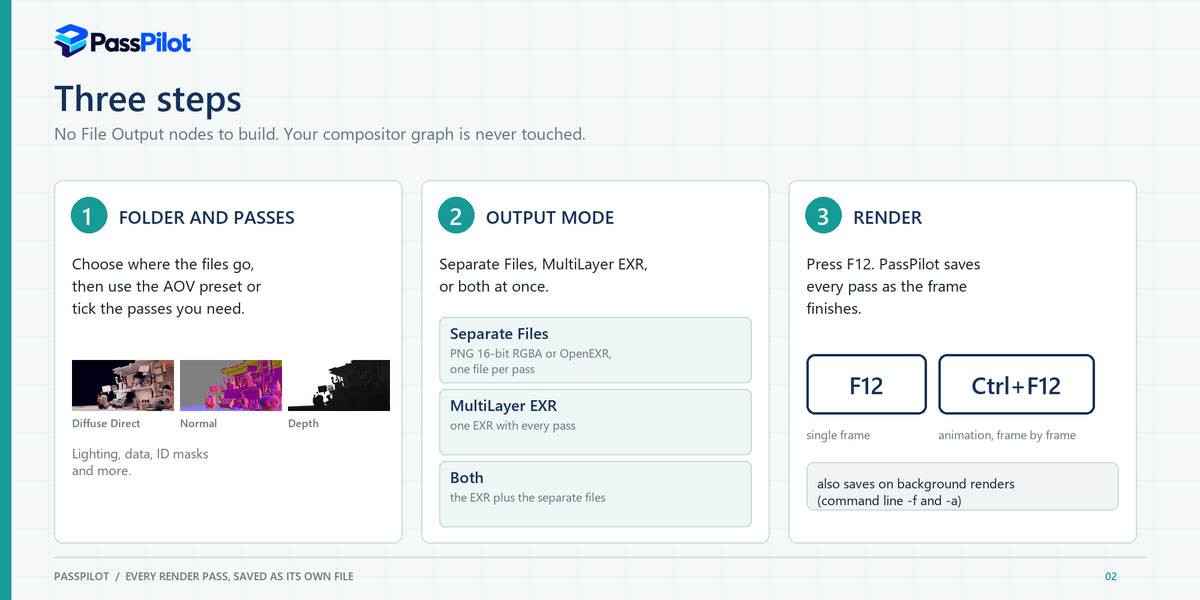
- Open the panel (section 2) and make sure Save passes on render is ticked.
- Set Directory to the folder that should receive the files.
- Leave Output Mode on Separate Files and the format on PNG.
- Choose AOV in Preset and click Apply: every pass the engine supports is ticked. Untick what you do not need.
- Press F12. When the frame finishes, the last line of the panel says how many files were saved.
- Open the folder: one file per pass, grouped by scene and View Layer (section 8).
blender -b file.blend -f 1 or -a) save too.5. The panel, control by control
5.1 The top of the panel
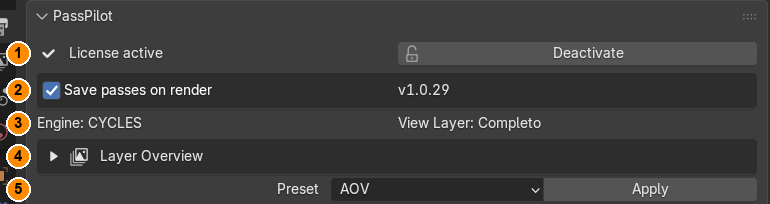
The top controls.
| 1 | License active / Deactivate. Your license status. Deactivate frees this computer for another one. |
| 2 | Save passes on render, v1.0.29. The master switch (section 5.2) and the running version. |
| 3 | Engine and View Layer. Shows the render engine and the View Layer whose settings you are editing below. Pass settings belong to the View Layer; folder and format settings belong to the scene. |
| 4 | Layer Overview. A foldable list of all View Layers (section 5.3). |
| 5 | Preset and Apply. AOV ticks every pass the active engine supports, except Cryptomatte and Exact ID Mattes (those stay an explicit choice). Custom keeps your current selection. A preset is applied only when you click Apply. |
5.2 Save passes on render (the master switch)
The checkbox is on by default: an installed PassPilot saves the passes of every render. Untick it for a render that does not need passes:
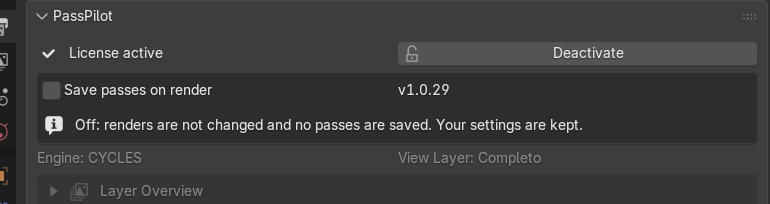
Switched off: the message says renders are not changed and no passes are saved, and the rest of the panel is greyed out. Your settings are kept.
- PassPilot then does nothing at all: it does not change the passes of your View Layer, does not check the scene and saves no file.
- Tick it again and the next render saves as before.
- It does not switch off passes that Blender itself already renders. If you also want to save render time, untick them in the View Layer properties.
5.3 Layer Overview: several View Layers
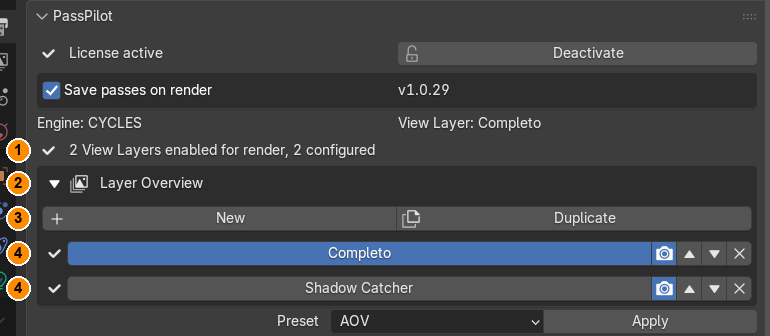
Layer Overview opened, with two View Layers.
| 1 | Status line. Appears when more than one View Layer is enabled for render: how many are enabled and how many are configured. Every View Layer enabled for render is saved, not only the active one. |
| 2 | Layer Overview. Click the triangle to fold or unfold the list. |
| 3 | New / Duplicate. Add a new View Layer or duplicate the active one, without leaving the panel. |
| 4 | One row per View Layer. The tick on the left means the layer is configured. Click the name to make it the active layer and edit its passes below. The camera icon enables or disables the layer for rendering. The arrows reorder, the X removes the layer. |
5.4 Output: folder, mode and format
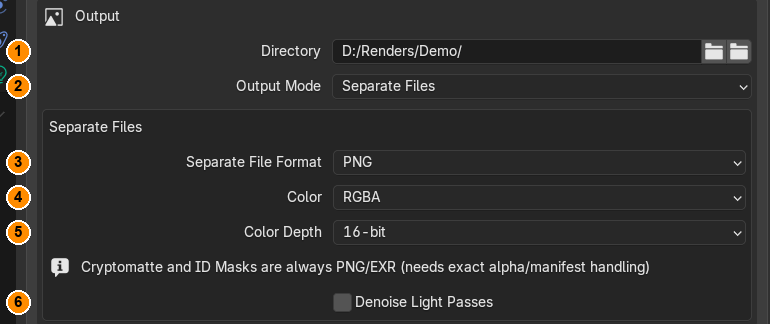
The Output box in Separate Files mode.
| 1 |
Directory. The folder that receives the files. The first button next to it browses for a folder, the second opens the current folder in Windows Explorer. A path starting with // is relative to the .blend file (the default is //renders/), so save the file first. Missing folders are created. |
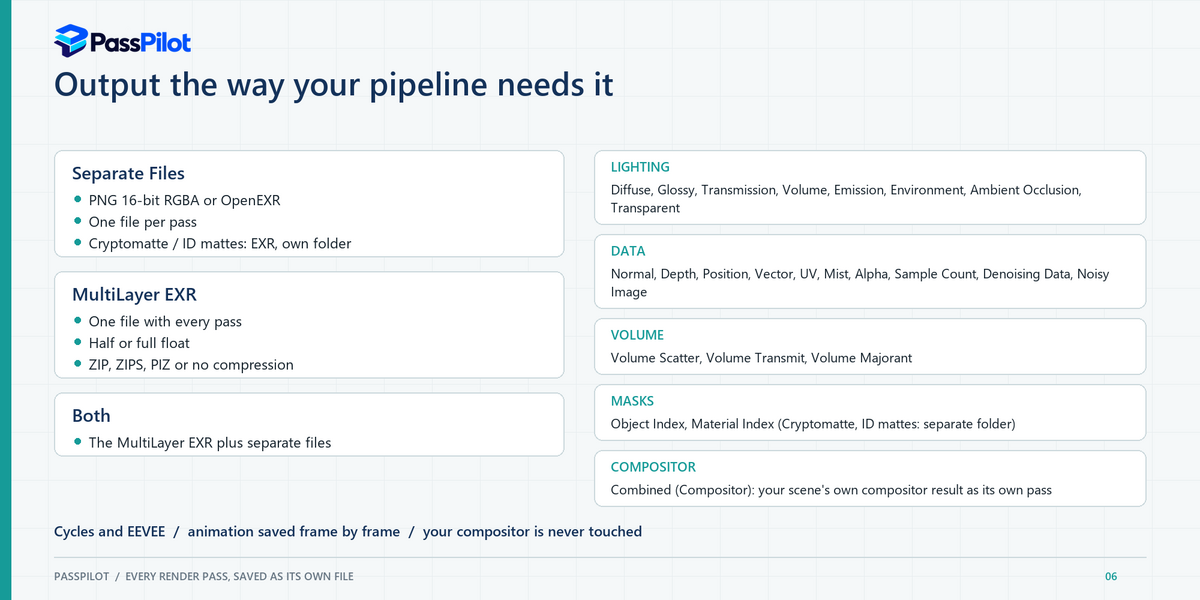
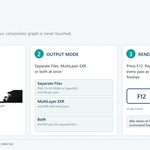
| 2 | Output Mode. Separate Files: one file per pass. MultiLayer EXR: one EXR with all passes of the View Layer. Both: the MultiLayer EXR plus the separate files. |
| 3 | Separate File Format. PNG (default, 16-bit), OpenEXR, TIFF, Targa, Targa Raw, DPX, Cineon, JPEG, JPEG 2000. Every format except OpenEXR clips values outside 0..1 (HDR light above 1.0 and world-space data such as Position). Use OpenEXR for anything you will grade or composite numerically. |
| 4 | Color. Black and white, RGB or RGBA. Data passes such as Normal, Vector, Position and UV keep at least RGB, because black and white would throw away two of their three components. |
| 5 | Color Depth. Bit depth per channel, limited to what the chosen format allows. |
| 6 | Denoise Light Passes. Section 5.7. |
The grey information line reminds you that Cryptomatte and ID masks are always written as PNG or EXR, whatever format you choose, because they need exact alpha or manifest data.
MultiLayer EXR and Both
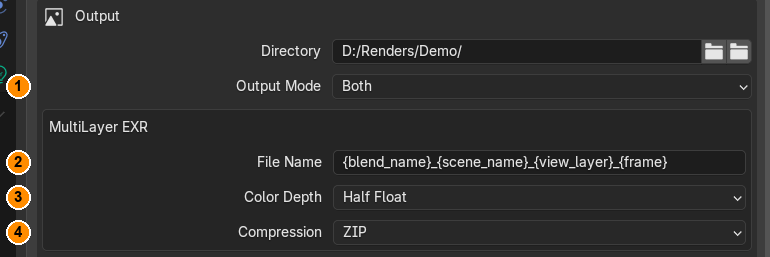
Output Mode set to Both: the MultiLayer EXR box appears above the Separate Files box.
| 1 | Output Mode. Both (or MultiLayer EXR). |
| 2 |
File Name. The name of the EXR file without extension, written directly into the Directory. Tokens: {blend_name} {scene_name} {view_layer} {camera_name} {engine} {frame}. The default is {blend_name}_{scene_name}_{view_layer}_{frame}. |
| 3 | Color Depth. Half Float (16-bit, smaller files) or Full Float (32-bit). |
| 4 | Compression. ZIP, PIZ, ZIPS (lossless) or None. |
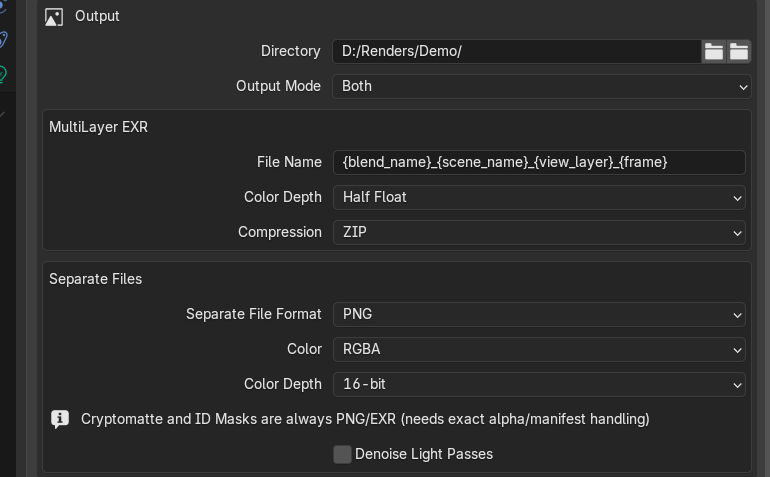
Both boxes together.
Separate Files as OpenEXR
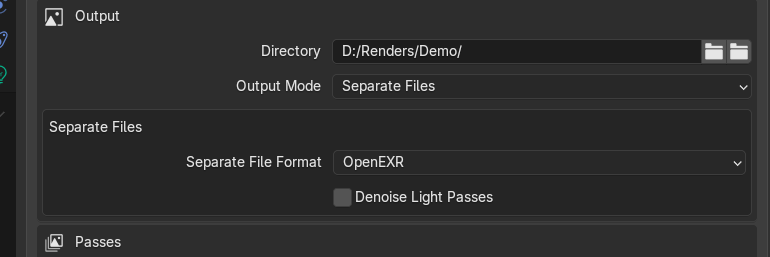
With OpenEXR the Color and Color Depth rows disappear: EXR files are always linear float, no clipping.
5.5 Passes
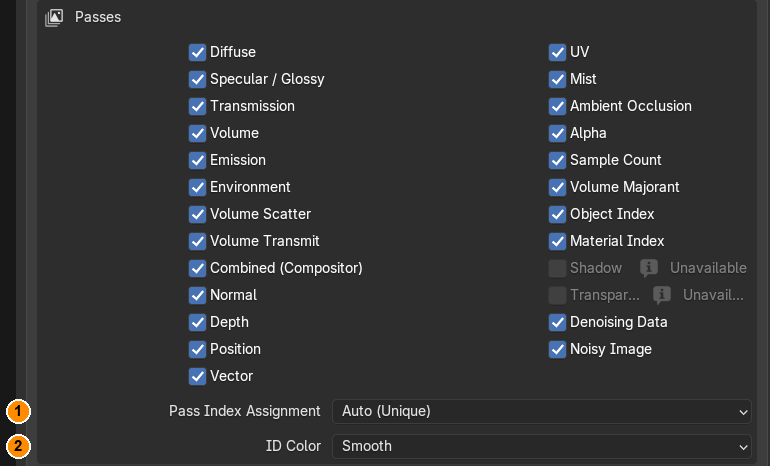
The Passes box with the AOV preset applied.
Tick a pass and PassPilot enables it in the View Layer and saves it as its own file. The full list with the file names is in section 9. Under the checkboxes:
| 1 | Pass Index Assignment. Only matters for Object Index and Material Index. Auto (Unique) gives every object and material its own index. Keep Manual Groups never changes an index that is already set, so objects that share an index stay one group (their coverage is summed). Choose Keep Manual Groups before you tick Object Index or Material Index if you have grouped objects that way. |
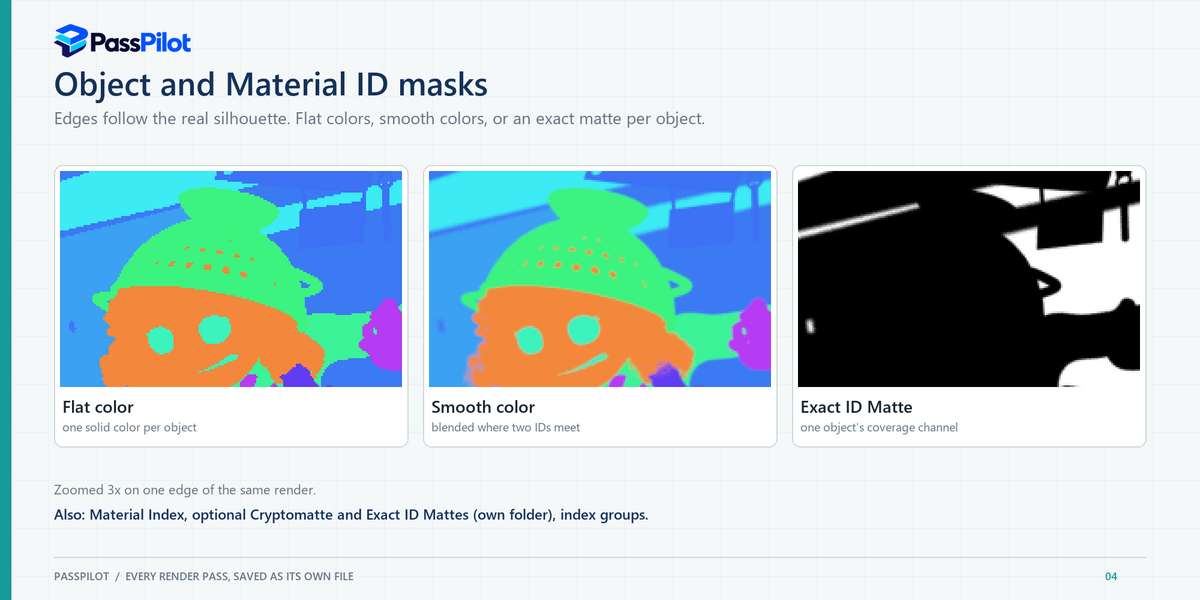
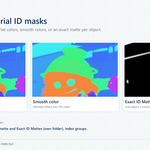
| 2 | ID Color. Appears when Object Index or Material Index is ticked. Flat: one solid colour per object, exact colour identity, a visible step where two IDs meet. Smooth: colours blend by coverage at the boundaries, a nicer preview, but colour alone no longer identifies the ID there. It only changes the colour PNG, never EXR values. |
Object Index and Material Index are built from real sub-pixel coverage, so their edges follow the true silhouette. They also number objects that appear through collection instances, particle instances and Geometry Nodes (nested groups included). Objects linked from another file keep the index they have in their own file, and PassPilot warns you when two linked objects share one.
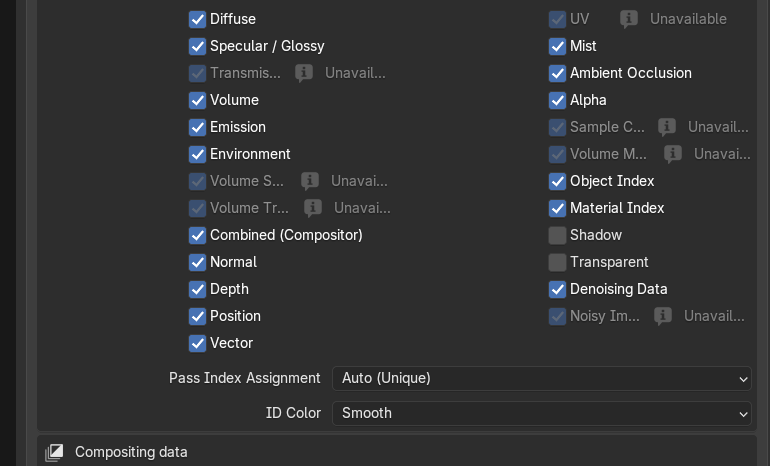
The same box with EEVEE: passes this engine does not provide are greyed out and marked Unavailable. Cycles marks Shadow and Transparent the same way, because those two are EEVEE passes.
5.6 Compositing data: Cryptomatte and Exact ID Mattes
Cryptomatte and Exact ID Mattes are data for a compositor, not images to hand to a client. They are therefore never written into your main folder.

Compositing data is off by default.
Tick Export Compositing Data to write them into their own folder:
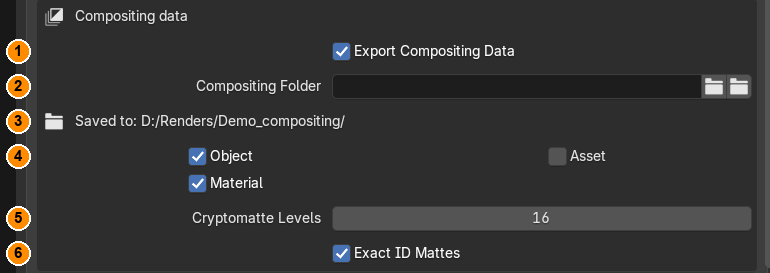
Compositing data switched on.
| 1 | Export Compositing Data. The switch. |
| 2 |
Compositing Folder. Leave it empty and PassPilot uses a folder next to the main one with _compositing added to its name. Or choose another folder. It must be completely outside the main folder. |
| 3 | Saved to. The folder that will really be used. |
| 4 | Object / Material / Asset. Which Cryptomatte families to write. They are always EXR files, one per rank layer, with the manifest in the metadata, whatever PNG or EXR choice you made for the other passes. |
| 5 | Cryptomatte Levels. The number of unique entities stored per pixel (each two levels make one file). |
| 6 | Exact ID Mattes. Appears when Object Index or Material Index is ticked. One extra EXR with one named coverage channel per object or material: a precise mask for any compositor, no Cryptomatte node needed. |
5.7 Denoise Light Passes
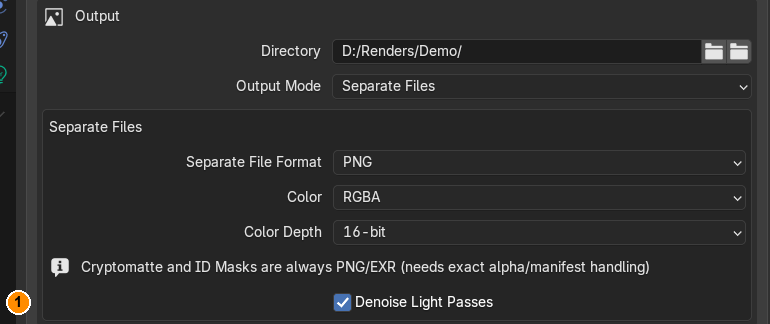
Denoise Light Passes ticked.
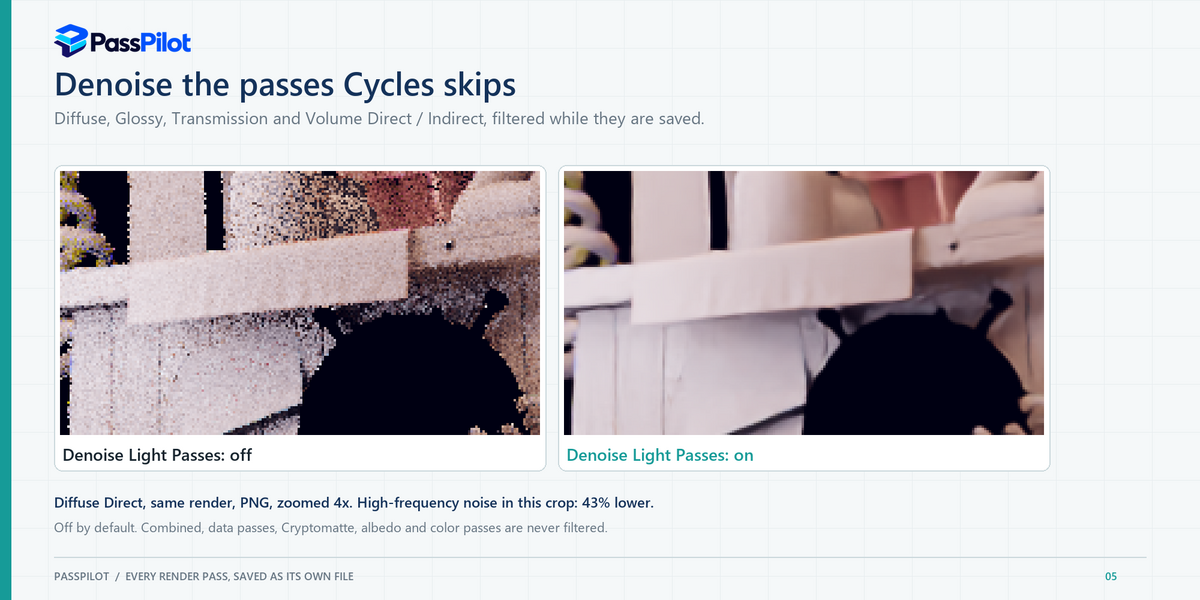
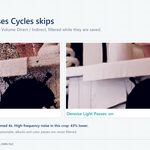
Cycles itself denoises only Combined and a few volume passes. With Denoise Light Passes PassPilot runs Intel OpenImageDenoise on the Diffuse, Glossy, Transmission and Volume Direct and Indirect passes while saving them. It is off by default.
- It works in Separate Files mode with 16-bit RGBA PNG or OpenEXR, and uses the helper program that is included. If it cannot work with your settings, the row is greyed out and says why.
- Combined, data passes, Cryptomatte, albedo and Noisy Image are never filtered.
- With Both, the MultiLayer EXR stays unfiltered; only the separate files are denoised.
- If denoising cannot run, the raw passes are still saved and the last-save line says so.
5.8 The status lines at the bottom
After a render PassPilot tells you, in the panel, what it did. The icon shows the level: a tick is fine, a triangle is a warning, a cross is an error.

Fine: the last save and the check before the render.
-
Last save: the time, the frame and the number of files written. It can add
(left out, no data: ...)for passes that held no data at all in this scene (for example Volume passes without a volume), and(denoise failed, written raw: ...). - Checked before render: before every render PassPilot checks the engine, camera, file names, pass support, denoise limits and the output folder. It informs you but does not stop a render started with F12. An animation is checked once, not every frame.

A warning: here Noisy Image is ticked but Denoising is off, so there is no undenoised image to save.

An error: here the scene has no active camera. Fix it before you wait for a frame.
Output folder is not reachable: D:\ -- nothing answers there (a drive or network location that is disconnected, locked or damaged?). Reconnect the drive and render again.6. Where do the files go?
In Separate Files mode the files go to Directory/{scene}/{View Layer}/{View Layer}_{pass}.png. A real example from a render with the Directory set to D:\Renders\Demo\, scene Extended, View Layer Completo:
D:\Renders\Demo\
  Extended\
    Completo\
      Completo_Combined.png
      Completo_Diffuse Direct.png
      Completo_Diffuse Indirect.png
      Completo_Diffuse Color.png
      Completo_Glossy Direct.png
      Completo_Normal.png
      Completo_Depth.png
      Completo_Alpha.png
      Completo_Object Index.png
      Completo_Material Index.png
      ... one file per ticked pass

D:\Renders\Demo_compositing\      (only with Export Compositing Data)
  Extended\Completo\
    Completo_CryptoObject00.exr
    Completo_Object Index Mattes.exr
-
MultiLayer EXR goes directly into the Directory, named by the File Name pattern, for example
MyShot_Extended_Completo_0001.exr. -
Animations: when a second frame shows that it is an animation, a frame number is added to every file name (
Completo_Combined_0001.png,Completo_Combined_0002.png, ...), and the first frame is renamed to match. A single still has no number. - Old files of a pass you have switched off are cleaned up only for files PassPilot itself wrote earlier, never for anything else in the folder.
- Files are written under a temporary name and renamed when complete, so an interrupted render never leaves a half-written file under the real name.
7. How do I ...
... deliver a clean folder to a client?
Use Separate Files (or MultiLayer EXR), leave Export Compositing Data off or set a separate Compositing Folder. The main folder then holds only the delivery passes.
... get ID masks for compositing?
Tick Object Index and Material Index for coloured masks. For exact masks tick Export Compositing Data and Exact ID Mattes (one named channel per object), or Cryptomatte Object, Material and Asset for a Cryptomatte-aware compositor.
... save only a few passes?
Leave the preset on Custom and tick only the passes you need. Combined is always saved.
... render an animation?
Press Ctrl+F12, or use blender -b file.blend -a. Each frame is saved as it finishes, so you can start working on early frames while the rest renders.
... use several View Layers?
Every View Layer enabled for render is saved into its own folder. Use Layer Overview to add, duplicate, enable and switch layers, and set the passes of each layer separately.
... turn PassPilot off for a test render?
Untick Save passes on render (section 5.2).
8. Pass reference
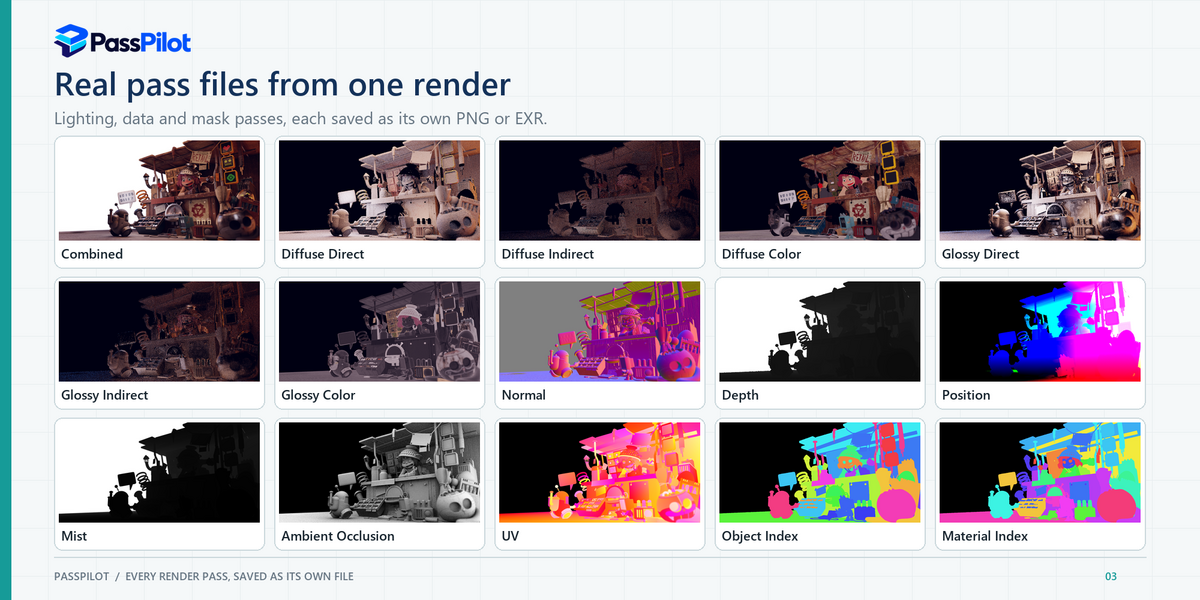
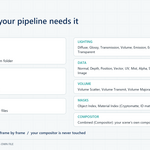
The checkbox on the left, the files it writes, and how the values are stored. Passes that hold no data in a scene are left out and listed on the last-save line.
| Checkbox | Files written | How it is stored |
|---|---|---|
| Diffuse | Diffuse Direct, Diffuse Indirect, Diffuse Color | Follows your scene's color management (view transform, look, curve, white balance) in PNG. |
| Specular / Glossy | Glossy Direct, Glossy Indirect, Glossy Color | Same as Diffuse. |
| Transmission | Transmission Direct, Indirect, Color | Same as Diffuse. |
| Volume | Volume Direct, Volume Indirect | Same as Diffuse. Only exists when the scene has volumes. |
| Emission, Environment | Emission, Environment | Same as Diffuse. |
| Ambient Occlusion | Ambient Occlusion | Data, linear. |
| Volume Scatter / Transmit / Majorant | Volume Scatter, Volume Transmit, Volume Majorant | Scatter and Transmit follow your scene's color management like the other light passes. Majorant is a density (data, linear, no color transform). |
| Combined (Compositor) | Combined (Compositor) | Your scene's own compositor result as its own file. Only written when the scene really has a compositor setup. The raw Combined is always saved. |
| Normal | Normal | PNG: remapped from -1..1 to 0..1. EXR: the true vectors. |
| Depth | Depth | PNG: normalised by the camera clip range (0 at Clip Start, 1 at Clip End). EXR: true distance. |
| Position | Position | World-space coordinates, written linearly. PNG clips values above 1, so use EXR. |
| Vector | Vector | Motion vectors. PNG: remapped to 0..1 including the fourth channel. EXR: true values. |
| UV, Mist | UV, Mist | Data in the 0..1 range. |
| Alpha | Alpha | The alpha (coverage) of Combined as its own grey file. |
| Sample Count | Debug Sample Count | How many samples each pixel received (white = the full sample count). |
| Object Index, Material Index | Object Index, Material Index | PNG: colour masks (see ID Color). EXR: exact index values. |
| Denoising Data, Noisy Image | Denoising Albedo, Specular Albedo, Normal, Roughness, Depth, Noisy Image | The data Cycles produces for denoising, and the image before denoising (only while Denoising is on). |
| Shadow, Transparent | Shadow, Transparent | EEVEE passes, shown as Unavailable in Cycles. |
9. If something does not work
PassPilot writes one line for every render (saved, checked, or skipped and why) to %LOCALAPPDATA%\PassPilot\passpilot.log. The line says exactly what happened. When you ask for help, send the last lines of that file.
| What you see | Why | What to do |
|---|---|---|
| The PassPilot panel is not there | The render engine is not Cycles or EEVEE, or you are not on the Output tab. | Choose Cycles or EEVEE and open Properties → Output. |
| The panel is locked with a padlock | No active license on this computer. | Enter the license code and click Activate License (section 3). |
| No files after F12 | The master switch is off, the View Layer is not enabled for render or was never configured, or the license is not active. | Tick Save passes on render; enable the layer's camera icon in Layer Overview; open the panel for that layer or press Apply; then read the last line of the log file. |
| Output folder is not reachable | The drive or network location does not answer. | Reconnect or unlock it, or choose another Directory, then render again. |
| (left out, no data: ...) | Those passes held no data in this scene (for example Volume passes without volumes). | Nothing is wrong; this is information. |
| Some files could not be written | Windows preview, a search indexer or antivirus held a fresh file for a moment. PassPilot retries for about 3 seconds; only that file is lost, the others are saved. | Render again, or close the Explorer preview pane for that folder. |
| Denoise failed, written raw | The denoiser could not run with these settings or on this computer. | The raw passes are saved. Check the format (16-bit RGBA PNG or EXR, Separate Files) and render again. |
| Object Index shows one colour for two objects | The two objects share one index (Keep Manual Groups), or they are linked from a library and keep the library's index. | Use Auto (Unique), or give the objects different indexes in the source file. |
| Multi-View / Stereo 3D error | Multi-View rendering is not supported. | Disable Multi-View in Output Properties → Views. |
| A Move Old Compositing Files button appears | An earlier version left Cryptomatte or matte files in your main folder. | Click it, review the list and confirm. |
| The panel says the helper program (pom_core.exe) is missing | Antivirus software removed or quarantined pom_core.exe (a small unsigned program), or the ZIP was not installed completely. | Restore pom_core.exe in your antivirus (or add the PassPilot folder to its exceptions), or install the ZIP again, then restart Blender. |
| Output folder path is too long for Windows | Windows opens paths only up to 259 characters, and the files would be longer (folder + scene + View Layer + file name). | Choose a shorter Directory, or shorter scene and View Layer names. |
| Not enough free space | The drive has less free space than the estimated output of the render. | Free some space or choose another drive. The estimate is approximate. |
| All activation seats are in use | The code is already active on 2 computers. A renamed computer, a replaced system disk or a reinstalled Windows counts as a new computer. | Click Deactivate on a computer you no longer use. If that computer is gone, use Message Creator on Superhive and the seat will be freed. |
10. License, limitations and support
-
License and notices: the license text and the third-party notices are inside the add-on. The add-on's Python code is plain, readable source code; the helper program
pom_core.exeis supplied as a compiled program. The source code of the helper program is available to buyers on request: use the Message Creator button on the PassPilot page on Superhive. - Memory: ID masks with many objects at high resolution use a lot of memory. At 4K with 28 full-frame IDs a Smooth export peaked near 3.2 GiB in testing, and near 6 GiB with Exact ID Mattes. Render a small test frame first.
- Limitations: Depth, Position, Object Index and Material Index come from a single camera sample per pixel in Cycles and are never averaged, so they can look grainy at silhouettes. Cycles allocates denoised buffers only for Combined and a few volume passes. PassPilot supports Blender 5.2 on Windows x64 and has not been tested elsewhere.
-
Support: use the Message Creator button on the PassPilot page on Superhive and attach the last lines of
%LOCALAPPDATA%\PassPilot\passpilot.log.
Have questions about this product?
Login to message
| Blender Extension Compatible | Yes |
| Published | 1 day ago |
| Blender Version | 5.2 |
| Extension Type | Add-on |
| Render Engine Used | Cycles, Eevee |
| License | GPL |
Discover more products like this
Compositing cryptomatte exr denoise oidn render-passes multilayer exr object index id mask Cycles aov material index