PathCam
 one99addons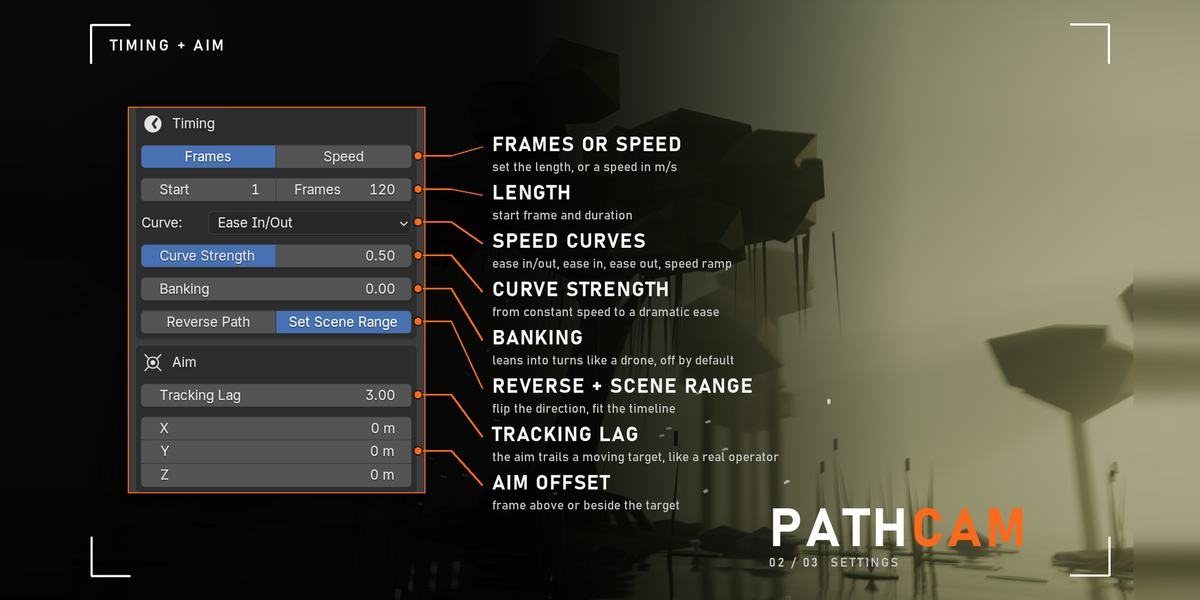
PathCam - Documentation
1. Install
- Download pathcam_v1.1.0.zip. Do not unzip it.
- In Blender: Edit > Preferences > Add-ons, click the drop-down arrow at the top right and choose Install from Disk...
- Pick pathcam_v1.1.0.zip and tick "PathCam - Cinematic Camera Paths" in the list.
- If Auto-Save Preferences is off, click Save Preferences (bottom left).
2. Where to find it
- 3D Viewport > Sidebar (press N) > PathCam tab.
3. How to use it
- Have an object to film, for example a character or a product.
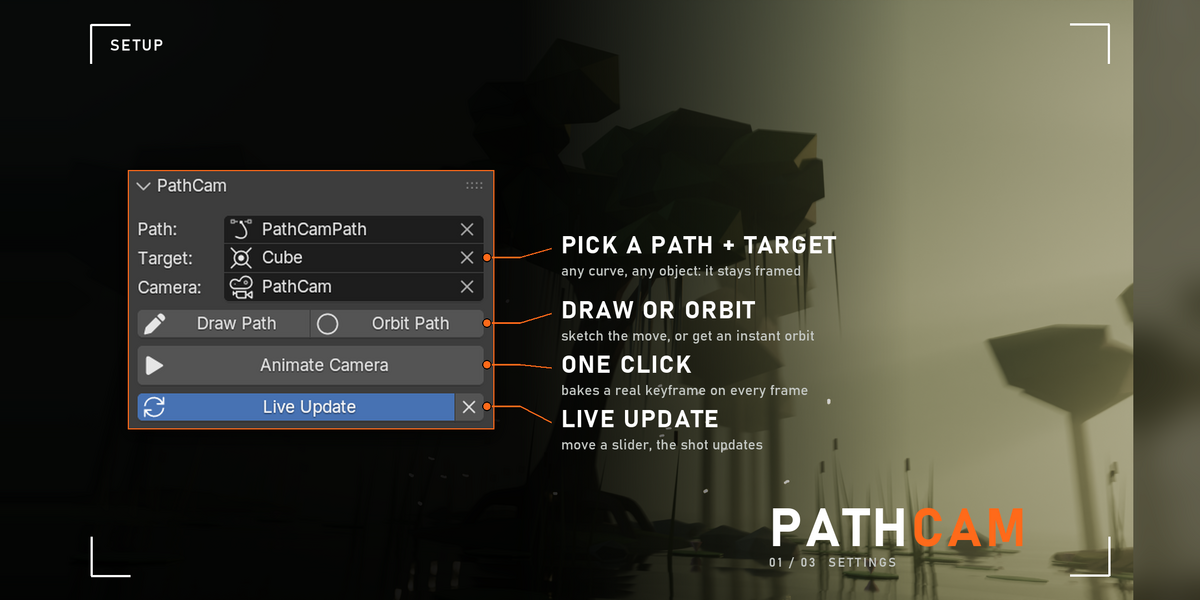
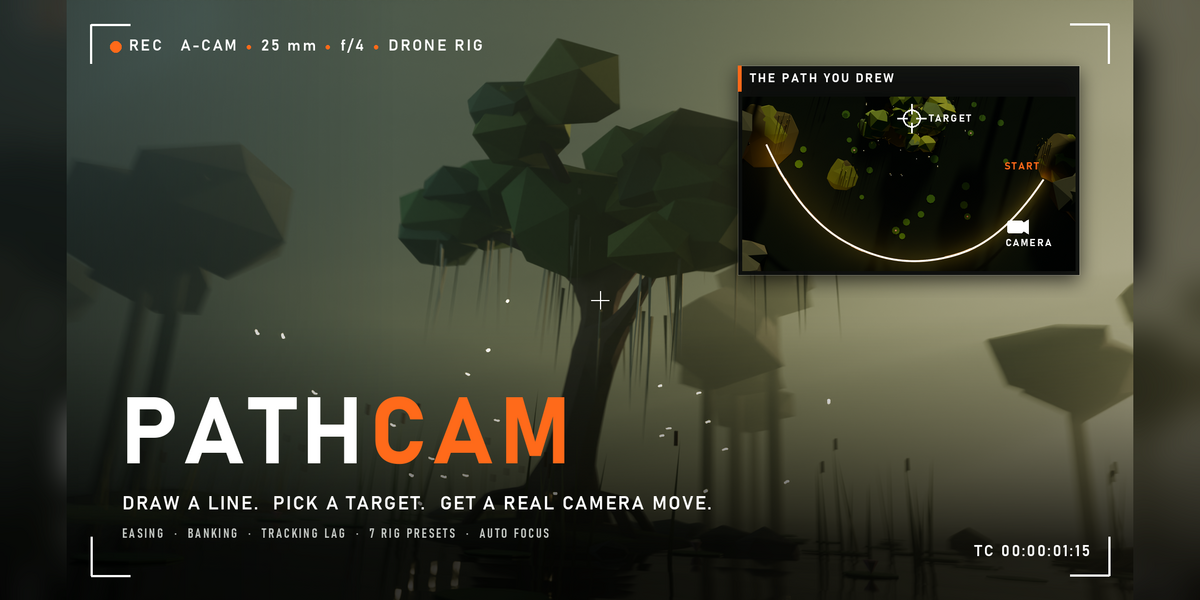
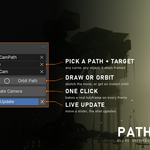
- Make a path: pick an existing curve in the Path field, or select your object and click Orbit Path, or click Draw Path, drag in the viewport and press Tab to go back to Object Mode.
- Pick the object to look at in the Target field.
- Click Animate Camera. A camera named PathCam is created (unless you picked one in the Camera field) and becomes the scene camera.
- Press Numpad 0 to look through it and Space to play.
- Tune Timing, Aim, Realism and Lens. With Live Update on, every change re-bakes the move.
- Orbit Path: open the Adjust Last Operation panel (bottom left of the viewport) right after clicking it to change Radius, Height and Arc. An Arc of 360 degrees makes a closed loop.
- The X next to Live Update removes the baked animation from the camera.
4. Settings
Path, Target, Camera
- Path: the curve the camera travels along.
- Target: the object the camera keeps looking at.
- Camera: the camera to animate. Empty = PathCam creates one.
- Live Update: re-bake the move every time a setting changes (on by default).
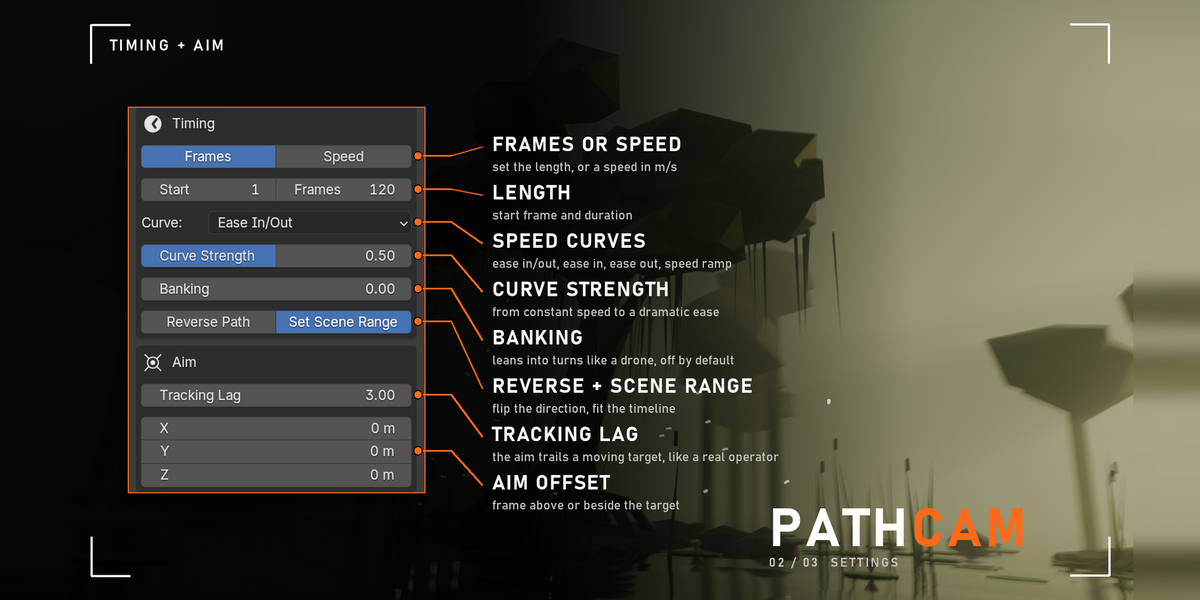
Timing
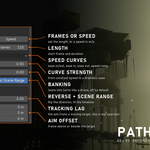
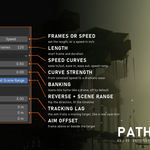
- Frames / Speed: set the length in frames (default 120), or a speed in m/s (default 2) and the frame count follows from the path length.
- Start: first frame of the move.
- Curve: Constant, Ease In/Out, Ease In, Ease Out or Speed Ramp (down to 5% speed mid-move).
- Curve Strength: 0 = constant speed, 1 = the strongest version of the curve.
- Banking: roll into turns (0 to 2, default 0).
- Reverse Path: travel the curve the other way.
- Set Scene Range: set the scene start and end frames to the move.
Aim
- Tracking Lag: frames the aim takes to catch up with the target (0 to 60, default 3).
- Aim Offset: aim this far from the target's origin (X, Y, Z).
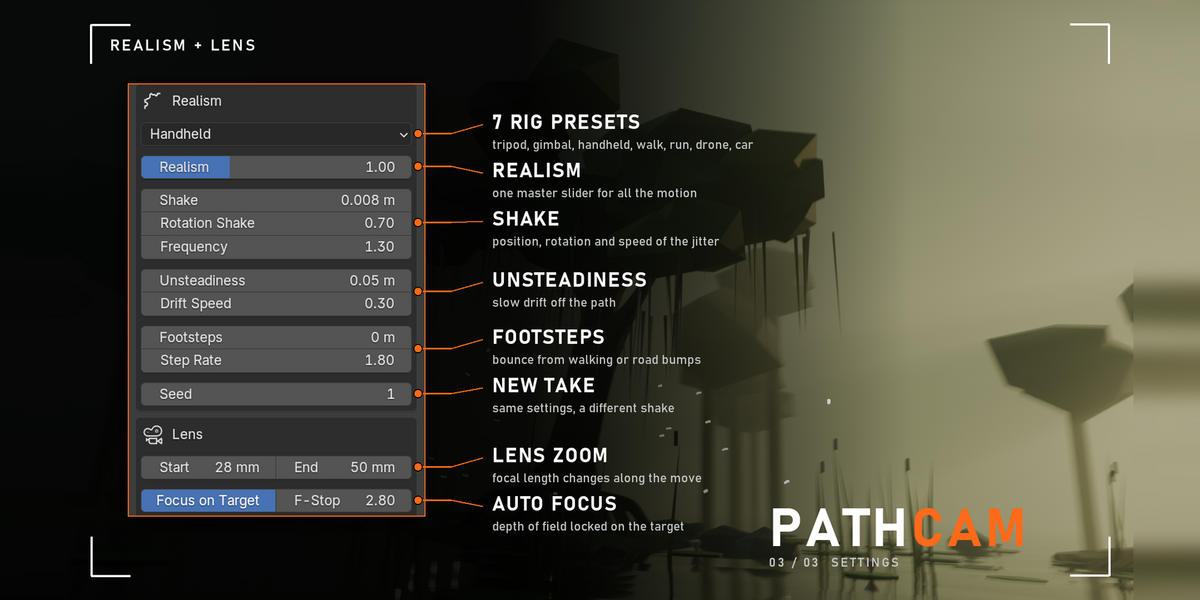
Realism
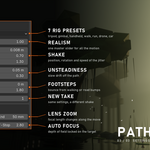
- Rig: Tripod / Dolly, Gimbal, Handheld, Walking, Running, Drone, Car Mount or Custom.
- Realism: master strength for all rig motion (0 to 3x).
- Shake / Rotation Shake / Frequency: position shake, degrees of wobble and how fast it moves (Hz).
- Unsteadiness / Drift Speed: slow wandering off the path.
- Footsteps / Step Rate: up-down bounce from walking or road bumps.
- Seed: try another take with the same settings.
Lens
- Lens Start / Lens End: focal length in mm at the start and end of the move (default 35 mm).
- Focus on Target / F-Stop: depth of field locked on the target (default f/2.8).
5. Troubleshooting
- "Pick a curve as the path" or "Pick a target object": fill in the Path and Target fields first.
- The camera sits on the ground after Draw Path: the path is drawn on the surface under your mouse. Select it, move it up (G, Z), then click Animate Camera.
- Nothing changes after I edited or moved the path: Live Update follows the panel settings only. Click Animate Camera again.
- The camera jumps at one point: the curve has more than one piece. Keep one continuous stroke and delete the extra pieces.
- Too shaky: lower Realism, or pick Gimbal or Tripod / Dolly.
- The camera does not follow my moving target: PathCam reads targets that have keyframes or a parent. A target moved only by a constraint is read where it stands.
- My edits to the keyframes disappeared: Live Update re-bakes on every setting change. Turn Live Update off once you are happy with the move.
- Install error? Make sure you picked the .zip itself, not an unzipped folder, and that you are on Blender 5.2 or newer.
6. Updating
- Download the new zip from your Superhive library, uninstall the old version in Edit > Preferences > Add-ons, restart Blender, then install the new zip.
7. Uninstall
- Edit > Preferences > Add-ons, expand PathCam and choose Uninstall. Baked camera moves are plain keyframes and stay in your files, and the path curves stay as normal curves.
Support
- Have a question, a bug or an idea for a new feature? Mail me at [email protected]. Please include your Blender version and operating system.
Have questions about this product?
Login to message
| Published | 2 days ago |
| Blender Version | 5.2 |
| Extension Type | N/A |
| Render Engine Used | Cycles |
| License | GPL |
Discover more products like this
cinematic handheld drone camera keyframes animation camera animation Follow Path camera path camera shake