 KacaDev



Getting Started
After installing and enabling PickWise, you'll find it in two places in the 3D Viewport: press Alt+Q to open the PickWise Wheel (pie menu), or press N and open the PickWise sidebar tab. The sidebar includes a "Suggested for You" box that ranks the most relevant tools for your current mode and selection.
The workflow is always the same: select a little, then let PickWise grow it. After running any tool, adjust its sliders in the bottom-left corner panel (or press F9) — the selection updates live as you drag.
Edit Mode Tools
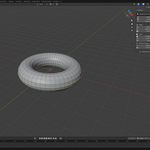
Edge Flow — Select an edge, run the tool, and the selection grows along the straightest connected path. The Bend Limit slider controls how sharp a turn the path may take.
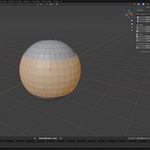
Loop Fill — Select two edge loops (Alt+Click, then Shift+Alt+Click) and run Loop Fill to select the band of faces between them. With one closed loop it fills the smaller enclosed region. Use Flip Side to grab the other side.
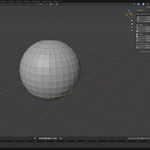
Surface Grab — Select a face and flood outward across the continuous surface. Stops at angles above the Crease Limit, and optionally at seams and sharp edges.
Marked Edges — Select an edge carrying a mark (seam, sharp, crease, or bevel weight) and PickWise follows the whole connected marked path. Auto-detects the mark type.
Rim Edges — Follows open borders, convex ridges, or concave grooves from the selected edge.
Radius Pick — Selects all vertices within a radius of your selection, measured along the surface or straight through space.
Same Facing — Selects faces pointing the same direction as the picked face, within an angle limit. Whole Mesh option tests disconnected faces too.
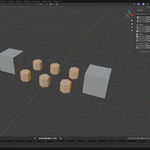
Twin Islands — Select anything on one mesh island and PickWise selects every island of similar size and complexity. Great for imported CAD models full of identical bolts and fittings.
Object Mode Tools
Family Tree — Select relatives of the active object: parent, children, siblings, ancestors, descendants, or the whole hierarchy.
Size Match — Selects visible objects of similar size, by bounding volume or longest side, with a tolerance slider.
Name Match — Selects objects with matching names, ignoring .001 suffixes and trailing numbers (Bolt, Bolt.001, Bolt_02). A Fuzzy mode catches loosely similar names.
Tips
All Edit Mode tools support multi-object editing. Tools extend your current selection, so you can chain them. The Alt+Q shortcut can be changed in the addon preferences.
Have questions about this product?
Login to message
Discover more products like this
edge-loop retopology modeling hard surface mesh tools cad pie menu Workflow edit mode smart select Selection object-mode