 PixelPlay



PIXELPLAY BEAT REACTOR v2.1.2
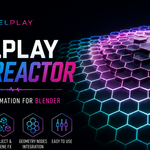
PixelPlay Beat Reactor is a modular audio-reactive animation Extension for Blender. It analyzes an audio track and converts the resulting signals into controls for object animation, modifiers, Geometry Nodes, materials, lights, cameras, and Scene FX.
Version 2.1.2 is a compatibility and maintenance update that adds tested Blender 5.2 LTS support, improves Geometry Nodes compatibility, and updates the included demonstration files.
COMPATIBILITY
Minimum supported Blender version:
Blender 4.5.0
Tested with:
Blender 4.5.1 LTS
Blender 5.1.0
Blender 5.2.0 LTS
One PixelPlay Beat Reactor Extension package supports all three tested Blender versions. Separate downloads for Blender 4.5, 5.1, and 5.2 are not required.
Compatibility with future Blender versions will be evaluated as those versions become available.
INSTALLATION
Download PixelPlay_Beat_Reactor_v2.1.2_Extension.zip.
Do not extract the ZIP file.
Open Blender.
Go to Edit > Preferences.
Open the Get Extensions section.
Open the menu in the upper-right corner and choose Install from Disk.
Select PixelPlay_Beat_Reactor_v2.1.2_Extension.zip.
Enable PixelPlay Beat Reactor if it is not already enabled.
Close Preferences.
Open the 3D Viewport and press N to display the sidebar.
Select the PixelPlay tab and open Beat Reactor.
Blender supports installing Extension packages directly from ZIP files through Install from Disk.
The separate Demos and Documentation ZIP is not an installable Extension. Extract that ZIP normally before opening the included .blend files.
QUICK START
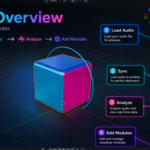
Open the Beat Reactor panel in the PixelPlay sidebar.
Click Browse Audio File and select your audio track.
Use Sync Timeline when you want the scene timeline to match the loaded audio.
Analyze the audio.
Select an object you want to animate.
Click Add Module and choose an effect.
Select an audio source for the module.
Adjust the Response, Value Mode, Range, and target settings.
Play the timeline to preview the reaction.
Add more modules or Scene FX as needed.
Use Bake Keyframes when you are ready to convert supported live reactions into standard Blender animation.
Each module can use its own audio source and settings, allowing multiple parts of a scene to respond differently to the same track.
AUDIO ANALYSIS SOURCES
Beat Reactor provides 22 audio-analysis sources organized into four groups.
Core Sources:
Bass
Mid
High
Full
Beat
Smooth
Focused Frequency Bands:
Sub Bass
Kick
Bassline
Low Mid
Mid Body
Presence
Sparkle
Air
Dynamics Sources:
Peak
Crest
Onset
Activity
Spectral Sources:
Spectral Centroid
Spectral Flux
Spectral Flatness
Spectral Rolloff
Use lower-frequency sources for bass- and percussion-driven effects, higher-frequency sources for visual detail and emission, dynamics sources for transient behavior, and spectral sources for more advanced tonal and texture-based control.
MODULES AND TARGETS
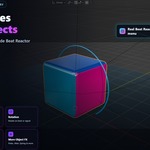
Beat Reactor includes stackable modules for controlling:
Object location, rotation, and scale
Continuous rotation
Pulse, bounce, spring, jitter, drift, and other motion effects
Supported modifier properties
Exposed Geometry Nodes inputs
Material and emission properties
Light properties
Camera properties
Scene-level compositor and environment effects
Modules can be reordered, duplicated, copied, pasted, enabled, disabled, reset, randomized, saved as presets, and combined into larger reactive stacks.
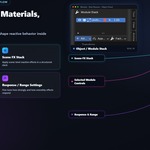
Each module can have its own audio source, response settings, range, value mode, and target.
Available targets depend on the selected object, modifier, material, light, camera, or scene configuration. Beat Reactor controls supported properties rather than claiming access to every possible Blender property.
MODIFIER REACTOR
Modifier Reactor can drive supported modifier properties and exposed Geometry Nodes inputs.
The available targets depend on the selected object, its modifiers, and the inputs exposed through the Geometry Nodes group interface.
Supported target types include appropriate:
Numeric values
Integer values
Vector values
Color values
Individual vector or color components
For Geometry Nodes control:
Expose the desired value through the node group interface.
Add the Geometry Nodes modifier to the object.
Add a Modifier Reactor module.
Select the modifier.
Select the exposed parameter.
Configure the audio source, response, value mode, and range.
Version 2.1.2 includes updated Geometry Nodes input handling for Blender 5.2 LTS while preserving compatibility with Blender 4.5 LTS and Blender 5.1.
MATERIAL, LIGHT, AND CAMERA FX
Material controls can animate supported properties such as:
Emission
Color
Edge response
Transparency
Roughness
Specular behavior
Light controls can reactively affect supported settings such as:
Intensity
Color
Distance
Size
Flicker
Strobe behavior
Camera controls can affect supported properties such as:
Focal length
Orthographic scale
Depth-of-field focus
Aperture settings
The exact controls shown depend on the selected module and target type.
SCENE FX
Scene FX provides a separate scene-level stack for supported compositor and environment effects.
This makes it possible to combine object animation with broader visual reactions such as:
Exposure
Bloom and glow-related workflows
Color adjustments
World settings
Environment changes
Scene FX modules have their own audio routing, response, range, target, and selected-module controls.
Scene FX requires an appropriate compositor or scene configuration. Beat Reactor provides status and repair controls when supported connections need to be created or restored.
Scene FX remains a live-reactive workflow and is not currently included in Bake Keyframes coverage.
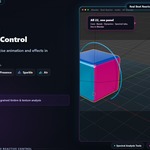
RESPONSE MODES
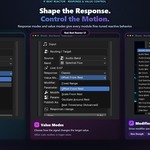
Response modes determine how the incoming signal behaves over time.
Available behaviors include:
Classic
Peak Hold
Smooth
Attack and Release
Pulse
Average
These settings can reduce jitter, preserve short peaks, create gradual motion, soften reactions, or produce sharper beat-driven movement.
VALUE MODES
Value modes determine how the processed signal changes the selected target.
Supported modes include:
Fixed Range
Offset From Rest
Scale From Rest
Oscillate Around Rest
Beat Timestamp for supported advanced workflows
Rest-based modes use the target’s captured starting value, making it easier to create reactions without manually calculating an absolute replacement value.
RANGE MAPPING
Range controls determine the minimum and maximum output applied to the selected target.
Use these controls to:
Limit the strength of an effect
Reverse a reaction
Create subtle movement
Produce stronger beat-driven changes
Keep animated values within a useful range
Start with a conservative range and increase it gradually while previewing the timeline.
BAKE KEYFRAMES
Bake Keyframes converts supported live Beat Reactor output into standard Blender keyframes.
PixelPlay Beat Reactor v2.1.2 supports baking for:
Object transforms
Modifier Reactor targets
Supported Geometry Nodes inputs
Material React and Material FX
Light FX
Camera FX
After baking, supported results can be edited using Blender’s standard animation tools.
Clear Bake removes verified Beat Reactor-owned baked keys and restores captured pre-bake animation when ownership can be safely confirmed.
Scene FX is not included in the current Bake Keyframes coverage and remains live-reactive.
Particle FX is not included in the current public Core module selection or Bake Keyframes coverage.
Always save a backup of important production files before performing large bake or clear operations.
INCLUDED DEMONSTRATION AND BEGINNER FILES
The separate Demos and Documentation download includes four fully authored demonstration scenes:
PixelPlay Logo
Hex Reactor Floor
Singularity Core
Voxel Pulsar
A dedicated Blender 4.5 LTS version of Singularity Core is also included.
The package also includes three beginner templates focused on:
Location
Rotation
Uniform scale
The authored demonstration scenes use the included PixelPlayMusic.wav file and open ready for live playback when the supplied folder structure is preserved.
Customers can replace the demonstration audio with their own supported audio file and run Analyze Audio.
The included scenes are provided as practical learning examples. Open, inspect, and modify them to understand how audio sources, module stacks, materials, Geometry Nodes, cameras, and Scene FX can work together.
The demonstration files are optional and are not required to install or use the Extension.
WHAT IS NEW IN v2.1.2
PixelPlay Beat Reactor v2.1.2 is a compatibility and maintenance release.
Changes include:
Tested support for Blender 5.2 LTS
Updated Geometry Nodes Modifier Reactor input handling
Updated Geometry Nodes Bake Keyframes compatibility
Improved Particle FX ownership and cleanup safety
Corrected and revalidated demonstration scenes
Continued support for Blender 4.5 LTS and Blender 5.1
No required preset or project migration
UPDATING
Before installing an update:
Save and close important Blender projects.
Keep a backup of custom presets and production files.
Open Blender Preferences.
Locate the installed PixelPlay Beat Reactor Extension.
Remove or update the previous installation as appropriate.
Install PixelPlay_Beat_Reactor_v2.1.2_Extension.zip using Install from Disk.
Restart Blender if requested.
Confirm that Beat Reactor reports version 2.1.2.
Do not combine files from different Beat Reactor versions inside the same Extension installation.
Projects created with earlier supported Beat Reactor versions should not require a preset or project migration for v2.1.2.
UNINSTALLING
Open Edit > Preferences.
Open Get Extensions.
Locate PixelPlay Beat Reactor.
Open its options and choose Uninstall.
Restart Blender if necessary.
Uninstalling the Extension does not automatically remove animation, objects, materials, modifiers, module settings, or baked keyframes already stored in your Blender projects.
TROUBLESHOOTING
If the PixelPlay tab is not visible:
Confirm that the Extension is installed and enabled.
Move the mouse over the 3D Viewport and press N.
Restart Blender after installation.
If audio cannot be analyzed:
Confirm that the selected audio file still exists at its saved location.
Try reloading the audio file.
Use an audio format supported by your Blender installation.
Try converting the file to WAV or FLAC.
Keep PixelPlayMusic.wav beside the supplied demonstration files when using their included analyzed setup.
Re-analysis requires access to an audio file. Packed-only re-analysis is not currently supported.
If an object does not react:
Confirm that audio analysis has completed.
Confirm that the module and object are enabled.
Check the selected source, target, range, response, and minimum-signal settings.
Make sure the timeline is within the analyzed audio range.
If a Geometry Nodes parameter is missing:
Confirm that the correct modifier is selected.
Confirm that the value is exposed through the Geometry Nodes group interface.
Confirm that the exposed input uses a supported data type.
Refresh or reselect the target if the node group interface was recently changed.
If a baked target needs to return to live evaluation:
Use Clear Bake for verified Beat Reactor-owned baked data.
Confirm that the module remains enabled.
Play or change frames to resume live evaluation.
If Scene FX reports a disconnected compositor:
Use the available connection or repair control.
Verify that compositing is enabled for the scene.
Confirm that the required supported nodes and scene configuration are available.
SUPPORT
Support is available through Superhive creator messaging or by email at:
When requesting support, include:
Your Blender version
Your operating system
Your Beat Reactor version
A description of the problem
Steps that reproduce the issue
Screenshots or error messages when available
Tutorials, examples, Geometry Nodes demonstrations, and additional product information are available through PixelPlay Addons and the official PixelPlay Addons YouTube channel:
https://www.pixelplayaddons.com
https://www.youtube.com/@PixelPlayAddons
 Included
Includes 12 months of
- Support from PixelPlay
- Product updates
Extend this product’s Support Period +12 months: 50% of product price
Have questions before purchasing?
Login to message
Discover more products like this
animation music visualization Lighting modifiers audio-reactive camera materials geometry nodes 3DMotionGraphics audio visual effects Compositing