Plateline Pro: Batch Camera Setup From Plates
 Hannes Werner


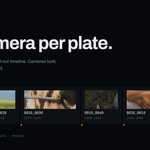
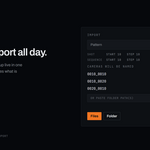
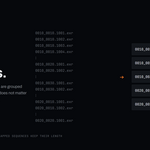
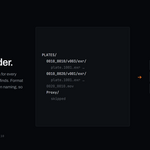
Plateline is a workflow accelerator for Layout Artists, Matchmovers, and Animators. It automates the tedious part of setting up one camera per video plate and laying those shots out on the timeline.
Pro adds everything you need to point Blender at a real production folder: recursive folder import, lens metadata, and the proxy pipeline.
| Light | Pro | |
|---|---|---|
| Import selected files, sequence grouping, naming, markers, reorder | ✅ | ✅ |
| Import Folder: scan a whole tree, one camera per shot | – | ✅ |
| Lens from metadata: focal length + sensor from EXR / EXIF | – | ✅ |
| Proxy pipeline: JPG proxies, resolution switcher | – | ✅ |
Features
Batch Import
- Three ways in: drag and drop plates into the 3D Viewport, Files to pick them by hand, or Folder to point at a directory and let the add-on find everything.
- Smart Placement: choose how new clips join the timeline:
- Append: finds the end of the current sequence and places new clips after the last one.
- Cursor: starts exactly at the playhead.
- Manual: starts at a fixed frame number.
- Into a Collection: new cameras go into their own collection ("Plates" by default), nested under whichever collection is active. Importing again reuses it rather than making a second one, so the whole shot list stays selectable and hideable in one click. Switch it off to drop the cameras straight into the active collection.
- Auto Setup: creates a camera per clip and configures the background image reference (opacity, depth, focal length, height).
- Gap Control: insert handle frames between clips automatically.
Image Sequences
- One camera per shot, not per frame. Select all 500 frames of five sequences and you get five cameras. The add-on groups numbered files into the sequences they belong to.
- Any frame will do. Pick frame 0087 and the camera still anchors to frame 0001 with the full duration.
-
Clean names.
0010_0010.0001.exrbecomes a camera called0010_0010. -
Stills stay separate. Files like
SH010.png,SH020.png,SH030.pngare recognised as three shots rather than one gap-riddled sequence. -
Sequences recognised from the names themselves. Plates already named the production way (
0010_0010,0010_0020,0020_0010) are grouped into the sequences they say they belong to, even when they all sit side by side in one folder with no folder structure to go on. Prefixes and suffixes are ignored, soPROD_0010_0020_plate_v003.movstill reads as sequence0010, shot0020. The names have to be consistent: if even one file in the batch does not carry a pair of codes, the whole batch falls back to folder-based grouping rather than half-guessing.
Intelligent Naming
- Token Pattern: two tokens, the classic VFX convention:
-
#runs become the shot number, -
@runs become the sequence number.
The default @@@@_#### gives 0010_0010, 0010_0020, 0010_0030 … and rolls over to 0020_0010 when a second sequence is found. Use #### alone if you only want shot numbers.
-
Start and Step for each: separate Shot numbering and Sequence numbering rows. 10/10 is the film convention, leaving room for inserts. The Sequence numbering row only appears when the pattern actually contains
@. - Live preview: the panel shows Cameras will be named with the first names your current settings produce, including the roll-over into the second sequence, so you can read the result instead of decoding the pattern.
- Sequences come from your footage: a subfolder per sequence, or the shot codes in the file names (see Image Sequences above). Sequences are numbered in the order they first appear, so interleaved plates do not invent extra sequences.
-
Search & Replace: clean up filenames on import (e.g. strip a
_platesuffix). - Keep Filename: use the video file's name verbatim.
Proxies (Pro only)
- You can see what you are looking at: the panel reports Showing: 25% (or Original, or Mixed across a selection), so there is never any doubt which version is on screen.
- Proxies on disk: a row of the four resolutions with the ones that already exist enabled, so you can tell at a glance what has been built and switch to it in one click. Anything only part of the selection has is spelled out beneath, e.g. 50% on 1 of 3.
- Resolution Switcher: flip the selected cameras between Original, 100%, 75%, 50%, and 25% from a single dropdown. The panel remembers what each camera is currently showing.
- Nothing to install. Proxies are built with Blender's own video sequencer. There is no external dependency, no setup step and no preferences to configure.
- Smart Source Tracking: the original plate path is stored on the camera, so switching back to Original works even after the background has been swapped to a proxy sequence.
- Batch Aware: the button tells you how many of the selected cameras are missing proxies and generates only those, or re-renders everything on demand.
- Progress you can stop: a progress bar while it works, Esc to cancel, and Blender comes back between plates rather than locking up for the whole batch.
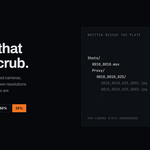
Proxies are written next to the source plate:
Shots/
  0010_0010.mov
  Proxy/
    0010_0010_025/
      0010_0010_025_0001.jpg
      ...
Lens From Metadata
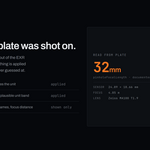
Set Lens to From Metadata (the default) and each camera takes its focal length straight from the plate. A Lens Metadata panel reports what was found for the selected camera, so you always know which cameras got real data and which kept your fallback value.
Nothing is ever applied silently. Findings are graded, and only the top two grades touch the camera:
| Grade | What it is | Applied? |
|---|---|---|
| documented | the file format's spec fixes the unit: OpenEXR's focal attributes and EXIF FocalLength are millimetres by definition |
yes, no guessing |
| assumed | a non-standard key whose value lands unambiguously in one plausible unit band | yes, and the panel says "assumed" |
| reported | lens model names, zoom ranges, focus distance | no, shown only |
That grading is the whole point. A plausible-looking 45 mm on a shot filmed at 135 mm is invisible until it ruins a track, so a zoom lens is never guessed at: the panel shows ARRI SZ45-135 T2.8 · 45–135 mm · not applied and your value stands.
Read from OpenEXR, in this order:
| Attribute | Why this order |
|---|---|
pinholeFocalLength |
pinhole → image plane: exactly what Blender's lens means |
nominalFocalLength |
the number printed on the lens barrel |
effectiveFocalLength |
front focal point → front nodal point |
focalLength, cameraFocalLength, nuke/camera/focal, … |
non-standard spellings written by renderers and Nuke |
Also read: sensorOverallDimensions for sensor width, and focus for focus distance. Float, double and string-encoded values all work.
Read from JPEG and TIFF via EXIF: FocalLength, with sensor width derived from FocalPlaneXResolution; failing that FocalLengthIn35mmFilm, paired with a 36 mm sensor so the field of view still comes out right. LensModel and SubjectDistance are recorded when present.
- Sensor size matters as much as focal length: the same 35 mm lens frames very differently on Super 35 than on full frame, so it is applied whenever the file supplies it.
- Units are checked, not trusted. Real focal lengths occupy 4–3000 mm and the candidate unit scales are 1000× apart, so millimetres, micrometres (what ARRI writes), metres and nanometres cannot be confused. Anything that does not land cleanly in exactly one band is reported, not applied.
- Zoom moves can be keyframed. If the focal length varies across a sequence, the panel says so and offers Keyframe Lens, which reads every frame and animates the camera to match.
- Re-scan any time with the button in the panel.
Choose Manual to ignore metadata entirely and apply one focal length to everything.
Maintenance
- Reorder Selected (the Tools box): re-stacks the selected cameras on the timeline in name order, starting at the Start Frame set just above the button, and spacing them by each plate's own length plus the Gap. Their markers and plate offsets move with them, and the scene end frame follows. Use it after deleting a shot, renaming to change the order, or importing a second batch you want folded into the existing run.
- Marker Binding: every camera gets a bound timeline marker, so scrubbing switches cameras automatically.
Installation
Requires Blender 4.5 LTS or newer (tested on 4.5 LTS, 5.0 and 5.2 LTS).
1. Download plateline_pro-3.0.0.zip. 2. Drag the zip into the Blender window, or go to Edit ▸ Preferences ▸ Add-ons ▸ Install from Disk. 3. Enable Plateline Pro.
Light and Pro share the same operators and panel, so install only one of them at a time.
Usage
Import
1. In the 3D Viewport press N to open the sidebar, then pick the Plateline tab. 2. Choose a Placement mode (Append is the usual choice). 3. Choose a Naming mode (e.g. Pattern @@@@_####) and check the Cameras will be named preview. 4. Get your plates in, whichever way suits:
- drag them into the 3D Viewport: select any number of files in Explorer or Finder and drop them in,
- click Files and select them in the browser,
- or click Folder and pick a directory (see below).
Dragged files use the settings already in the panel, so set the pattern before you drop.
Video: .mp4 .mov .avi .mkv .webm .m4v .mpg .mpeg .mts .m2ts .ogv .flv .wmv .dv .mxf. Anything Blender's FFmpeg can open. Images: .png .jpg .exr .tif .dpx .tga .cin, as stills or numbered sequences. Extensions are matched case-insensitively, so .MOV and .PNG are fine.
Odd file names are handled: spaces, non-ASCII and CJK characters, &, +, #, ', [], (), dots as separators, leading digits, missing separators (plate0001.png), and sequences that start at any number (hero_1001). Zero padding does not have to be consistent: shot_1 … shot_12 is still one shot.
Importing a whole folder
Folder scans a directory and builds one camera per movie or image sequence it finds. Both common layouts work:
one shot per folder            everything side by side
  Plates/                        Plates/
    0010_0010/v003/exr/            0010_0010.0001.exr …
      plate.0001.exr …             0010_0020.0001.exr …
    0010_0020/v001/exr/            0010_0030.mov
      plate.0001.exr …
Pasting a path instead of browsing
Under the Files / Folder buttons there is an Or paste folder path(s) field. Paste a path, press the import button beside it, and that folder is scanned exactly as if you had picked it in the browser.
It exists because Blender cannot accept a dropped folder. Blender's drag-and-drop dispatch matches on file extension, so a directory never matches any handler. This is a limitation of Blender itself, not of the add-on, and it applies to every add-on and to Blender's own drop handlers equally. Pasting the path is the quickest supported route:
- Windows Explorer: right-click the folder ▸ Copy as path. The quotes it adds are stripped for you.
- Several folders at once: separate them with
;. Each folder becomes its own sequence.
Using the browser: navigate into the folder you want, then click Import. Highlighting a folder and clicking Import walks into it instead, and that is Blender's file browser, not the add-on. Its file_execute enters a highlighted directory unconditionally and never passes it to an operator, so no add-on can offer select-then-import here. Pasting the path below skips the browser entirely.
Two options control the scan:
- Scan Subfolders: walk the whole tree (on by default). Turn it off to import only the chosen folder.
- Name From:
-
Auto (default): a folder holding exactly one plate is the shot, so the camera takes the folder's name (
0010_0010); anything else is named after its file. This is what makes both layouts above do the right thing without you changing a setting. - File: always use the plate's file name.
- Folder: always use the containing folder's name.
Shots are ordered naturally by path, so Shot_2 comes before Shot_10 rather than after it.
Proxy folders are skipped, so re-scanning a folder you have already generated proxies for will not import those proxies as if they were new plates.
Generate proxies
1. Select the cameras you want proxies for. 2. In the Source & Proxies box, pick a resolution (25% is a good working default). 3. Click Generate Proxies. Once they exist the button becomes Re-Render & Overwrite. 4. A progress bar runs in the status bar as each plate is built; press Esc to stop after the current one. 5. Switch the dropdown back to Original any time to return to the full-resolution plate.
The trash icon deletes the proxy folders for the selected cameras at the current resolution and restores the originals.
Reorder
1. Select the cameras to fix, in the 3D View or the Outliner. 2. In the Tools box, set the Start Frame. 3. Click Reorder Selected.
Known limitations
-
Version numbers at the end of a file name look like frame numbers.
plate_0001_v1.png,plate_0001_v2.png,plate_0001_v3.pngare read as one three-frame sequence, because the trailing1/2/3is indistinguishable from frame numbering. Put the version before the frame number (plate_v1_0001.png) or in its own folder. -
Sequences missing more than half their frames are treated as unrelated stills rather than one shot. This is deliberate. It is what keeps
SH010.png,SH020.png,SH030.pngfrom collapsing into a single camera. -
A lone numbered frame (
solo_0001.pngwith no siblings) is treated as a still: held for 100 frames, and it keeps the number in its name. - Folders cannot be dragged into Blender. Blender routes a drop by file extension, so a directory matches no handler at all. Nothing happens, and no add-on can change that. Use Folder, or paste the path into Or paste folder path(s).
- Lens metadata is read from images, not video. EXR, JPEG and TIFF plates are supported. Movie containers are not. Blender exposes no container metadata, and delivery codecs rarely carry lens data anyway. Movies fall back to the panel value.
-
Folder naming uses the nearest meaningful folder. Format and version folders (
exr,dpx,v003,1920x1080,plates, …) are skipped when naming, soSH010/v003/exr/yieldsSH010. A shot folder actually named after a format would be skipped too.
License
GPL v3 or later.
Have questions about this product?
Login to message
| Blender Extension Compatible | Yes |
| Published | about 2 months ago |
| Blender Version | 4.5 - 5.2 |
| Extension Type | Add-on |
| Render Engine Used | Cycles, Eevee |
| License | GPL |