Polydome - The Ultimate Hdri Dome
 Jonas Noell





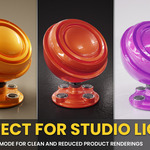
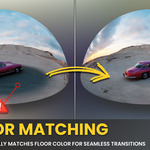


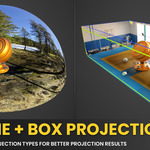
POLYDOME Installation & User Guide
Learn how to install, set up, and get the most out of POLYDOME in Blender 4 & 5.
 System Requirements
- Blender: 4.2+ (fully compatible with Blender 5)
- HDRIs: Optimized for the Poly Haven Asset Browser, but works with any HDRI from the Asset Library or your hard disk
 Download & Installation
Step 1 – Download: After purchase, download the polydome.zip file.
Step 2 – Install:
- Open Blender.
- Drag the polydome.zip file into the Blender window.
- Go to Edit → Preferences → Add-ons.
- Make sure that "PolyDome - The Ultimate HDRI Dome" is activated.
 Important: Do NOT unzip the file before installation. Blender installs the .zip directly
 After Installation
Watch the tutorial video for a full walkthrough of all features, controls, and the recommended workflow.
This tutorial covers setup, controls, floor matching, puddles, projections, and best practices.
 First Steps
1. Press "N" in the 3D Viewport to open the Sidebar.
2. Navigate to the "PolyDome" tab.
3. Click "Enable PolyDome" to load the PolyDome environment into your scene.
4. Drag & drop an HDRI from the Asset Browser or your file explorer into the 3D viewport to update the dome.
 Tips & Best Practices
- Use EEVEE for fast previews, then switch to Cycles for the final render.
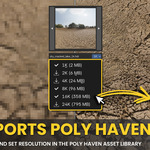
- The Poly Haven Asset Browser gives you built-in resolution switches, but any HDRI works just fine.
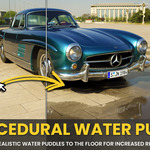
- Adjust puddle settings to instantly add realism to outdoor scenes.
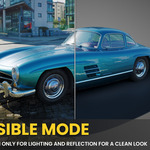
- In Invisible Mode, set a custom background color or add a vignette effect to improve composition.
- Use Box Projection for scenes with flat indoor floors and Dome Projection for outdoor environments.
 Troubleshooting
- PolyDome Tab Not Visible After Install?
Open Edit → Preferences → Add-ons, search for "PolyDome" and ensure the checkbox is enabled. Restart Blender if the sidebar tab still doesn't appear. - Drag & Drop Doesn't Update the Dome?
Toggle the "Enable PolyDome" checkbox off and back on in the sidebar. This refreshes the link paths and fixes stale previews. - Floor Doesn't Match the HDRI?
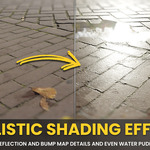
Try switching between Dome and Box Projection in the PolyDome panel. Each mode calculates floor alignment differently and one will usually give a better match for your specific HDRI.
 Updates & Support
Updates & bug fixes are free.
Need help? Reach out anytime.
Email Support- Free updates
- EEVEE & Cycles
- Asset Browser ready
-
$24.99
Single-user lifetime license. Unlimited use on any projects. Future updates are included.
-
$99
Up to 5 users. Unlimited use on any projects. Future updates are included.
-
$199
Up to 25 users. Unlimited use on any projects. Future updates are included.
Have questions about this product?
Login to message
| Blender Extension Compatible | Yes |
| Sales | 400+ |
| Rating | 13 ratings |
| Dev Fund Contributor | |
| Published | 10 months ago |
| Blender Version | 4.2 - 5.2 |
| Extension Type | Add-on |
| Render Engine Used | Cycles, Eevee |
| License | GPL |

Discover more products like this
dome puddles hdri poly haven 3d lighting hdri 360 environment polyhaven easy lighting setup polyhaven hdri Blender 3D plugins hdr 3d-lighting