Power Boolean
 Tachyon Studio
Power Boolean 4.0.1 User Manual
Power Boolean combines multi-cutter Boolean operations, editable cleanup and optional cut bevels in Blender. This manual covers installation, first use, result editing, troubleshooting and sharing a finished model.
Requirements and downloads
Power Boolean 4.0.1 supports Blender 3.0–5.2. Installer, 48-case modeling regression, multi-cutter/material checks and fresh-process saved-scene reopening were tested on Windows with Blender 3.0.1, 3.1.2, 3.2.2, 3.3.21, 3.4.1, 3.5.1, 3.6.23, 4.0.2, 4.1.1, 4.2.23, 4.3.2, 4.4.3, 4.5.13, 5.0.1, 5.1.2 and 5.2.0 LTS. Native sidebar and overlay-shader checks also cover 3.0.1, 3.6.23, 4.1.1 and 5.2.0. macOS and Linux are untested. The supplied Precision Lab demo requires Blender 5.2; the add-on does not require that demo. This does not guarantee future Blender versions or every modeling configuration.
The tool uses Blender and Python facilities shipped with Blender. It does not require a separate service account or a downloaded Python dependency.
| File | Purpose |
|---|---|
| power_boolean-4.0.1-universal.zip | Install this universal ZIP using the version-specific instructions below. Do not extract it first. |
| power_boolean-4.0.1-documentation-and-demo.zip | Extract this separately. Open USER-MANUAL.html in a browser and the demo in Blender 5.2. Do not install this archive as an add-on. |
Installation and updates
- Download power_boolean-4.0.1-universal.zip.
- Use the same universal ZIP in all supported versions. Blender 3.0–4.1: Edit → Preferences → Add-ons → Install. Blender 4.2–5.2: Edit → Preferences → Get Extensions → dropdown → Install from Disk. Enable Power Boolean and keep only one copy enabled.
- Select the installer ZIP and complete installation. Check that Power Boolean is enabled in Preferences → Add-ons.
- In a 3D View, press N to open the Sidebar and select the Power Boolean tab.
- The Object Mode right-click menu also offers Power Difference, Power Union, Power Intersect and Power Slice when the context-menu preference is enabled.
For an update, save your work first, keep only one enabled copy and restart Blender after replacing an already-enabled version. Before disabling or uninstalling the add-on, save a separate copy of any project and apply results that must remain finished without it. Uninstall through the add-on or extension Preferences controls; deleting hidden helper objects manually is not an uninstall procedure.
Migrating from Precision Boolean Toolkit
Power Boolean has a different extension ID from the earlier Precision Boolean Toolkit test builds. Uninstall the old extension and rebuild its results from source or the PBT Backups collection. Power Boolean does not take over those old managed stacks. Preserve the original project as a backup before migrating.
First result
Try this in a new scene before working on a production model.
- Add a cube as the target. Add a cylinder that passes through it as a cutter.

- Stay in Object Mode. Select the cylinder, then Shift-select the cube last. The cube must be active.
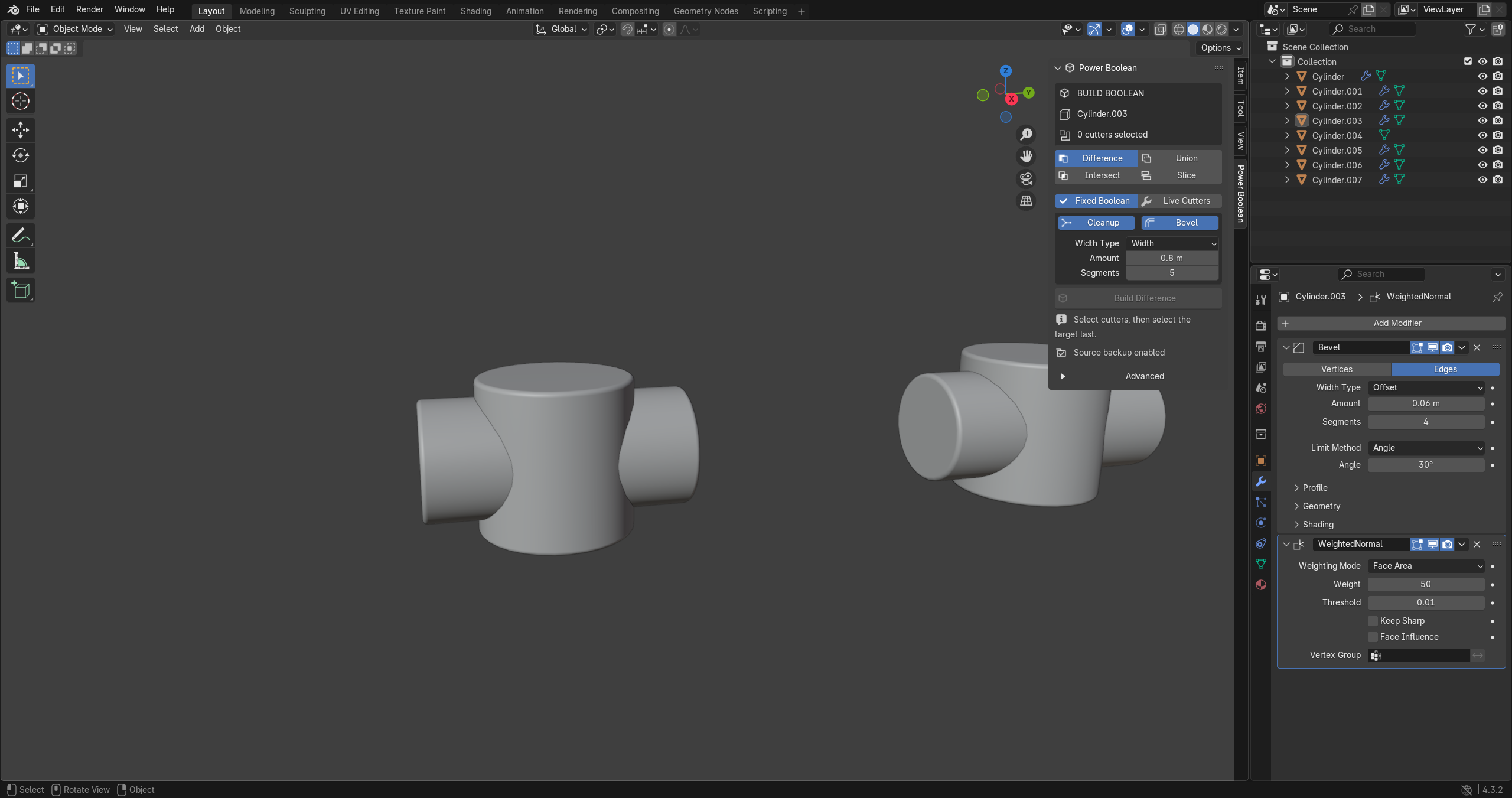
- Open Sidebar (N) → Power Boolean. Choose Difference and Fixed Boolean.
- Leave Cleanup enabled. For a rounded cut, enable Bevel, set Width Type: Width, use a small Amount such as 0.05 for a default-size cube, and set Segments: 3.
- Press Build. The result is selected and the panel switches to EDIT RESULT.
- Inspect the hole and the Bevel section. Adjust Amount if needed. If the bevel is unavailable, follow the diagnostic instructions below rather than assuming the cut failed.
With default source settings, the original target and cutters are hidden. Copies are placed in Power Boolean Backups, while the output is placed in Power Boolean Results. Backups are not a substitute for saving your project.
Operations and workflows
| Operation | Result |
|---|---|
| Difference | Subtract selected cutter volumes from the active target. |

| Union | Combine the target and cutter volumes. |

| Intersect | Keep the common volume of target and cutters according to the build operation. |

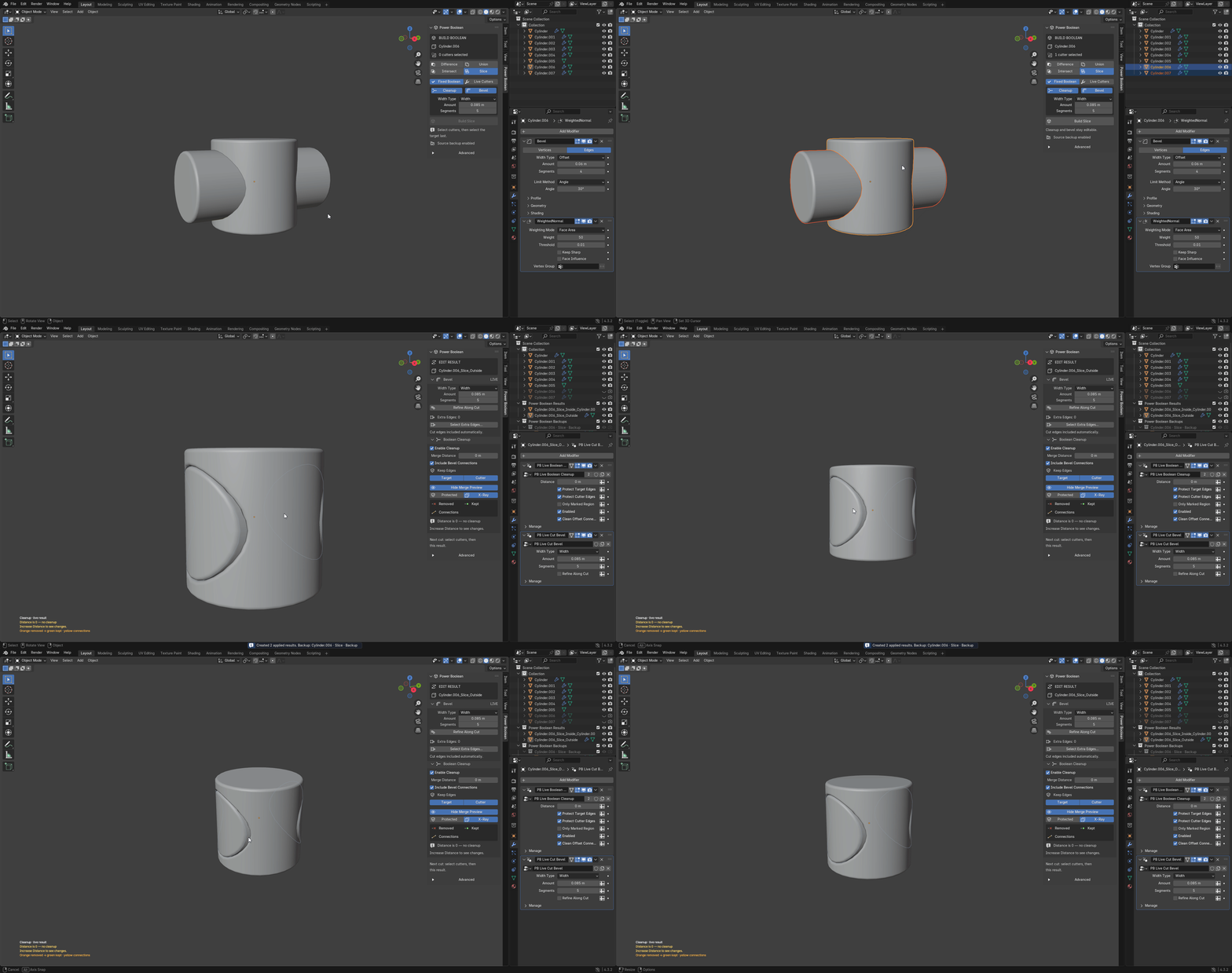
| Slice | Create the outside part plus a separate inside part for each cutter, with earlier cutter regions removed from later pieces. |
Fixed Boolean bakes the Boolean cut into a new mesh. Live Cutters keeps Boolean modifiers so you can move or reshape cutters. The add-on maintains cleanup and bevel stages on managed results in both workflows. Fixed Boolean is not the same as Apply Stack: use Apply Stack for an ordinary finished mesh without the managed stages.
To add another cut, select the new cutters and then the existing result last. Build again. On a chained result, Edit Cut 1 / 2 / … selects the stage whose cleanup and bevel settings you are editing.
Use mesh objects with an intentional intersection. Check source geometry, normals, scale and modifier effects if the output differs from what you expect. Selection order matters: all selected mesh cutters act on the active target.
Editing the bevel
| Control | Behavior and guidance |
|---|---|

| Width Type | Width measures across the bevel; Offset measures from the original edge along adjacent surfaces. They use different constructions. A cut rejected in one mode may work in the other. On Blender 3.0–4.1, use the Width and Offset buttons in the Power Boolean sidebar; Blender 4.2–5.2 also supports the menu-style modifier control. |
| Amount | World-space bevel size. Zero disables the bevel. Begin small and increase only after inspecting the result. |
| Segments | 1–12 rows across the profile. Two or more can form a curved profile. |

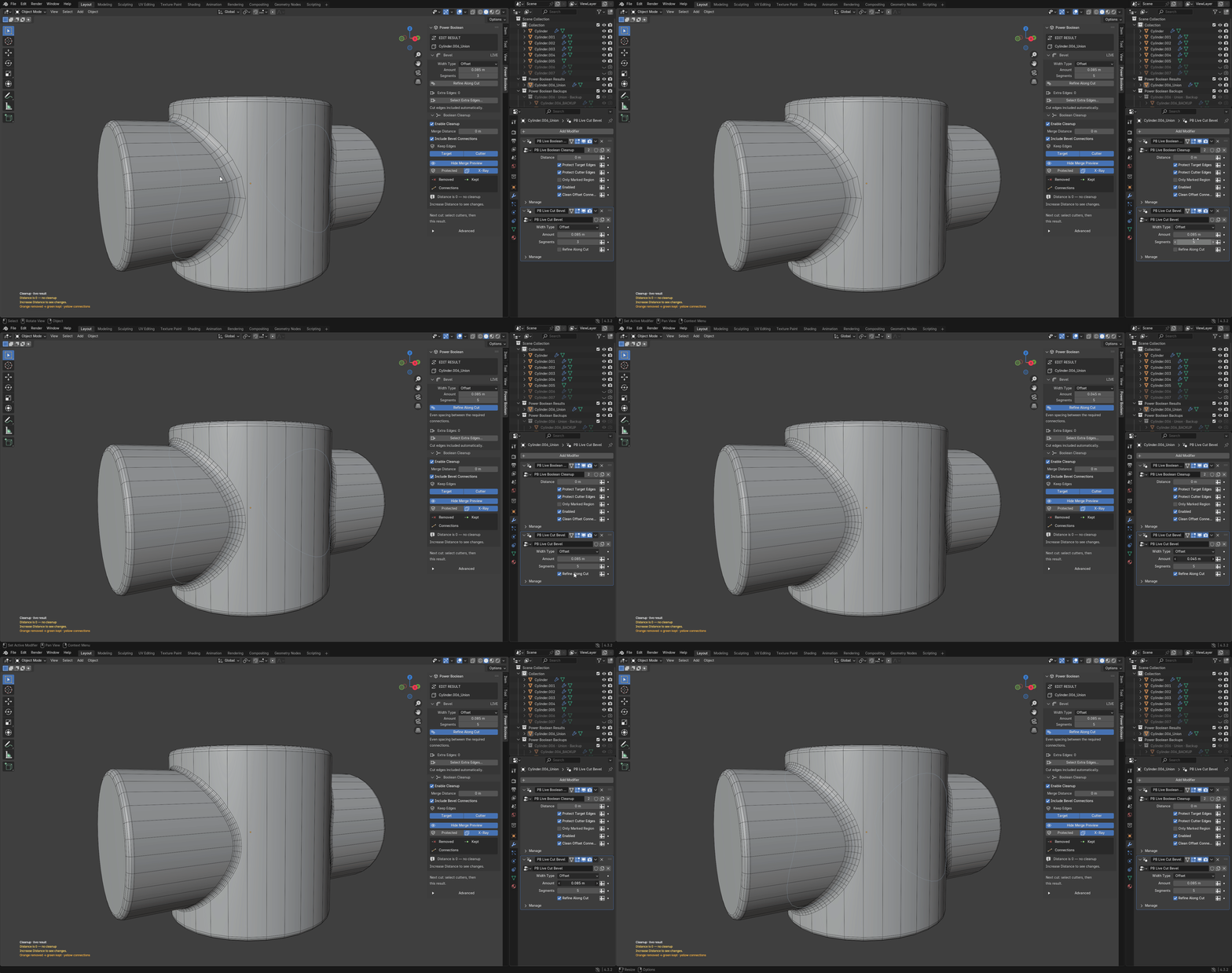
| Refine Along Cut | Adds rows along supported cuts and smooths bevel loops. Get the base bevel working first. Some junctions do not support refinement; follow the panel message. |
| Select Extra Edges… | Enter Edit Mode, select additional edges and use Add Selected. Remove, Select Marked and Clear Marks manage the marks. Cut edges are already included automatically. A single-user mesh is required. |
Extra edges use a separate junction construction and do not support Refine Along Cut or every possible junction. Generated bevel faces use the object's first material slot (slot 0). Bevels on faceted surfaces depend on the local facet arrangement as well as the visible overall shape.
Boolean Cleanup
Cleanup is an editable stage for vertices crowded along the cut. Its initial Merge Distance is zero, so enabling it alone does not merge vertices. Change the distance deliberately and inspect the preview.
| Control | Behavior |
|---|---|
| Enable Cleanup | Bypass cleanup without losing its settings. |
| Merge Distance | Maximum movement allowed for an original cut vertex. A larger value is not automatically better. |
| Keep Edges — Target / Cutter | Protect vertices associated with original target or cutter edges. Both start enabled. Turning Cutter off can help remove slivers while favoring target topology. Sharp edges, seams, material boundaries and junctions remain protected. |
| Include Bevel Connections | Simplify redundant rows within the bevel while keeping outer edges. |
| Only Marked Region | Restrict cleanup to a marked region. Mark or protect vertices in Edit Mode through Vertex → Mark Boolean Cleanup Vertices… or the right-click menu. |
| Show Merge Preview | Show removed vertices in orange, kept vertices in green and changed connections in yellow. Protected adds blue crosses; X-Ray shows markers through the mesh. Viewport overlays must be on. |
If cleanup was disabled when building, the result panel offers Add Boolean Cleanup. Marked-region controls appear when a region is in use or Advanced is open. Keep a saved copy before making extensive changes to source topology or managed results.
Diagnosing a rejected bevel
A rejected bevel leaves the plain Boolean visible. The panel displays Bevel unavailable at these settings and, when available, a suggested adjustment.
Choose Inspect Bevel Problem to see diagnostic markers. The arrows step through findings; Focus frames a finding; X-Ray reveals hidden markers; Hide dismisses them. Red indicates a confirmed input-mesh problem, amber marks where the solver stopped, and blue shows cut-edge context. A red input finding may not be the cause of the rejected bevel.
| Symptom | What to try |
|---|---|
| Very short edges along the cut | Review the suggested cleanup distance. Try disabling Keep Edges → Cutter and increasing Merge Distance carefully. |
| Curved cut or hard-edge entry rejected in Width mode | Try Offset and inspect the result. |
| Not enough room along an edge | Lower Amount below the reported limit. |
| Bevel reaches a non-flat corner of a faceted surface | Reduce Amount. The local facet layout limits the bevel; cleanup is not a universal fix. |
| Profile would turn inside out | Try the other width type and different amounts. Very thin wedges may remain unsupported. |
| No detailed suggestion | Use Inspect Bevel Problem to locate the issue, simplify the configuration, and test a smaller amount. |
Diagnostic advice is based on recorded solver findings, not a promise of success. If a production case remains unsupported, keep the plain cut, revise the modeling approach, or send a minimal reproduction to support.
Advanced build settings
The Advanced section separates settings for the next build from tools for an existing stack.
Quality
- Solver: Auto, Robust/Exact, Manifold or Fast. A failed non-Exact Fixed Boolean solve is retried once with Exact.
- Evaluate Source Modifiers: use evaluated source geometry for the build. Review the effect of source modifiers before committing.
- Transfer Materials and Transfer Smooth Shading: carry source surface assignments into the result.
- Rebuild Surface Normals: restore source-normal information on the resulting surfaces.
- Sharp Boolean Boundaries: mark boundaries sharp where configured.
Source handling
Choose what happens to the target and cutters after a successful build. Target actions include Keep, Hide or Delete; cutter actions also include Wire. Live Cutters needs its cutter objects, so its Delete choice is treated as Hide. Keep Create Source Backup enabled while learning the workflow. The backup collection name can be changed.
The default workflow hides originals, but deliberately selecting Delete is destructive to those scene objects. Save a separate project copy before using it. Failed-build cleanup and automatic backups cannot protect against every manual edit or external scene change.
Output
Choose the result collection and its name, enable or disable automatic result selection, and set the naming template. Supported tokens include {target}, {operation} and {cutter}.
Live stack tools and finished delivery
| Tool | Purpose |
|---|---|
| Show / Hide / Select Live Cutters | Find and manage cutter visibility for the selected live result. |
| Apply Stack | Bake the managed result into a finished mesh. This removes further editing through those managed stages. Save an editable copy first. |
| Remove Stack | Remove managed stages from the selected result. It is not a general reconstruction of every original scene action. |
| Restore Managed Objects | Restore objects managed by the add-on's source workflow. |
| Prepare Cutters | Set selected cutters to wire display. |
| Inspect | Report mesh counts and open/non-manifold edge information. It is not an export certification. |
Results depend on the enabled add-on to rebuild cleanup and bevels. When an unapplied project is opened without it, the plain Boolean is shown rather than the maintained bevel. Before delivery to someone without Power Boolean, save an editable copy, select the result, use Advanced → Live Stack Tools → Apply Stack, then inspect and save the delivery copy.
Hidden helpers named .PB … belong to the managed stack. Leave them in place. Apply Stack and Remove Stack handle their cleanup. Use Blender Undo promptly for an unwanted supported operation; for reliable recovery across sessions or extensive edits, use your saved project and source backups. Foreground Undo behavior was not qualified by the headless release checks.
Preferences
In Preferences → Add-ons → Power Boolean, Object Context Menu Entry controls the right-click shortcuts. Custom Icons toggles the supplied panel icons; Icon Accent controls their accent color. These preferences do not change the underlying geometry workflow.
Included demo scene
Open Power_Boolean_Precision_Lab.blend in Blender 5.2 with Power Boolean 4.0.1 enabled. It contains four editable examples:
- 02 RESULT | Offset union coupling: a branch/main-pipe Union with an Offset bevel.
- 01 RESULT | Triple-port manifold: a block cut by three cutters in one build.
- 04 RESULT | Slotted clamping rotor: a slot cut through a cylinder.
- 03 RESULT | Spherical socket: a spherical indentation using Offset.
Select a result to inspect its settings. The hidden source backups are available in the scene. Source and cutter objects remain editable but are hidden; unhide the relevant cutter in the Outliner. The hero camera, four detail cameras and procedural studio lighting are supplied; press F12 to render the overview. The scene has no externally linked libraries or unpacked file-image dependencies in the release-kit check.
Performance and limitations
Power Boolean is not a universal CAD fillet solver. Thin wedges, some high-valence junctions, oblique intersections and closely coupled edges may be rejected. Some failures provide a location without a specific solution. Faceted surfaces limit the largest usable bevel amount.
Rebuilds run on Blender's main thread. Dense meshes can pause the interface, and failed attempts may take longer because several constructions are tried. There is no universal real-time performance guarantee.
Fixed and Live workflows can produce different row layouts because Blender may split Boolean faces differently. Extra-edge beveling has its own limits. Animation, downstream deforming modifiers and large production scenes are not qualified. Test a copy of your actual project before relying on a complex stack.
Troubleshooting installation and controls
- No Power Boolean tab: confirm the extension is enabled, use a 3D View, press N, and restart after an update.
- Build unavailable or wrong object cut: use Object Mode with a mesh target and mesh cutters; make the target active last.
- Preview missing: turn viewport overlays on and check X-Ray and Protected settings.
- Result loses its finish after sharing: install the matching add-on or create a delivery copy with Apply Stack before sharing.
- Old PBT result has no settings: rebuild it from its original source or backup; the old extension's stacks are not converted.
- Unexpected materials: check source material transfer and the first material slot used for generated bevel faces.
License, purchase options and credits
Power Boolean code is licensed GPL-2.0-or-later. The complete license and Python source are in the installer. By Tachyon Studio; normal-transfer concept by Rico Holmes. See the included LICENSE for the governing terms.
Individual is for 1 person (1 seat), Team for up to 6 people (6 seats), and Studio for up to 20 people (20 seats). Commercial use is included in all three; all receive the same features and downloads. Studio: need more than 20 seats? Contact us directly. Purchase-tier wording does not replace the rights granted by the GPL code license.
Support
Message Tachyon Studio through Superhive or visit Discord support. Discord is optional and is not needed to run the tool. Include the add-on version, exact Blender version, operating system, operation/workflow, settings and reproduction steps. Attach a minimal sample only after removing private or proprietary data.
WATCH THE WORKFLOW
Interface and recorded demonstrations
Cut-bevel refinement
The wireframe shows rows around the joined cut. Toggle refinement only after the base bevel works.
Slice workflow
Select cutters and then the target, choose Slice, and inspect the separate result pieces.
Have questions about this product?
Login to message
| Blender Extension Compatible | Yes |
| Published | 4 days ago |
| Blender Version | 3.0 - 5.2 |
| Extension Type | Add-on |
| Render Engine Used | Cycles |
| License | GPL |
Discover more products like this
boolean mesh Workflow modeling bevel non-destructive hard surface slice multi cutter cleanup