 Sonneblom Digitaal
What it does
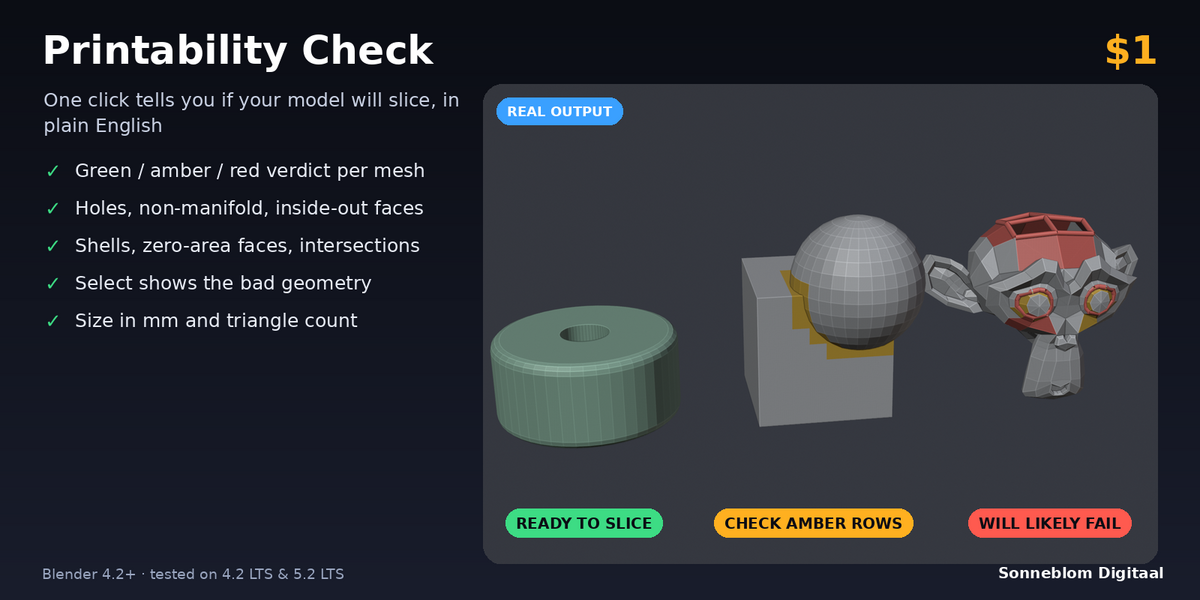
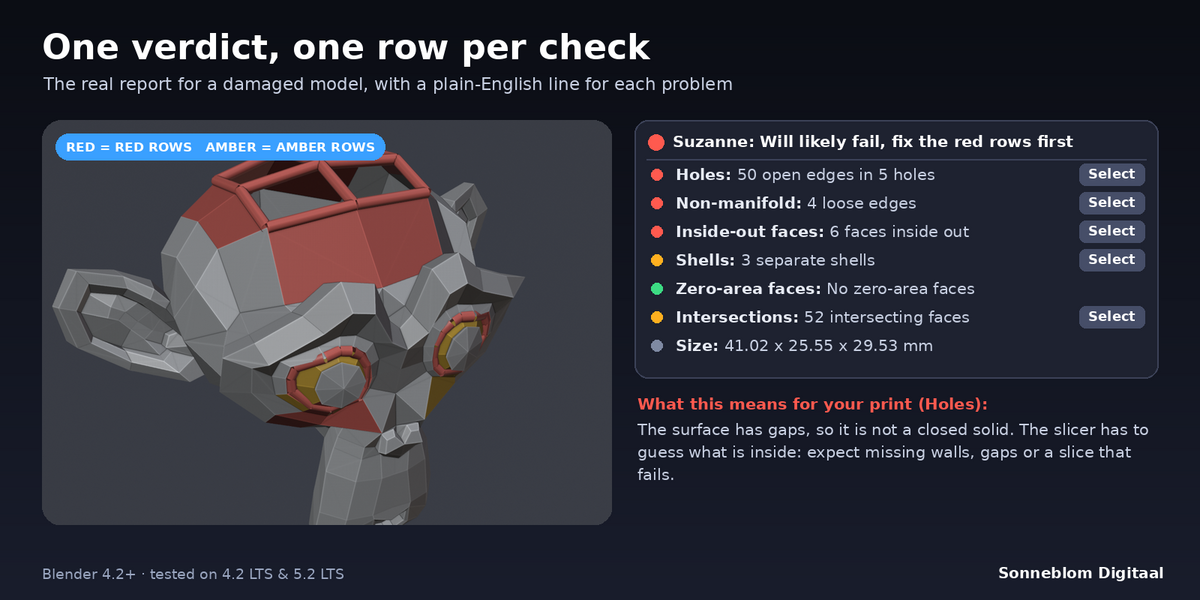
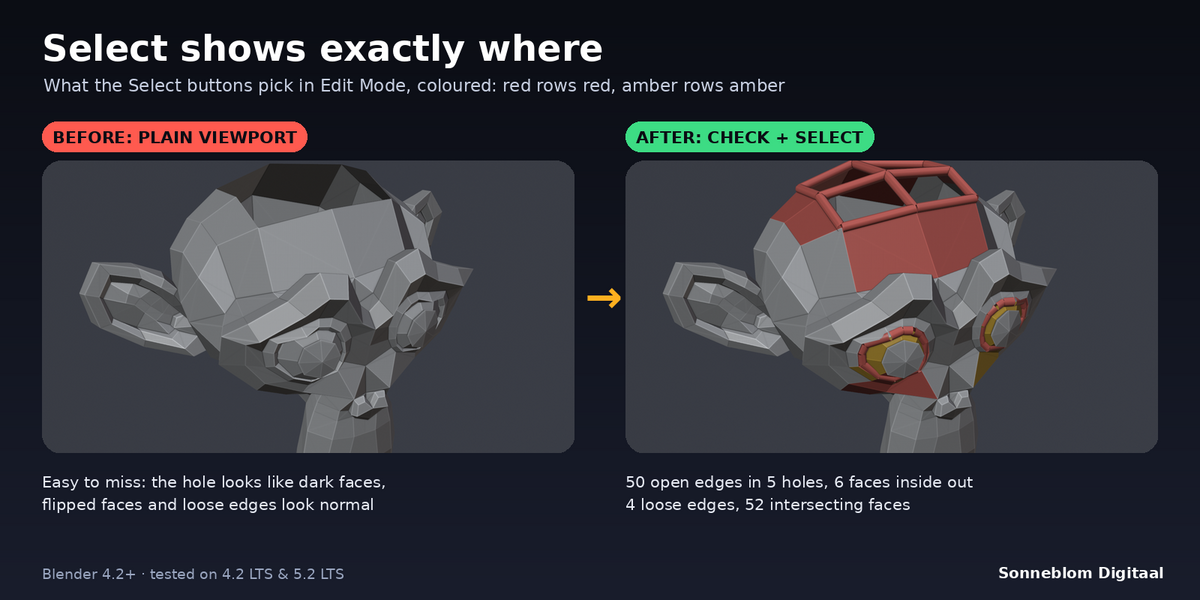
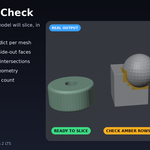
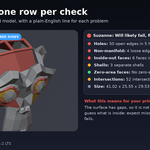
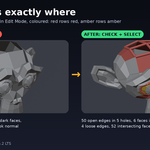
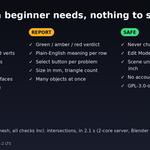
Printability Check tells you, with one click, whether a mesh will slice. It runs six checks on the selected mesh(es) and shows a traffic-light report in the sidebar: one overall verdict per object (green = ready to slice, amber = should print but have a look, red = will likely fail) and one row per check with the exact count. Under every amber or red row there is a plain-English line that says what this means for your print, and a Select button that selects exactly that geometry in Edit Mode, so you can see where the problem is. It only reports and selects: your mesh is never changed.
Who it's for
Beginners and hobby makers who model or download something in Blender and want to know before slicing if it will print, without learning what "non-manifold" means first. Also handy for anyone who checks many STL files and wants one clear verdict instead of a list of numbers.
Key features
- Holes: open edges, counted per hole ("4 open edges in 1 hole").
- Non-manifold: edges shared by 3 or more faces, loose edges, loose verts, and verts where two parts touch at a single point.
- Inside-out faces: faces wound against their neighbours, and whole shells with all normals pointing inwards.
- Shells: how many separate pieces the mesh is made of. Select picks every piece except the biggest one.
- Zero-area faces: faces with (almost) no area or with an edge of (almost) no length. The size limit is a setting (default 0.001 mm).
- Intersections: faces that cut through other faces of the same object (BVH overlap test). It can be turned off for a quicker result.
- Size in mm and triangle count for every object, using your scene units or a 1 mm / 1 cm / 1 m / 1 inch setting.
- Select button per problem: switches to Edit Mode and selects the counted edges, verts or faces.
- Several objects at once, unapplied scale and rotation handled, changes made in Edit Mode are included. Non-mesh objects are skipped with a note.
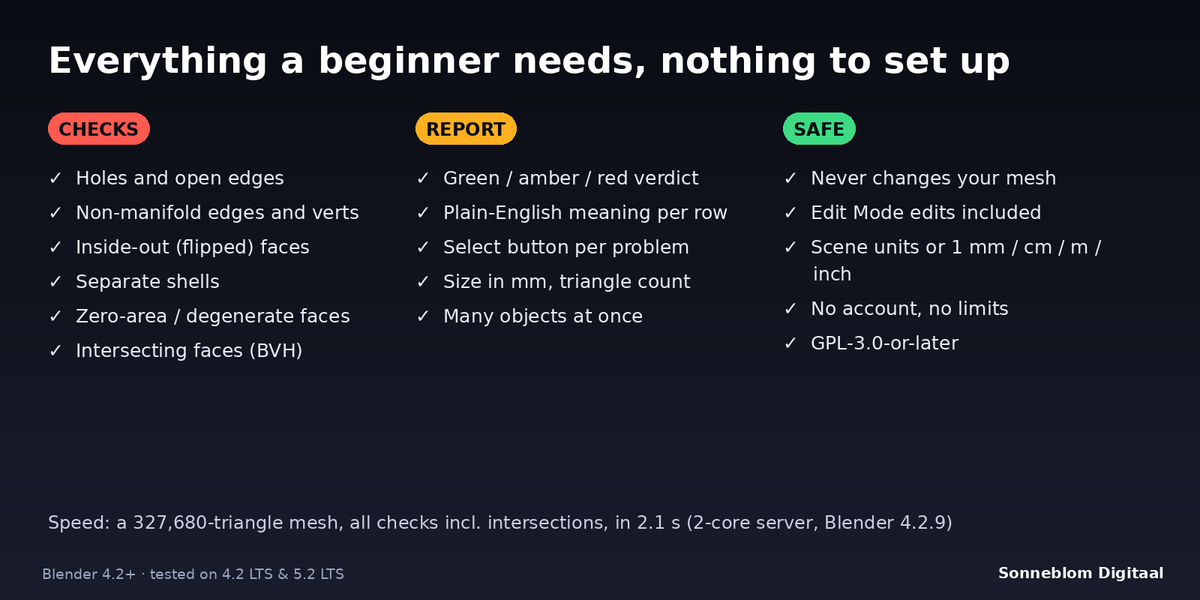
- Fast: a 327,680-triangle mesh is checked in about 2 to 3 seconds, intersections included.
How to use
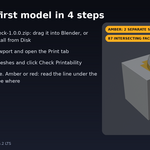
- Install the zip, press N in the 3D Viewport and open the Print tab.
- For STL files, set 1 Blender unit = to 1 mm so the size is shown correctly.
- Select one or more meshes and click Check Printability.
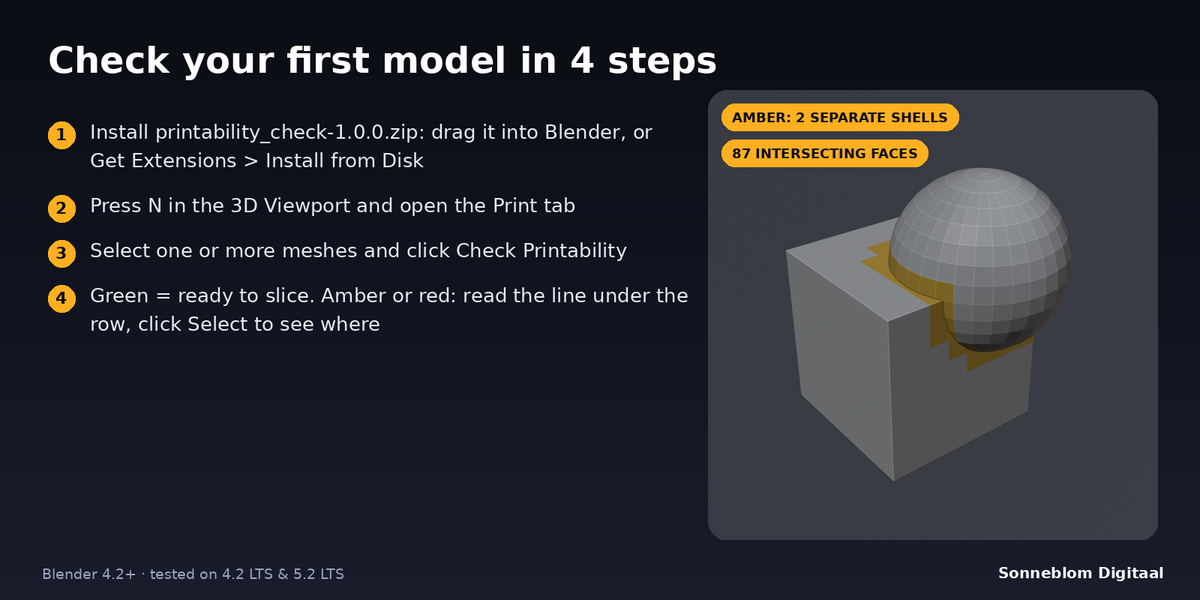
- Read the verdict. For an amber or red row, read the line under it and click Select to see the geometry in Edit Mode.
Compatibility
Blender 4.2 LTS or newer, tested on 4.2 LTS and 5.1 (and 5.2 LTS). It installs as a Blender extension (Get Extensions > Install from Disk), and a legacy add-on zip is included.
Good to know
- It reports and selects only. It does not repair anything and does not change your mesh.
- It checks the mesh itself, not modifier results. If an object has modifiers, the report says so; apply them first to check the final shape.
- It does not check wall thickness, overhangs or whether the model fits your printer bed.
- Separate shells and intersections are amber, not red: a plate of parts is fine, and most slicers merge overlapping parts. Look at them, then decide.
- For an open surface (not closed) the add-on reports the smaller side as inside out, because there is no inside to compare with.
Support
Questions or a bug? Use the Superhive product page messages and we reply within a day.
More tools from Sonneblom Digitaal
Found red rows? Print Fix is our separate, paid add-on that repairs holes, non-manifold edges, inside-out faces and intersections in one click, on a copy, and checks its own result. Print Fix