Printability Check
 Sonneblom Digitaal
Printability Check 1.0.0
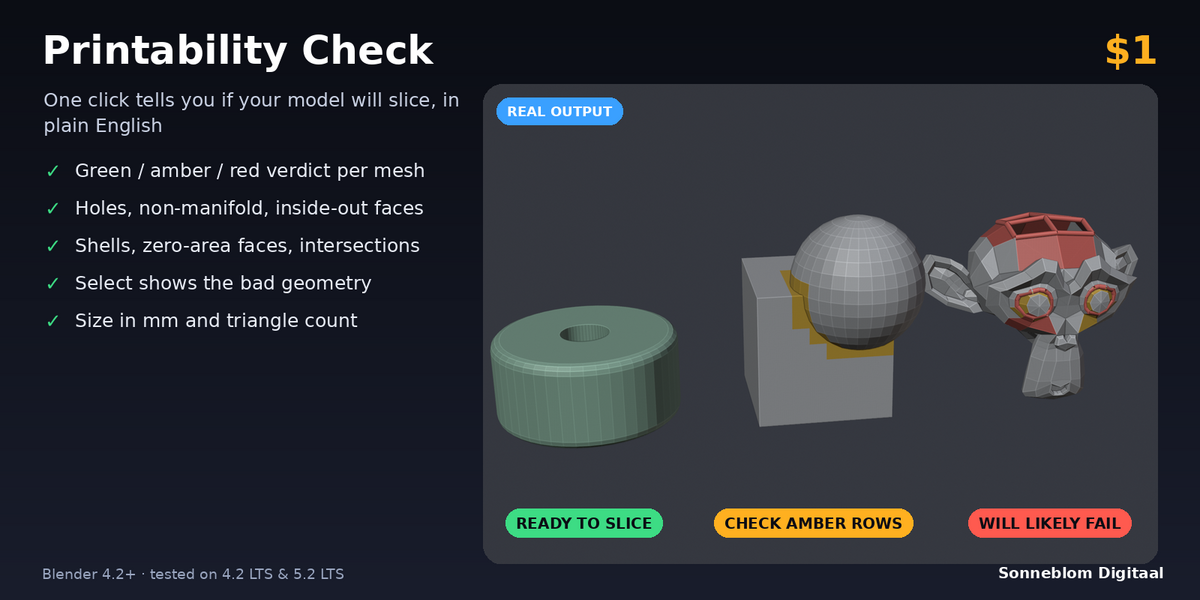
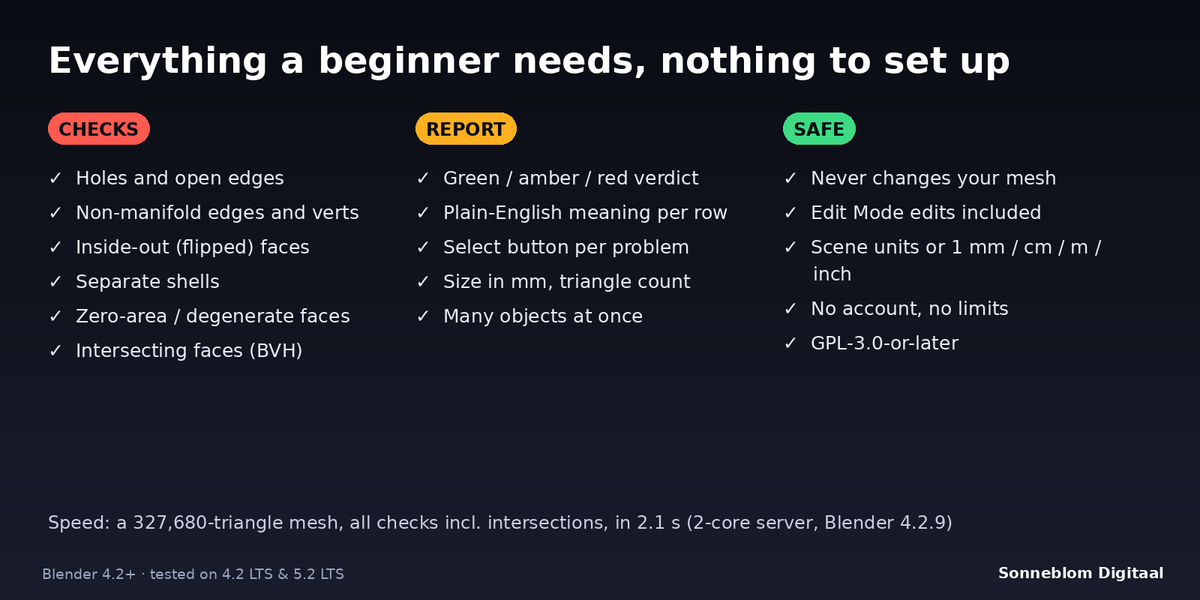
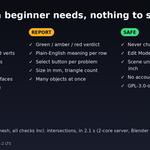
A one-click traffic-light report that tells you if a mesh will slice: holes, non-manifold edges and verts, inside-out faces, separate shells, zero-area faces and intersections, plus size in mm and triangle count. Blender 4.2 LTS or newer, tested on 4.2 LTS and 5.1 (and 5.2 LTS).
Install
-
Extension zip (recommended):
printability_check-1.0.0.zip. Drag it into Blender, or go to Edit > Preferences > Get Extensions, open the drop-down at the top right and choose Install from Disk. -
Legacy zip:
printability_check-1.0.0-legacy.zip. Go to Edit > Preferences > Add-ons > Install from Disk, then tick Printability Check.
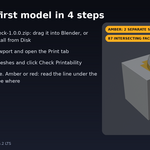
The panel is in the 3D Viewport sidebar. Press N and open the Print tab.
Check a model, step by step
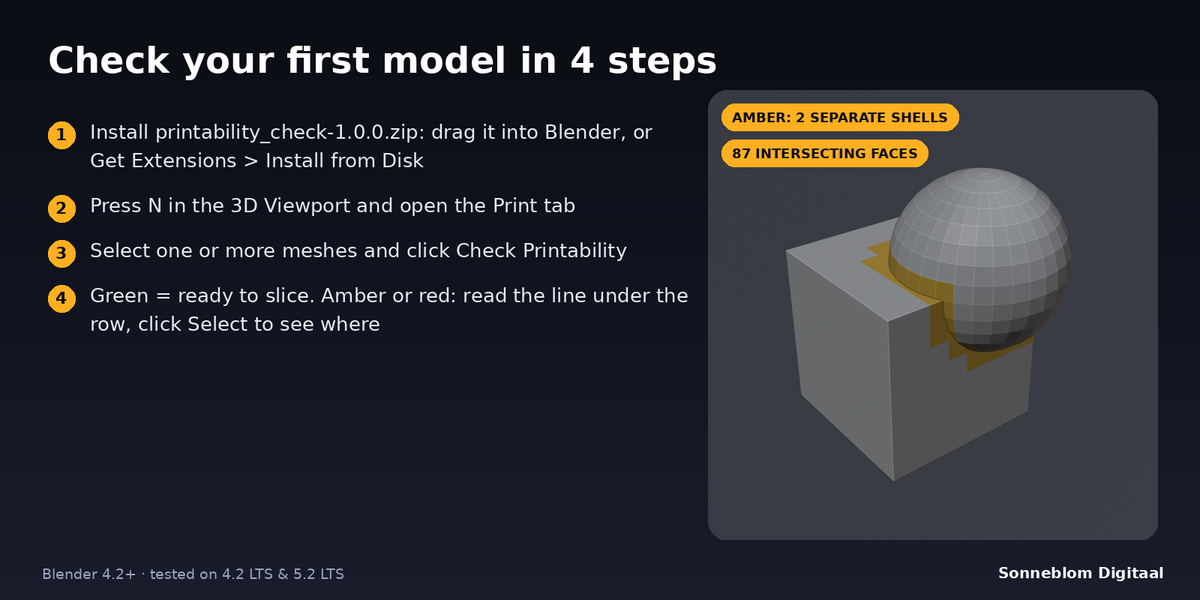
- Import or open your model (File > Import > STL, OBJ or 3MF).
- Set 1 Blender unit =. STL files are almost always in millimetres, so choose 1 mm. The line under it shows how many millimetres one unit is now.
- Select one or more mesh objects and click Check Printability. You can also do this in Edit Mode; your unsaved edits are included.
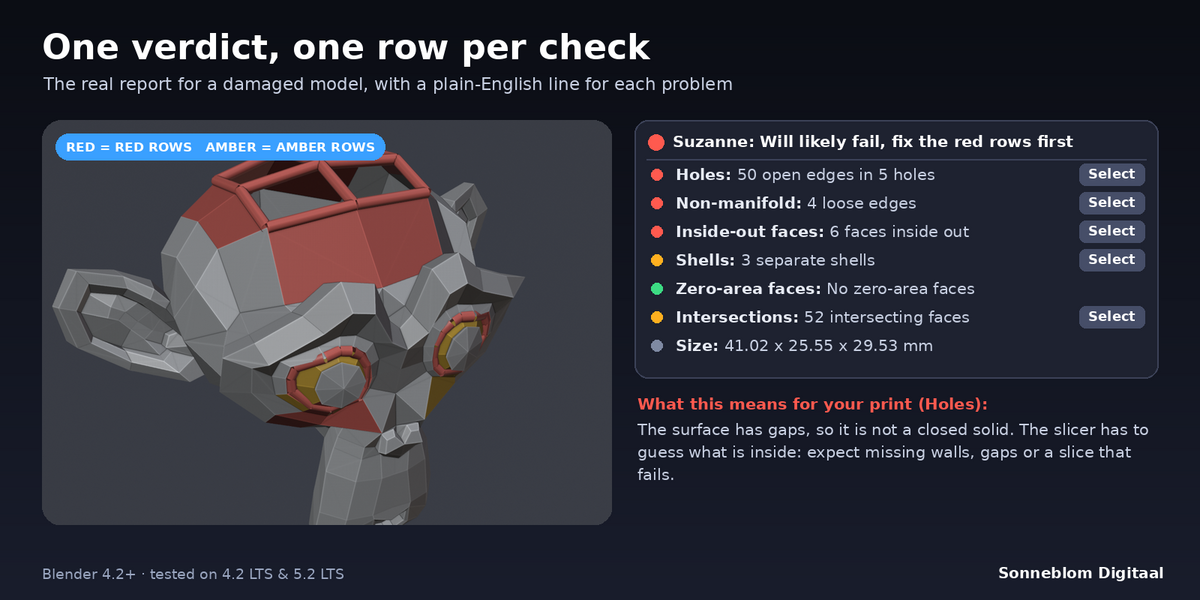
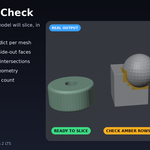
- Each object gets a box with its verdict: Ready to slice (green), Should print, check the amber rows (amber) or Will likely fail, fix the red rows first (red).
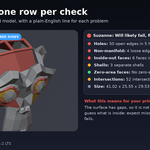
- Below the verdict there is one row per check with the count. With Explain results on, amber and red rows have a short line that says what it means for your print.
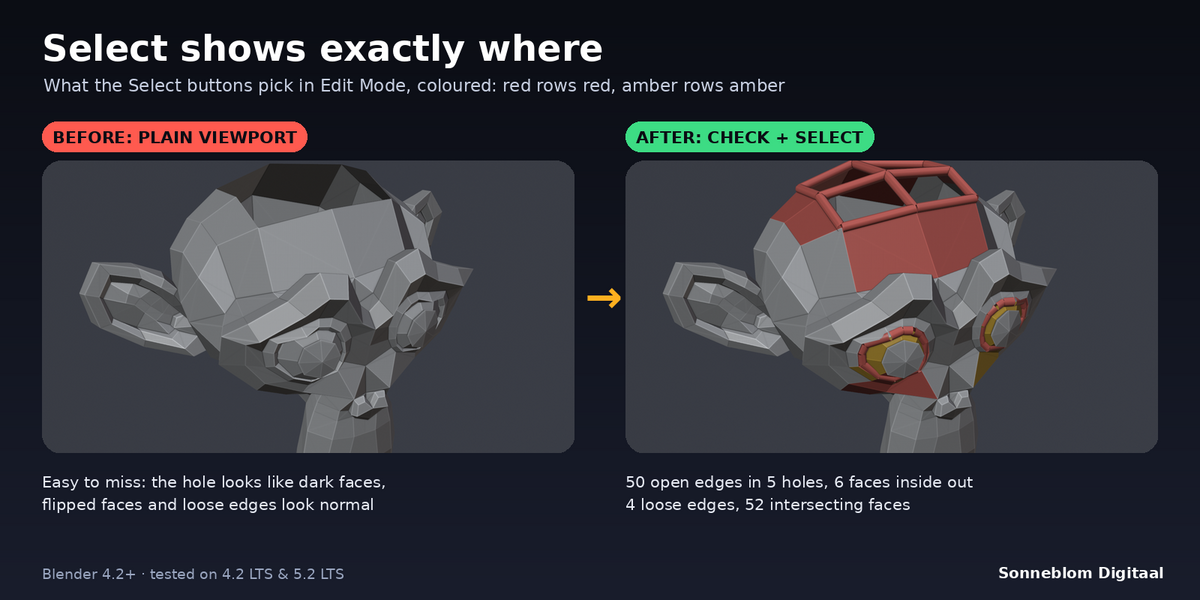
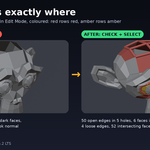
- Click Select next to a row: Blender switches to Edit Mode and selects exactly the geometry that was counted (edges for holes and non-manifold edges, verts for touching or loose verts, faces for the other checks). Hover over the button to read the explanation again.
- Fix the problem your way, then click Check Printability again. Clear Results empties the panel.
The checks
| Row | Colour when found | What is counted |
|---|---|---|
| Holes | Red | Open edges (edges with only one face), and how many separate holes they form. |
| Non-manifold | Red | Edges with 3 or more faces, loose edges (no face), loose verts, and verts where two parts touch at one point. |
| Inside-out faces | Red | Faces wound against their neighbours, and whole closed shells whose normals all point inwards. |
| Shells | Amber | Separate pieces (connected through shared verts). Select picks every piece except the biggest. |
| Zero-area faces | Amber | Faces with an area below the zero-area size squared, or with an edge shorter than that size. |
| Intersections | Amber | Faces that cut through other faces of the same object. Neighbouring faces that share a vertex are not counted. |
| Size | Info | The object's size in mm along X, Y and Z, with its scale and rotation. |
| Triangles | Info | The number of triangles the mesh exports as. |
| Modifiers | Info | Shown when the object has modifiers: they are not part of the check. |
Settings
| Setting | Default | What it does |
|---|---|---|
| 1 Blender unit = | Auto (scene units) | Auto reads Scene > Units: Blender's default scene counts 1 unit as 1 m, and unit scale 0.001 means 1 unit = 1 mm. You can also choose 1 mm, 1 cm, 1 m or 1 inch. Only the size row and the zero-area size use it. |
| Check intersections | On | Also look for faces that cut through other faces. It is the slowest check; turn it off for a quicker result on huge meshes. |
| Explain results | On | Show the plain-English line under amber and red rows. |
| Zero-area size (mm) | 0.001 | Edges shorter than this, and faces with an area below this size squared, count as zero-area. |
Tips
- Check before you export: a green verdict means the mesh is closed, consistently oriented and in one piece.
- Amber is a "look at it" colour. Several shells are fine for a plate of parts; intersections are usually merged by the slicer.
- Wrong size? Set 1 Blender unit = to 1 mm for STL files.
- Select all the parts of a print plate and check them in one go; each object gets its own box.
Limits
- Report and select only. It never repairs or changes the mesh.
- It checks the base mesh, not modifier results. Apply modifiers to check the final shape.
- No wall-thickness, overhang or bed-size checks.
- On an open surface, the smaller side of a group of faces is reported as inside out, because there is no inside to compare with.
- Mirrored objects (negative scale) are judged as they look in the viewport.
More tools from Sonneblom Digitaal
At the bottom of the panel there is a small More tools from Sonneblom Digitaal box with two buttons. Print Fix opens the Superhive page of our separate, paid repair add-on in your browser; All our add-ons opens our shop page. Nothing is opened unless you click, and the add-on makes no network calls.
Licence
GPL-3.0-or-later. Made by Sonneblom Digitaal.
Have questions about this product?
Login to message
| Blender Extension Compatible | Yes |
| Published | about 3 hours ago |
| Blender Version | 4.2 - 5.1 |
| Extension Type | Add-on |
| License | GPL |
Discover more products like this
STL mesh check mesh analysis printability 3d printing non-manifold print prep