Printability Check
 Sonneblom Digitaal
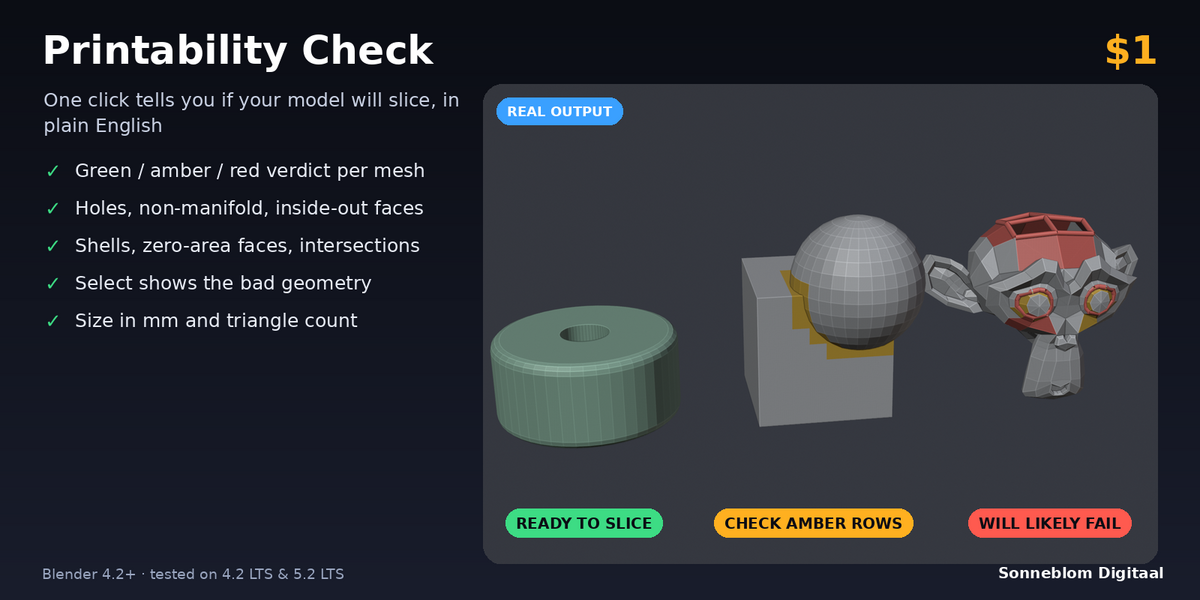
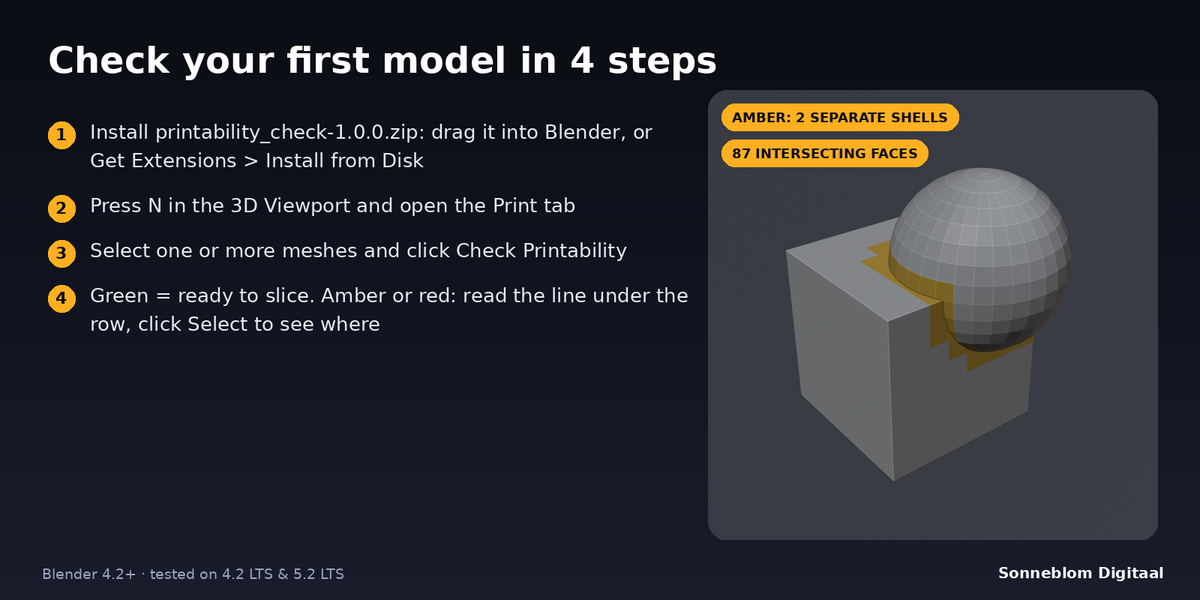
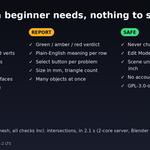
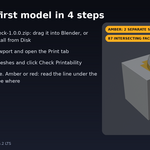
The full add-on: every check and every Select button, both zips (Blender extension and legacy add-on), the documentation and free updates for 1.x. It is licensed GPL-3.0-or-later, with no account, no trial and no nag screens.
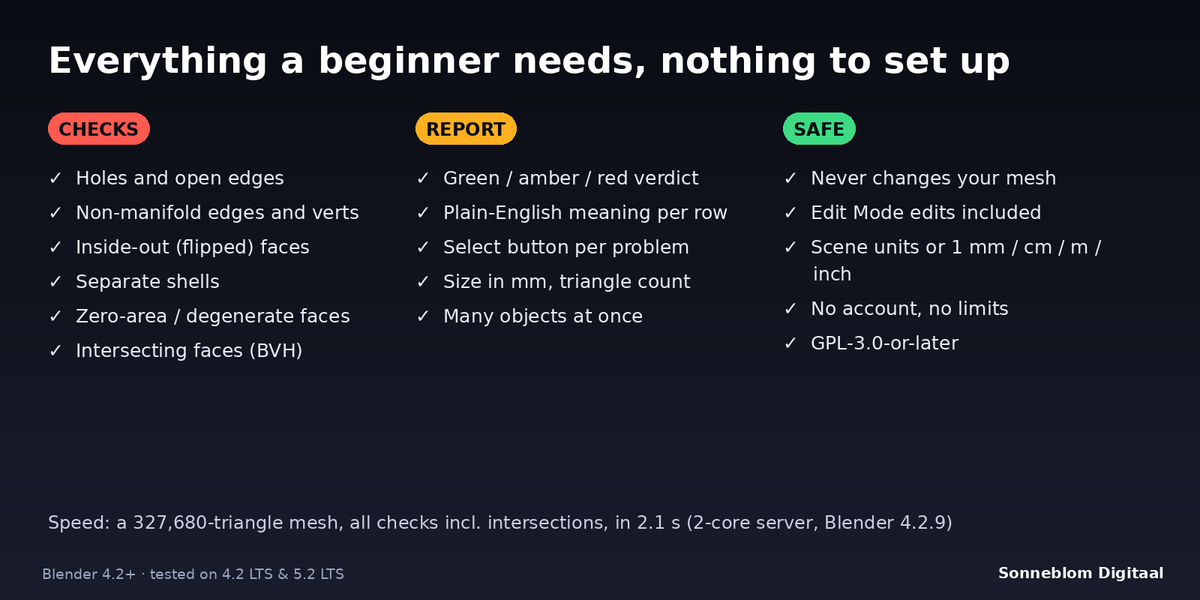
Printability Check finds and shows problems; it never changes your mesh. Print Fix is our separate, paid add-on that repairs them: it closes holes, fixes flipped faces and non-manifold edges, merges intersecting parts on a copy and re-checks its result. Many people only need the check, and fix small things by hand.
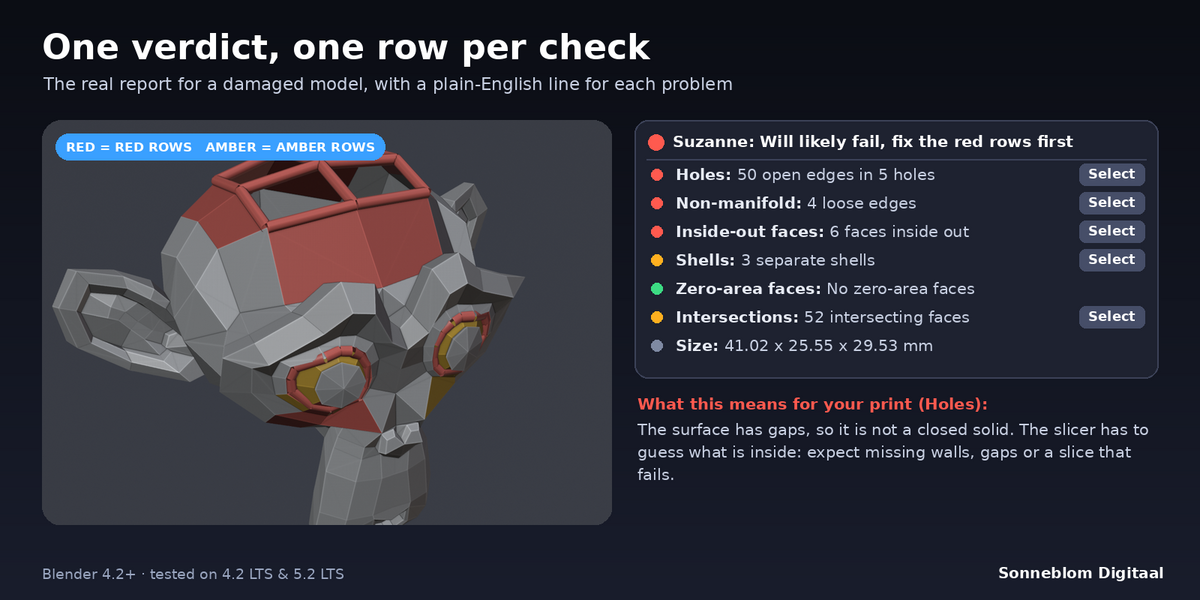
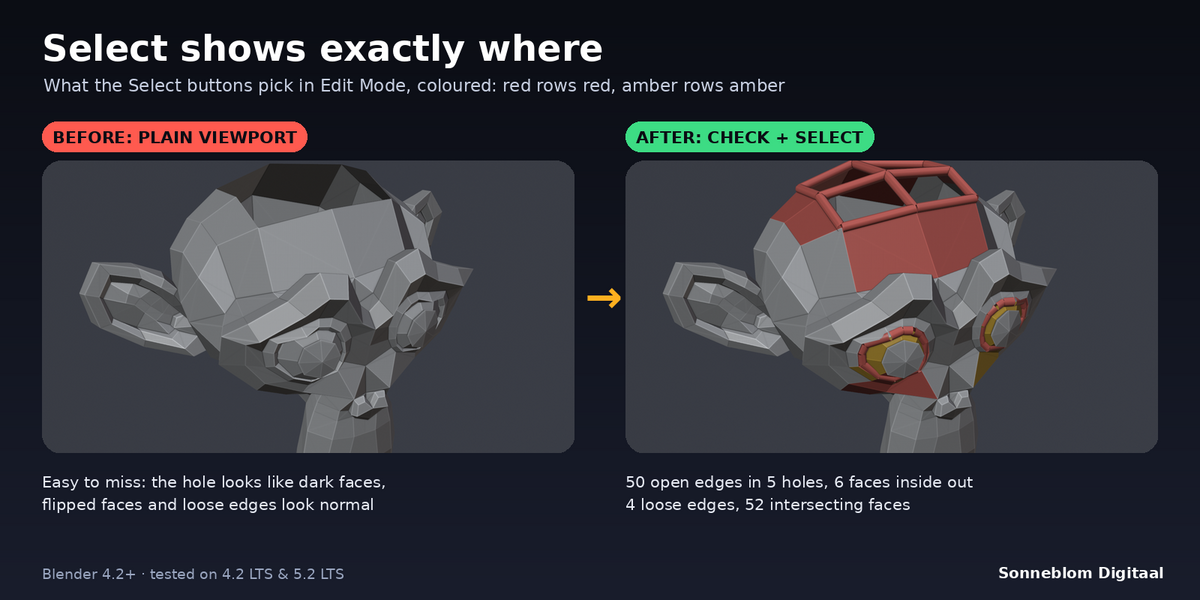
The toolbox gives a list of numbers. Printability Check gives one verdict per object (green, amber or red), explains each problem in plain English, counts holes as well as open edges, finds verts where parts only touch at a point, and has a Select button on every row. It reports and selects only; it has no export or scale tools.
Green means the mesh is a closed, consistently oriented solid in one piece with no zero-area or intersecting faces, so a slicer can read it. It does not check wall thickness, overhangs, supports or whether it fits your printer, so a print can still fail for those reasons.
Blender's default scene counts 1 unit as 1 metre, and STL files have no units. Set 1 Blender unit = to 1 mm in the panel and check again. Your model itself is not changed by this setting.
Because they are often fine: a print plate can have many parts, and most slicers merge parts that overlap. Holes, non-manifold geometry and inside-out faces are red because slicers have to guess there, which is what makes prints fail.
Have questions about this product?
Login to message
| Blender Extension Compatible | Yes |
| Published | about 3 hours ago |
| Blender Version | 4.2 - 5.1 |
| Extension Type | Add-on |
| License | GPL |
Discover more products like this
STL non-manifold print prep 3d printing mesh check mesh analysis printability