PrintBatch — 3D Print Kit Publisher & STL/3MF Packager for Blender
 riccardo scuto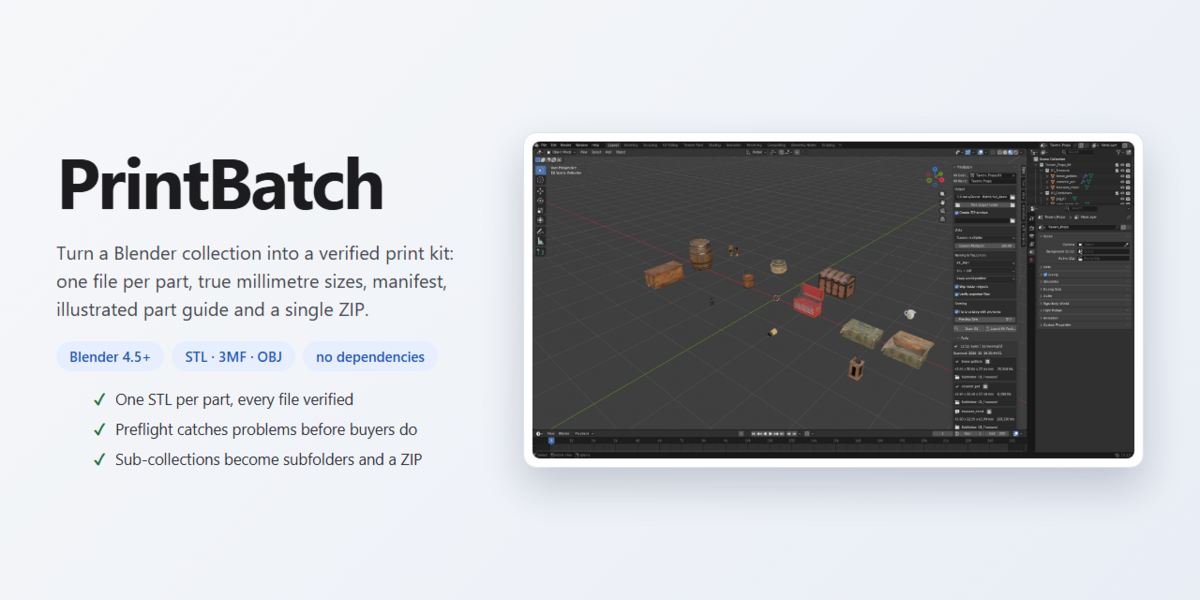
PRINTBATCH - DOCUMENTATION
Kit publisher for Blender | version 1.0.0
WHAT IT DOES
PrintBatch turns a Blender collection into a delivery-ready print kit: one mesh
file per part, clean unique names, true millimetre sizes, subfolders taken from
sub-collections, a manifest, an illustrated part guide and a single ZIP. You
keep modelling; PrintBatch handles the last mile of the release.
It never modifies your geometry: every export runs on temporary copies and your
scene is left exactly as it was.
REQUIREMENTS
- Blender 4.5 or newer (developed and tested on Blender 5.0 and 5.1)
- Windows, macOS or Linux - pure Python, no external tools, works offline
INSTALLATION
1. Download the ZIP from your library.
2. In Blender: Edit > Preferences > Get Extensions.
3. Open the menu in the top-right corner and choose "Install from Disk...".
4. Pick the ZIP. The extension is enabled automatically.
5. In the 3D Viewport press N and click the PrintBatch tab in the sidebar.
To update later, install the newer ZIP over the old one.
QUICK START
1. Put every part of your kit inside one collection (sub-collections become
subfolders in the package).
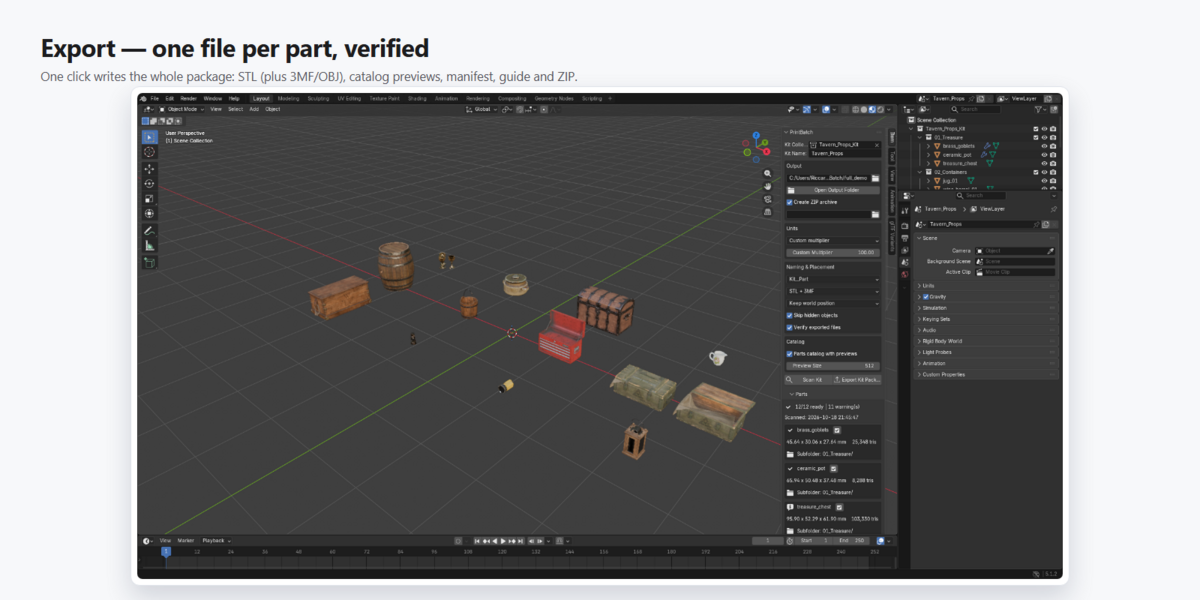
2. Pick the Kit Collection, type a Kit Name and choose the Output folder.
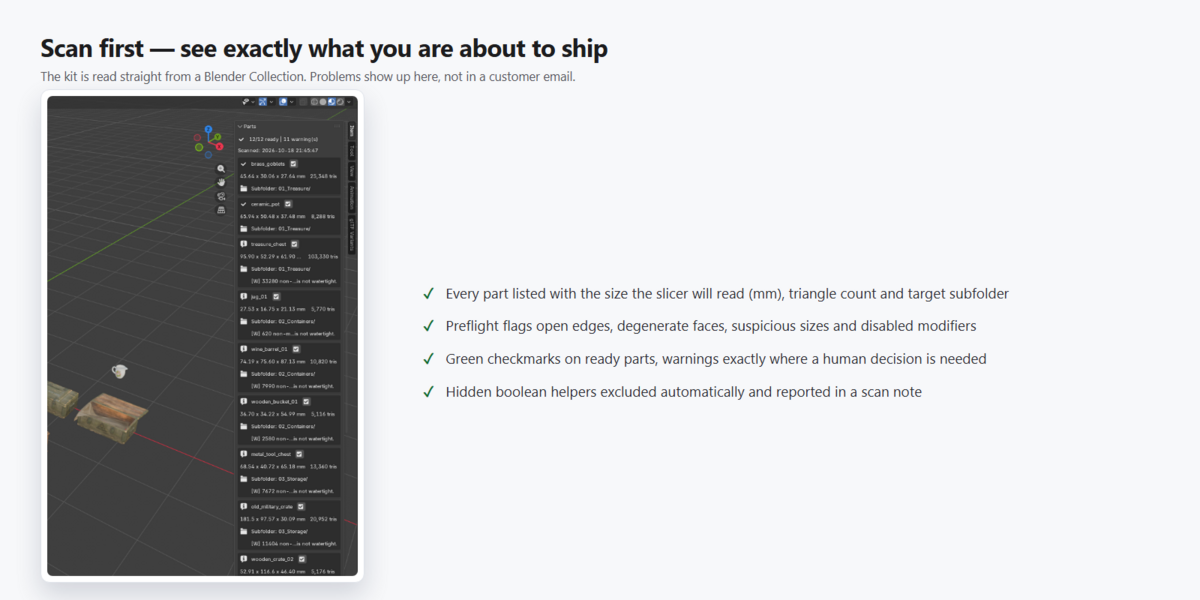
3. Click Scan Kit and check the parts list.
4. Fix or ignore what the preflight flags.
5. Click Export Kit Package and upload the produced ZIP to your shop.
THE PANEL
Kit
- Kit Collection: the collection that contains the parts of the kit.
- Kit Name: used for the package folder, the file prefix and the manifest.
Output
- Output folder: type or paste a path, or click the folder icon to browse.
"Open Output Folder" reveals it in your file manager.
- Create ZIP archive: writes KitName_.zip next to the folder
(default on).
- Preview image (optional): copied into the package as preview.png.
Units
- Unit profile: how Blender units should be read by slicers (see below).
- Custom multiplier: appears with the "Custom multiplier" profile; the exact
number of millimetres one Blender unit stands for.
Naming & Placement
- File Naming: "Kit__Part" (e.g. Tavern_Props__barrel.stl) or "Part"
(barrel.stl).
- Formats: STL, STL + 3MF, or STL + OBJ.
- Part Placement: Keep world position, Center at origin, or Drop on print bed
(centred on X/Y, lowest point at Z = 0).
- Skip hidden objects (default on): objects hidden in the viewport are excluded,
so boolean helper meshes stay out of the package. A scan note lists them.
- Verify exported files (default on): every written STL is re-read and its
triangle count is checked against the evaluated mesh (modifiers included).
Catalog
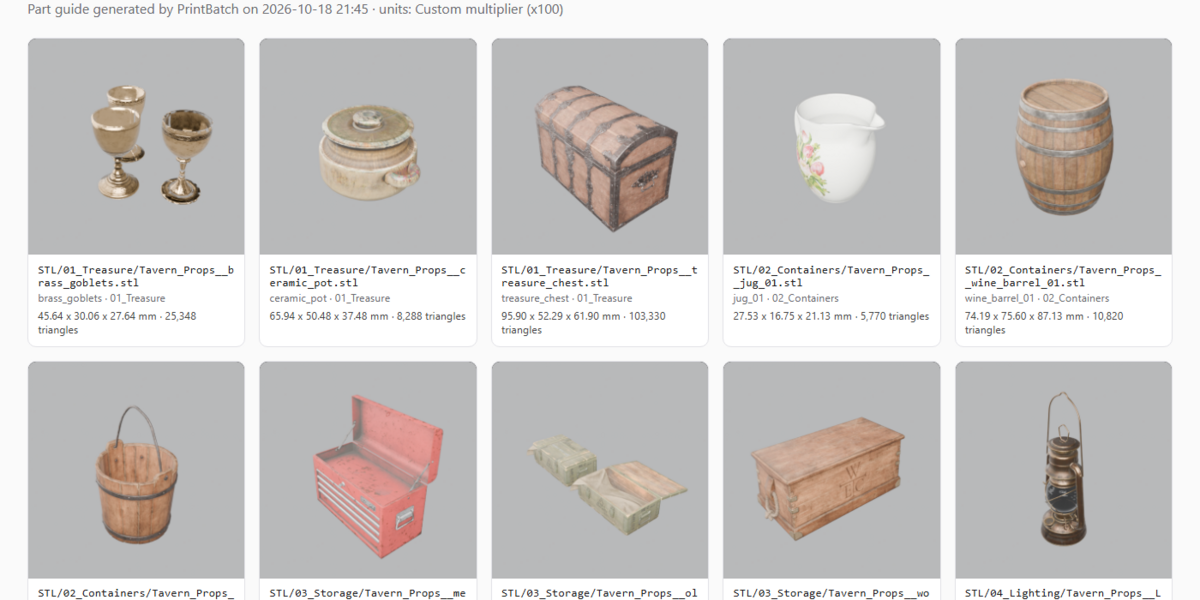
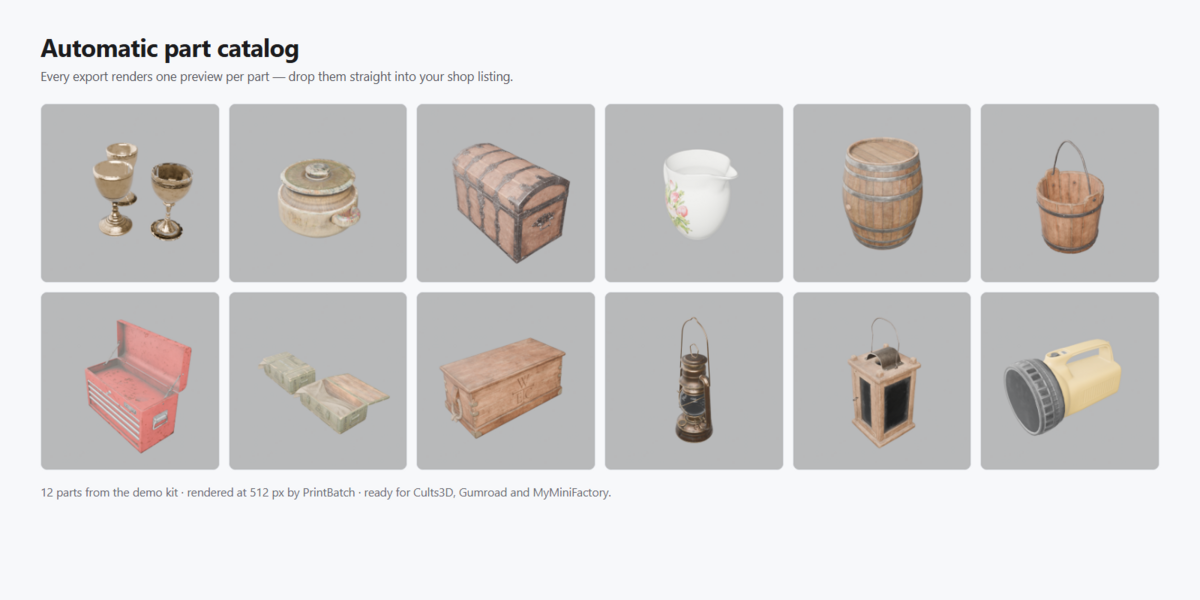
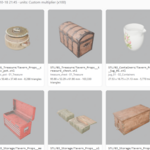
- Parts catalog with previews: renders one thumbnail per part, embeds it in
parts_guide.html and delivers the PNGs in catalog/.
- Preview Size: 128-1024 px (default 320). Rendering time grows with the part
count; the panel shows an estimate for large kits.
Scan, parts list and export
- Scan Kit fills the Parts list: export name, size in millimetres, triangle
count, subfolder and any preflight message. The checkbox on the right of a
part excludes it from the export.
- Scan notes list kit-wide information (hidden objects skipped, and so on).
- Export Kit Package writes everything; the report tells you where the package
went.
UNITS AND THE x1000 TRAP
Blender's default metric convention is 1 unit = 1 metre, while mesh files are
read by slicers as millimetres. The unit profile makes the conversion explicit:
- 1 Blender unit = 1 mm (x1): miniatures modelled directly in millimetres.
- 1 Blender unit = 1 cm (x10).
- 1 Blender unit = 1 m (x1000): default Blender metric scene, printed 1:1.
- Custom multiplier: any other scale. Example: a real-world prop of 0.96 m with
a multiplier of 100 reads as a 96 mm model (1:10) - ready for a 256 mm bed.
If the largest part reads smaller than 2 mm or larger than 2 m, a red scale
check appears with a one-click "Fix Unit Scale" button.
PREFLIGHT MESSAGES
PrintBatch reports; it never repairs.
- No mesh geometry after modifiers: nothing to export; fix or exclude the part.
- Object has an empty name / Export path collision: rename the object.
- N non-manifold edge(s): the mesh is not watertight - typical for game and
render assets. Check thin walls if your slicer complains.
- N zero-area face(s): degenerate triangles; some slicers choke on these.
- Modifier(s) disabled in viewport but active in renders: enable or remove the
modifier.
- Very small / very large / a side is X mm: size outside a believable print
range; usually the unit profile.
- Negative scale detected: mirrored object; winding is corrected on export,
verify in the slicer.
- No material assigned: irrelevant for printing, useful for nicer previews.
- High-poly mesh: topology check skipped for speed; the export is unaffected.
WHAT'S IN THE PACKAGE
KitName_timestamp/
STL/... one mesh file per part, in subfolders mirroring your
sub-collections (3MF/OBJ copies sit beside the STLs)
catalog/ one rendered preview PNG per part, ready for your shop
manifest.csv file, part, subfolder, size_x_mm, size_y_mm, size_z_mm,
triangles, verified
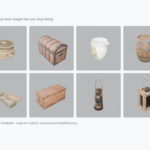
parts_guide.html offline guide with a preview, size in mm and triangle
count for every part
README.txt package summary, unit interpretation and results
KitName_.zip the whole folder, zipped - the file customers get
FORMATS AND SLICERS
- STL: universal, always written.
- 3MF: native writer with millimetre units declared; about 70% smaller than STL
on dense meshes. Understood by Bambu Studio, PrusaSlicer, OrcaSlicer and other
spec-compliant tools. Some specialised tools expect a full build plate and may
refuse a geometry-only 3MF - the STL is always there as a fallback.
- OBJ: for software interchange, not a print format.
TIPS
- Give each group of parts its own sub-collection: the folder structure of the
package builds itself.
- Use "Drop on print bed" when your objects were modelled scattered around the
scene.
- Re-run Scan Kit after changing your models.
- Scan results are saved in the .blend file: you can prepare a kit today and
export it tomorrow.
SUPPORT
Support through the marketplace message centre. Include your Blender version
and the text in Scan notes - it usually contains the answer already.
PrintBatch 1.0.0 - GPL-3.0 - free 1.x updates.
Have questions about this product?
Login to message
| Blender Extension Compatible | Yes |
| Published | about 3 hours ago |
| Blender Version | 4.5 - 5.2 |
| Extension Type | Add-on |
| Render Engine Used | Cycles, Eevee |
| License | GPL |
Discover more products like this
3d print cosplay kitbash miniatures manufacturing 3MF manifold check scale fix print bed stl exporter batch-export catalog generator