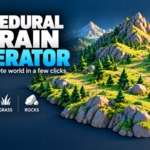
Procedural Terrain Generator & Nature Scatter
 blenderustad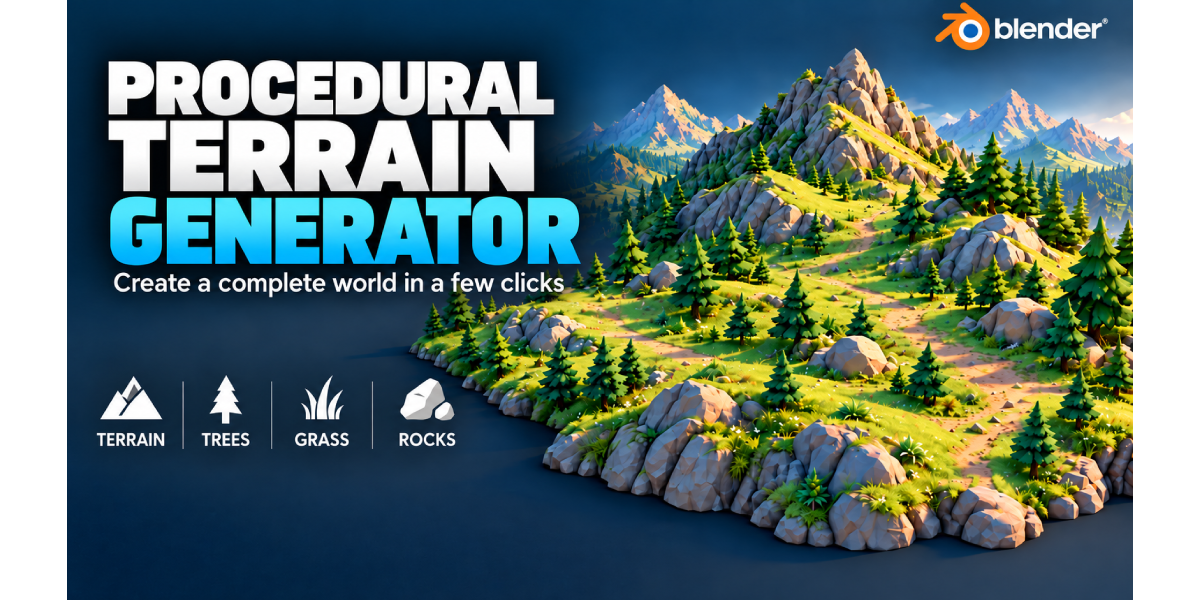
Requirements
- Blender 4.2 or newer (4.2.0 is the declared minimum; Blender 5.2+ is documented as supported, including the evaluated-mesh placement path for Existing Ground).
- Your own Grass/Tree/Rock source objects (Mesh or Curve) if you want to scatter nature; the add-on does not include any.
Install
- Download the ZIP package.
- In Blender, open Edit > Preferences > Add-ons (or Extensions > Install from Disk on newer Blender versions).
- Choose Install / Install from Disk and select the ZIP file.
- Enable Procedural Terrain Generator if it is not enabled automatically.
- Open the 3D Viewport Sidebar (press N) and select the Terrain Gen tab.
First use: Create New Terrain (Quick World)
- In the Terrain Gen panel, leave Ground Source set to Create New Terrain.
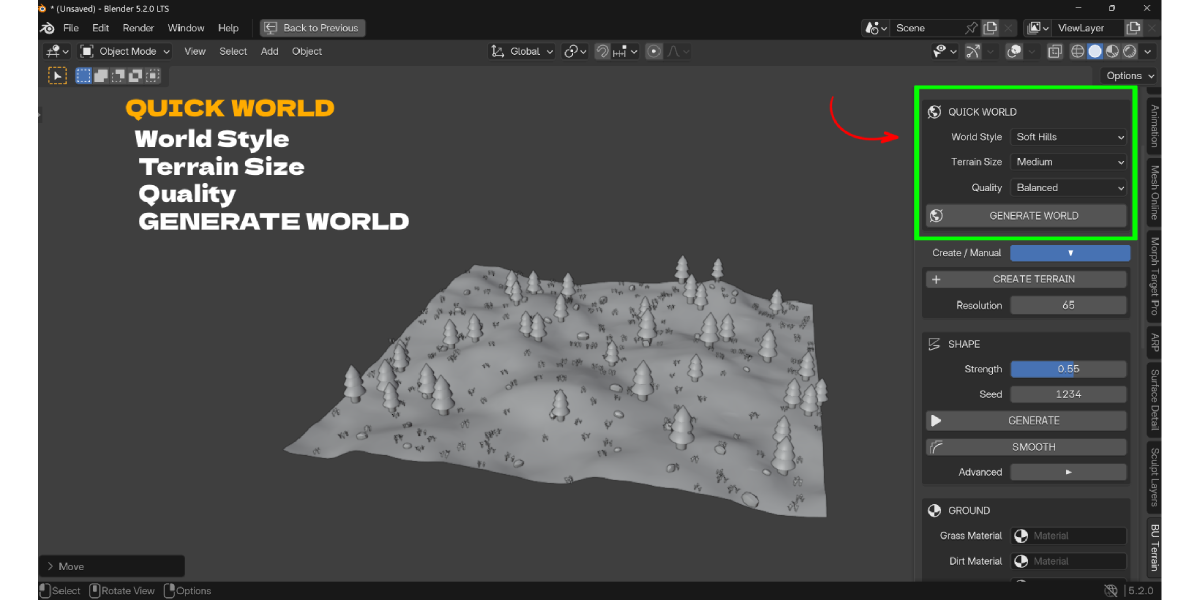
- In Quick World, choose a World Style, a Terrain Size (or Custom Size), and a Quality preset.
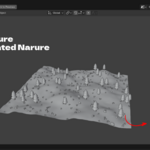
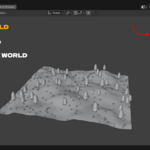
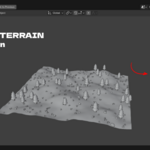
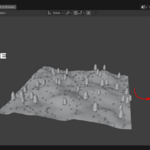
- Click GENERATE WORLD. This creates the terrain, shapes it, smooths it, auto-paints it (if materials are assigned) and scatters nature (if collections are assigned), then applies the chosen Quality preset.
First use: Use Existing Ground
- Select a mesh object in the viewport.
- Set Ground Source to Use Existing Ground.
- Click USE SELECTED OBJECT.
- Assign Grass, Tree and/or Rock collections under Nature.
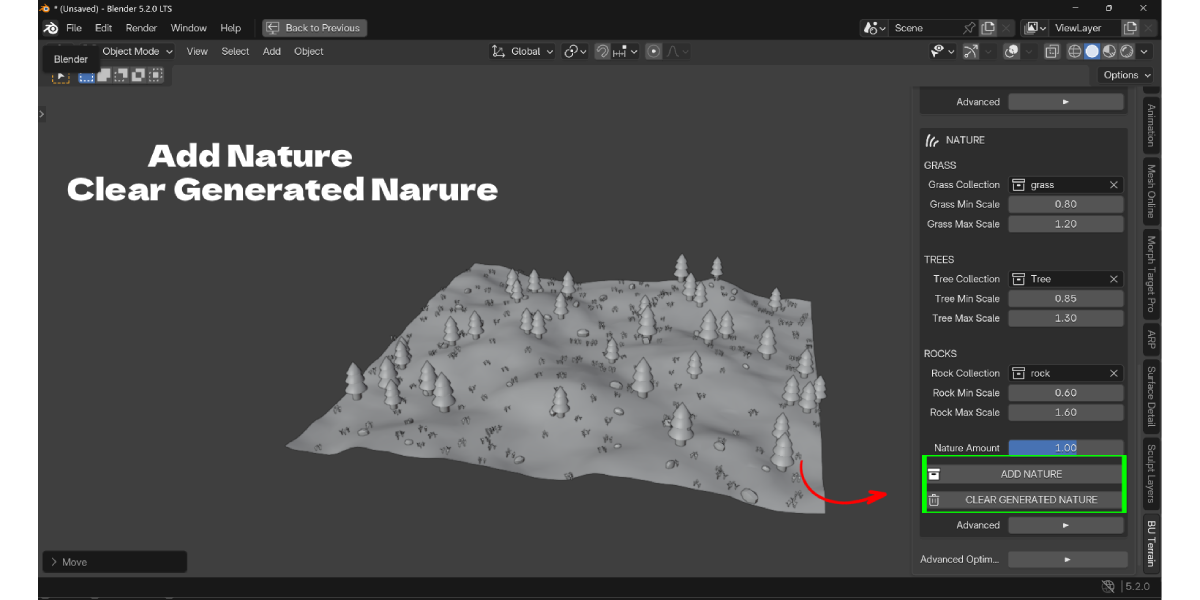
- Click ADD NATURE.
The source mesh and source collection objects are not modified.
Panel reference
- Ground Source: switches between Create New Terrain and Use Existing Ground. In Existing Ground mode, the terrain-shaping sections are hidden since you are placing nature on a mesh you already have.
- Quick World (Create New Terrain mode only): World Style, Terrain Size / Custom Size, Quality, and the Generate World button.
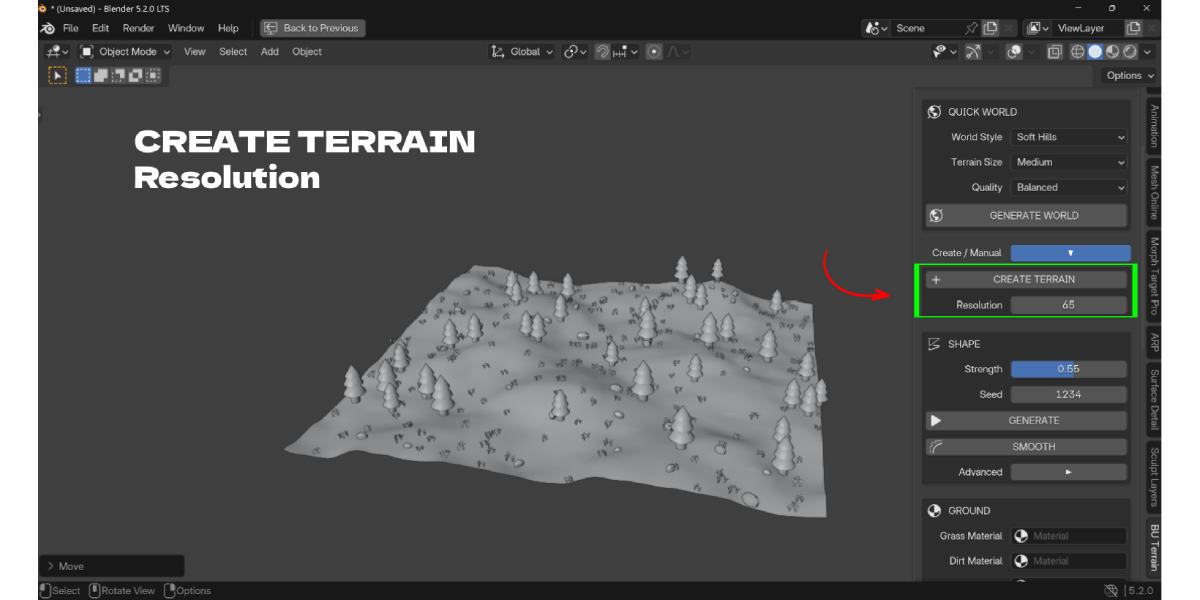
- Create / Manual: Create Terrain (builds the blank grid at the chosen Resolution) for a manual, step-by-step workflow instead of Generate World.
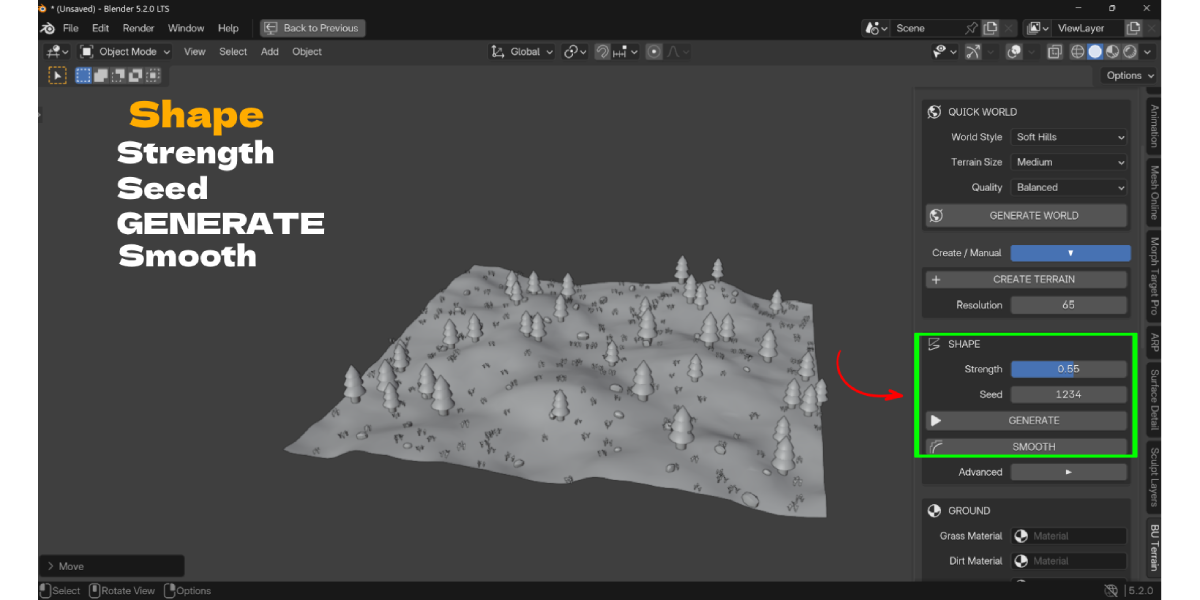
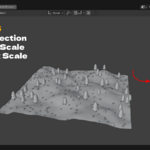
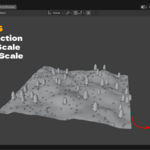
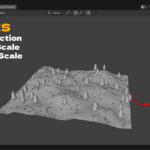
- Shape: Strength, Seed, Generate (applies the World Style height field), Smooth (with an Advanced Smooth Passes count), and Reset Terrain.
- Ground: Grass / Dirt / Rock Material slots, Auto Paint button, and an Advanced section for the Sand Material slot.
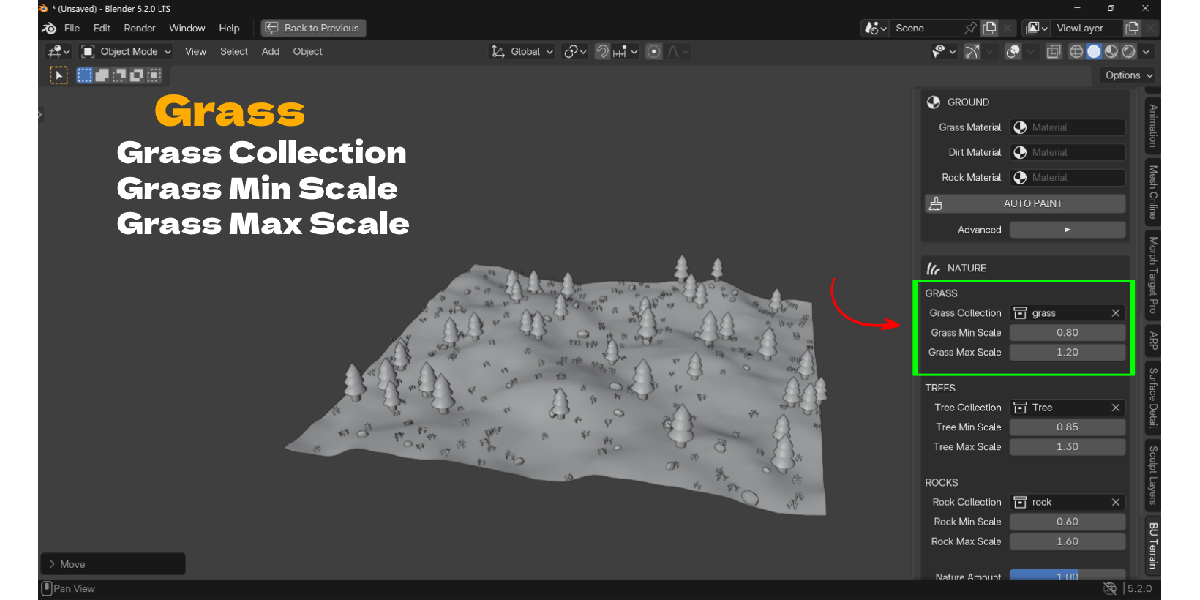
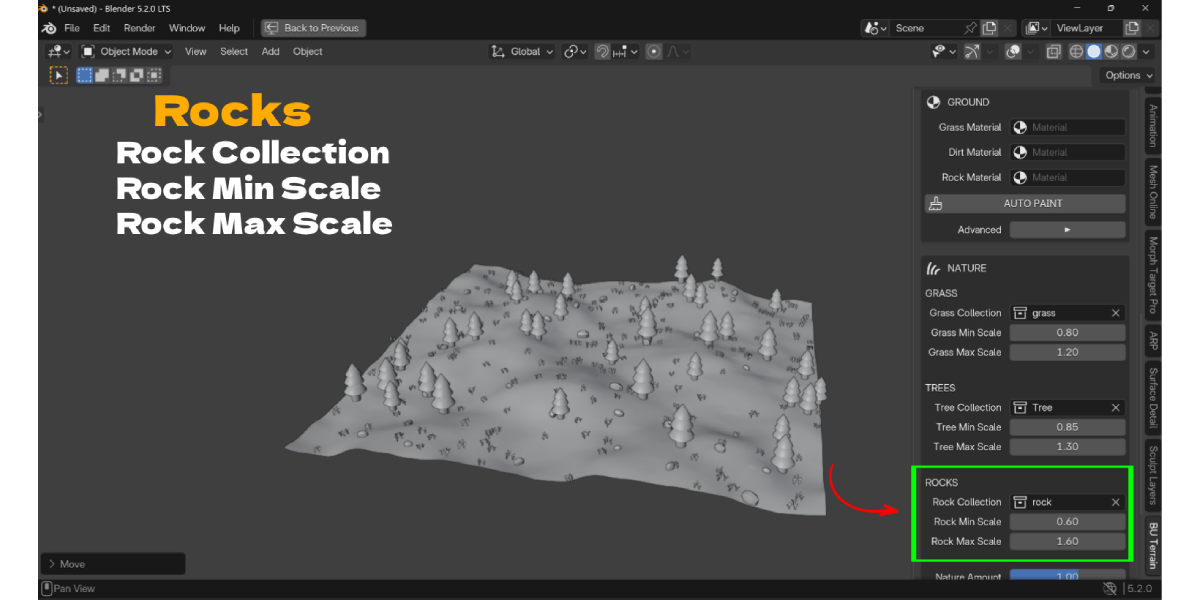
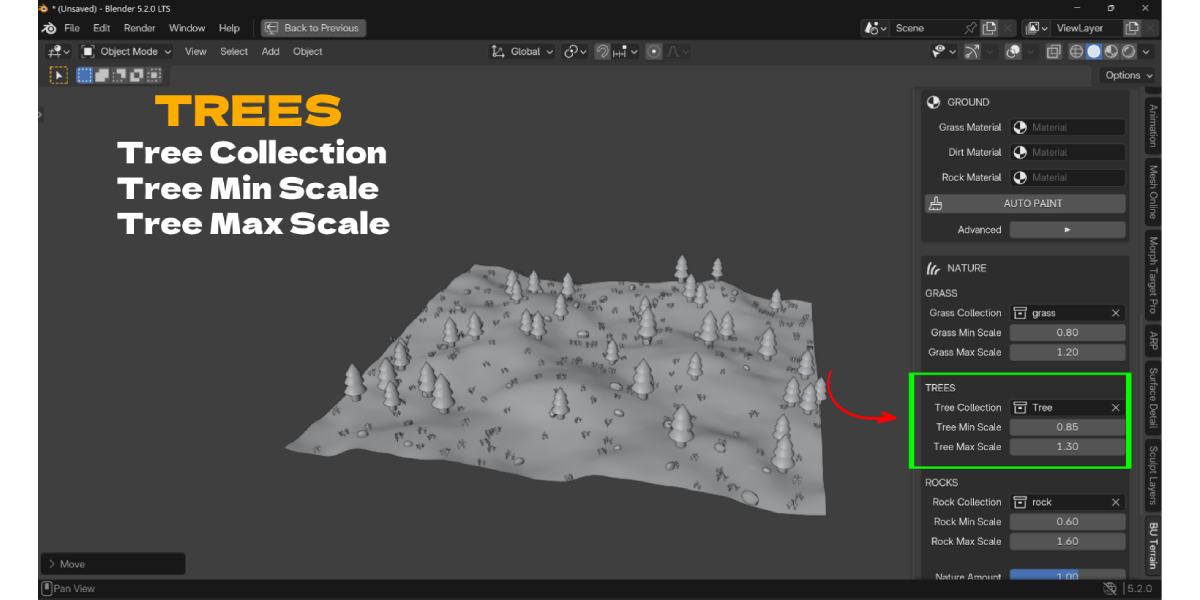
- Nature: Grass / Tree / Rock Collection assignment with their own Min/Max Scale, an overall Nature Amount slider, Add Nature and Clear Generated Nature buttons, and an Advanced section with per-category Density, Align-to-Surface toggles, Placement Height Min/Max and Minimum/Maximum Slope.
- Advanced Optimization: Quality preset (in Existing Ground mode) and Optimize Terrain, which applies a Decimate modifier tuned by the chosen preset (Mobile: 0.38 ratio, Balanced: 0.68 ratio, High Quality: removes the optimization modifier).
Presets and shortcuts
- World Style: Flat, Soft Hills, Mountains, Valley, Rocky, Random. Each uses a different noise combination; Strength scales the overall height, Seed changes the specific result.
- Terrain Size: Small (50 m), Medium (100 m), Large (200 m), or Custom.
- Quality / Optimize presets: Mobile (aggressive Decimate), Balanced (moderate Decimate), High Quality (no Decimate, full detail).
- There are no custom keyboard shortcuts; all actions are buttons in the sidebar panel, and every operator supports Blender's normal Undo.
Limits and performance tips
- Resolution ranges from 17 to 257; higher values mean more detail and more geometry to scatter onto and decimate.
- Scatter counts scale with density (roughly 40 to 600 for grass, 8 to 128 for trees, 8 to 108 for rocks, per category, before the overall Nature Amount multiplier and placement filters reduce that further).
- Use Optimize Terrain's Mobile or Balanced preset if the viewport slows down after a dense Generate World or Add Nature pass.
- Use Existing Ground mode builds one BVH per Add Nature run and reuses it for every placement ray, so very high-poly ground meshes will take longer to prepare than low-poly ones.
Troubleshooting
- Terrain looks flat after Generate: confirm World Style is not set to Flat, and increase Strength; also confirm the object you are viewing is the one that was actually generated (it must carry the add-on's own terrain tag, so objects from other add-ons will not respond to Generate/Smooth/Reset).
- Grass/Trees/Rocks not appearing after Add Nature: make sure a collection is assigned to the matching Grass/Tree/Rock Collection field, that the matching Density and the overall Nature Amount are above 0, and that your Height/Slope filters are not excluding the whole mesh.
- "Could not read the selected ground mesh" error: the selected object's evaluated mesh has no usable surface triangles; confirm it is a mesh with actual faces, not just points or an empty.
- Changing a scale slider seems to "reset" my scatter: it does not. Min/Max Scale sliders only resize already-placed instances in place; they do not move, rotate or re-randomize them, and they do not add or remove instances.
- Auto Paint does nothing / reports an error: assign at least one of Grass, Dirt, Rock or Sand Material first.
- Viewport is slow with a large generated or scattered scene: open Advanced Optimization and apply the Mobile or Balanced Optimize Terrain preset.
- Clear Generated Nature removed more or less than expected: it only removes copies generated by this add-on for the currently selected ground; your source collection objects and the ground mesh itself are never touched.
- Existing ground mesh looks changed after scattering: it is not changed by design; Use Existing Ground mode never edits the source mesh or source collection objects, only the generated instances placed on top of it.
Have questions about this product?
Login to message
| Blender Extension Compatible | Yes |
| Published | about 12 hours ago |
| Blender Version | 4.2 - 5.2 |
| Extension Type | Add-on |
| Render Engine Used | Cycles, Eevee |
| License | GPL |
